-
-
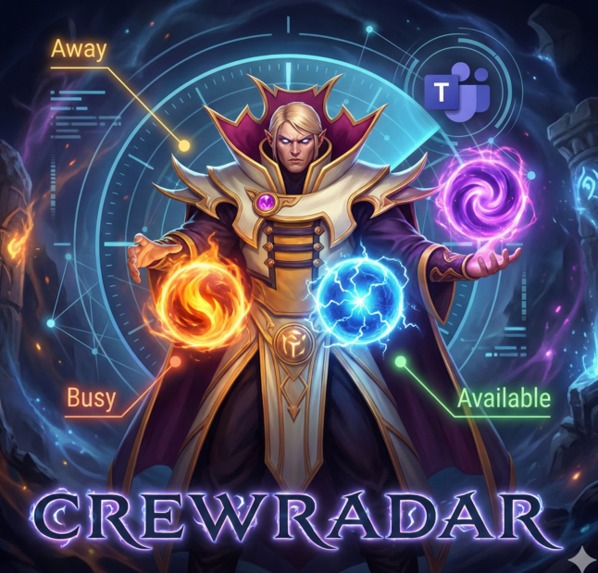
Inspiration (Dota2 Invoker) CREWRADAR
-
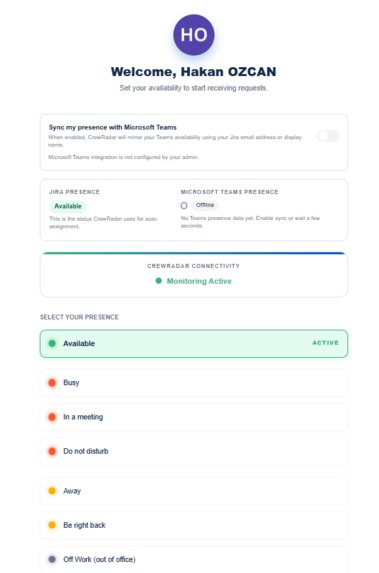
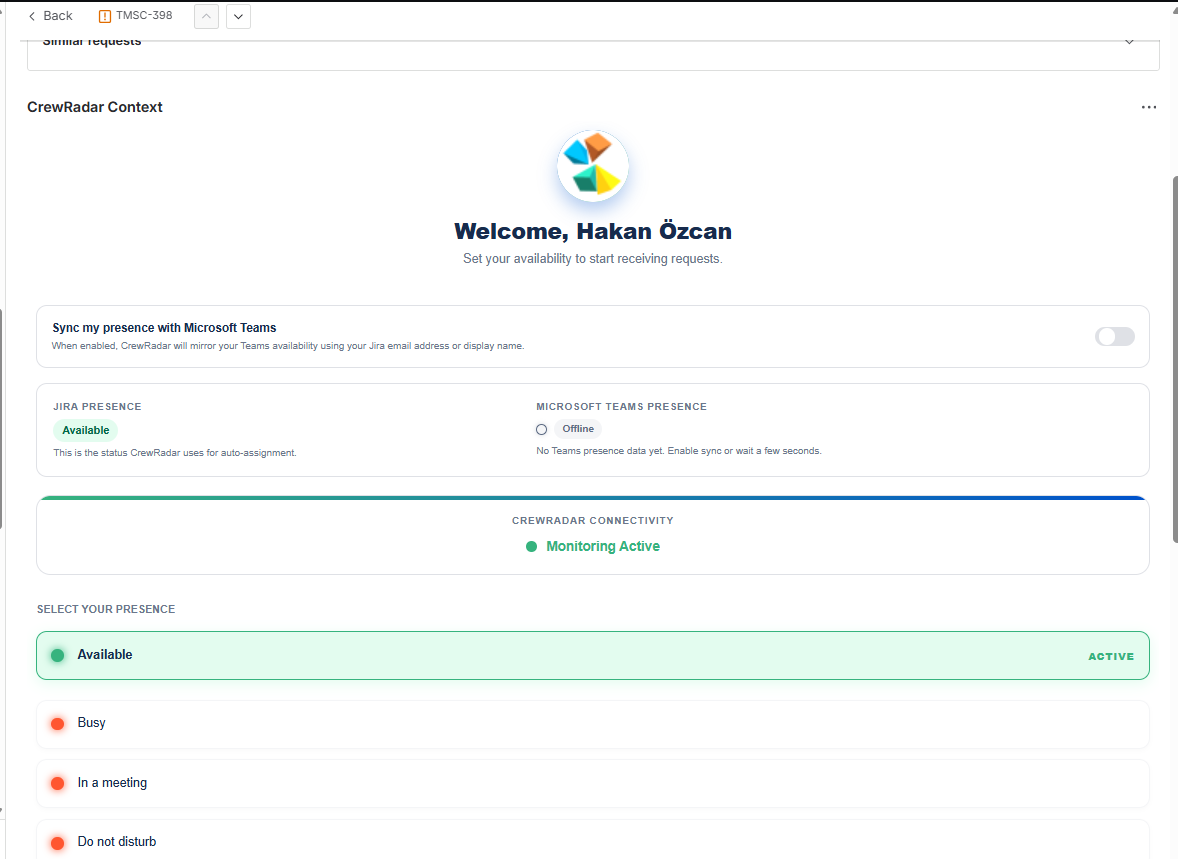
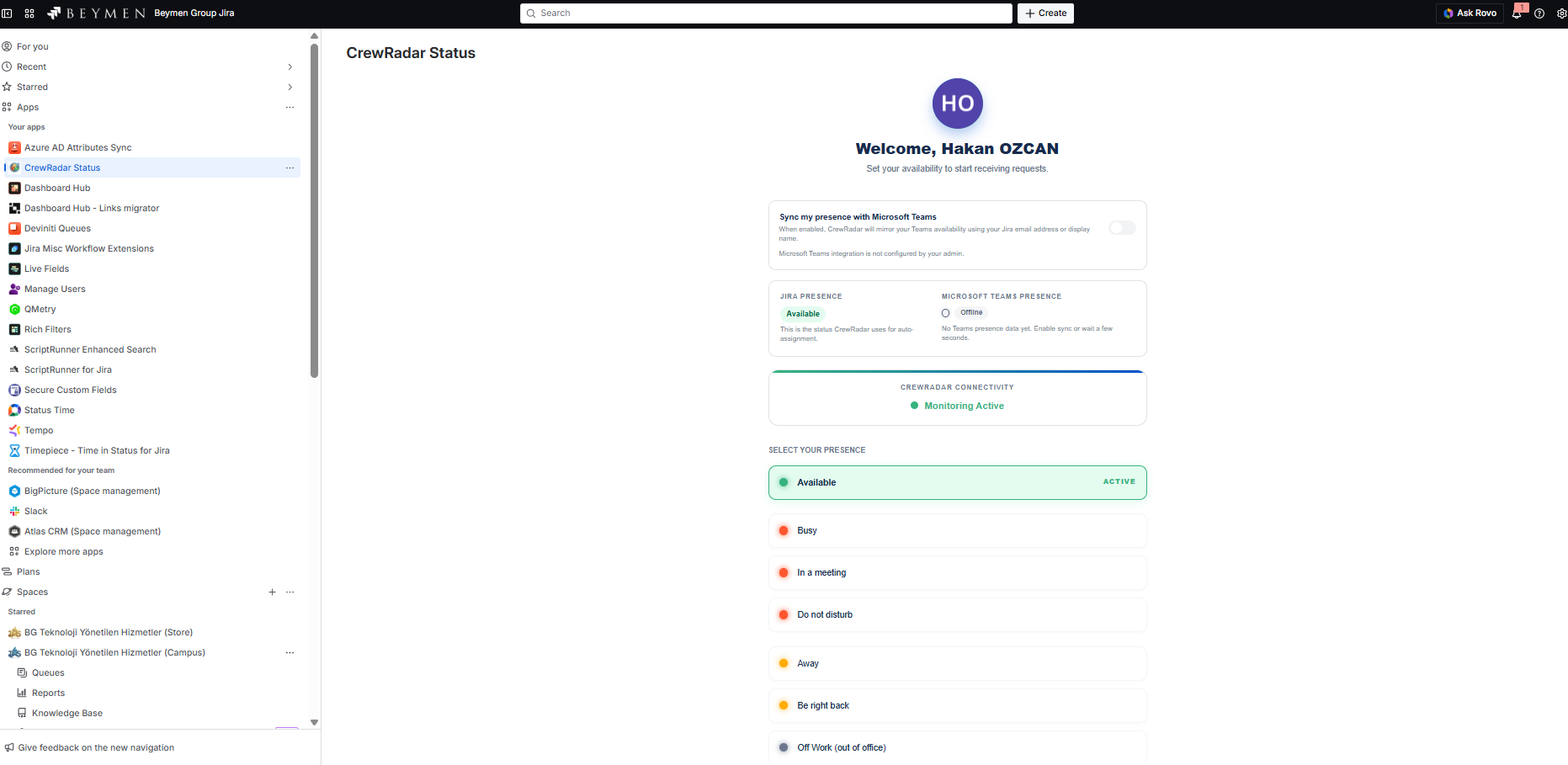
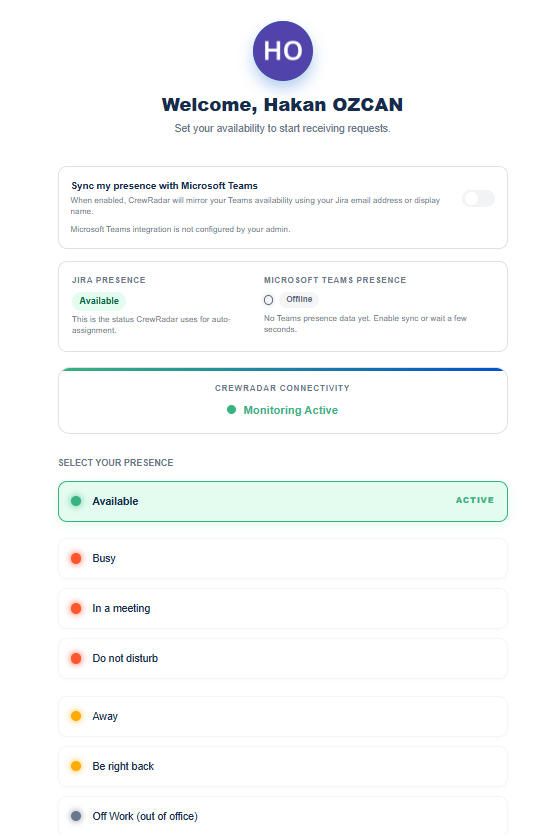
Profile Presence Screen
-
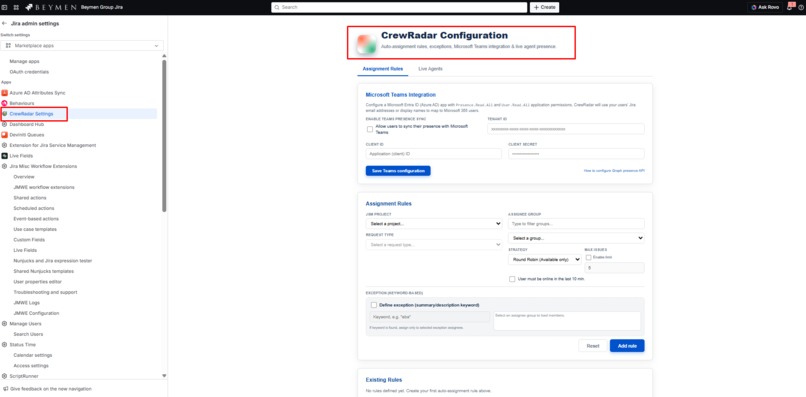
Admin Settings Screen
-
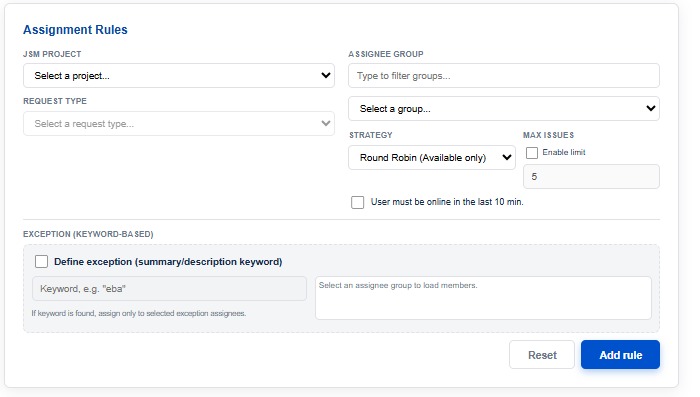
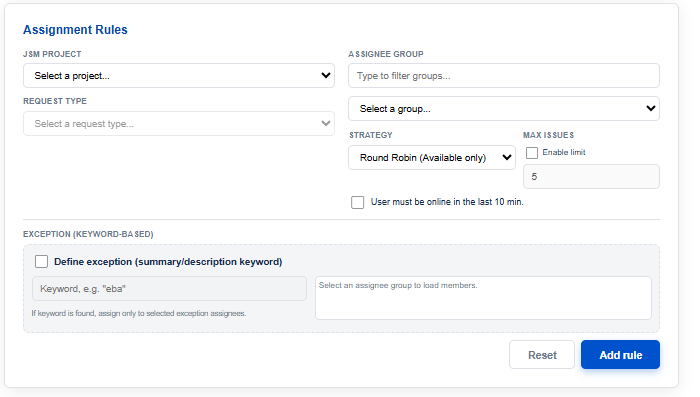
Assignment rule Screen
-
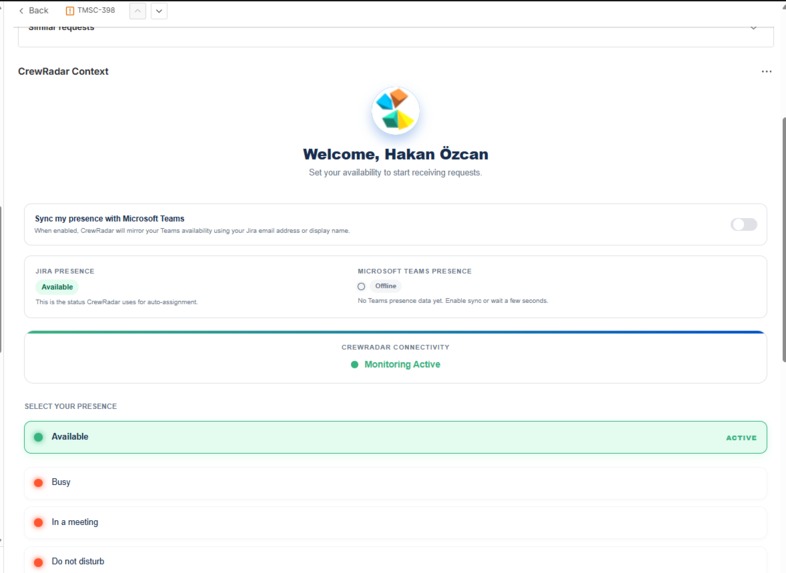
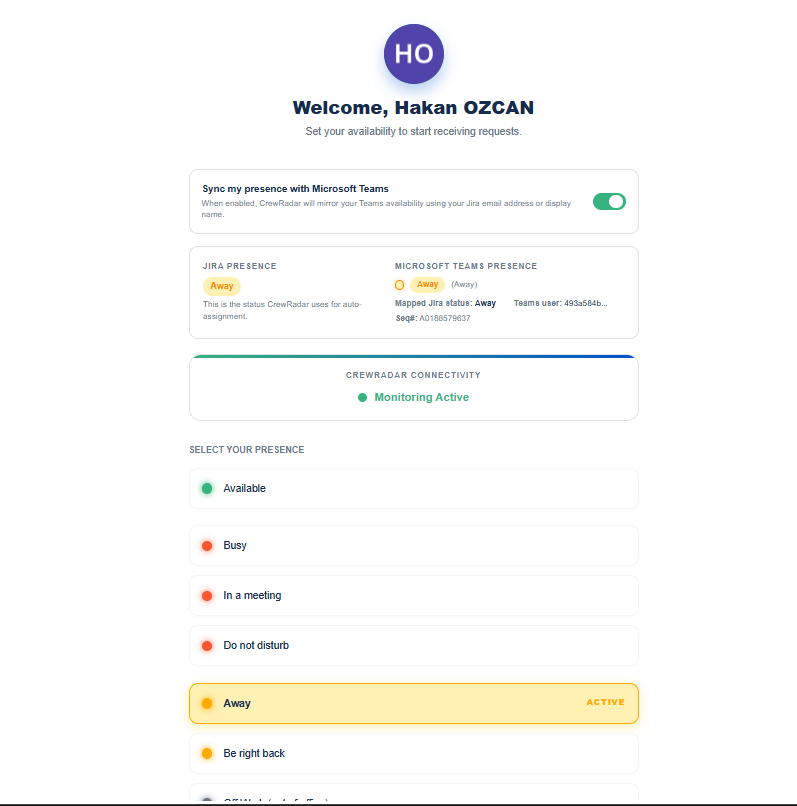
Zoom User Presence Screen
-
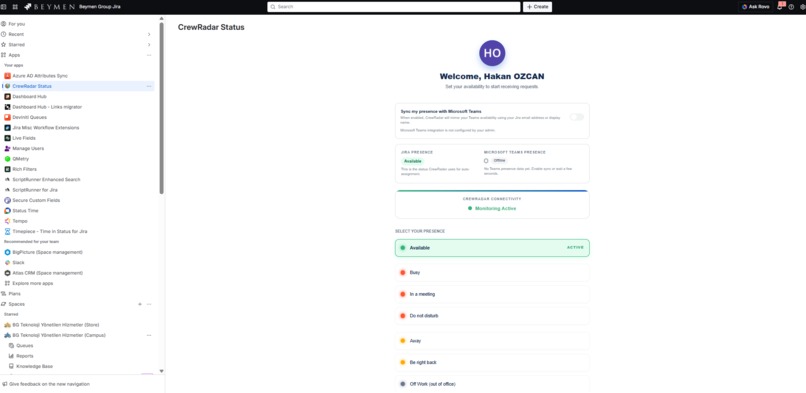
User Presence Status Screen
-
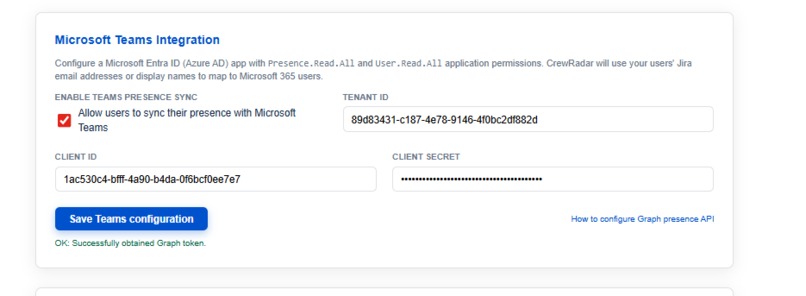
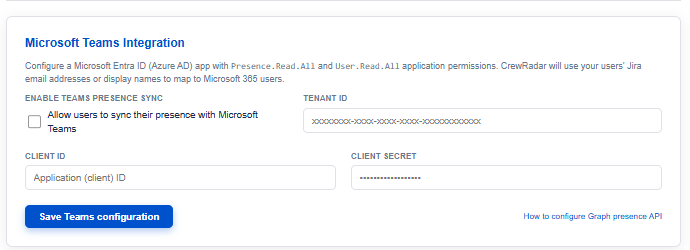
Teams Integration Screen (Admin)
-
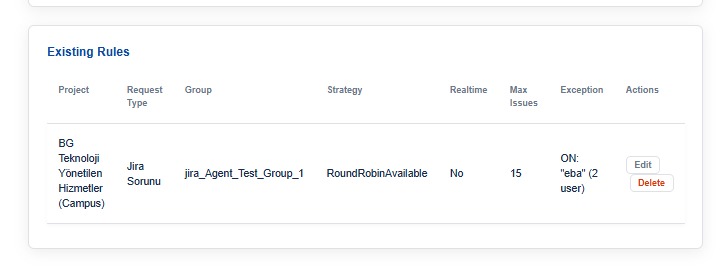
Created rules Screen
-
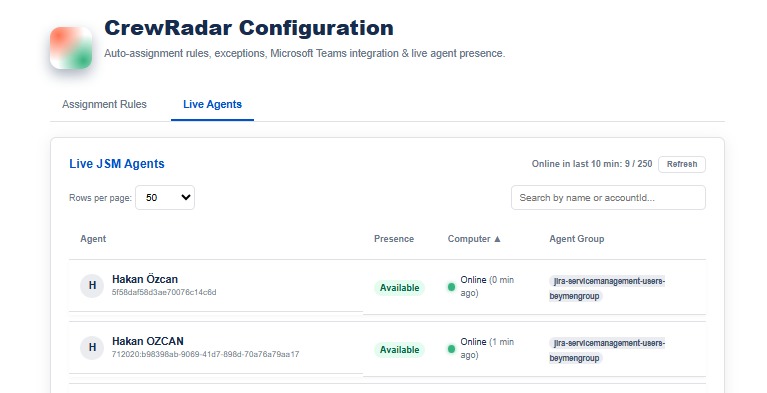
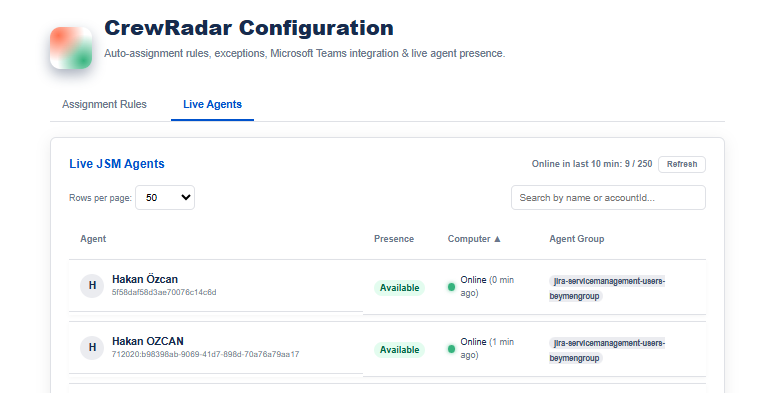
Live Agents Screen
-
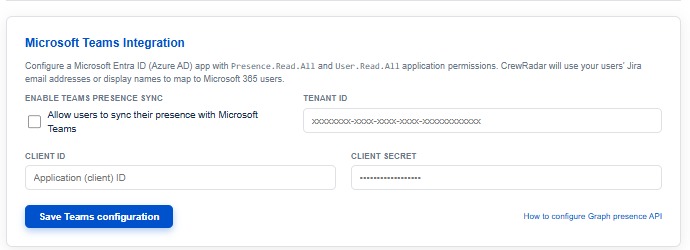
MS Teams Integrated
-
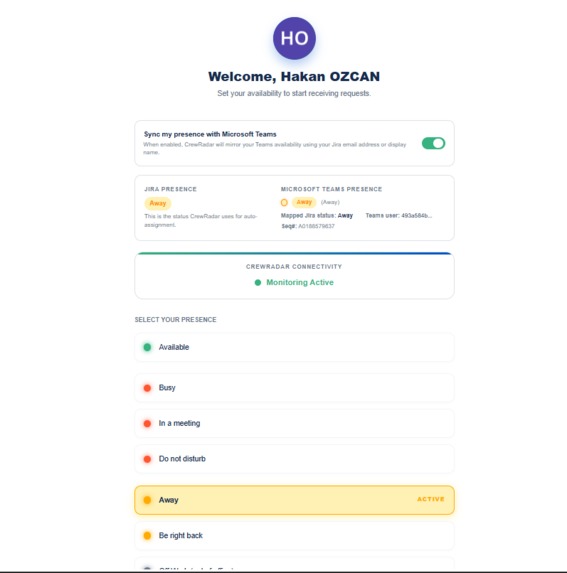
MS Teams Integrated 2
-
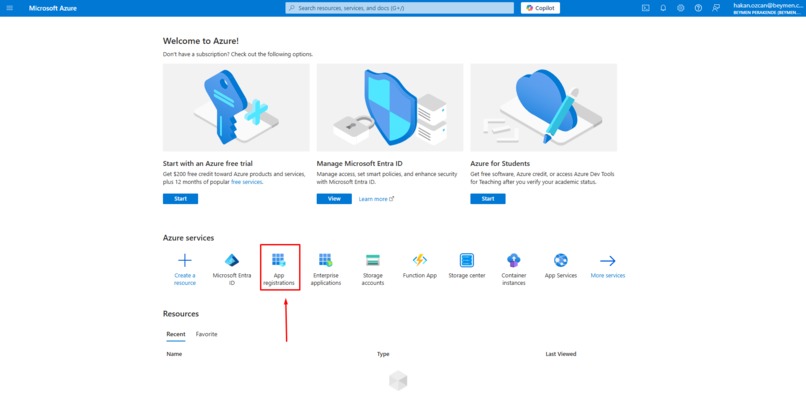
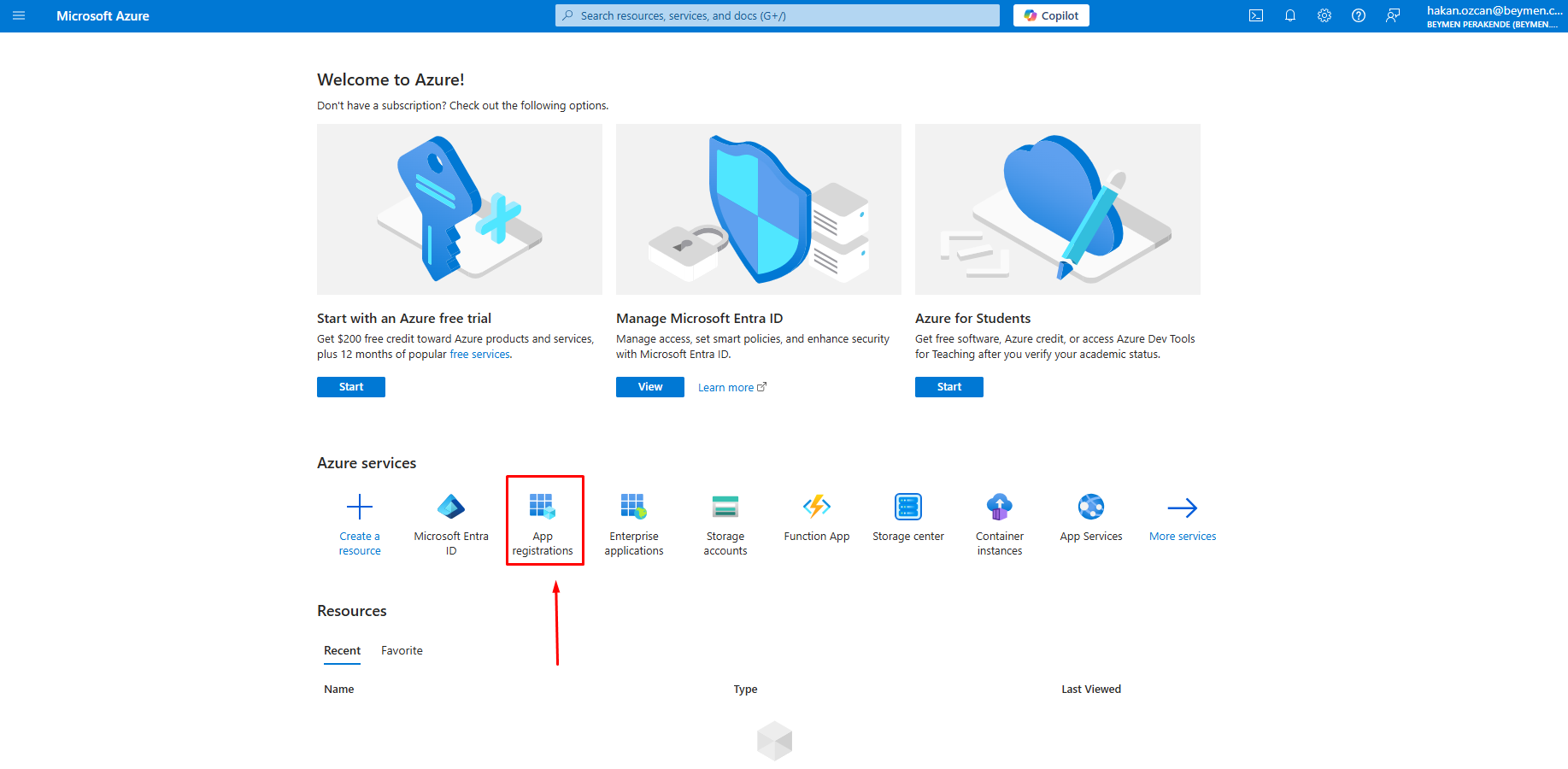
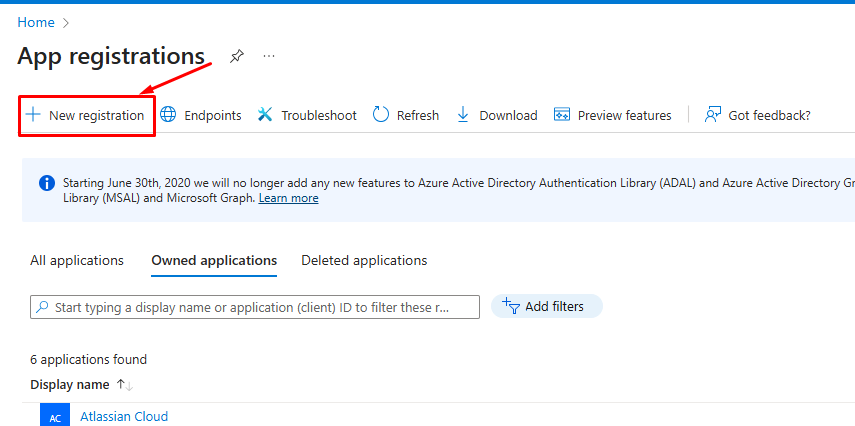
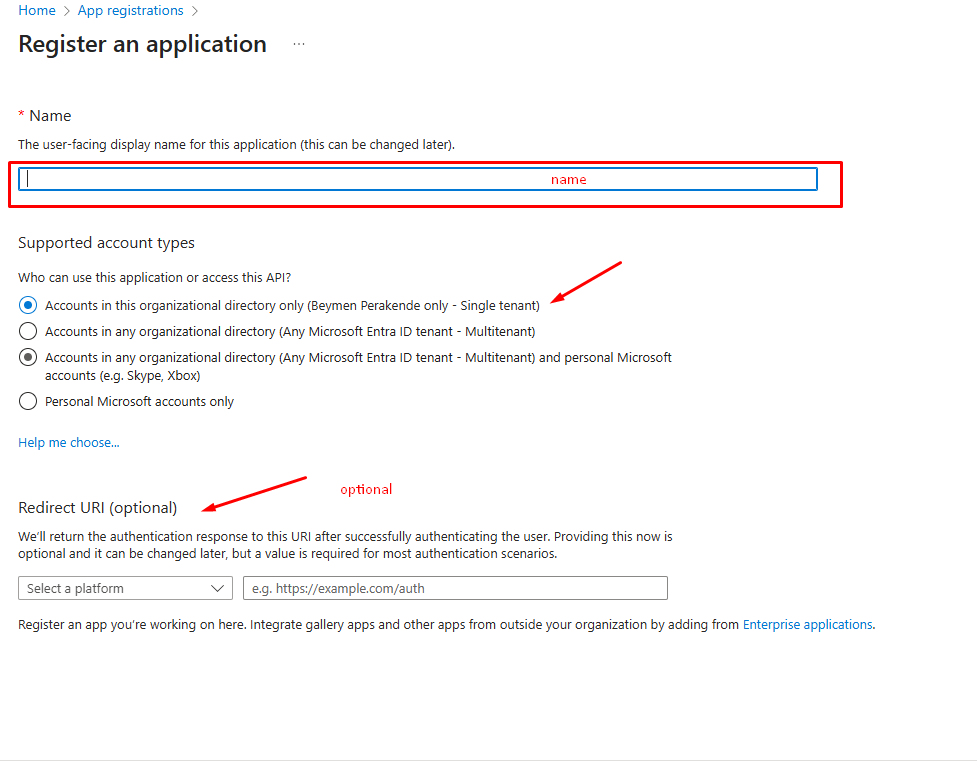
Azure Teams Integration Step 1
-

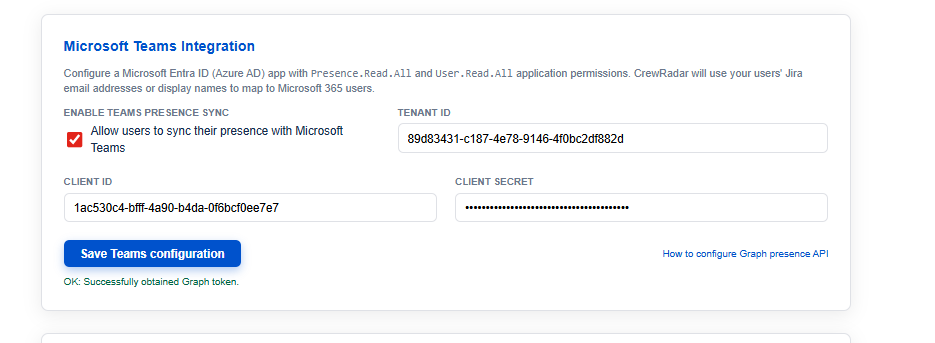
Azure Teams Integration Step 2
-
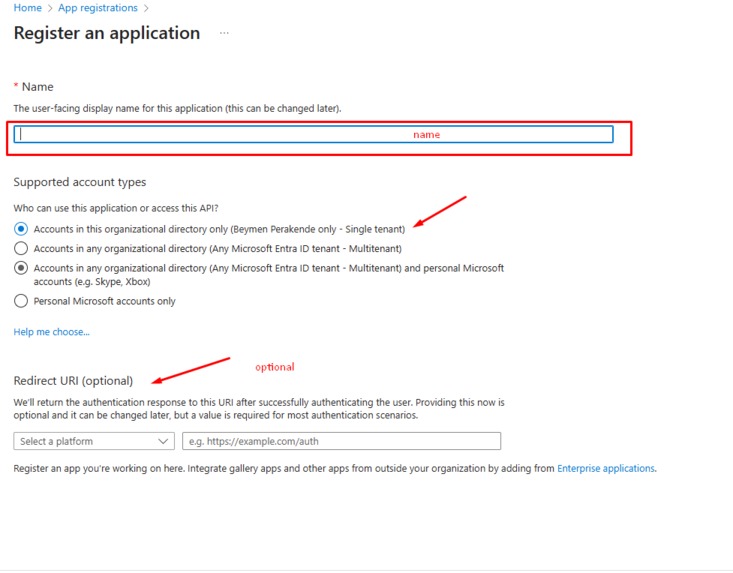
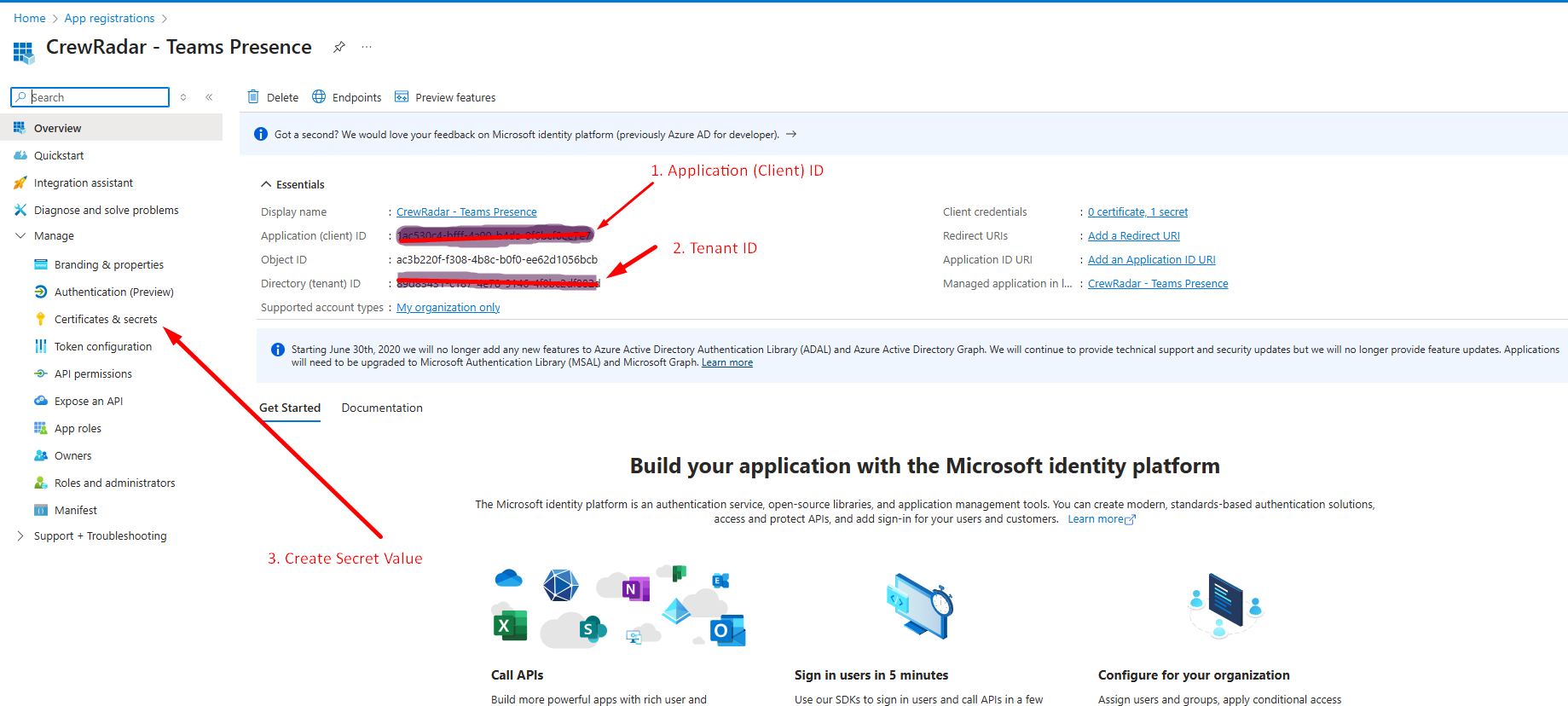
Azure Teams Integration Step 3
-
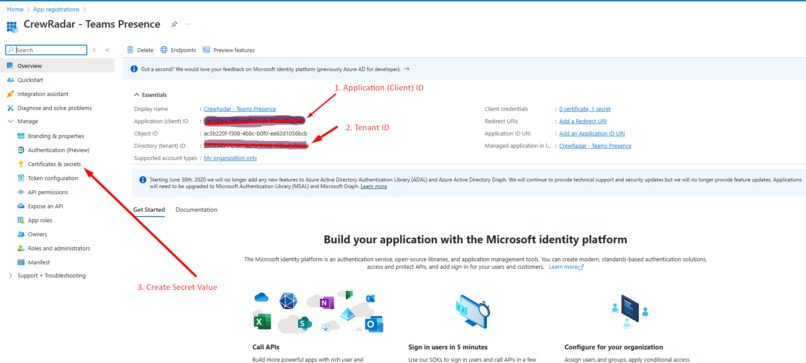
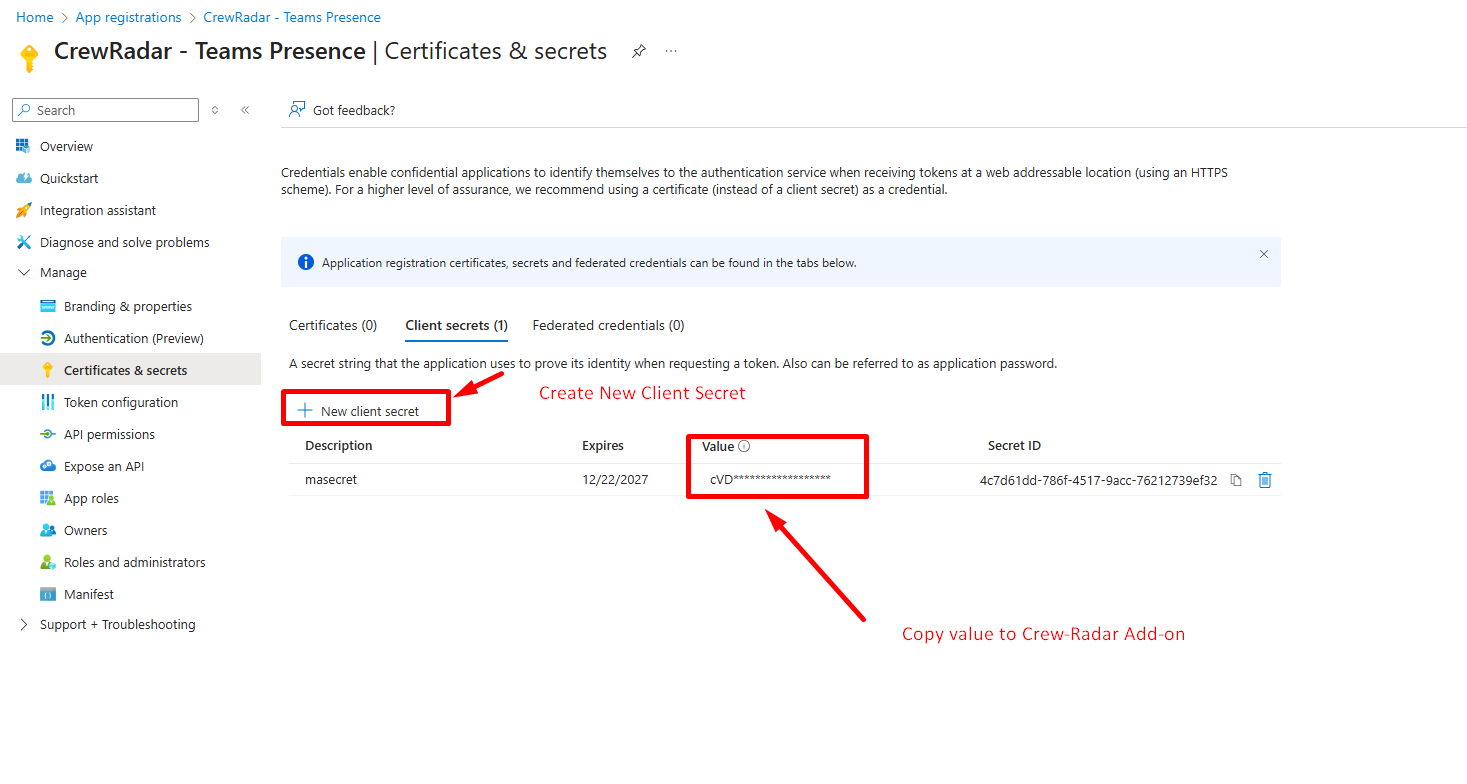
Azure Teams Integration Step 4
-
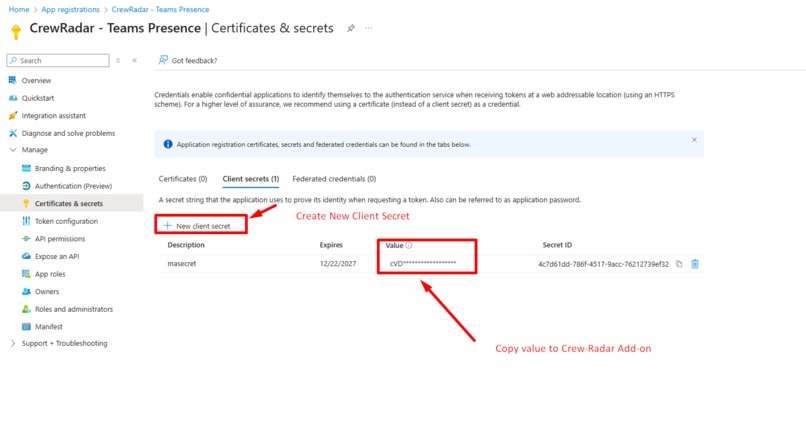
Azure Teams Integration Step 5
-
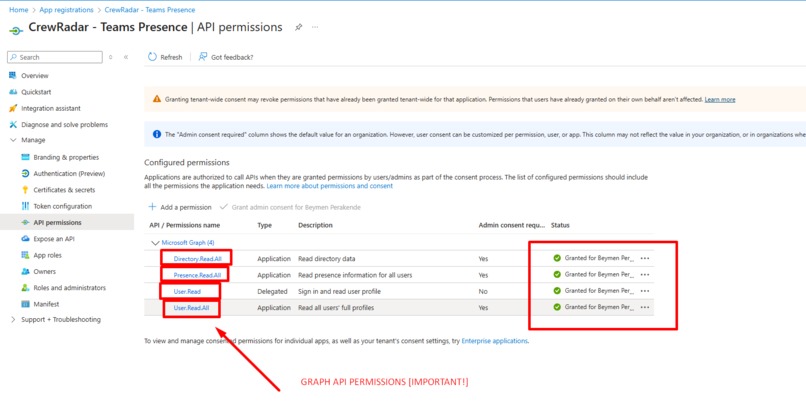
Azure Teams Integration Step 6
-
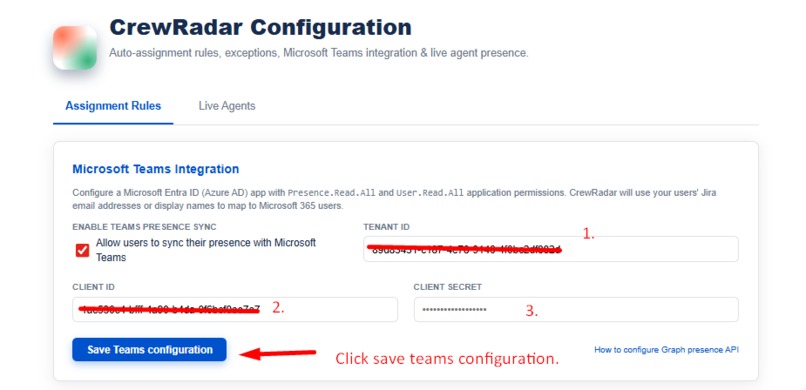
Azure Teams Integration Step 7
-
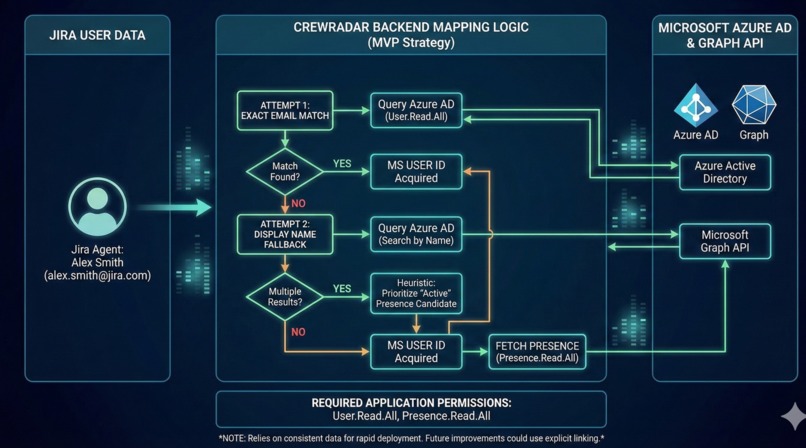
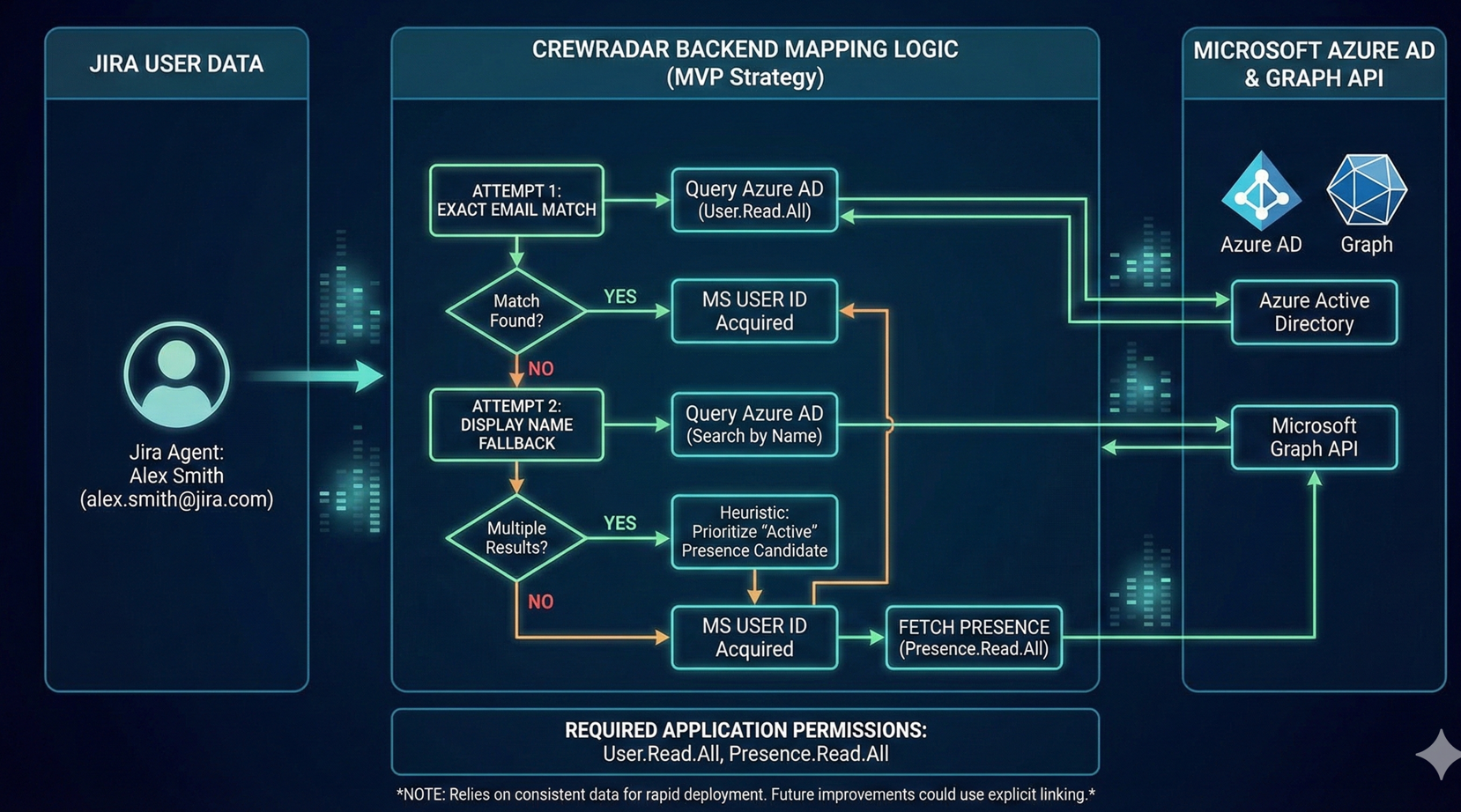
Mapping Logic
-
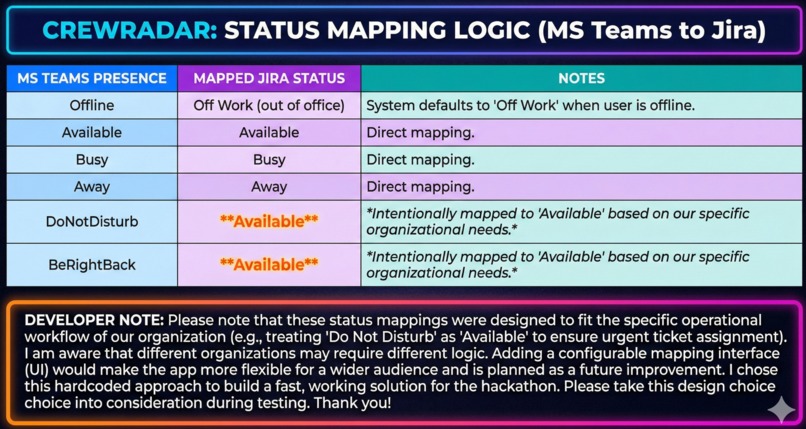
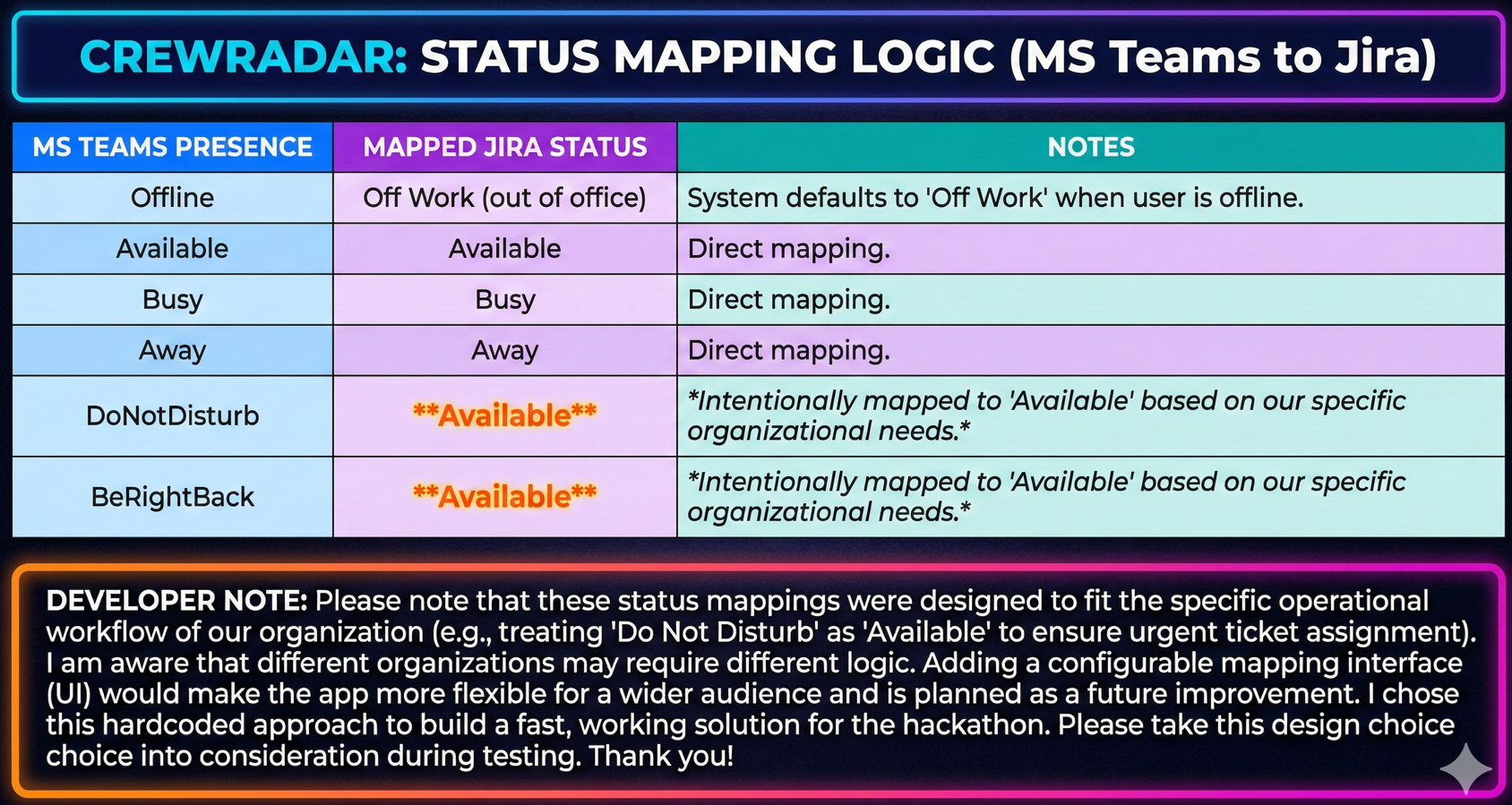
MS Teams Presence Mapping
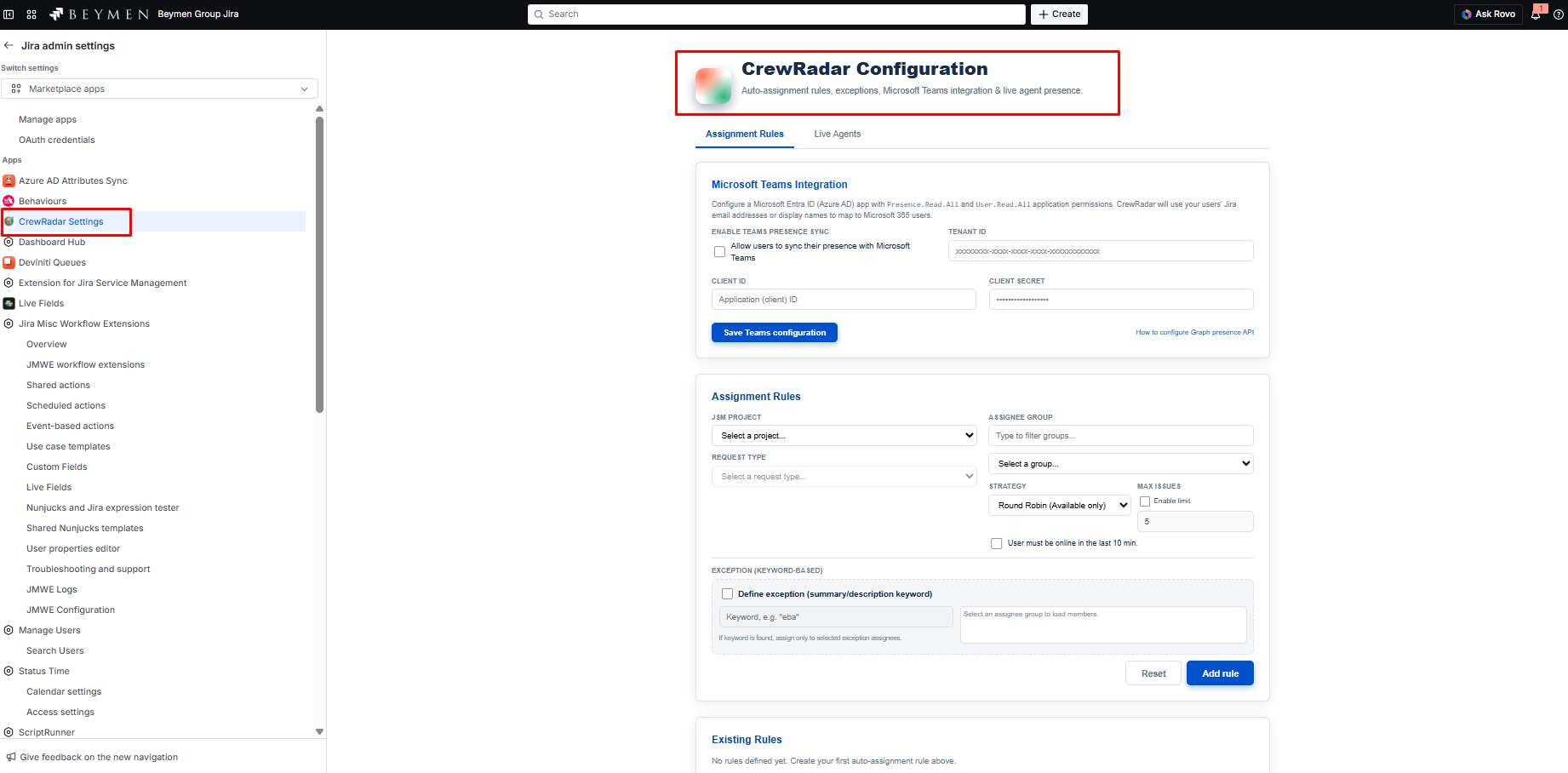
CrewRadar: The Intelligent Presence Assignment for Jira Service Management
🏎️Inspiration🏎️
Managing a support team is like running a pit crew in a race: every second counts. A slow assignment is like a slow pit stop it causes bottlenecks, creates friction, and leaves critical tasks orphaned.
The modern IT Service Desk is a high-speed, high-stakes environment. Just as a pit chief wouldn't assign a critical tire change to a mechanic who is currently on a lunch break, an IT Lead shouldn't assign a critical server outage ticket to an agent who is marked "Online" in Jira but is actually stuck in a heated strategy meeting on Microsoft Teams or Away.
The initial visual spark for the design came from Dota 2's Invoker, a hero who manages chaos by balancing three elemental orbs based on the situation: Quas (Ice/Survival), Wex (Storm/Motion), and Exort (Fire/Damage).
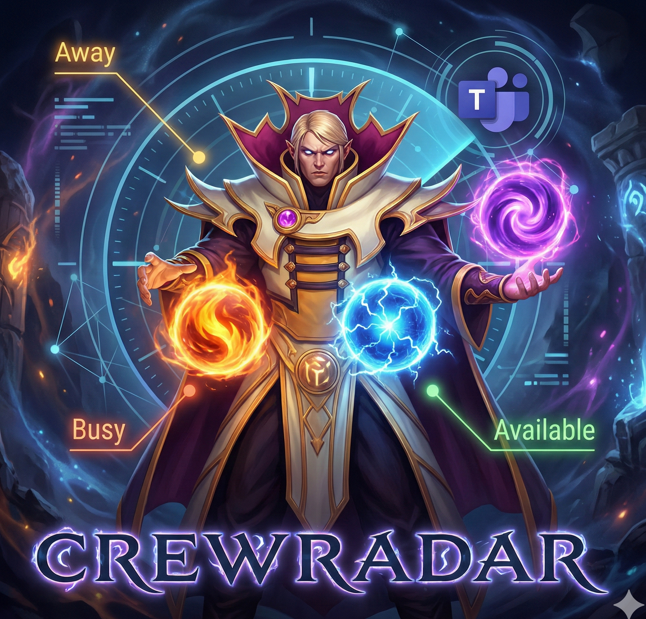
I realized modern Service Desk Leads are the "Invokers" of the enterprise world bombarded with chaos (tickets), they need to manage their agents based on their real-time state, not just a static roster.
Just like Invoker juggles his orbs, CrewRadar juggles your agent's real-world status:
- 🟢 Quas (Available): Ready to take on new tickets.
- 🔴 Exort (Busy): Busy.
- 🟡 Wex (Away): Away from keyboard.
CrewRadar acts as the living connection, syncing the human reality of Microsoft 365 TEAMS with the automated workflow engine of Atlassian Jira.
⚡ What it does
CrewRadar is a next-generation Presence & Assignment Engine for Jira Service Management (JSM). It is designed specifically to remove friction from daily operations and give business teams the clarity and speed they need to stay aligned.
1. Flexible Presence Sync (Hybrid Model)
I designed the Microsoft Teams integration to be completely optional and user-controlled, ensuring no forced adoption.
- Manual Control: Users can simply use the CrewRadar dashboard to manually set their status (e.g., "Away") without linking any external account.
- Auto-Sync: If the Admin enables the integration, users see a toggle switch. When active, CrewRadar mirrors their Teams status instantly. This ensures that privacy is respected and the team moves fast without context switching.
2. Admin-Controlled Logic & Strategy
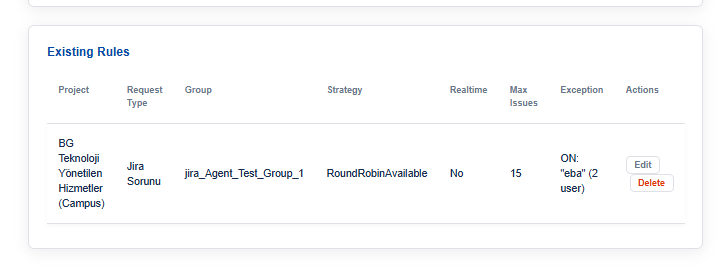
Currently, Assignment Rules and Teams Configuration are strictly Admin-level permissions. This ensures governance and stability during the initial rollout. Admins can define specific rules per Project and Request Type.
I implemented configurable Strategies to fit different organizational needs. Currently, I offer two distinct strategies:
- Round Robin (Available Only): Strict assignment; never assigns to anyone away or busy.
- Round Robin (Available + Away): More lenient; suitable for lower-priority queues where an "Away" agent might still check notifications.
3. Logic-Gated Auto-Assignment
Instead of a blind Round-Robin, CrewRadar uses a logic-gated algorithm. It ensures the right call is made when it matters most by assigning tickets only to agents who meet three strict criteria:
- ✅ Real Availability: They are marked "Available" in the system.
- ✅ Active Heartbeat: They have been active in Jira within the last 10 minutes (Proof of Life).
- ✅ Manageable Workload: They have not exceeded their defined maximum issue limit.
Note on Status Mapping: To ensure high-priority Service Desk SLAs are met, I implemented a specific mapping logic for this Hackathon. For example, "Do Not Disturb" in Teams is mapped to "Available" in Jira to ensure urgent tickets are not missed by senior agents who might just be shielding themselves from chats.
4. Visual Command Center
I replaced traditional, static data tables with a Glassmorphism-styled Dashboard. This gives Admins immediate situational awareness of the entire crew's status at a glance, visualized as glowing indicators.
5. Priority Exception Handling
Not all tickets are equal. If a ticket description contains a specific trigger keyword (e.g., "VIP", "System Down"), the system bypasses the standard queue and routes it immediately to a specialized "Exception Squad," ensuring alignment on high-priority business goals.

🛠️ How I built it
I built CrewRadar using the Atlassian Forge platform, leveraging a React frontend for a modern UX and a Node.js backend (runtime: nodejs24.x) for secure, scalable logic.
🧠 The Architecture & Backend Logic
The core of the system is a sophisticated backend (index.js) that acts as the brain of the operation.
1. The Heartbeat Engine
I implemented a sendHeartbeat resolver that runs every 30 seconds from the client side. This does two critical things:
- Updates "Last Seen": It writes a timestamp to Forge Storage (
USER_{accountId}). This allows the system to filter out "Ghost Agents" who are online in Teams but haven't touched Jira in 10 minutes. - Fetches Teams Data: It calls
getTeamsPresenceForUserIdvia the Microsoft Graph API using a cached token logic to prevent rate limiting.
2. The Auto-Assignment Algorithm
The runAutoAssign function is the mathematical core of the app. It is not random; it calculates eligibility based on the intersection of three specific vectors:
$$C_{final} = P_{status} \cap T_{heartbeat} \cap W_{workload}$$
- $P_{status}$: The user must match the Admin's selected Strategy (e.g., must be 'Available').
- $T_{heartbeat}$: The user must have a heartbeat timestamp $< 10$ minutes.
- $W_{workload}$: The user's current ticket count (calculated via
approximate-countJQL) must be less than themaxIssueslimit defined in the rule.
Admin users have full control to toggle these vectors on or off during rule creation:
3. Enterprise Identity Resolution
Since Jira accountIds rarely match Microsoft userIds, I coded a Hybrid Mapping Strategy:
- Primary: I query Azure AD with the Jira email address.
- Fallback (Heuristic): If the email fails (common in test environments), I execute a fuzzy search using the user's
displayName. - Smart Selection: If multiple users are found (e.g., two "John Does"), my code checks the presence of both and links to the one who is currently Online, assuming they are the active agent.
🏢 Enterprise Setup Guide (Azure AD / Entra ID)
To enable the Microsoft Teams integration for testing, an administrator needs to perform a secure setup in Azure. Here is the streamlined process:
Step 1: App Registration Register a new Application in Azure Entra ID.
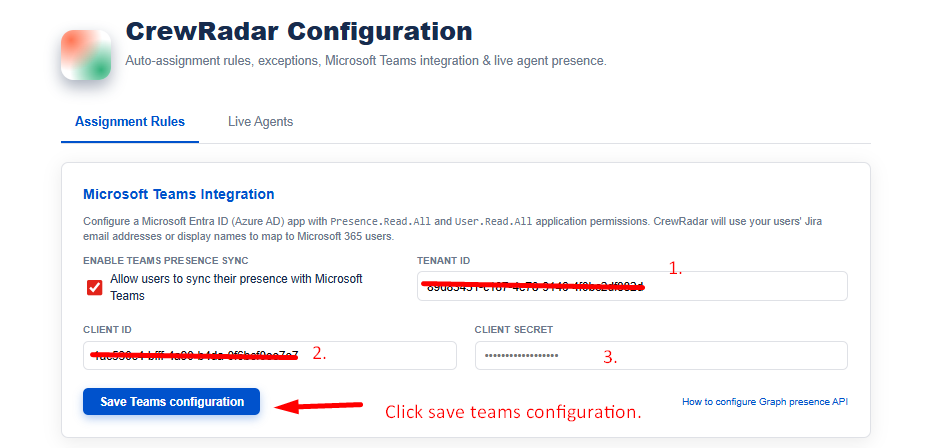
 Step 2: Input Credentials
Input the Tenant ID and Client ID into the CrewRadar Admin Panel (found under Apps > CrewRadar Settings).
Step 2: Input Credentials
Input the Tenant ID and Client ID into the CrewRadar Admin Panel (found under Apps > CrewRadar Settings).
Step 3: Grant Graph API Permissions In Azure API Permissions, add the following Application Permissions (allowing background service access without user interruption):
User.Read.All(Required to resolve Jira users to Azure IDs).Presence.Read.All(Required to fetch real-time Teams status).
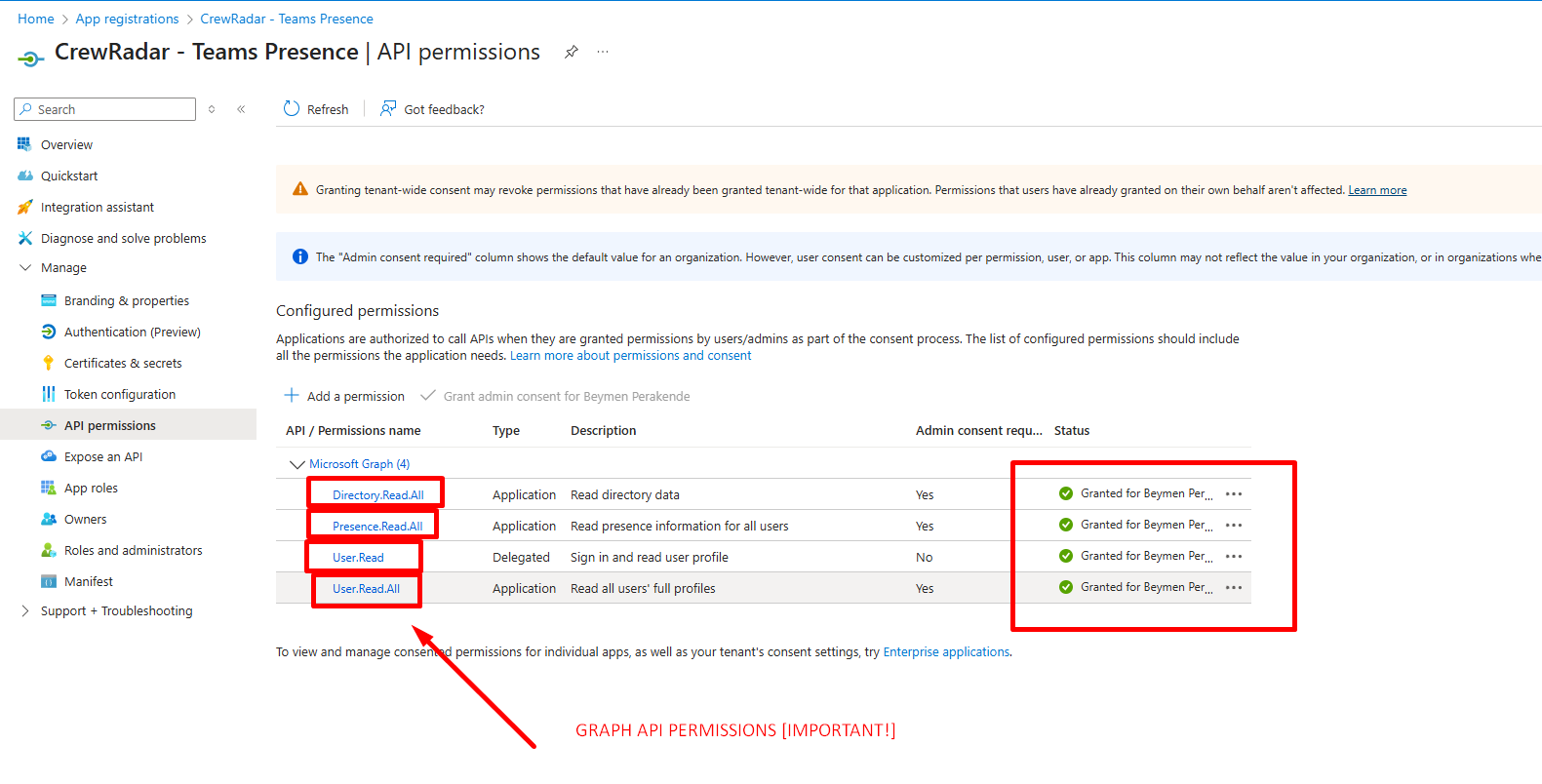
Step 4: Admin Consent (Crucial) You must click the "Grant admin consent" button in Azure. Without this, the secure API calls will fail.
🚧 Challenges I ran into
- The "Identity Gap": Mapping users between Atlassian and Microsoft when emails didn't match was the biggest hurdle. I solved this by building a robust caching mechanism that learns and remembers associations, reducing API latency on subsequent checks.
- Handling "Ghost" Agents: Agents who left their computers on but weren't working broke standard availability logic. I fixed this by implementing the Heartbeat check if an agent hasn't triggered an event in Jira for 10 minutes, CrewRadar marks them as "Offline" regardless of their Teams status.
- Graph API Security: Implementing the OAuth2 Client Credentials flow strictly within the secure sandbox of the Forge runtime environment required significant iteration to ensure compliance.
- State Management: Syncing the toggle state between the frontend (React) and the backend (Forge Storage) required careful handling to ensure the UI didn't flicker or show stale data.
🏆 Accomplishments that I'm proud of
- Enterprise-Grade Configuration: I successfully built a robust Admin Panel that allows for granular control over rules, strategies, and API credentials, rather than hardcoding values.
- Configurable Strategies: I moved beyond simple assignment by implementing selectable strategies (e.g., Round Robin Available vs. Available+Away), giving organizations control over how aggressive their assignment logic should be.
- Resilient Fallback System: I engineered the system to be fail-safe. If the Microsoft Teams API goes down or isn't configured, the system gracefully degrades to a manual status setting without breaking the core assignment logic.
- Real-Time Situational Awareness: I created a dashboard that provides immediate clarity. Admins can instantly see who is available
🧠 What I learned
- Context is King in Automation: Automation is useless without context. Knowing who is currently online and active is far more valuable than knowing who is on the payroll.
- Forge Storage Optimization: I learned how to optimize JSON storage structures to cache thousands of heartbeat events efficiently without hitting Atlassian's platform quotas.
- UX Matters in Enterprise: By theming the app like a futuristic HUD (Heads-Up Display), I made the mundane task of "checking status" engaging for users.
- The Importance of Admin Governance: I learned that features like global assignment rules must be restricted to Admins to prevent chaos in large organizations.
🚀 What's next for CrewRadar
Following this evaluation, I have a clear roadmap to evolve this MVP into a production-ready enterprise product:
- Delegated Administration: Currently, rule creation is restricted to Global Admins. I plan to build a permission screen that allows Admins to delegate rule management to specific Project Leads, preventing bottlenecks.
- Expansion to Software Projects: While JSM is the primary target (due to SLA pressure), I plan to adapt the logic for Jira Software projects. This would help Scrum Masters assign urgent bugs during active Sprints based on developer presence.
- Configurable Agent Groups: Currently, the app targets the default
jira-servicemanagement-users-group for rapid deployment. The next version will include a UI allowing admins to select any custom Jira group. - Advanced Assignment Strategies: I plan to add more strategies based on organizational needs, such as "Least Loaded" (assigning to the agent with the fewest open tickets) and "Skill-Based" routing.
- AI Workload Prediction: Integrating OpenAI to analyze ticket arrival density and predict when an agent is about to become overloaded before they change their status.
- Slack Integration: Expanding the "Radar" to support organizations using Slack alongside Teams.


Log in or sign up for Devpost to join the conversation.