Inspiration
For decades, the way we use computers has barely changed.
The screens got sharper.
The chips got faster.
The apps got prettier.
AI got insanely powerful.
But the way we actually control our computers?
Still mostly the same.
We point at buttons.
We type into boxes.
We drag windows around.
We copy, paste, rewrite, search, switch tabs, open the same apps again, fix our own grammar, and repeat the same tiny actions hundreds of times a day.
Honestly, in 2026, that feels too slow.
We now have AI that can reason, speak, see, write, code, and understand context — but our computers still wait for us to manually translate every thought into clicks and keystrokes.
That felt broken.
So I kept thinking:
What if the computer understood intent instead of waiting for instructions one click at a time?
What if I could just say:
“Open YouTube and search for MrBeast.”
“Translate this selected text to French.”
“Make this message sound better.”
“Open my work setup.”
“What animal is on my screen?”
“Help me understand this page.”
And my computer actually did it.
Not inside another chatbot tab.
Not as a gimmicky voice assistant.
But as something built into the computer itself.
Kind of like Tony Stark’s Jarvis… but on your own laptop.
That idea became ORISIS.
The goal was simple:
Make the computer move at the speed of human thought.
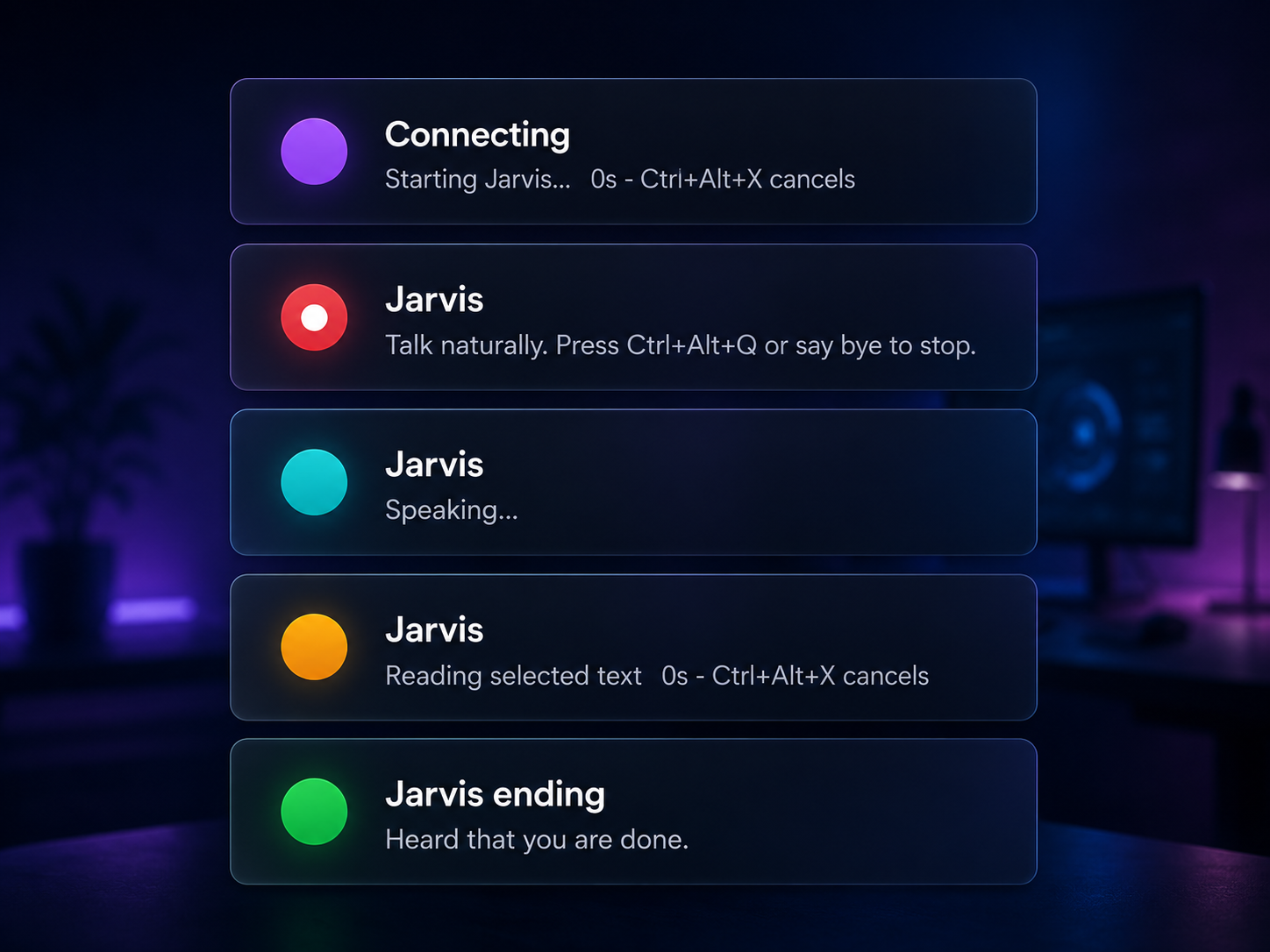
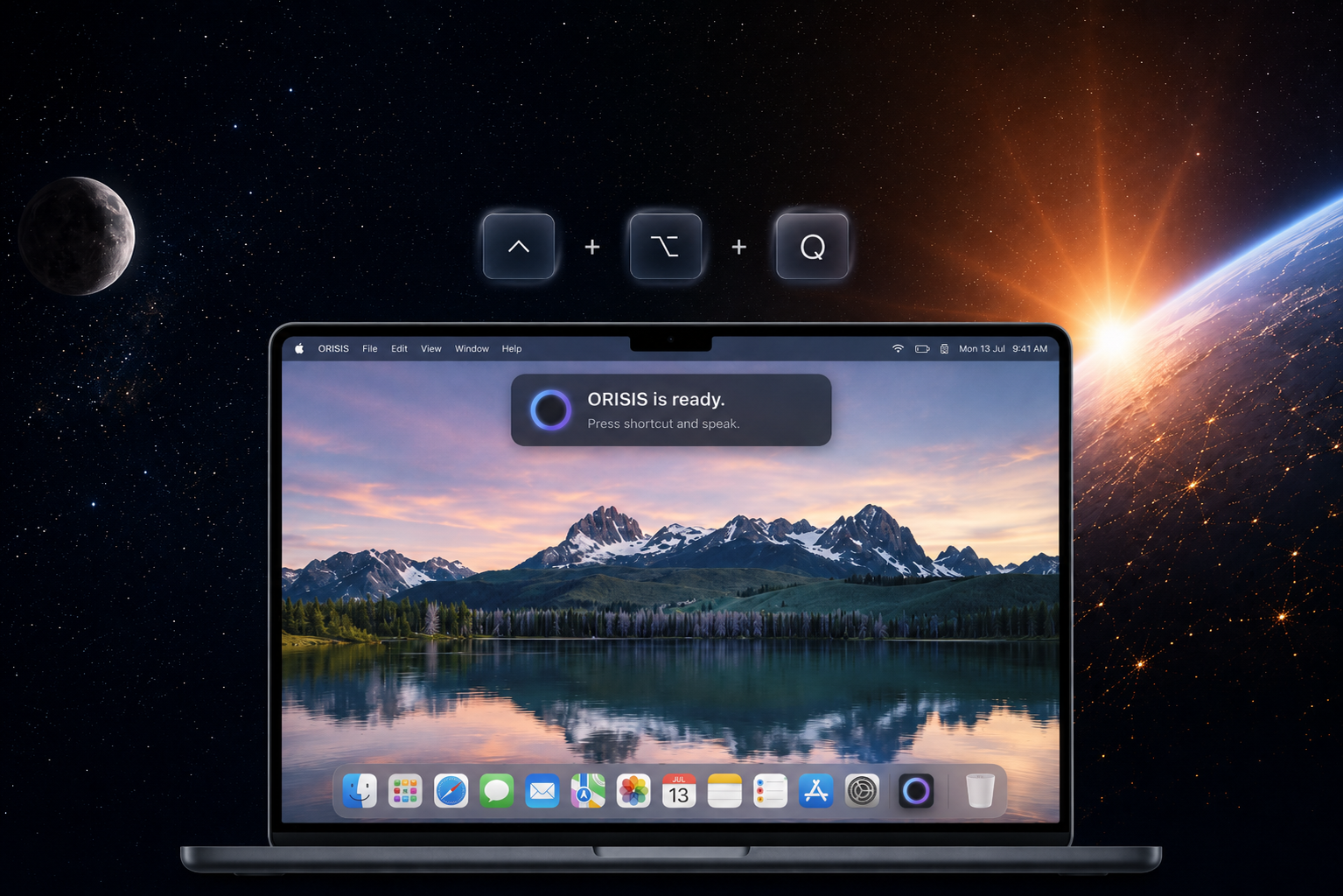
A shortcut wakes it up.
Your voice gives it intent.
OpenAI helps it understand.
The computer takes action.
ORISIS is my attempt to change the interface itself — from keyboard-and-mouse first, to intent-first.
What it does
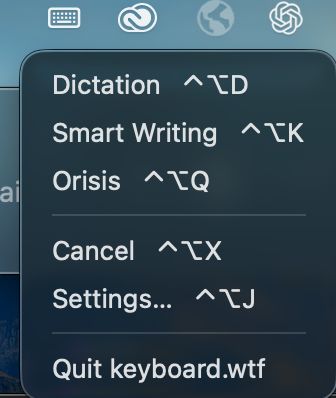
ORISIS is a voice-first personal computer assistant.
It lets you control your computer, write faster, understand selected text, inspect your screen, and run useful workflows using natural speech.
There are three modes.
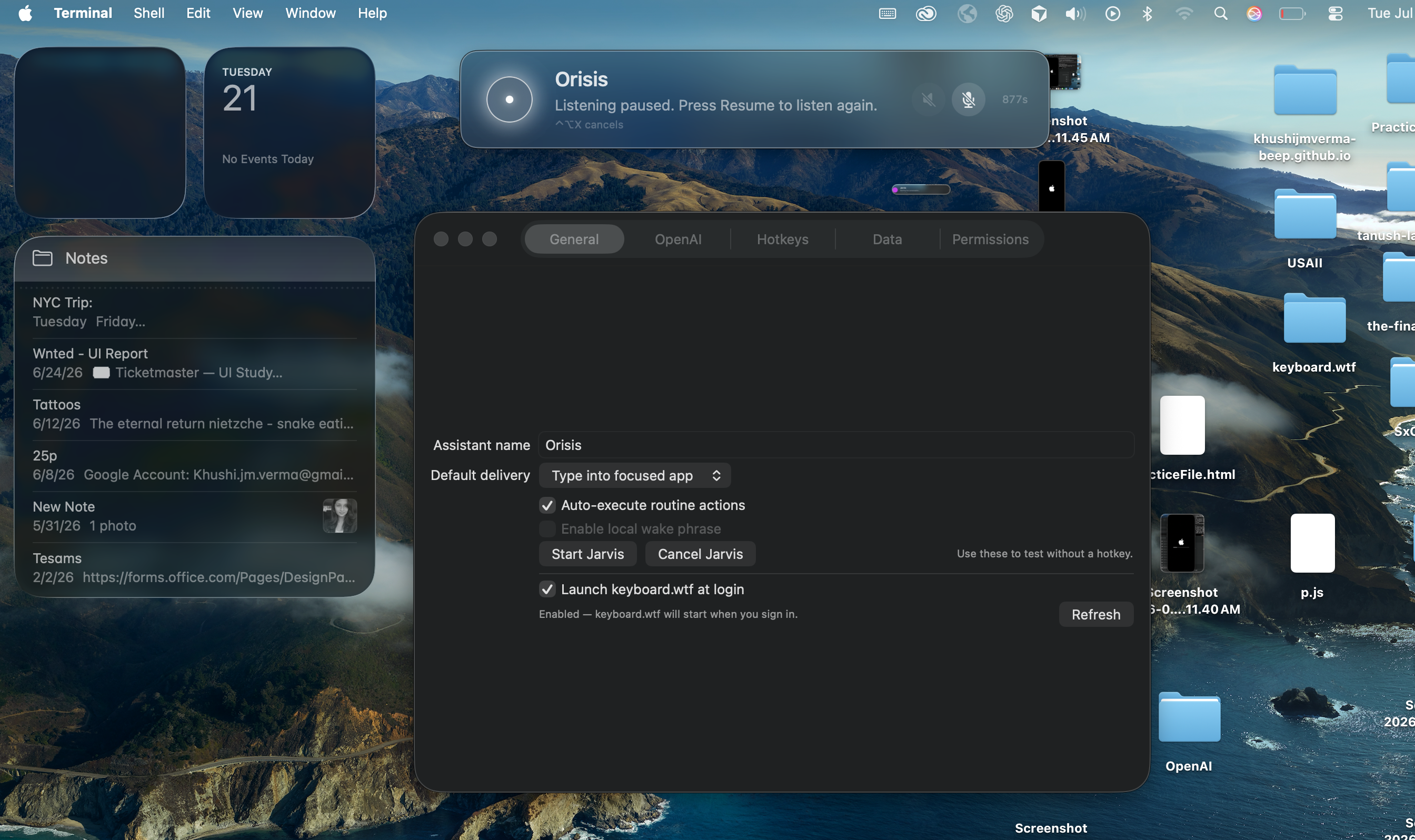
The main one is ORISIS Mode — the actual assistant.
Then there is Smart Dictation — for turning messy speech into polished writing.
And finally, Dictation — for typing your exact words when you do not want AI to rewrite anything.
1. ORISIS Mode — the assistant inside your computer
This is the core of the project.
ORISIS Mode is where the computer stops feeling like a pile of separate apps and starts feeling like one intelligent surface.
You press a shortcut, speak naturally, and ORISIS understands what you want in the context of your current computer.
You can say things like:
“Open Chrome, Notes, Spotify, and my project folder.”
“Open YouTube and search for MrBeast.”
“Open Amazon and search for MX Master 4.”
“Minimise this window.”
“Find my latest PDF.”
“Remember that I prefer concise replies.”
“Create a routine called start work.”
“Explain this selected paragraph.”
“Translate this to French.”
“What animal is visible on my screen?”
“Help me navigate this page.”
The point is not just conversation.
The point is conversation + context + action.
ORISIS can work with:
- apps;
- windows;
- browser pages;
- selected text;
- files and folders;
- screen content;
- memory;
- workflows;
- safe system actions.
One of the most important flows is selected text.
If you highlight something and say:
“Explain this.”
ORISIS knows what “this” means.
If you say:
“Translate this to French.”
It translates the selected text and copies the result to your clipboard.
If you say:
“Make this sound professional.”
It rewrites the selected text and gives you the cleaned-up version.
The default flow is intentionally safe:
understand → transform → copy to clipboard → confirm
It does not randomly replace your work unless you ask it to.
ORISIS can also inspect the screen when you explicitly ask. If you are stuck on an error, a chart, an image, a confusing form, or a messy website, you can simply ask:
“What am I looking at?”
“What should I click next?”
“What does this error mean?”
“What animal is in this image?”
That is the magic of ORISIS Mode.
It connects voice, context, reasoning, and action — right where the user is already working.
2. Smart Dictation — messy speech into clean writing
Smart Dictation is for the way people actually speak.
Because nobody speaks in perfect final drafts.
We say things like:
“Hey um tell him I’ll send the file tomorrow—actually tomorrow evening—and make it sound polite.”
Smart Dictation turns that into:
“Hi, I’ll send the file by tomorrow evening. Thank you for your patience.”
It removes filler words, understands corrections, fixes grammar, adds punctuation, and structures the output properly.
It is useful for:
- emails;
- messages;
- notes;
- paragraphs;
- bullet points;
- replies;
- quick thoughts;
- professional writing.
This mode is not trying to be a full assistant.
It is fast, focused, and practical.
You speak roughly.
ORISIS writes clearly.
It feels like having a tiny editor attached to your microphone.
3. Dictation — exact speech-to-text
Dictation is the simplest mode.
You press the shortcut, speak, and ORISIS types exactly what you said into the current app.
No rewriting.
No polishing.
No interpretation.
No unnecessary AI layer.
Just your words, typed quickly.
This is useful when you want speed but still want full control over the exact wording.
So the three modes cover three different moments:
ORISIS Mode when I want the computer to understand and act.
Smart Dictation when I want better writing.
Dictation when I want my exact words.
How we built it
We built ORISIS as a desktop-first assistant because the whole point is to help inside the computer, not inside another webpage.
A chatbot can live in a tab.
ORISIS has to live above the whole computer.
That means it needs to understand the active app, the selected text, the user’s voice, the screen, the browser, files, windows, permissions, and whether an action actually worked.
The project combines native desktop control with OpenAI intelligence.
At the computer level, ORISIS works with:
- global shortcuts;
- microphone input;
- local dictation;
- text insertion;
- selected text;
- clipboard-safe workflows;
- app opening;
- window control;
- browser navigation;
- file search;
- screen understanding;
- local memory;
- reusable workflows.
At the AI level, ORISIS uses OpenAI for the parts where language and reasoning matter most.
Smart Dictation uses OpenAI to turn rough speech into polished writing.
ORISIS Mode uses realtime voice and reasoning so the user can speak naturally, interrupt, continue, ask follow-ups, and request actions.
GPT-5.6 helps with the deeper reasoning layer: understanding messy intent, interpreting selected text, planning multi-step tasks, and turning vague human language into safe computer behaviour.
Codex was a huge part of the build process.
We used Codex to help inspect the existing project, generate and refactor code, wire OpenAI APIs, design native app flows, improve cancellation behaviour, create tests, and push the project from “cool idea” toward something a user can actually try.
But Codex was not the product taste.
The human part was deciding what ORISIS should feel like:
- What should happen instantly?
- What should be copied instead of replaced?
- What should auto-execute?
- What should require confirmation?
- What should never happen silently?
- What makes the assistant feel magical instead of scary?
That balance shaped the project.
ORISIS is not just “AI with a microphone.”
It is an attempt to make the computer itself feel more natural to use.
Challenges we ran into
The hardest part was not making AI respond.
The hard part was making AI useful inside the computer.
A normal chatbot answers inside its own box. ORISIS has to understand the messy world around the user: the active app, selected text, browser pages, windows, files, permissions, speech, screen content, and whether an action actually succeeded.
That created a few big challenges.
The interface challenge
The first challenge was deciding what ORISIS actually is.
It would have been easy to build a voice chatbot.
But that would not solve the real problem.
The real problem is that work is scattered across apps, tabs, text fields, files, windows, websites, and screenshots.
So ORISIS could not just be another destination.
It had to become a layer above the computer.
The mode challenge
All three modes start with voice, but they cannot behave the same way.
If I use Dictation, I want my exact words.
If I use Smart Dictation, I want my messy speech cleaned up.
If I use ORISIS Mode, I want the computer to understand, reason, and do something.
Mixing those together makes the product confusing.
Separating them made the experience clearer:
exact words, better words, or real action.
That distinction became one of the most important design decisions.
The context challenge
Humans say words like “this,” “that,” “here,” and “the current page” all the time.
To another human, that is obvious.
To software, it is not.
If I select a paragraph and say “translate this,” ORISIS needs to know what was selected.
If I say “what animal is on my screen,” ORISIS needs permission to inspect the screen.
If I say “open my work setup,” ORISIS needs memory and workflows.
The challenge was making context feel natural without making it creepy.
So the rule became:
Use context only when the user intentionally invokes it.
No silent screen watching.
No silent memory.
No pretending everything is available forever.
The trust challenge
When an assistant can act on your computer, fake confidence becomes dangerous.
It cannot just say “done” because the model thinks the action probably happened.
If an app opened, verify it.
If text was inserted, check what can be checked.
If permission was blocked, say that.
If something needs confirmation, ask.
If something failed, be honest.
A truthful “I couldn’t do that” is better than a fake “done.”
That trust boundary became central to ORISIS.
The cancellation challenge
Cancel sounds simple until a lot of things are happening at once.
The microphone may be listening.
A model may be thinking.
Speech may be playing.
A tool may be running.
A browser action may be pending.
A late result may come back after the user changed their mind.
When the user hits cancel, all of that has to stop.
No late typing.
No late clicking.
No late speaking.
No surprise action five seconds later.
For a computer assistant, “stop” has to actually mean stop.
Accomplishments that we're proud of
I am proud that ORISIS is not just another AI wrapper.
It is a different way to think about using a computer.
Instead of forcing the user to constantly move between apps and translate every thought into manual actions, ORISIS tries to understand the intent directly.
The biggest accomplishment is the three-mode structure:
- ORISIS Mode for computer control and contextual help.
- Smart Dictation for polished writing.
- Dictation for exact speech-to-text.
Each mode has a clear job.
That makes the product easier to understand and easier to trust.
I am also proud of the selected-text workflow.
Highlighting something and saying:
“Explain this.”
“Translate this.”
“Make this professional.”
“What should I reply?”
feels instantly useful.
It is simple, but it changes how the computer feels. The user does not need to copy text into another app, explain the context again, paste the result back, and clean everything manually.
ORISIS meets the user where the work already is.
I am proud of the safety design too.
ORISIS is meant to be powerful, but not reckless.
It can move fast for safe actions, but it should slow down for anything risky. It should copy by default instead of replacing by default. It should explain failures instead of hiding them. It should never act like a black box on someone’s computer.
I am also proud of how we used GPT-5.6 and Codex.
They helped with architecture, implementation, debugging, reasoning, tests, and evaluation.
But the strongest part of the collaboration was not “AI wrote code.”
It was using AI to move faster while still keeping human product taste:
This should feel instant.
This should not ask twice.
This should copy, not replace.
This should stop immediately.
This should feel like an assistant, not a settings panel.
The proudest part is the feeling of the product.
When ORISIS works, the computer stops feeling like a pile of separate apps.
It starts feeling like one intelligent surface.
You do not think:
“Where do I click?”
“Which tab was that?”
“How do I phrase this?”
“Where did I save that?”
You just say what you want.
And ORISIS helps you get there.
What we learned
We learned that AI on the desktop is not just about making the model smarter.
It is about connecting intelligence to the right context at the right moment.
A great desktop assistant needs to understand:
- what app the user is in;
- what text is selected;
- what is visible on the screen;
- what action is safe;
- what should be copied instead of replaced;
- what needs confirmation;
- what actually succeeded.
We also learned that speed is emotional.
If an assistant takes too long, it stops feeling intelligent even if the final answer is correct.
The best experiences are often small and fast:
- one sentence cleaned up;
- one paragraph translated;
- one app opened;
- one confusing screen explained;
- one workflow triggered.
We learned that voice needs modes.
Sometimes the user wants exact words.
Sometimes the user wants polished words.
Sometimes the user wants action.
A good assistant should know the difference.
We also learned that Codex works best when you do not treat it like magic.
You need direction.
You need taste.
You need to push back.
You need to say:
“No, this feels too slow.”
“No, this should copy, not replace.”
“No, this should not ask for confirmation again.”
“No, this is technically correct but not useful.”
That collaboration made ORISIS much better.
The biggest lesson was this:
The future interface is not just chat. It is intent connected to action.
What's next for ORISIS
Next, we want to make ORISIS even faster and more powerful across real websites.
The biggest focus is browser control: helping ORISIS navigate dynamic pages, search inside websites, compare products, fill safe drafts, understand complex layouts, and guide users through multi-step web tasks more reliably.
Beyond that, we want to keep improving speed, polish, and distribution so ORISIS feels less like an app you open and more like an invisible layer over your computer.
The long-term vision is simple:
ORISIS should become the layer between what you mean and what your computer does.
No extra tab.
No fighting the interface.
No translating every thought into clicks.
Just speak — and let the computer finally keep up.
Built With
- accessibility-api
- appkit
- avfoundation
- codex
- desktop-automation
- dictation
- gpt-5.6
- keychain
- macos
- openai
- openai-realtime-api
- openai-responses-api
- productivity
- screen-understanding
- selected-text
- smart-dictation
- speech-framework
- sqlite
- swift
- swiftui
- voice-ai
- voice-assistant
- workflow-automation
- xcode

Log in or sign up for Devpost to join the conversation.