-
-
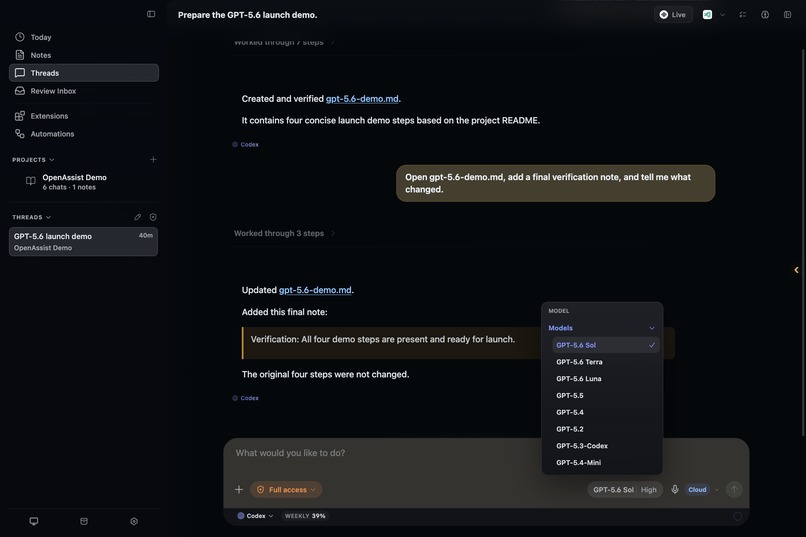
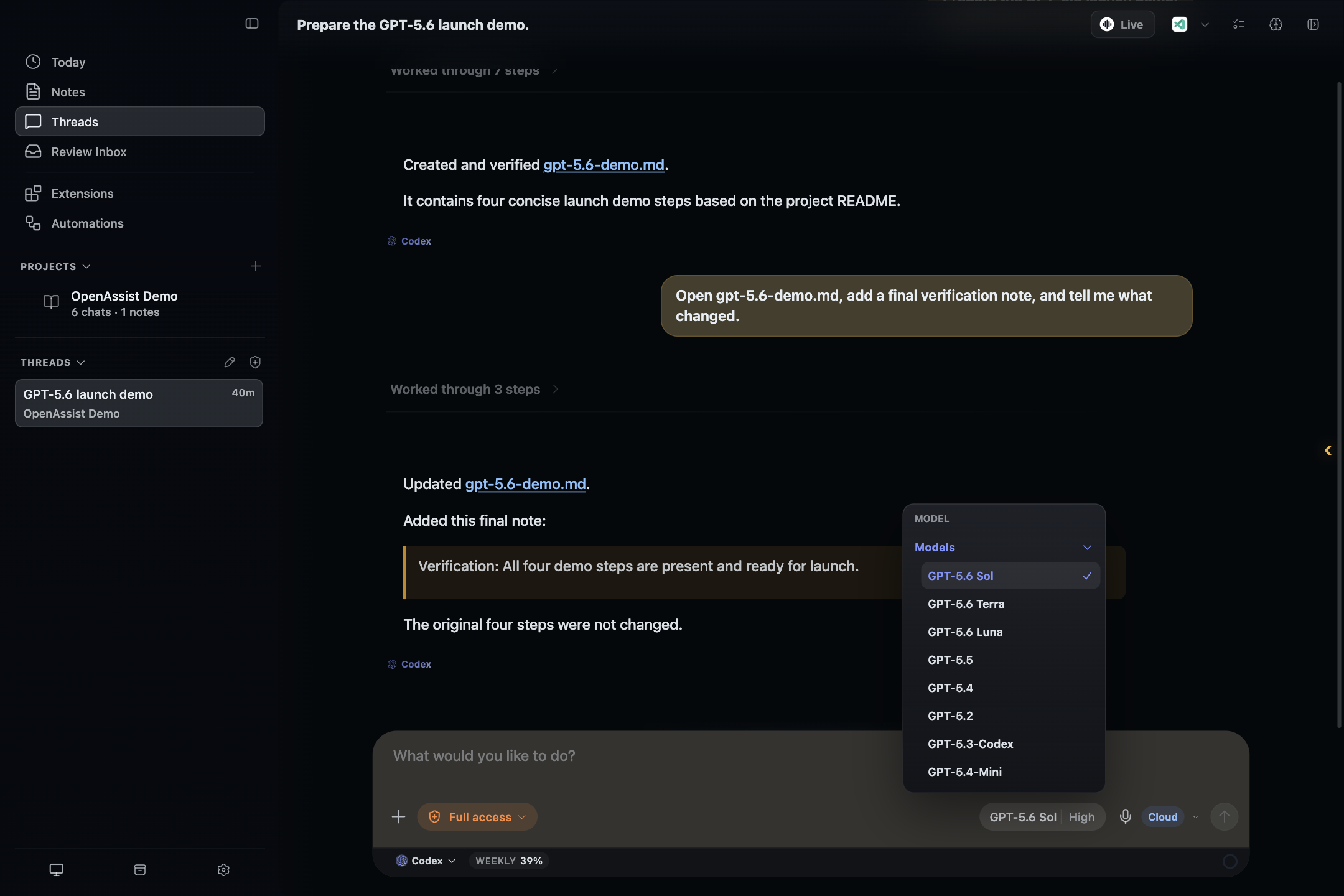
GPT-5.6 Sol, Terra, and Luna available inside OpenAssist.
-
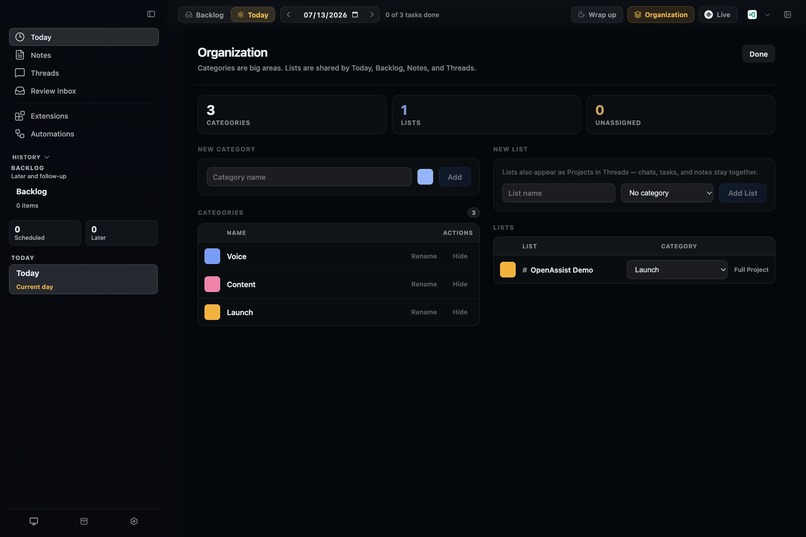
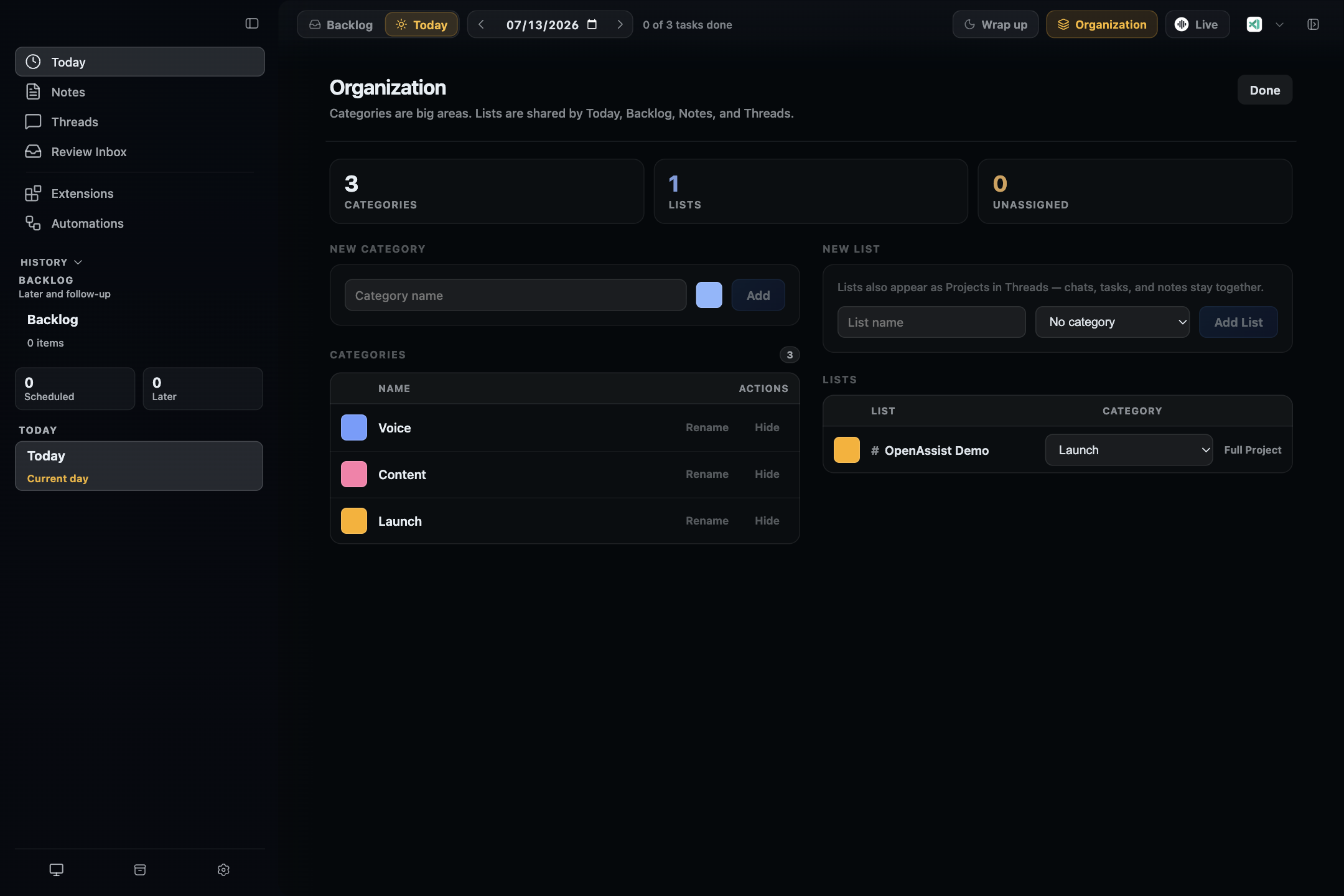
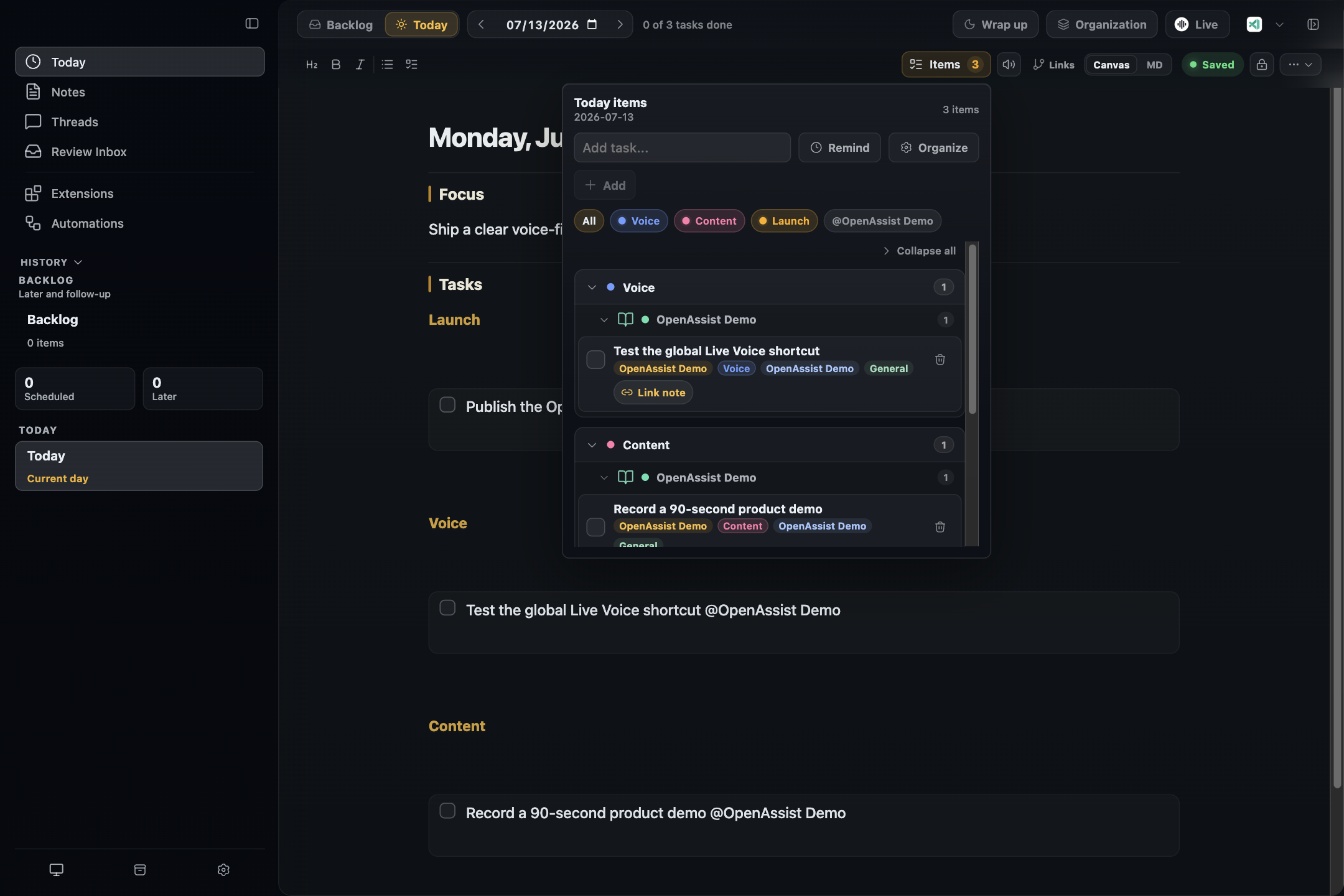
Projects and categories keep tasks and work organized.
-
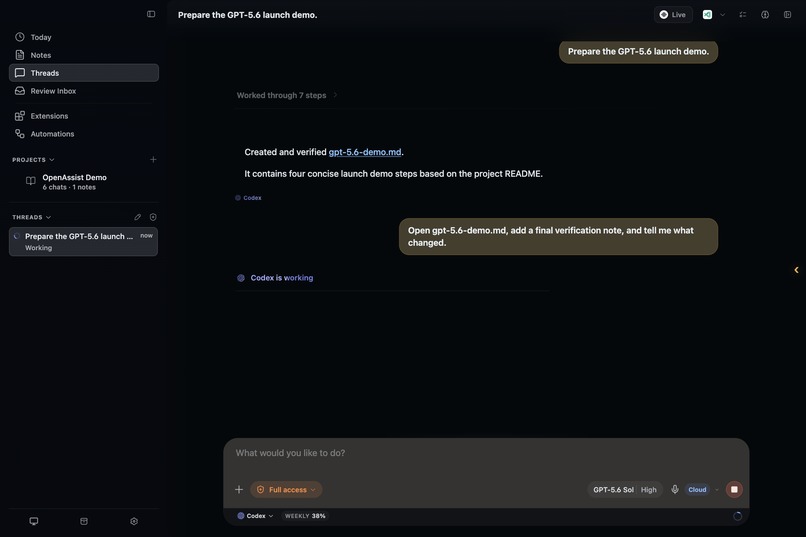
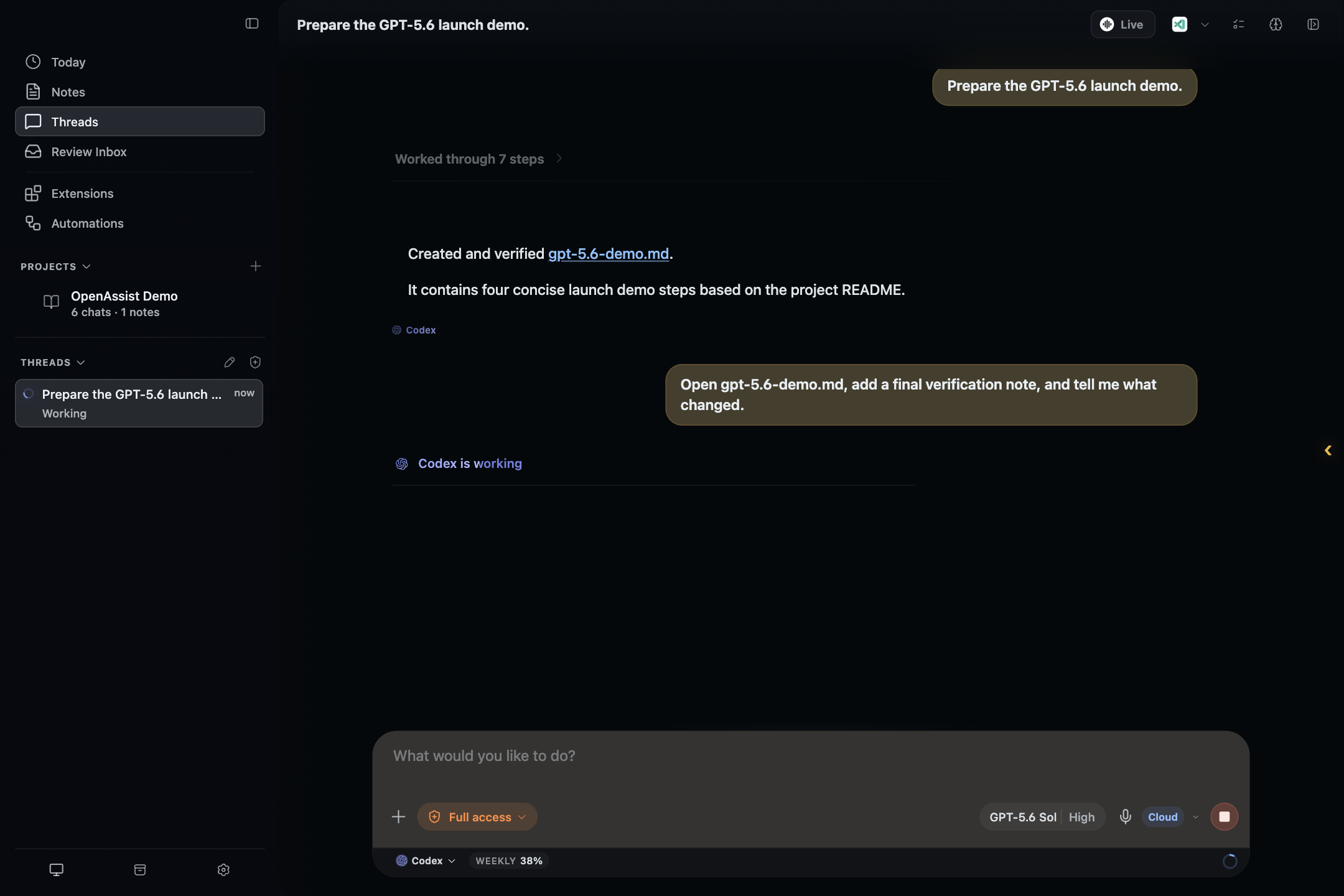
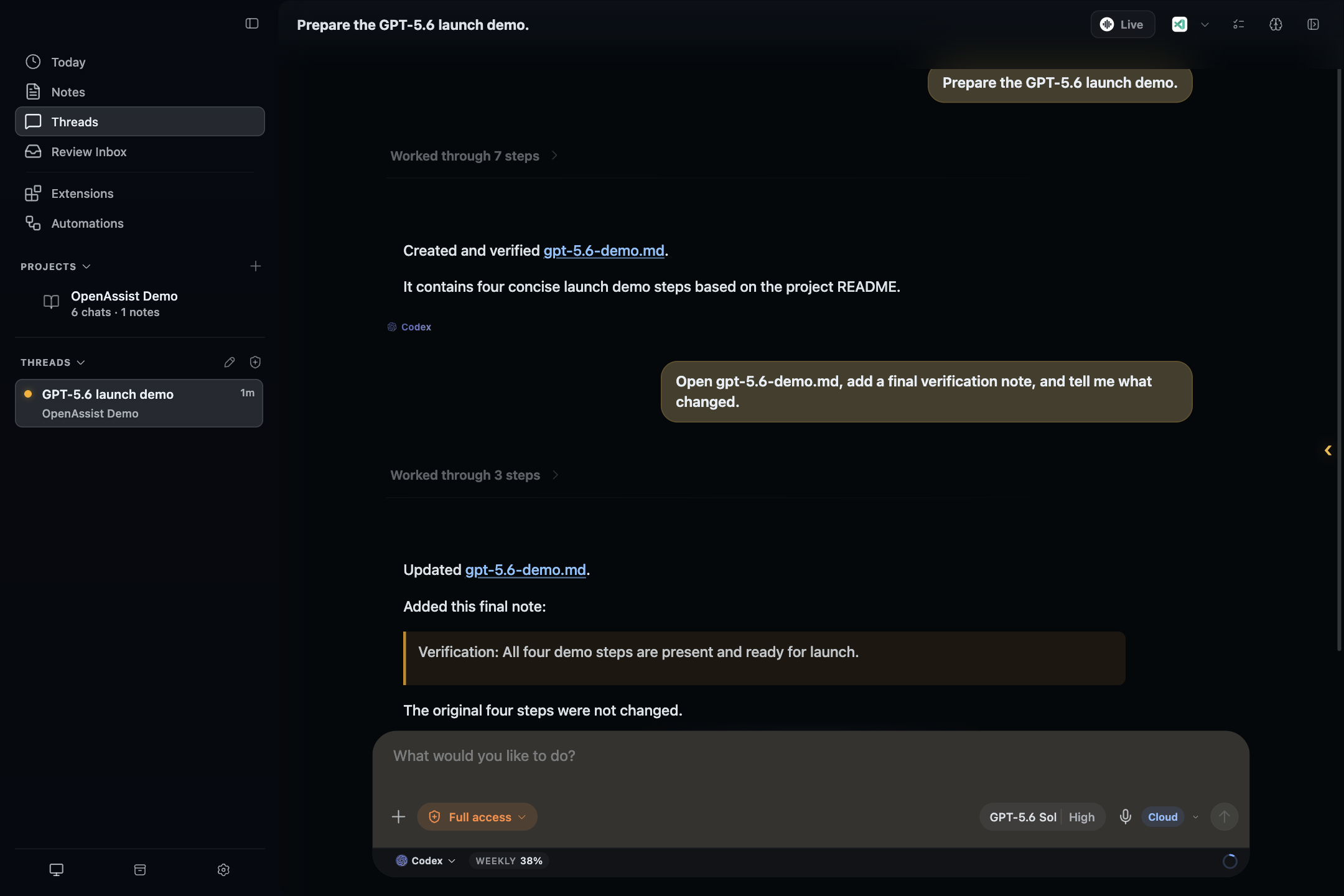
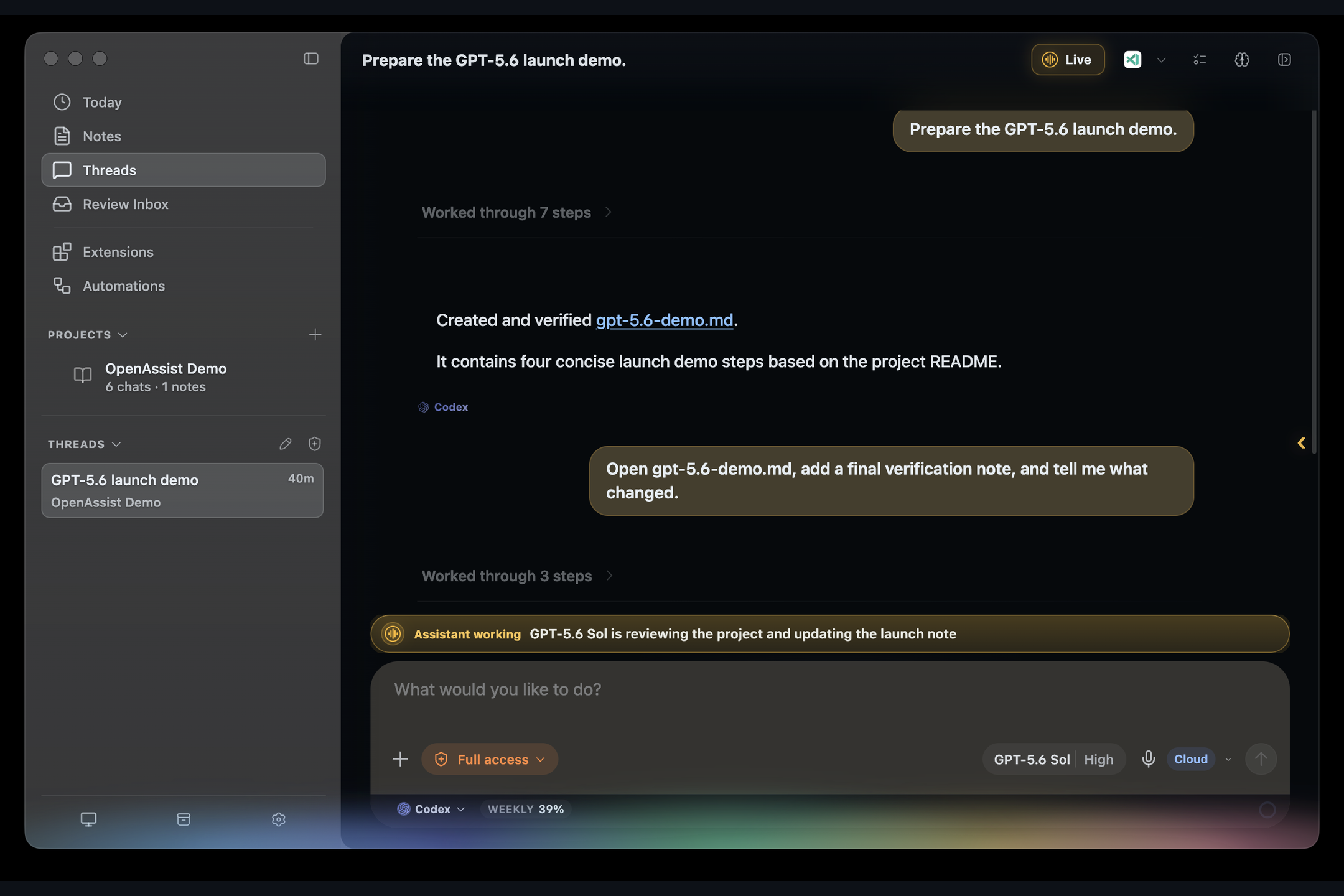
GPT-5.6 Sol working on a real project task inside OpenAssist.
-
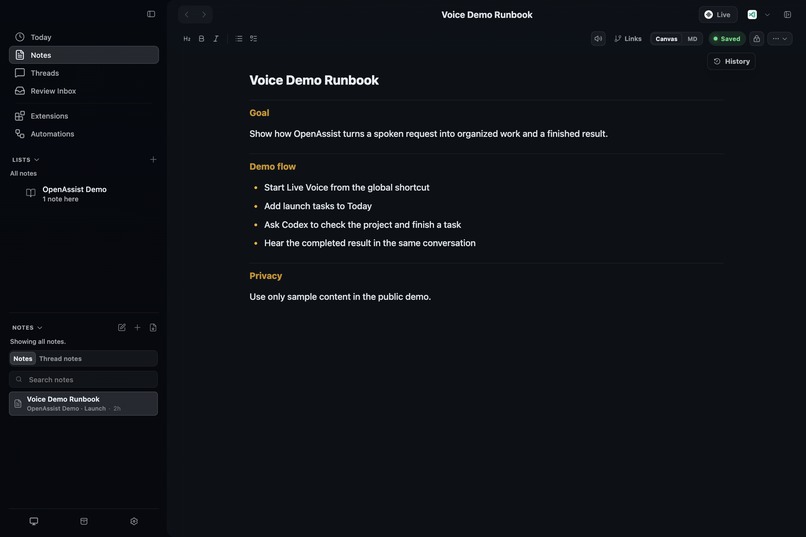
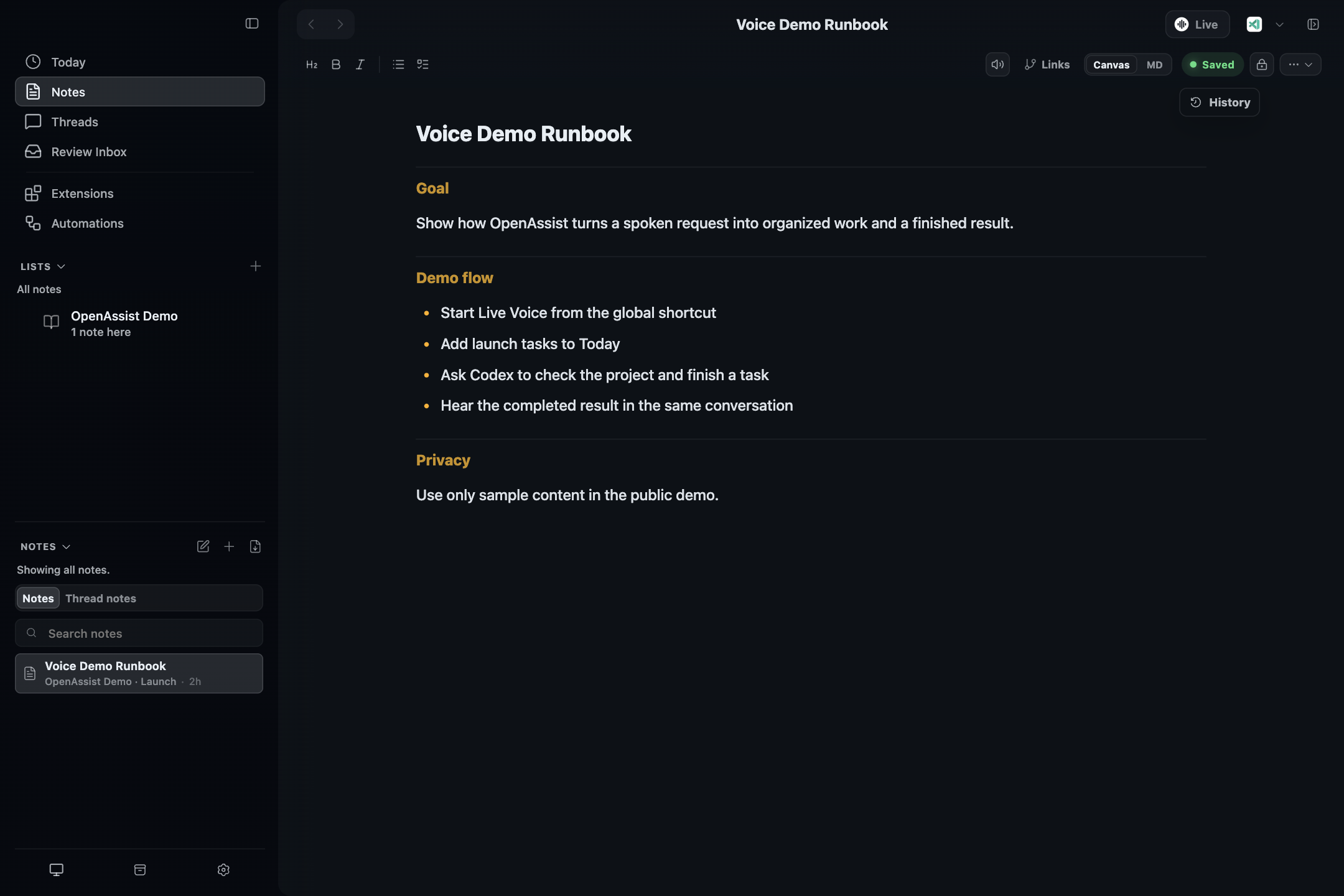
Notes preserve project plans, decisions, and important context.
-
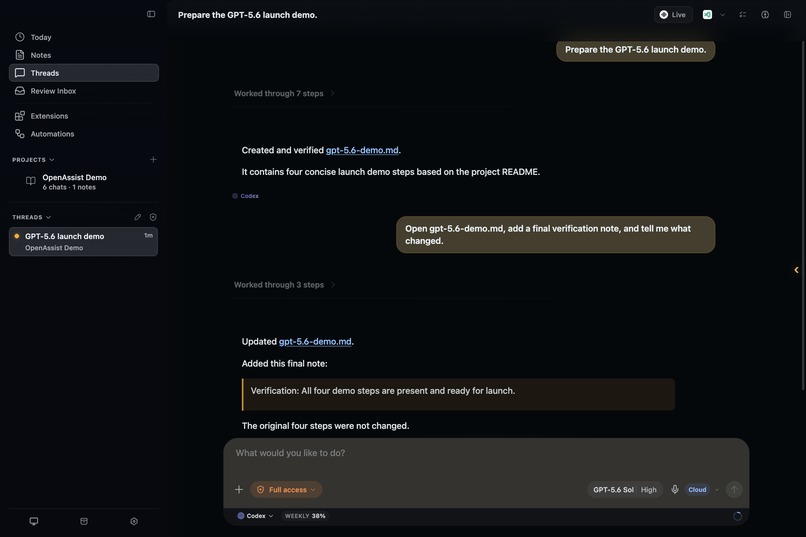
The agent returns its verified result in the same assistant thread.
-
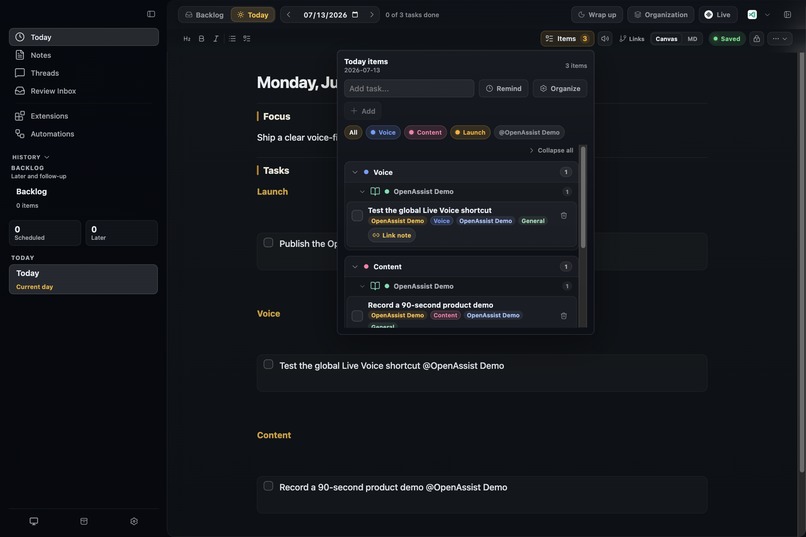
Today brings tasks, reminders, projects, and categories into one view.
-
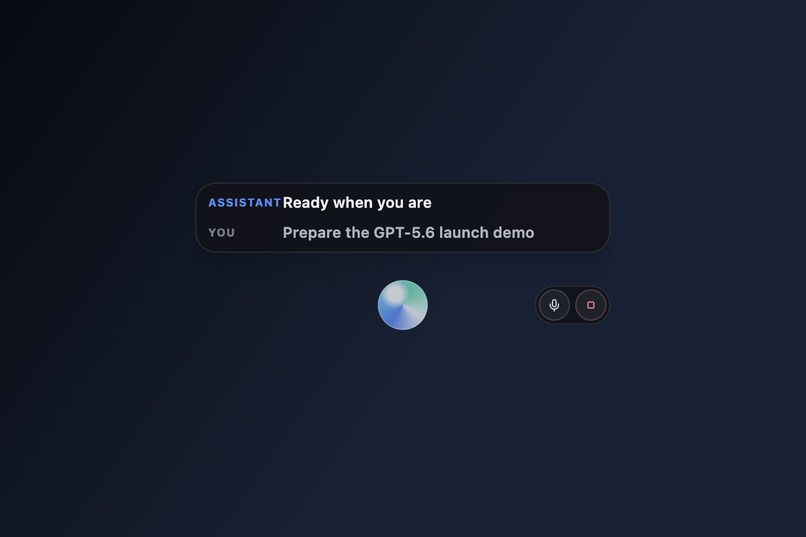
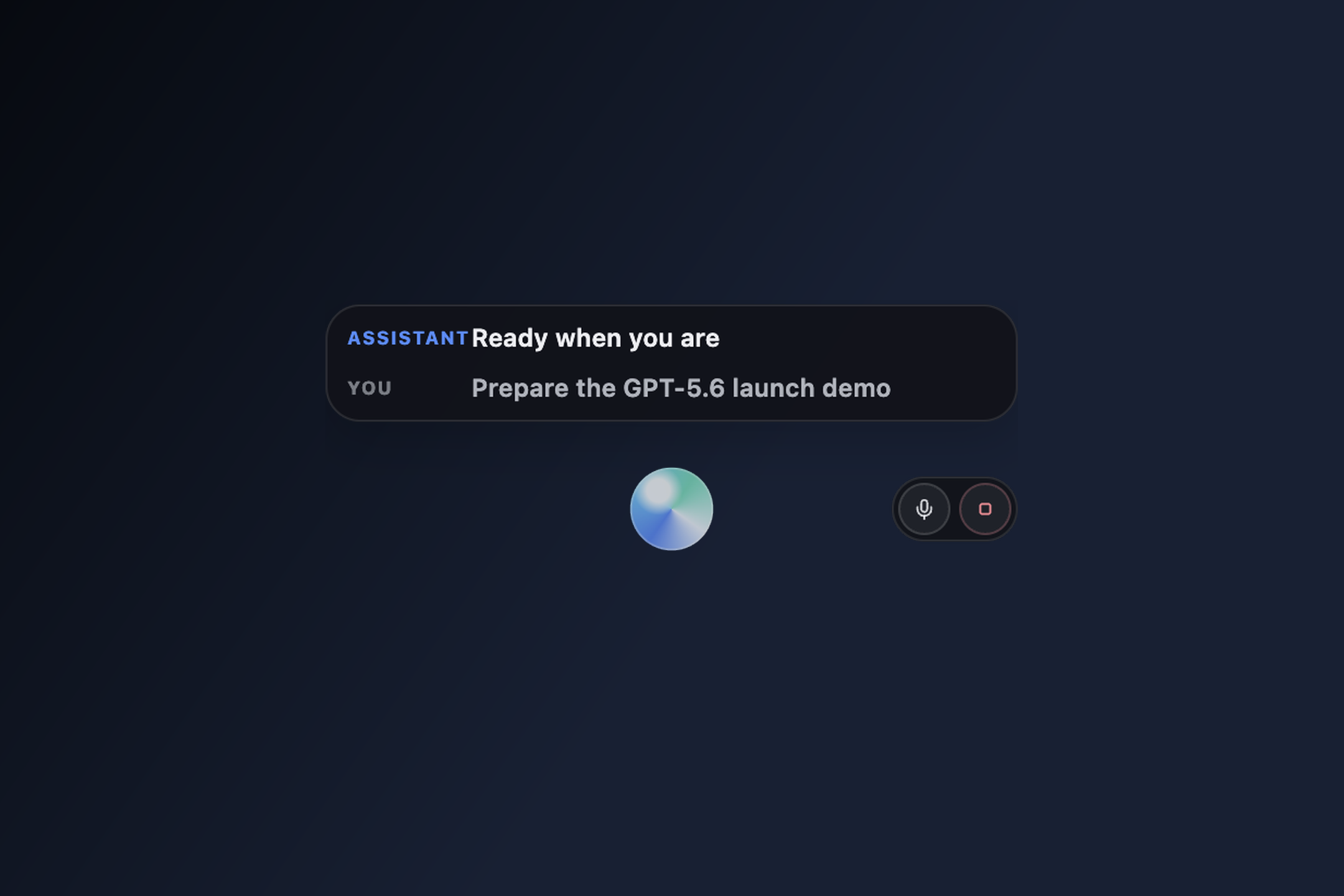
Live Voice starts from anywhere using one global shortcut.
-
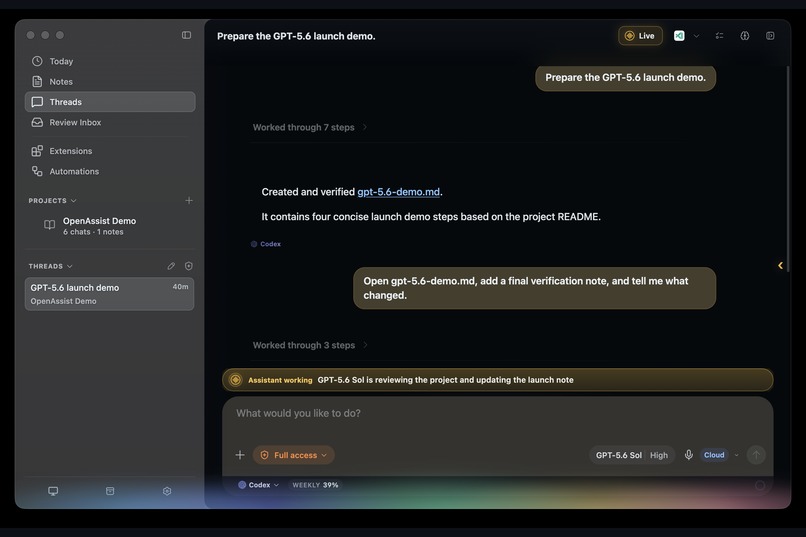
Live Voice shows clear progress while GPT-5.6 Sol works.
Inspiration
Life moves fast. I have work, personal responsibilities, ideas, tasks, and projects all competing for attention. I kept losing track of what needed to be done, forgetting why a decision was made, or coming back to a project with no memory of where I stopped.
I did not want another chatbot that starts from zero every time. I wanted a daily organizer I could talk to naturally: one that remembers my notes and projects, manages the things I need to do, and takes real work off my plate. Voice was essential because explaining a busy day out loud is much easier than typing every detail.
That need became OpenAssist: a personal agent on my Mac that organizes my life, remembers context, and keeps work moving. I built it alone, and I use it every day.
What it does
OpenAssist brings live voice, a daily planner, projects, notes, long-term knowledge, and real agent work into one macOS app.
- Talk naturally from anywhere. A global shortcut starts Live Voice without making you stop what you are doing.
- Manage everyday life. Tasks, backlogs, reminders, daily focus, notes, and recurring work.
- Keep project context. Conversations, notes, decisions, and progress stay connected to projects, so the assistant can answer where a project stands and what is still needed.
- Remember useful history. It recalls completed conversations and saved knowledge instead of treating every session as a blank page.
- Delegate real work. When a request needs more than a quick answer, OpenAssist hands the task to a Codex agent, keeps the voice conversation going while it runs, and brings the finished result back into the same conversation.
- Use the computer itself. Through Codex Computer Use, the agent can open Mac apps and do the work directly. In the demo video it opens TextEdit and types a launch checklist by itself, recorded live.
- Analyze the screen. Screen Analysis reads whatever is on screen and helps on the spot: improve a draft, answer a question, insert text at the cursor. It is temporary by design: sessions are not kept in your notes, threads, or memory.
- Work across the Mac. With approval, it can use a signed-in browser and supported macOS apps such as Finder, Terminal, Calendar, Reminders, Contacts, Notes, Messages, and System Settings.
- Stay available on the phone. A companion iPhone app gives access to the planner, reminders, notes, projects, and assistant threads connected to the Mac.
- Keep the user in control. Important actions go through approval steps, and local settings, history, and memory stay on the Mac.
A typical flow is conversational: I ask it to add something to my day, recall an older decision, check something on my computer, or delegate a longer task. It tells me when an agent is working, waits for the job to finish, and then speaks the result back.
How I built it
The engine underneath is the official Codex app server. OpenAssist runs it as the backend brain: chat turns, delegated agent jobs, and Computer Use all run through it, while Live Voice talks to the Realtime API directly. Computer Use comes from Codex's bundled plugin, so the same agent that answers questions can also operate the Mac.
The desktop app is Electron, React, TypeScript, Node.js, and Vite. A native Swift helper handles the global keyboard shortcut and macOS-level voice and system integration. Live Voice connects to the OpenAI Realtime API (or Gemini Live) over WebSockets, and a routing layer decides whether a request can be answered directly, needs an OpenAssist tool, or should become a full Codex agent job. For longer tasks, OpenAssist creates the job, keeps the voice session informed while it runs, and returns the result as a natural spoken answer.
Memory is deliberately small. Finished text conversations land in the Voice Log, and a short history is restored when a new session begins. Raw audio, partial transcripts, and provider events are never stored. The planner, reminders, notes, projects, approvals, and personal knowledge all live in the same app, and the iPhone companion (React Native and Expo) connects securely to the desktop.
Challenges I ran into
The hardest part was making voice feel like a dependable assistant instead of a voice skin on top of chat. I had to handle interruptions, microphone echo, repeated responses, reconnects, incomplete audio, and clear states for listening, speaking, delegating, and waiting.
Agent handoff was tricky: the voice model must not guess an answer while a real agent is still working. OpenAssist pauses the answer, shows progress, waits for the delegated task, and then speaks the real result.
Some bugs were humbling. At one point every Codex turn started silently returning nothing; my installed CLI had quietly fallen behind what the model required on the server side, and the error was swallowed. Another bug in my own cleanup code was killing live Computer Use helpers a few minutes after startup. Finding those taught me more about the app server's process model than any documentation.
Computer access also needs trust, so conversation is separated from sensitive actions, and important changes ask for approval first.
Accomplishments that I'm proud of
- A global voice shortcut that starts OpenAssist from any app.
- A complete voice-to-agent-to-spoken-result loop, shown with real footage in the demo video.
- Computer Use working end to end: ask, watch the agent operate a Mac app, and get the report back.
- Same-thread voice continuity across stop, start, and app restart.
- One connected system for tasks, reminders, notes, projects, knowledge, and agent work.
- A floating voice interface that shows listening, speaking, delegation, approvals, and errors without opening the main window.
- A phone companion that keeps the organizer available away from the desk.
What I learned
A useful personal assistant needs more than a capable model. It needs reliable state, carefully chosen memory, clear progress, safe approvals, and the patience to wait for real work to finish.
Voice also changes the product. People speak with less structure than they type, so the system has to understand intent, preserve context, and make its current state obvious without interrupting the conversation.
What's next for OpenAssist
Simpler setup and onboarding, better cross-device reliability, more skills and integrations, stronger project summaries and personal recall, and a more proactive daily organizer that still keeps the user in control.
Built With
- api
- codex
- electron
- expo.io
- gemini-live
- ios
- macos
- node.js
- openai
- react
- react-native
- realtime
- swift
- typescript
- vite
- websockets

Log in or sign up for Devpost to join the conversation.