Inspiration
Ever since the first iPad launched, I have wanted to use one for my work. My work is building iOS and macOS apps. For years, the machine I wanted to carry and the machine I needed to develop on were different things.
I've been developing for iOS since 2008, mostly building B2B apps. The iPad always felt like it could become a wonderful place to work, but my development tools lived on a Mac. I kept coming back to the same wish: could the iPad be the device in my hands while a Mac did the work elsewhere?
Coding agents finally made that practical for me. With a Mac mini hosted somewhere and remote access to Codex or Claude, I can do so much from an iPad. But some moments still need a screen: inspecting an interface, interacting with a running app, reaching a dialog, or taking over a step that needs my judgment.
The traditional VNC experience felt too slow for the way I wanted to work. Apple's High Performance Screen Sharing offers a better path between compatible Macs, but it didn't give me that experience on my iPad. I wanted something that completed this new workflow: let the agent work, then reach into the Mac when I need to.
That's why I built Glassy Desk.
What it does
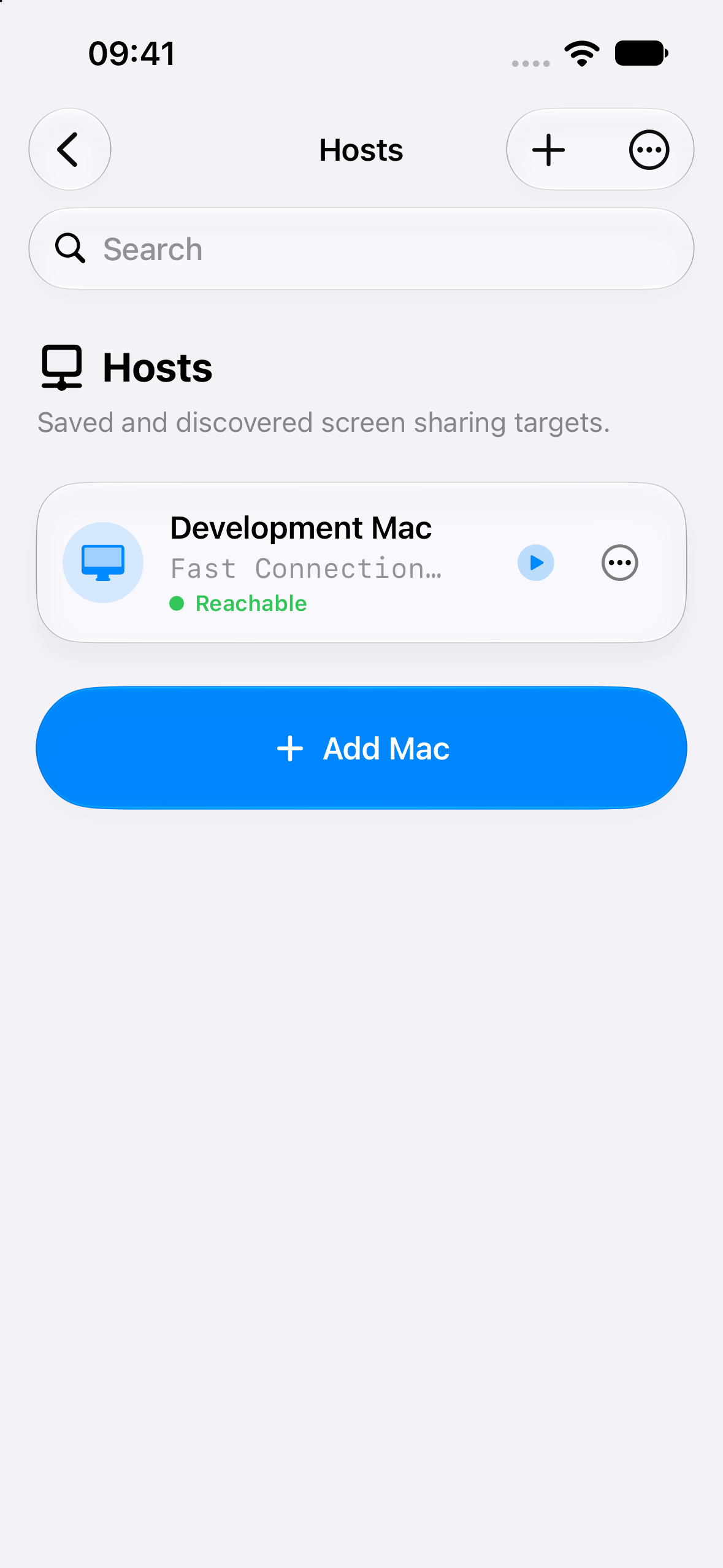
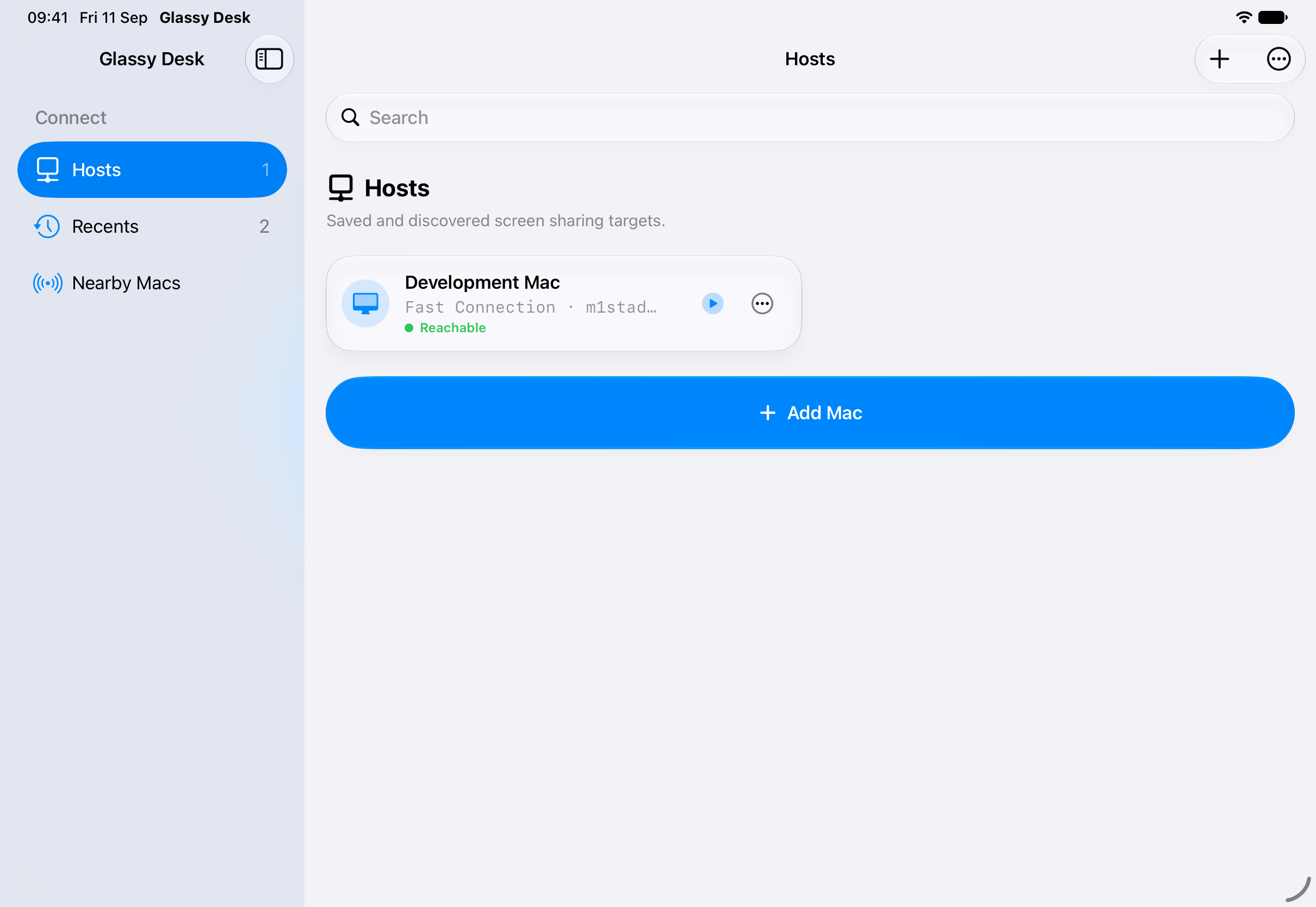
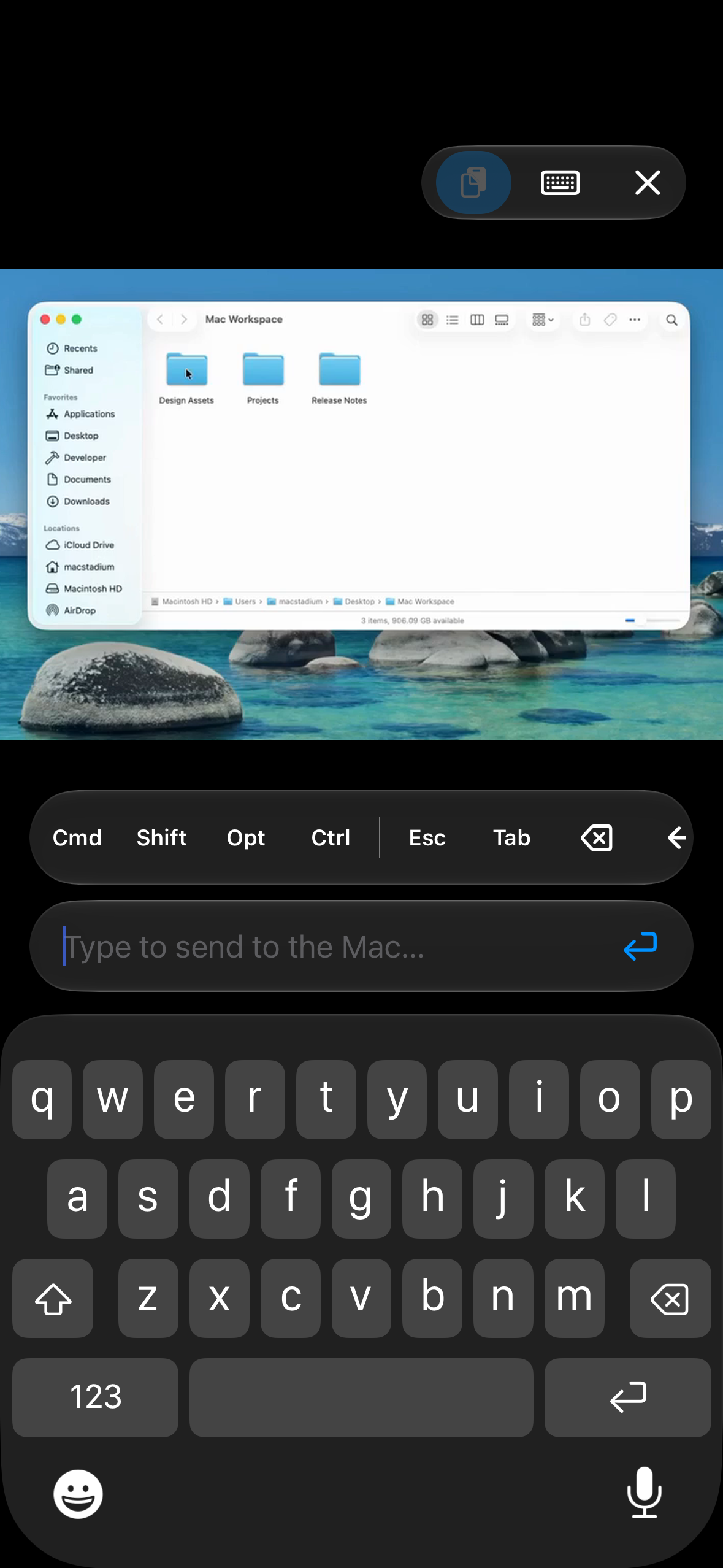
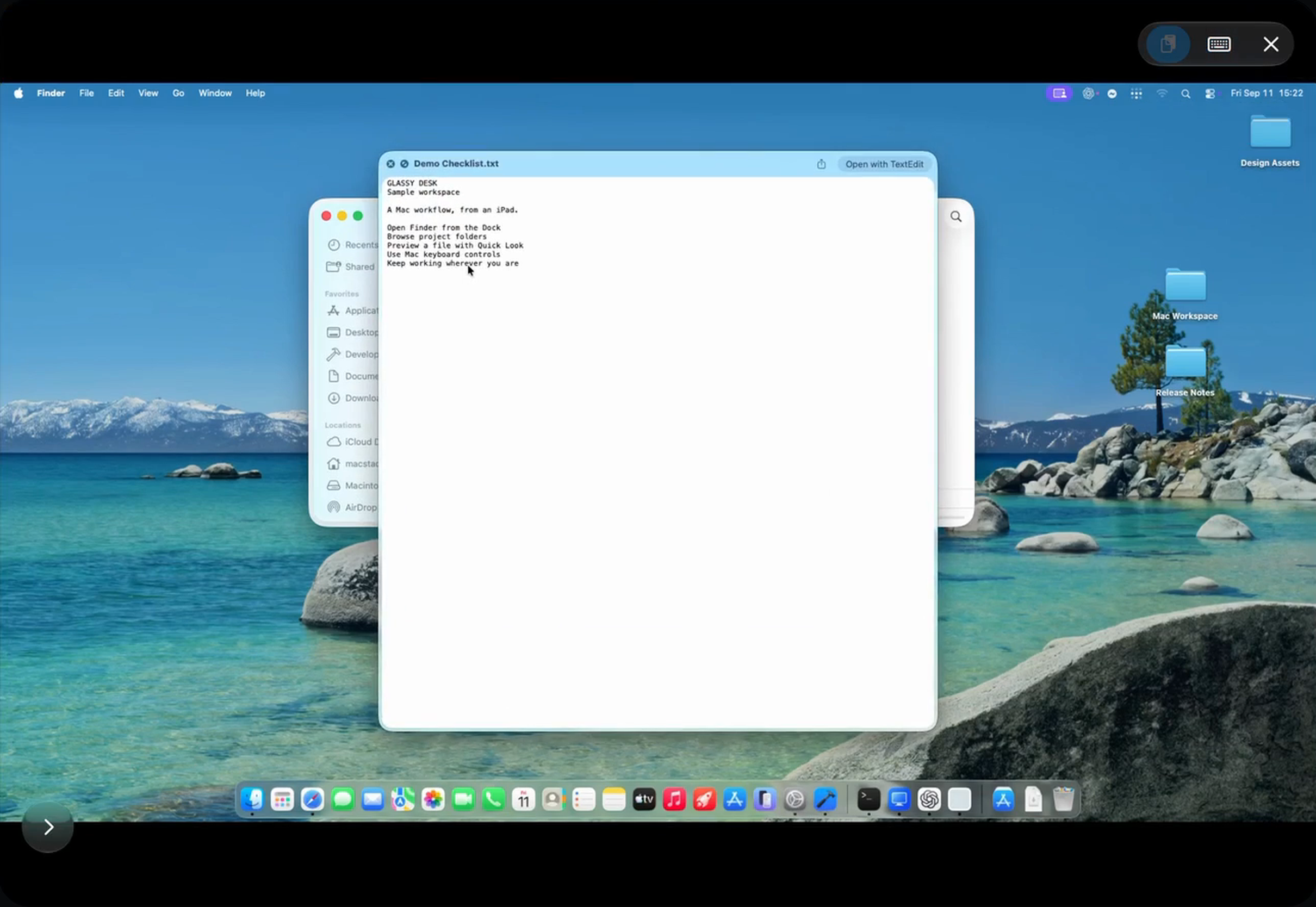
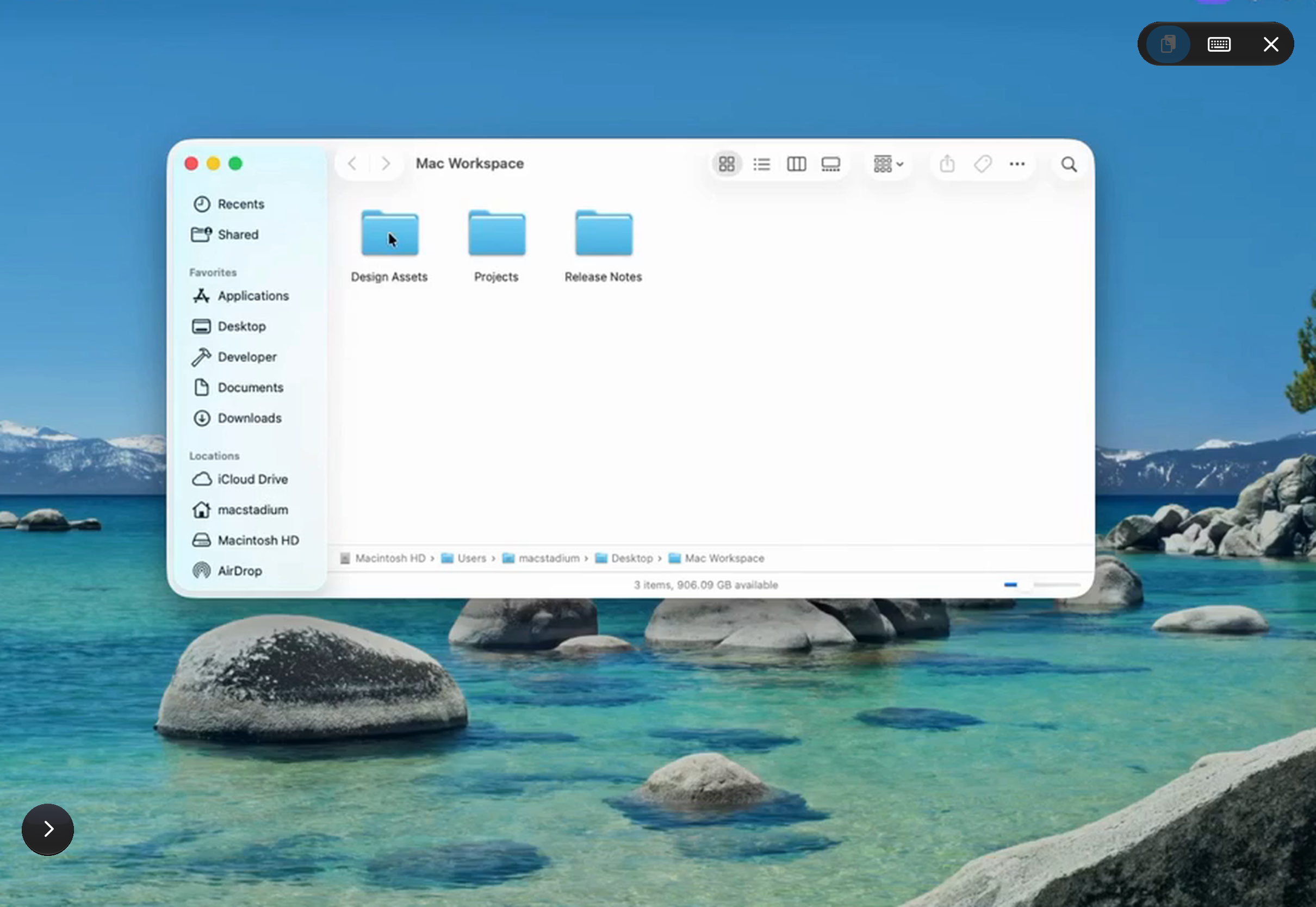
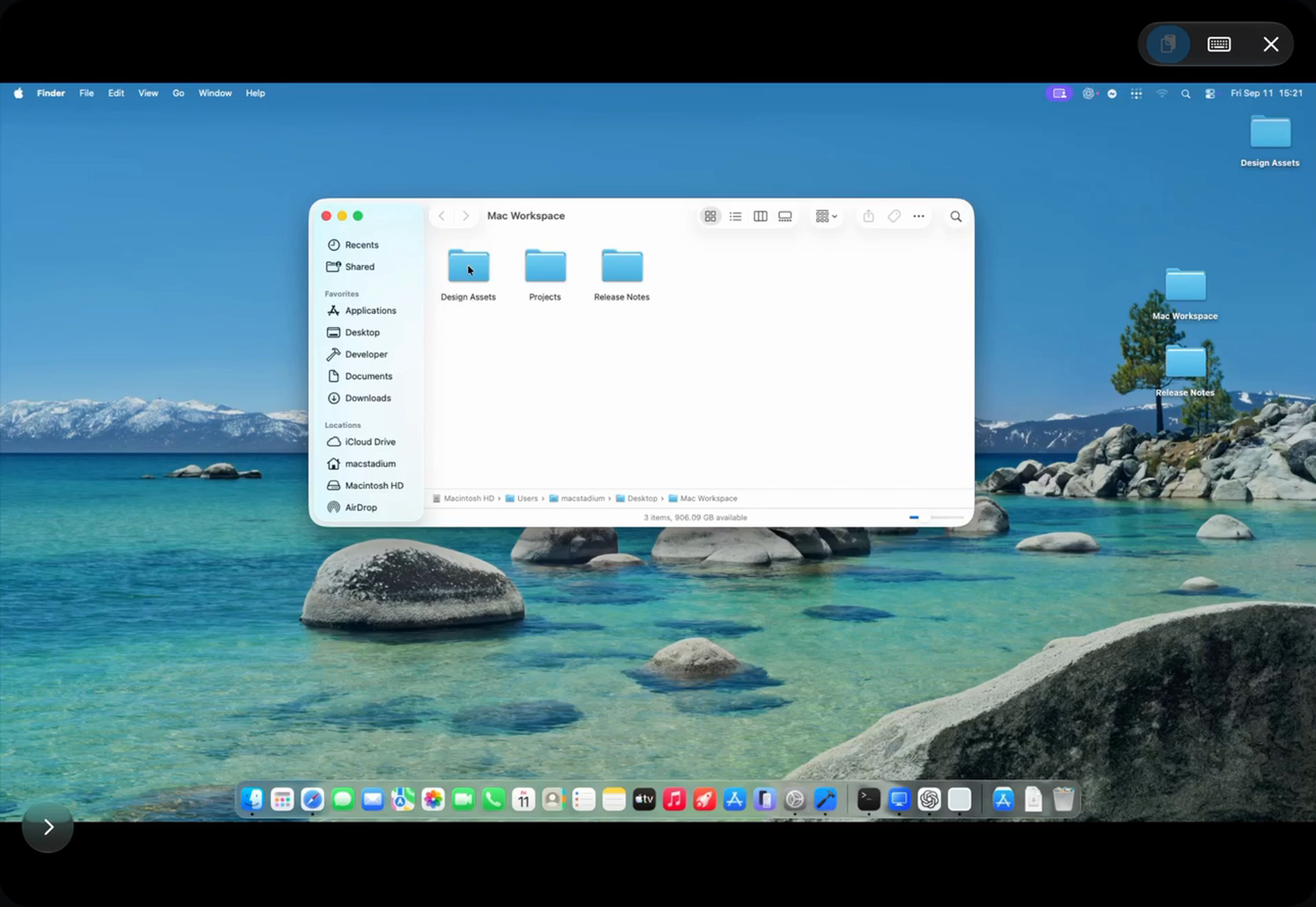
Glassy Desk gives an iPhone or iPad direct access to a Mac's desktop. It supports standard macOS Screen Sharing through VNC and its own Fast Connection through the free Glassy Desk for Mac companion.
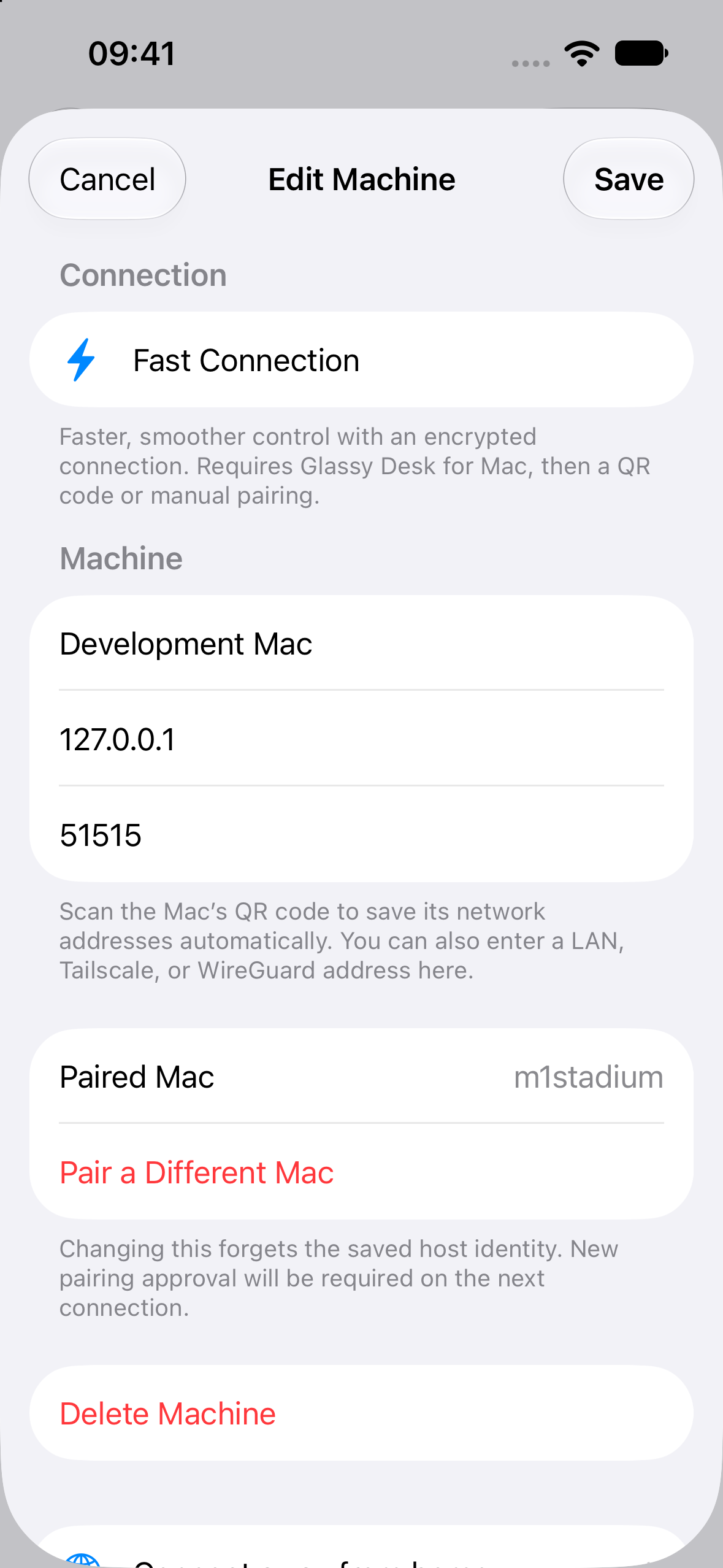
With Fast Connection, the Mac captures its display and sends an authenticated, encrypted video stream to the iPad. Touch, pointer movement, keyboard input, and explicit clipboard pastes travel back to the Mac. Nearby discovery and QR or code pairing help with setup; saved computers make returning to work quick. A reachable private network or VPN, such as Tailscale, lets the same approach work with a Mac elsewhere.
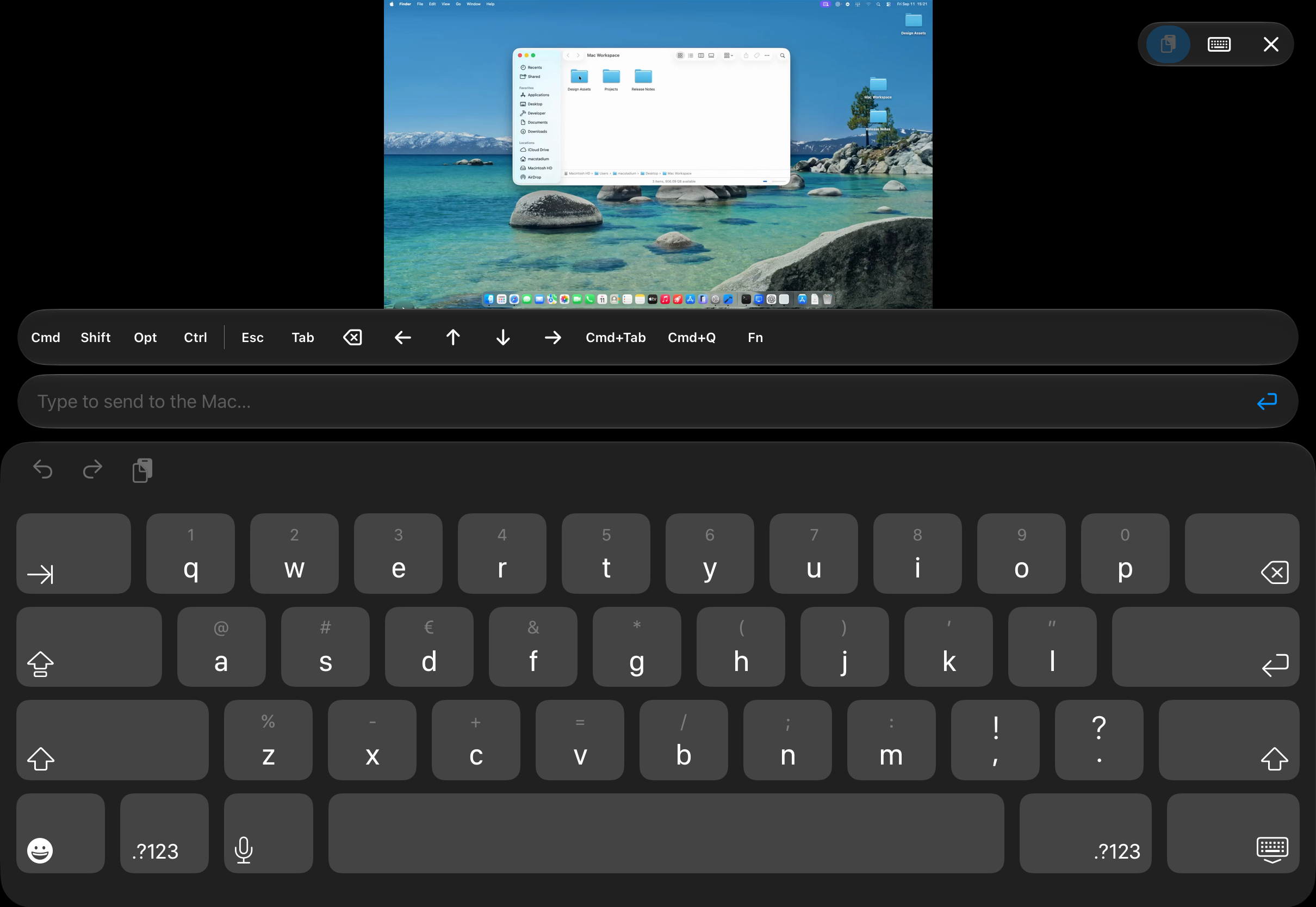
The controls are built around actually using a desktop from a smaller screen. You can switch between direct touch and trackpad mode, right-click, scroll, zoom, follow the pointer, and send Mac modifier and shortcut keys. Floating Liquid Glass controls can collapse to give the desktop more room. An external display can show the Mac while the iPad or iPhone becomes the controller.
Glassy Desk complements the agent tools I already use. It doesn't run those agents itself. It gives me the visual access and direct control that make the rest of the workflow feel complete.
How we built it
I built the iPhone and iPad client in Swift and SwiftUI, with UIKit handling the parts that need precise keyboard, pointer, and video presentation behavior. Standard VNC support builds on RoyalVNC. Fast Connection is a separate client-and-host implementation.
The Mac companion uses ScreenCaptureKit to capture a selected display and VideoToolbox to encode low-latency H.264. The client decodes and presents that stream with Apple's media frameworks. Network framework handles the direct connection, Bonjour discovers nearby Macs, and CryptoKit supports the authenticated, encrypted protocol. Quality presets let people trade detail and motion for bandwidth without rebuilding their connection.
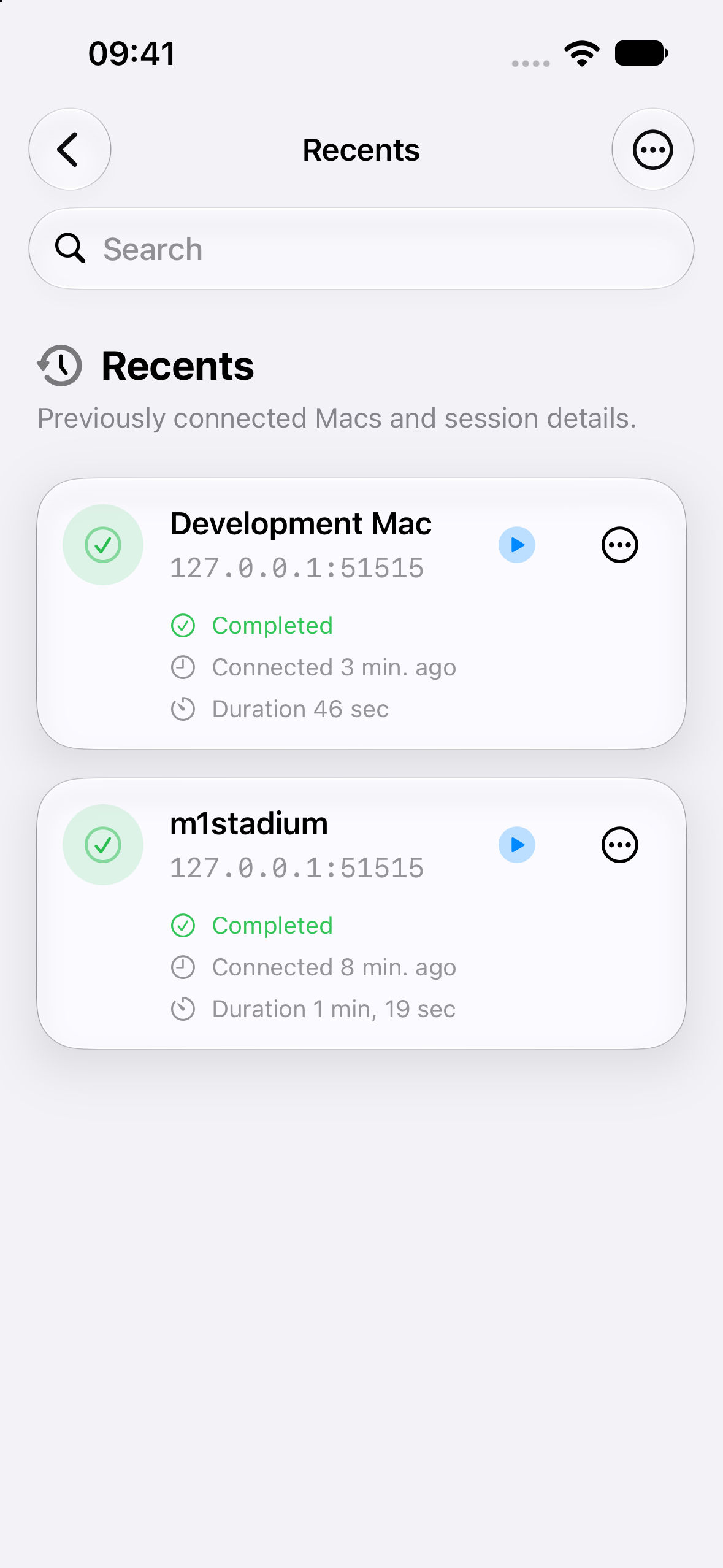
SwiftData and private CloudKit storage keep saved-computer information and connection history available across devices. Credentials use protected storage, including Keychain. App Intents and widgets provide quick ways back to a saved Mac.
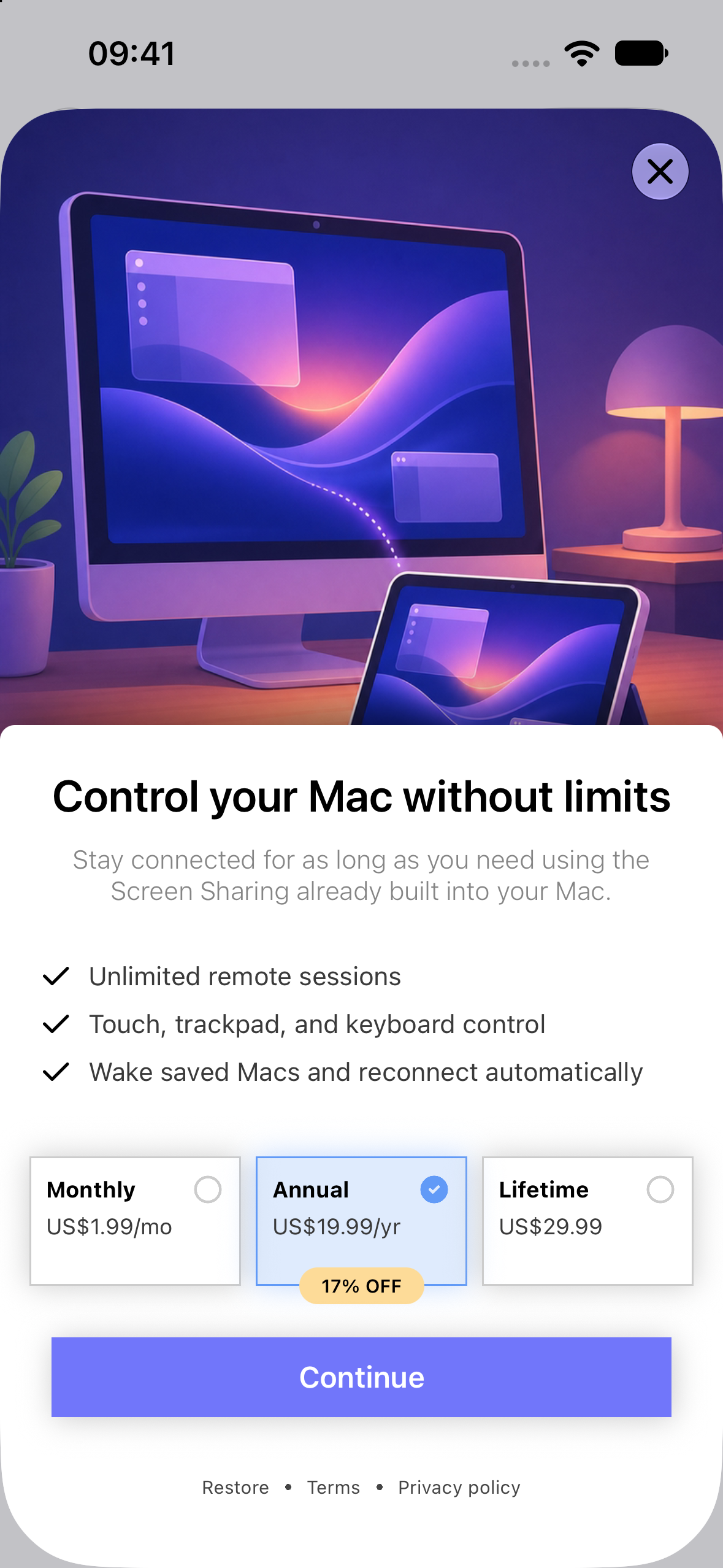
RevenueCat manages Pro entitlements, offerings, purchases, restoration, and the paywall. The app is free to try in timed sessions. Pro removes the session limit, with monthly, yearly, and lifetime choices.
Challenges we ran into
The hard part wasn't making a desktop appear once. It was making the connection keep feeling useful when the network changed, the Mac became idle, or the user moved between typing, pointing, and zooming.
For the stream, I had to work on bounded frame queues, recovery after a decoder loses its usable state, and adapting to a slow receiver. A beautiful frame that arrives too late is not useful for remote control. The host also needs to start capturing when a paired device connects and stop when the last device leaves, without getting trapped by stale capture state.
Input was a different kind of challenge. An iPad touch surface is not a Mac trackpad, and a software keyboard can cover the thing you are trying to type into. I worked on coordinate mapping, cursor tracking, modifier keys, and keeping the viewport usable while the keyboard is visible. A remote-control app needs the screen and the input to agree.
Accomplishments that we're proud of
I'm proud that Glassy Desk answers a problem I have wanted to solve since the iPad arrived. Agents changed what I can do from it. Glassy Desk helps with the moments when I still need my Mac's interface.
What we learned
The Mac's permission flow was a lesson. Screen Recording, Accessibility, and direct screen access have separate responsibilities. Setup needs to explain what is missing, refresh when permissions change, and fail clearly when the host cannot capture or accept input.
This project taught me how much of a responsive experience comes from the parts the user never sees: recovering cleanly, discarding obsolete work, preserving the right state, and keeping controls predictable.
What's next for Glassy Desk
The app launched publicly during Shipaton, and I have continued refining the connection, controls, and Mac setup experience. Next, I want to learn from people using it across different networks and development setups, and keep reducing the distance between wanting to do something on a Mac and being able to do it from an iPad.
Built With
- app-intents
- appkit
- avfoundation
- bonjour
- cloudkit
- cryptokit
- keychain
- network-framework
- revenuecat
- revenuecatui
- royalvnc-/-royalvnckit
- screencapturekit
- sparkle
- storekit
- swift
- swiftdata
- swiftui
- uikit
- videotoolbox
- widgetkit
- xcode

Log in or sign up for Devpost to join the conversation.