-
-
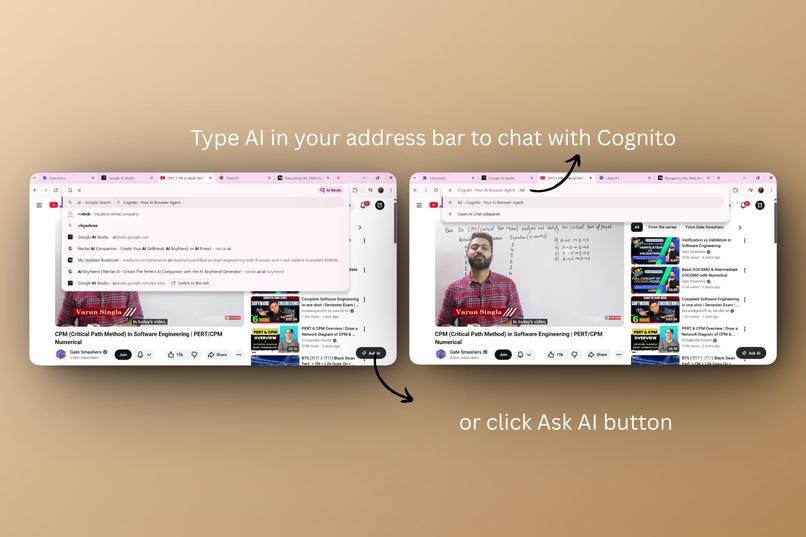
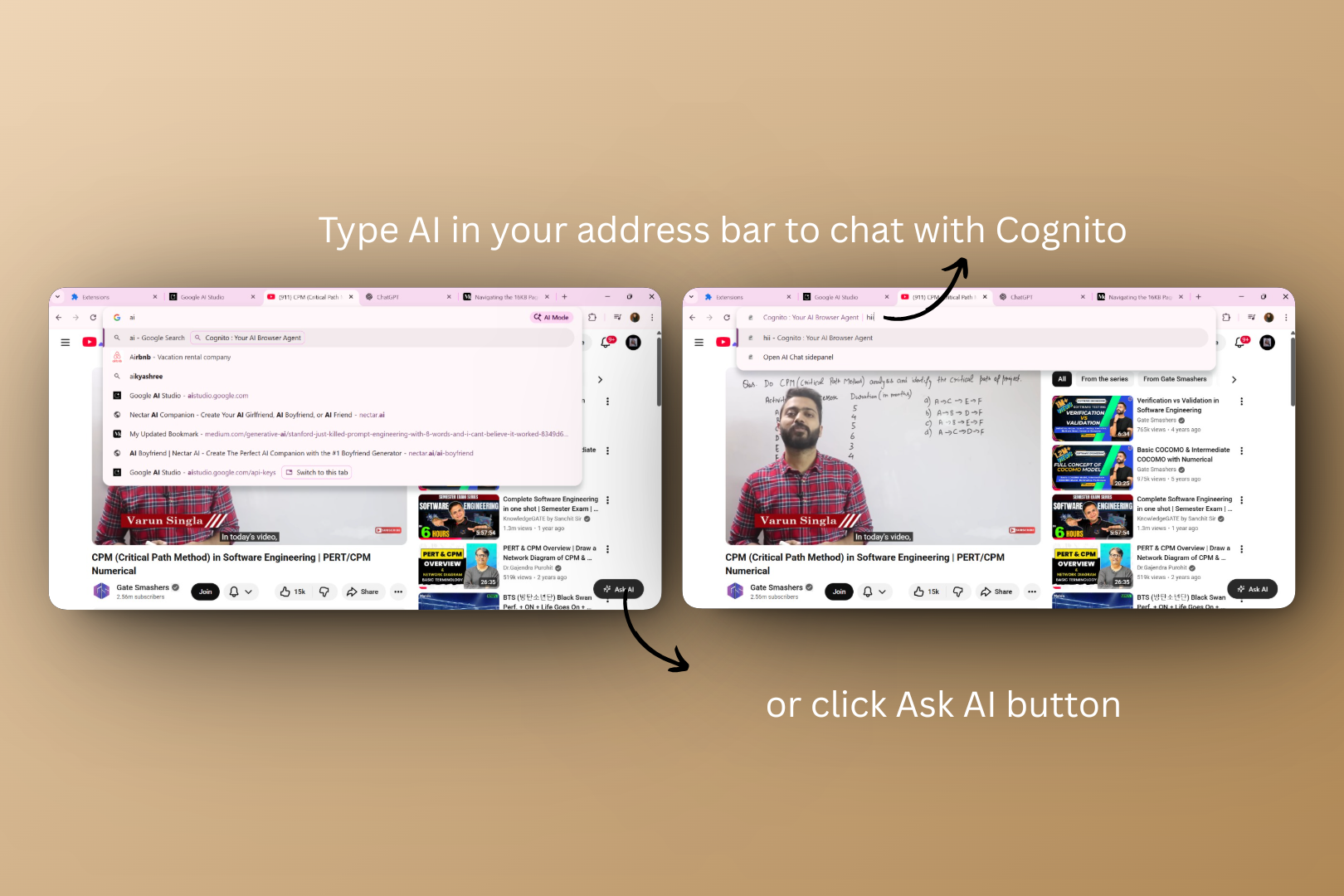
entry points
-
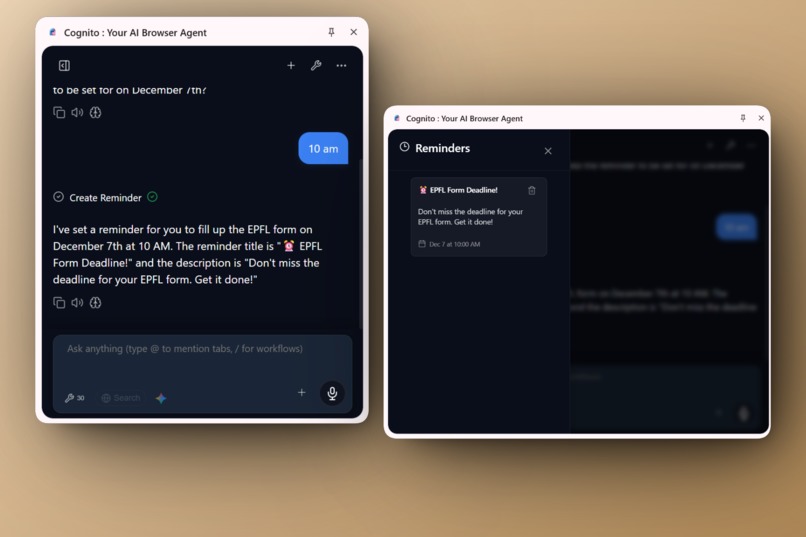
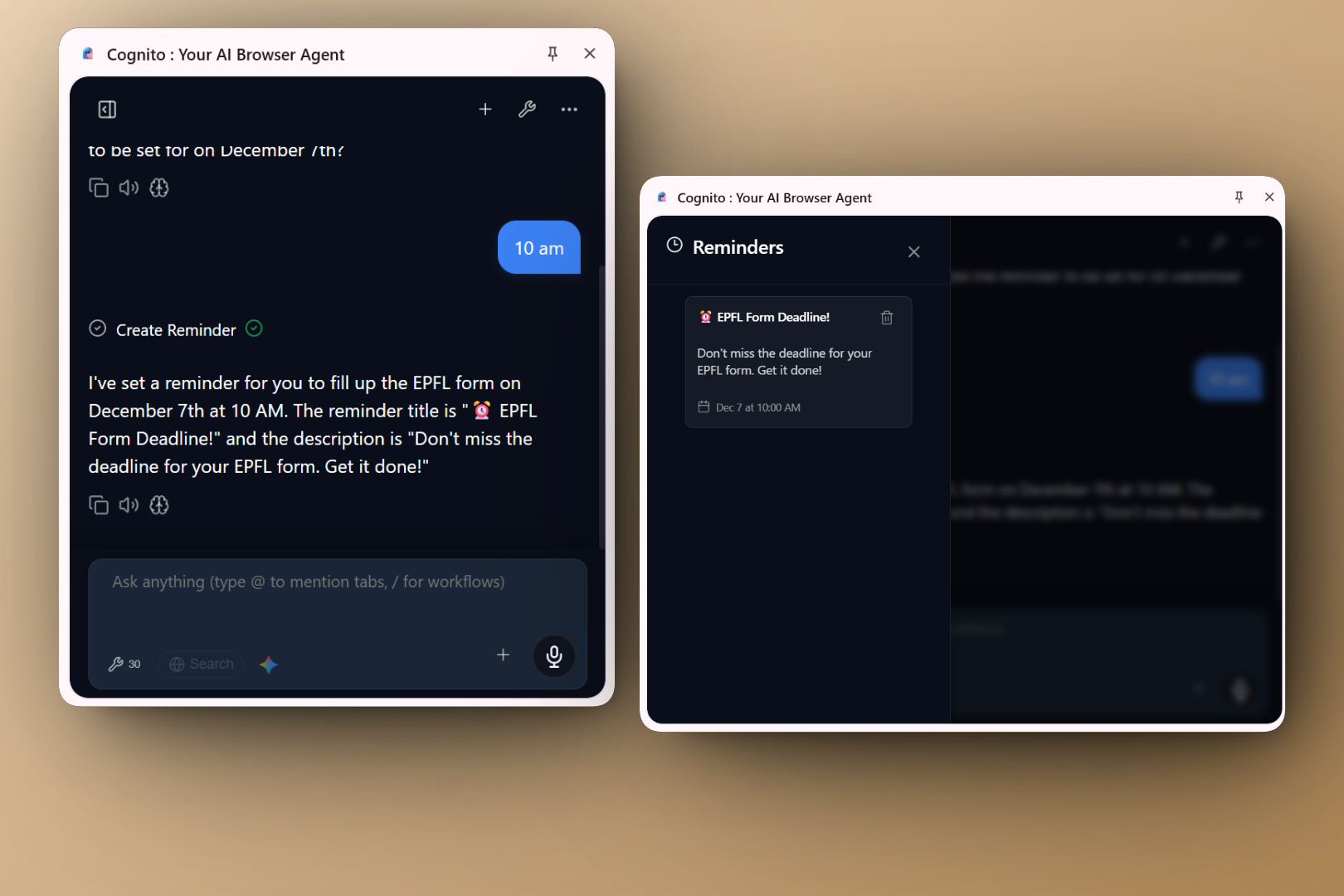
set reminder via natrual language
-
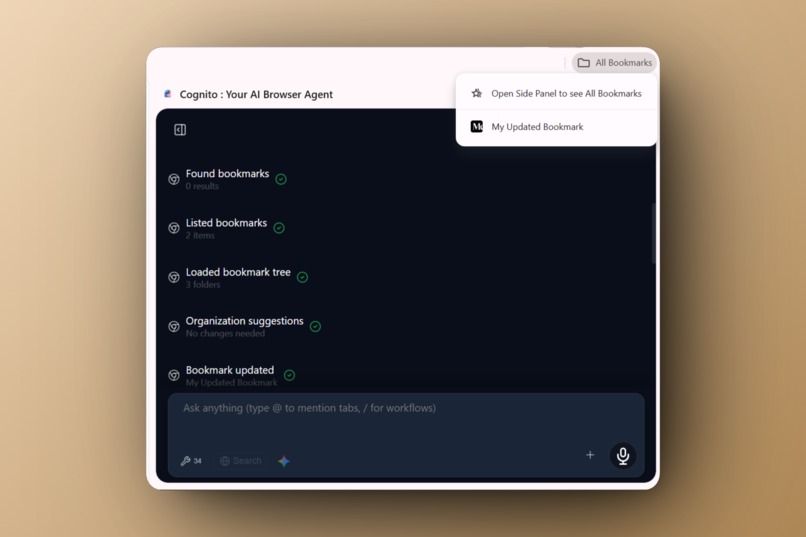
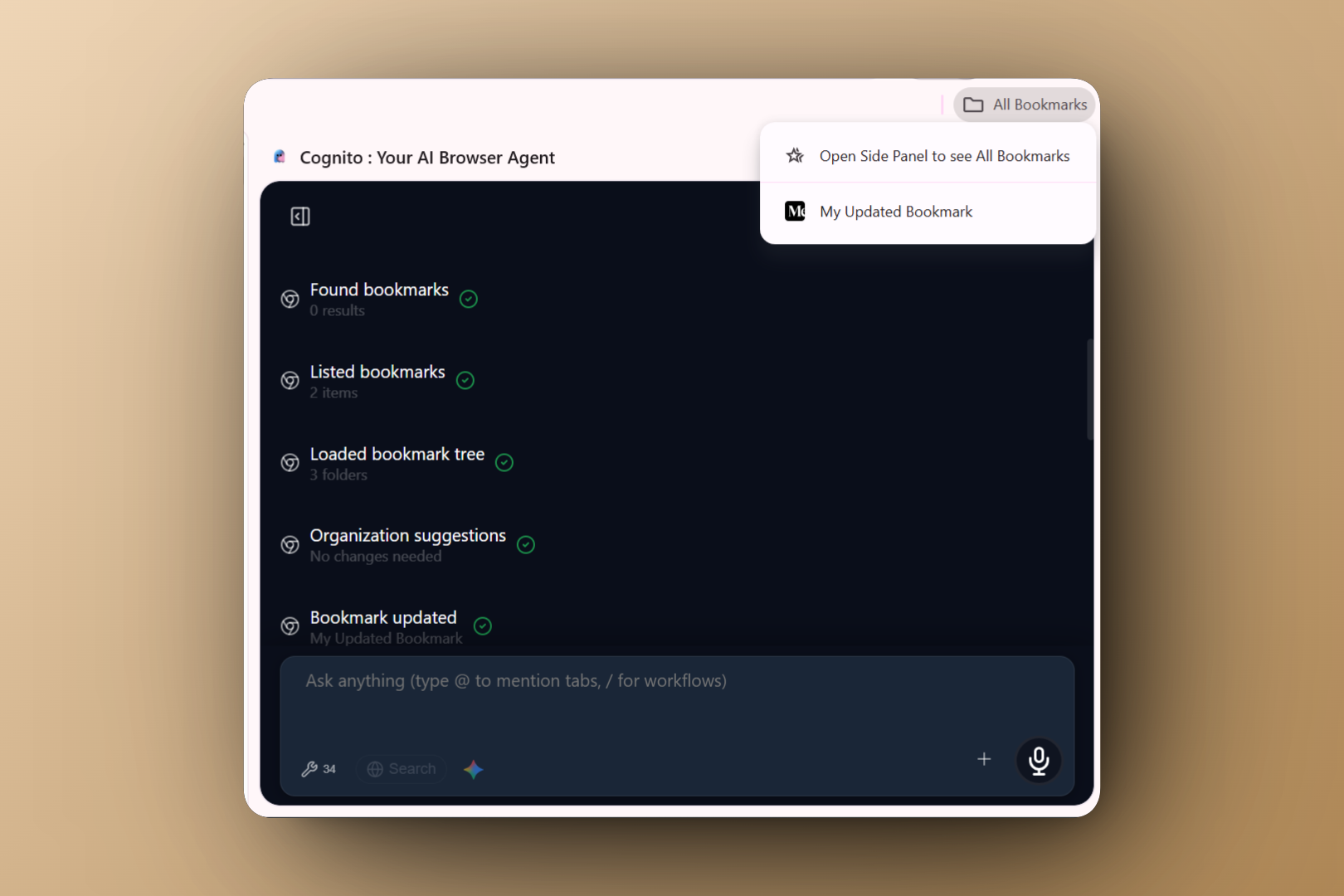
managing book marks
-
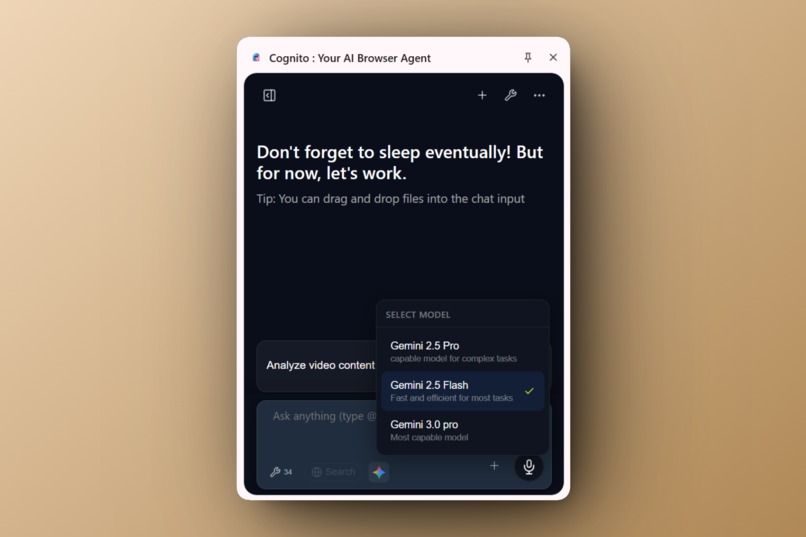
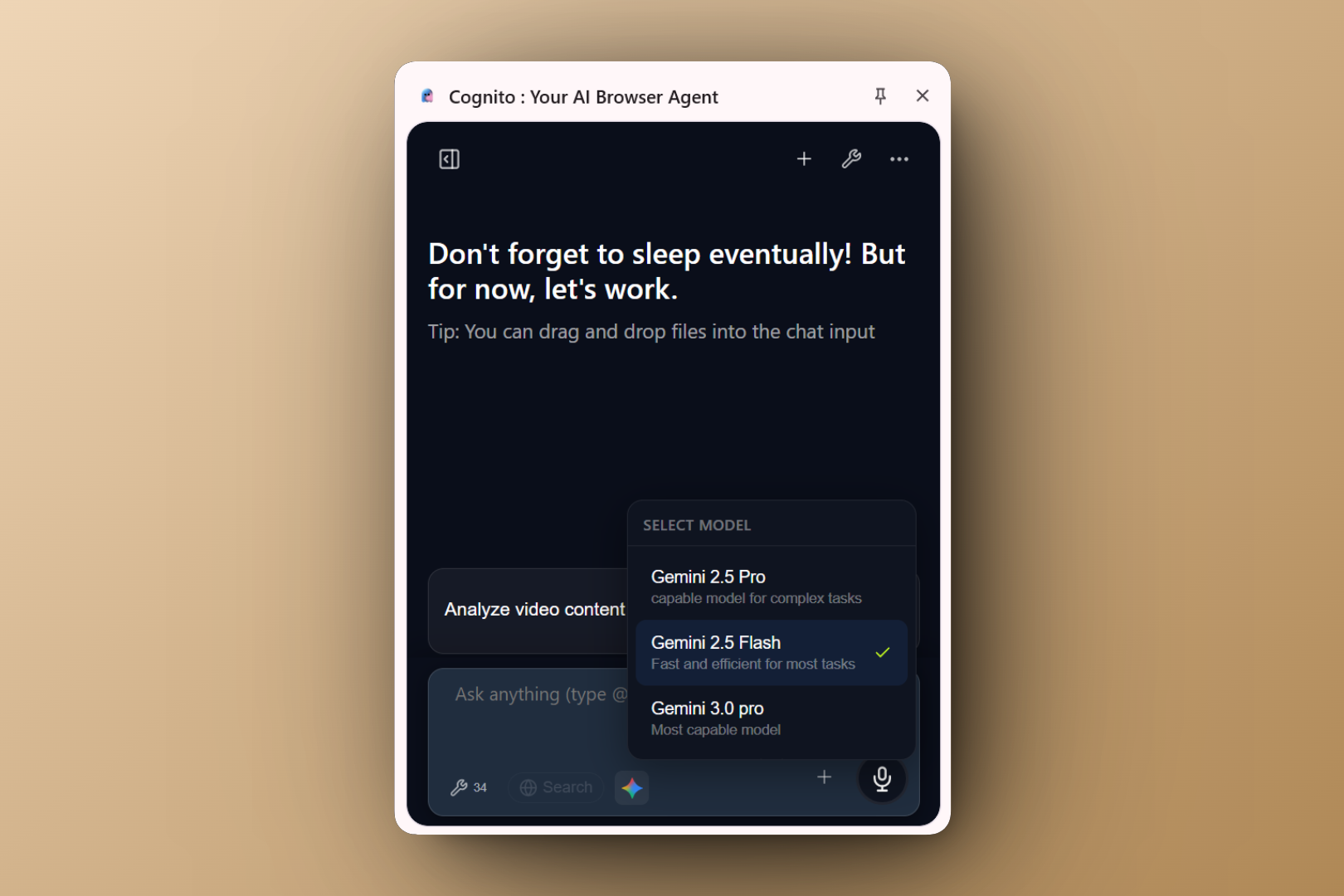
you can select multiple models [ flash is reccomded ]
-
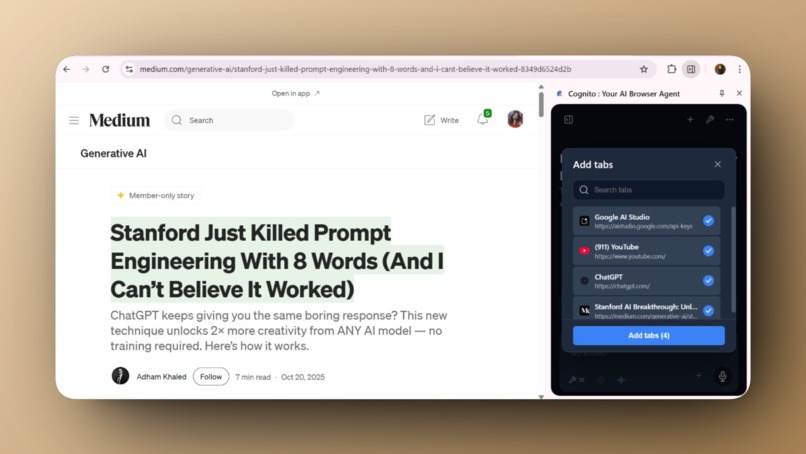
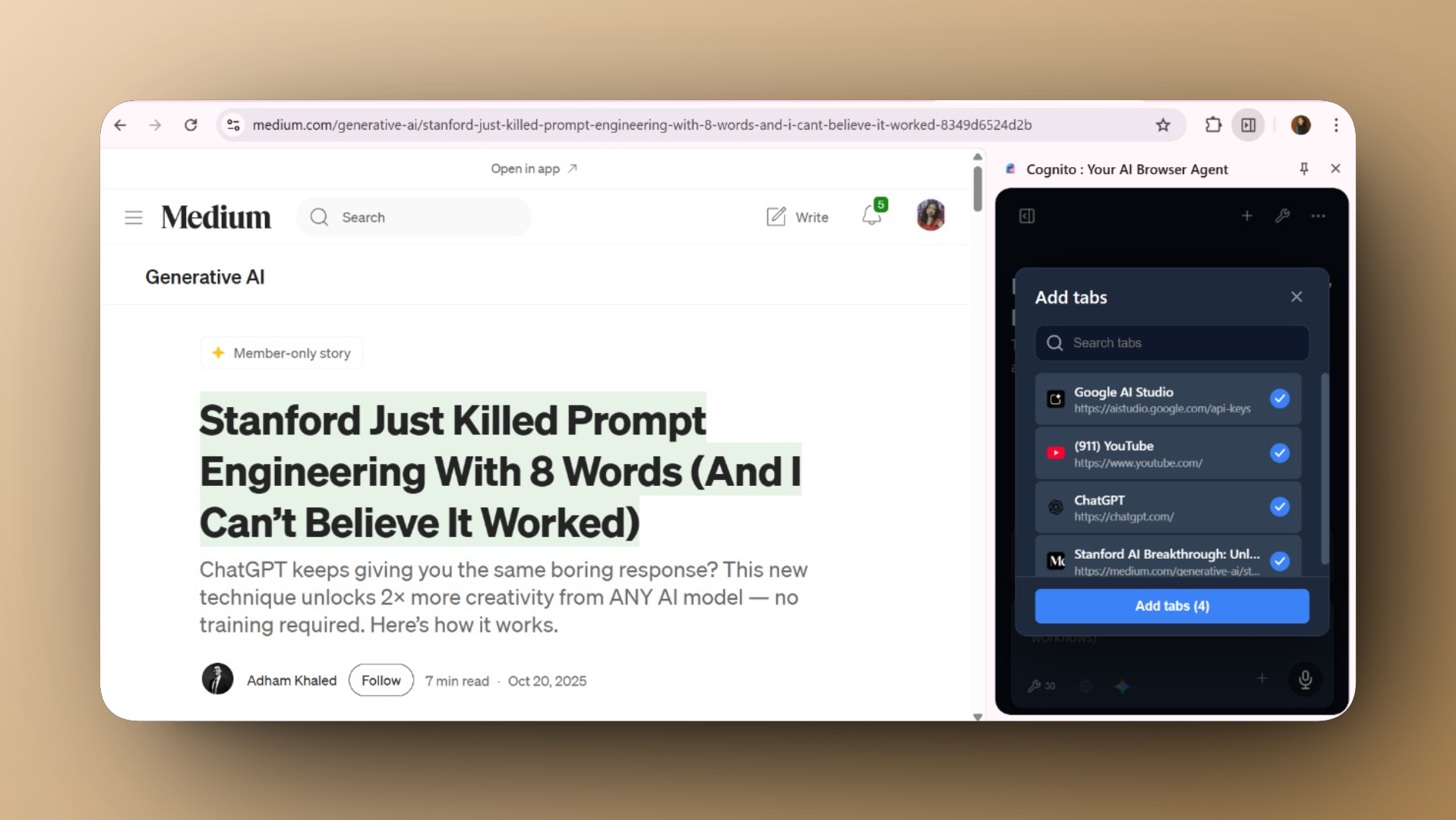
add tabs feature access it via + icon in the chat input
-
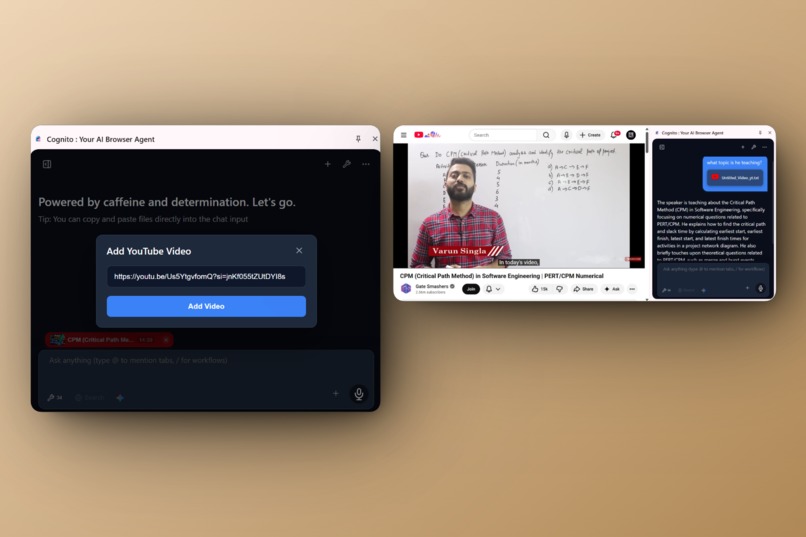
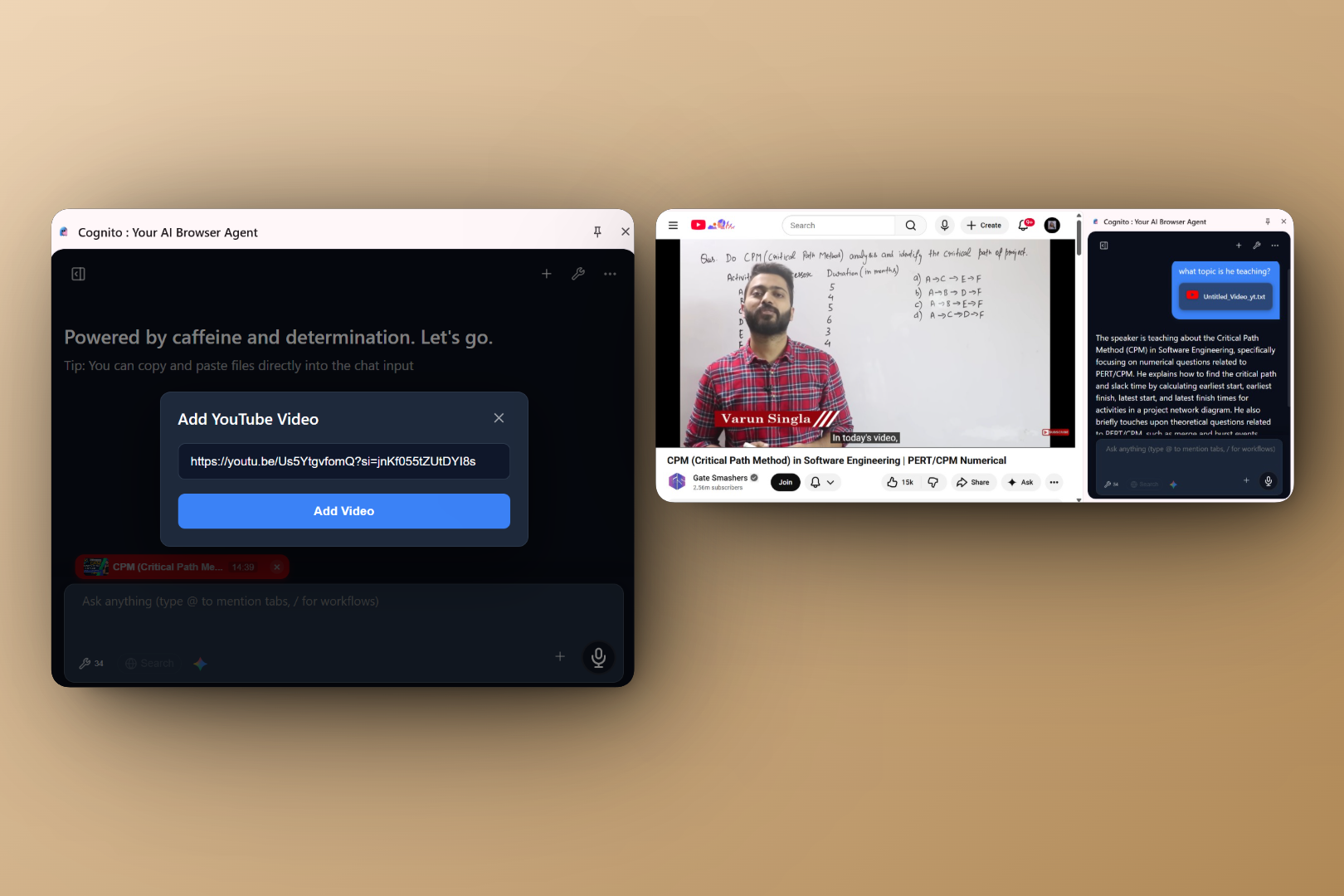
analyse youtube video
Inspiration
I didn't want to build a niche tool used by only a few people; I wanted to build something that helps everyone reclaim their time. The browser is where we spend most of our digital lives, yet it often feels chaotic and disconnected from our AI tools.
I was inspired to build Cognito not just as a chatbot, but as a true Browser Agent. My goal was to create a companion that lives in the side panel, understands your context, and handles the tedious tasks like organizing tabs, summarizing videos, or connecting to your notes so that you can focus on the "wins."
What it does
Cognito is an agentic Chrome extension that lives in your side panel. It transforms how you browse by:
- Organizing Chaos: Automatically grouping and organizing messy tabs by topic.
- Deep Research: Using Tavily to browse the live web, synthesizing answers from multiple sources (with citations).
- /research (in the chat input ): triggers the Agentic Research mode. This uses your actual browser to autonomously open tabs, read pages, and navigate to find deep answers (simulating a human researcher).
- Contextual RAG: Letting you "chat" with any webpage, PDF, or YouTube video.
- Browser Automation: Performing multi-step tasks like navigating to Gmail, composing emails, and clicking buttons.
- MCP Integration: Connecting to external data sources (like Notion) and website-specific tools via the Model Context Protocol.
Installation & Setup
- Download: Download the production build linked in this submission (or clone the GitHub repo to build from source).
- Install: Go to
chrome://extensions, toggle Developer Mode (top right), click Load unpacked, and select the downloaded folder. - API Configuration:
- Gemini: After onboarding, click the three-dot menu in the extension → AI Provider Setup. Note: The Gemini API method is tested and recommended (Vertex setup is currently experimental). A paid tier key is suggested to avoid rate limits/latency, though free keys will work with potential retries.
- Tavily & Supermemory: Simply open Settings and scroll down to input these keys.
How to Access & Use
Entry Points:
- Extension Icon: Simply click the Cognito icon in your Chrome toolbar (the easiest way to open the side panel).
- Floating Button: Click the "Ask AI" button that appears on pages after installation.
- Omnibox (Address Bar): Type
aifollowed by a space to send a message directly from the address bar. - Keyboard Shortcut: Set a custom shortcut via
chrome://extensions/shortcutsfor instant access.
Testing WebMCP:
You can test the WebMCP integration at https://codewarnab.in/.
- If the WebMCP tools do not appear immediately in the tools menu, please perform a hard refresh.
- Note: Currently, this displays tools built by the website owner. I am working on a future feature where users can inject WebMCP tools into any website using a user-script mechanism.
Troubleshooting: If you run into issues, you can view common solutions in the three-dot menu within the extension.
Features:
- Slash Commands: Type
/writeto open the Writer interface or/askfor quick queries. - Summarization: Select any text on a webpage to see a "Summary" tooltip.
- Rewrite: Select text, right-click, and choose "Rewrite" from the context menu. (Fun fact: It can rewrite any content on the page, not just input fields!)
How I built it
I built Cognito as a Chrome Extension using the Side Panel API to keep it non-intrusive.
- Frontend: React & TypeScript.
- Intelligence: Powered by Gemini for reasoning and Tavily for live search.
- Connectivity: Implemented the Model Context Protocol (MCP) to bridge the browser with web MCP server and remote servers.
- Privacy-First Architecture: Everything happens on your client device. Requests are sent directly from your browser to the Gemini API endpoint. No user data is sent to my servers, ensuring your browsing history and personal data remain private.
Challenges I ran into
Building a truly "agentic" workflow in a browser is tricky. Managing the context window when a user has 20 tabs open was a significant engineering hurdle. We also faced hurdles in ensuring the automated actions were reliable across different website layouts.
What I learned
Early Standards Adoption is Hard But Worth It. MCP was supposed to be standardized, but I discovered it's still in the early stages. Many services need special invitations and have inconsistent implementations. However, being an early adopter gave me a competitive advantage and helped me understand how to contribute to the ecosystem's development.
What's next for Cognito
I view this hackathon submission as just the beginning. To make Cognito a daily driver, I plan to implement:
- Multi-Model Support: While currently optimized for Gemini, I will soon add support for all major model providers (OpenAI, Anthropic, etc.) to give users full choice.
- WebMCP Injection: Enabling users to inject WebMCP tools into any website using a user-script feature, allowing the agent to interact with sites that don't natively support MCP.
- The "Unblockable" Agent (Debugger Support): To handle websites that block standard script execution, I plan to leverage the Chrome Debugger API. This will allow Cognito to interact with the browser at a lower level, ensuring it can click, type, and navigate even on restrictive websites.
- Voice Support: Adding full voice interaction so users can speak commands naturally instead of typing, making the experience even more accessible.
- Action Approval Mechanism: For sensitive tasks, I'm adding a "human-in-the-loop" system. Cognito will ask for explicit permission before taking actions like sending emails or making payments.
- Enhanced Security & Prompt Injection Prevention: As the agent gains autonomy, security is paramount. I am developing a multi-layered defense system to ensure external web content cannot manipulate the agent.
- Integration with More Services: Expanding the MCP ecosystem to include business tools like Slack, Microsoft Teams, and Salesforce.
Built With
- ai-sdk
- gemini
- kiro
- plasmo
- react
- typescript


Log in or sign up for Devpost to join the conversation.