-
-
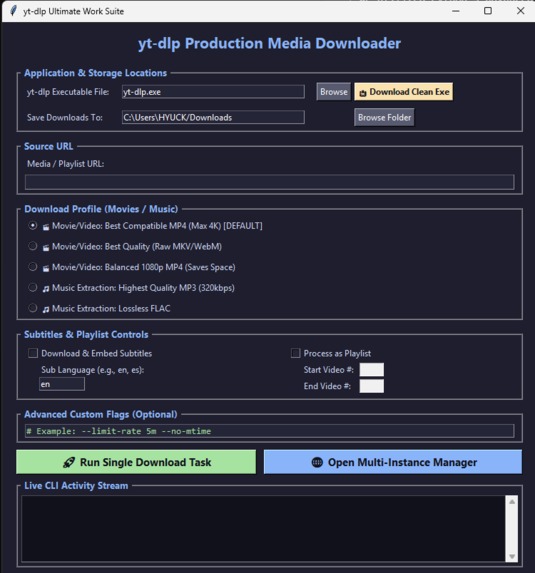
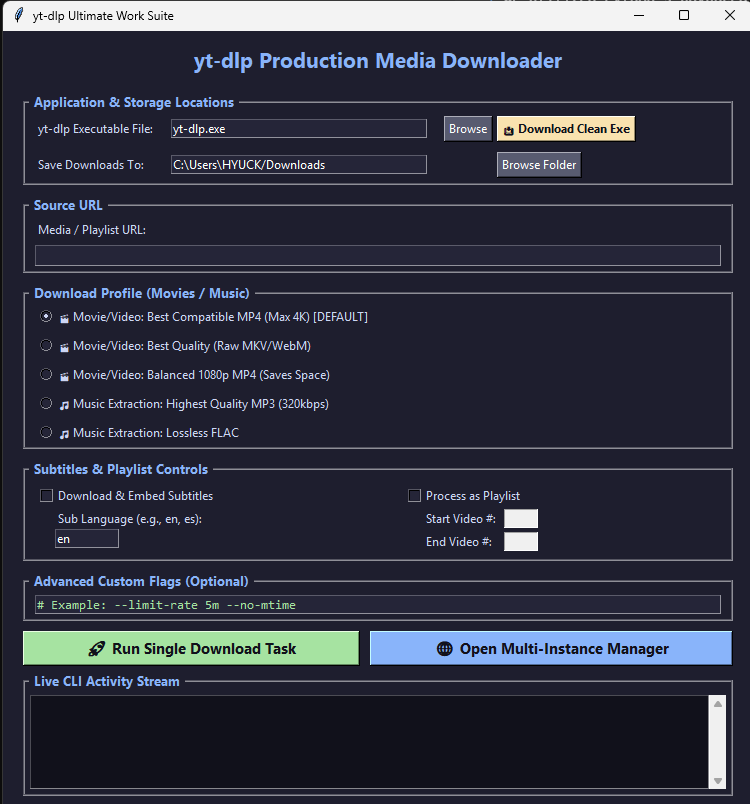
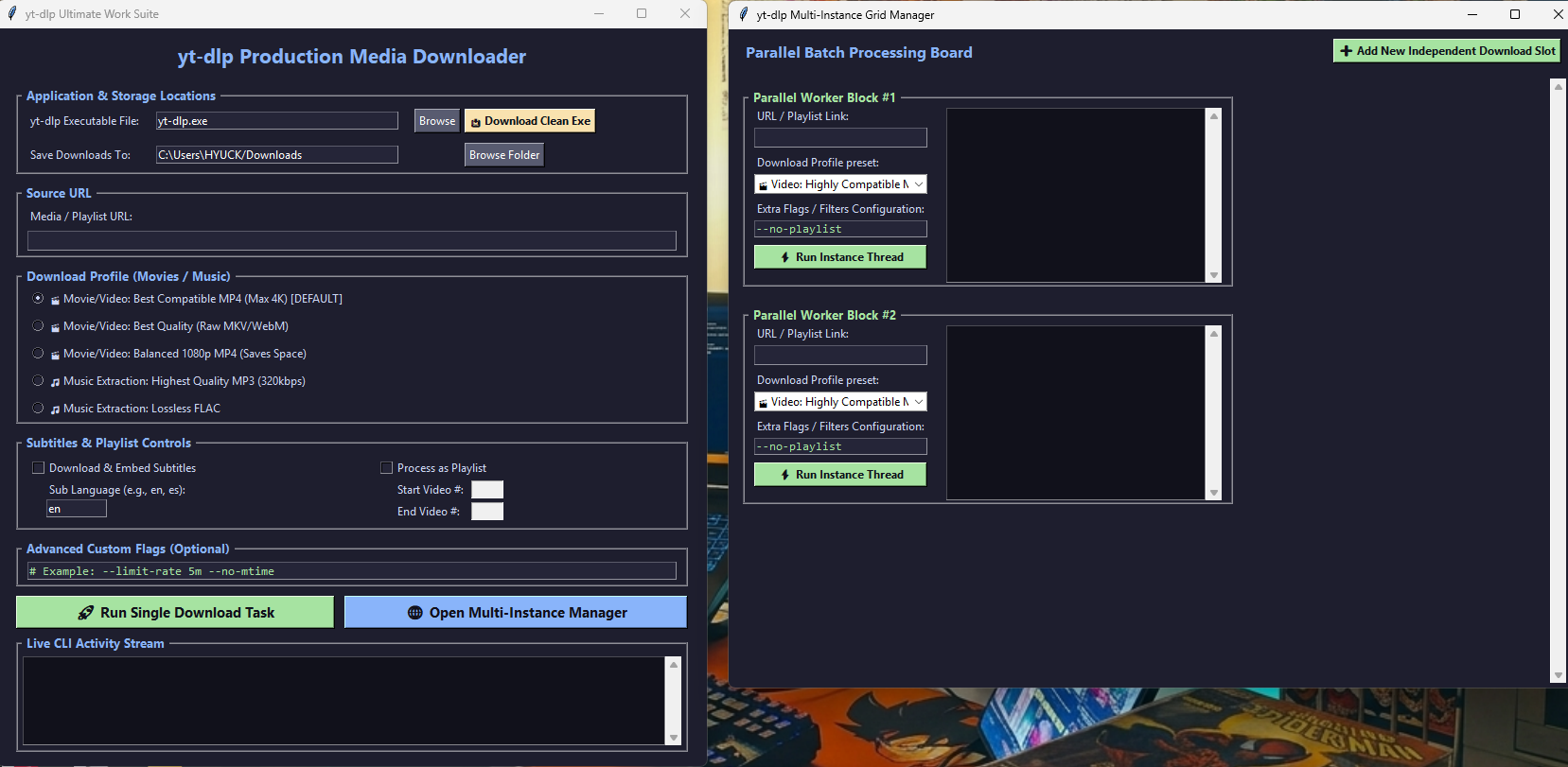
THE MAIN GUI IS SIMPLE CLEAN AND JUST WORKING.
-
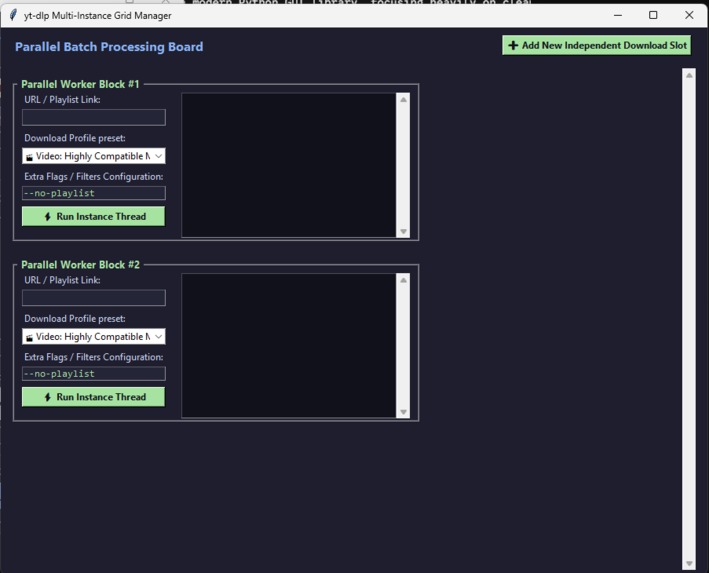
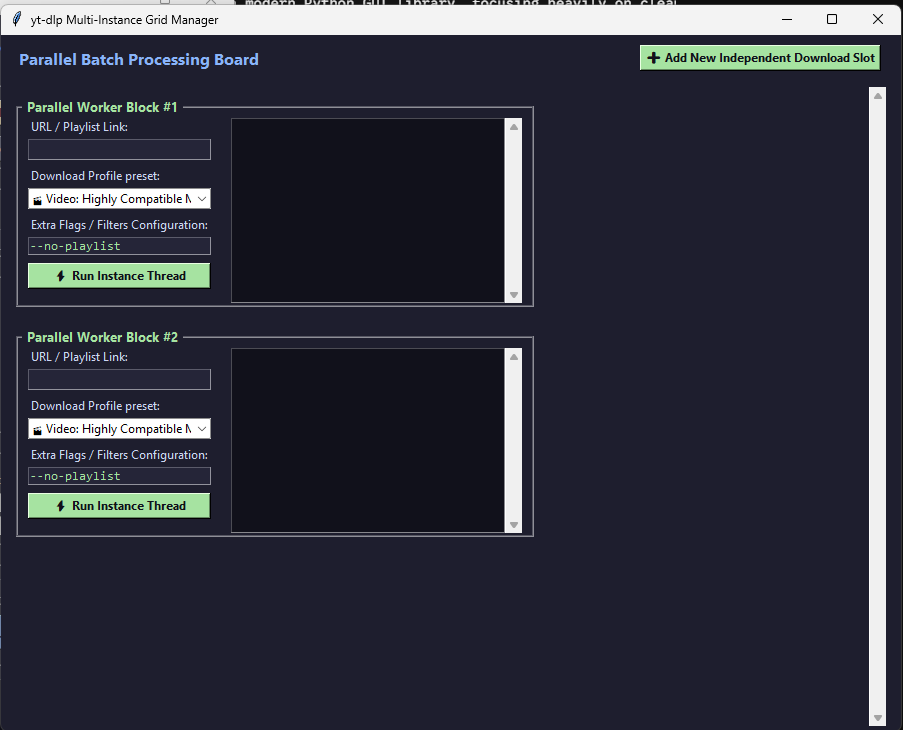
MULTIPLE VIDEO DOWNLOADING
-
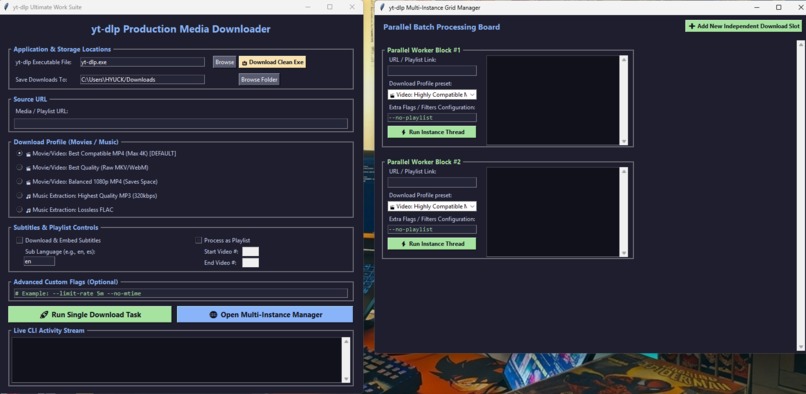
Single file
Why I Built This
Command-line tools are incredibly powerful, but copying and pasting URLs into a terminal can get annoying, especially when you are managing a bunch of different downloads or huge playlists. I built Youtube-dl ++ to bridge that gap. It is a clean, straightforward graphical wrapper that takes the best media downloader out there and puts it into an easy-to-use visual interface. No tracking, no bloated features—just a tool that makes downloading fast and convenient.
The Engine Under the Hood: Why yt-dlp?
Instead of trying to code an extraction engine from scratch, I intentionally used yt-dlp as the core backend. It is the industry standard for a reason:
- Max Speed: It mimics real browser sessions, which stops streaming platforms from throttling your download speeds.
- Massive Site Support: Thanks to a huge open-source community, it works natively with thousands of different video and audio sites.
- High-Quality Merging: Instead of downloading low-res pre-merged files, it grabs the highest quality video and audio streams separately and glues them together smoothly using FFmpeg.
- Always Up-to-Date: Platforms constantly tweak their code to break downloaders. Because yt-dlp patches these breaks fast, I built a one-click button into the GUI that automatically grabs the latest clean version straight from their official source.
What My GUI Brings to the Table
I focused strictly on making the downloading process smoother and faster:
- Parallel Worker Board: You can open up a separate window and spin up multiple download slots at the exact same time. Each slot works on its own thread, so you can download different playlists or videos simultaneously.
- Easy Presets: No need to memorize CLI formatting tags. I added quick radio buttons for standard MP4s, raw studio quality (MKV/WebM), or high-bitrate audio (320kbps MP3 or lossless FLAC).
- Built-in Subtitles: You just type in a language code (like "en" or "es"), and the app will automatically fetch and bake the subtitles right into the video.
- Live Activity Streams: I embedded terminal console windows right into the app frames. They capture the raw CLI output so you can see your actual download speed, progress percentages, and logs in real-time.
How it Was Made & What I Learned
- The Stack: I wrote the app in Python 3 using
tkinterandttkfor the interface, giving it a clean, comfortable dark theme. - Conquering the Freezing UI: When I first started, running a download would completely freeze the app window because Python was stuck waiting for the download to finish. I learned how to use Python's
threadinglibrary to push the downloads into the background, using.after()to safely send progress updates back to the main UI. - Handling Processes: I used
subprocess.Popento launch the yt-dlp binary asynchronously, learning how to tap into data pipes to read and decode terminal text line-by-line as it happens.


Log in or sign up for Devpost to join the conversation.