-
-
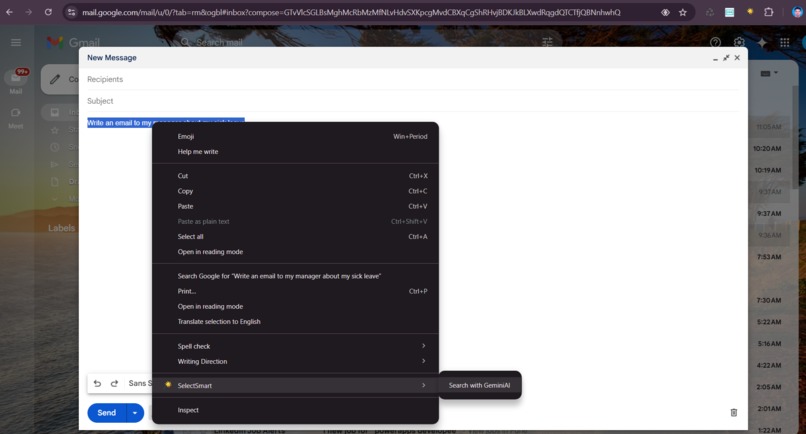
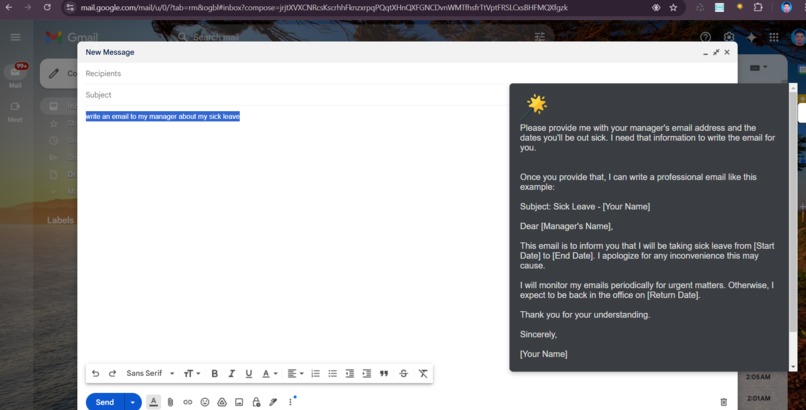
generate context with gmail
-
-

-
-

My Journey in Building a Chrome Extension with Gemini AI Integration
🌟 Inspiration
Creating a tool that enhances how people interact with content on the web has always been my goal. I wanted something that could make reading and researching online easier by providing immediate insights based on selected text. The rapid advancements in AI, particularly with Gemini AI, sparked the idea to merge web browsing with on-demand AI capabilities. I envisioned a Chrome extension that could bring this convenience directly to users’ fingertips.
🧠 What I Learned
This project was a journey through multiple areas of development and integration, teaching me about:
- Browser Extension APIs: Understanding Chrome’s extension architecture and permissions system.
- AI Integration: Integrating Gemini AI's powerful text processing abilities into a seamless user experience.
- UI Design in Extensions: Creating an intuitive interface that feels natural within a browser environment.
🔧 Building the Extension
The extension's core functionality involved capturing selected text and then sending it to Gemini AI to process and return insightful results. Here’s a breakdown of how I built it:
Setting Up the Project: I started by creating a manifest file and setting up permissions. This file defines the extension’s name, version, permissions, and background and content scripts.
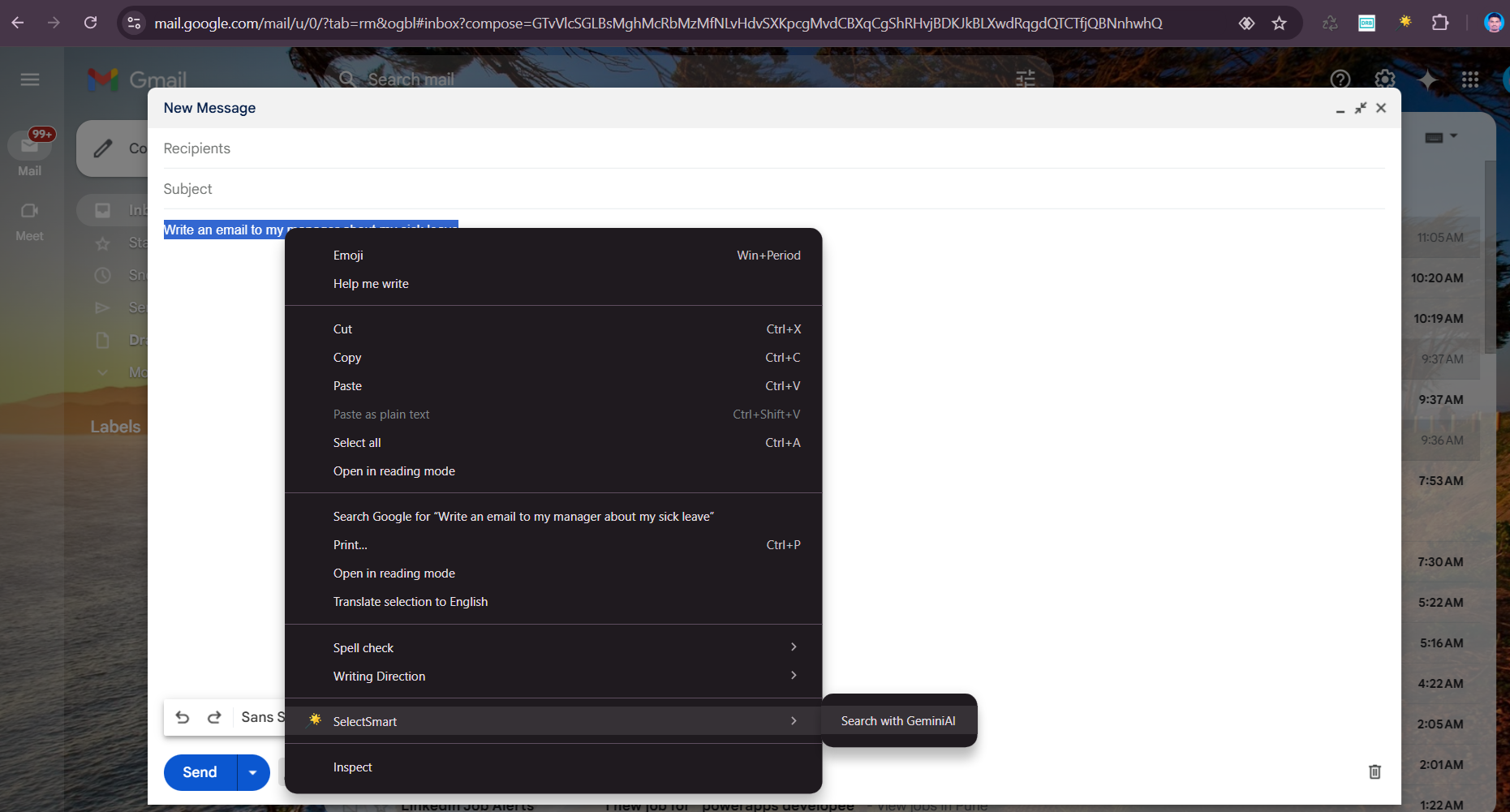
Creating the Content Script: This script listens for user actions, particularly the selection of text on the page. Using Chrome’s Context Menu API, I added a right-click option labeled “Generate with Gemini AI,” allowing users to trigger the extension effortlessly.
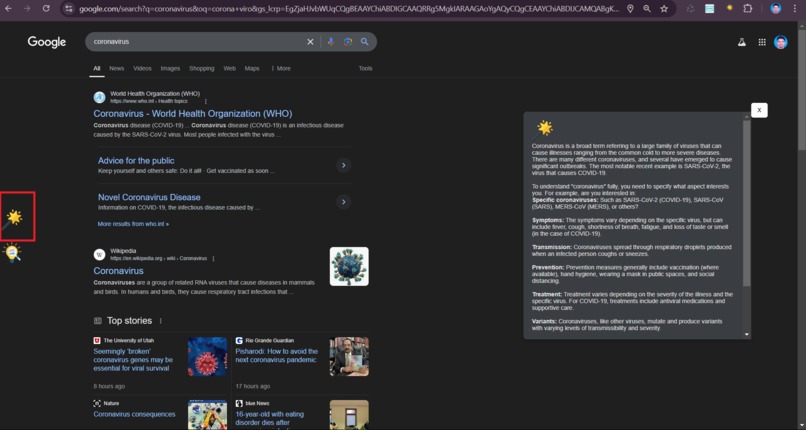
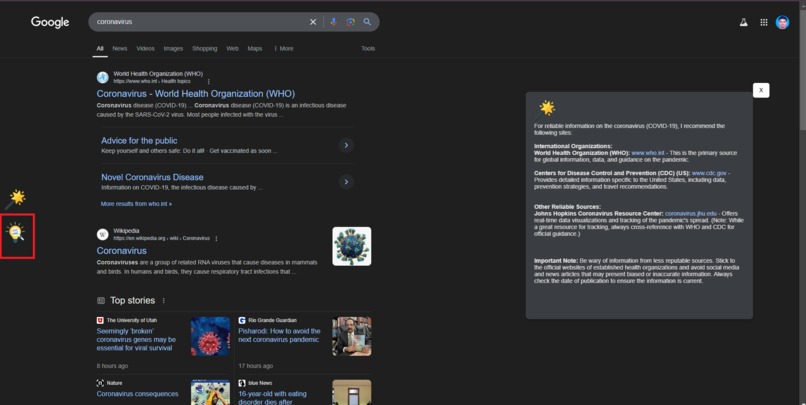
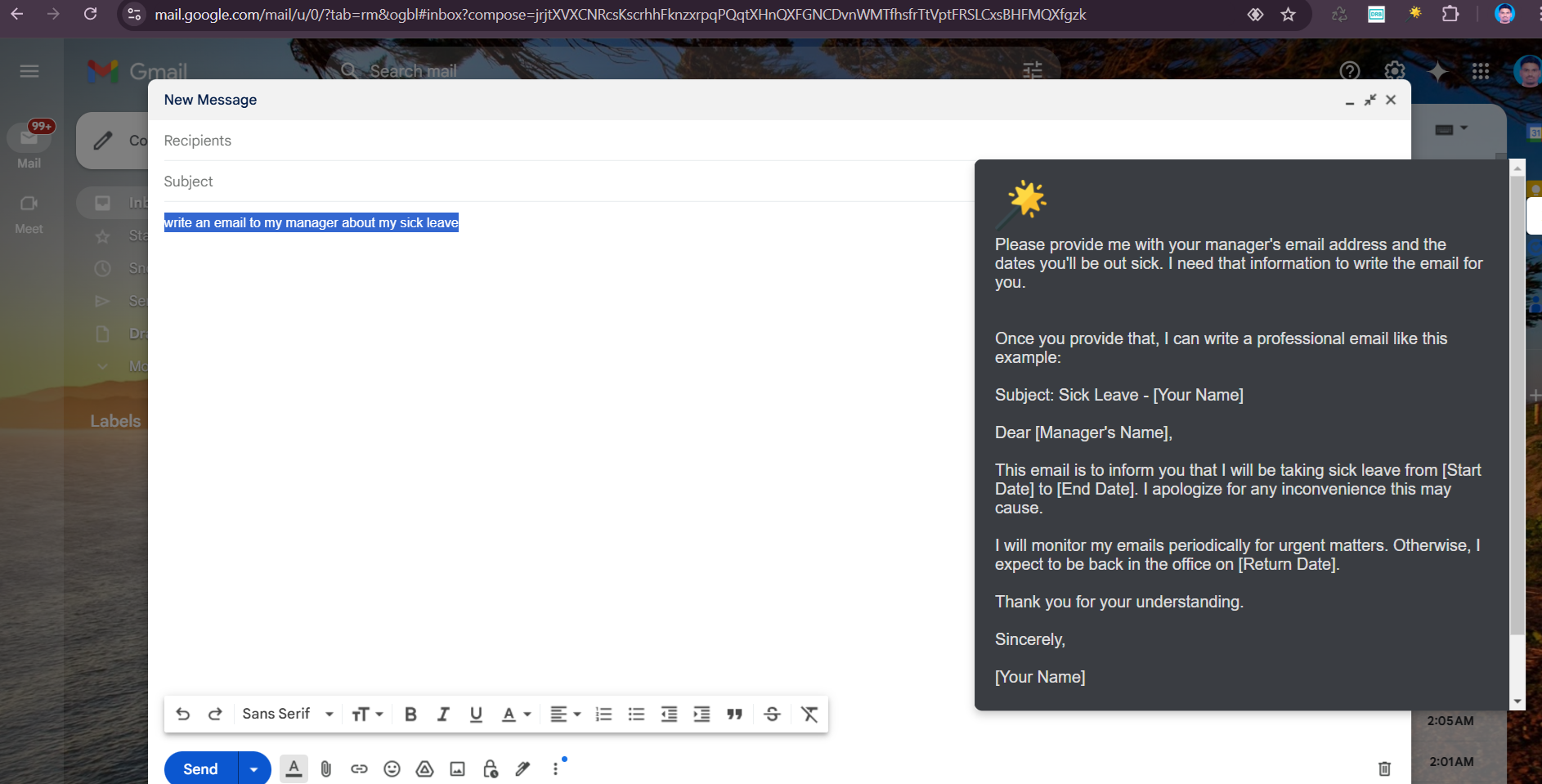
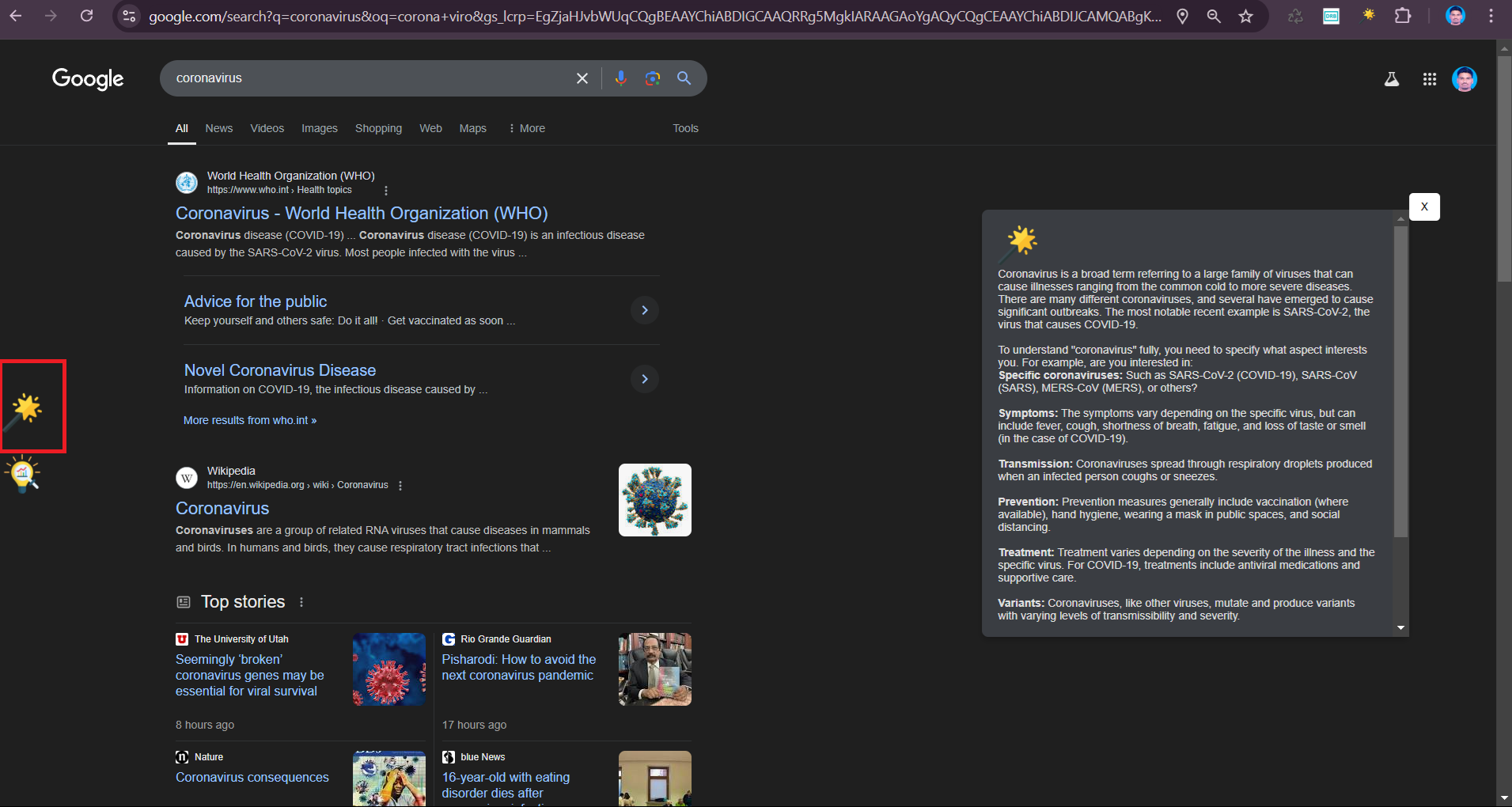
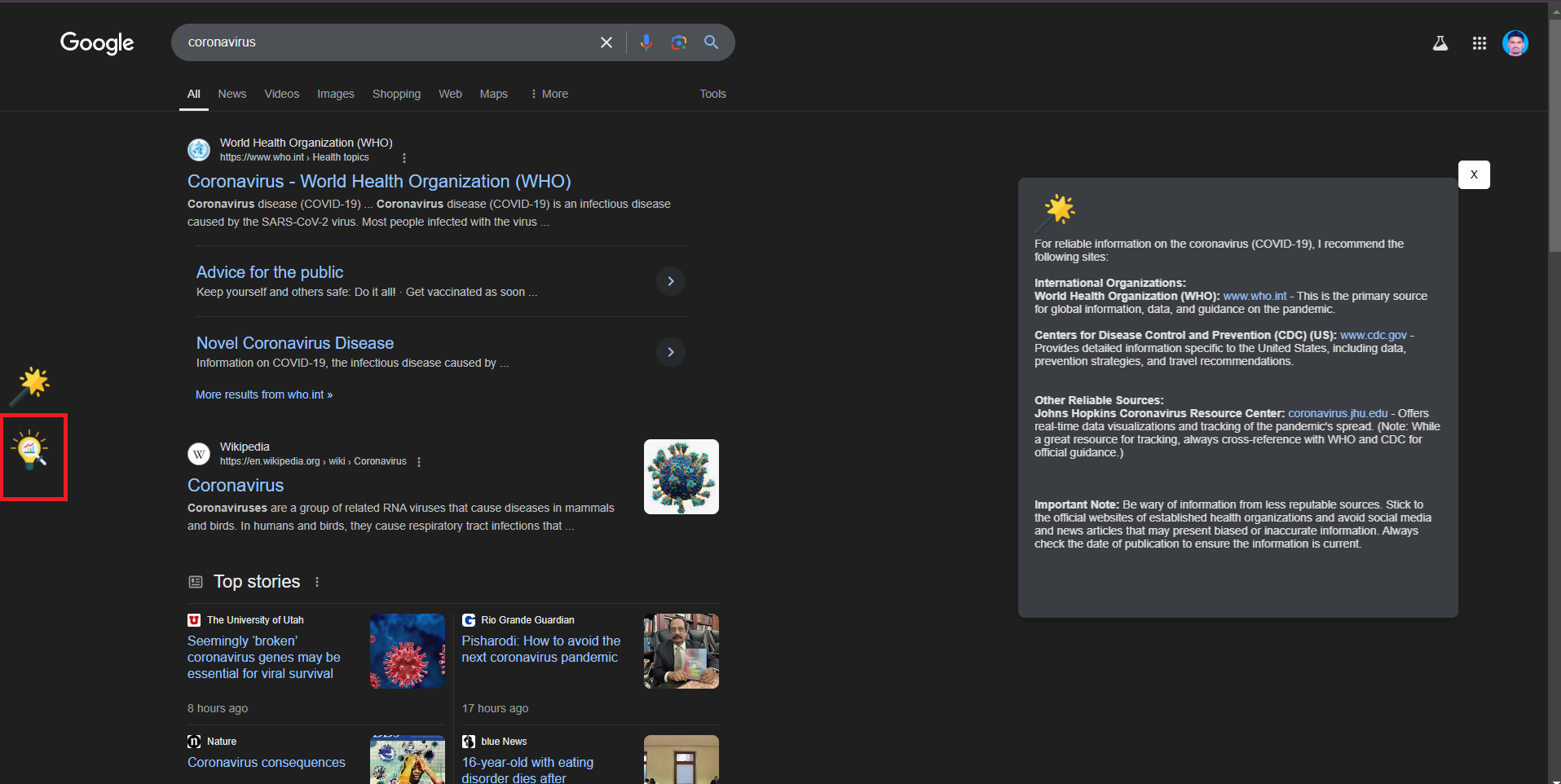
Gemini AI Integration: Once the user selects text and activates the extension, the content script sends this data to Gemini AI’s API. I handled the API responses in the background script and ensured the response was displayed in a friendly popup.
Designing the Popup: I created a simple, clean popup to display Gemini AI’s output. This required HTML, CSS, and JavaScript to ensure it looked integrated within the browser experience.
🚧 Challenges Faced
Building the extension had its share of challenges:
Ensuring Data Privacy: Managing selected text data responsibly was crucial. I took extra steps to minimize data handling and made sure only necessary information was sent to Gemini AI, emphasizing user privacy.
Handling API Response Times: Since the extension relies on Gemini AI's API, I had to handle cases where response times varied. I added a loading indicator and error handling to make the experience smoother for users.
Cross-Browser Compatibility: Ensuring the extension worked across different versions of Chrome and considering potential adaptations for other browsers required thorough testing.
🚀 Conclusion
Developing this extension was both challenging and rewarding. It’s incredibly fulfilling to see an idea come to life and become something useful. With this extension, I hope to simplify information processing for users, making online reading and research more productive and enjoyable.

Log in or sign up for Devpost to join the conversation.