-
-
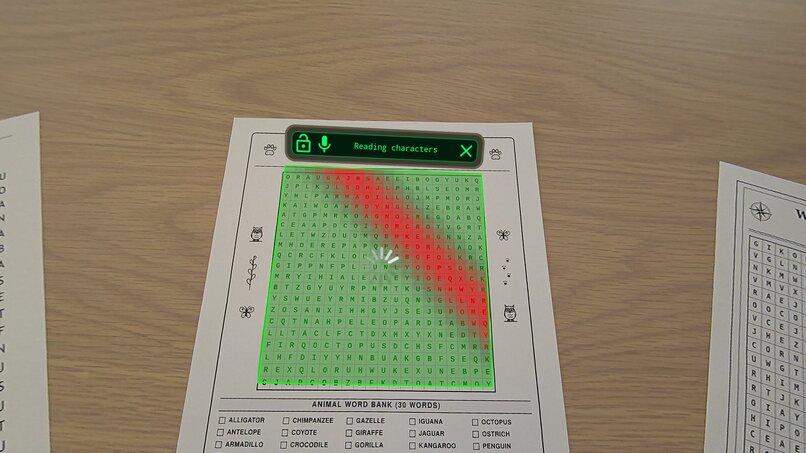
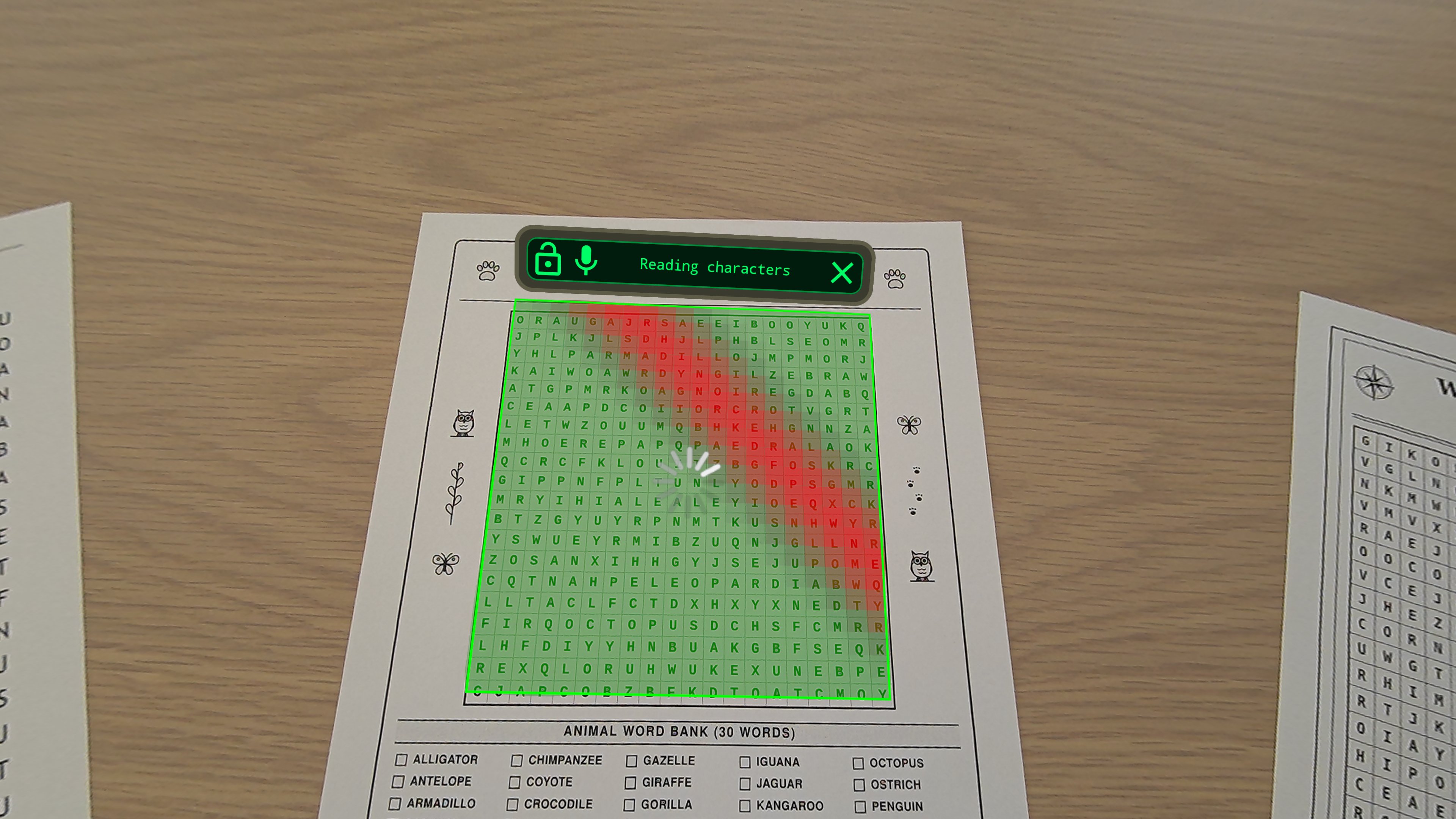
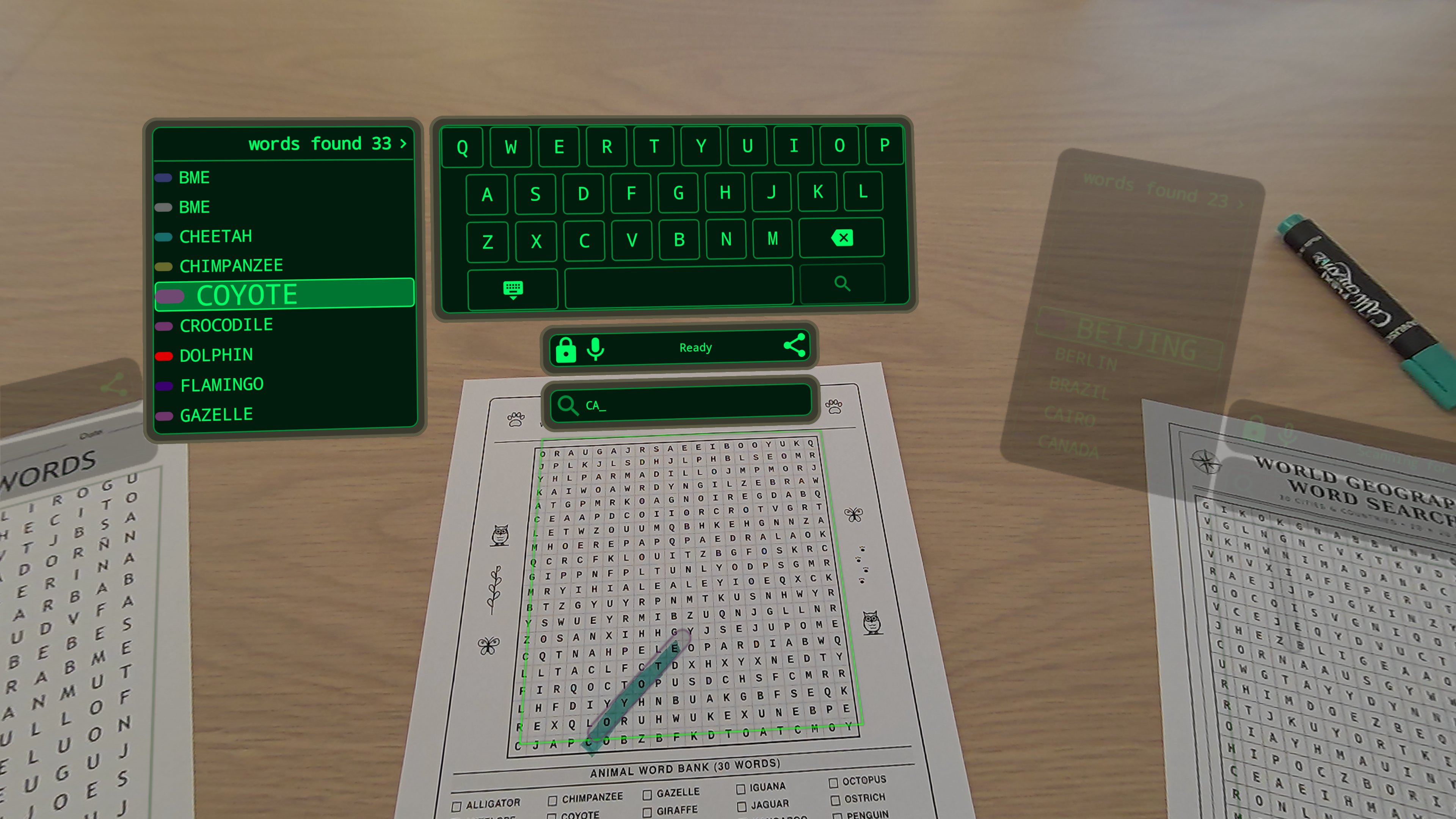
Scan a Word Search
-
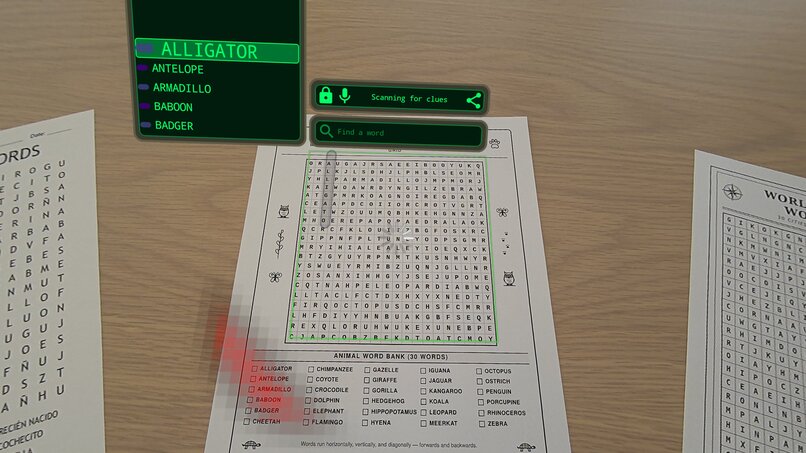
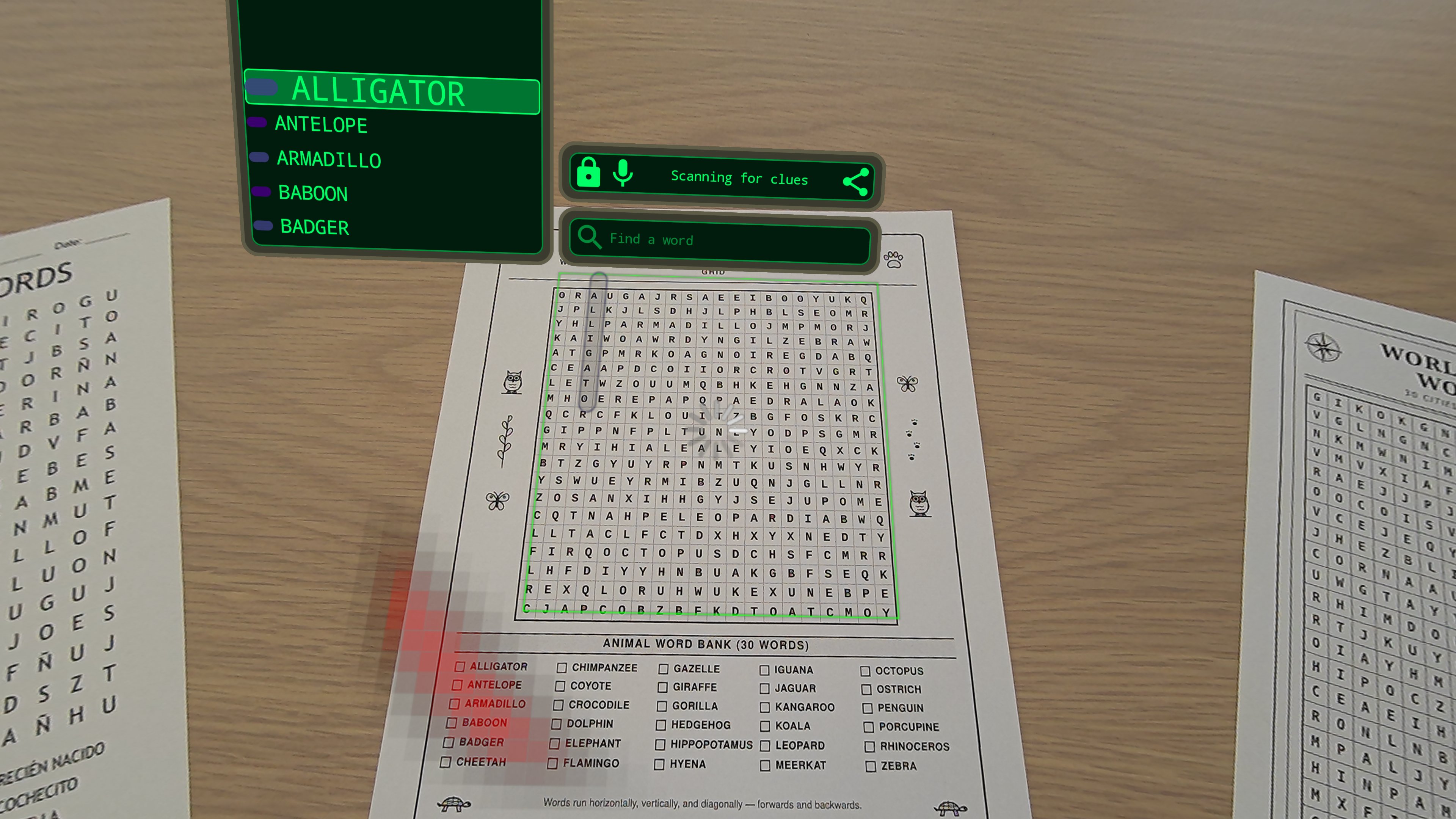
Find solutions - automatically or manually
-
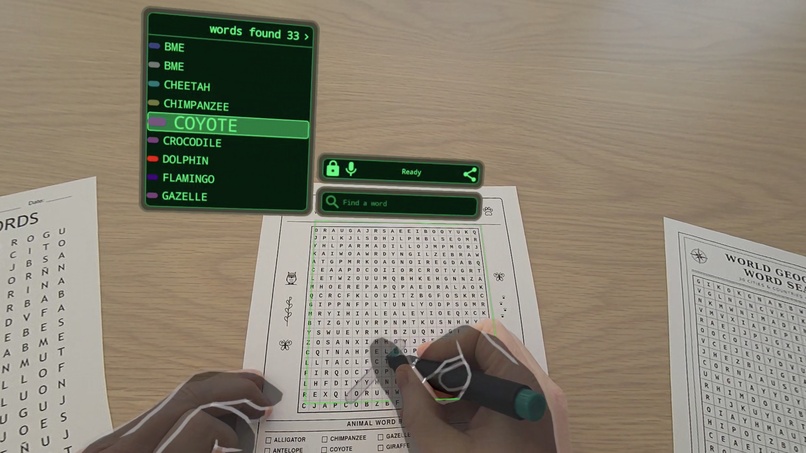
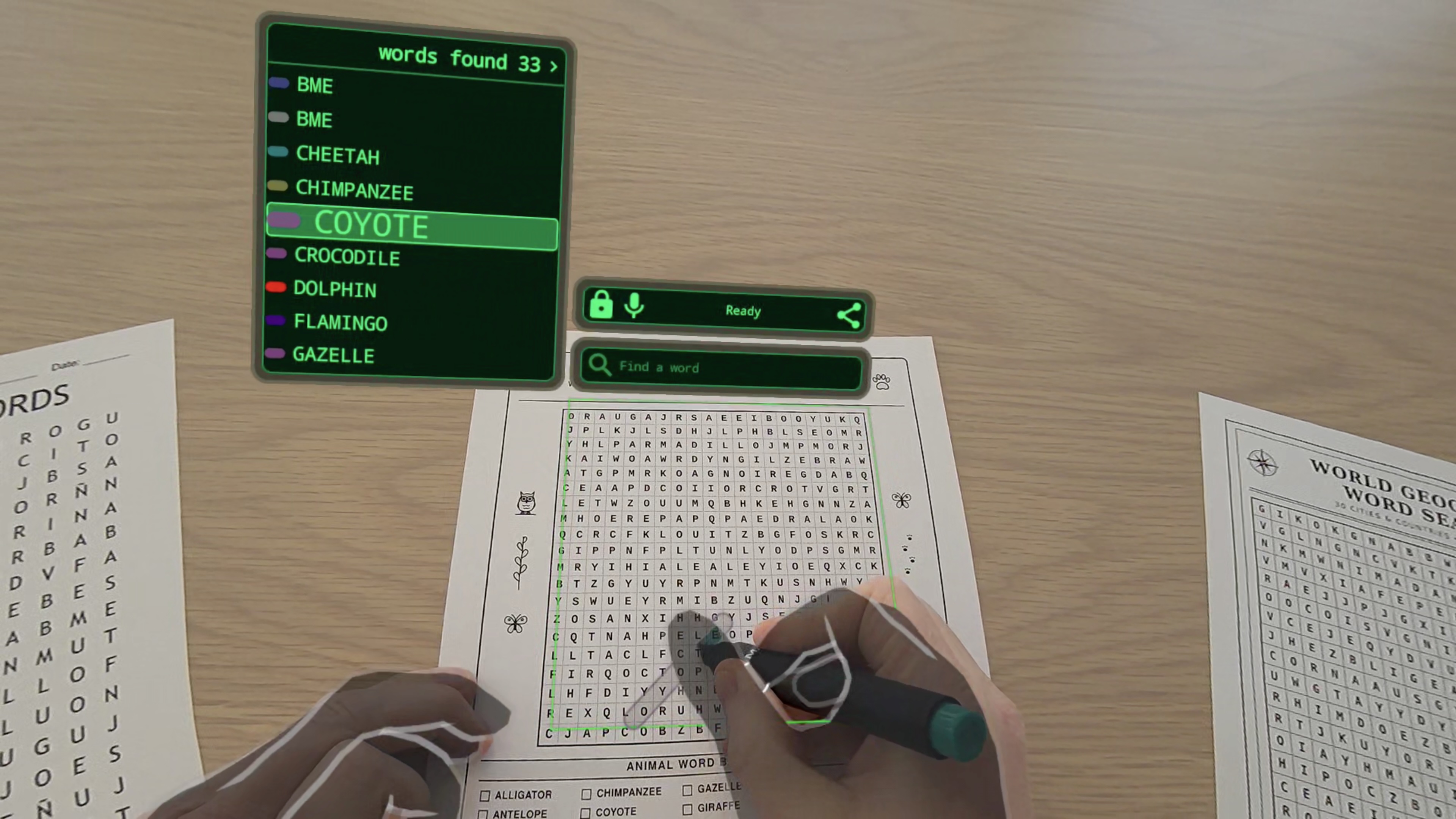
Mark words found
-
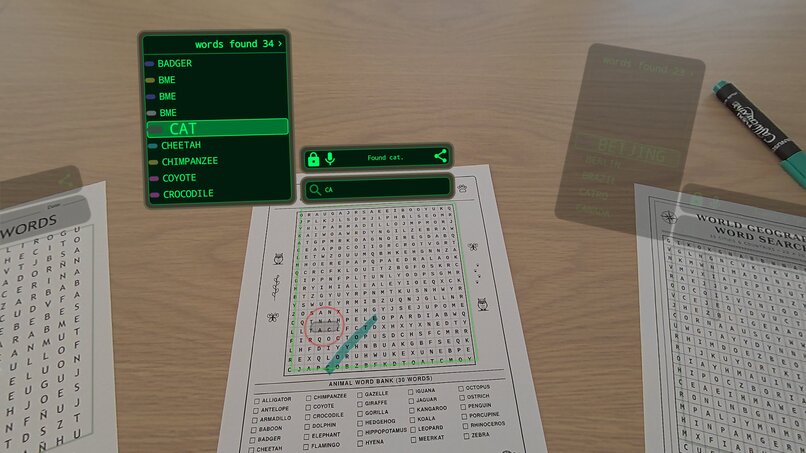
Search by voice
-
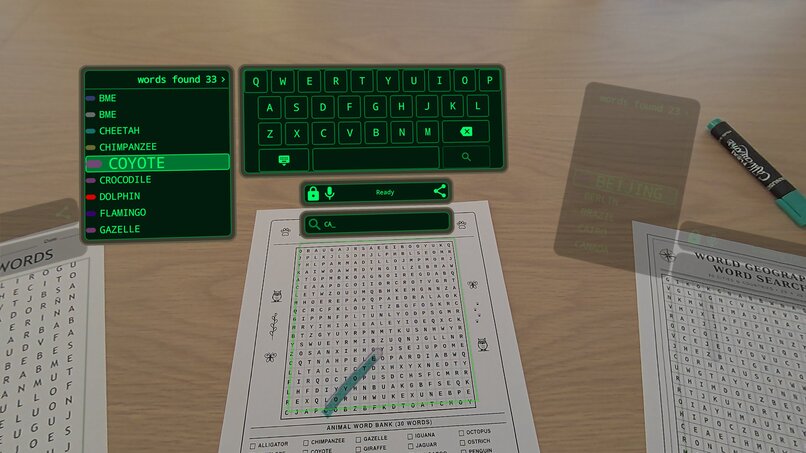
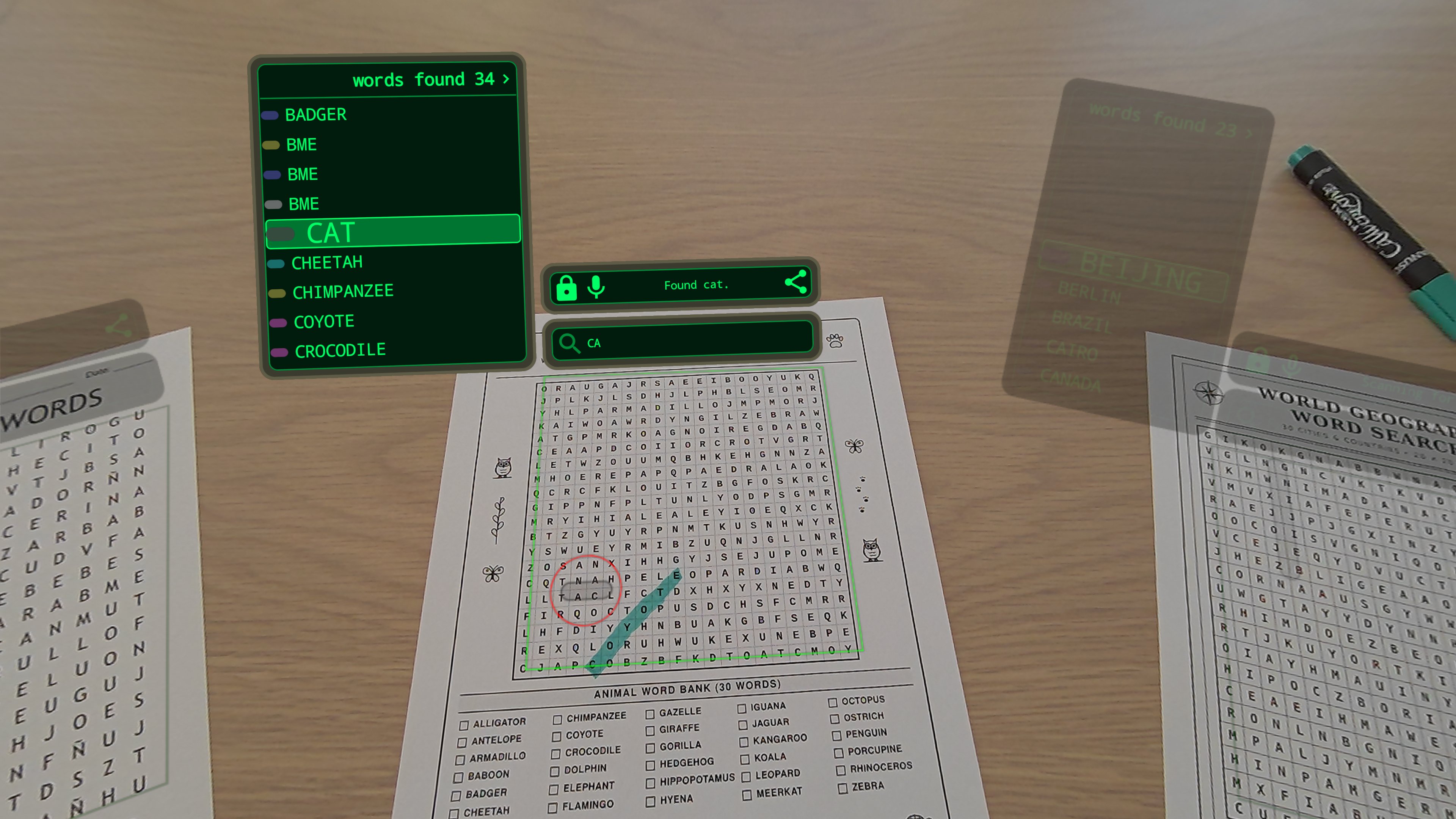
Search by keyboard
-
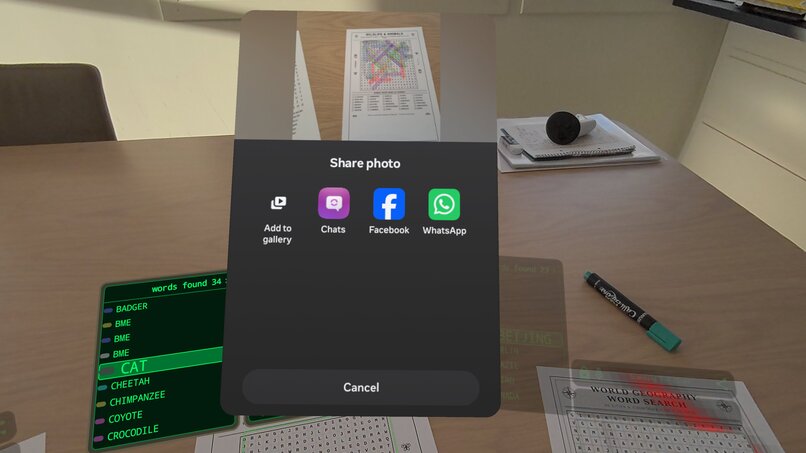
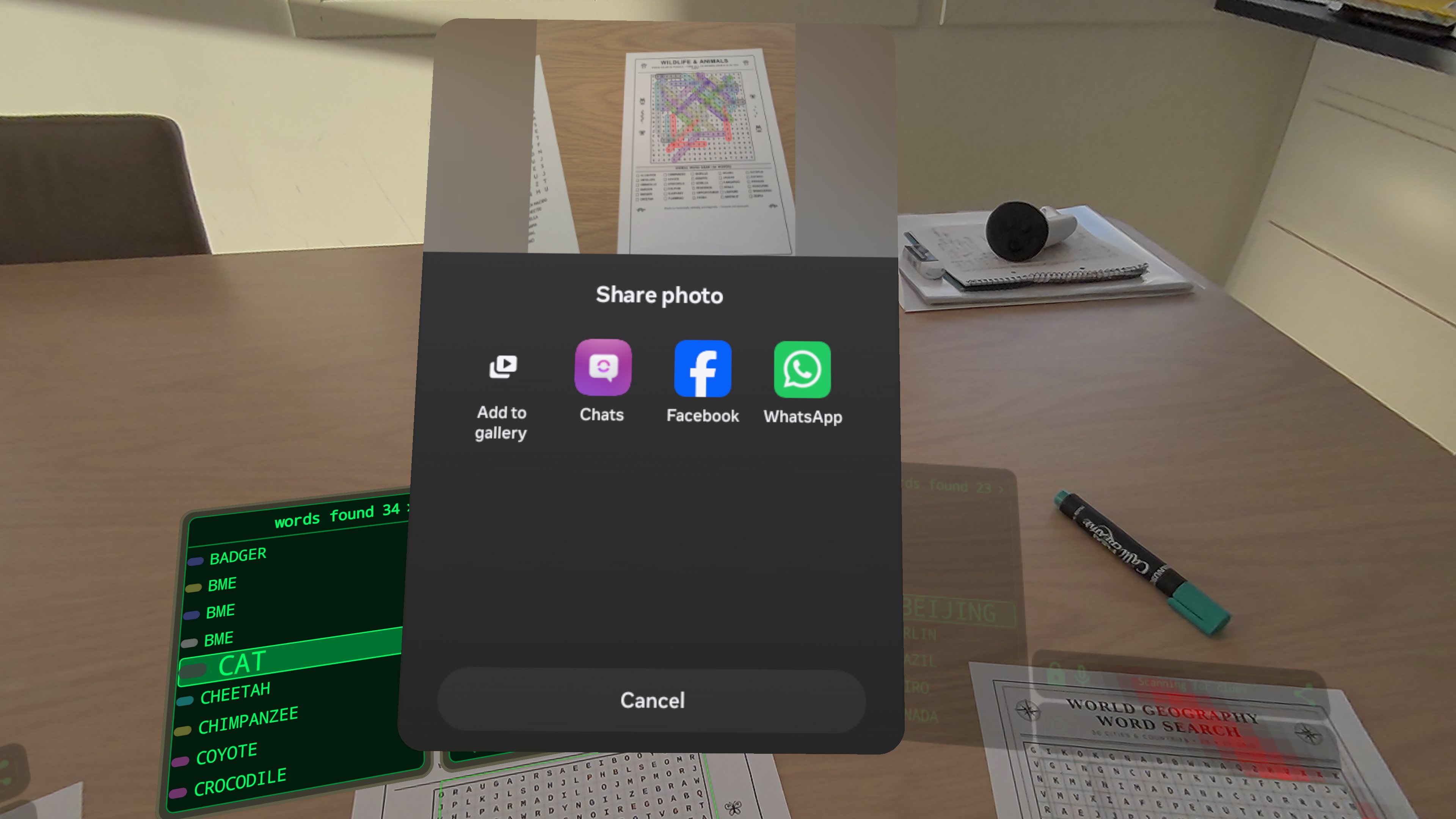
Share findings
-
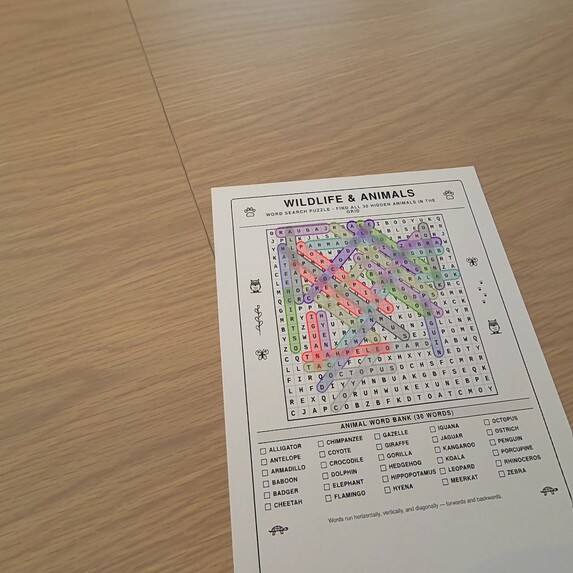
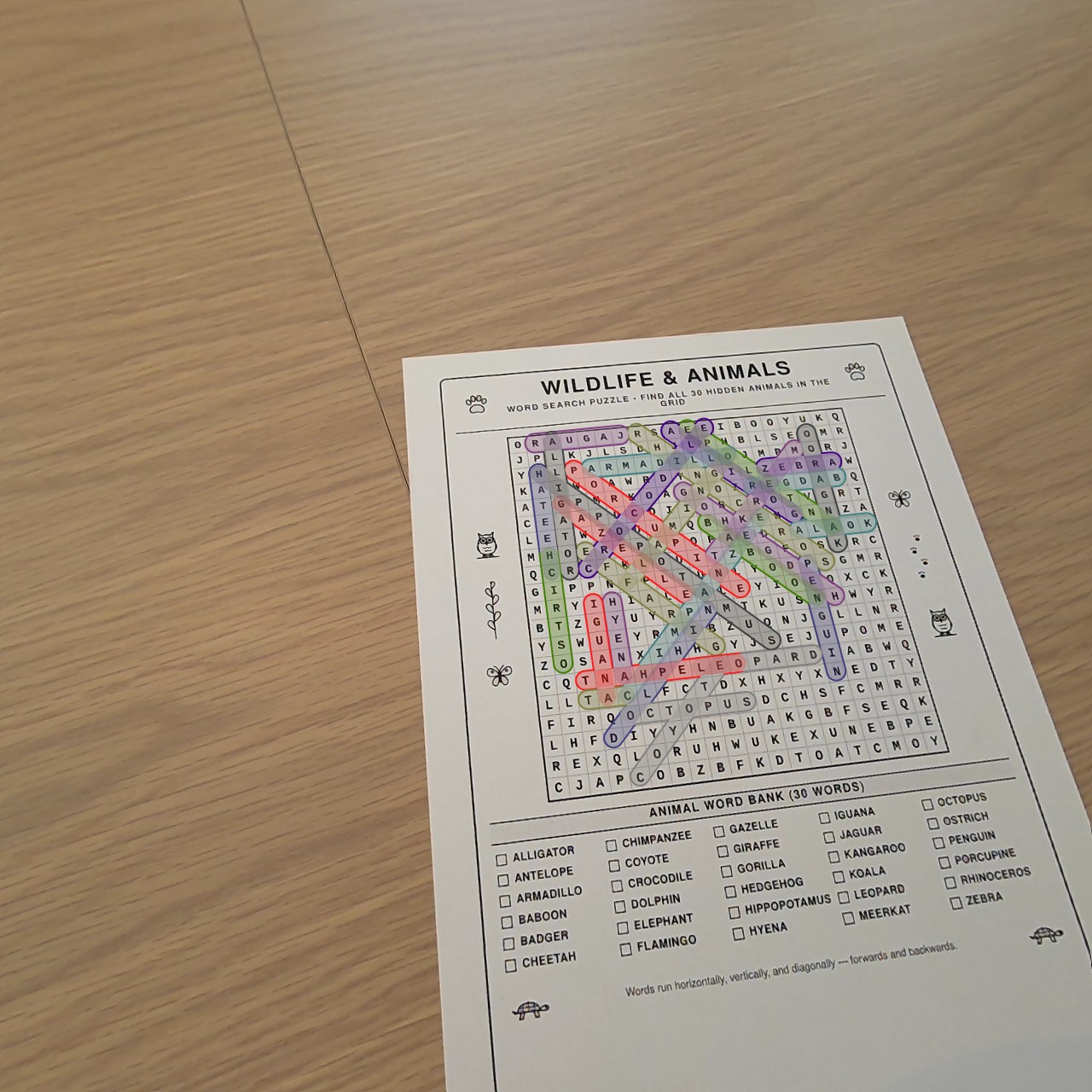
Shared findings
-
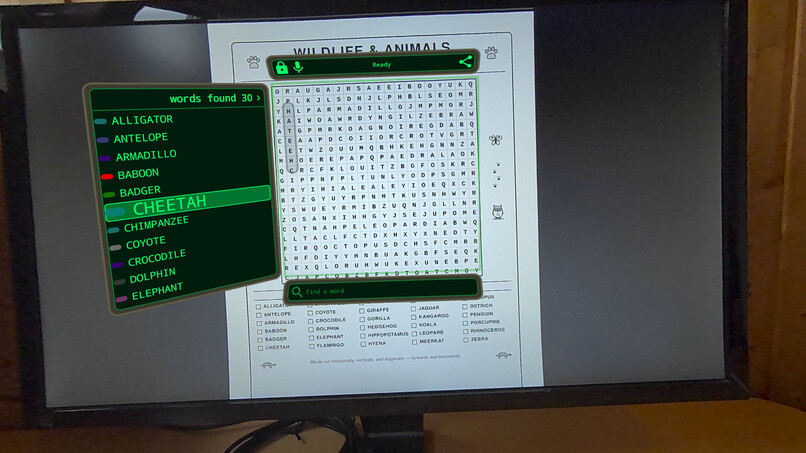
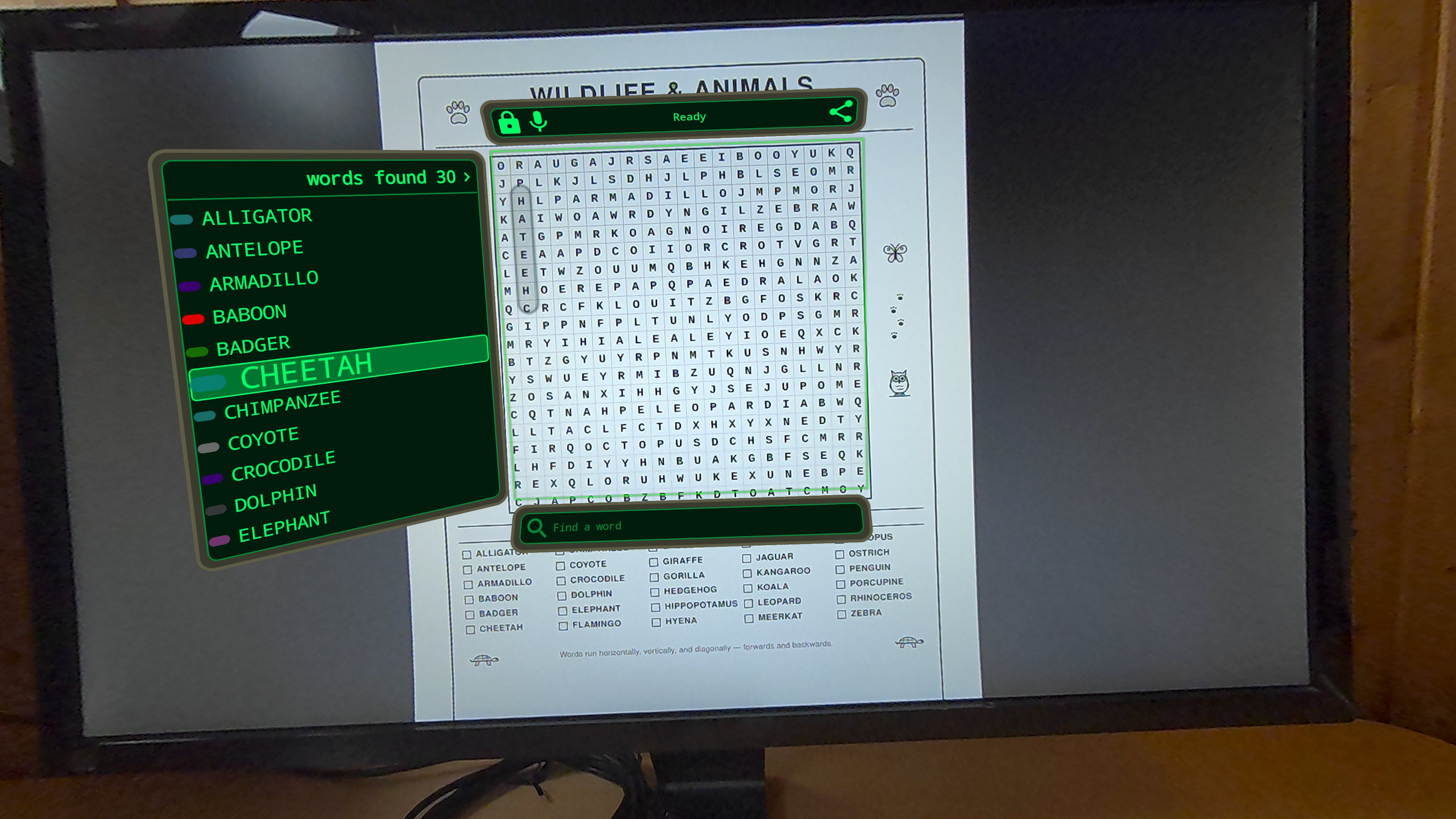
Scan anywhere - tables, walls, monitors
Inspiration
Physical word puzzles, be they Sudoku, crosswords or word searches, are both fun and challenging. Enhancing them with capabilities from the digital realm, such as clues, partial solutions or remote collaboration, can add further joy.
An earlier AWE had "superpowers to the people" as its theme, and that stuck: there is far more room for interaction between the physical and the digital than is usually explored.
On phones, AR is mostly a tool to steady and improve scanning. In this project I wanted to explore how the experience changes when it moves fully into MR, closing the loop by taking the physical into the digital, enhancing it there, and finally leaving its mark back in the real world.
What it does
Word Search Scanner & Solver helps you become a world class word search savant. It digitizes word searches on paper and opens their solutions up for interaction.
According to Educational App Store a "...useful tool for parents, teachers, and students to employ word searches on their devices for educational purposes."
When a puzzle comes into view, the app establishes its size and location on the table, reads its letters and finds the clues printed around it. The user then scrolls through the words found, or searches for new ones by voice or virtual keyboard, and each word is highlighted right on the paper. As the app is passthrough-based, the user finishes the job with the traditional tools of the trade: a pen marks each solution on the scanned puzzle itself.
The app builds on Word Search Scanner & Solver and its siblings for other word puzzles, previously released as mobile apps, which let the user scan a puzzle, search for or mark words, and export the results as images.
The Meta Quest version is a substantial evolution of that experience. Computer vision, machine learning and spatial intelligence come together to create entirely new workflows that begin and end on physical paper. The headset's awareness of its surroundings and its immersive form factor in between.
How I built it
With an existing, stable Kotlin / C++ codebase behind the Android phone app, an early goal was to reuse as much of it as possible. To keep its architecture and computer vision pipeline, I chose native Android development with the Meta Spatial SDK over Unity, Unreal or WebXR.
The app is built for Meta Horizon OS, with Meta Quest 3 as the primary development and test device. Rather than a device-specific port, the intention is a spatial experience that takes advantage of the broader Horizon OS platform, with the potential to grow with future Meta form factors and hardware generations.
Keeping content where it belongs
Content must stay put on the paper, even as the user recenters, takes the headset off or walks around. Choosing the coordinate space for that is less obvious than it should be, in particular as the app is pure passthrough and can run without a boundary set up. The documentation disagrees on the right choice:
- The Spatial SDK recommends the stage: "This is the recommended space for Mixed Reality" (Spatial SDK reference).
- The Unity and Unreal documentation strongly discourages it: "Stage tracking space is ill-defined for the boundaryless use case" (Unity boundaryless guide). The anchors it suggests instead are not exposed through the Spatial SDK.
- The XR Core SDK recommends a third option: "The use of Stationary tracking origin is recommended over Stage tracking origin for any Mixed Reality application" (Meta XR Core SDK). Again, it is not exposed through the Spatial SDK.
The best compromise turned out to be a chain of fallbacks, each watched so the app notices when it stops working:
- By default, content is locked to the room scanned in Space Setup, using the Mixed Reality Utility Kit (MRUK). This keeps content where the user expects it, through recentering too.
- The app checks that the headset is still tracking the user and that the user is inside the room it locked to. If either fails, it locks to the room again, and failing that falls back to the boundary's space, where content usually stays put.
- Without a boundary, it falls back to the floor around the user, where content no longer survives recentering.
- If tracking doesn't come back in any space, the user is asked to restart the app.
These checks earned their keep: headset system services occasionally fail in ways only a restart of the headset fixes, and the app has to notice and degrade gracefully rather than show content in the wrong place.
Identifying puzzles in the camera frames
Lighting, hard shadows, steep viewing angles, scribbled-on paper... The number of variables beyond the app's control that enter through the video feed is considerable. Overcoming them, with as few missed puzzles as possible and no false ones at all, is not trivial. It also has to happen fast, so the result isn't outdated by the time processing is done.
Well-known OCR technologies such as Google's ML Kit excel at larger bodies of text, where they can lean on language: which letters typically follow one another, and so on. Word searches offer none of that. Letters stand apart from each other, they don't form sentences, and the language is often unknown.
So I trained a small, highly efficient convolutional neural network that classifies single characters, leaning on assumptions unique to the use case. Measured on Quest 3, scanning the same 20×20 puzzle, the classifier reads the whole grid in about 95 ms. ML Kit takes about 280 ms per run and reads only around a sixth of the letters each time, so reading every letter takes it several seconds of scanning, against a fraction of a second. Both are accurate on the letters they do read; the difference is that the classifier reads them all, every time, which greatly helps the app lock on to and understand puzzles in reasonable time.
Placing findings in the real world
Once a puzzle is found in a frame, its words must be projected from the 2D image into the headset's 3D space. That takes as accurate a source of depth as possible, and none of the Quest devices have LiDAR. Three sources of depth remain, each with its own accuracy, stability and availability:
- The estimated depth associated with the frame
- Objects such as tables detected by Space Setup
- The room mesh stored by Space Setup
A further complication is that the depth buffer isn't directly accessible, only through raycasts, and if their use is deferred too long, the depth belongs to a different frame than the one being processed. By staggering depth queries over several iterations of the main thread, the app builds up a rough copy of the depth for later use. Compared with the table and mesh data, where available, it tells how far the depth can be trusted, which decides how the puzzle is placed. Placement also drifts as a puzzle is seen more obliquely, so puzzles seen too steeply are refused rather than placed wrongly.
Interaction design
With the user's dominant hand busy on the paper, inscribing findings, the most intuitive place for the list of findings is on the other side of the word search, flat on the table. This makes for a very nice experience: the off hand scrolls to the word of interest while the dominant hand "burns" it onto the paper. Unfortunately, the combined inaccuracy of hand tracking and depth frequently put the list underneath the surface it lay on, where the user could not interact with it.
To counter content resting behind its physical surface, Meta recommends "taller" hit boxes. The app, though, uses the recommended way of building UI with the Spatial SDK, Compose layouts on panels, and there seems to be no way to separate a panel from its default hit box.
The workarounds tried, fixed offsets, estimates of the depth's accuracy and combinations of both, didn't solve it to a satisfactory degree. In the end, the list had to be lifted and angled up from the table. While not quite as intuitive as the original placement, it gives a consistent experience, at least until the devices gain LiDAR or the SDK exposes more. The flat list lives on as an option in developer builds, ready for when it can work.
Guiding the user
Despite best efforts in the processing pipeline, the user may need help getting a scan right. Detecting when the user is struggling and what with, and showing guidance that is visible without blocking what they're doing, are all challenging. It doesn't help that the user is closely inspecting a sheet of paper, looking straight down onto a table, with a limited field of view.
Every frame, the app measures the conditions it is scanning in:
- how far away the puzzle is either from the depth or, once a grid is found, the size of its letters
- how obliquely it's seen
- how much light there is, from the camera's exposure
Each becomes a score, shown live on the help cards as three animated bars. As the user leans in, tilts their head or switches on a lamp, the bars move, telling them at a glance how well scanning can be expected to work, and which way to go to improve it.
Beside the bars, the cards give advice on the single most pressing problem, steadied so it doesn't flicker as conditions waver. The advice depends on whether a puzzle is seen at all ("It's too dark to find puzzles") or seen but unusable ("A puzzle is in view, but it's too dark"), and suits the stage of the scan: searching for a puzzle, reading its letters or reading its clues. Cards appear where they are instantly visible to the user while covering as little as possible.
Performance and reliability
There is little complexity in the app's visuals, so rendering performance was not expected to be a concern. This turned out not to be entirely true: when scanning several puzzles at once, frames started dropping, the passthrough video's included.
The app draws its panels as Layers so text renders crisp and readable. The compositor processes each Layer individually, including per-pixel sampling and distortion, which makes them extremely costly. To keep "extremely costly" from becoming "too costly", the system imposes a hard limit of 16 Layers.
To keep the vital panels crisp, only one puzzle, the active one, is ever rendered as a Layer: the puzzle in, or closest to, the center of the user's view. Other, less prominent puzzles fall back to mesh rendering, which is cheaper but notably less crisp.
Accomplishments
Intuitive MR that feels magical
The intersection of real-world computer vision and all its unknowns, interaction in mixed reality and the unpredictability of user behavior is an exciting but tricky environment to work in. Using the end result truly feels magical, and that is an achievement.
Integrating real-world hand interaction into the digital workflow
The app completes the loop from the physical world to the digital, adds context there and finally brings that context back to the physical world:
- Scan the puzzle (camera)
- Identify and show the solution (display)
- Scribe the solution onto the paper (pen)
Guidance that reacts to the user and the environment
Rather than static instructions, the help cards show, live, how well scanning can be expected to work, and give advice based on what the app measures, not on guesswork.
What I learned
- Measure, don't guess. The thresholds behind the scanning bars and advice were far off until I measured scanning in real conditions, at different distances, angles and light.
- Documentation can't be taken at face value. SDKs contradict each other on something as basic as the coordinate space, and only testing on the device told what actually works.
- The hardware sets firm limits. Without LiDAR or high-resolution camera frames, small puzzles and steep angles are hard, and the app is better off telling the user than guessing.
- The platform can fail too. Tracking and system services occasionally stop working, so the app must detect it and degrade gracefully.
- Everything happens on the device. With no functional simulator for this kind of app, every change was tested in the headset, on real paper.
What's next
- Releasing Word Search Scanner & Solver on the Meta Horizon Store.
- Supporting word searches in other languages, beyond the A–Z alphabet.

