-
-
Splash
-
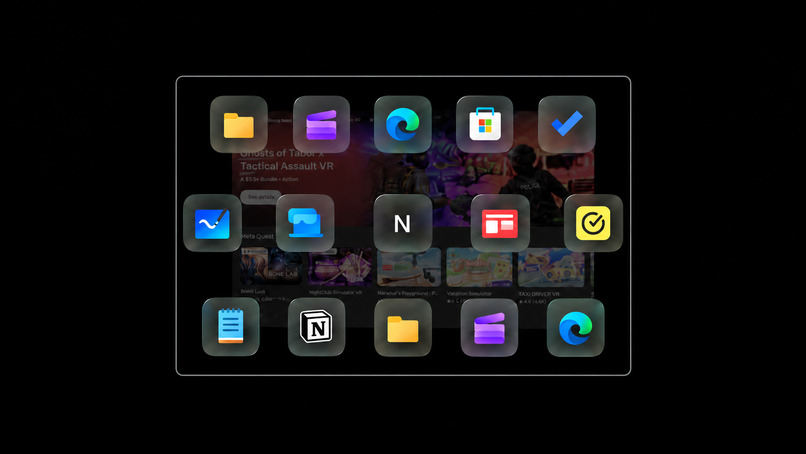
UI/UX Design prototype
-
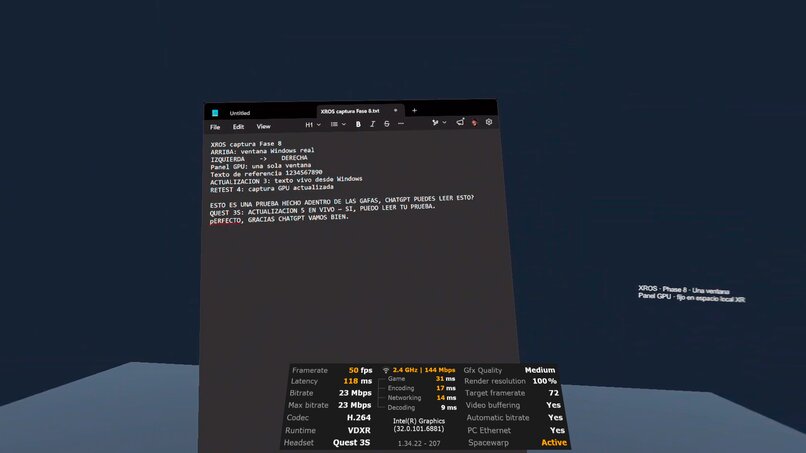
Unity | Beta
-
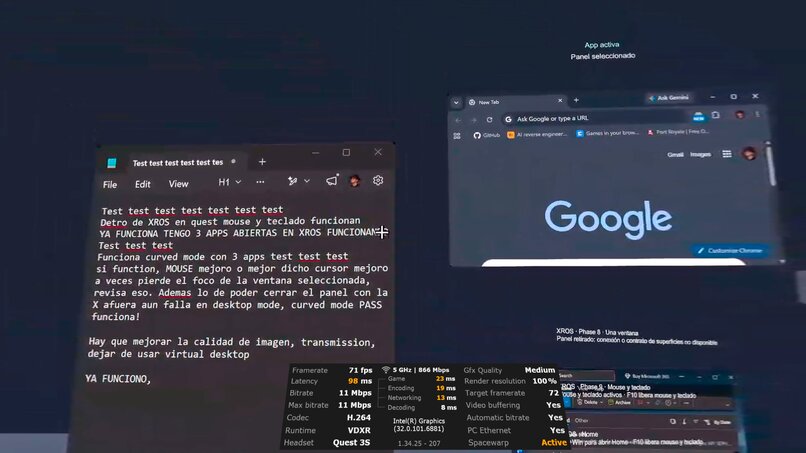
Unity | Beta 1
-
Unity | Beta 2
Inspiration
Windows XR started with one idea: the Windows applications I already use should feel at home in my headset.
I wanted to bring my computer into a spatial workspace where I could open applications, place them around me, resize them naturally, and interact with my hands. Moving from Horizon OS into Windows XR should feel like continuing the same experience—with access to my Windows apps.
That became the goal: combine the productivity of Windows with the natural interaction and spatial freedom of Meta Quest
What it does
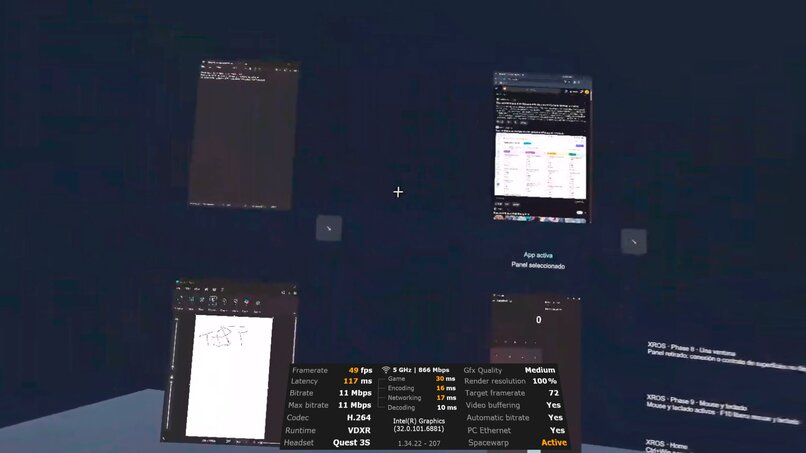
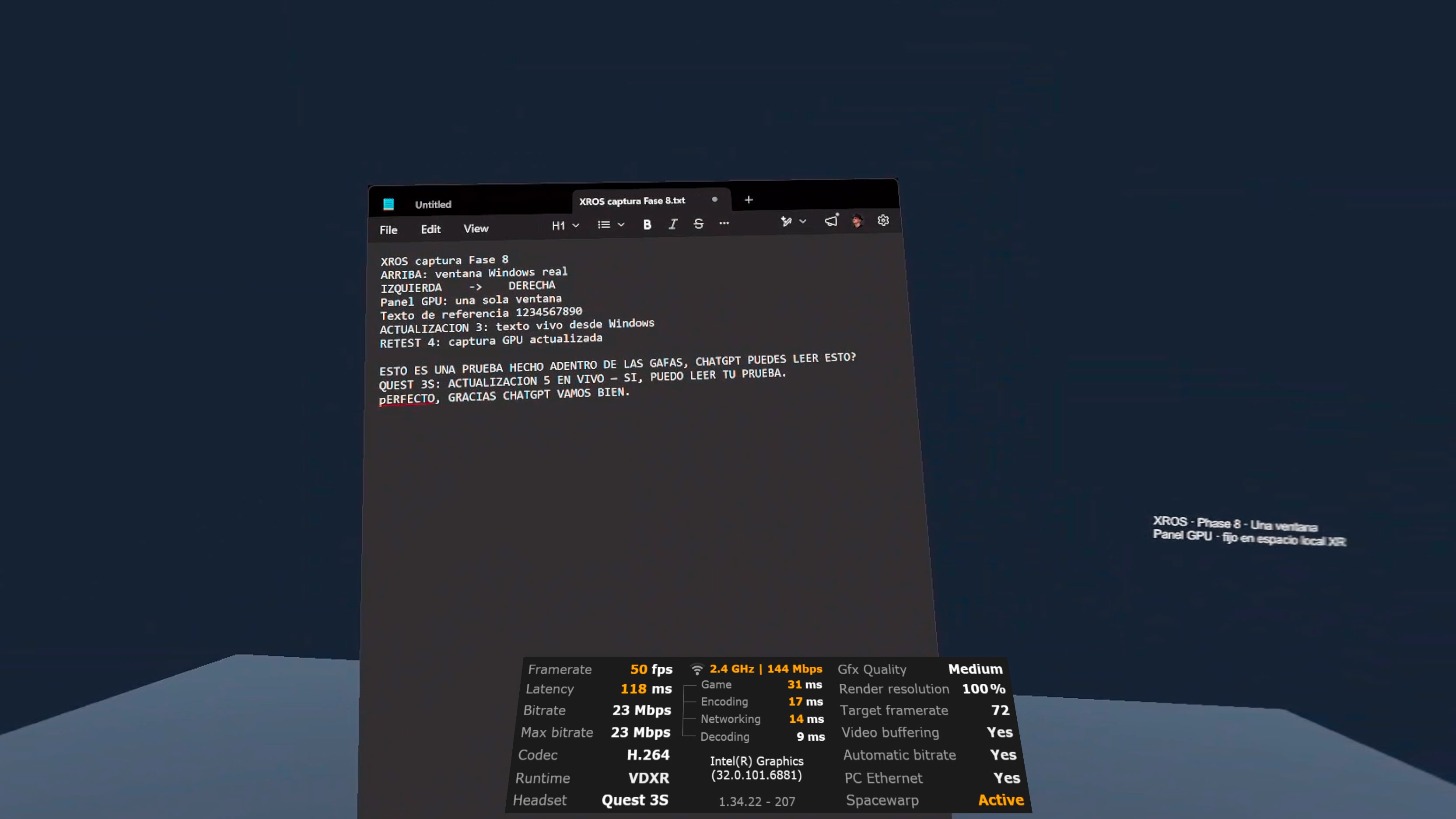
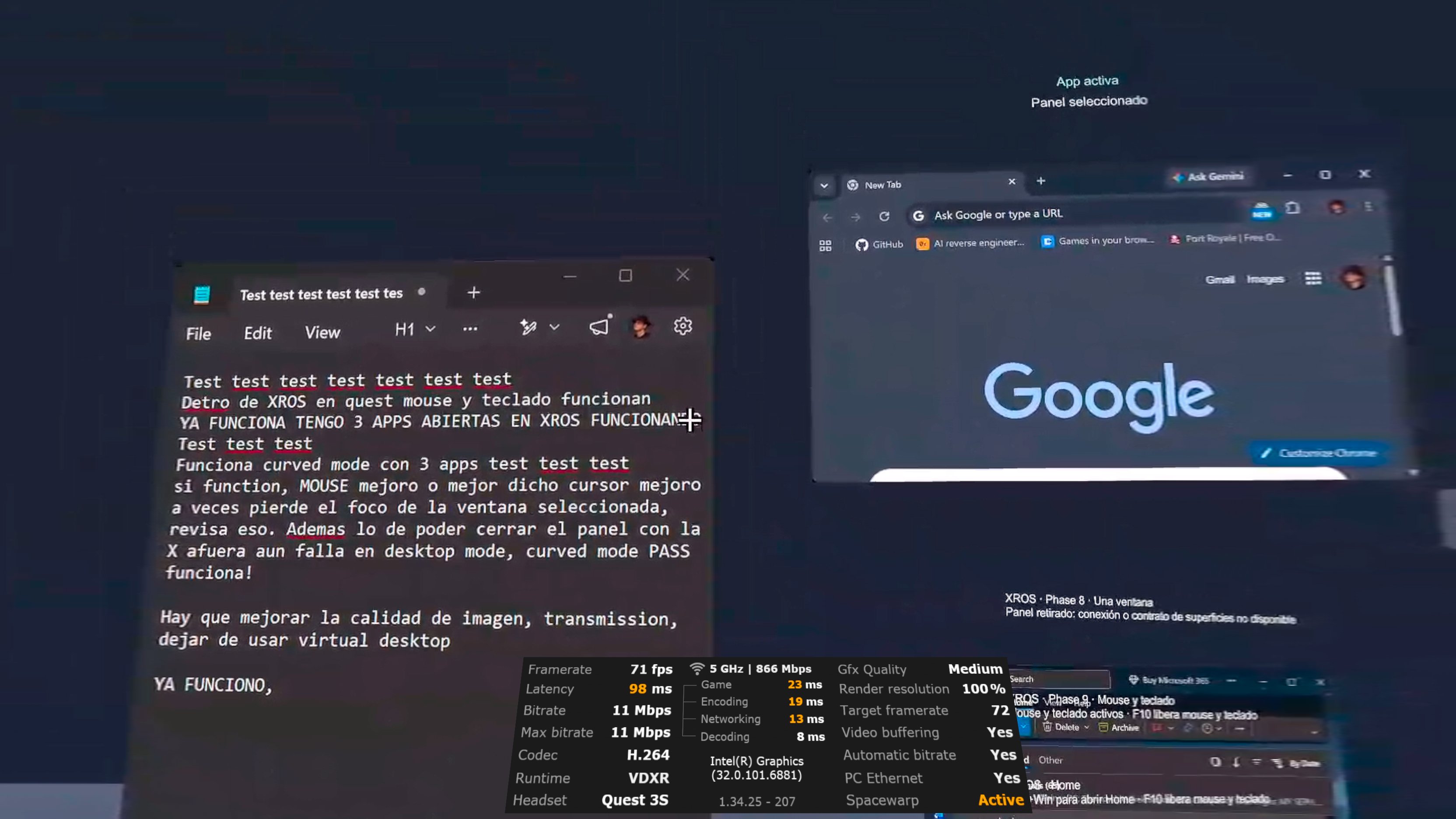
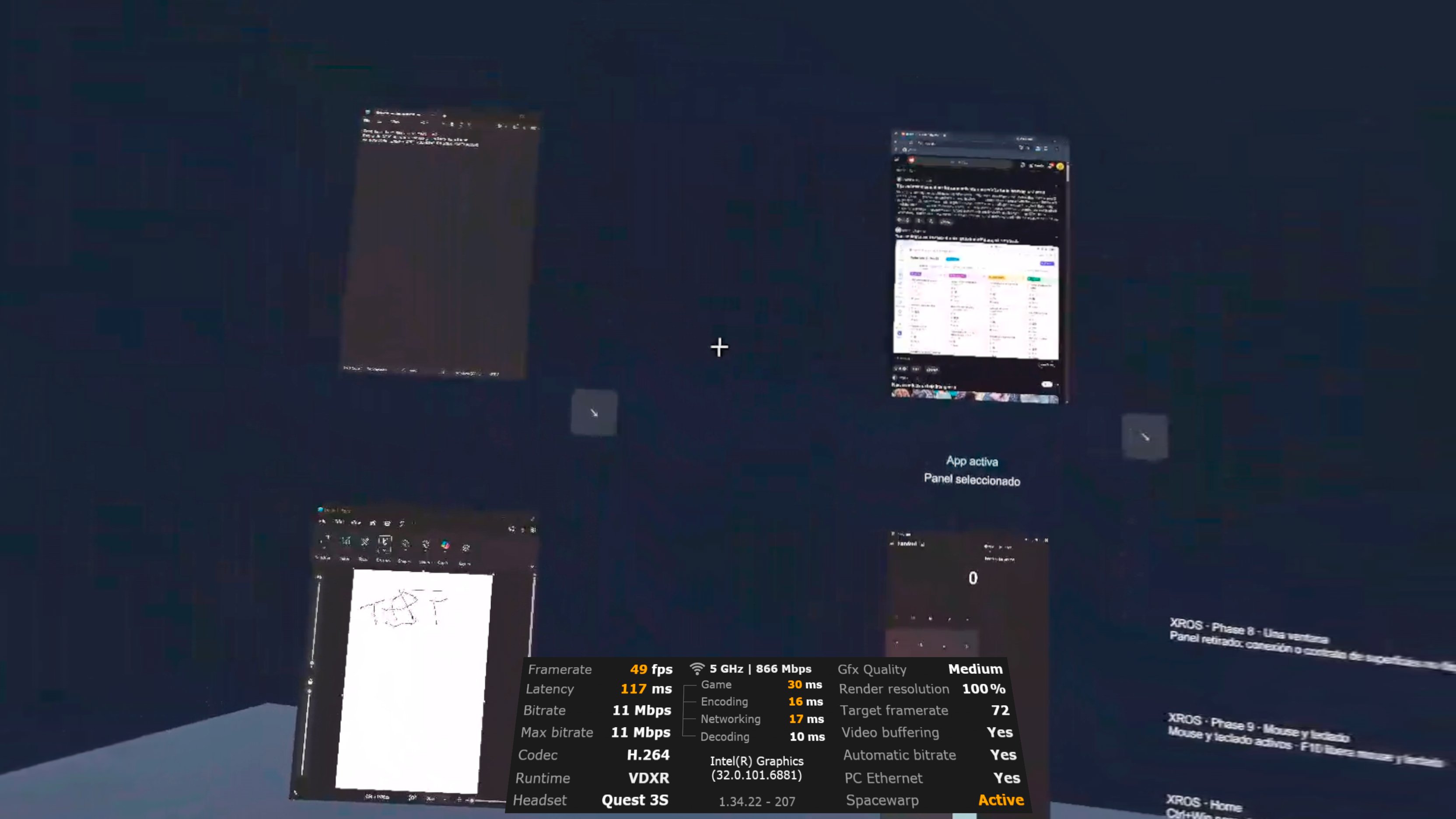
Windows XR brings supported Windows applications into independent windows managed by Meta Horizon OS.
The applications run on a Windows PC. Windows XR streams their windows to Quest and sends interactions back to the corresponding application.
The experience begins with a simple connection flow:
Open Windows XR on Quest.
Connect the headset and PC to the same local network, including a Windows hotspot.
Open windowsxr.com on the PC and launch Windows XR Connect.
Obtain a six-digit connection code and enter it in the headset.
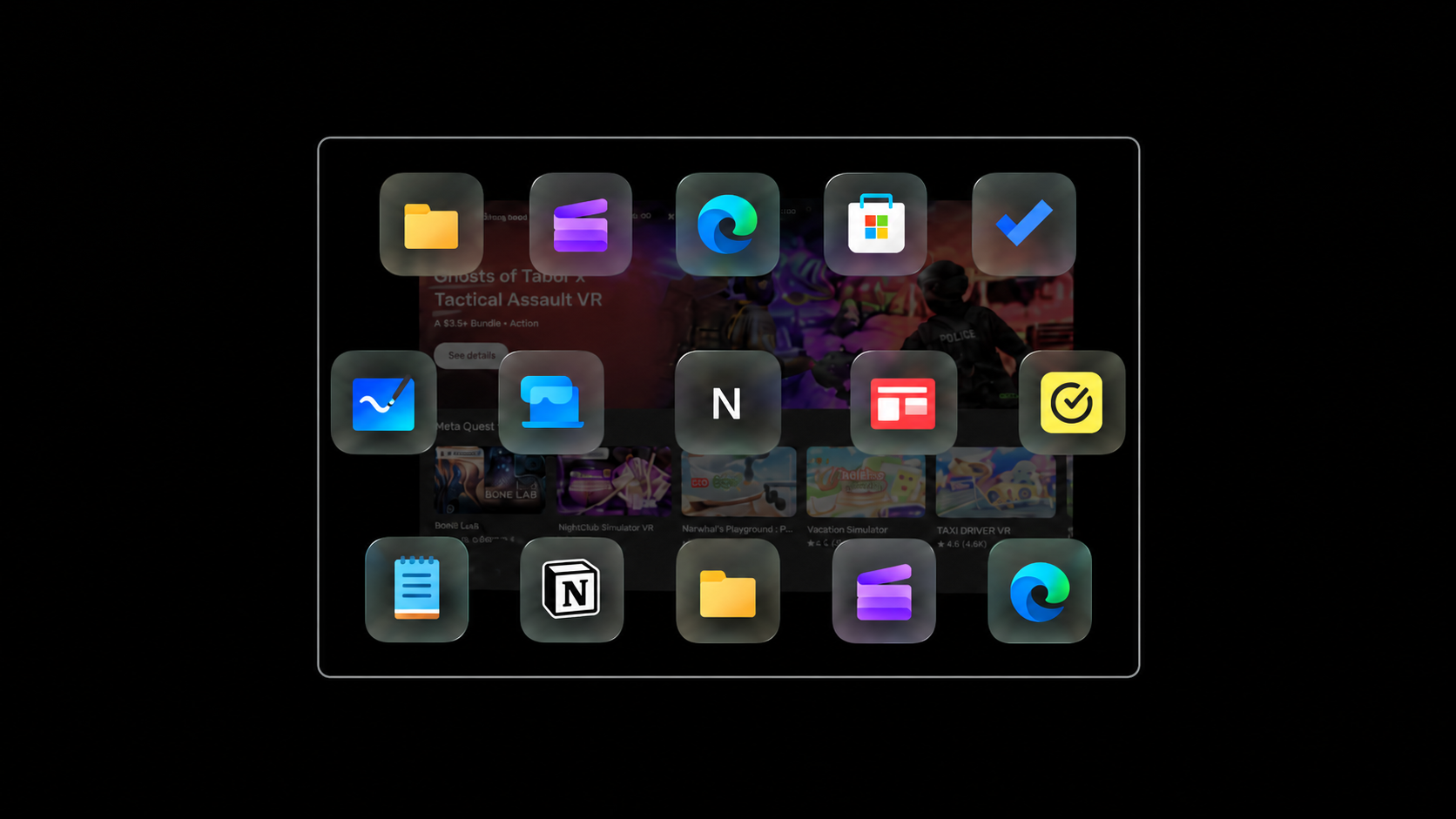
Watch the opening animation, then explore a Home populated with the PC’s applications and their icons.
Users can open applications in separate panels, move and resize them through Horizon’s window controls, and arrange their workspace in passthrough or a Horizon environment.
Interaction includes controller triggers, hand pinches, scrolling, text selection, and Horizon’s virtual keyboard. The current architecture uses its own Windows companion and Quest client, without Virtual Desktop or Air Link.
How we built it
The project began as a Unity and OpenXR PCVR prototype. That helped establish the foundations for spatial windows, input routing, and streaming.
As the experience evolved, I built a native Android client that could present Windows applications inside Horizon-managed windows.
The current system has three parts:
Quest application: Built in Java with the Android SDK, it provides pairing, Home, streamed application panels, and integration with native window and keyboard behavior.
Windows XR Connect: Built in C# and .NET, it discovers applications and windows, manages capture, processes authorized input, and maintains the connection.
Connection website: Built with HTML, CSS, and JavaScript, it provides downloads, setup instructions, and the connection-code flow.
Windows Graphics Capture and FFmpeg support the capture and streaming pipeline. Git checkpoints preserve the source code, release packages, and validation evidence throughout development.
Challenges we ran into
The hardest challenge was making two different systems behave like one continuous workspace.
A keyboard could remain visible in Quest while Windows had already changed its focused field. Browser navigation after Enter could invalidate an earlier input connection. Solving this required separating keyboard visibility, text composition, application focus, and session ownership.
Window resizing created another challenge: the captured image, panel dimensions, and input coordinates had to remain aligned while the source application changed size.
I also worked through missing icons, delayed first frames, application discovery, panel closure, and reconnection. Each correction needed to address shared behavior across applications while preserving interactions that already worked.
Packaging became part of the engineering work too. The installer needed to include the companion, backend, runtime, and streaming dependencies so a new user could start from the website without assembling development tools.
Accomplishments that we're proud of
My favorite milestone was seeing Windows applications coexist with Horizon applications in the same environment, with native window movement and resizing.
Another was completing a first-user test using the public downloads, with the development SSD disconnected. That demonstrated that the distributed application could work independently of my development setup.
The project has grown from a spatial prototype into a downloadable preview with pairing, an application catalog, independent panels, and interactive Windows applications.
What we learned
I learned that a natural spatial experience depends on many small details working together: where a click lands, whether typing continues after navigation, how quickly a panel responds, and what remains when a connection changes.
I also learned to distinguish automated checks from physical headset testing. Both are necessary, and preserving earlier results makes it easier to improve the experience without losing working behavior.
What's next for Windows XR
I’m continuing to improve application compatibility, session recovery, opening speed, and interaction consistency across hands, controllers, and keyboard input.
The vision remains the same: open Windows XR, connect your PC, and make your Windows workspace feel at home in Horizon OS.
