-
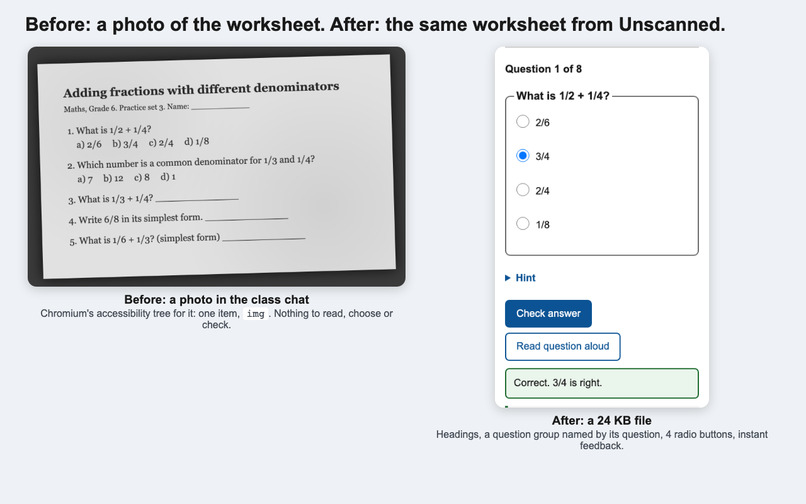
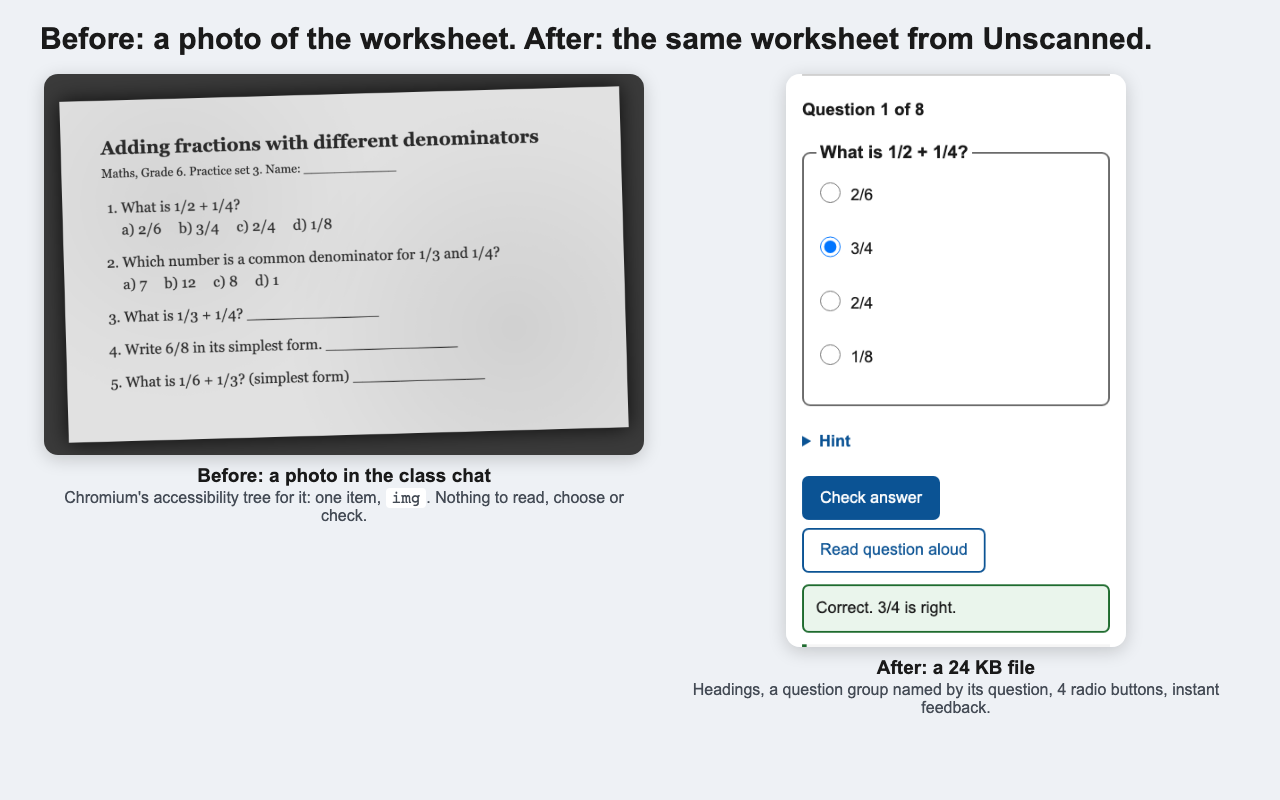
Before: a worksheet photo is one "image" to a screen reader. After: the same question as a 24 KB file with real structure and feedback.
-
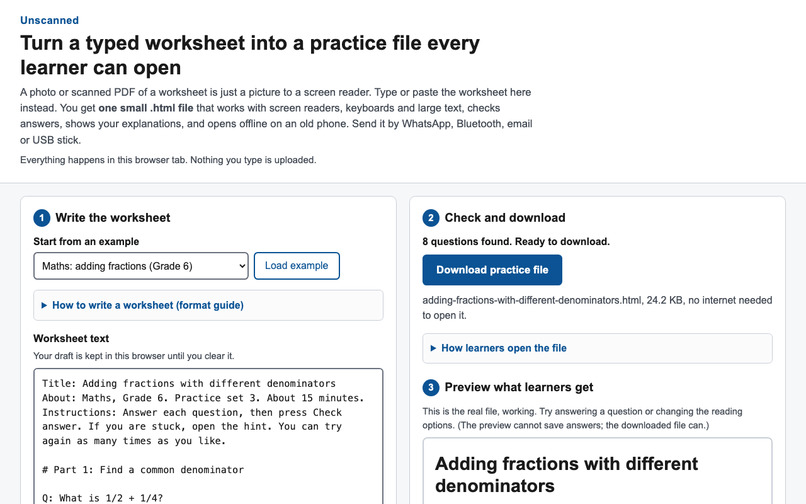
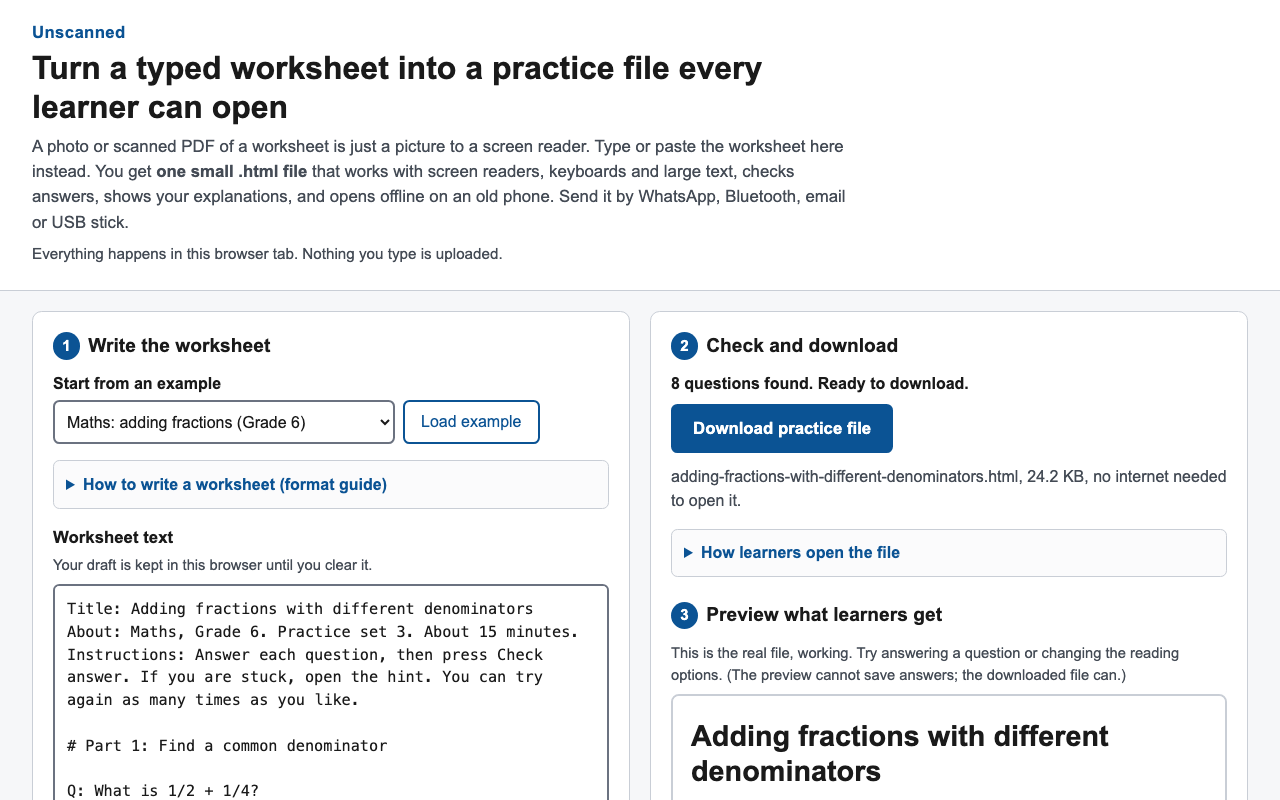
The teacher app: paste the worksheet as plain text, check it, download the file, with a live preview.
-
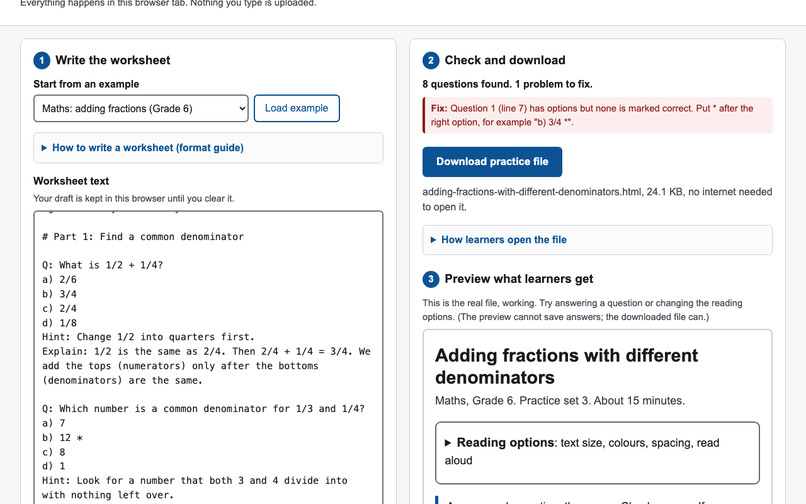
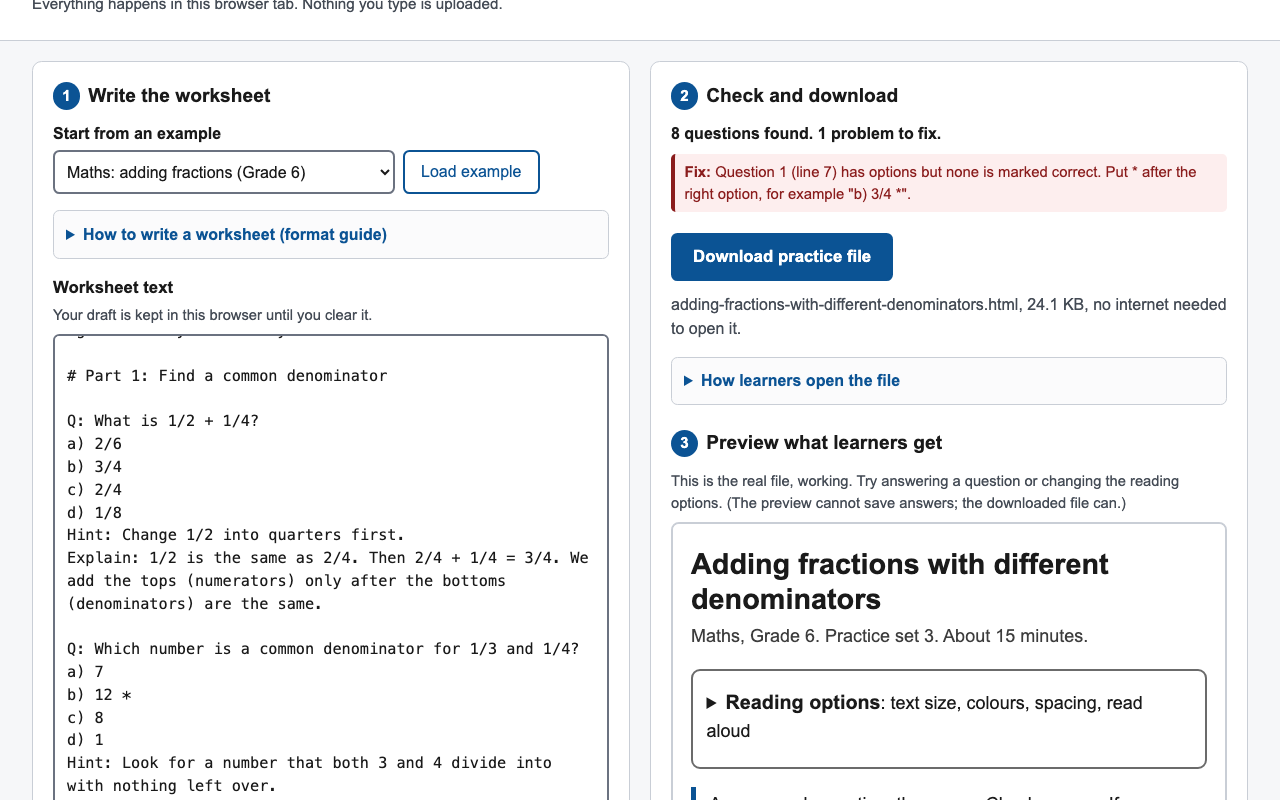
The checker catches a missing answer mark and says exactly how to fix it.
-
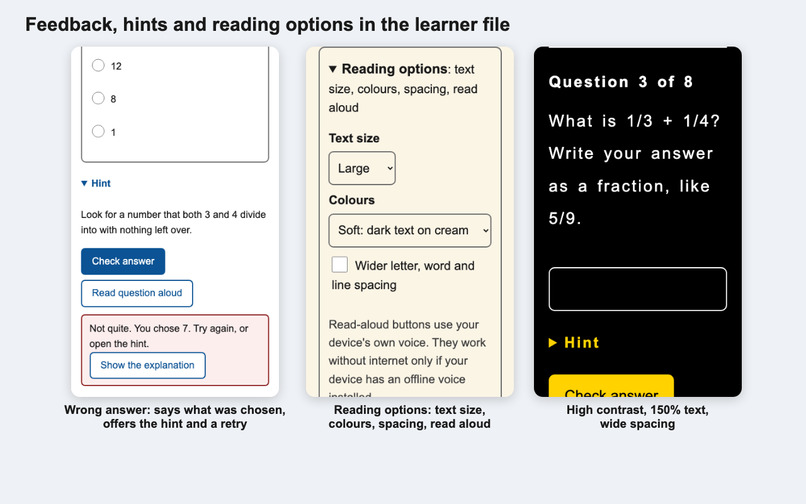
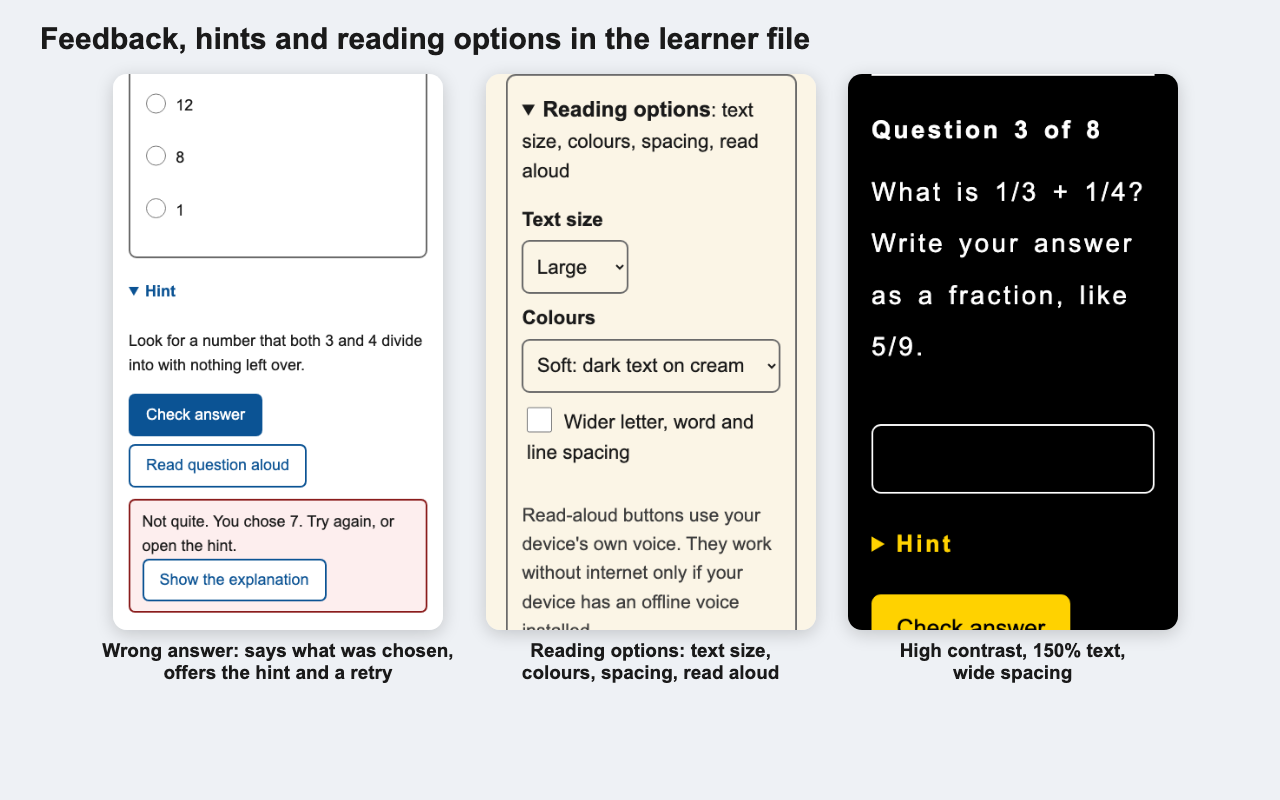
In the learner file: feedback on a wrong answer with a hint, reading options, and high contrast with large text and wide spacing.
-
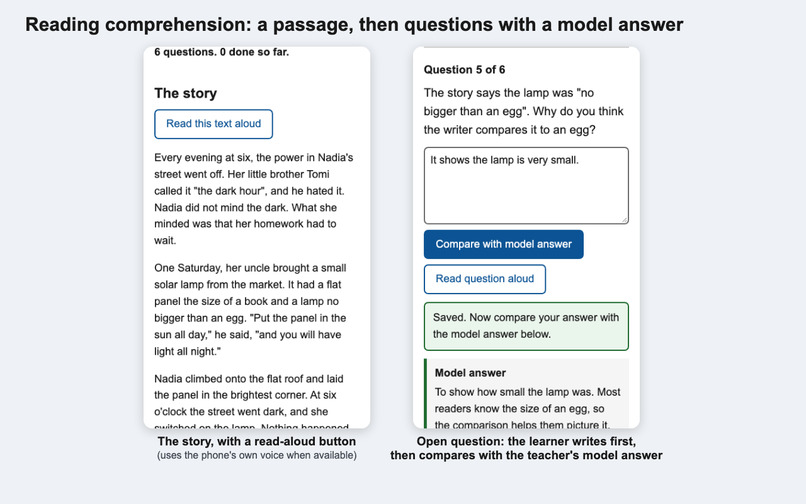
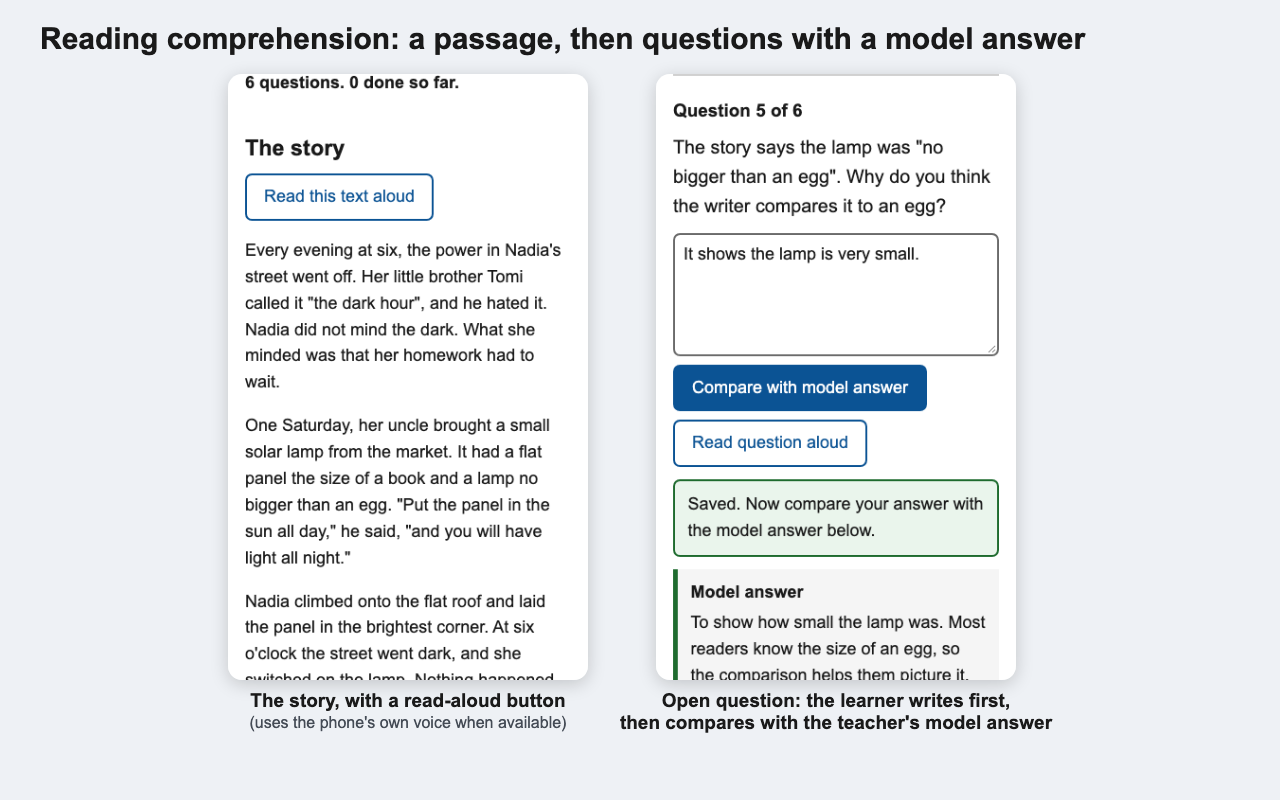
A reading passage with read-aloud, and an open question that reveals the teacher's model answer.
Try it
- Live demo: https://bowen1314.github.io/unscanned/
- Ready-made learner file (no setup): https://bowen1314.github.io/unscanned/examples/fractions.html
- Demo video (2 min 18 s, captioned, no voice-over): https://github.com/Bowen1314/unscanned/blob/main/demo/demo.mp4 (transcript)
- Source code: https://github.com/Bowen1314/unscanned · Test results: https://github.com/Bowen1314/unscanned/blob/main/tests/RESULTS.md
- Setup: none. Open the live demo link in any browser, or open any file in
examples/directly. No install, no account, no personal information needed.
The learner, the task and the barrier
The learner: a Grade 6 student who is blind or has low vision and uses a screen reader such as TalkBack on an Android phone. (This learner is imagined for the project; no real student was involved.)
The task: do this week's fractions practice set, like everyone else in the class, and find out which answers are right.
The barrier: the worksheet arrives as a phone photo or a scanned PDF in the class chat. A scan is a picture of text, not text, so a screen reader cannot read it (SJSU accessibility guidance on PDFs explains this and recommends finding an accessible original as the best fix). The learner waits for someone to read it aloud, or skips it. Even a sighted classmate on a shared, old phone with no data gets only a static picture: no feedback, no explanation.
The teacher usually has the accessible original: the worksheet was typed before it was printed. What is missing is a quick way to turn that text into something the learner's own device can read and answer.
What it does
Unscanned is a free web app for teachers.
- Paste or type the worksheet in a forgiving plain-text format:
Q:starts a question,b) 3/4 *marks the right option,Answer: 3/4 | three quartersmakes a typed question, andHint:,Explain:andModel answer:add help. - A checker lists problems as you type (for example "Question 1 has options but none is marked correct. Put * after the right option") and shows a live, working preview.
- Download one .html file of about 24 KB and send it by WhatsApp, Bluetooth, email or USB stick.
The learner opens the file in any phone browser. No app, no account, no internet. It gives them:
- real structure for screen readers: headings, each question as a group named by its question, labelled inputs, and feedback in a live region;
- full keyboard use with a thick, visible focus outline;
- instant feedback that says what they chose, a hint, unlimited retries, then the teacher's own worked explanation; open questions reveal the model answer after the learner writes theirs;
- reading options: text up to 200%, three colour schemes including two high-contrast ones, and wider letter, word and line spacing;
- optional read-aloud using the phone's own voice, hidden where the browser has none;
- progress saved on the device, and a "Clear my answers" button for shared phones.
One concrete before-and-after
Question 1 of the fractions sheet: What is 1/2 + 1/4? a) 2/6 b) 3/4 c) 2/4 d) 1/8.
Before: the sheet is a photo in the class chat. I recorded Chromium's accessibility tree (what the browser hands to a screen reader) for that photo on a page. The whole tree is one line:
- img
Nothing to read, nothing to choose, nothing to check.
After: the teacher pastes the same text into Unscanned and sends the 24 KB file. The tree for question 1 becomes:
- region "Question 1 of 8":
  - heading "Question 1 of 8" [level=3]
  - group "What is 1/2 + 1/4?":
    - radio "2/6"
    - radio "3/4"
    - radio "2/4"
    - radio "1/8"
  - group: Hint
  - button "Check answer"
  - button "Read question aloud"
The learner picks 2/6 and presses Check answer. The feedback region says "Not quite. You chose 2/6. Try again, or open the hint." They choose 3/4: "Correct. 3/4 is right.", followed by the teacher's explanation: "1/2 is the same as 2/4. Then 2/4 + 1/4 = 3/4." (Text nodes are trimmed from the tree above; the full output is in docs/before-after.md. This is the browser's accessibility tree, not a recording of a real screen reader.)
Why it is built this way
- One file, not a platform. A learner on an old shared phone can't be expected to install an app, create an account or stay online. A single HTML file travels over the channels classes already use, and any phone browser opens it.
- The teacher writes plain text. No accessibility training needed: correct headings, labels, groups and live regions come from the generator every time.
- Offline by construction. The file carries a Content-Security-Policy of
default-src 'none', so it cannot load or send anything. That makes "works offline, sends nothing" a property of the file, not a promise. - Old browsers in mind. The learner script is plain ES5 and the CSS avoids custom properties. Without JavaScript at all, the text, options and explanations stay readable.
How we built it
Plain HTML, CSS and JavaScript with no framework and no build step. src/unscanned.js contains the parser (text to worksheet, with friendly warnings) and the generator (worksheet to one HTML string). The same file runs in the browser and in the Node tests. All teacher text is escaped. The teacher app is a static page on GitHub Pages, with no backend and no analytics; drafts stay in the teacher's browser. Testing uses Playwright and axe-core.
Testing evidence
All automated, in headless Chromium. Every number below comes from tests/RESULTS.md, which npm test regenerates (28 of 28 tests passed).
- axe-core accessibility scans (WCAG 2.2 A/AA plus best practice): 12 scans per example file (4 colour schemes; before answering; after answering with feedback and explanations shown; and at 200% text with wide spacing). 0 violations in all 36 scans of the three files. Teacher app: 0 violations, including the preview, and 0 at phone width.
- Keyboard-only walkthrough: the whole 8-question fractions sheet (radio, checkbox, typed and open answers, a hint, a wrong answer and retry, the explanation button, reading options) with 100 key presses and no mouse. 81 of 81 Tab stops showed a visible focus outline. Answers and settings were restored after reloading. The teacher flow (skip link, type a worksheet, download) was also done by keyboard.
- Offline: opened from disk with the network switched off, the file made 1 request in total, for itself. Opened from a server and then disconnected, it kept checking answers. A
fetch()from inside the file was blocked by its own CSP. The teacher app kept working after the connection dropped. - File sizes: 22.4 KB, 23.8 KB and 24.2 KB for the three examples (6.6 to 7.0 KB zipped).
- Phone width (360 × 640): no sideways scrolling at normal text or at 200% text with wide spacing; "Check answer" is 50 px tall; tapping works.
- Also tested: no-JavaScript fallback, blocked storage (the learner is told answers won't be saved), script injection through worksheet text (shown as text, never run), and parser unit tests.
- Live site: a Playwright smoke test on the deployed URL loaded the app, converted an example, downloaded the file and answered a question with the network off.
Not tested: no screen-reader users, learners or teachers have tried Unscanned yet, and I have not tested with a real screen reader (TalkBack, VoiceOver, NVDA, JAWS) or a real old phone. Screen readers can announce the same accessibility tree differently.
Challenges
- Making a forgiving format that still catches mistakes. Teachers write options as
a),-,[x]or with(correct); the parser accepts all of these, and instead of failing silently it tells the teacher which line to fix. - Proving "offline" instead of claiming it. Adding a strict Content-Security-Policy to the generated file, then testing with the network off and counting requests, turned a promise into a checkable fact.
- Bugs the tests found. The first version skipped from h1 to h3 on worksheets without sections, overflowed sideways by 137 px on a 360 px phone at the largest text size, and made keyboard users Tab through the whole preview before reaching Download. All three are fixed, and the tests now guard them.
Accomplishments
- A teacher who already has the worksheet typed needs no accessibility knowledge: headings, labels, groups and live regions come from the generator every time.
- 0 axe violations across every theme, text size and answer state tested, plus a full keyboard-only run with a visible focus outline at every stop.
- The file is about 24 KB and makes no network requests.
What we learned
- Accessible structure is cheap once it is generated: the hard part for teachers is not intent but time, so the defaults have to be right.
- Automated checks catch a lot (heading order, overflow at large text, focus visibility) but say nothing about whether the experience is pleasant with a real screen reader. That needs real users.
- A browser's accessibility tree is a useful, honest way to show a before-and-after without overstating what a screen reader would do.
What's next
- Test with screen-reader users and teachers, starting with TalkBack on low-cost Android phones.
- Interface words in the worksheet's language (today the buttons are English only).
- Simple maths markup that screen readers read well, and images with required descriptions.
- An optional way for learners to send their results back to the teacher (for example as a short text code), without breaking the offline promise.
- Importing from a document file, so teachers don't have to retype.
Limitations
- No OCR: the teacher must type or paste the text. Worksheets that rely on diagrams, tables or images can't be converted yet.
- Maths is plain text:
1/2is read as written. - Answer checking is exact matching after simple clean-up (capitals, spaces, final full stop). Teachers list alternatives with
|. Answers are inside the file, so it is for practice, not tests. - Read-aloud depends on the device's speech engine; it may be missing or need a downloaded voice.
- Some chat apps open .html files in a viewer that blocks scripts. The text stays readable, but checking answers needs "Open with" a browser.
- Learners' results stay on their device; the teacher can't see them.
Event contribution, credits and AI assistance
- Built during AccessED Hacks (October 17 to November 20, 2026). All code, example worksheets and assets were created from October 24, 2026. There is no pre-existing work.
- Libraries (development and testing only; the app and generated files use no third-party code, fonts, images or data): Playwright (Apache-2.0), axe-core and @axe-core/playwright (MPL-2.0), acorn (MIT), FFmpeg (LGPL/GPL) for the video.
- Example content: the three worksheets and the short story "The Lamp on the Roof" were written for this project. All examples are synthetic; no student data is used.
- AI assistance: Built with an AI coding assistant (Claude); design decisions, testing and write-up reviewed by the author. The assistant wrote most of the code, the example worksheets and the tests under the author's direction.
- License: MIT.

Log in or sign up for Devpost to join the conversation.