-
-
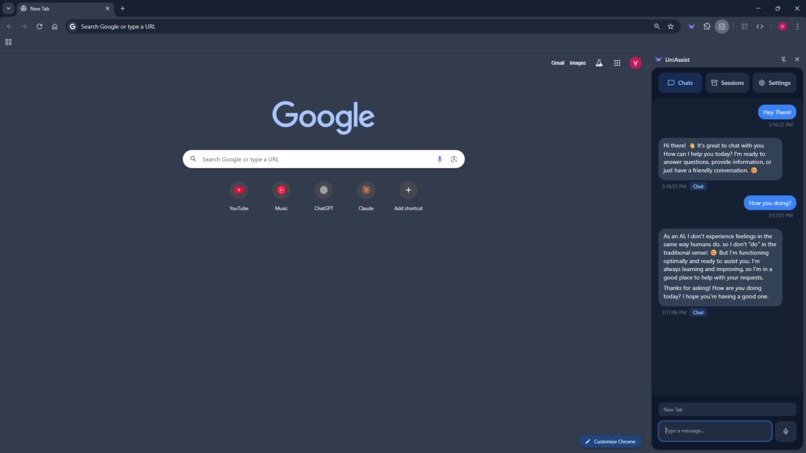
Chat Without The Internet
-
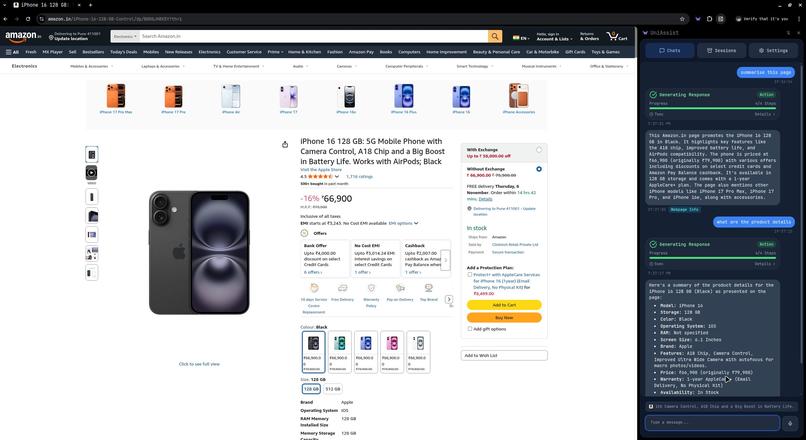
Summarize Pages with Q/As
-
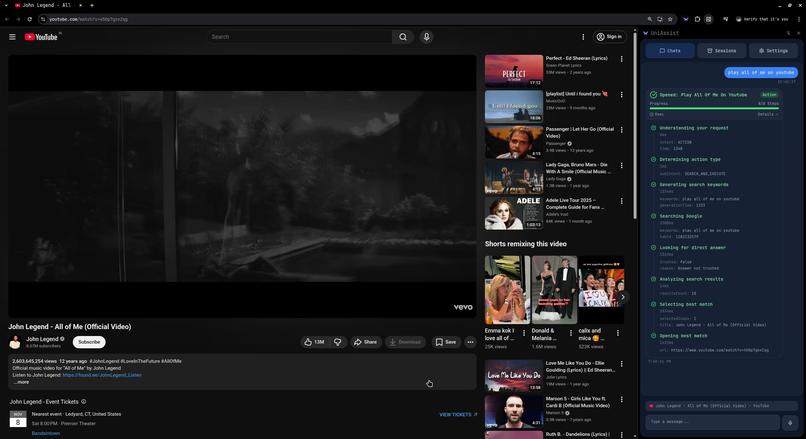
Fetch With Single Command
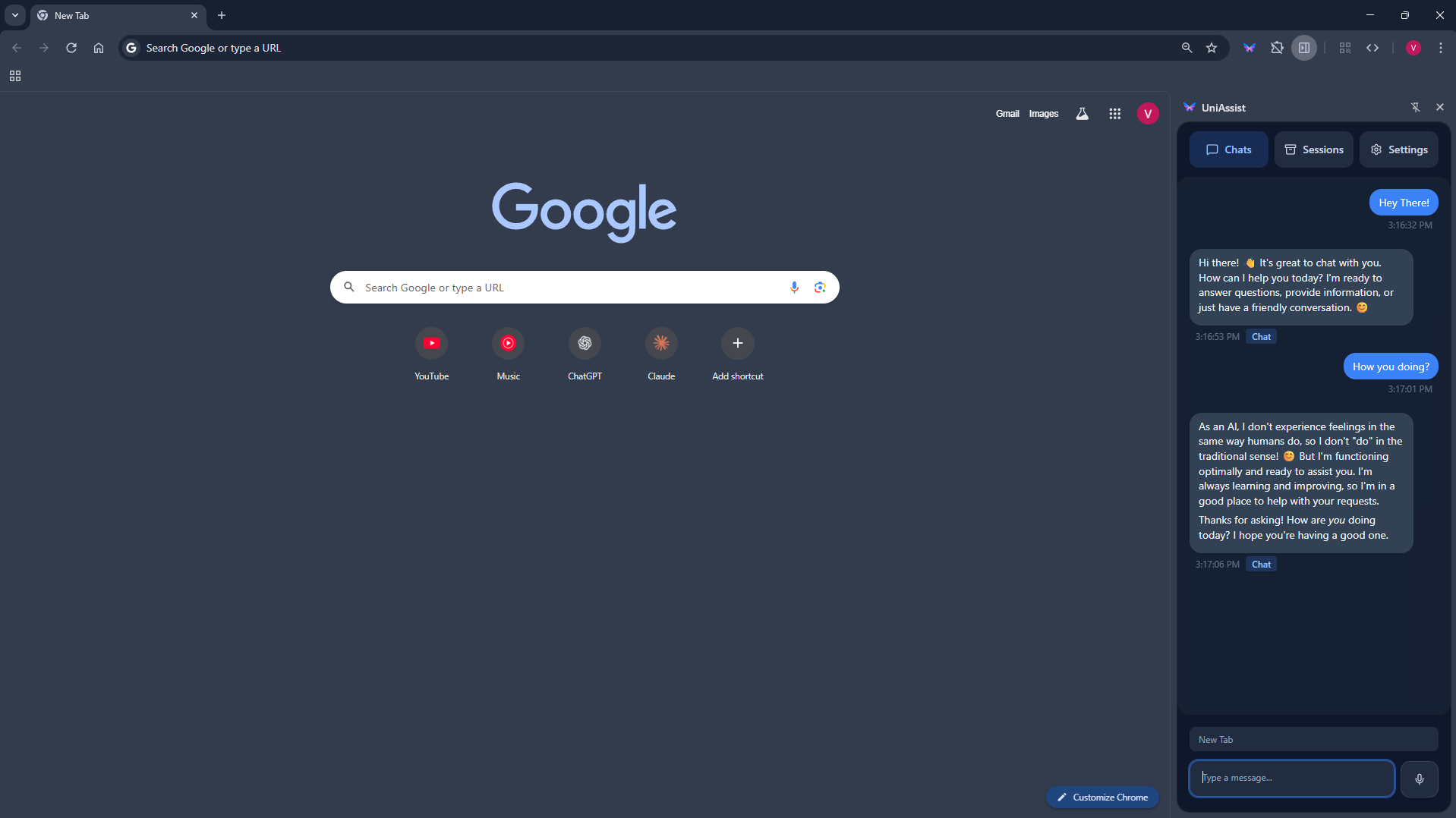
Project Story
Inspiration
My browser was a disaster. I had like 50 tabs open at any given time—work research, random articles I swore I'd read later, shopping tabs comparing prices. Finding anything took forever. I'd waste time scrolling through tabs, skimming long articles for one sentence, clicking through endless reviews. It was stupid that browsing still worked this way.
Then Chrome announced Gemini Nano—AI that runs right on your machine. No servers, no uploading your data anywhere. I thought: why can't I just tell my browser what I need?
What it does
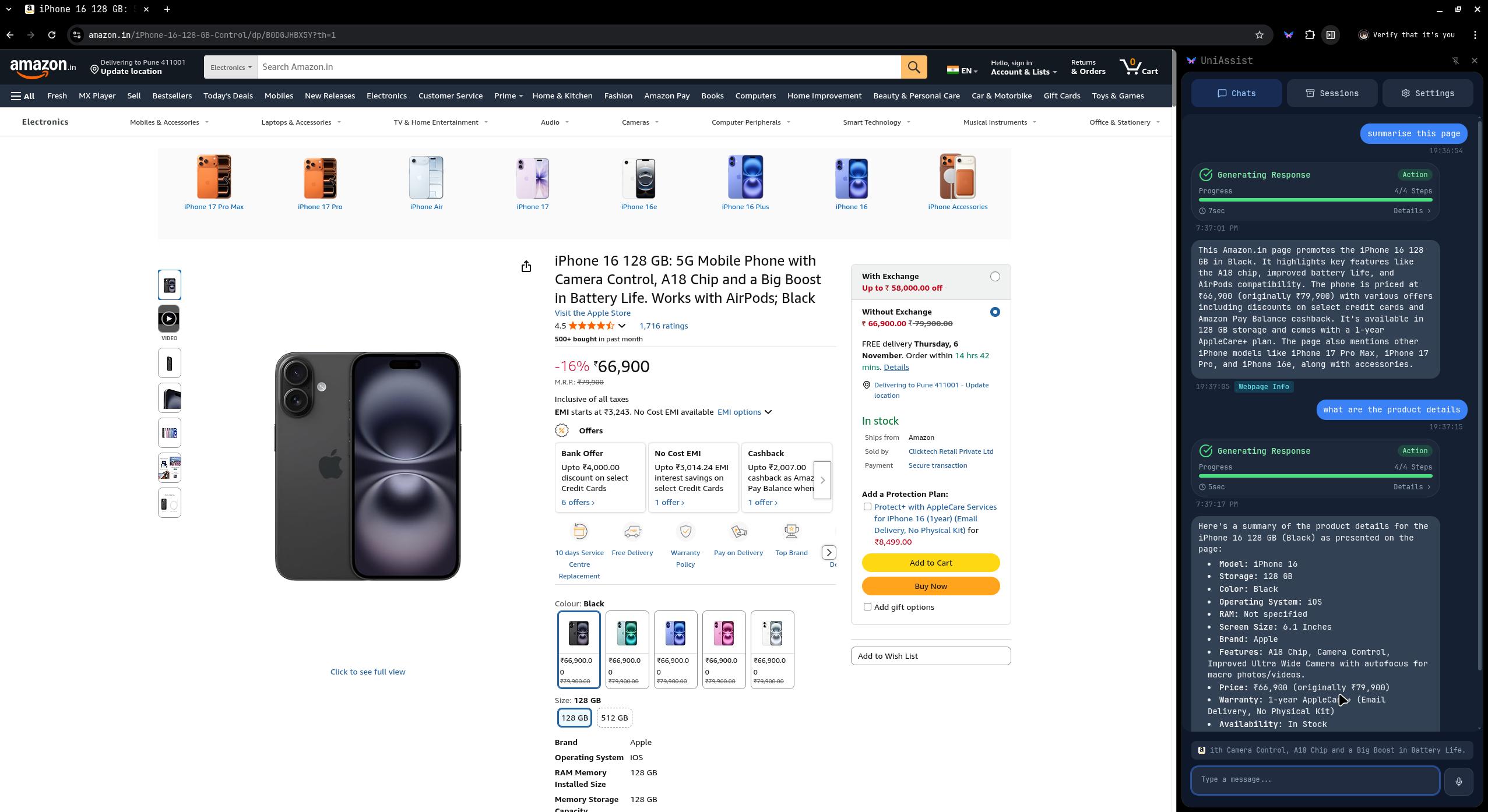
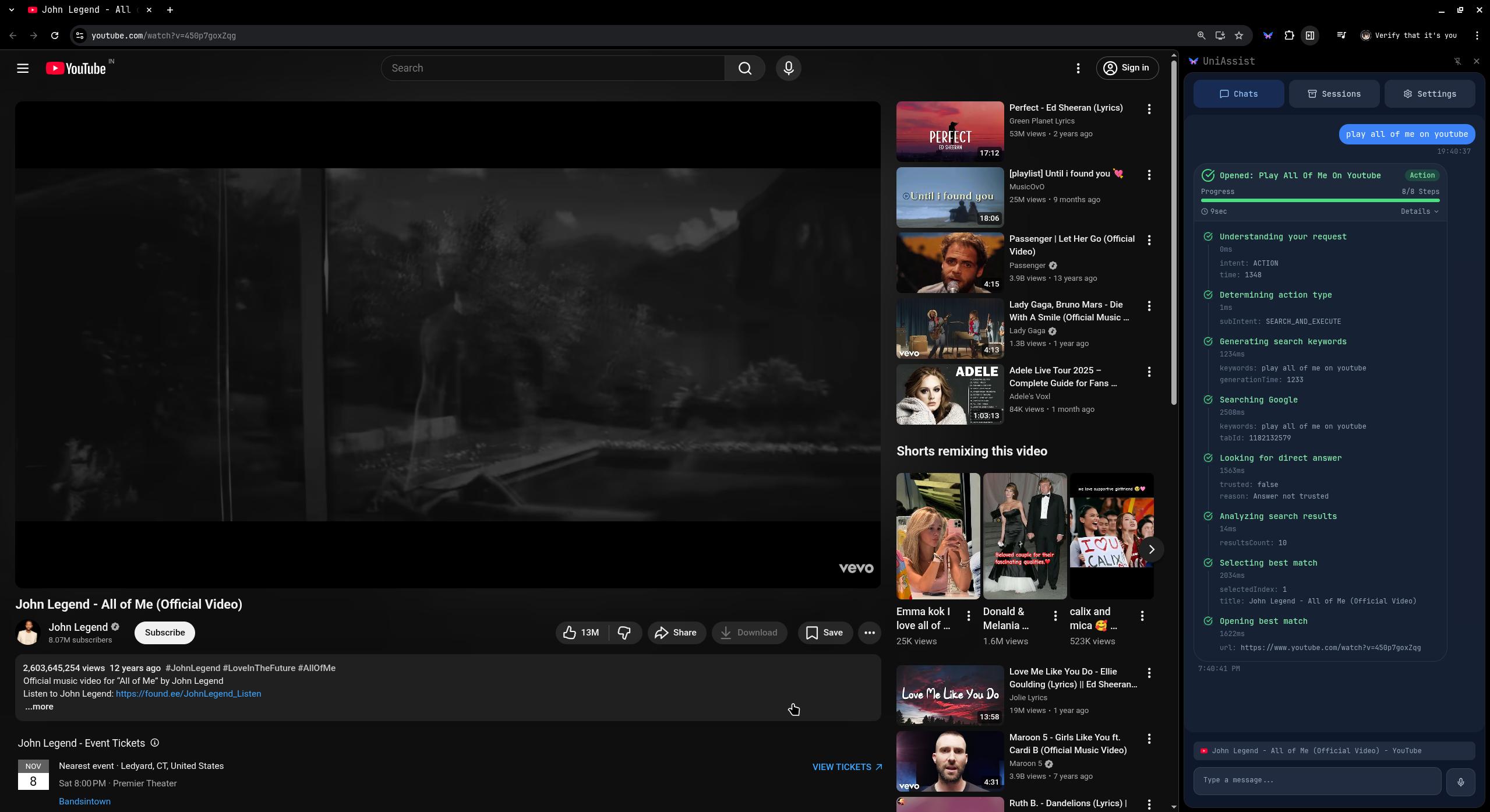
UniAssist lets you talk to your browser. Say "open YouTube" and boom, it's there. Ask "what's this page about?" and it tells you. "Summarize this article" gives you the highlights. Looking at product reviews? Tell it to analyze them and it'll pull out the good and bad.
Everything happens on your computer using Chrome's built-in AI. Your data never leaves your device.
How I built it
I had two half-finished projects sitting around—one with decent browser automation, another with a nicer UI. I smashed them together and added webpage analysis from scratch.
Built with:
- React 19 + TypeScript for the interface
- Chrome's Prompt API (Gemini Nano) for the AI conversations
- Chrome's Summarizer API for quick summaries
- WebKit Speech Recognition for voice
- Content scripts to grab webpage text
- Session management so you can ask follow-up questions
The hardest part was making webpage analysis work. Every site structures their content differently. I needed something that could pull the actual article or product info while ignoring ads, navbars, and all the other junk. Then I added session management so you could have an actual conversation—like asking "what are the main points?" after getting a summary.
Challenges I ran into
Gemini Nano was barely documented: The API was brand new. I spent forever figuring out how sessions worked, what the token limits were, how to stream responses without breaking things.
Content extraction is a nightmare: News sites, blogs, product pages—they all do their own thing. I had to test on dozens of sites to get the selectors right.
Voice doesn't work everywhere: Chrome blocks voice input on internal pages for security reasons. Had to add text input as backup and make it obvious when voice wouldn't work.
Storage limits: Webpage content gets huge fast. I added chunking, compression, and auto-cleanup so it wouldn't blow up Chrome's storage.
Making streaming look good: Getting AI responses to stream smoothly while keeping markdown formatting working took way more tries than I expected.
Accomplishments that I'm proud of
- Built a full webpage analysis system that remembers context between questions
- Made the AI responses feel responsive with streaming and proper markdown
- UI clearly shows what's happening (execution badges, status updates, all that)
- Everything's private—processing happens on your device
- Took two okay projects and made something actually useful
What I learned
- Chrome's AI APIs are powerful but finicky—you have to babysit sessions and token counts
- Voice interfaces need constant visual feedback or people get confused
- Extracting content from webpages is way harder than it seems
- Streaming makes everything feel faster even when it's not
- People actually care about privacy—"runs on your device" is a real feature
What's next for UniAssist
- Support more Chrome AI features (rewriting, translation)
- Auto-group tabs by topic
- Voice commands for bookmarks and notes
- Conversation history you can search through
- Better content extraction for weird sites
- Keyboard shortcuts
- Pre-made commands for common stuff
Built With
- javascript
- node.js
- prompt
- react
- rewriter
- summerizer
- swc
- typescript
- vite

Log in or sign up for Devpost to join the conversation.