-
-
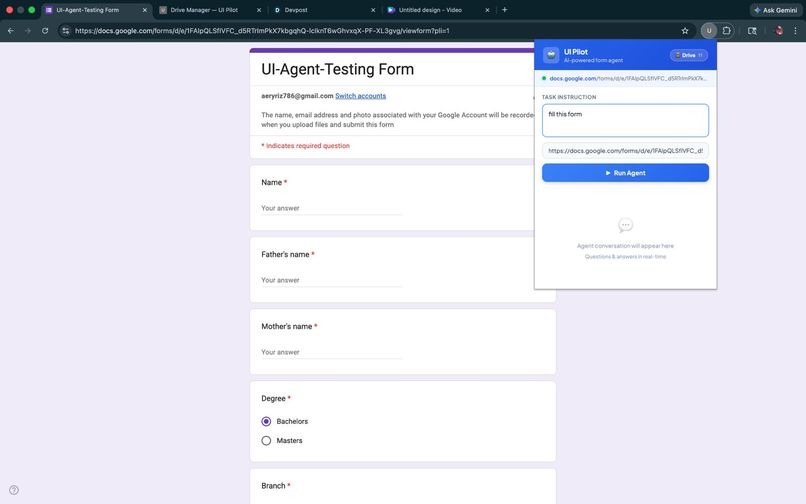
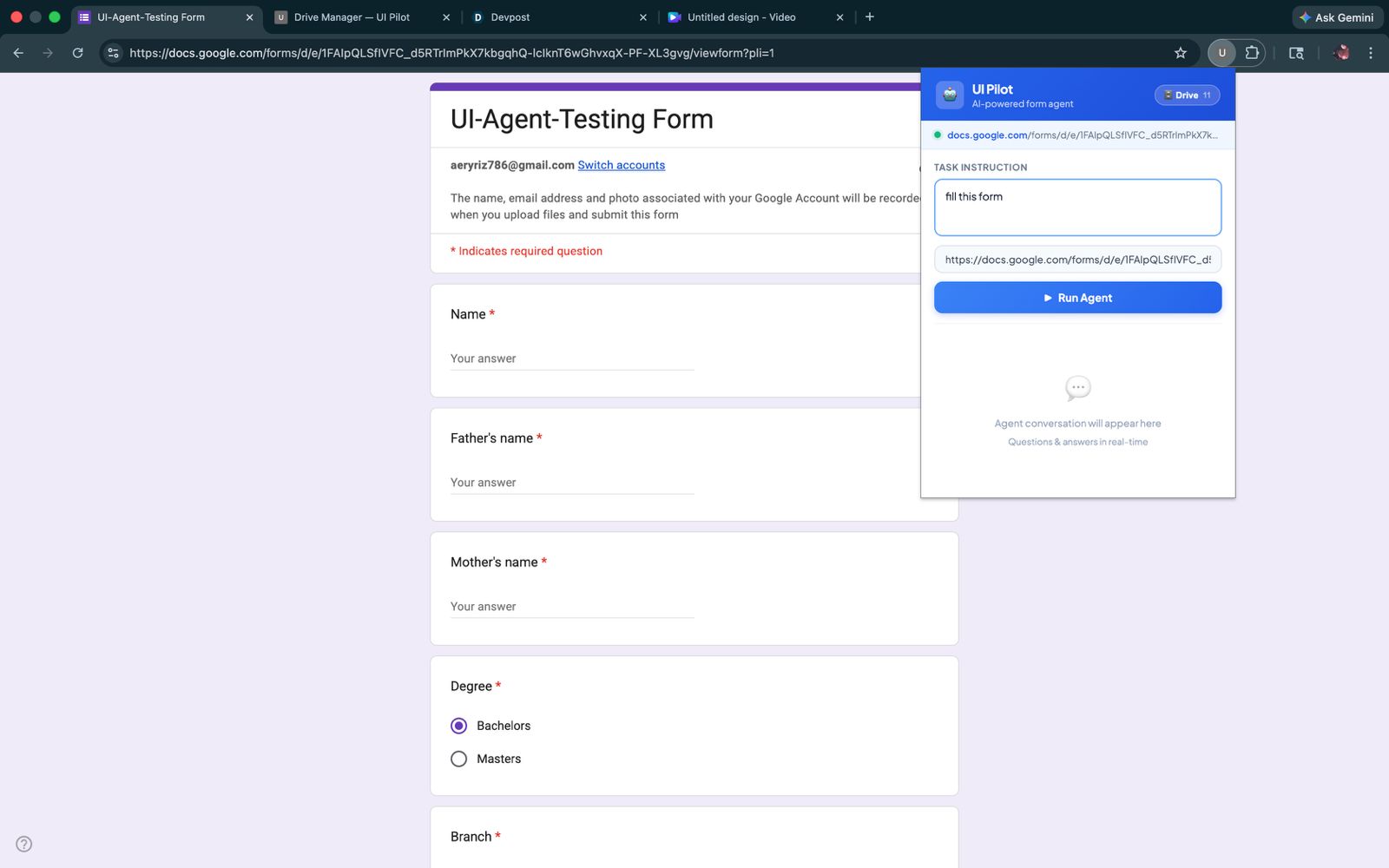
UI Pilot Extension Popup
-
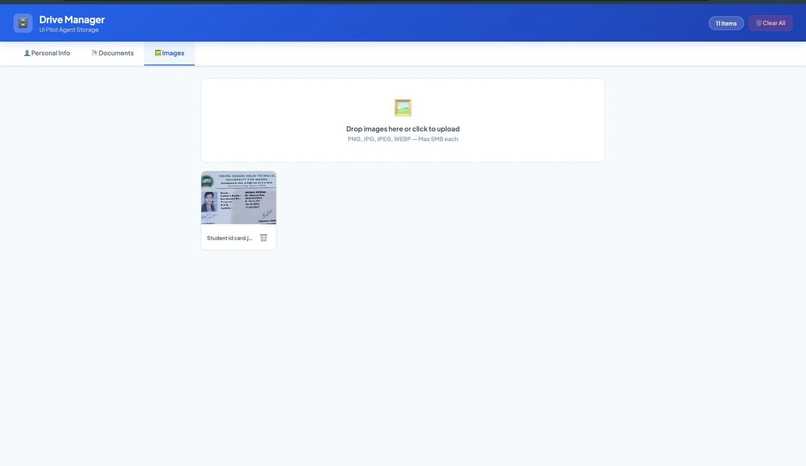
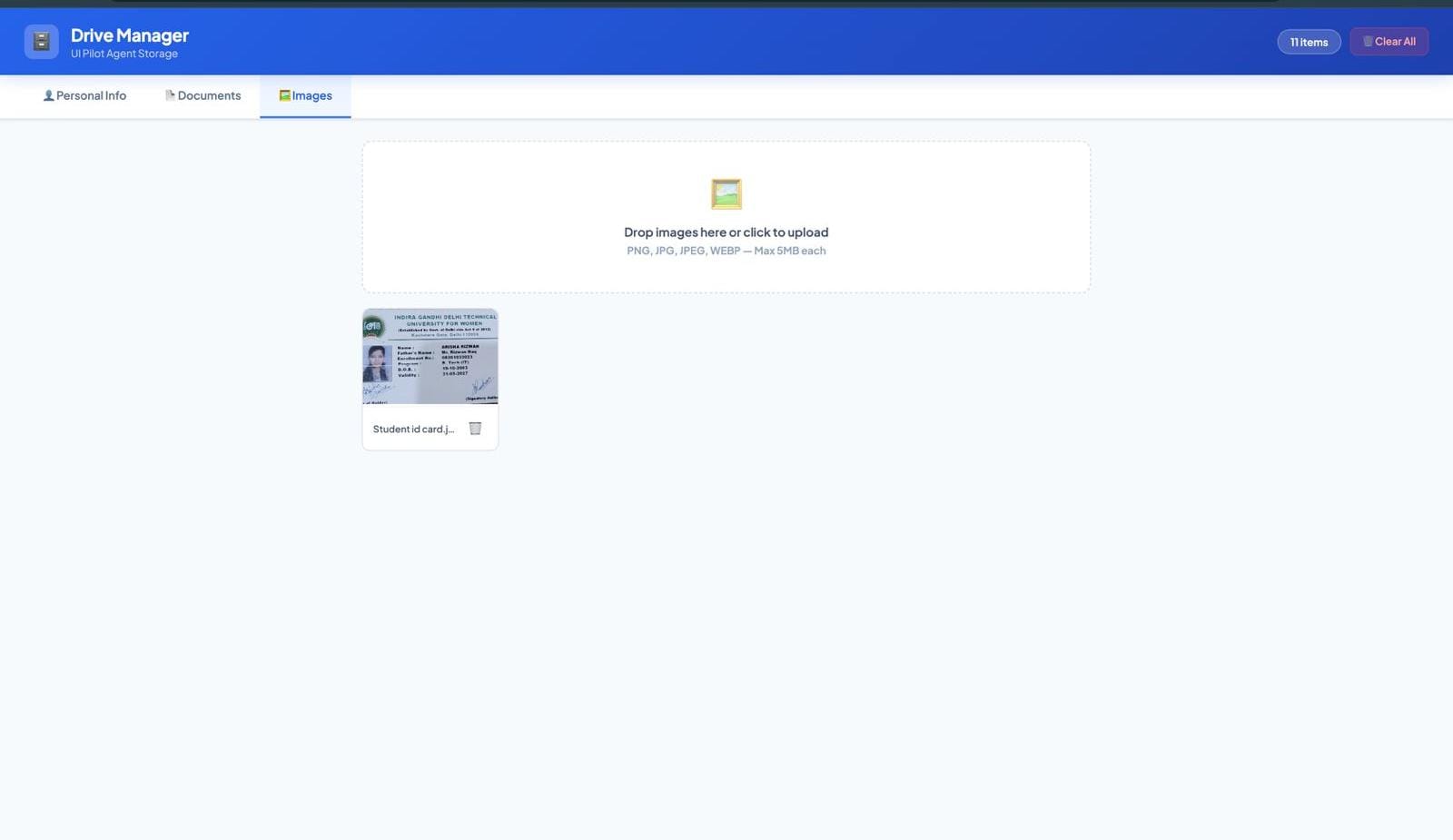
Offline-first personal data storage for the UI Pilot agent for reference
-
UI Pilot Logo
-
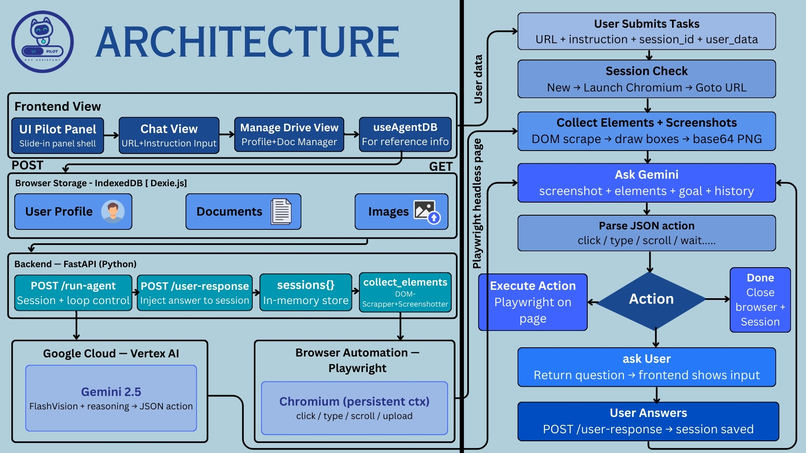
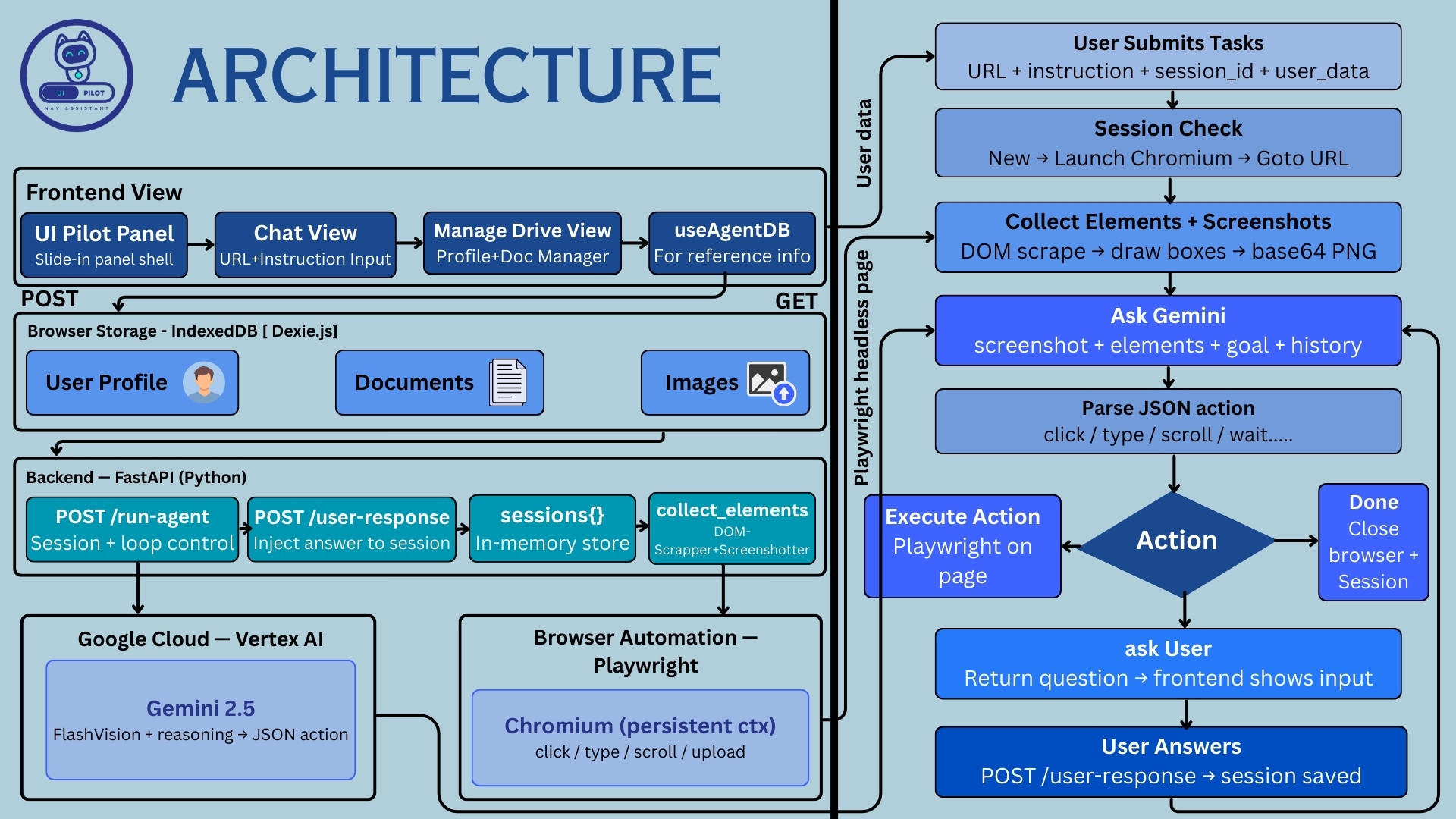
UI Pilot Architecture
UI Pilot : Universal Overlay Handler
Inspiration
Traditional browser automation tools rely on hard-coded selectors or scripts. These break the moment a page's structure changes. We wanted to explore whether an AI model could visually interpret a webpage, the way a human would, and dynamically decide how to interact with it, with no prior knowledge of the page's structure.
This project explores vision-based automation: an AI agent that observes, reasons, and acts.
What It Does
UI Pilot lets users control a web browser using plain English instructions. Instead of manually navigating websites or filling out forms, you simply describe the task, and the AI agent interprets the page visually and carries it out.
The system combines browser automation, computer vision, and large language models to create an agent capable of interacting with real web interfaces. By analysing screenshots and detecting interactive elements, the AI decides what to do next, clicking buttons, filling inputs, selecting options, or pausing to ask you a question when it needs more information.
The goal: move AI beyond text generation and into systems that actively interact with digital environments.
How We Built It
🧩 Chrome Extension Frontend
The extension is the control panel. You type a task instruction, hit run, and watch the agent work. If the agent hits a field it can't fill, it pauses and asks you directly inside a chat panel in the popup.
A built-in Drive Manager lets you store personal info (name, email, address, education, work history), documents, and images locally, so the agent can autofill forms without asking every time.
⚙️ Backend API
A FastAPI server handles communication between the extension and the automation engine. It receives instructions, triggers Playwright, and routes agent questions back to the popup in real time.
🌐 Browser Automation
Playwright opens the page, scans for interactive elements, and executes actions. Each element is assigned a numeric ID and its bounding box is recorded:
- Buttons, links, text inputs, textareas
- Dropdowns, radio buttons, checkboxes
Only elements passing a minimum size threshold are included. An element is kept only if:
$$ w > 5\text{px} \quad \text{and} \quad h > 5\text{px} $$
👁️ Visual Page Understanding
After collecting elements, the system:
- Takes a screenshot of the current viewport
- Draws colour-coded bounding boxes around each detected element
- Labels each box with its numeric ID
- Encodes the annotated image as Base64
- Combines it with the element list into a single payload for the model
Password fields are automatically blurred before the image is sent to the model.
🤖 AI Decision Process
Gemini 2.0 Flash (via Vertex AI) receives the annotated screenshot, the element list, the user's goal, and a rolling history of recent actions. It returns exactly one JSON action, the single best next step.
The agent runs for a maximum of \(N_{\max} = 30\) steps. Each step follows the cycle:
$$ \text{Observe} \rightarrow \text{Reason} \rightarrow \text{Act} $$
The model runs at a low temperature \(T = 0.1\) to keep outputs deterministic and well-structured.
Challenges We Ran Into
Reliable element filtering Many page elements are hidden, invisible, or not meant for interaction. Filtering by visibility and the condition \(w > 5\text{px},\ h > 5\text{px}\) was critical to keeping the model's context clean and focused.
Coordinate alignment Bounding-box coordinates extracted by Playwright had to align precisely with the annotated screenshot pixels. Any offset would cause the agent to click the wrong target entirely.
Structured model output Getting Gemini to consistently return valid, parseable JSON required careful prompt engineering — a strict system prompt, \(T = 0.1\), and post-processing to strip Markdown code fences from responses.
Mid-task user interaction Some tasks need information that can't be known upfront. We built a pause-and-ask mechanism: the agent surfaces a question through the extension's chat panel, waits for an answer, then resumes. Answers can optionally be saved to Drive for future use.
Windows event loop compatibility
Playwright's subprocess handling conflicts with Python's default asyncio event loop on Windows. Fixed by explicitly setting WindowsProactorEventLoopPolicy before the server starts.
Accomplishments That We're Proud Of
- [x] Built an AI agent that visually interprets any webpage and acts on natural language instructions
- [x] Implemented a human-in-the-loop flow where the agent can pause, ask, and automatically continue
- [x] Built a robust pipeline:
Chrome Extension → FastAPI → Playwright → Gemini - [x] Enabled secure local autofill via Drive storage while respecting sensitive fields like passwords
- [x] Achieved deterministic, structured outputs from a vision-language model for reliable automation
What We Learned
- How to ground a vision-language model in a structured action space through prompt design
- How browser automation frameworks expose the DOM and interact with live pages
- How to design human-in-the-loop flows — where an AI can pause, ask, and resume
- How to coordinate multiple components (
extension → API → subprocess → model) into one coherent pipeline - The practical limits of vision-based detection on dynamic, iframe-heavy, or canvas-based pages
What's Next for UI Pilot
| Improvement | Description |
|---|---|
| 🗺️ Multi-step planning | Reason about a full plan before executing, rather than one step at a time |
| 🔌 Direct tab injection | Interact with the user's active Chrome tab via content scripts instead of a separate Playwright window |
| 🔦 Live action overlay | Highlight the element being acted on directly inside the popup |
| 🧩 Broader element support | Better handling of iframes, shadow DOM, and single-page apps |
| 🧠 Semantic Drive matching | Use embedding similarity to match agent questions to stored profile fields |


Log in or sign up for Devpost to join the conversation.