-
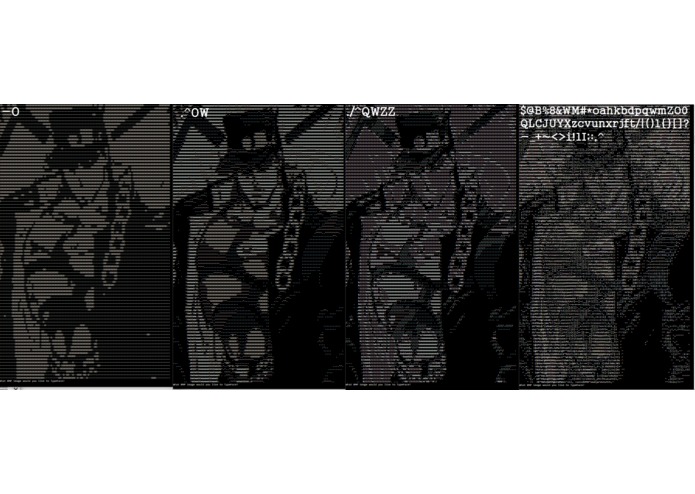
You can input a palette that the program will match to pixels' luminosity values
-
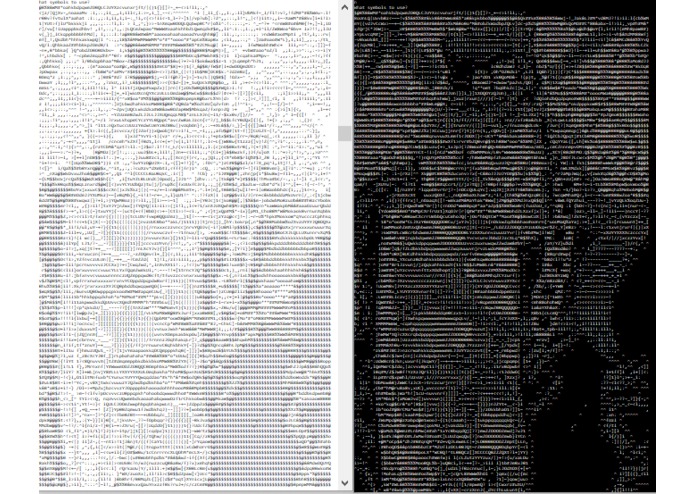
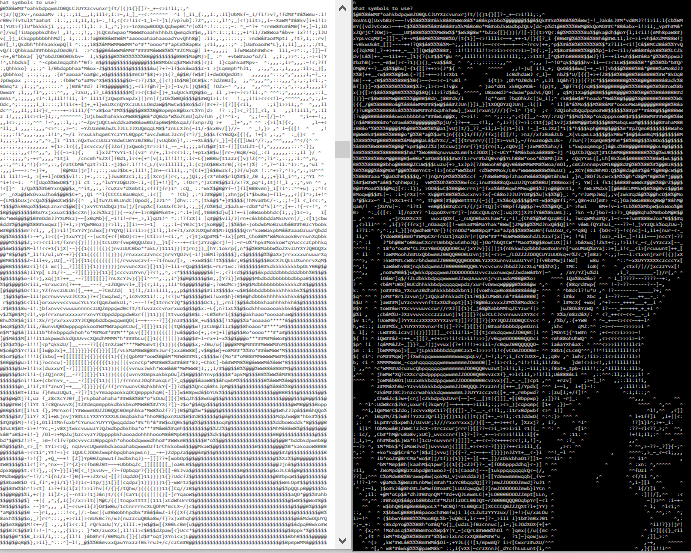
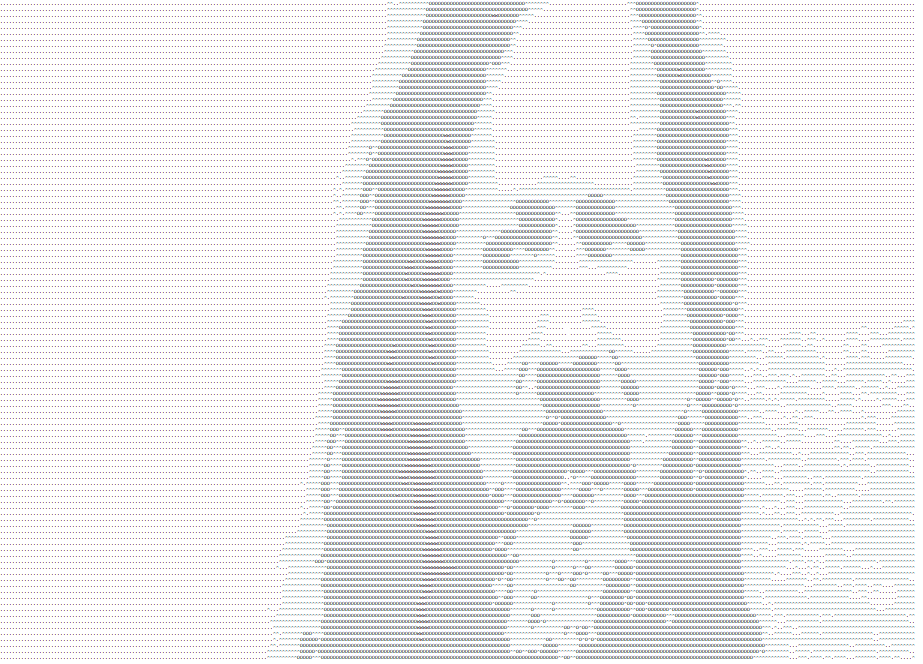
You can print with an inverted palette for displays that print black on white
-
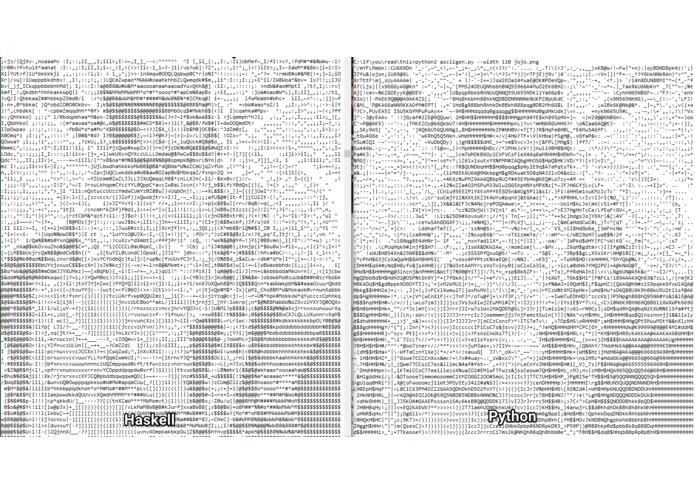
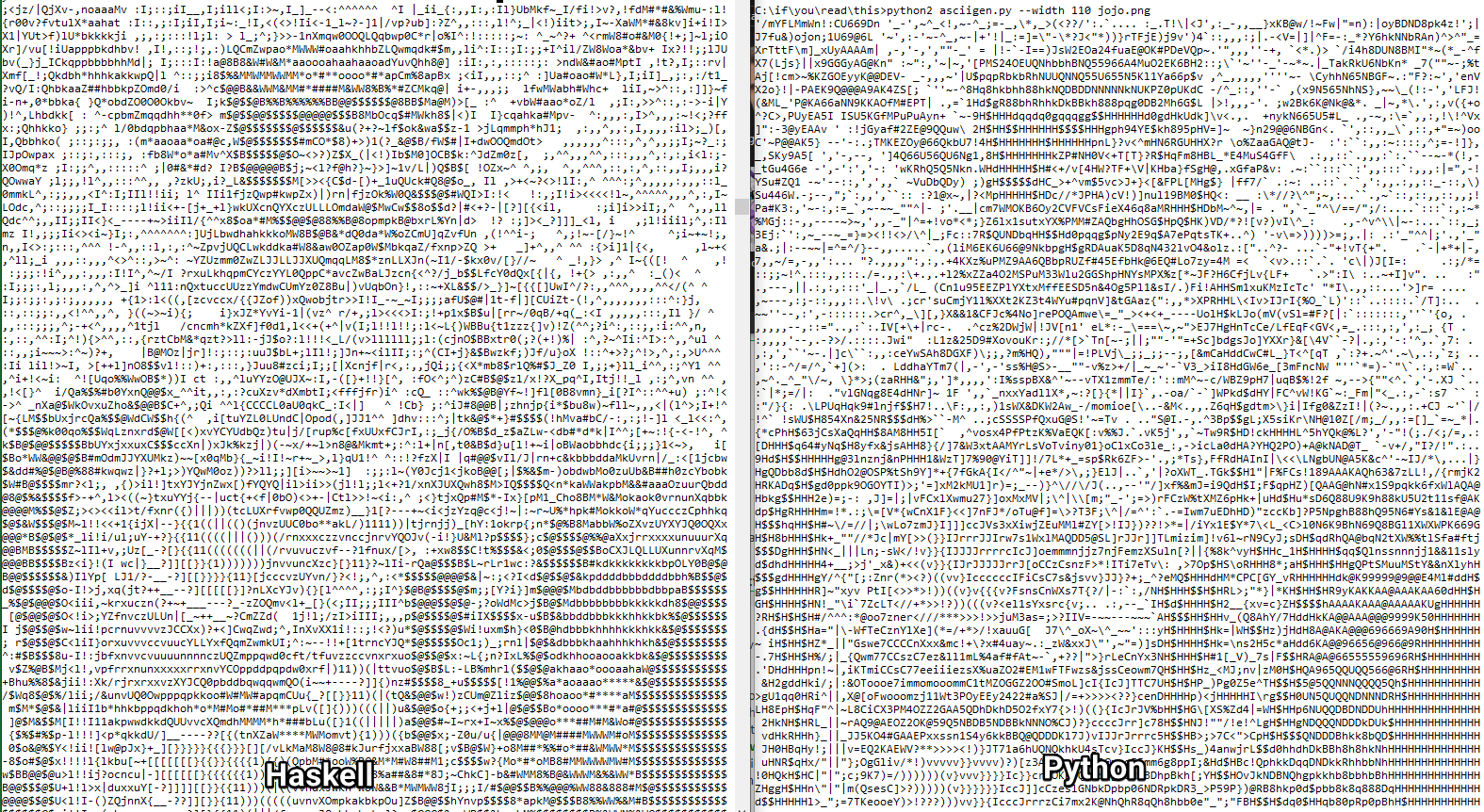
Produces similar results to Python equivalents, but with faster speeds
-
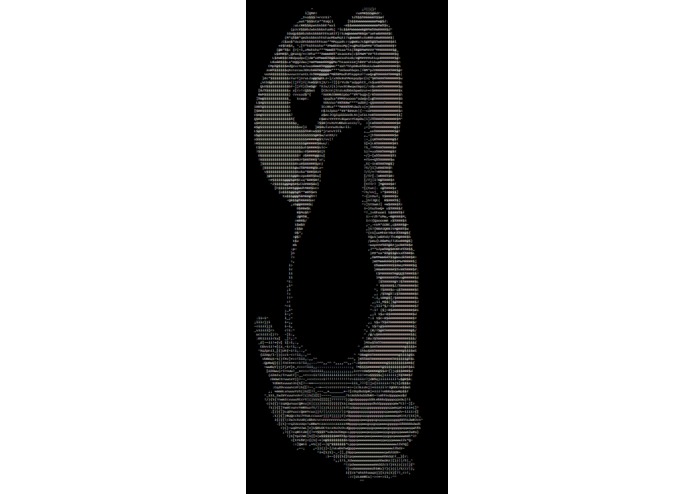
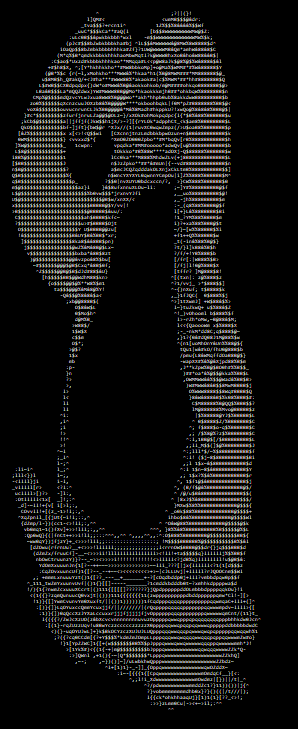
TypeFaces works nicely with drawings...
-
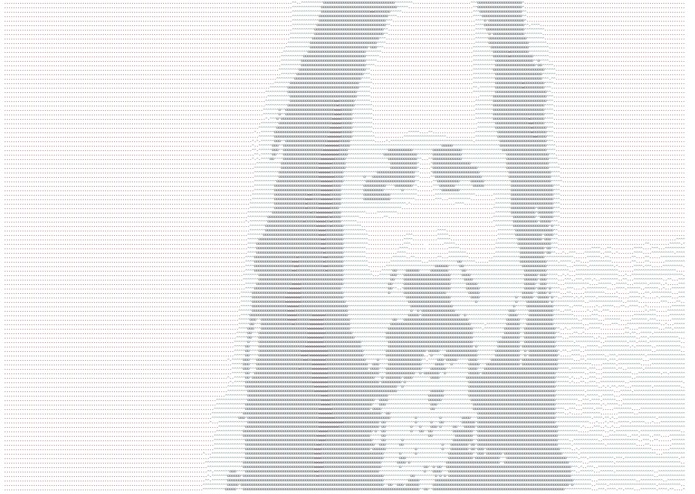
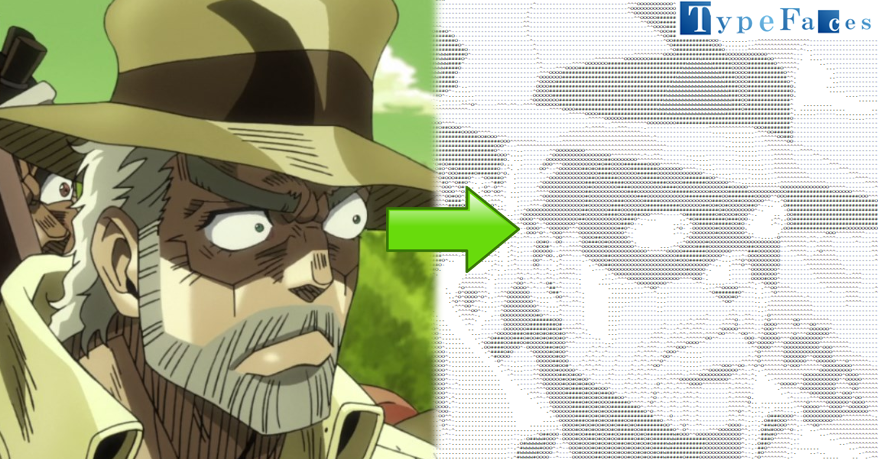
...and quite well with photos! You choose the level of detail.
-
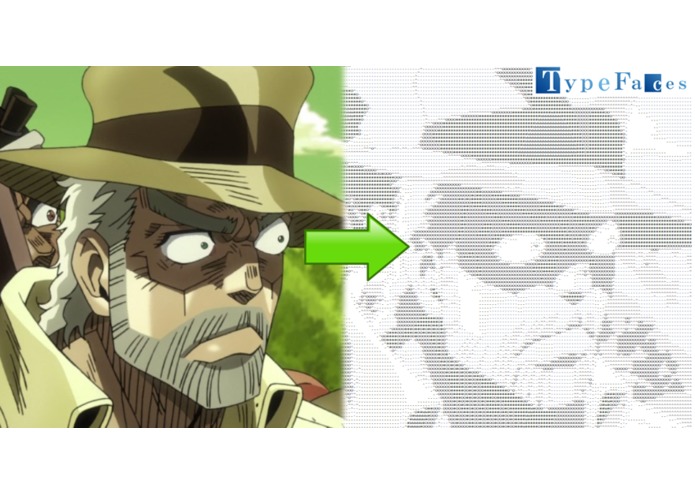
Source file and ASCII art version
What is TypeFaces?
TypeFaces is an ASCII art generator powered by Haskell. Haskell handles large amounts of data and recursion very well. This program takes advantage of that. It's very fast!
How fast is it?
Very! TypeFaces can generate ASCII art for an image with 1,000,000 pixels in a matter of seconds, something that would take minutes with a Python script of similar complexity.
Download
Get TypeFaces for Windows at type-faces.org.
Usage instructions
In the folder where you extracted typefaces.exe and the BMP image files, open typefaces.exe. You can do this by double-clicking on the file.
You'll be prompted to entire a filename. This must be a BMP image in the same folder. For example, try one of:
- jojo.bmp
- cuhacking.bmp
- tux.bmp
You'll then be prompted whether you have a dark terminal. Enter "y" if your command line has bright text on a dark background, like black. Enter "n" if your command line's background is white. This will invert the shades used.
Lastly, you'll be prompted to enter a string of symbols. Put the characters that you would like to represent darker pixels first, and characters that would represent brighter pixels last.
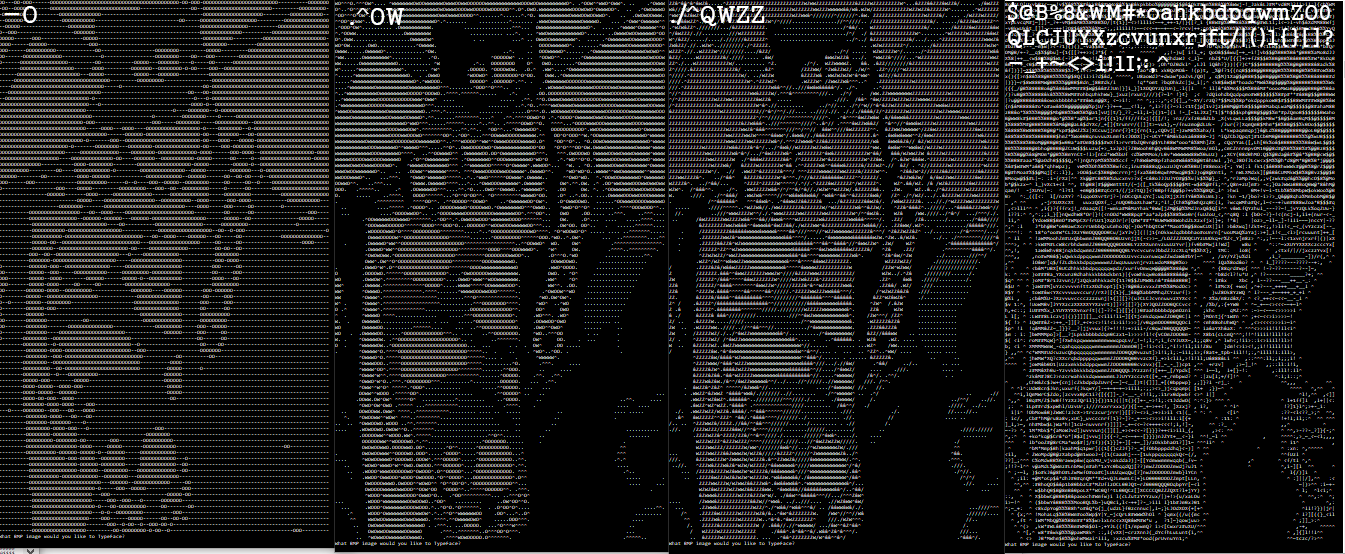
Try one of the following palette strings (without quotes):
- "-O"
- " .^OW"
- " ./^QWZZ"
- "$@B%8&WM#*oahkbdpqwmZO0QLCJUYXzcvunxrjft/|()1{}[]?-_+~<>i!lI;:,^ "
For example, " .^OW" means that the darkest pixels will be represented by a space (" "), and the four other characters will be used to represent four other shades, up to brightest shades in the given image that will be represented by "W". Answering "n" to having a dark terminal will effectively treat the palette string as the reverse: "WO^. ".
Then, the image will be displayed in the command line. Larger images will probably appear quite zoomed in. Reduce the font size of your terminal emulator, zoom out, or increase the window size to see the full details of the art. Otherwise, just scroll.
The program will keep prompting you for another image to convert to ASCII art until you close the program. Experiment with other BMP images and other palette strings! Try the included image "moai.bmp", which has over 1,000,000 pixels. The ASCII art is still generated quite fast!
Video demonstration
Built With
- haskell


Log in or sign up for Devpost to join the conversation.