-
-
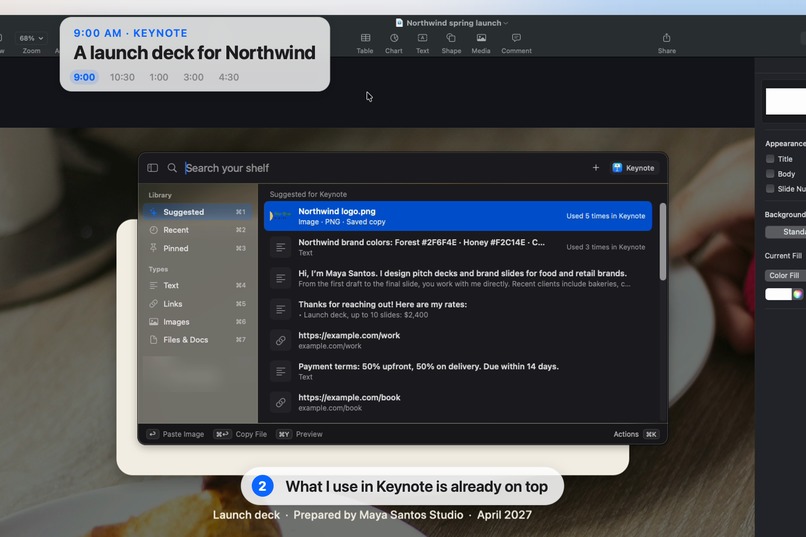
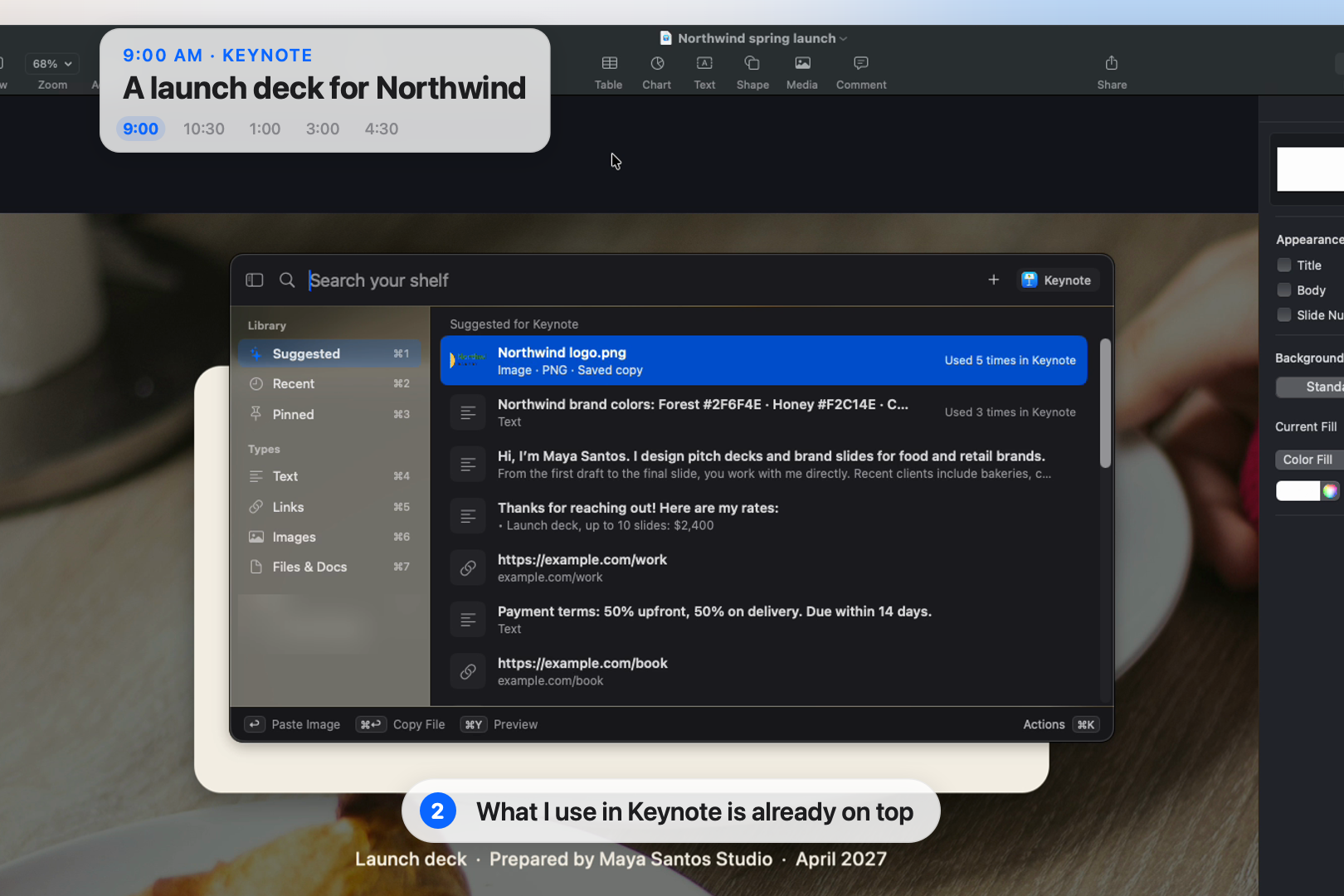
9:00 in Keynote: Option-Space, and the logo I use there is already on top.
-
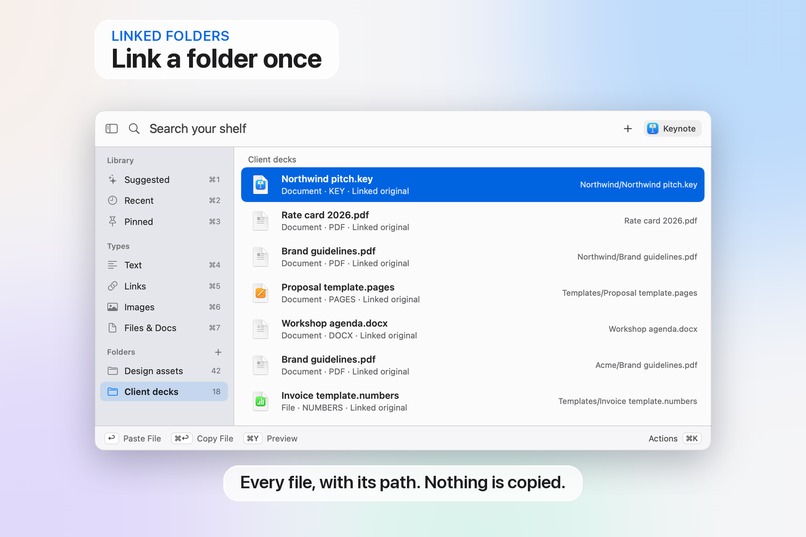
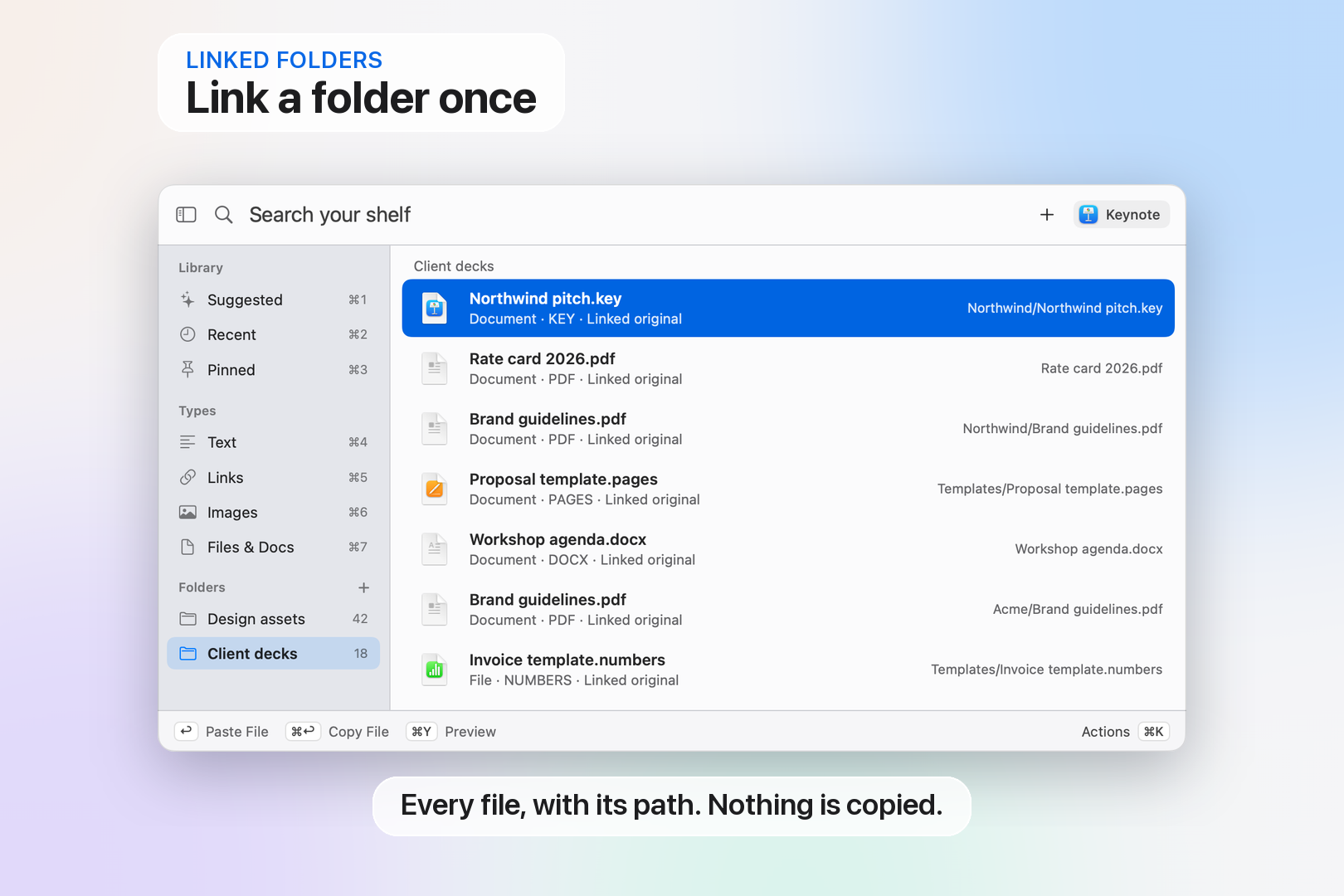
Link a folder once: every file shows with its path, and nothing is copied.
-
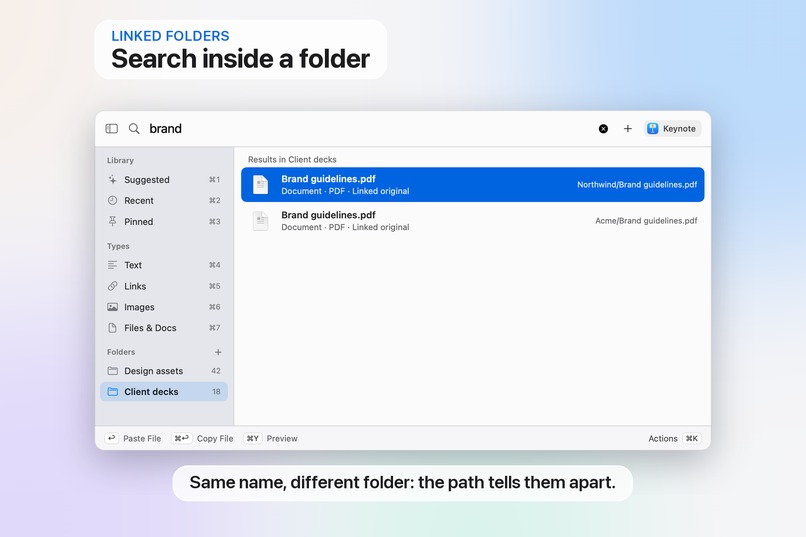
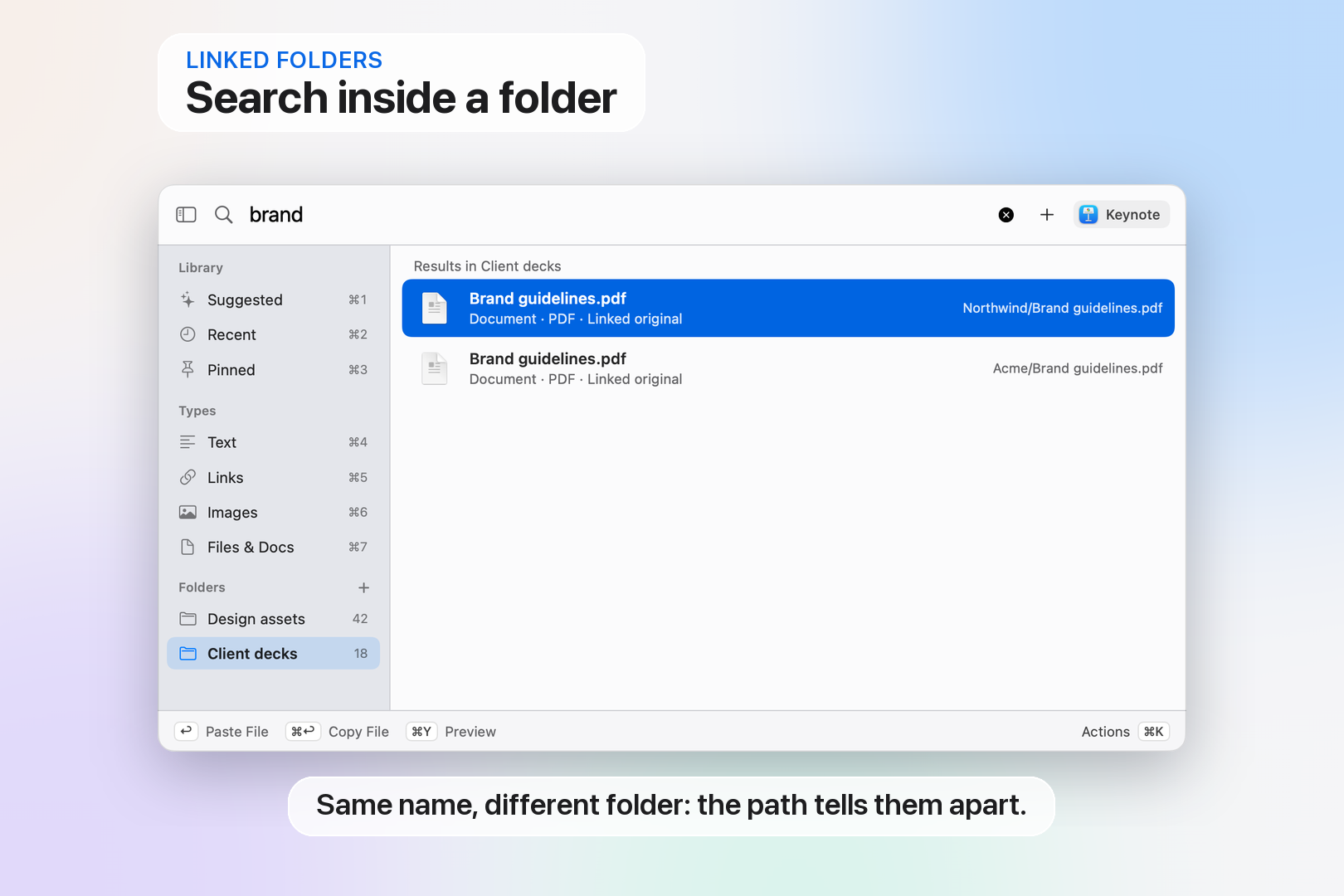
Search inside a linked folder: two files with the same name, told apart by their paths.
-
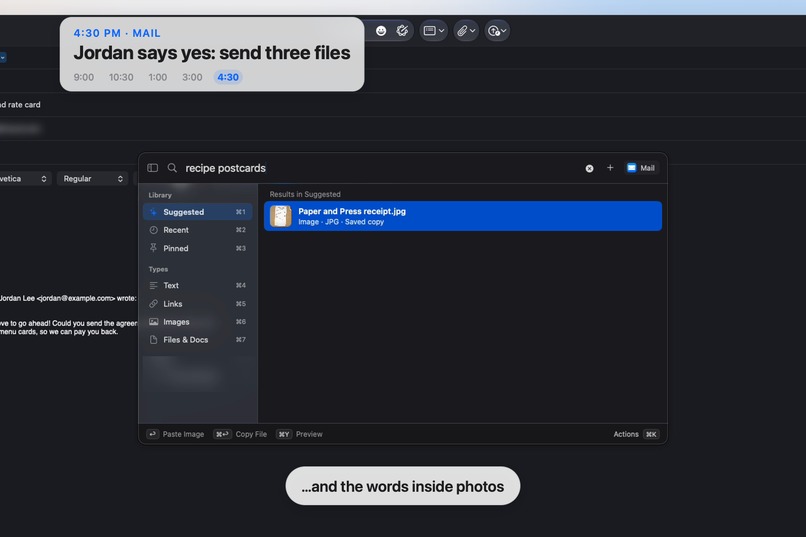
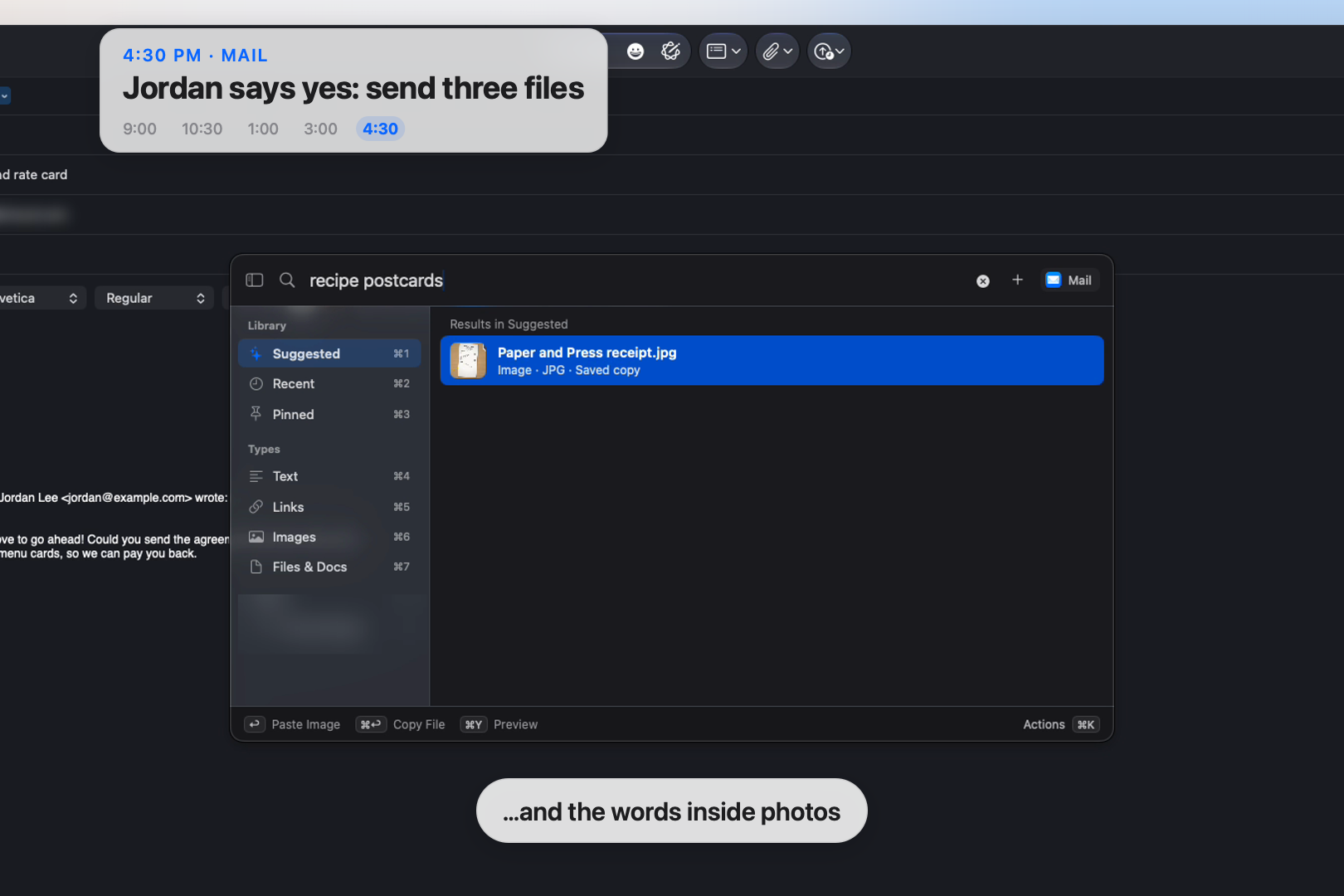
Search finds a receipt photo by the words printed on it.
-
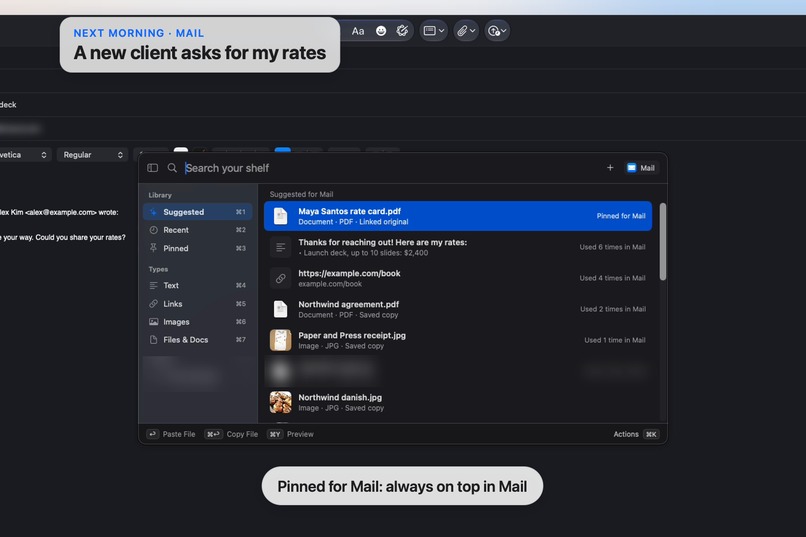
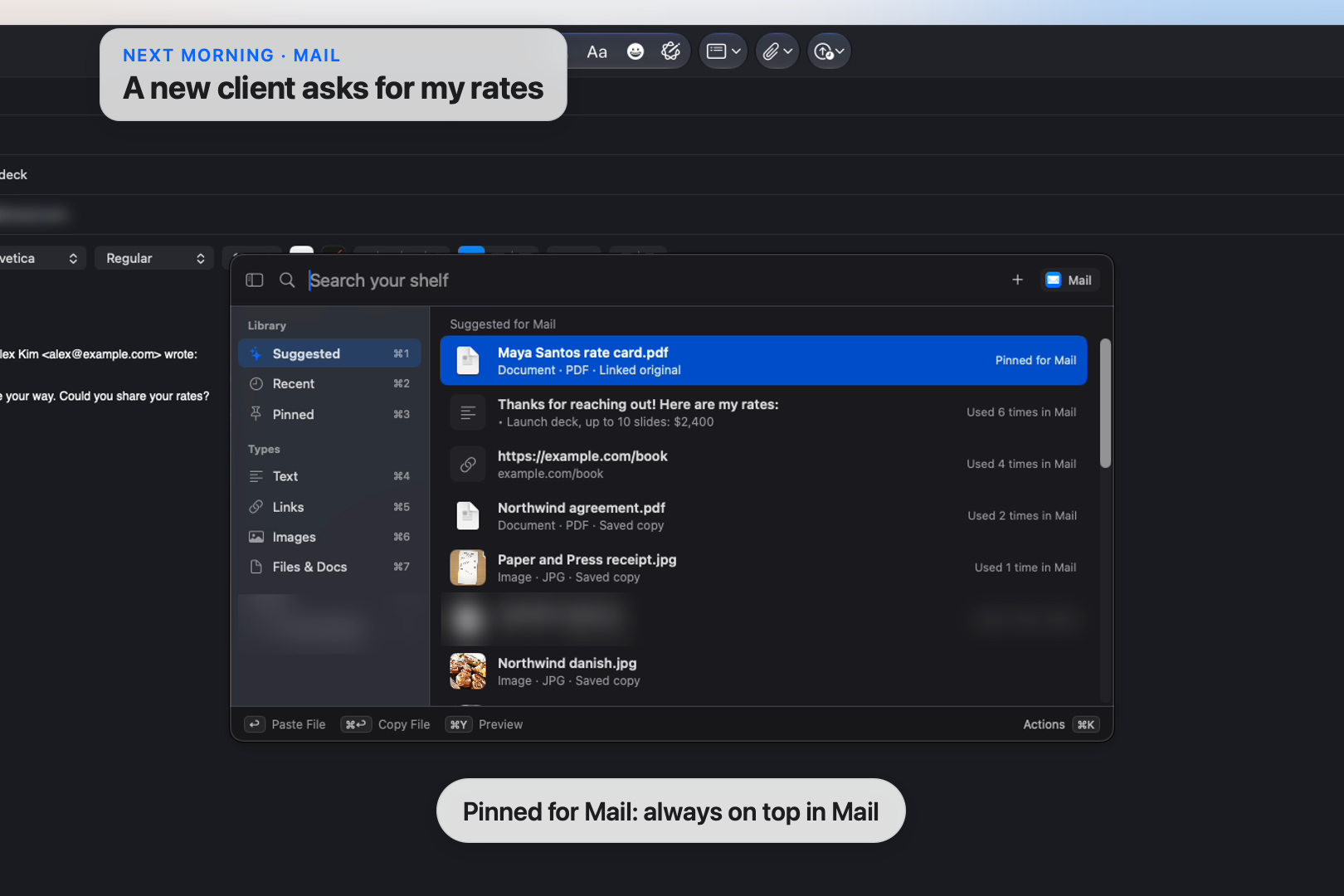
Pinned for Mail: the rate card is on top, and every row says why.
-
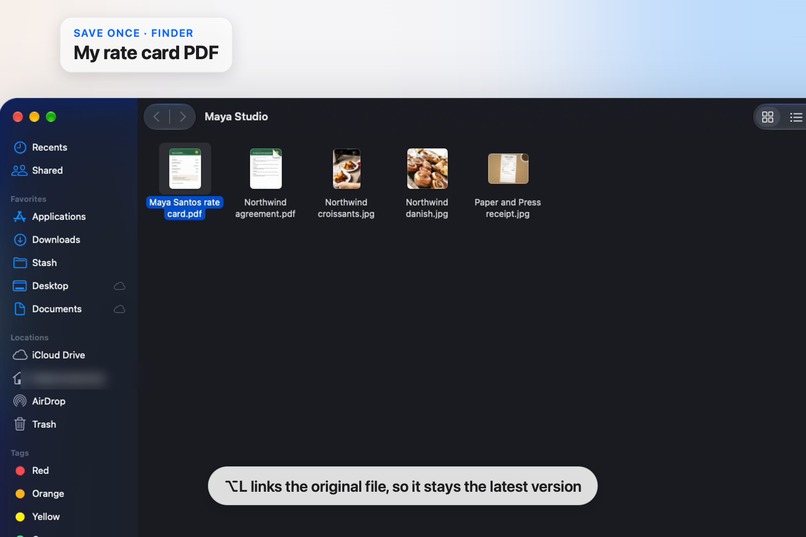
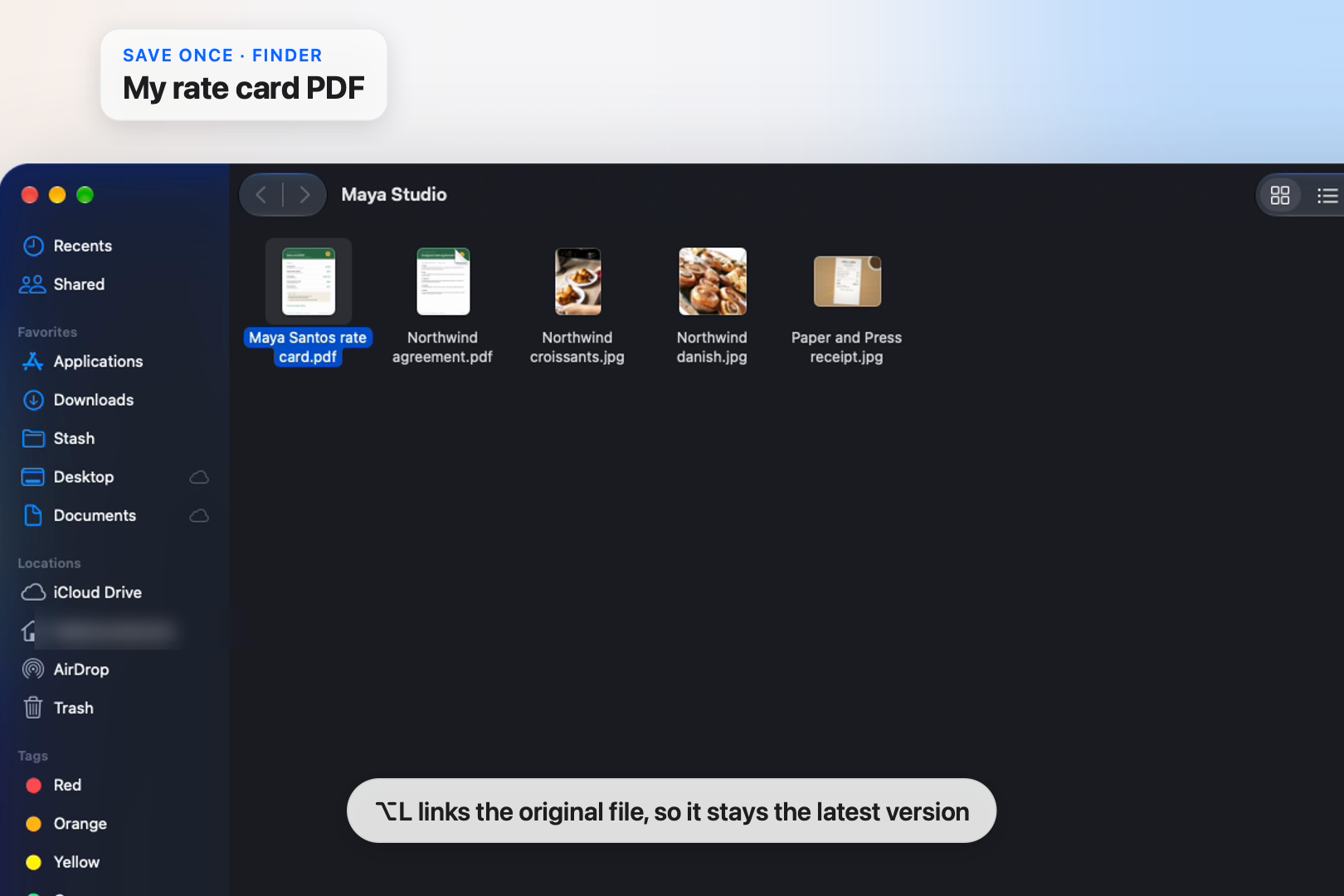
Option-L links the original file in Finder, so you always paste its latest version.
-
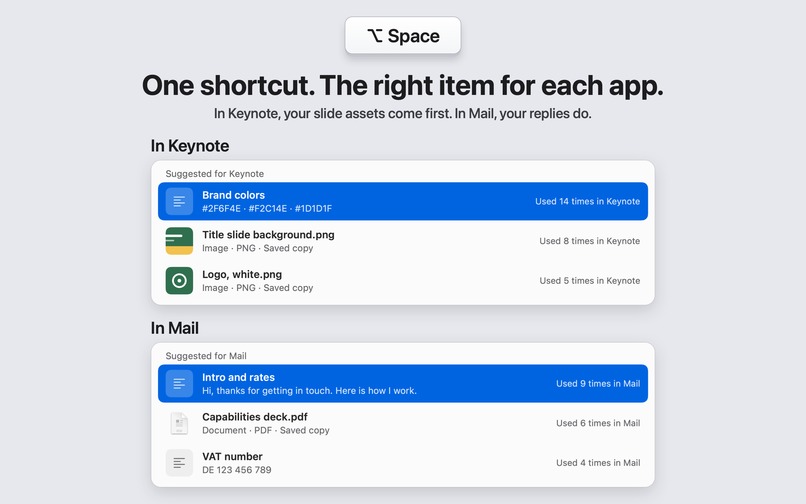
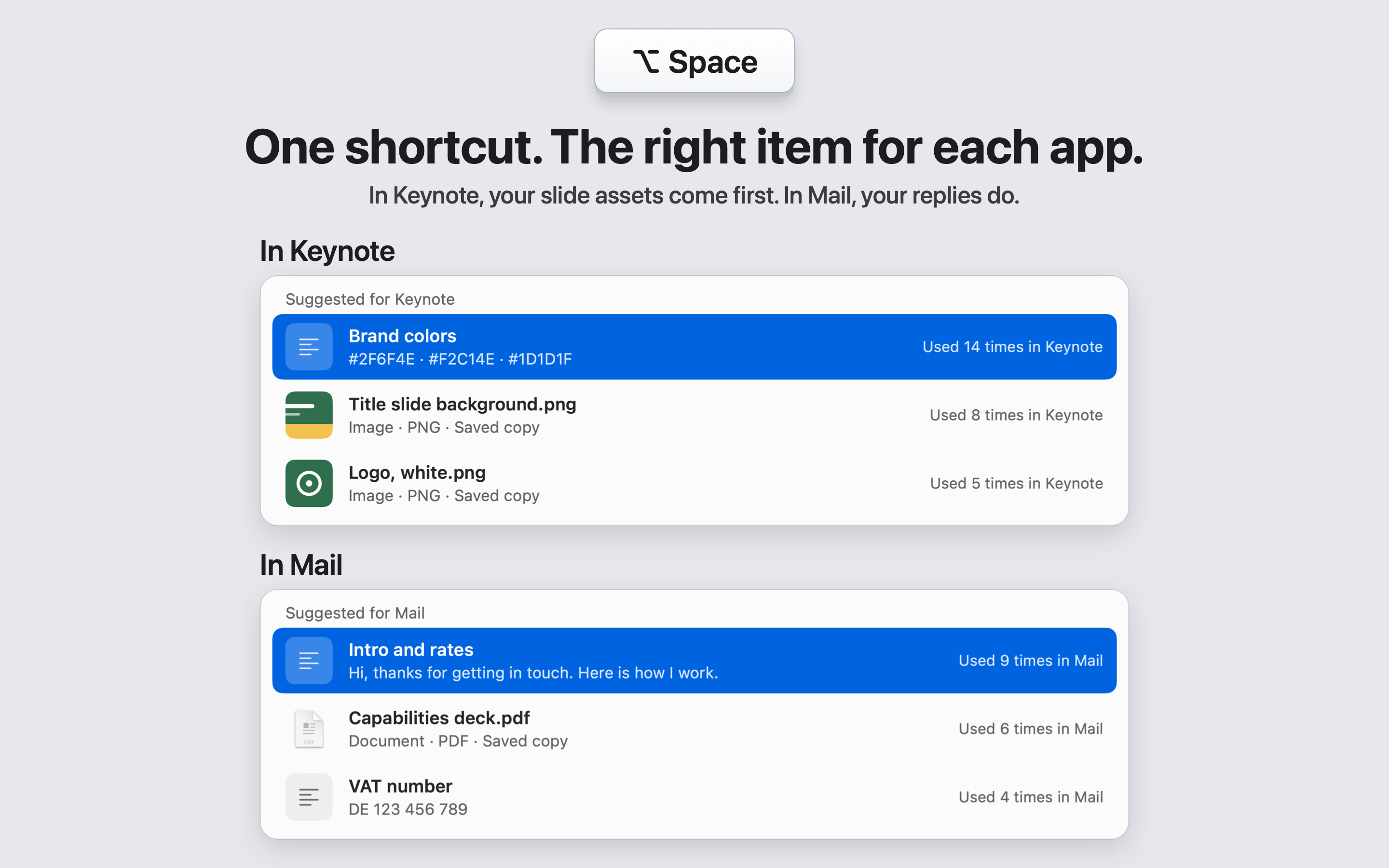
Same shortcut, different app: the top items follow where you're about to paste.
-
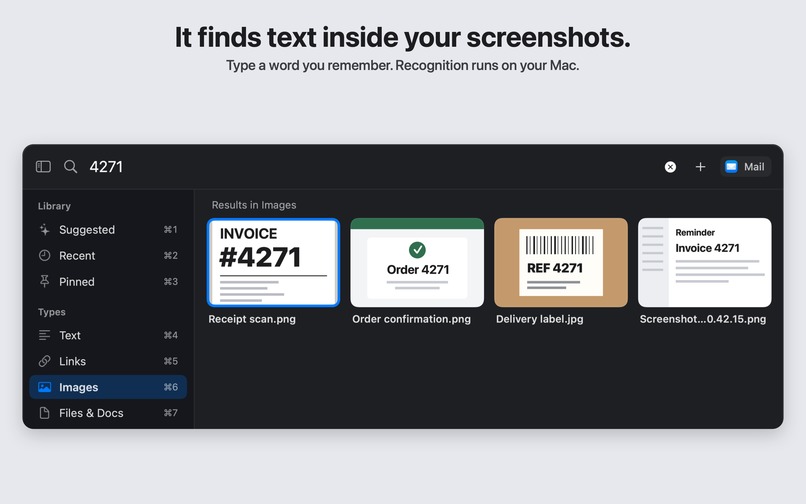
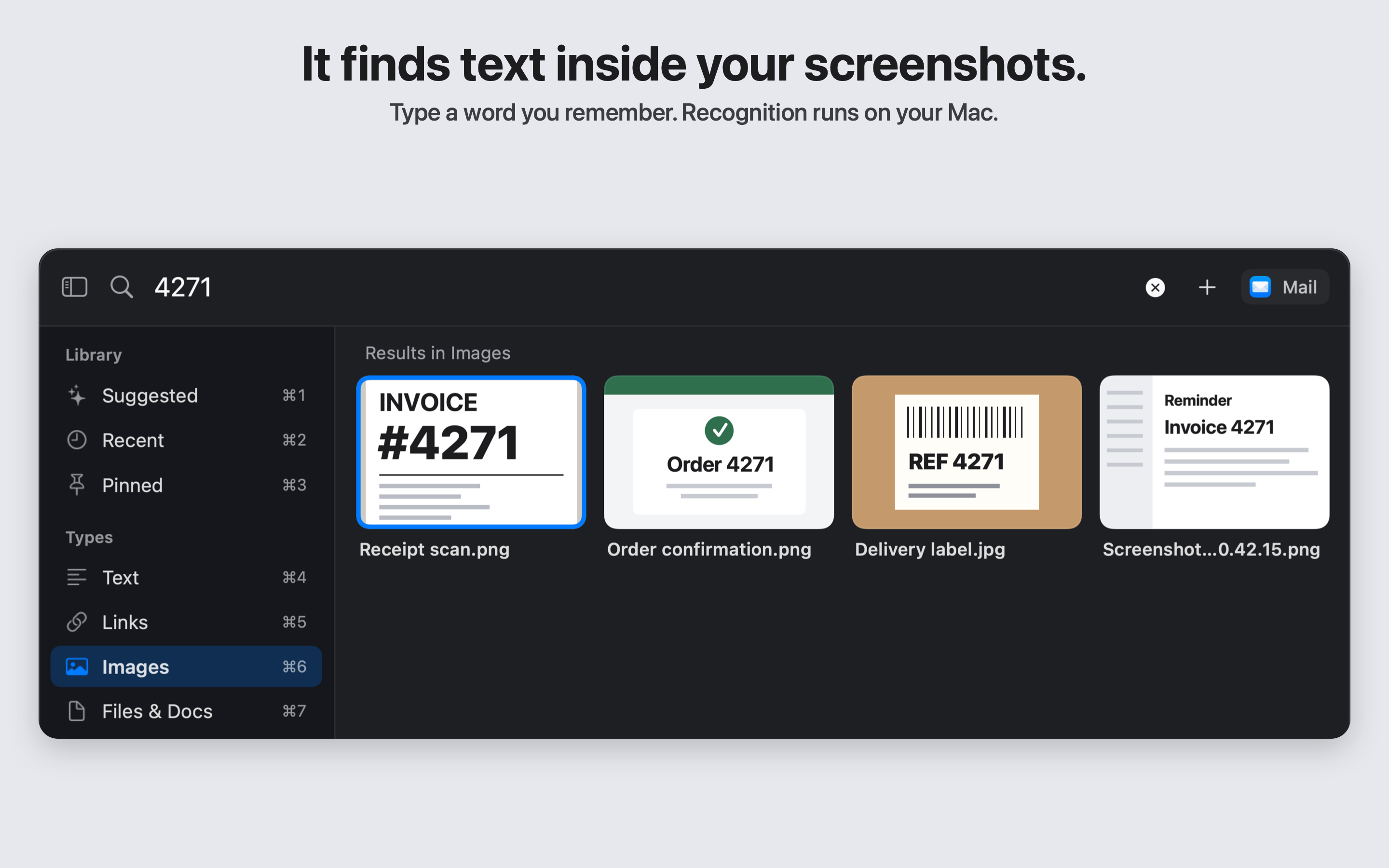
Search finds text inside images, right on your Mac.
-
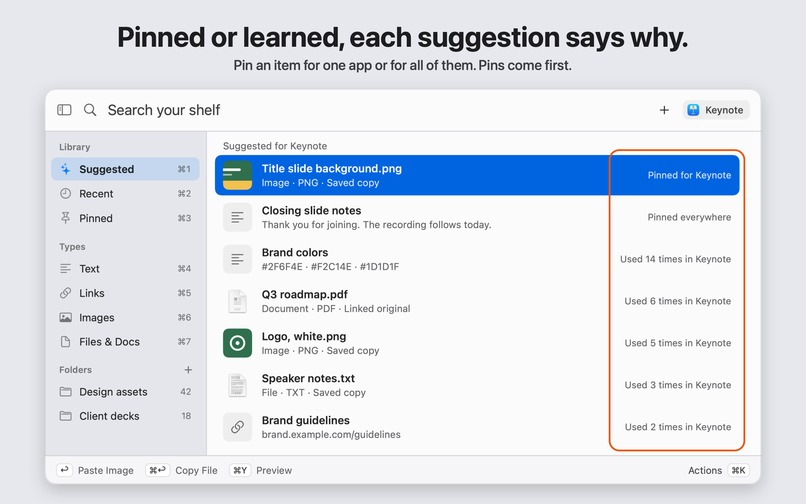
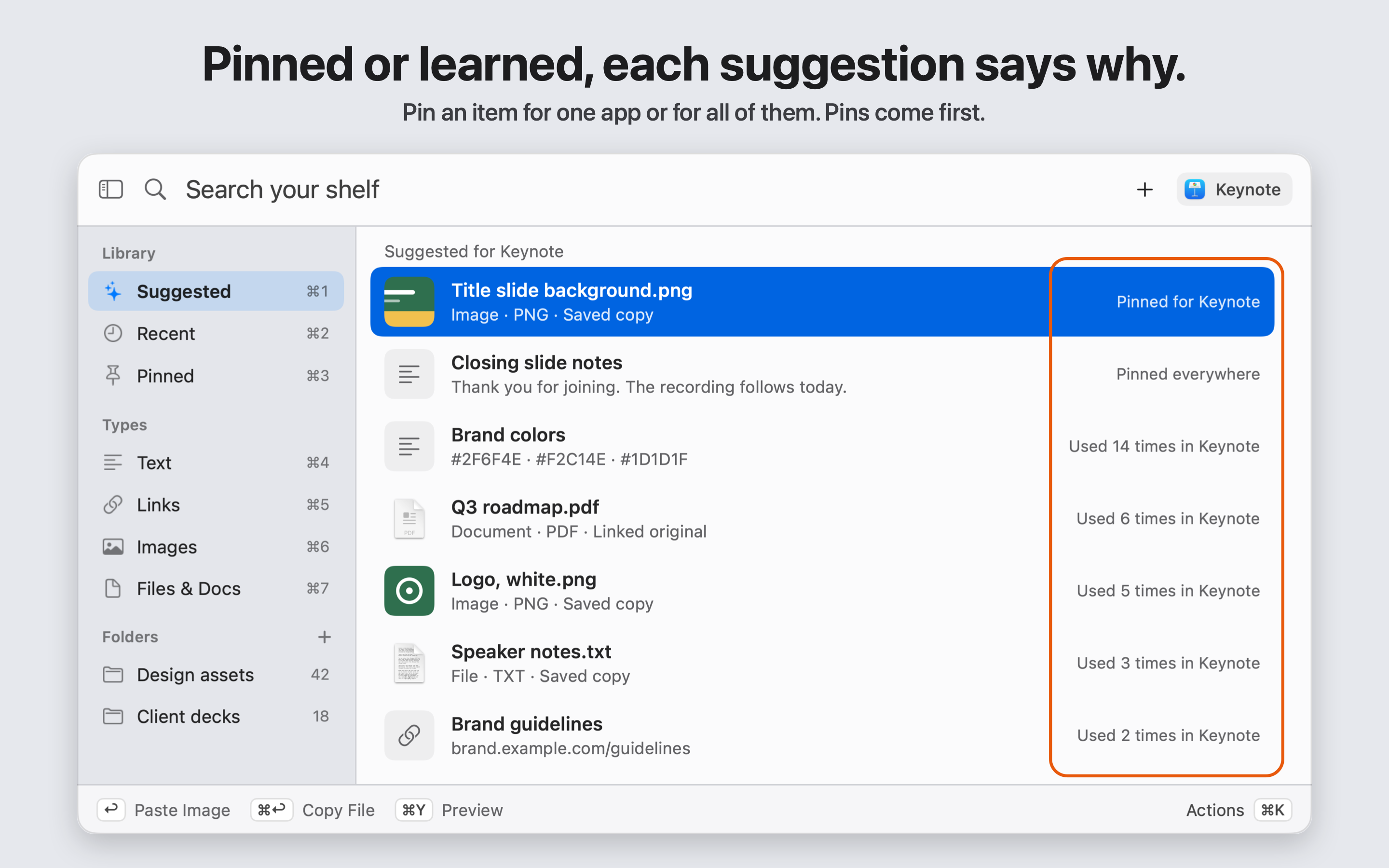
Learned and pinned items say why they're on top, like "Used 14 times in Keynote".
-

The app icon: three stacked cards on a blue tile.

Do you paste the same things all day, too?
I do. The same rates reply to every new client. The same booking link. The client's logo and brand colors in every deck. The payment terms in every invoice. My bio in every form.
None of it is lost. It is just always somewhere else: an old email, last month's deck, a folder three levels down. So every time, I stop, go find it, copy it, come back and paste. Search helps only when I remember what I called the thing.
I wanted one key that already knows what I paste here.
What it does
Press Option-Space in any Mac app. The thing you reuse in that app is already on top. Press Enter, and it is pasted where your cursor was.
- In Keynote, the top rows are the client's logo and brand colors.
- In Mail, it is my rates reply and my booking link.
- In Numbers, it is my payment terms.
- In Safari, it is my bio and my portfolio link.
It is the same shortcut everywhere. I don't type a search, and I don't take my hands off the keyboard.
Save once, from anywhere
- Option-C saves the selection in the app you are in: a line of text on a web page, a paragraph in an email, an image or a file in Finder.
- New Text (Option-Space, then Command-N) writes a snippet in place. The first line becomes its title, and Command-Return saves it.
- Option-L keeps a link to a file instead of a copy, so you always paste its latest version.
- You can also save from the Services menu, or drag onto the panel.
Only what you choose goes in. TurboShelf is not a clipboard history.
Link a whole folder
Some things live in a folder that keeps changing: client decks, templates, contracts, brand assets. You don't save those one by one. You link the folder once.
- Click + next to Folders in the sidebar, or press Shift-Command-F, and choose a folder in Finder.
- Its files appear as one flat list in the sidebar, even the ones three levels down. Each row shows its path inside the folder, so two files called "Brand guidelines.pdf" are easy to tell apart.
- Choose the folder to browse it, or type to search only inside it. A search in Suggested covers your saved items and your linked folders together.
- Nothing is copied. The files stay where they are, and Enter pastes the original. Command-R refreshes the list after you change the folder in Finder.
- New files don't push your everyday items down. A folder file joins Suggested only after you save, pin or reuse it.
- Unlinking a folder only removes it from TurboShelf. Your files are never deleted.
Smart, and it tells you why
TurboShelf notes which app you are in before its panel opens, and it ranks for that app. It learns from one strong signal: what you actually paste there. Saving, searching and copying don't count. So it gets your habits right, not only your recent clicks.
Every learned row says why it is there, in plain words: "Used 5 times in Keynote." You can also pin an item to one app, and the row says "Pinned for Keynote."
When you do need to search, it finds titles, text, file names and links. It also finds words inside images (Apple Vision) and inside PDFs. A photo of a receipt turns up when you type a word printed on it, and a contract turns up when you type a phrase from one of its clauses.
All of it runs on your Mac. There is no account, nothing is uploaded, and it doesn't need Apple Intelligence.
Built to feel like part of macOS
It is a small native panel over your work, with system type and SF Symbols. Your content is the biggest thing on screen, not the controls. It is keyboard first: arrow keys to choose, Enter to paste, Command-Return to copy only, Command-Y to preview, Command-K for more actions, Escape to leave. Command-1 to Command-7 jump straight to Suggested, Recent, Pinned, Text, Links, Images (a grid) and Files & Docs. It opens instantly, and focus goes back to your document after the paste.
Who it's for
Apple power users who paste the same content every day: freelancers and consultants, designers moving brand assets into slides, support and sales people with stock replies, anyone who fills the same forms. If you have ever opened an old email just to copy one paragraph out of it, TurboShelf is for you.
Pricing, with RevenueCat
The free version is the whole app, with up to 25 saved items. TurboShelf Pro removes the limit. It is one lifetime purchase: $9.99 in the US, with no subscription.
RevenueCat handles the purchase, Restore Purchases and the entitlement check (entitlement "pro", offering "default", a Lifetime package). The Pro window opens from the menu bar menu, or when you save item number 26.
How I built it
Swift, with SwiftUI for the views and AppKit for the panel, focus, pasteboard and drag and drop. SQLite through GRDB for storage. Apple Vision, PDFKit and Quick Look for images and documents. RevenueCat for the Pro purchase.
Challenges
The Mac App Store sandbox changed a lot of the design:
- A sandboxed app can't read another app's selection. So Option-C asks the front app to copy, and TurboShelf saves that copy.
- Pasting for you needs the keystroke permission. The setup window explains why before it asks, and the app picks up the permission without a relaunch.
- Links to your files keep working after a restart, through security-scoped bookmarks.
- Text recognition runs in a separate worker that watches its own memory, so one huge image can't use too much memory.
What I'm proud of
The best version of TurboShelf is the one you barely notice: Option-Space, the right thing is already there, Enter. No typing, no hunting and no organizing.

Log in or sign up for Devpost to join the conversation.