Tracks: Triage is competing in Peri's Forward Deployed Challenge, Amazon's Best Practical AI Innovation and the LangChain track. The write-ups for each track are at the end, after What's next for Triage.
Inspiration
Every one of us has watched a grandparent use technology and struggle. Doctor's appointments, prescription refills, Medicare and package tracking have all moved online, but most websites are built for people who already know how to use websites. Our grandparents know exactly what they want to do. What they can't figure out is how to do it on the device in front of them. We've watched them stare at a cluttered page, unsure which button is the next step, how to even start the task, or what the screen is asking of them. They aren't missing the goal. They're missing the path.
We've also watched them become targets. Phishing links, fake "your account is locked" pop-ups, texts about packages that were never sent, messages pretending to be a grandchild in trouble: older adults are the people scammers aim for most, precisely because the screen already feels uncertain to them. The numbers back this up. In 2025, Americans 60 and older reported $7.7 billion in internet crime losses to the FBI, about 60% more than the year before (FBI IC3 via AARP). Their reported fraud losses to the FTC have grown five-fold since 2020, from about $600 million to over $3 billion, and because most fraud goes unreported, the FTC estimates the real cost could be as high as $119.5 billion (FTC report to Congress). Many of these scams arrive exactly where Triage works: texts, emails, pop-ups and messages pretending to be a trusted company or government agency.
That gave us the idea for one companion that keeps you safe first, then helps you get things done. But an idea from our own family experiences isn't proof that it's the right thing to build. So during the hackathon, we called Skyline Health Services and talked with them about where their residents actually get stuck with technology and how scams reach them. That conversation confirmed that the biggest struggle is knowing where to click, showed us that scams are a real but occasional worry, and warned us that a confusing new app would only make things worse. It shaped what Triage does: guidance that points at the exact button on the screen residents already use, a calm voice instead of a wall of text, and scam warnings that explain why.
What it does
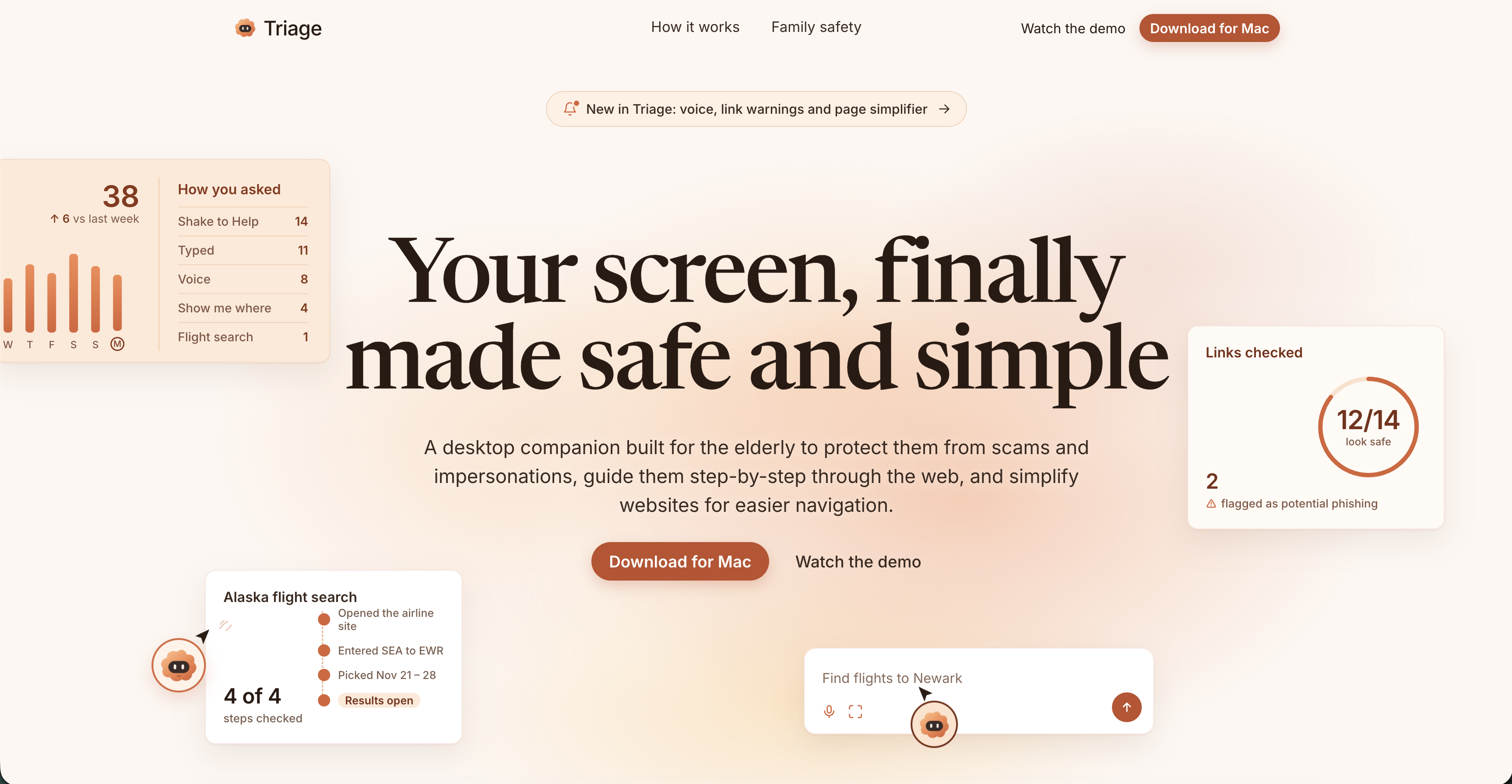
Triage is a small, calm character that lives on your Mac, listens when you talk to it, and can see your screen when you ask it to.
It watches out for you
- Catches impostors. Triage keeps a private list of the people and organizations you really deal with and how they really reach you. When a message says it's from "Ravi" but comes from an address Ravi has never used, Triage says so in plain words, shows why, and gives you two buttons: This is a scam and It's really them.
- Flags risky links. With Chrome Link Warnings on (in preview), links on the page get Potential phishing or Unencrypted HTTP badges, and Triage says out loud when a phishing link appears.
- Answers "Is this safe?" It checks the screen for scam and dark-pattern signs and gives a green, amber or red verdict with one clear next step.
- Hides your private details. Password, card number, CVV, PIN and SSN fields are blacked out before a screenshot is ever encoded or sent.
- Only goes to safe places. When you say "take me to my Amazon orders," the AI picks from a fixed list of approved sites. It never writes a web address itself, so a misheard word can't send someone to a lookalike scam site.
It helps you get things done
- Talks and listens. Hold the talk button or press ⌘⇧9 from anywhere. Speech is recognized on the Mac, and Amazon Polly reads answers back in a slow, clear voice. If Triage isn't sure it heard you, it asks you to check instead of guessing.
- Points at the real button. "Where's the track package button?" puts an outline on the actual control, and the outline follows it as the page scrolls.
- Guides you step by step. "Help me attach a photo" outlines one button at a time with one short sentence. Click it or say "next" to get the next step.
- Simplifies cluttered pages. Any page can become a few big task buttons, keeping the site's real links grouped and easy to find.
- Explains what's under your cursor. Just shake the mouse, no typing needed.
- Runs simple tasks for you. It can handle tasks like a prescription refill on a partner pharmacy's site, or an Alaska Airlines flight search, asking one question at a time and reading everything back before it submits. It never pays, buys, signs in or types a password.
- Learns what you already know. It skips steps you're comfortable with and spends its time on the ones you aren't.
How we built it
Triage is an Electron + React + TypeScript desktop app with native macOS helpers: a Swift helper for on-device speech recognition, and Objective-C++ modules that read the macOS Accessibility tree for on-screen controls and links. API keys stay in Electron's main process and never reach the UI.
Understanding the request. Each message is sent to Claude (or Gemini), which returns one Zod-validated JSON choice: reply, open_page, guide, simplify_page, needs_screenshot, flight_search and a few others. Simple requests go to a fast Haiku model. Anything that reads a screenshot, finds a control or rewrites a page goes to Sonnet.
Pointing. Along with each screenshot we send up to 60 real on-screen controls (id, kind, label, region, never typed values). The model picks one by id, and Triage re-reads that control's real position every 150 ms so the outline follows it.
Trust graph. Contacts live in a local SQLite file. Only three things can write to it: the user or a caregiver in Settings, a chat statement the user confirms with "yes", and built-in organizations. Nothing read from the screen can ever add to it or change it.
Simplifier with a learning layout. Page simplification runs as a LangChain RunnableSequence (classify → choose layout → rewrite → log). The layout (text size, number of buttons, plain wording, read-aloud) is chosen by hierarchical Bayesian linear Thompson sampling. Each layout $a$ has a population model learned from everyone, and each user's model starts from that population estimate, so a new user sees what works for most people and drifts toward their own preferences:
$$ r \approx \theta_{u,a}^{\top} x, \qquad \theta_a \sim \mathcal{N}!\left(m_a,\ \lambda_{\text{pop}}^{-1} I\right), \qquad \theta_{u,a} \sim \mathcal{N}!\left(\hat m_a,\ \lambda_{\text{user}}^{-1} I\right), \qquad a^{*} = \arg\max_a \tilde\theta_{u,a}^{\top} x $$
where $\hat m_a$ is the population's current estimate for layout $a$ and $\tilde\theta_{u,a}$ is a sample from the user's posterior. When the person rates a simplified page, Triage combines that rating with what it observed while they used it:
$$ r = \operatorname{clip}_{[0,1]}!\Big(0.5\,c + 0.2\,(1 - \hat t) + 0.15\,b + 0.15\,h \;-\; 0.25\,o \;-\; 0.05\,\min(k, 3)\Big) $$
where $c$ is task completed, $\hat t$ is time spent relative to what's typical for that kind of page, $b$ is no backtracking (going back once counts half), $h$ is the thumbs-up (neutral if they skip it), $o$ is pressing "show me the original page", and $k$ counts repeat requests.
Knowing what you know. Each everyday skill (writing an email, choosing a file, attaching a photo…) has a probability $P(L)$ that the person knows it, updated with Bayesian Knowledge Tracing:
$$ P(L \mid \text{right}) = \frac{P(L)(1-s)}{P(L)(1-s) + (1-P(L))\,g}, \qquad P(L) \leftarrow P(L \mid \text{obs}) + \big(1 - P(L \mid \text{obs})\big)\,t $$
Slip $s$, guess $g$ and learning rate $t$ all depend on the kind of evidence. Clicking a button Triage just outlined proves less than finishing a task alone.
Tasks and memory. The prescription refill is a LangGraph state machine (recall → gather → open → fill → confirm → submit → remember). It uses interrupts to ask one question at a time and a checkpointer, so "Where was I?" works even after a restart. Personal memory is a LangChain vector store with on-device embeddings in SQLite. A live Learning Monitor streams every graph node, memory lookup and bandit decision to a second screen for demos.
Challenges we ran into
- Security that a scam can't poison. If Triage learned contacts from the screen, a scammer could simply teach it a fake one. We made the trust graph write-only from sources the user controls, and every new contact needs an explicit "yes".
- Hiding private fields before the screenshot exists. We take an Accessibility snapshot at the same moment as the screenshot and black out sensitive fields on the raw pixels, so the unredacted image is never encoded. When the check can't run, we say so instead of quietly sending the image.
- Pointing at the right thing, and keeping it there. Pixel guesses drift. Matching the model's answer to a real control and tracking it every 150 ms made the outline stay put. It clears itself when the control scrolls away or you switch apps.
- Speech that behaves like a person, not a demo. Apple's recognizer sometimes restarted its transcript after a pause and dropped earlier words, or returned an empty final result. We kept the words said before each pause and the last live caption, so nothing a user says gets lost.
- People don't say things the way you expect. "What do I click?", "show me how to…" and "walk me through it" all mean the same thing. We built a labelled set of routing cases and an
eval:routingscript to score the real router against them. - Real websites are messy. Pages blank out and redraw after loading, and promo links pretend to be "support". The simplifier waits for pages to settle and learned to sort promotional links away from account and help links.
- Warn once, not constantly. A phishing link that stays on screen shouldn't be announced over and over, so each one is announced once per sighting.
Accomplishments that we're proud of
- One companion that protects and helps: scam warnings, guidance and simplification all in the same calm voice.
- An AI that can't send you somewhere unsafe. It picks from approved sites, points only at controls that really exist, and stops before money or passwords every time.
- A layout that learns each person's preferences from how they use it and a quick rating, plus a live monitor that shows the learning as it happens.
- Privacy by default: on-device speech, private fields hidden before capture, and screenshots and audio never saved.
What we learned
- Talk to the people you're building for. Our own family stories gave us the idea, but the call with Skyline Health Services told us what mattered most to the people who help older adults every day.
- For older users, safety is the feature. They are told never to click anything unfamiliar, so an assistant has to earn trust by being transparent and refusing risky actions.
- Pointing beats doing. Showing someone the exact button builds confidence and skill. Doing everything for them builds dependence.
- Fewer choices, not more features. A few big buttons and one sentence at a time help more than a smarter wall of text.
What's next for Triage
- Caregiver alerts (Amazon SNS) when Triage spots a likely scam, plus caregiver-managed trusted sites.
- Real-world phishing reputation for link warnings, beyond today's preview rules, and support for more browsers.
- An opt-in, anonymized FAQ pipeline (API Gateway → Lambda + Amazon Comprehend → DynamoDB).
- A signed, packaged installer so a staff member or family member can set Triage up for a resident in minutes, without a terminal.
Built for the Peri Forward Deployed Challenge
Who we consulted: Skyline Health Services, a senior care facility in Seattle, Washington. We spoke by phone during HackPrinceton with a member of Skyline's front desk staff. (We didn't get her name on the call; the full transcript is below.)
Evidence: Full call transcript
"A lot of the time it's just not knowing how to use something. Like where to go or what to click on." — Front desk staff member, Skyline Health Services, Seattle, WA
Like a forward deployed engineer, we didn't stop at our own assumptions. We called a facility that cares for older adults every day and asked how technology actually goes wrong for them.
What we learned from Skyline.
- About half of residents use computers, and comfort varies a lot. Some are fully independent, while others struggle with anything they haven't done before.
- Help isn't always there. Skyline has a technician, but "he's not here every day. That's kind of the problem sometimes." When nobody else knows how to help, residents wait.
- The problem is usually navigation, not broken computers: not knowing where to go or what to click. Some residents can follow instructions, but "others might need you to actually point it out."
- Scams are a real but occasional concern. Residents sometimes get strange messages and links, and some aren't sure whether they're legitimate. She was clear it isn't an everyday problem for everyone. She also told us a warning alone isn't enough: "they'd probably want to know why, too." Occasional doesn't mean minor, though. Nationally, losses over $100,000 make up only about 6% of older adults' fraud reports but 70% of the money lost, so a single scam can wipe out a resident's savings (FTC). That is why Triage treats scam protection as a safety net that is always on, not a feature residents have to remember to use.
- She pushed back on adding another app: "If they're already having trouble with a computer, using another application would be difficult… You'd have to make it pretty simple for them."
How it shaped Triage. That last point changed how we thought about the whole product. Triage isn't another app to learn:
- It works on the screen residents already use. It points at the exact button on the real website instead of sending them somewhere new. That fits the residents who need it "actually pointed out."
- Nothing to learn. Residents just talk to it, or shake the mouse over whatever is confusing.
- It fills the technician gap for the most common requests, like where to click and how to do this, at any time of day.
- Every scam warning explains why, in plain words with the facts behind it, instead of just saying "don't click."
- Staff or family can set it up once for a resident, including their real contacts, so the resident never has to configure anything.
Usable right away. Triage runs on the computers residents already have and the websites they already visit. It never enters passwords or payment details, only opens approved sites, and hides private fields before a screenshot leaves the computer, so staff aren't handing residents a tool that can do something risky.
Built end to end. Everything above works in the app today: voice in and out, pointing at real controls, step-by-step guides, page simplification, impostor warnings with explanations, and link warnings.
Built for Amazon's Best Practical AI Innovation
Target user: older adults, and the families and care staff who help them. They know what they want to do online (refill a prescription, check Medicare, track a package) but not where to click, and they are the people scammers target most. Americans 60 and older reported $7.7 billion in internet crime losses in 2025 alone.
Use case: a calm companion on the computer they already own. It keeps them safe first, then helps them get things done, without anyone having to drive over and sit next to them.
Agentic behavior: it reasons, plans and acts
- It picks the right action for every request. A model-backed router reads each request, plus a short text description of what's on screen, and returns one validated decision: answer, open an approved site, point at a control, start a step-by-step guide, simplify the page, run a task, remember a contact, or ask for a screenshot when the text isn't enough. It takes at most one screenshot per request, with private fields already blacked out.
- Multi-step tasks with a human in the loop. "Refill my blood pressure medicine" runs as a LangGraph agent. It recalls saved details, asks for one missing detail at a time, opens the pharmacy site, fills the form, reads everything back, and waits for an explicit "yes" before submitting. If the app restarts mid-task, "Where was I?" resumes from the last saved step.
- Real browser automation that checks its own result. An Alaska Airlines flight search asks for any missing details, drives a real browser to the results page, and reports what it actually saw: results, no flights, or exactly where it got blocked.
- Guided help that watches what you do. In a guide, Triage outlines one control. When you click it, Triage looks at the new screen and plans the next step on its own.
Real-world impact: built from a real conversation
- We designed around our call with Skyline Health Services in Seattle. Residents get stuck on "where to go or what to click," the technician "is not here every day," and scam messages are a real worry. Each finding maps to a feature (see the Peri section above).
- It works on the real web, not a demo site. Triage points at real controls on real websites, opens pages in the person's own signed-in browser, and simplifies whatever page they have open.
Adaptive intelligence: it learns each person
- It knows what you already know. Bayesian Knowledge Tracing keeps an estimate for each everyday computer skill, updated from what the person actually does: clicking the outlined control on the first try, asking how, or getting stuck. Triage then skips steps they're comfortable with and explains the missing ones first. A caregiver can mark a skill "Practice this."
- It learns the layout that works for each person. A hierarchical Bayesian Thompson-sampling bandit chooses how each simplified page is shown (text size, number of buttons, plain wording, read-aloud). New users start from what works for most people and drift toward their own preferences.
- It remembers. Preferences and details ("my pharmacy is the CVS on Main Street") are saved in on-device memory, so the second refill needs no questions.
- It learns who you trust. A local trust graph of the real people and organizations in someone's life powers impostor warnings, and the person's own answers ("This is a scam" / "It's really them") are remembered for next time.
User-friendly design: powerful AI that feels simple
- Voice first. Hold the talk button or press ⌘⇧9 from anywhere. Live captions appear as you speak, and Amazon Polly reads short answers back at a slow, clear pace. If speech is unclear, Triage asks "Did I hear that right?" instead of guessing. Saying "stop" stops it instantly.
- It shows instead of telling. An outline sits on the real button and follows it as the page scrolls. One short sentence per step.
- No typing needed. Shake the mouse over anything confusing and Triage explains it out loud.
- A friendly character, not a dashboard. Its moods show when it's listening, thinking or working.
Creative innovation
- Security that a scam can't poison. Nothing Triage reads from the screen can add a trusted contact, so a scammer can't teach it a fake "Ravi."
- Privacy before pixels. Password, card, CVV and SSN fields are blacked out on the raw screenshot before it is ever encoded, using the macOS Accessibility tree captured at the same moment.
- The AI can't invent a URL. It picks destinations from an approved list, so a misheard word can never send someone to a lookalike scam site.
- It never pays, buys, signs in or types a password. Risky steps are flagged by rules over the page, never by the model.
Built on AWS
- Amazon Polly (neural voices, with SSML to set the pace) speaks every reply. The default is 90% speed for clarity, with options from 80% to 115%.
- Amazon Transcribe streaming is available for cloud speech recognition, with live partial captions and per-word confidence that powers the "Did I hear that right?" check.
- AWS credentials stay in the app's main process and never reach the interface.
Reliability and documentation (the full architecture is under How we built it)
- Tested and measured. The repo includes 41 unit test files and a routing evaluation of 48 labelled requests in how older adults actually phrase things ("where do I click to reply", spoken lowercase transcripts), scored against the real router with
npm run eval:routing. - Documented. The README and 11 docs cover voice, speech, navigation, screen help, the Learning Monitor, request logging and the technical spec.
Built for LangChain
Triage uses LangChain and LangGraph for the parts of the app that have to plan, remember and act over several steps.
- A LangGraph agent for real tasks. Refilling a prescription is a LangGraph state machine (recall → gather → open → fill → confirm → submit → remember). It uses interrupts to pause and ask the person one question at a time, and stops for an explicit "yes" before submitting. A checkpointer saves state after every step, so "Where was I?" picks up exactly where it left off, even after a restart.
- Memory through LangChain retrievers. Personal details and preferences live in a LangChain vector store on the Mac, so the agent recalls them instead of asking again. The embeddings run on-device because the memories hold personal health details.
- A traced LangChain pipeline. Page simplification runs as a
RunnableSequence(classify → choose layout → rewrite → log), so every step is observable. - A live Learning Monitor. LangChain's own callback system streams every graph node, pause, retrieval and layout decision to a second screen. You can watch the agent think in real time.
- Safety in the graph, not the prompt. The risk tier of the submit button comes from rules over the page, never from the model, and anything involving money or passwords is always refused.
Built With
- amazon-polly
- amazon-transcribe
- amazon-web-services
- anthropic
- api
- apple-speech-framework
- chromium
- electron
- google-gemini
- javascript
- key
- langchain
- langgraph
- macos
- macos-accessibility-api
- node.js
- objective-c++
- playwright
- react
- sqlite
- swift
- typescript
- vite
- zod
