-
-
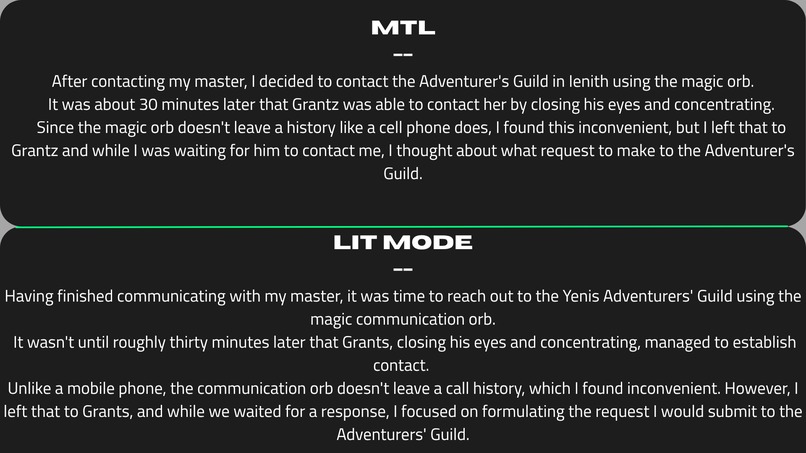
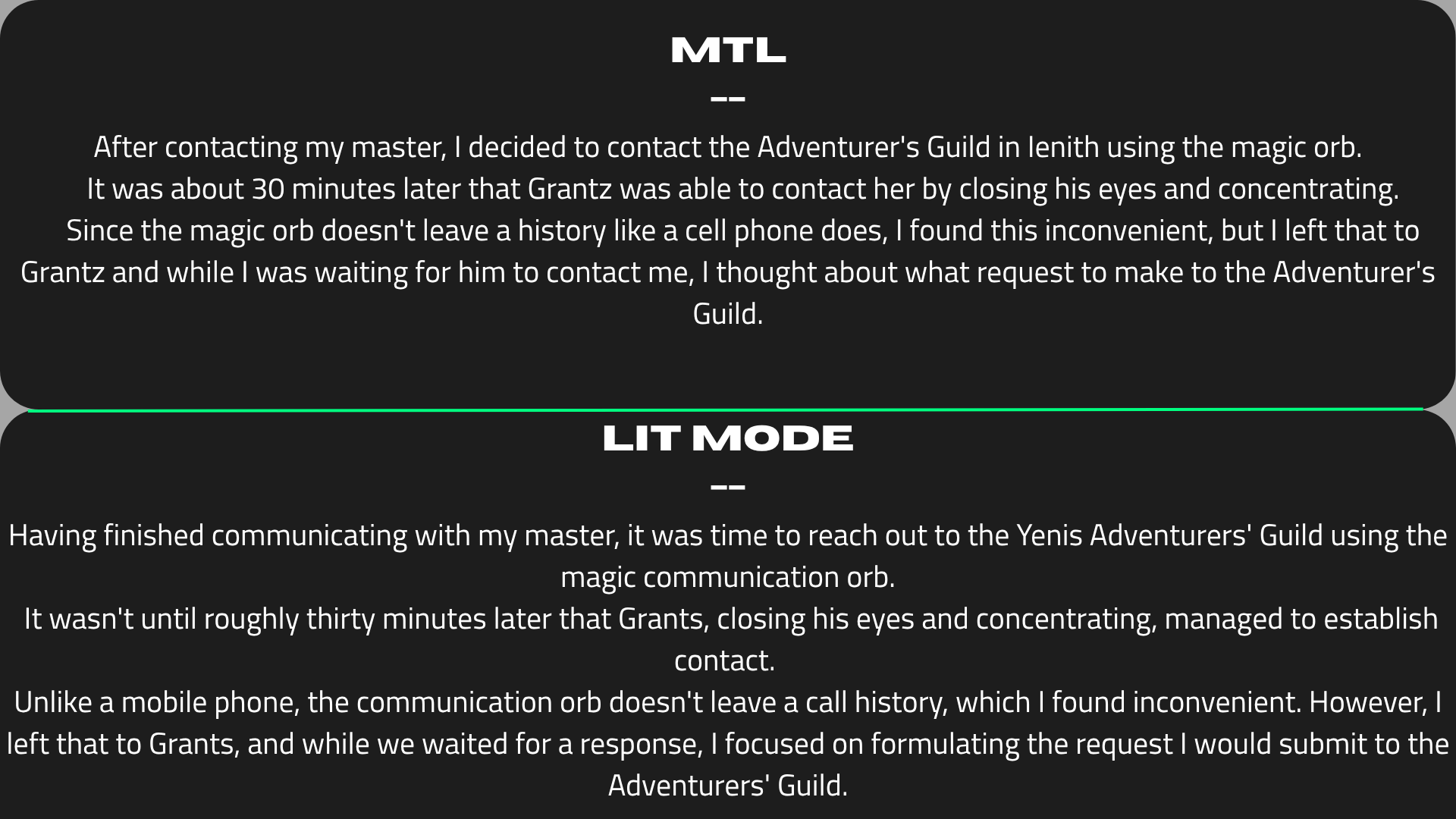
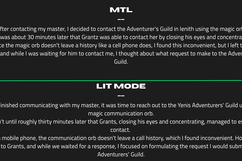
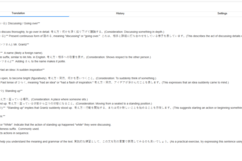
Machine Translation VS Translaty Example.
-
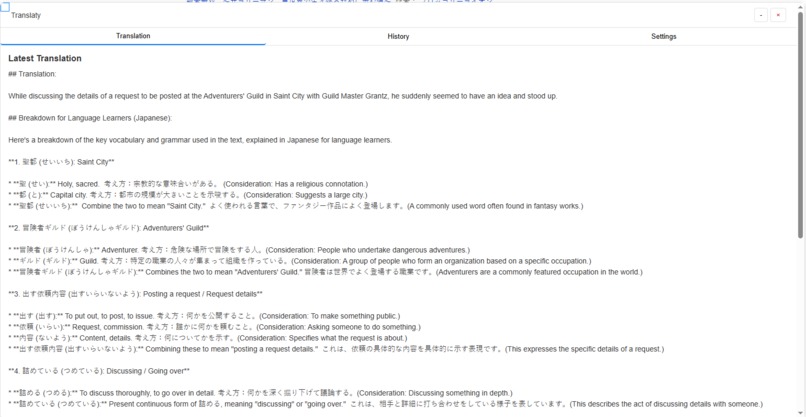
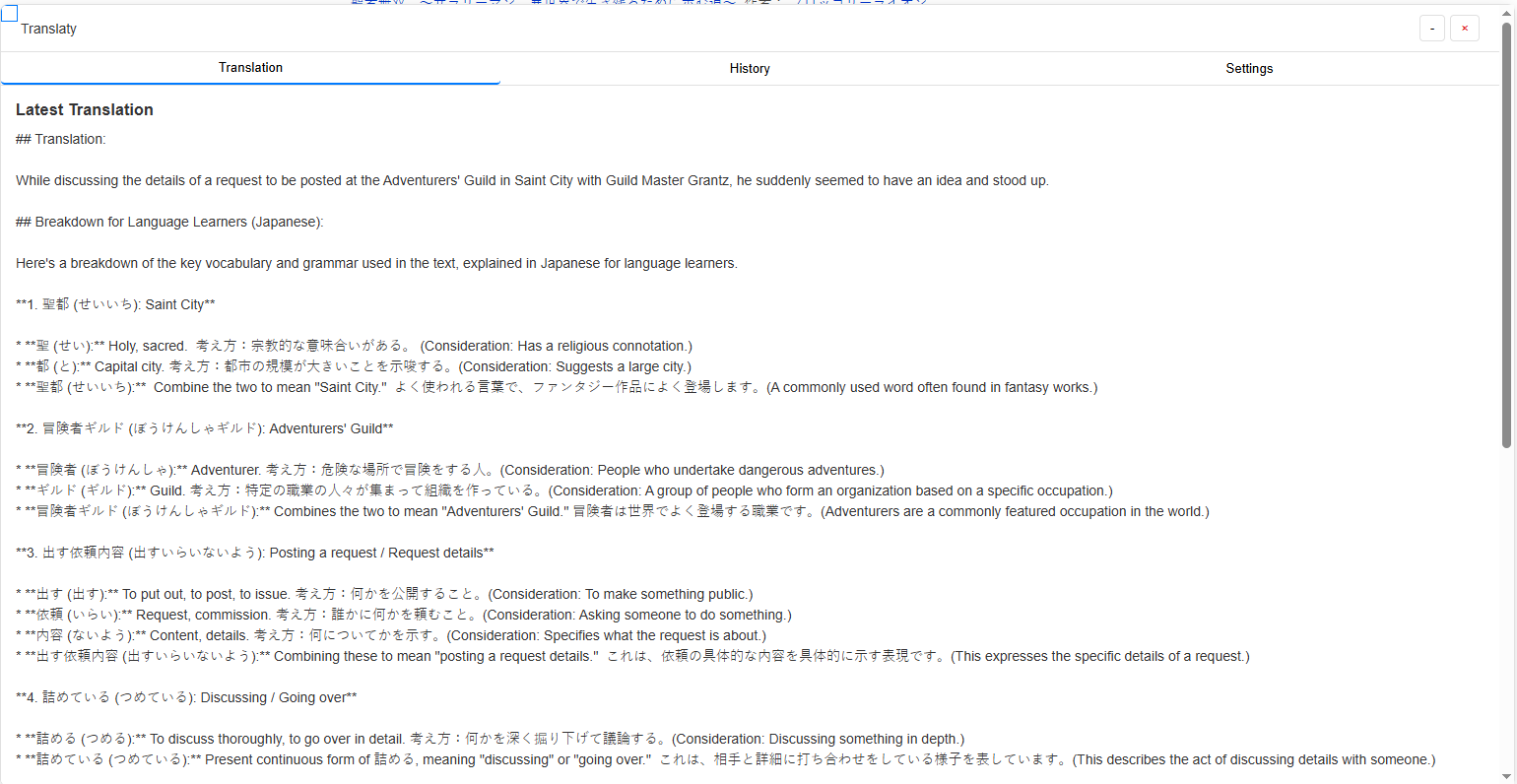
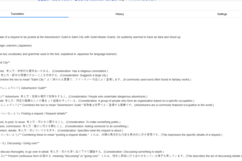
Learning Example Part 1
-
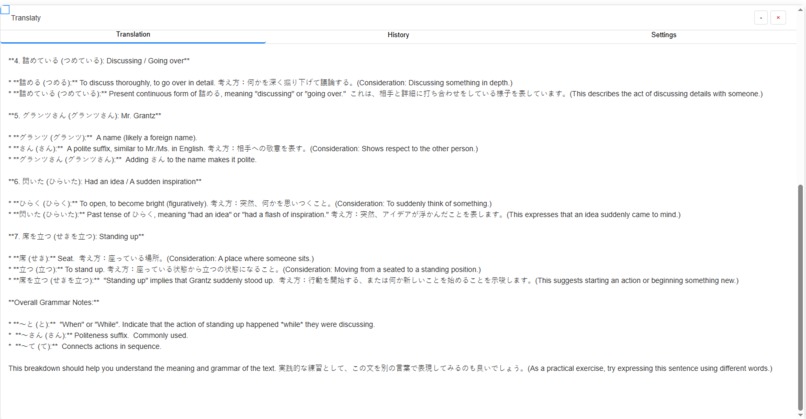
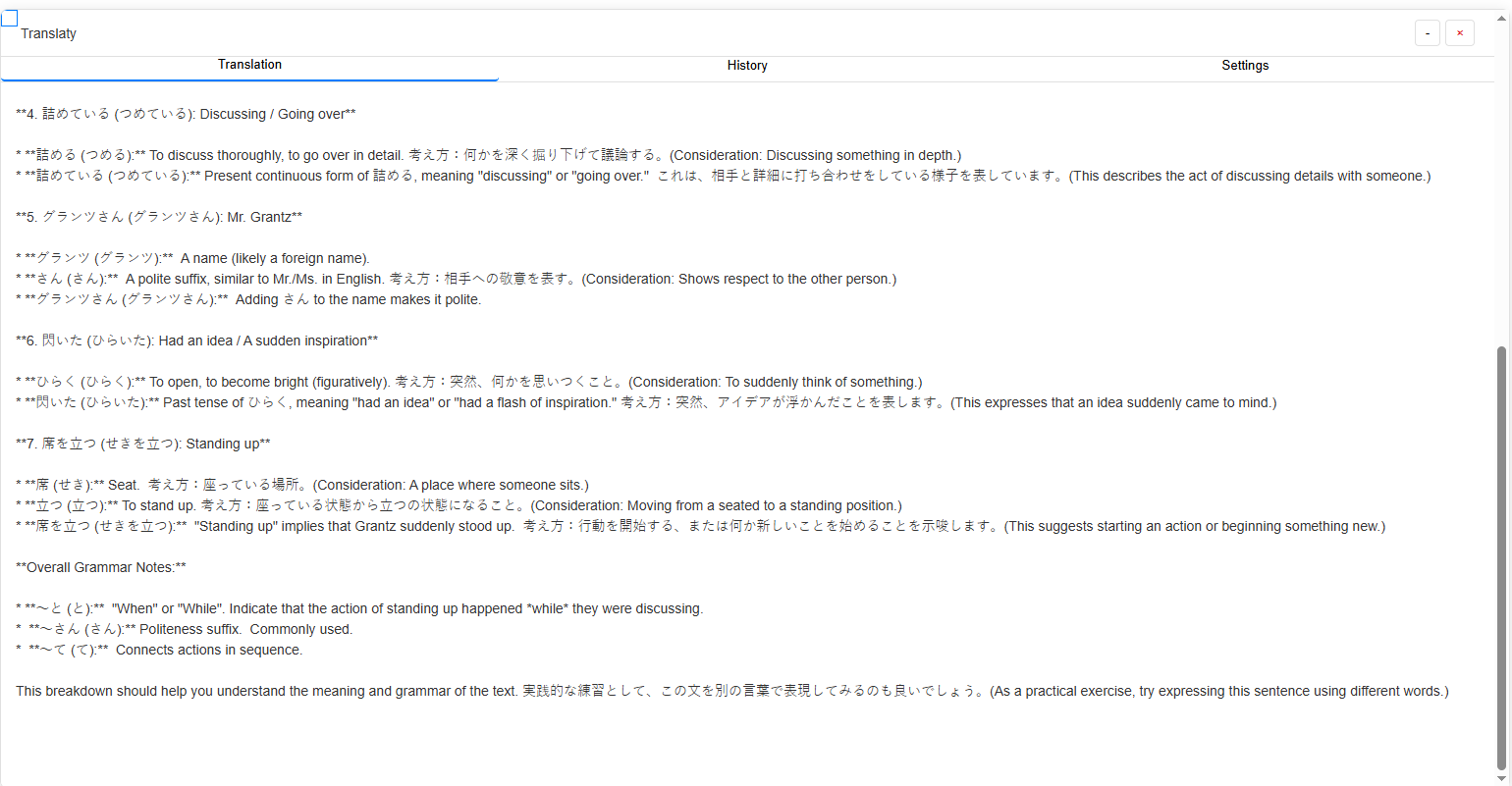
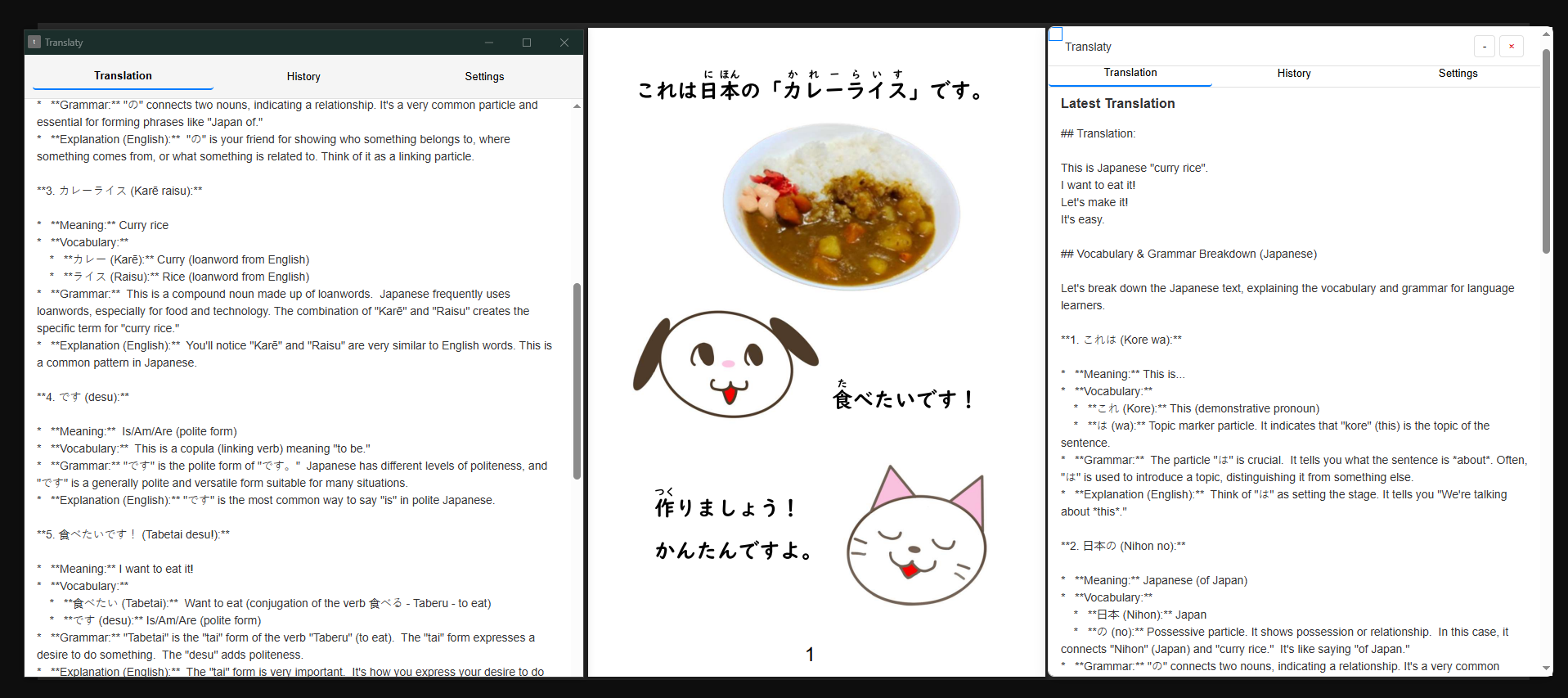
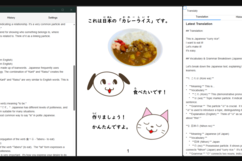
Learning Example Part 2
-
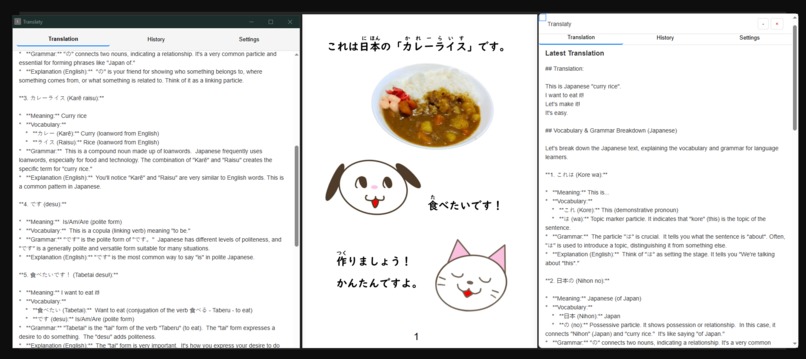
Learning Mode Used On A Local PNG
-
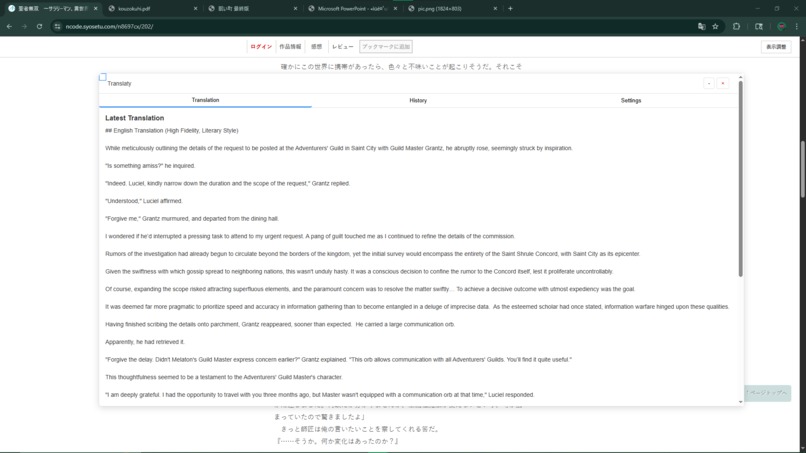
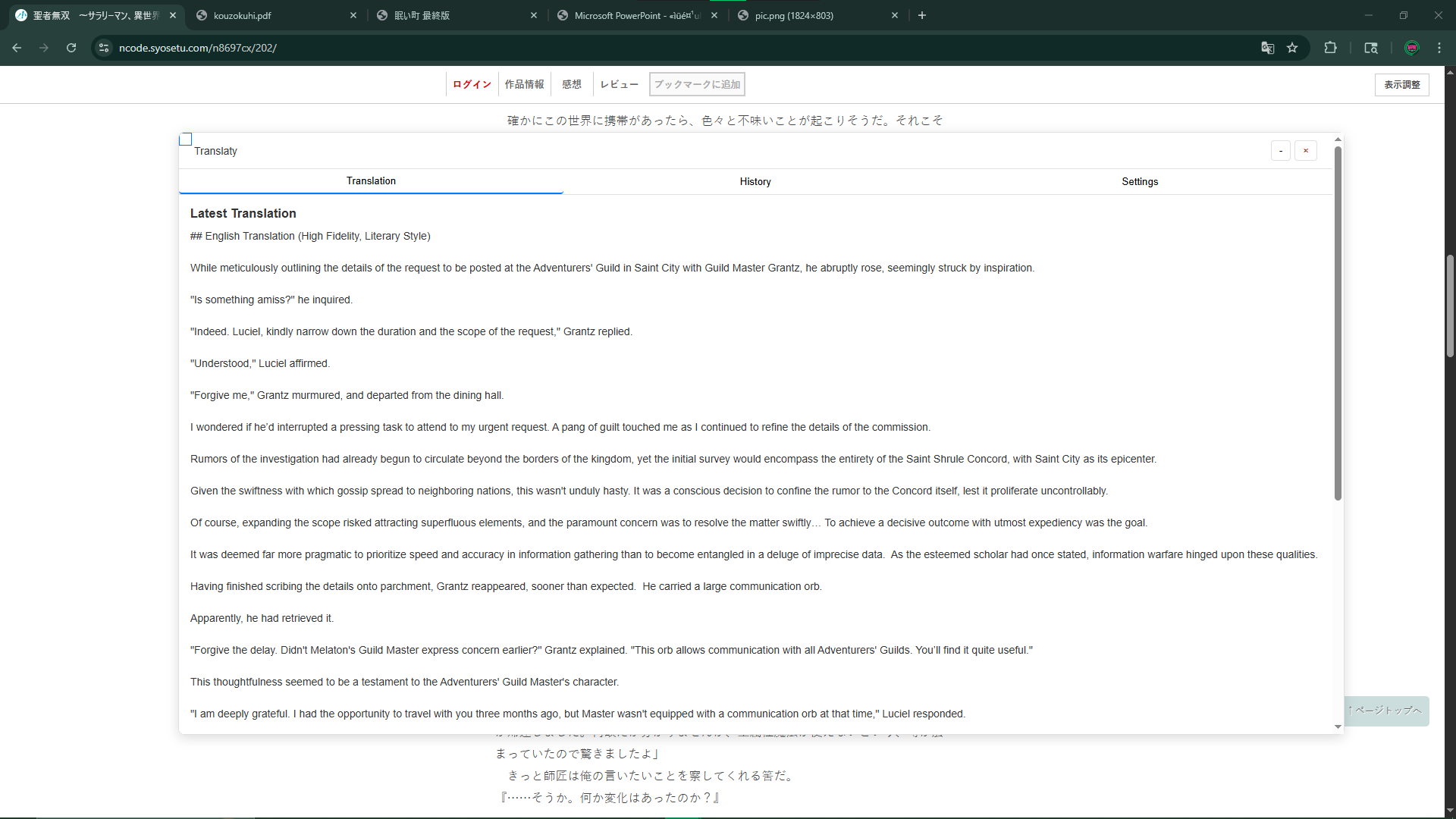
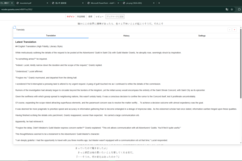
Literature Mode Full View
Inspiration
- As a passionate fan of Japanese web novels, I often found myself frustrated by the limitations of standard machine translations. Tools like Google Translate or browser-based translators frequently missed the nuanced tone, cultural context, or stylistic flair that make these stories so immersive.
- Fan translations, while often excellent, aren’t always available, especially for niche or newly released works.
- Beyond novels, I noticed similar issues with memes and multi-language PDFs, where text in images or complex documents was either poorly translated or ignored entirely.
- My goal with Translaty was to create a Chrome extension that delivers context-aware translations, leveraging Chrome’s built-in AI Prompt API to tailor translations for casual reading, language learning, or professional use.
- I wanted a tool that felt seamless, intuitive, and versatile, whether I was chuckling at a meme, studying Japanese grammar, or parsing a multilingual PDF for work.
- The idea crystallized during a hackathon, where I saw an opportunity to combine my love for web novels with my interest in AI-driven solutions.
- I was inspired by the potential of prompt-based AI to go beyond rigid translation algorithms, allowing users to specify how they want text translated—whether for literary flair, educational clarity, or quick humor.
- Translaty became my answer to bridging the gap between generic machine translations and the nuanced experience readers and learners crave.
What I Learned
- Building Translaty taught me Chrome extension development, including how to use JavaScript and the Chrome Extensions API (
chrome.runtime,chrome.storage.local,chrome.contextMenus) to create a responsive, user-friendly interface. - I deepened my understanding of the Prompt API (
LanguageModelincontent.js), learning to craft effective prompts for text and image translations, especially usingvisionSessionfor extracting text from images. - I gained insights into UI design for extensions, balancing aesthetics with usability in the draggable, resizable panel (
panel.js,panel.html) and the clean, scrollable popup (popup.html,popup.css). - Experimenting with browser theme integration (using CSS variables like
--theme-color) helped me make the UI feel native and polished. - I learned to optimize performance, implementing a debounce mechanism in
content.jsto prevent duplicate requests and reusing AI sessions for efficiency. - Handling edge cases, like PDFs or CORS-restricted images, taught me creative problem-solving, such as routing image fetches through the background script (
background.js). - Iterating on the project showed me the importance of prioritizing user needs over feature creep, like simplifying image translation by removing canvas overlays to focus on core functionality.
- The hackathon environment pushed me to refine my skills in rapid prototyping, debugging with Chrome Developer Tools, and delivering a polished product under time constraints.
How I Built Translaty
- Translaty is a Chrome extension built with JavaScript, HTML, and CSS, leveraging Chrome’s built-in AI Prompt API for translations.
- Text Translation: The
content.jsscript processes selected text via right-click context menus (background.js), applying modes like literature, learning, professional, or custom stored inchrome.storage.local.
  async function performTranslation(text) {
    const { translationMode = 'casual', translationLanguage = 'English', customMode = {} } = await chrome.storage.local.get(['translationMode', 'translationLanguage', 'customMode']);
    let mode = window.TRANSLATION_MODES[translationMode.toUpperCase()] || window.TRANSLATION_MODES.CASUAL;
    const fullPrompt = mode.prompt.replace('{language}', translationLanguage) + text;
    const result = await aiSession.prompt(fullPrompt);
    window.updatePanel({ translation: result, original: text });
  }
This snippet shows how Translaty uses the Prompt API to translate text with a user-selected mode, updating the panel with the result.
- Image Translation: The
performImageTranslationfunction incontent.jsextracts text from images using avisionSessionand translates it with the selected mode, enabling meme or document translations.
  async function performImageTranslation(imageUrl) {
    const visionSession = await LanguageModel.create({ expectedInputs: [{ type: 'image' }], expectedOutputs: [{ type: 'text' }] });
    const extractedText = await visionSession.prompt([{ role: 'user', content: [{ type: 'text', value: 'Extract all text from this image.' }, { type: 'image', value: imageFile }] }]);
    const translation = await aiSession.prompt(mode.prompt.replace('{language}', translationLanguage) + extractedText);
    window.updatePanel({ translation, original: extractedText, imageUrl });
  }
This code extracts text from images using visionSession and translates it, displaying the result in the panel.
- User Interface: A draggable, resizable panel (
panel.js,panel.html,panel.css) displays translations, history, and settings, with options to select modes, target languages, and manage history (browse, copy, clear).
  async function initializePanel() {
    panel = document.createElement('div');
    panel.id = 'translaty-panel';
    panel.innerHTML = await loadPanelTemplate();
    document.body.appendChild(panel);
    const modeSelect = panel.querySelector('#mode-select');
    Object.values(window.TRANSLATION_MODES).forEach(mode => {
      const option = document.createElement('option');
      option.value = mode.id;
      option.textContent = mode.label;
      modeSelect.appendChild(option);
    });
  }
This snippet initializes the panel, populating the mode dropdown with options like literature or learning.
- PDF Support: A popup (
popup.html,popup.css) handles PDFs with a clean, scrollable interface, triggered viabackground.jsor a panel button (panel.js). - Context Menus: The
background.jsscript sets up right-click options: Translate with Translaty for text, Translate Image/Meme with Translaty for images, and Open Translaty Panel for general access. - Image Fetching: To bypass CORS issues,
background.jsfetches images and converts them to base64 data URLs for processing. - Customization: Modes (literature, learning, professional, custom) are defined in
modes.js(assumed) and applied incontent.js, with settings saved persistently usingchrome.storage.local. - The build process involved iterative testing, starting with text translation, adding image support, and refining the UI for usability, using Chrome Developer Tools to debug issues like CORS, storage sync, and panel positioning.
Challenges Faced
- Integrating the Prompt API was challenging, as crafting prompts for consistent, nuanced translations required extensive experimentation, especially for image text extraction with
visionSessionon low-quality or stylized fonts. - Simplifying the image translation pipeline—removing canvas overlays in favor of plain text extraction—was a tough decision to reduce complexity and improve reliability in
content.js. - PDFs posed a hurdle due to z-index and rendering issues in Chrome, which I addressed by creating a separate popup component (
popup.html), requiring careful CSS adjustments (popup.css) for consistent spacing and scrolling. - CORS restrictions on images were a technical challenge, solved by routing fetches through
background.js, adding complexity but ensuring robust image translation. - Keeping the UI intuitive was tricky; early panel versions had spacing issues, which I fixed by iterating on
panel.cssandpopup.cssand integrating browser theme colors. - Balancing feature richness with performance required careful optimization, like debouncing messages in
content.jsto prevent duplicate requests. - The hackathon’s time constraints pushed me to prioritize core features, teaching me to make tough calls like cutting unnecessary features to deliver a polished product.
Conclusion
- Translaty is a labor of love, born from my passion for Japanese web novels and a desire to make translations more accessible and meaningful.
- Building it taught me to blend AI, browser APIs, and user-centric design into a practical tool for readers and learners.
- Despite challenges like prompt crafting, PDF support, and CORS, I’m proud of how Translaty simplifies nuanced translations.
- I hope to keep improving it, adding more modes and refining image support, and I welcome feedback to make it even better.
- Try Translaty and enjoy a better reading experience!
Images
Built With
- chrome
- css
- html
- javascript
- languagemodel

Log in or sign up for Devpost to join the conversation.