-
-

app _icon
-
app_screen4
-
app_screen2
-
app_screen5
-
app_screen1
-
app_screen3

Inspiration
Everyone's had that moment of looking at a great piece of anime art or a comic panel and thinking, "I wish I could draw like that." Then you sit down with a blank page and realize proportions, perspective, and clean linework take years to get right. Most people give up before they've really started.
Tracing tables and lightboxes have existed forever, but they're bulky, they cost money, and you're stuck with whatever pre-printed stencils came with them. We started wondering: everyone's already carrying a high-res camera and a decent processor in their pocket — why not just turn that into a light table?
That's where TraceJoy came from. It uses the phone's camera to project an image over real paper, so anyone — kids, total beginners, hobbyists who haven't picked up a pencil in years — can trace with confidence and actually start building muscle memory from line one.
What it does
TraceJoy turns your phone into a drawing aid in two ways:
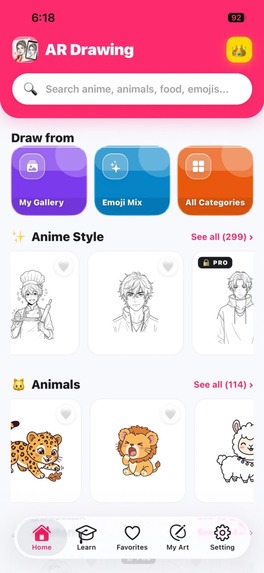
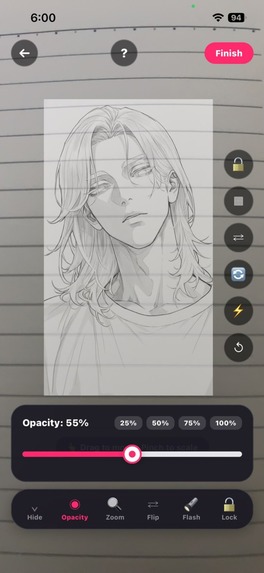
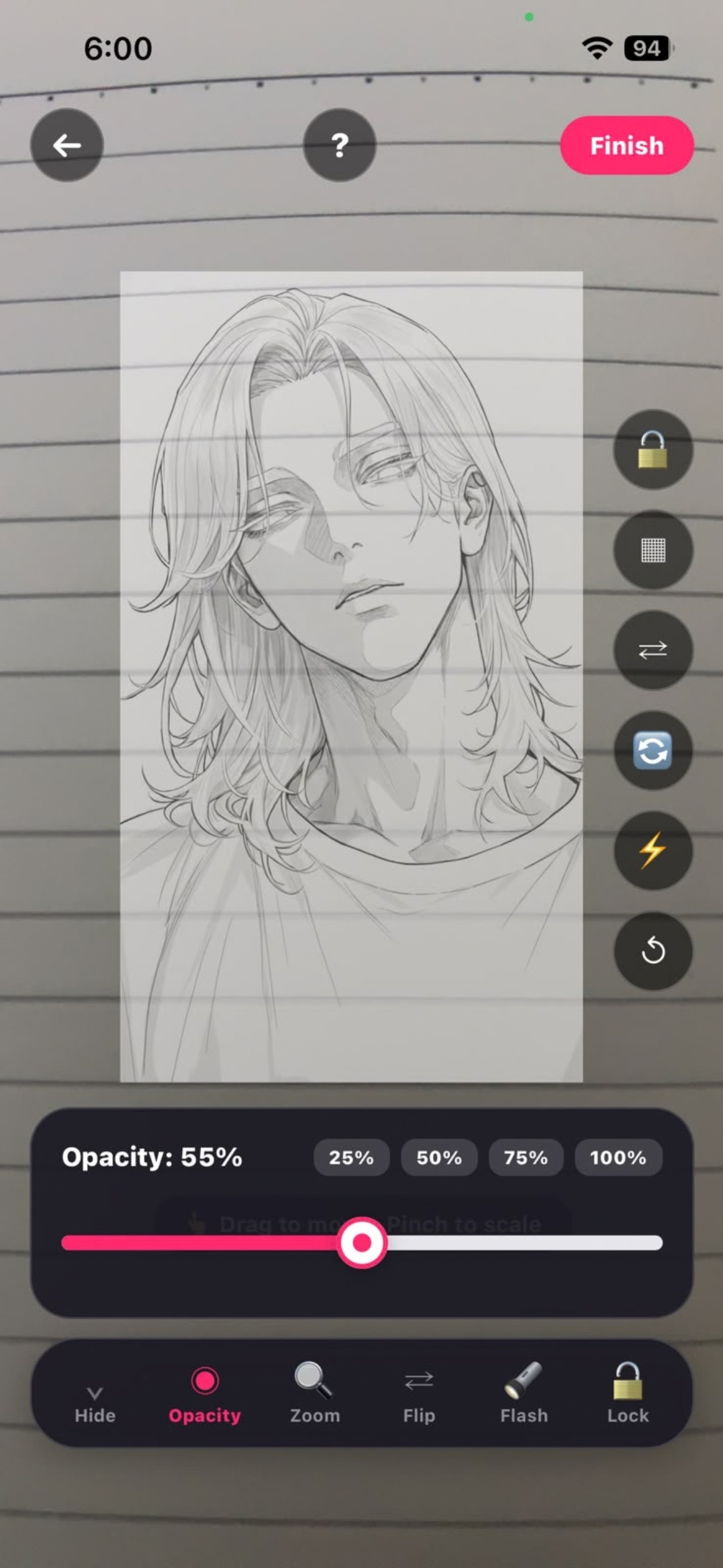
- Draw with Camera (AR mode): prop the phone above your paper on a mug or stand, and the artwork gets projected onto your screen in real time, lined up with the paper underneath so you can trace at the right scale and position.
- Draw with Screen (light table mode): crank the brightness up, lock the touchscreen so you don't accidentally scroll while drawing, and lay tracing paper over the display like a classic lightbox.
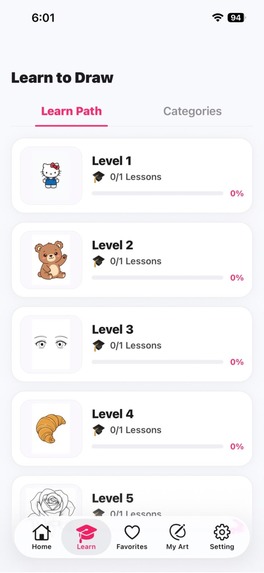
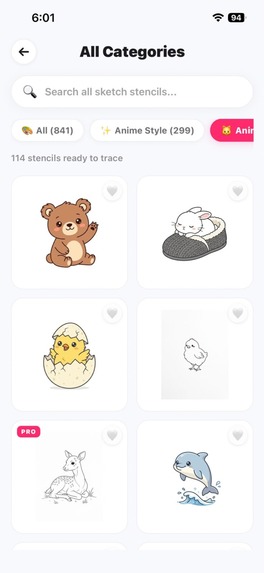
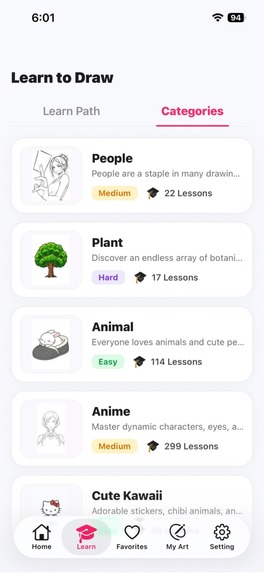
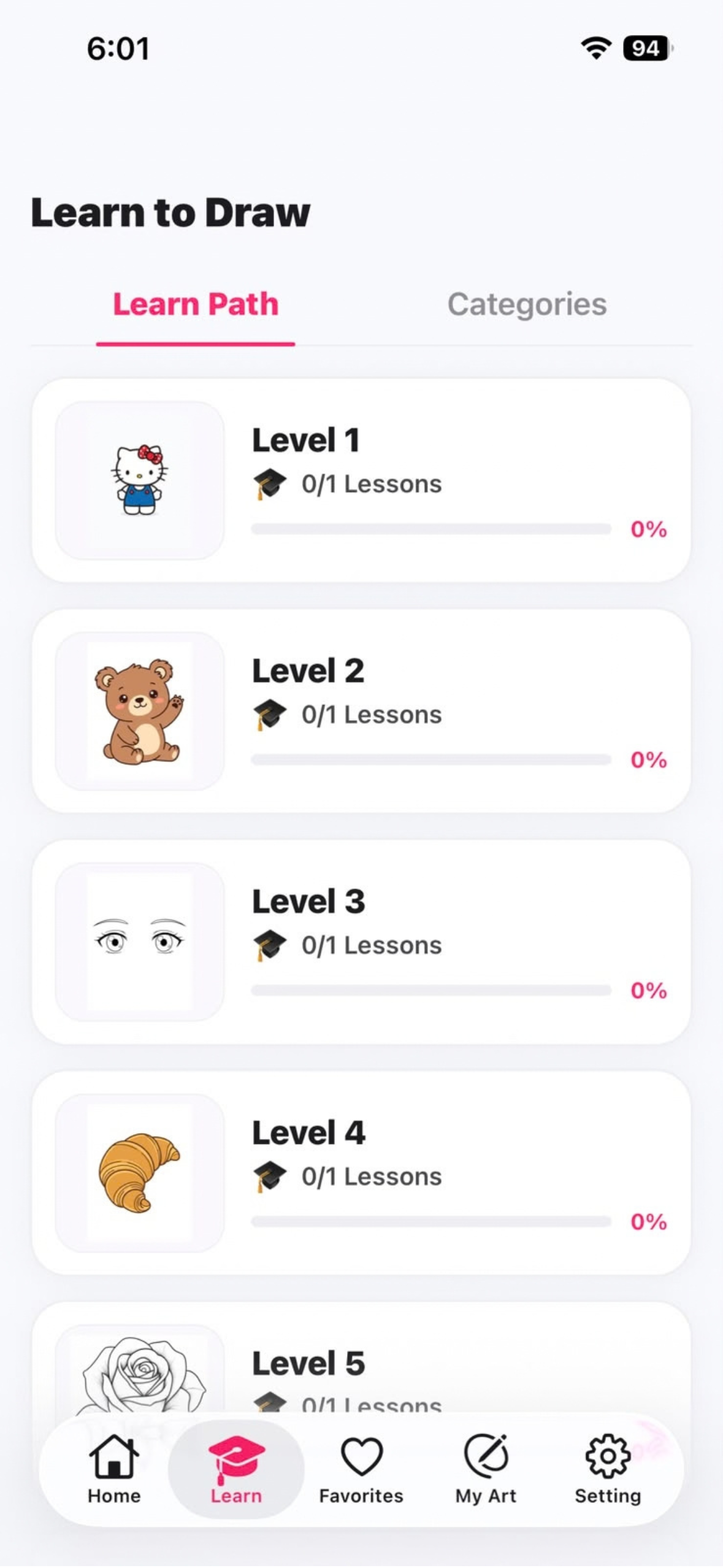
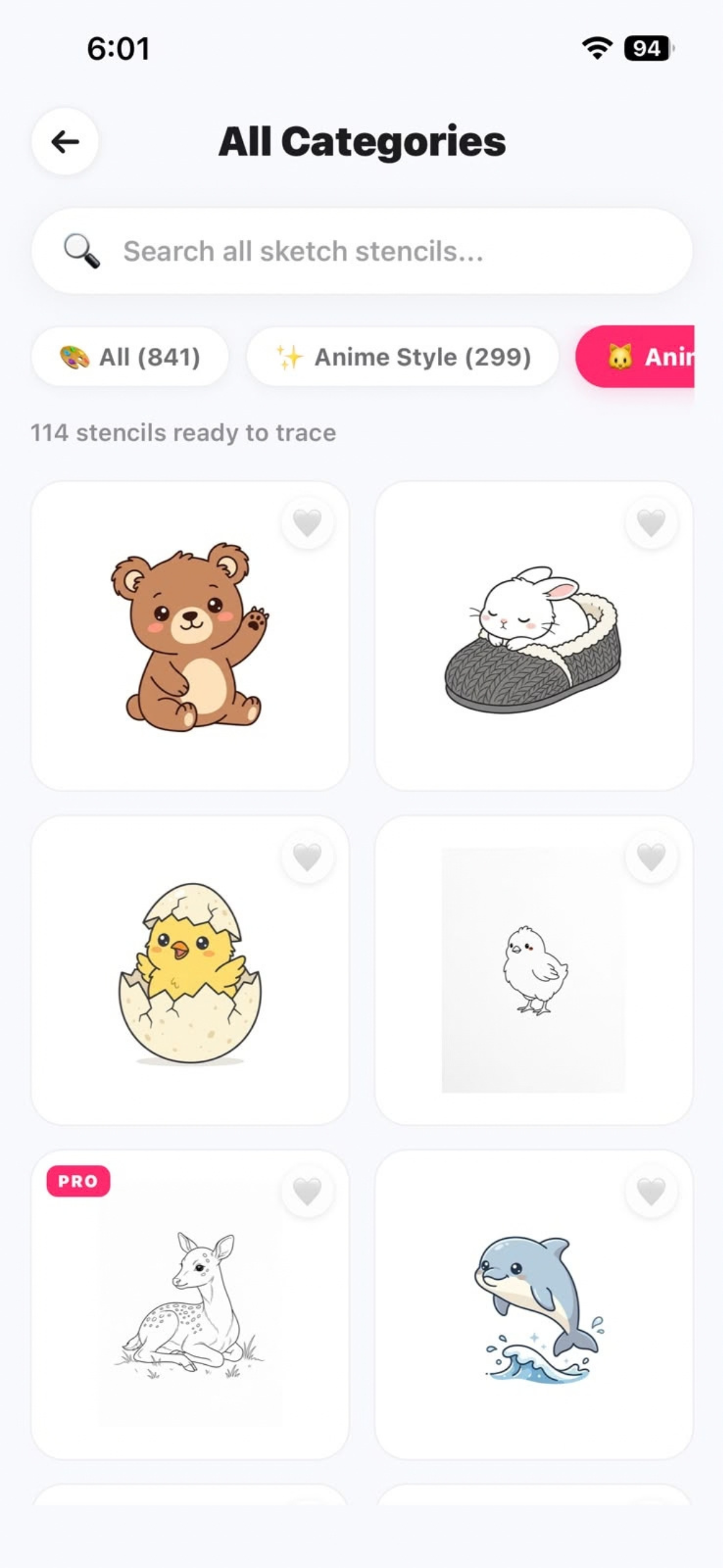
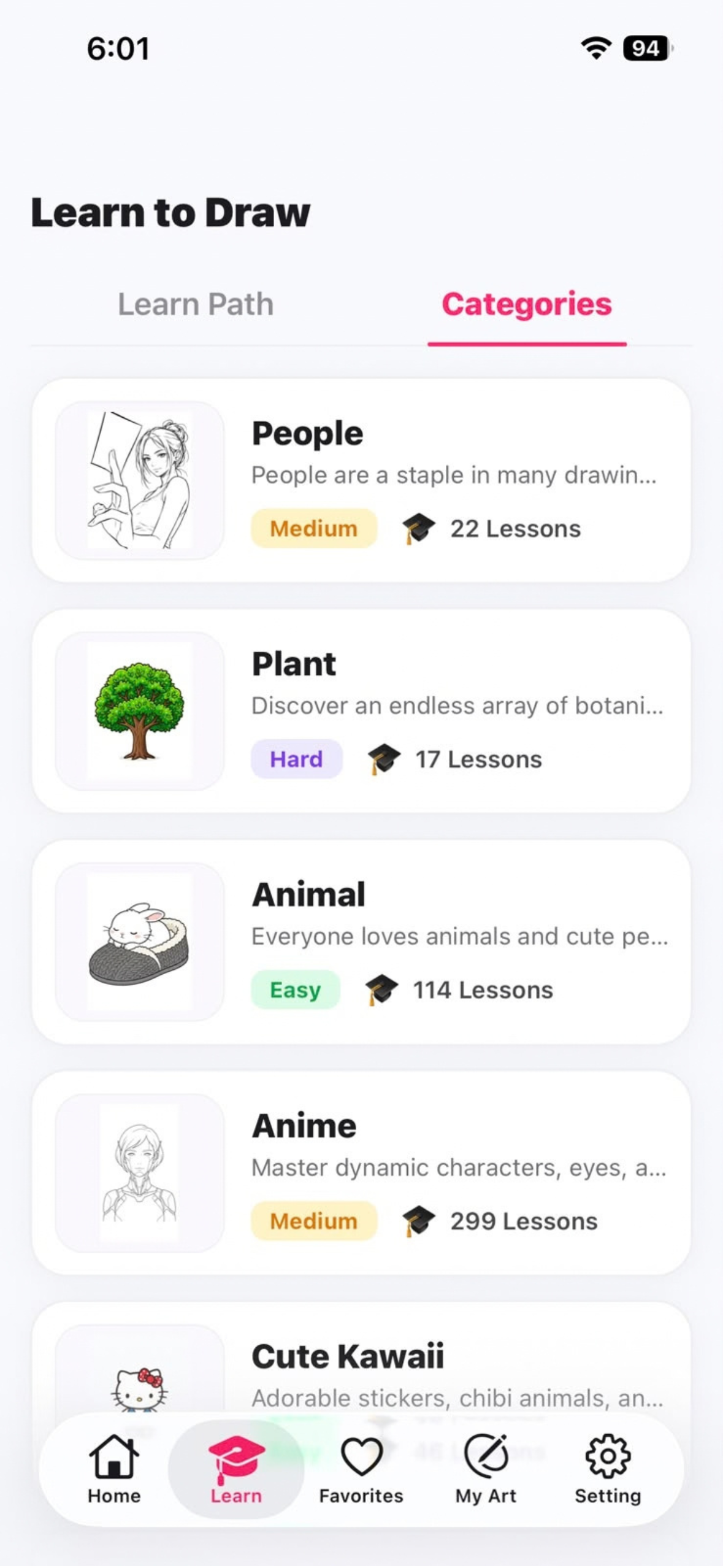
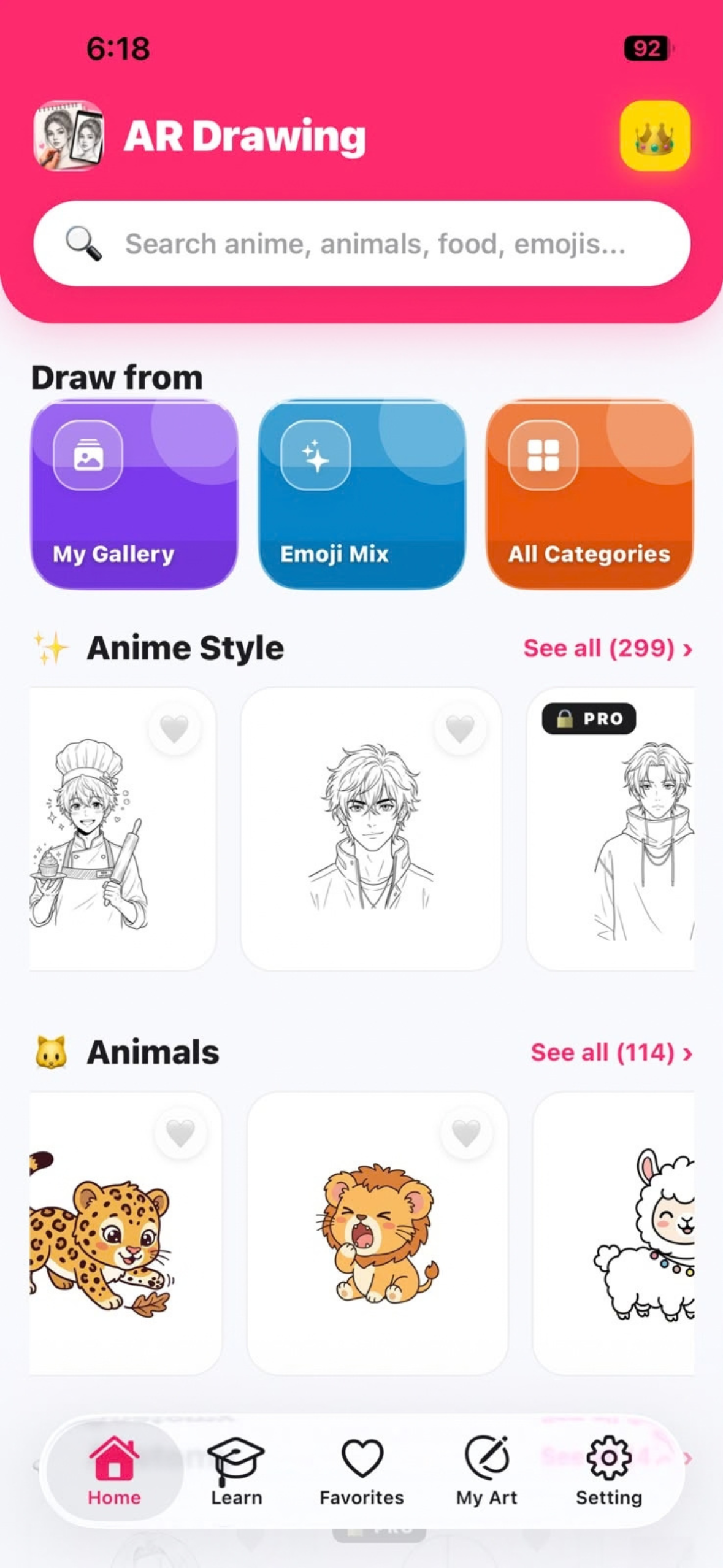
You can also pull a photo from your camera roll — a pet, a selfie, whatever — and the app extracts a clean traceable outline from it on-device. There's a catalog of sketches organized by category (anime, animals, chibi, cartoons, and so on), plus guided step-by-step lessons that walk through anatomy and basic sketching fundamentals.
Smaller touches: live opacity control, pinch to scale and rotate, a flashlight toggle for when your phone is casting a shadow on the paper, and a canvas lock so nothing shifts mid-stroke. It's free with a catalog of sketches and optional rewarded ads to unlock premium art, or there's a PRO subscription for unlimited access with no ads.
How we built it
The app is React Native (0.83) with Expo Router (SDK 55) and TypeScript, which handles navigation, favorites, and catalog browsing.
The camera work is where things got more involved. Piping camera frames through the JS bridge was never going to be fast enough, so we wrote a native Swift module (tracejoy-native) that handles everything camera-related directly:
- AVFoundation runs the capture session and preview layer at a steady 60fps
- Core Image does the real-time edge detection and line-art filtering on the GPU
- Gesture handling (pan, scale, rotate) is computed natively in SwiftUI so no per-frame gesture data ever crosses the bridge
- UIKit gives us haptic feedback for things like slider adjustments and locking the canvas
For monetization, we used RevenueCat (react-native-purchases and react-native-purchases-ui) to manage weekly, monthly, and lifetime subscriptions, with a custom paywall we can update remotely without shipping a new build. Their Customer Center handles restores and subscription management for us. Ads run through Google Mobile Ads, with App Tracking Transparency and Google's consent flow wired in properly. Supabase stores and serves the artwork catalog.
Challenges we ran into
Bridge latency was the first wall we hit. Early on, we were processing camera frames and gestures in JavaScript, and it showed — stutter, thermal throttling, the works. When you're tracing, even 50ms of lag between your hand and the screen feels wrong. The fix was architectural: React Native just hands off the artwork URI and config, and everything else — capture, gestures, rendering — happens entirely in the Swift module.
The three-hand problem. Drawing takes two hands. Holding a phone steady while you draw takes a third one nobody has. We ended up leaning on a one-tap canvas lock, a flashlight toggle to deal with shadows from the phone or stand, and haptic feedback so you know the canvas is locked without needing to look away from the page.
Monetization that doesn't kill flow. An ad popping up mid-sketch is a great way to lose a user's momentum entirely. We went with a strict no-ads-during-drawing policy, a cooldown between rewarded ad prompts, and ads only appearing when someone actively chooses to unlock something.
Getting clean lines out of messy photos. Standard edge detection on a real-world photo tends to produce noisy, muddy results. We spent a fair amount of time tuning Core Image's thresholding and contrast settings until the output actually looked like a hand-drawn pencil guide instead of a mess of edges.
Accomplishments we're proud of
The native Swift pipeline holds a steady 60fps with no perceptible lag — it genuinely feels like looking through glass rather than a camera feed. We also like that the paywall can be updated from RevenueCat's dashboard without an App Store resubmission every time we want to test something. And honestly, the best part has been watching people who swore they "can't draw a stick figure" walk away with a finished, recognizable sketch in fifteen minutes. Everything runs on-device too — no user photos ever leave the phone.
What we learned
Building a local Swift Expo module turned out to be a good middle ground — we kept Expo Router's fast dev experience for navigation and state, while still getting full native performance for the camera and image processing work that actually needed it. On the monetization side, RevenueCat made clear that subscriptions are less about the price and more about giving people real choices (weekly vs. monthly vs. lifetime) and being transparent about managing them. And building something that bridges a screen and physical paper taught us that UX doesn't end at the glass — lighting, how the phone is propped up, pencil angle, all of it matters.
What's next
- Background recording so people can export a time-lapse of themselves drawing, ready to post to TikTok, Reels, or Shorts
- A generative feature where you describe what you want ("baby dragon sitting on a cupcake") and get custom line art to trace
- Porting to Android, including support for Galaxy Z Fold's multi-window/split-screen setup and iPhone Duo

Log in or sign up for Devpost to join the conversation.