-
-
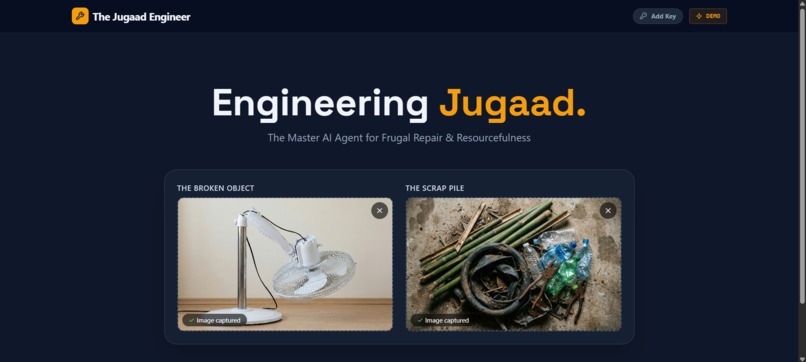
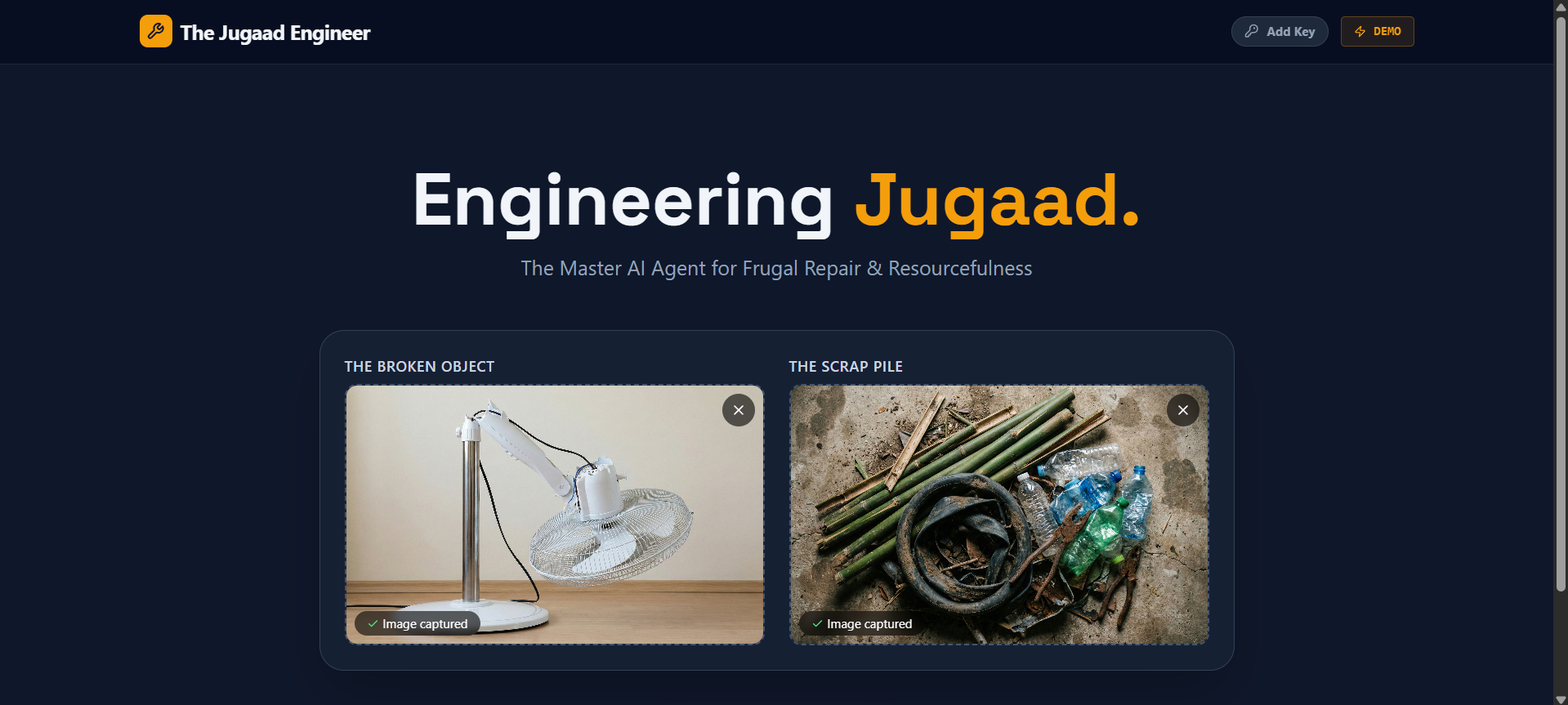
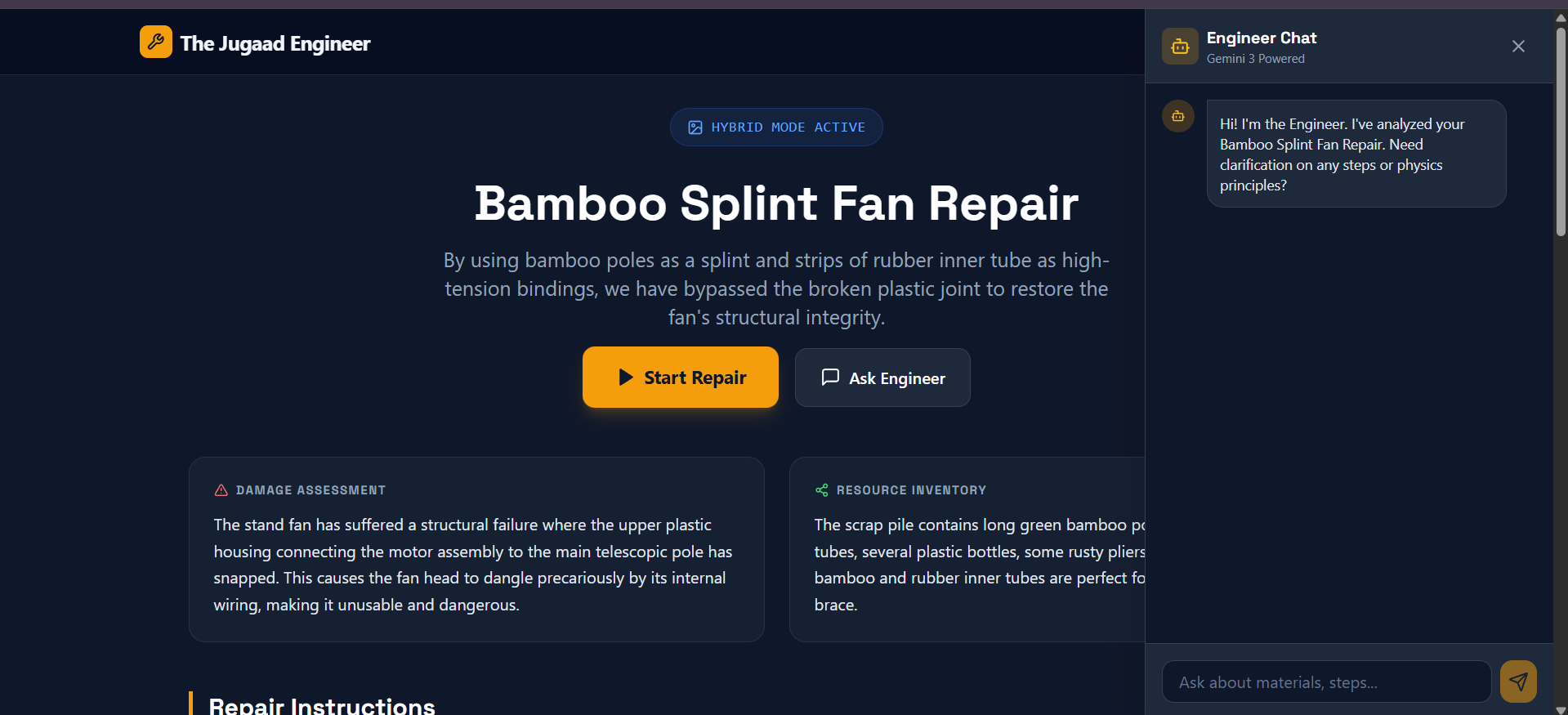
Homepage with uploaded image
-
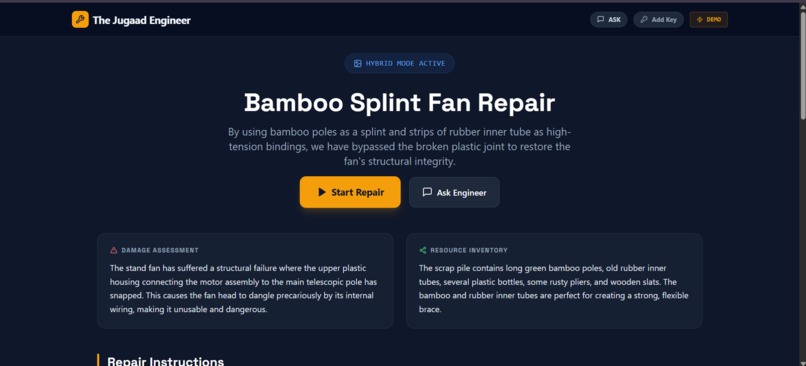
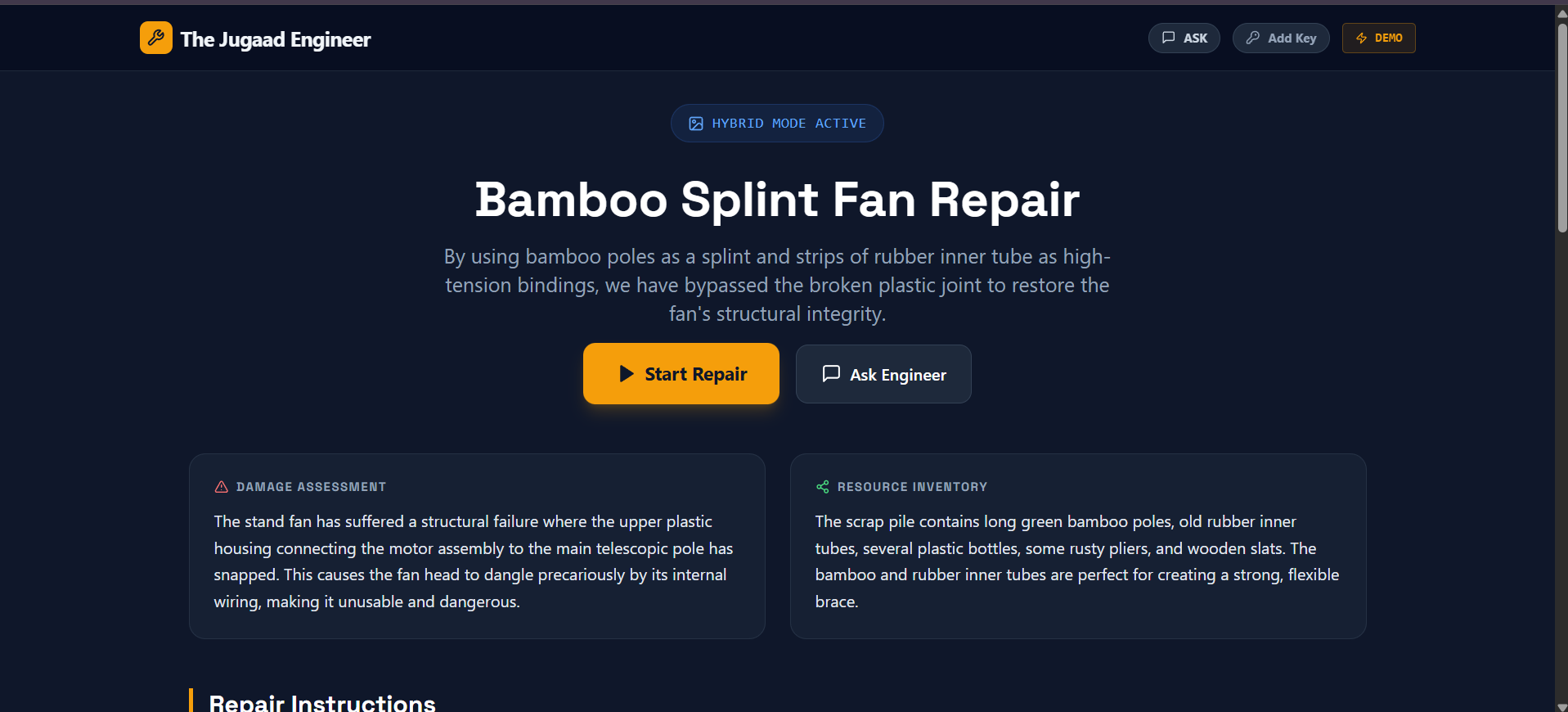
Results page
-
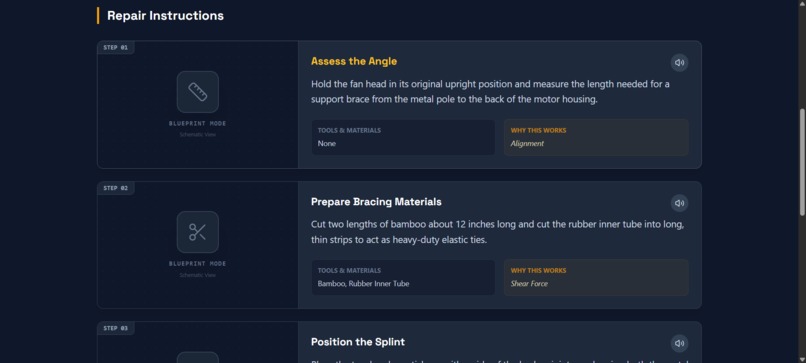
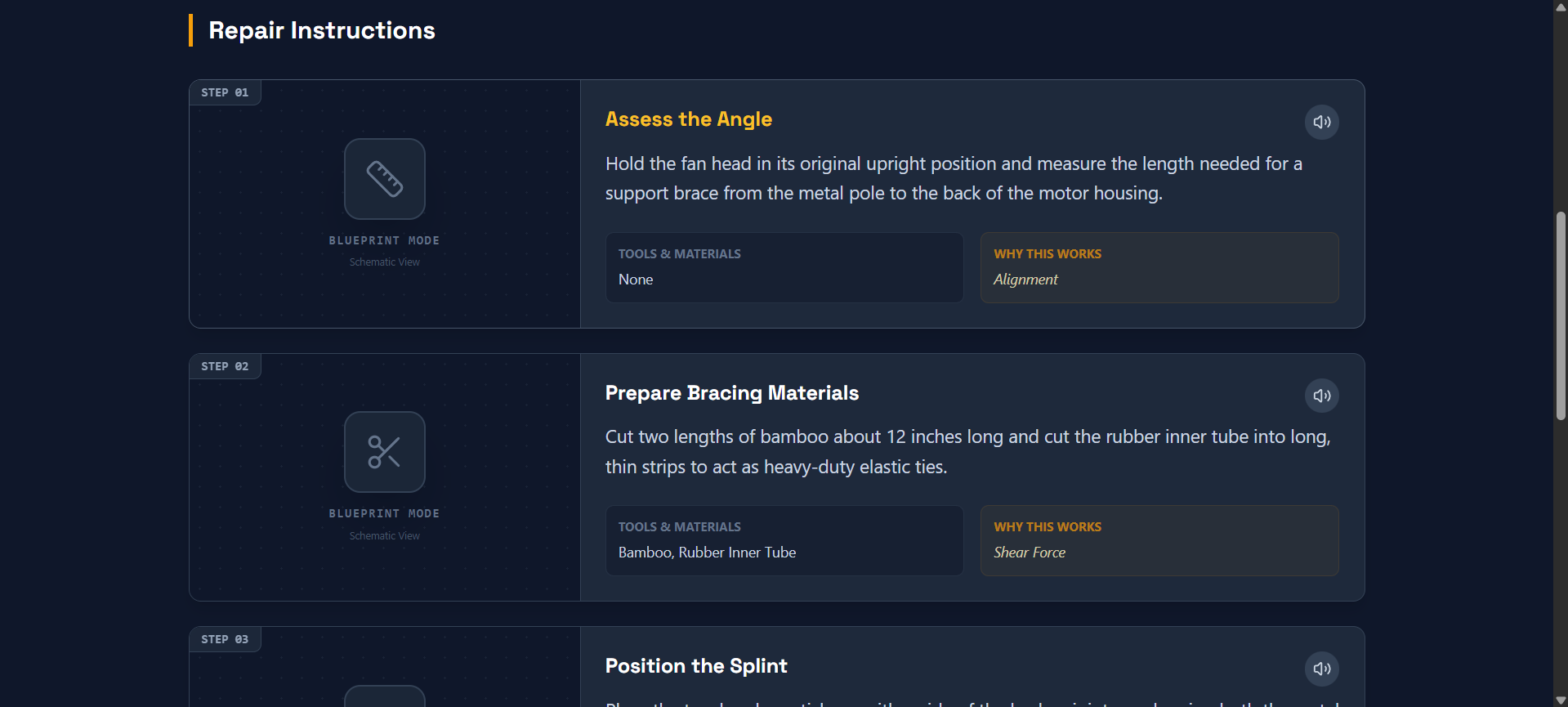
Guiding Page
-
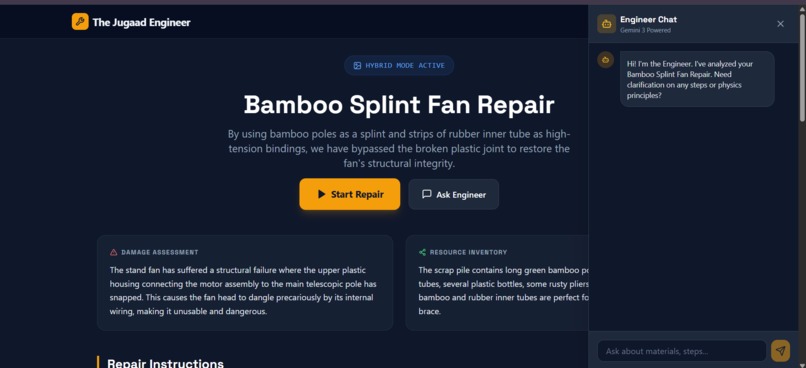
Ai Engineer chatbox for further guidance
-
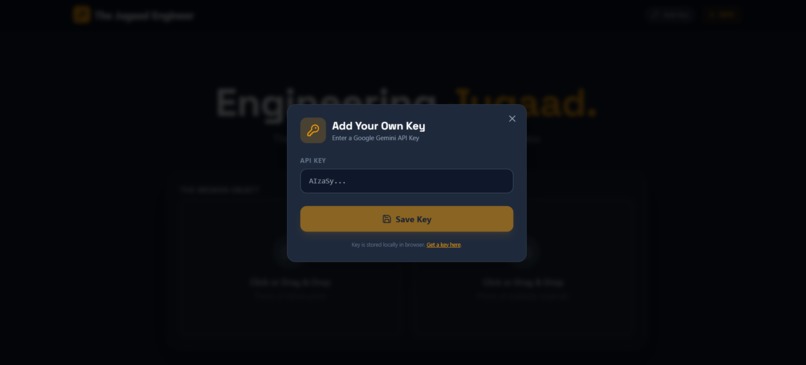
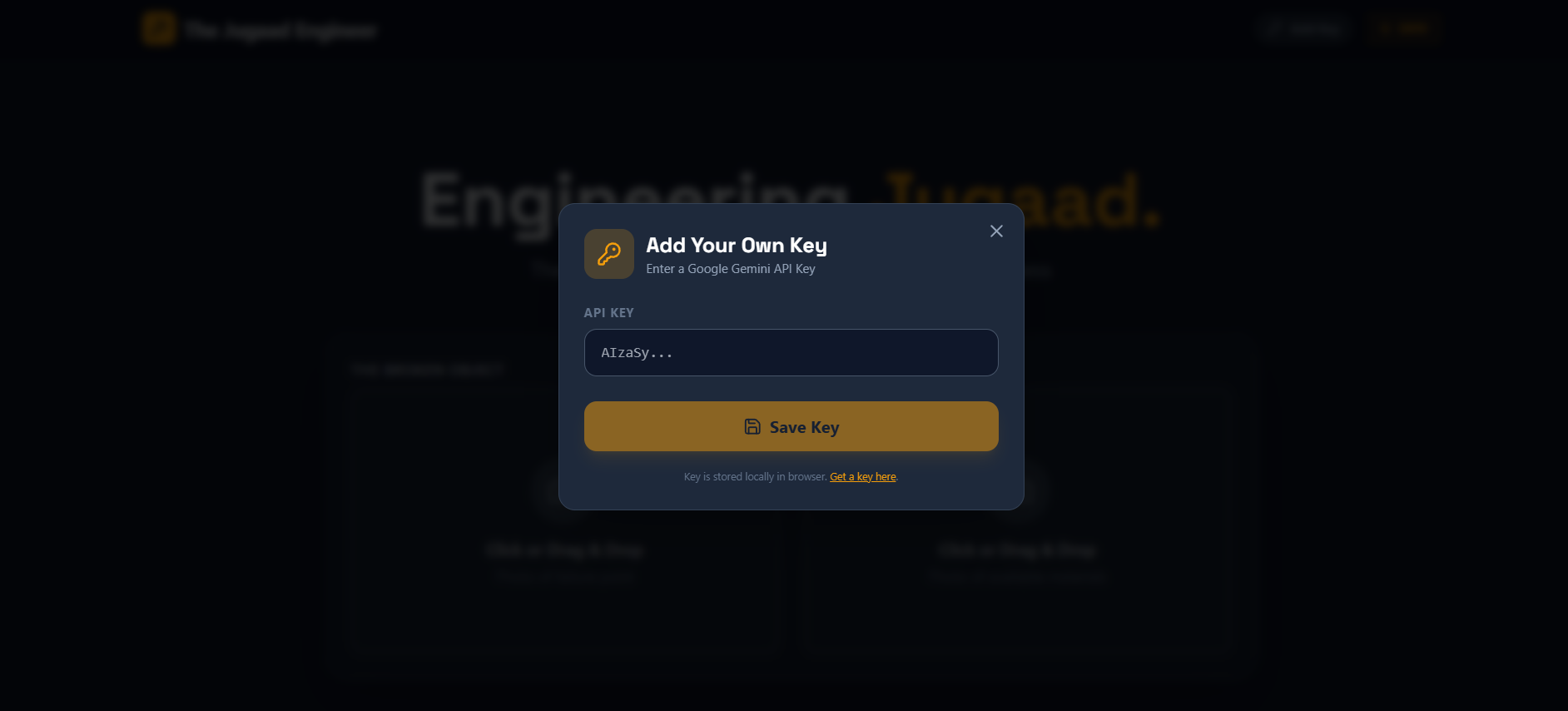
Own key option for better visuals and results
Inspiration
In a world overflowing with e-waste and disposable products, we were inspired by the concept of "Jugaad"—a Hindi word describing a flexible, frugal, and innovative approach to problem-solving.
We wanted to build an AI agent that embodies the spirit of a master mechanic who can fix anything using anything. We asked: "Can an AI look at a broken fan and a pile of bamboo sticks, and actually figure out how to combine them into a working repair?" The result is The Jugaad Engineer.
What it does
The Jugaad Engineer is a multimodal AI agent that acts as a visual repair guide.
- Visual Analysis: The user uploads a photo of a broken object and a photo of their "scrap pile" (random available materials).
- Engineering Logic: "Brain 1" (Gemini 3 Flash) analyzes the physics of the break and selects the best scrap materials for a fix (e.g., using rubber for friction or bamboo for splinting).
- Instruction Generation: It generates a step-by-step repair guide.
- AI Visualization: "Brain 2" (Gemini 2.5 Flash Image) generates photorealistic instructional images for each step, showing exactly how to cut, tie, or glue the specific materials found in the user's photo.
- Interactive Chat: Users can talk to the "Engineer" to ask specific questions about the steps.
How we built it
We built a dual-agent system using the Google GenAI SDK and React:
- The Architect (Brain 1): We used Gemini 3 Flash with
thinkingConfigenabled. This model handles the reasoning, JSON structuring, and physics validation. - The Artist (Brain 2): We utilized Gemini 2.5 Flash Image (Nano Banana) to generate the visualization of the repair steps based on the Architect's prompts.
- The Voice: We integrated Gemini's TTS (Text-to-Speech) to read instructions aloud for hands-free repair.
- Performance: We implemented a custom "Waterfall" loading system. Instead of firing all image generation requests at once (which crashes browsers and hits API limits), we queue them to load sequentially, creating a smooth UI experience.
Challenges we ran into
The biggest challenge was Rate Limiting and Quota Management. Because our app generates 4-5 high-quality AI images + audio + text analysis for every single repair session, we hit the standard API quotas very quickly.
The Fix: We had to re-engineer the frontend to handle "429 Resource Exhausted" errors gracefully. We built a Sequential Queue System that generates one image at a time. If the quota is hit, the UI gracefully degrades to a "Blueprint Mode" (showing schematic icons) rather than crashing, ensuring the user still gets the text instructions.
Accomplishments that we're proud of
We are proud of the "Hybrid Visualization" engine. It's magical when the AI correctly identifies a specific piece of trash in your scrap pile and draws a picture of it being used to fix your specific broken item. We also successfully created a distinct "persona" for the AI—it doesn't just give facts; it encourages you like a helpful workshop mentor.
What we learned
We learned that Multimodal Prompt Engineering is an art form. Getting the AI to "see" the scrap pile correctly required fine-tuning the system prompts to focus on material properties (flexibility, hardness) rather than just object names. We also learned how to manage complex asynchronous state in React when coordinating multiple AI models simultaneously.
What's next for The Jugaad Engineer: AI-Powered Frugal Repair
- Video Generation: We plan to integrate Google Veo to generate 5-second video clips of the repair actions (e.g., showing the twisting motion of a wire).
- Community Library: A "Hall of Fame" where users can share their wildest, most successful repairs.
- AR Overlay: Using the phone camera to project repair lines directly onto the broken object.
⚠️ IMPORTANT NOTE FOR JUDGES / TESTING
Please Use Your Own API Key for Full Functionality
Due to the heavy multimodal usage of this app (generating multiple images and audio per session), the default API key provided in the demo has likely hit its "Resource Exhausted" (429) limit from testing.
- The app works perfectly in the Demo Video.
- To test it yourself live, please click the "Add Key" button in the top right corner and enter a valid Google Gemini API Key.
- If you do not have a key, you can still click the "⚡ DEMO" button in the nav bar to see a simulated result without hitting the API.


Log in or sign up for Devpost to join the conversation.