-
-
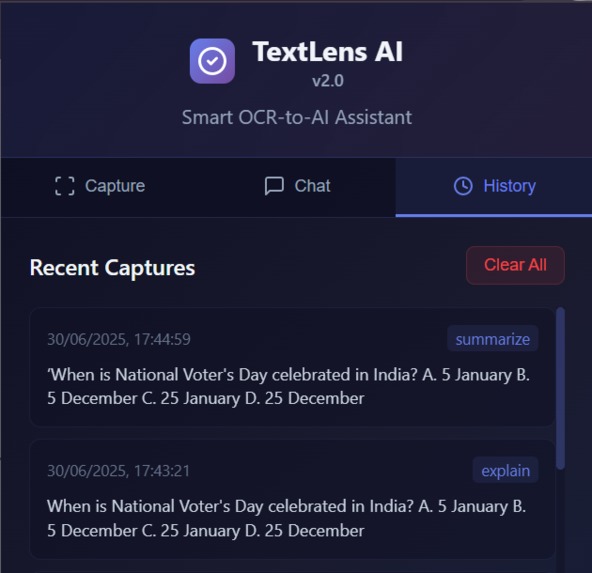
History section
-
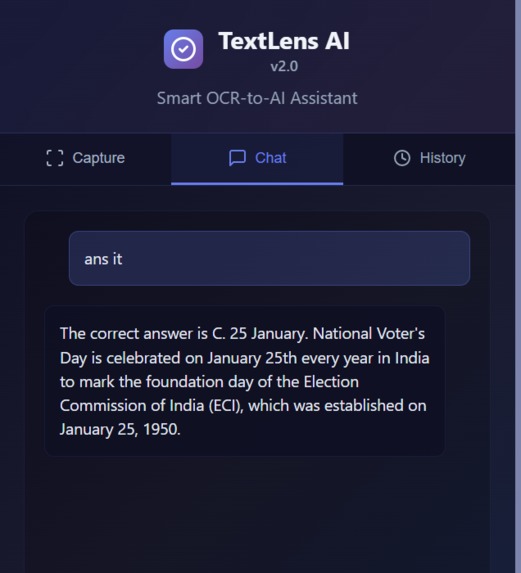
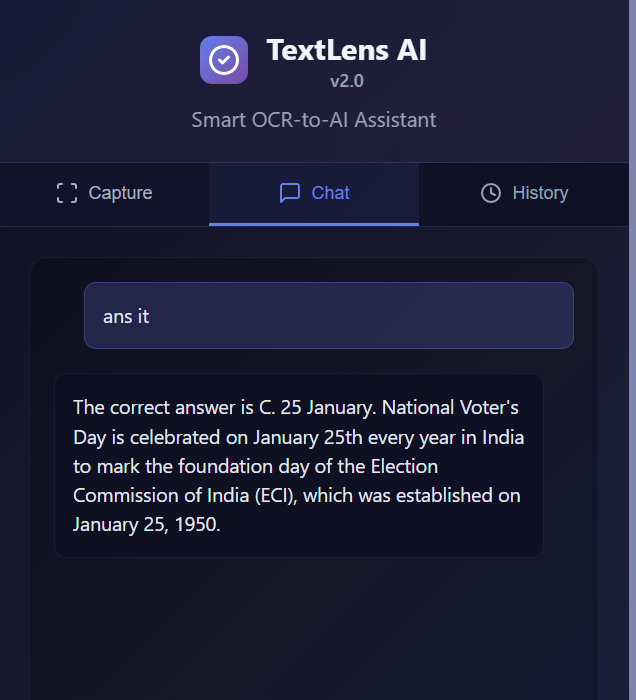
Chat section
-
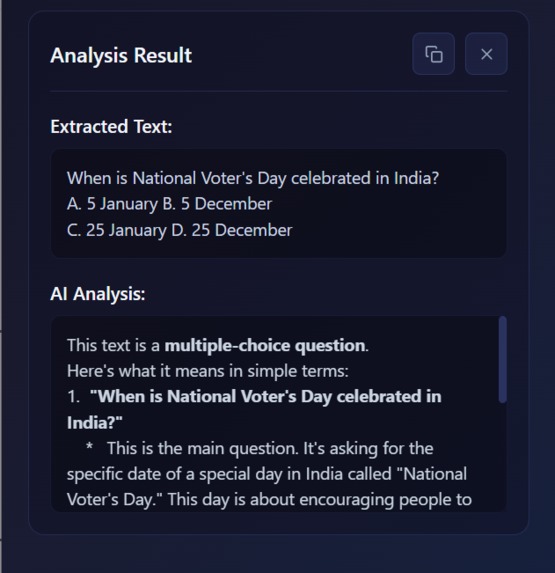
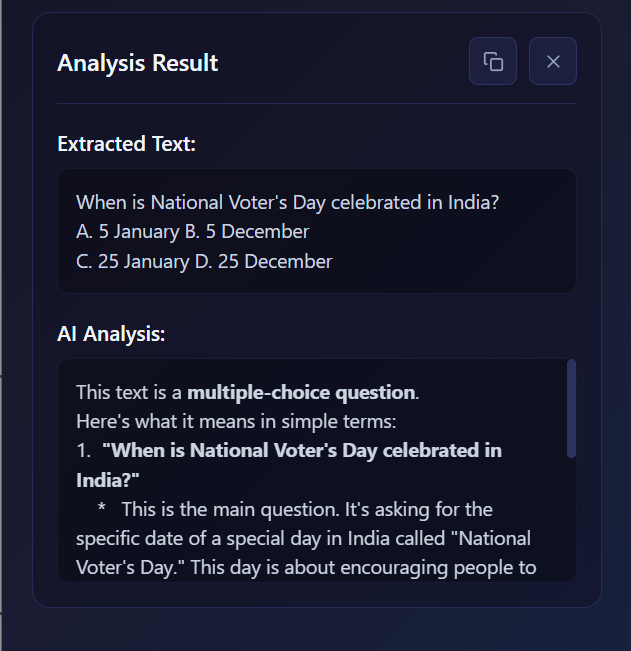
AI analysis after text extraction
-
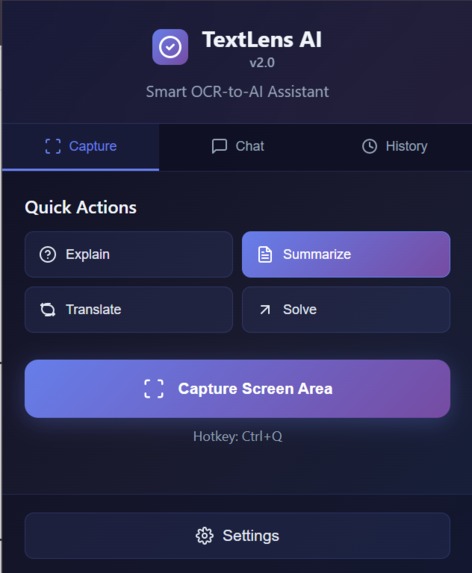
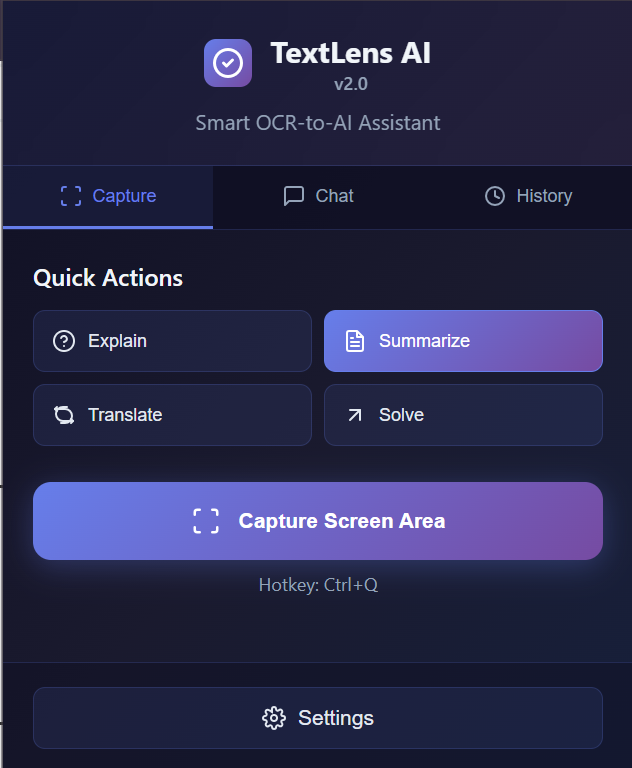
Landing Interface

🧠 TextLens AI – Smart OCR Assistant for the Web
TextLens AI is a Chrome/Edge extension designed to extract and analyze non-copyable text (like from images, canvas, PDFs, or video players) directly from your screen. Version 2 introduces AI chat, capture history, Gemini API integration, and custom shortcuts for a seamless experience.
🚀 Features
✅ OCR-Powered Text Extraction
- Select any portion of the screen that contains non-selectable text.
- Optical Character Recognition (OCR) extracts the visible text accurately.
- Supports multiple languages via Tesseract.js.
💬 AI-Powered Chat - After extracting the text, instantly chat with AI to ask questions or continue the discussion.
- Powered by Groq (Mixtral), or Gemini — configurable via settings.
- Use predefined actions like:
- Explain Text
- Translate Text
- Summarize
- Get Direct Answer
🕘 Capture History
- All your extracted sessions are saved in a History section.
- Revisit, reprocess, or continue chat from previous captures.
⌨️ Keyboard Shortcut Support
- Trigger the screen selection using a custom keyboard shortcut (default:
Ctrl+Q). - Configurable via extension settings.
🔌 API Key Management
- Supports integration with:
- Groq (Mixtral)
- Gemini Pro (Google AI)
- Set your preferred provider and paste your API key securely.
🛠️ Installation
Chrome / Edge
- Clone or download the repo.
- Open Chrome/Edge →
chrome://extensions/oredge://extensions/ - Enable Developer Mode.
- Click "Load unpacked" and select the extension directory.
- Pin the extension to your toolbar for easy access.
⚙️ Configuration
Setting Up API Keys
- Go to the Settings tab in the extension.
- Choose your preferred AI model:
- Groq (Mixtral)
- Gemini Pro
- Paste your API key.
- Save settings — your key is stored locally and securely.
📚 Usage Guide
1. Capture & Extract Text
- Click on the extension icon or use the shortcut key.
- Drag and select the area containing the text.
- OCR will extract the content and show Quick Action options.
2. Choose an Action
- Explain: Provides a detailed explanation of the extracted text.
- Translate: Detects and translates the content.
- Summarize: Gives a brief summary.
- Answer: If the text contains a question, this option gives a direct answer.
3. Use Chat for Follow-up
- Open the Chat tab to ask follow-up questions.
- The AI continues the conversation using the extracted content as context.
4. View & Reuse History
- Visit the History tab to access past extractions.
- Click on any item to re-chat, re-run actions, or copy the original text.
🧩 Technologies Used
Tesseract.js– Client-side OCRJavaScript– Core extension logicChrome Extensions API– Background, content, storageHTML/CSS– UIGroq / Gemini APIs– For AI processing
🔒 Privacy & Security
- Your data and API keys are stored locally only.
- No data is sent to any third-party server unless using external AI APIs.
- You control all inputs and outputs.
🛠️ Roadmap
- [x] OCR text selection
- [x] AI integration with Groq, Gemini
- [x] History & Chat section
- [x] Keyboard shortcut
- [ ] Screenshot + OCR auto-detection (planned)
- [ ] Mobile companion app (in progress)
- [ ] Voice-to-text OCR support (future)
📷 Demo Screenshots
(Add GIFs or images here showing each feature)
🙌 Contributing
Pull requests and suggestions are welcome!
Feel free to fork the repo and improve functionality or UI.
📩 Contact
Created by Ritam Vaskar 🔗 https://www.linkedin.com/in/ritam-vaskar-50627527a/ 📬 Reach me at: [email protected]
Built With
- css
- gemini
- genai
- html
- javascript
- ocr

