-
-
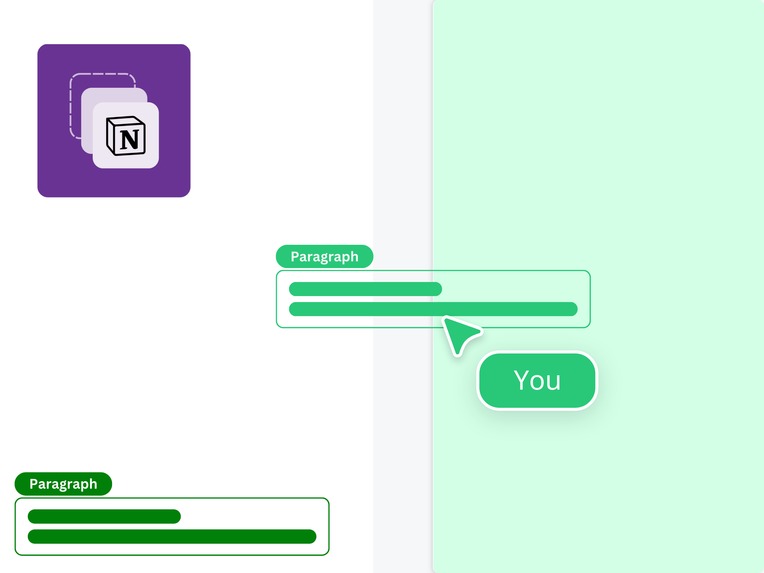
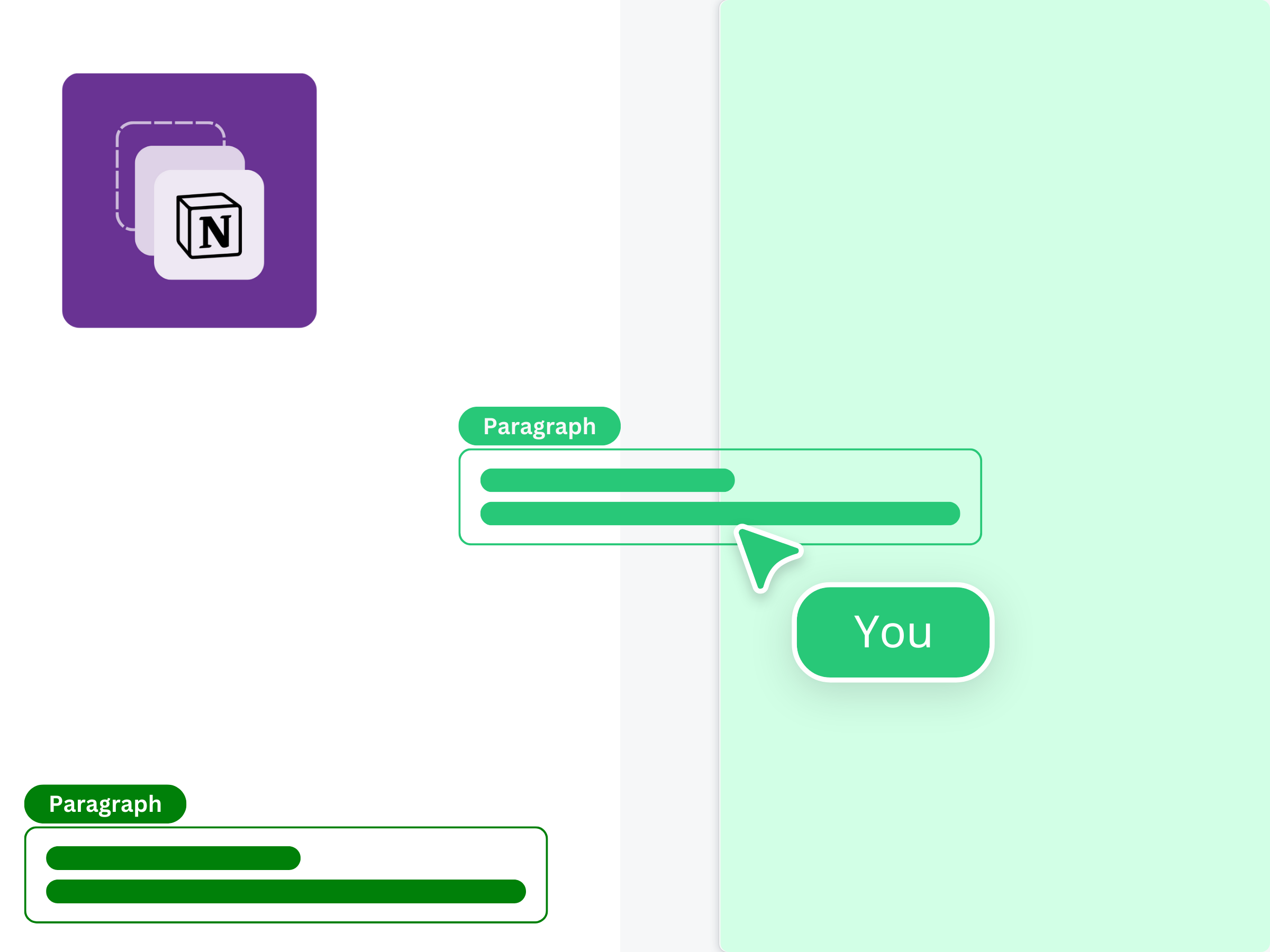
Image depicting the drag-and-drop action a user takes
-
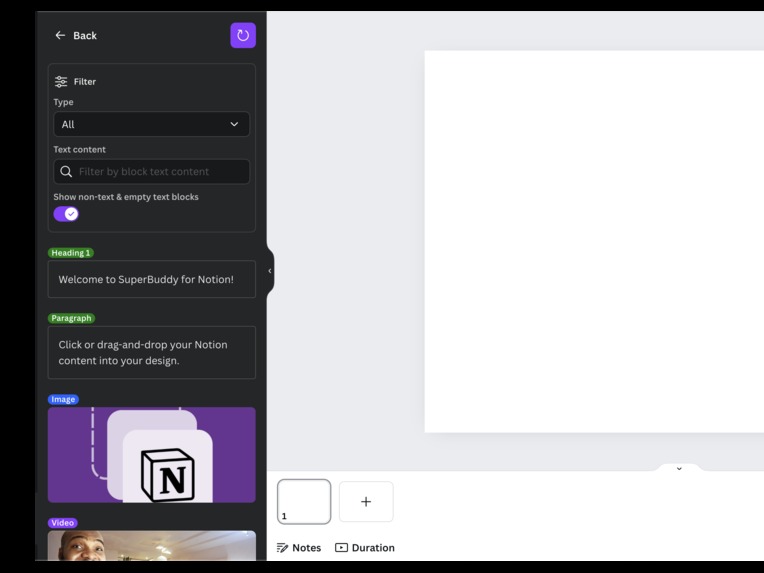
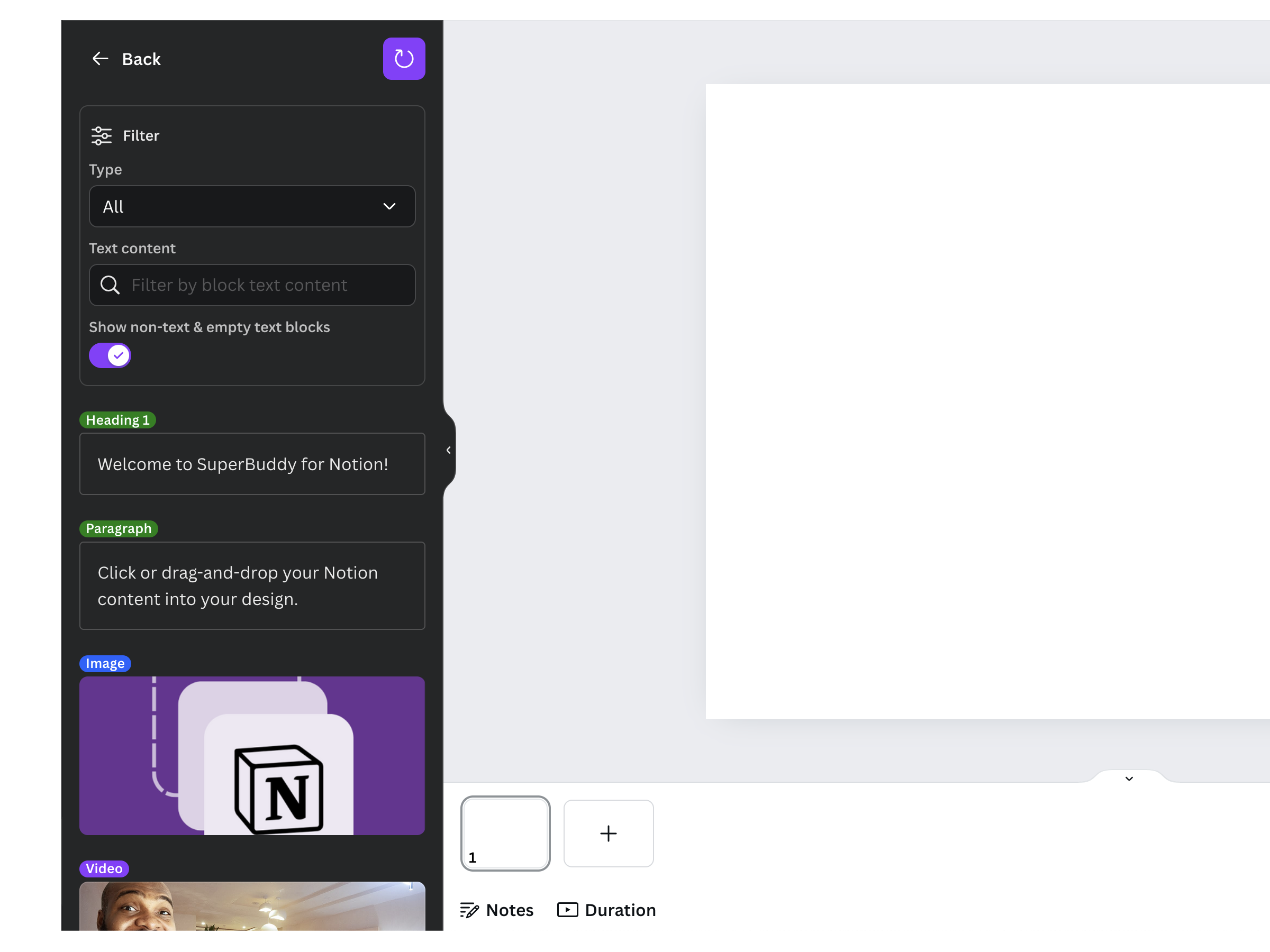
Superbuddy-Notion in dark mode
-
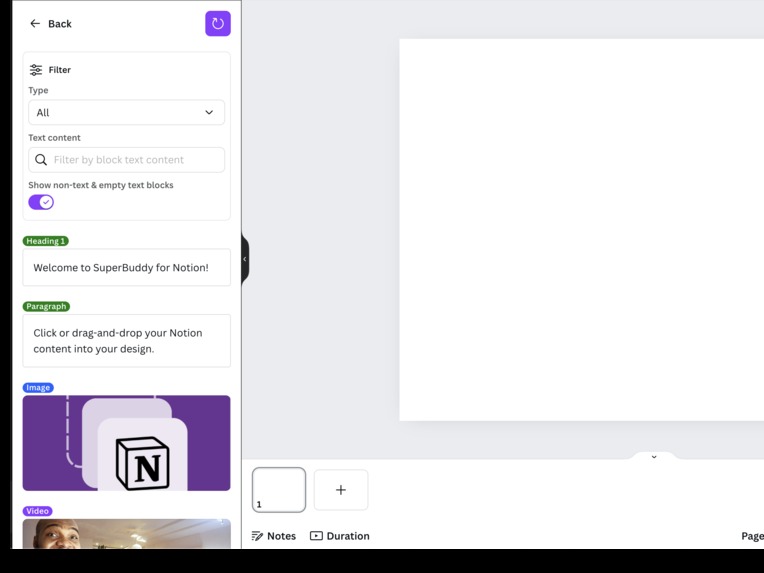
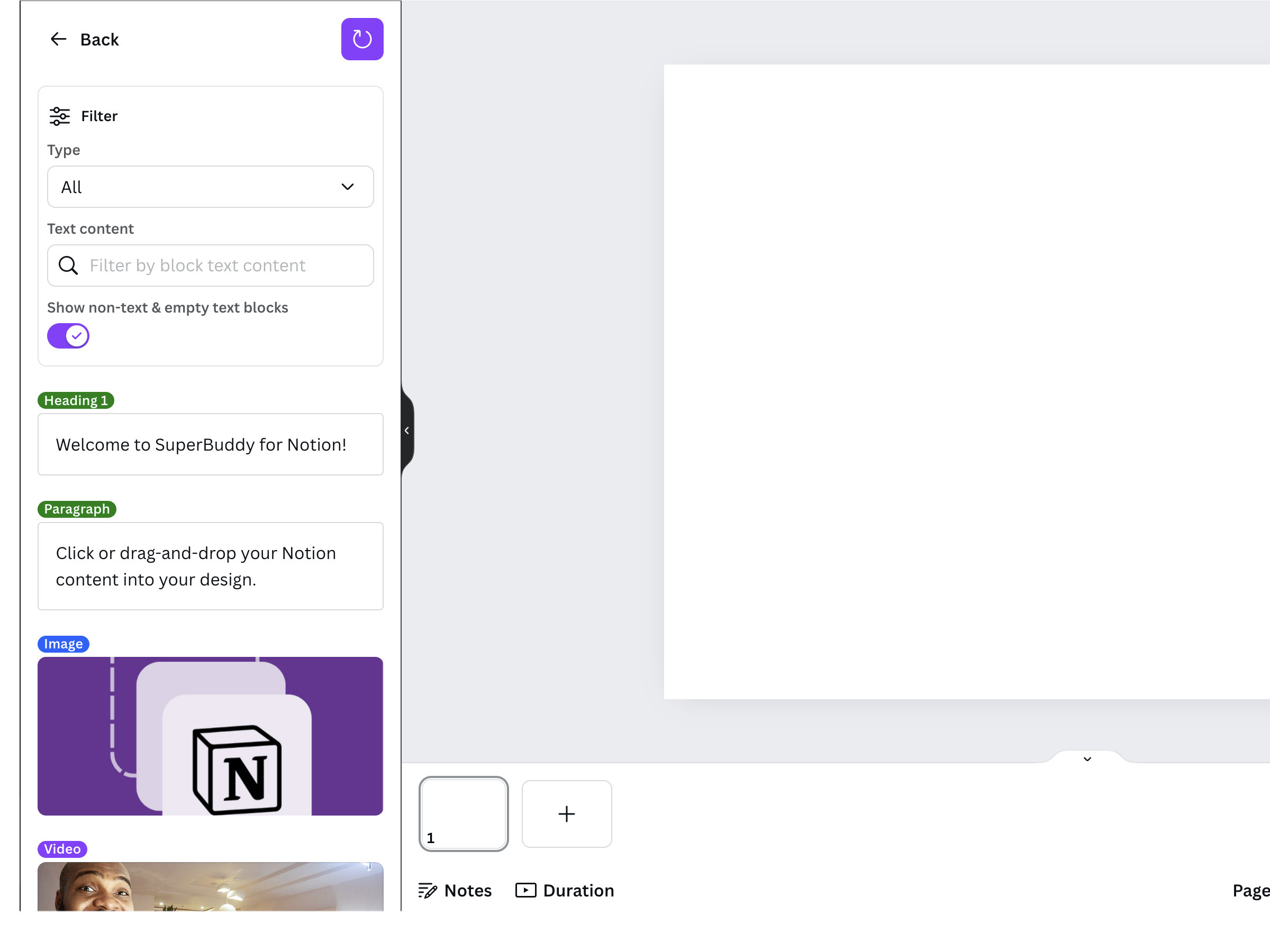
Superbuddy-Notion in light mode
Inspiration
When I authored the book "Beyond Academic Excellence" using Canva, I spent a lot of time copying content from the document editor, inserting or duplicating a text box, and then pasting the content into it. I realized that if I could see the rich text content within Canva and simply click or drag-and-drop it into the design, the process would have been smoother and I would have finished faster.
So, I built this Canva-Notion app called Superbuddy-Notion. Superbuddy-Notion brings the power of Notion content to Canva's over 135 million users and opens Canva up to Notion's over 35 million users.
What it does
Superbuddy-Notion allows users to copy, upload, and embed Notion content directly into Canva without switching browser tabs, windows, or device screens. Supported content includes rich text, audio, embedded video, and images. This is possible by leveraging the Notion public integration, which lets users share a page and its content with a third-party application.
How I built it
I built the app frontend using React and the backend with Nest JS. The backend handles frictionless authentication for Canva users and manages the end-to-end Notion integration for a user on Canva. This authentication method ensures users can start using the application as soon as it is installed in their dashboard.
Challenges I ran into
I encountered a few challenges while building the application.
First, I had to understand the restrictive environment Canva apps runs in before proceeding. The Superbuddy-Notion opens an external link to initiate the Notion integration connection, but I couldn't use the window object due to the restrictions. I found that the requestOpenExternalUrl provided by Canva solved the issue.
Second, identifying which user connected to Notion was tricky. Initially, I used the Canva user token as a query parameter targeting the integration URL. However, I realized it was less secure and resulted in long, ugly URLs. I later settled on using a UUID to identify the user, obtained during the frictionless authentication routine.
The third challenge involved using the rich text API. When rich text loads from Notion and the formatting is applied, I noticed that the text formatting for the first text appended to the rich text range object applied to all the other text. For example, if the sentence "I love Canva" is parsed according to the specifications of the rich text API, it would result in "I love Canva". All the text gets the formatting of the preceding word. However, I found a workaround that I'm proud to have figured out.
Accomplishments that I am proud of
First, I solved the rich text API issue. I realized that the range assignment to the addNativeElement function uses the result from the readTextRegions function of the createRichtextRange function. So, I created an interceptor that modifies the readTextRegions function. It applies rich text formatting only to the text of interest and returns a Canva-compliant formatted result.
Second, to improve user experience, I redirected users to the Canva design from which the Notion integration was initiated. By verifying the design token sent from the frontend, I could determine the specific design file to redirect users to, instead of the generic Canva website.
What I learned
The challenges have taught me a lot. Overall, I learned how to create a Canva app and manage interapp OAuth connections.
What's next for Superbuddy-Notion
For the next steps for Superbuddy-Notion, since the rich text API is currently in preview mode, the primary task is to track the API's progress to general availability. This will allow me to update the app for Canva users. Other steps include supporting more Notion blocks, adding the ability to read nested blocks (e.g., a nested list item), marking blocks, and setting fonts for Notion blocks in Canva.
Built With
- nestjs
- notion
- react
- typescript


Log in or sign up for Devpost to join the conversation.