Inspiration
What it does
How we built it## Inspiration
Technical drawing revisions are often reviewed manually. In practice, two DXF files can look almost identical while containing a small geometry or measurement change that matters for production, machining, quality control, or supplier communication.
I wanted to create a practical desktop tool that helps engineers identify those meaningful changes quickly, instead of relying only on visual inspection.
What it does
Techdraw is a Windows desktop application for comparing revisions of technical drawings.
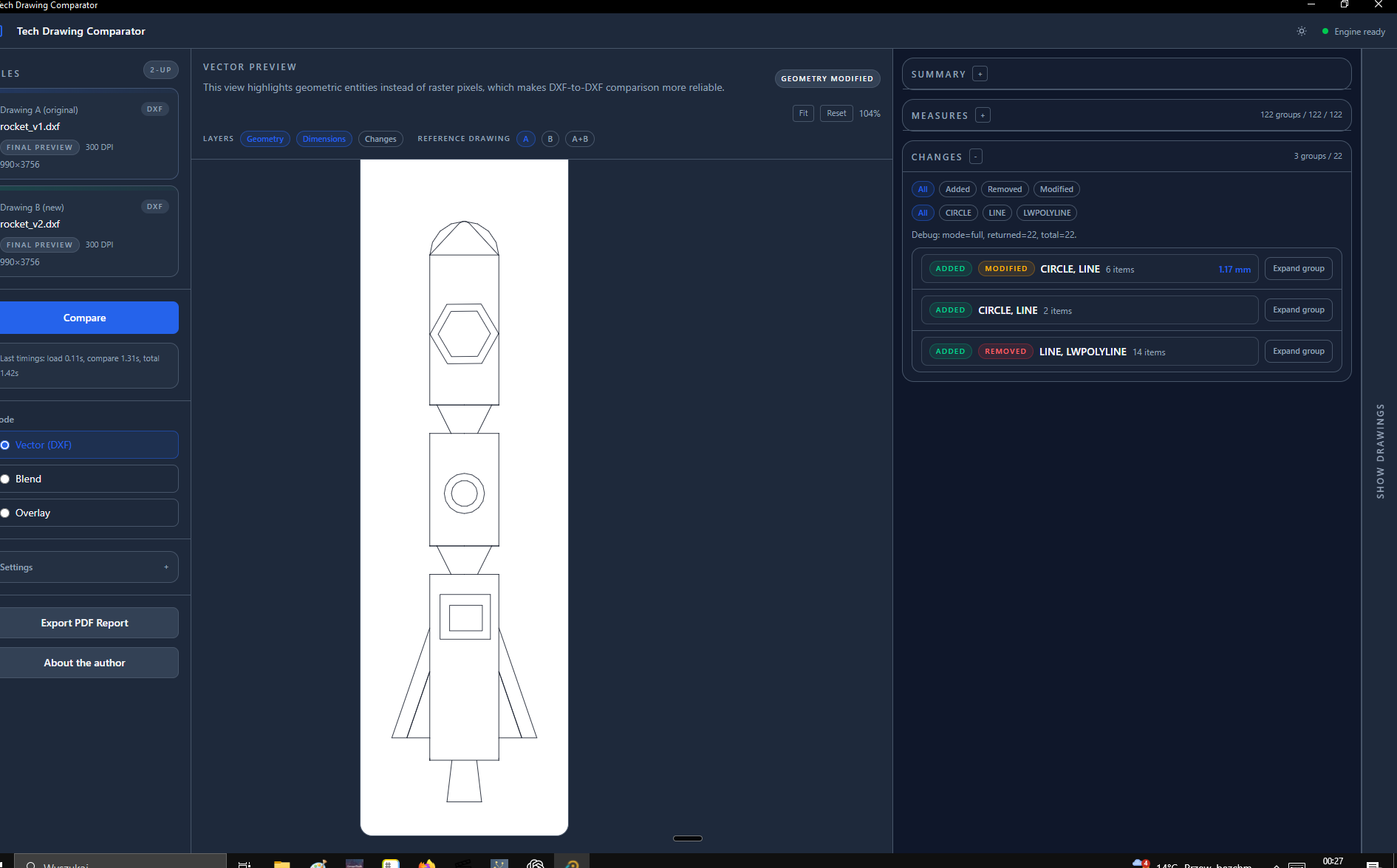
It supports DXF, PDF, and SVG files. Users can compare drawings in overlay and side-by-side modes, while the DXF Vector mode compares geometry and highlights added, removed, and modified entities. The application also detects supported measurement changes, can align compatible drawings, filters results by change type, entity type, and CAD layer, and generates a PDF report for production review.
The goal is to turn a manual drawing-review task into a repeatable workflow: load two revisions, compare them, inspect the important changes, and share a report.
How I built it
Techdraw uses React and TypeScript for the graphical interface, Tauri for the Windows desktop application, and a local Python and FastAPI engine for DXF parsing, rendering, vector and raster comparison, alignment, measurement analysis, and PDF report generation.
The application runs locally, so technical drawing files do not need to be uploaded to an external service. I also prepared a portable Windows build with sample DXF files, allowing judges to test the main workflow without installing Node.js, Python, Rust, or development tools.
How I used Codex and GPT-5.6
I developed Techdraw with Codex in ChatGPT across multiple sessions using GPT-5.4, GPT-5.5, and GPT-5.6.
Inspiration
Technical drawing revisions are often reviewed manually: engineers compare files, search for changed dimensions, and prepare documentation by hand. I wanted to make this process faster, clearer, and easier to audit.
What it does
Techdraw is a desktop application for comparing technical drawings. It helps users identify differences between DXF, PDF, and SVG files, with a focus on vector DXF drawings.
The application can:
- compare two technical drawings and highlight geometry differences,
- detect and display changed dimensions and measurements,
- align drawings for a more reliable comparison,
- filter and inspect detected changes,
- export clear PDF comparison reports,
- open included sample files to test the workflow quickly.
How I built it
Techdraw uses a React and TypeScript interface bundled as a Windows desktop application with Tauri and Rust. A local Python/FastAPI engine handles drawing analysis and processing. The application works locally, so technical files do not need to be uploaded to an external service.
The repository includes the source code, setup instructions, sample drawings, and a portable Windows release that can be downloaded from GitHub Releases.
How I used Codex and GPT-5.6
I developed Techdraw with Codex across multiple development sessions using GPT-5.4, GPT-5.5, and GPT-5.6.
Codex helped me iterate on the architecture, improve the comparison workflow, test functionality, organize the repository, and prepare documentation for the project.
GPT-5.6 was used primarily to create and refine the modern graphical interface and to improve the readable, production-oriented PDF comparison reports.
Challenges I ran into
The main challenge was making drawing differences understandable instead of only producing raw technical data. I focused on aligning drawings, presenting visual differences clearly, supporting filters, and producing reports that can be useful in real engineering workflows.
Another challenge was packaging the project as a portable Windows application while still including the local processing engine and making the first run straightforward.
What I learned
This project showed me how useful AI-assisted development can be when it is combined with iterative testing and domain-specific requirements. I learned that a good comparison tool must not only detect differences, but also present them in a way that helps people make decisions quickly.
Built With
- codex
- dxf
- fastapi
- gpt-5.4
- gpt-5.5
- gpt-5.6
- python
- react
- rust
- svg
- tauri
- typescript
- vite

Log in or sign up for Devpost to join the conversation.