Inspiration
- Seniors lose over $3 billion a year to scams, yet most "tech help" tools assume baseline knowledge they don't have
- I watched family members struggle to find the right button on their phones and realized no tool just said "tap here" in plain English
- The rise of AI tools like ChatGPT and Claude has allowed some people who can use them, and people who can't. Seniors deserve to be able to use these tools.
- I wanted to build the patient, knowledgeable friend that explains exactly what to tap, never gets frustrated, and is available at 2am
What it does
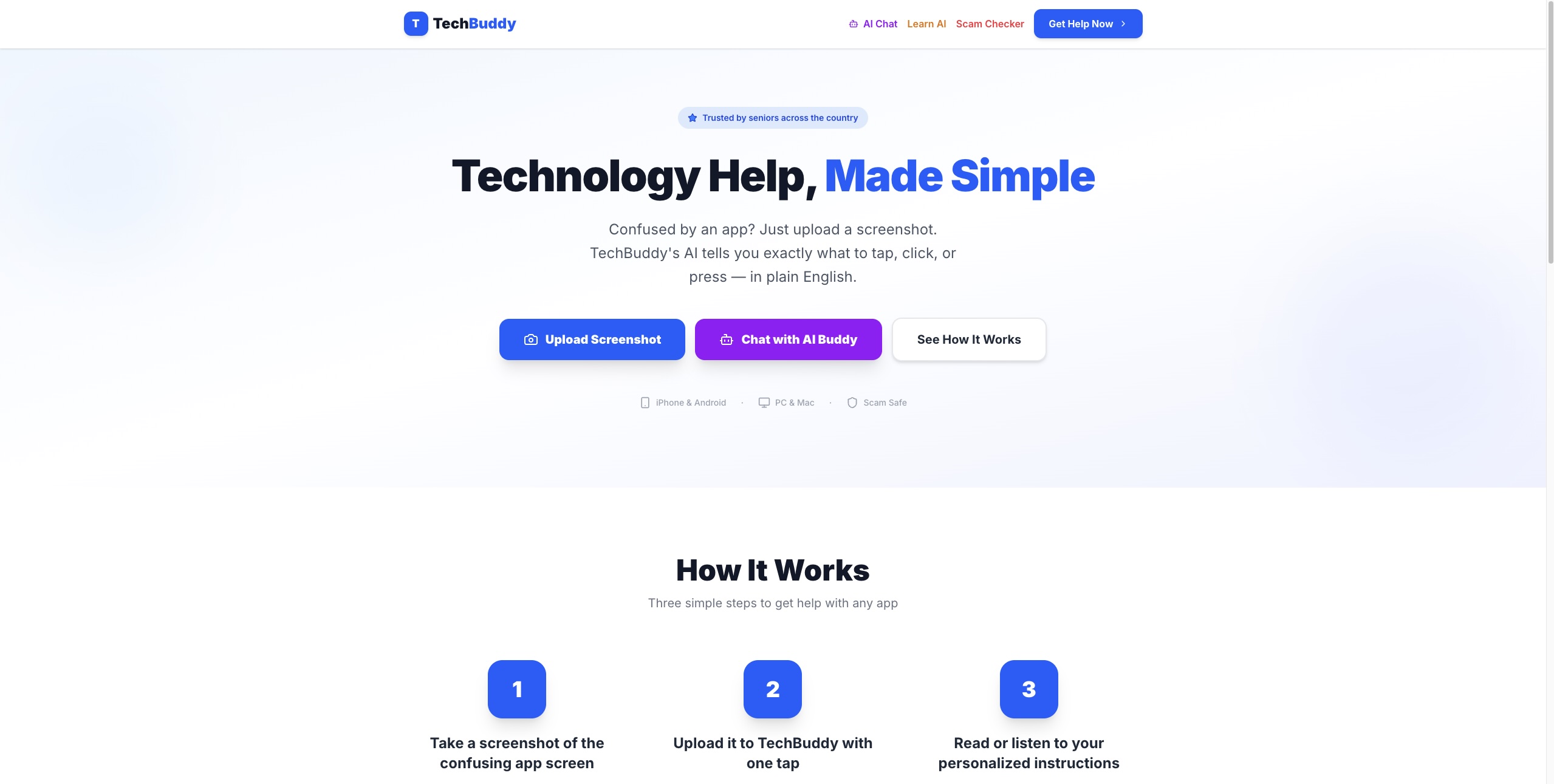
- Screenshot Helper: upload or paste (Ctrl+V) any confusing screen and GPT-4o analyzes it, identifies every visible button and menu, and returns plain-English step-by-step instructions
- Visual Tap Overlay: a pulsing animated marker appears directly on the uploaded screenshot pinpointing exactly where to tap, so the user never has to match text instructions to the screen themselves
- "Did you know?" Tech Tips: after every analysis, the AI picks one UI element visible in the screenshot and teaches something about it ("Red buttons usually mean close or warning, they're asking for your attention")
- Scam Checker: paste any suspicious text message, email, voicemail script, or pop-up warning and get an instant verdict: scam or safe, confidence level, specific red flags found, and numbered action steps
- AI Buddy Chat: a simplified ChatGPT-style interface with 8 one-tap starter prompts, voice input via the microphone button, and read-aloud on every response so seniors can interact without typing
- Usage History: every analysis is saved locally so users can revisit past instructions; a "Recent Help" panel shows the last 5 sessions with one tap to restore any result
- Accessibility features throughout: large text toggle that scales the entire app, voice input on every text field, clipboard paste for screenshots, step checkoff with progress bar, copy and print buttons on all instructions
How I built it
- Frontend: Next.js (App Router) + TypeScript + Tailwind CSS; chosen for fast iteration and Vercel deployment
- AI: GPT-4o for all three AI features: screenshot vision analysis, scam text detection, and buddy chat; using carefully engineered prompts for each use case
- Voice: Web Speech API for both speech-to-text input and text-to-speech read-aloud; completely free, no extra API key required, works in Chrome and Safari
- Tap overlay: GPT-4o returns a zone from a 3×3 grid (e.g. "bottom-right", "top-center") identifying where the primary tap target sits; the overlay marker is positioned using CSS percentages mapped to that zone so it lines up reliably across any screenshot
size or aspect ratio - Persistence: localStorage for usage history and session state; no backend database needed, works fully client-side
Challenges I ran into - Tap overlay coordinate accuracy: GPT-4o needs a consistent spatial reference to locate elements reliably. I solved this by defining an explicit 3×3 grid in the prompt, top/middle/bottom rows and left/center/right columns, so the model always returns one
of nine zones rather than freeform coordinates, and the overlay snaps correctly regardless of how the image is displayed. - Grounding the tech tips: Early prompts produced generic tips like "buttons are tappable" regardless of the screenshot. I enhanced it to reference a relevant element visible on screen with concrete examples to pattern-match against.
- Senior UX design: Every feature had to be stripped down until it required no explanation. What looks simple took significant iteration: button sizes, font weights, label copy, and the order of steps all went through multiple revisions.
- Scam detection accuracy: Distinguishing legitimate urgent messages (real bank fraud alerts) from scam messages required careful prompt engineering to avoid both false positives that create anxiety and false negatives that miss real threats.
Accomplishments that I'm proud of
- The visual tap overlay works reliably across portrait and landscape screenshots of any app; it genuinely removes the hardest part of following instructions (finding the right element on screen)
- Built three fully functional AI-powered tools: screenshot analysis, scam detection, and buddy chat; each with its own carefully tuned system prompt
- The app works with absolutely zero setup for end users: no account, no login, no configuration. A volunteer at a senior center can pull it up on a shared tablet in under 10 seconds
- Embedded the OpenAI API key server-side so seniors can use TechBuddy instantly; no account setup or technical configuration required
- Scam Checker includes 4 built-in example scams covering the most common types seniors encounter: IRS calls, fake package delivery, prize notifications, and grandparent scams; it works as a demo and as an educational tool for seniors to learn how to identify scams.
- To support usage history, seniors can see past analyses and past queries
- Every accessibility concern I could think of is addressed: voice input, read-aloud, large text mode, clipboard paste, printable instructions, step-by-step progress tracking
What I learned
- The hardest design problem isn't adding features: it's deciding what not to show. Every element on screen is one more thing a senior has to process
- GPT-4o's vision capabilities are remarkably strong at understanding app UI: it correctly identifies button labels, icon meanings, and screen context even on screenshots it has never seen
- Prompt engineering for a specific audience (seniors) is fundamentally different from general prompting: language level, sentence length, encouragement, and the absence of jargon all have to be explicitly specified
- Scam detection requires nuance: the same message pattern ("your account needs immediate attention") can be legitimate or fraudulent depending on context, and the AI needs to be calibrated to explain its reasoning rather than just give a verdict
- Real accessibility is more than font size: it includes interaction design, error messaging, progressive disclosure, and ensuring the app never puts a user in a state they don't understand how to exit
What's next for TechBuddy
- Offline mode: cache the most recent analysis so instructions remain readable without internet, critical for senior centers with unreliable wifi
- Native mobile apps: iOS and Android apps with direct screenshot integration so seniors never have to find and upload a file
- Multilingual support: many seniors are more comfortable in their first language; GPT-4o supports this with minimal changes to the prompting layer
- Support for browser extension: open the extension and it automatically scans the current page and provides results
Built With
- gpt-4o-api
- next.js
- tailwind-css
- typescript
- vercel
- webspeech

Log in or sign up for Devpost to join the conversation.