
Inspiration
This app actually exists because of another Shipaton project of mine: Pile. While building Pile, I was experimenting with sound effects for its different interactions. That meant trying different audio files, converting them into the formats I needed, testing them, and repeating the process.
At first, I used an online converter. Upload the file, pick a format,convert,download,repeat. After doing this a few too many times, I thought, there has to be a Mac app for this. There was. But when I tried one, I realized I was basically doing the same thing as the online one but in a different window: open the app, find the conversion I needed, add the file, choose the settings, pick where to save it, and convert.It worked. It just felt like too much ceremony for such a tiny task.I didn’t think much of it at first, but the unnecessary steps stuck with me.
Like any developer mildly annoyed by a repetitive task, I started thinking about how I’d build it instead. How much of the converter could I get rid of? Did it really need its own window? Did I need to choose a destination every time? Did I even need to open an app?
Then it clicked: the file was already right there in Finder, why not convert it in place? No app to open, no file to upload, no destination folder to choose.
That was the idea.
What it does
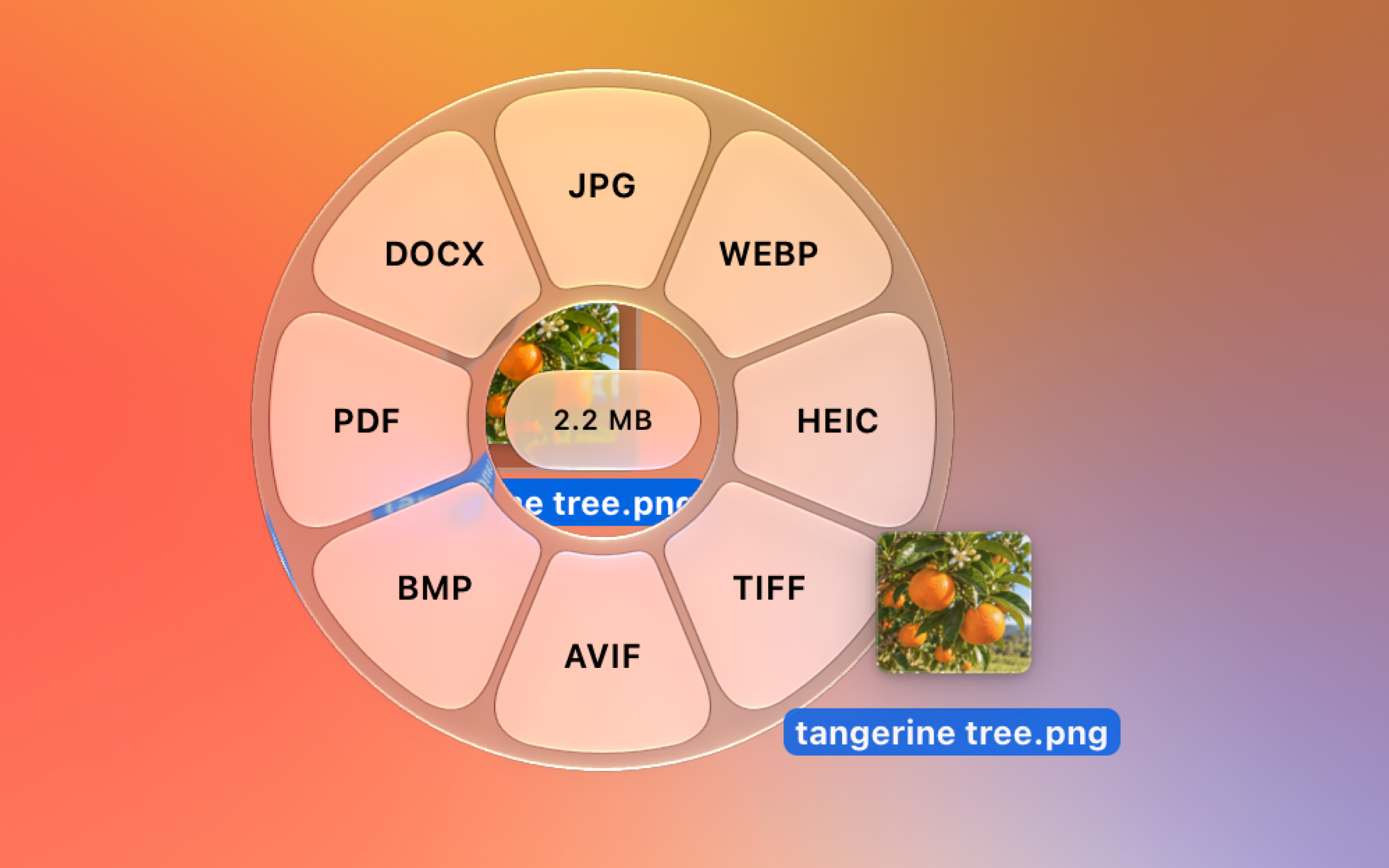
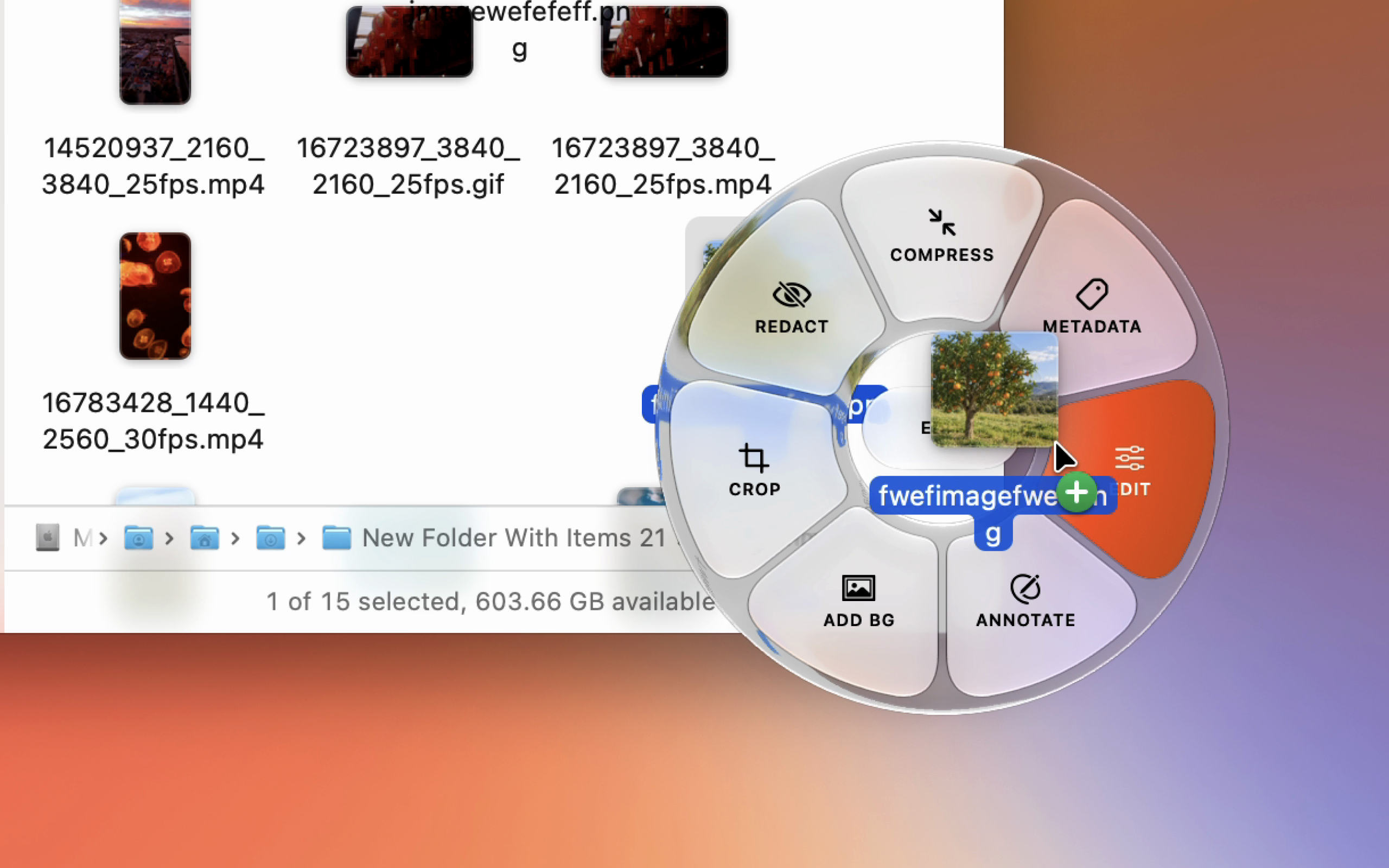
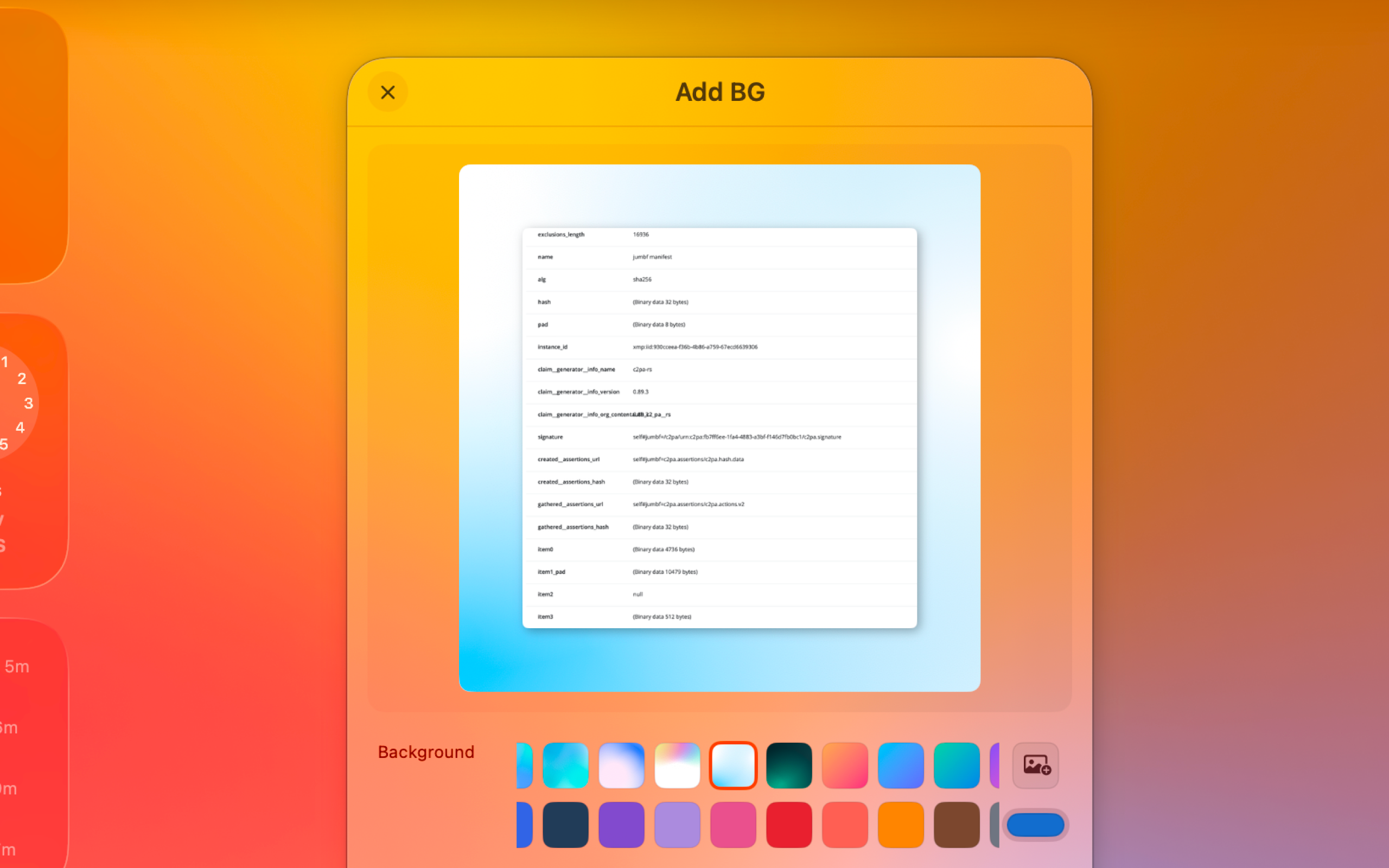
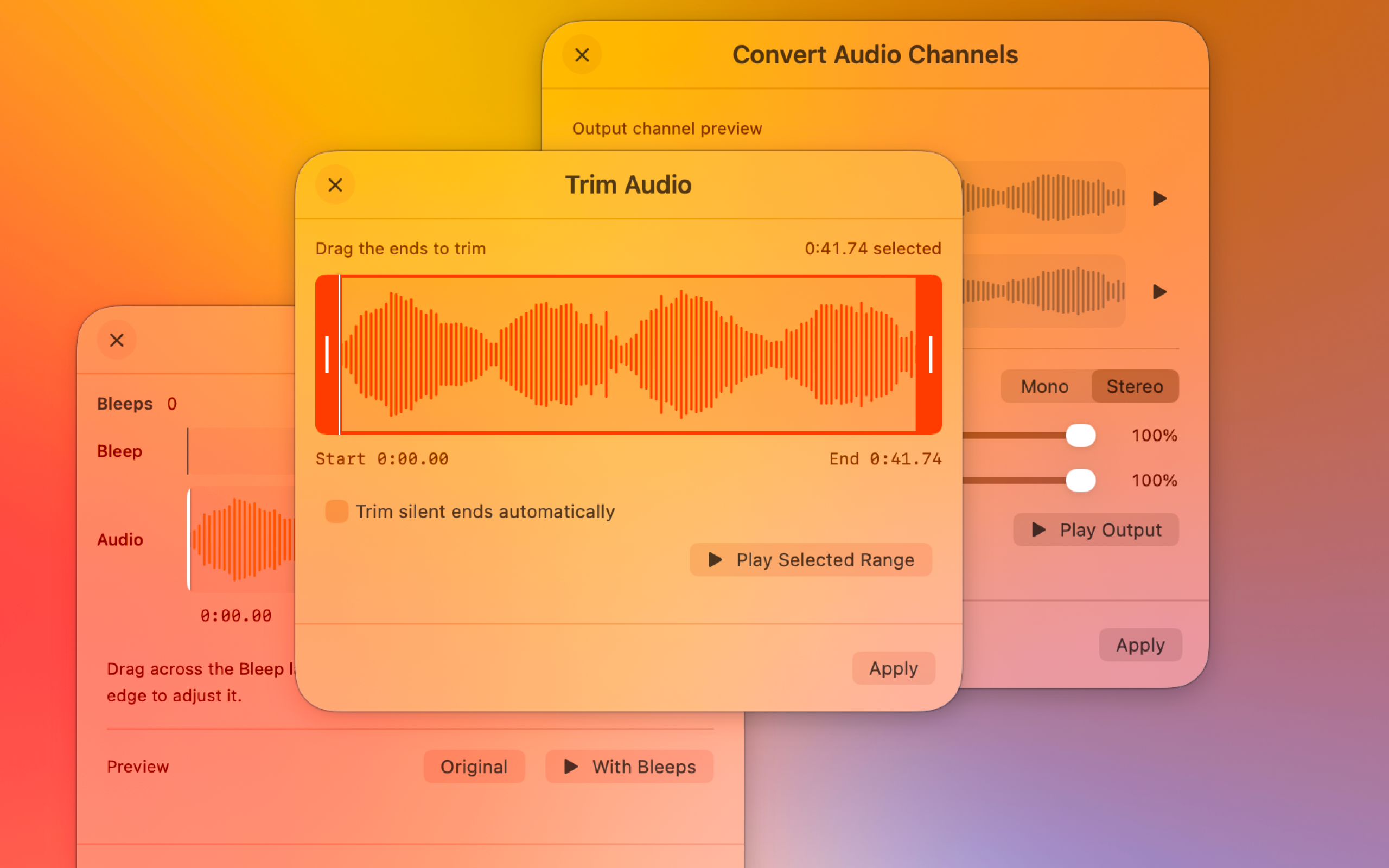
Tangerine is a native Mac utility. Drag a file, hold Shift, and a little wheel of compatible formats opens beside your cursor. Drop onto one and the converted copy appears next to the original. Option-Shift brings up tools for that file: compress images, trim videos, merge PDFs, and more. All file processing happens locally.
How we built it
I built Tangerine in Swift, with SwiftUI and AppKit for the interface and drag interactions. Underneath, it uses Apple’s ImageIO and Core Image for image processing, PDFKit for PDFs, and Vision for on-device detection. FFmpeg handles audio, video, and additional image formats, while ExifTool handles image metadata. All file processing runs locally. RevenueCat manages the one-time full unlock and purchase restoration.
Challenges we ran into
Tangerine spends most of its time waiting. Keeping it ready to respond to a drag while using as little CPU and memory as possible was an important challenge. The background monitoring needed to stay lightweight, and larger conversions needed to run without making the interface feel sluggish. I also had to verify what came out of each conversion. A completed export doesn’t tell you whether the colors, orientation, image detail, or audio survived correctly. I tested the actual outputs across formats and added safeguards for cases like compression producing a larger file. That small interaction needed a dependable foundation.
The radial menu's unusual shape brought its own challenges. Each curved segment needed readable labels, balanced spacing, and a drop area that matched what you could see. That layout also had to adapt as different files offered different numbers of actions.
Accomplishments that we're proud of
The interface is the part I’m proudest of. Before you know it converts files, the wheel’s shape and movement give you a reason to be curious. And once you use it, the shape makes sense: every segment is somewhere to drop your file. Giving such a small utility that much character and magic was deeply satisfying.
What we learned
I learned that there's more to design that how something looks.
What's next for Tangerine
Tangerine currently has a conversion wheel and a tool wheel. I want to add a third wheel that brings context menu features like Airdrop and "floating" a file for easier drag and drop. Also there are a lot of tools and conversions that the users have requested, so I'm working on adding them one by one.

Log in or sign up for Devpost to join the conversation.