Inspiration
What it does# StudyPilot — Academic Workload Copilot
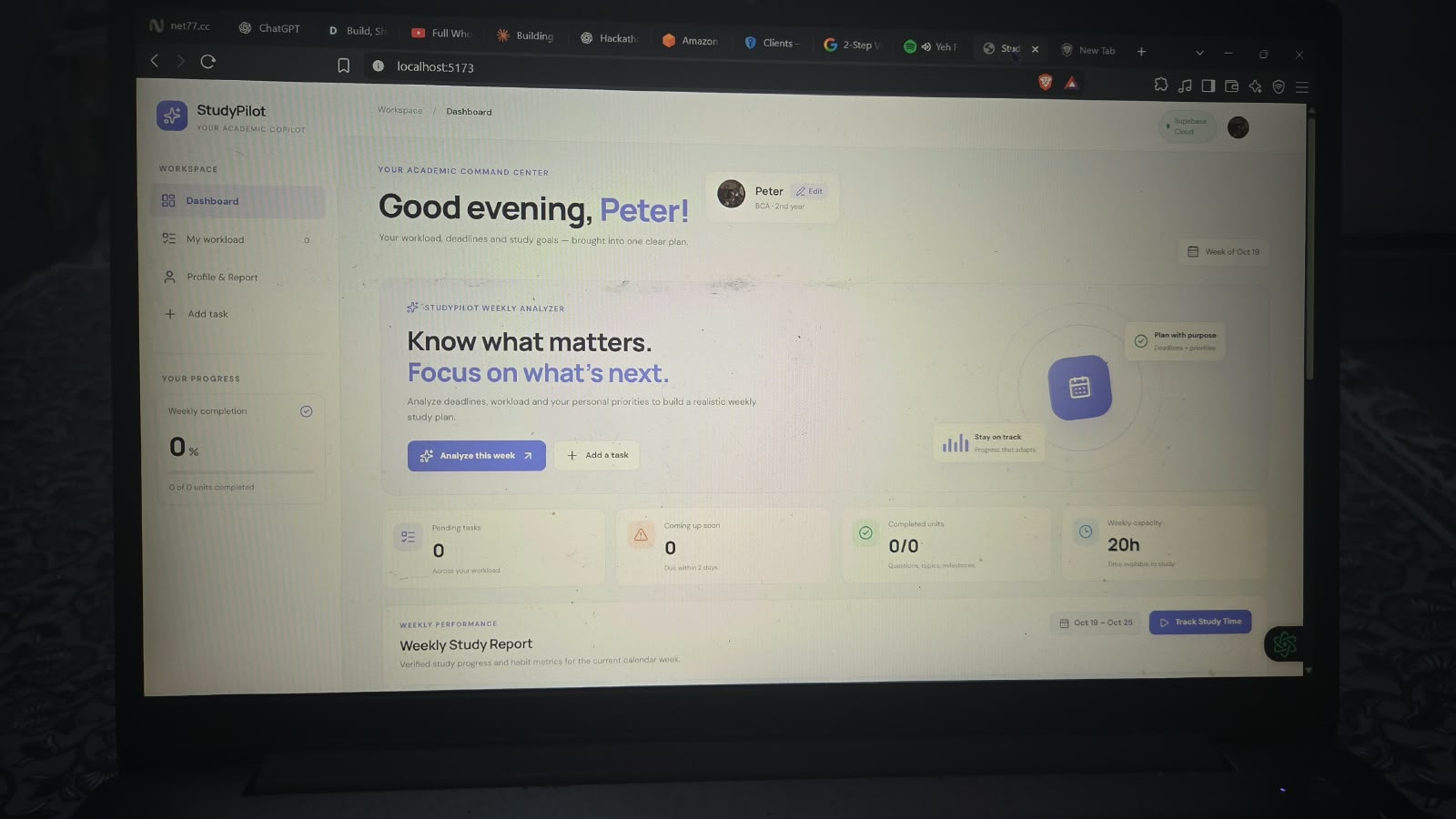
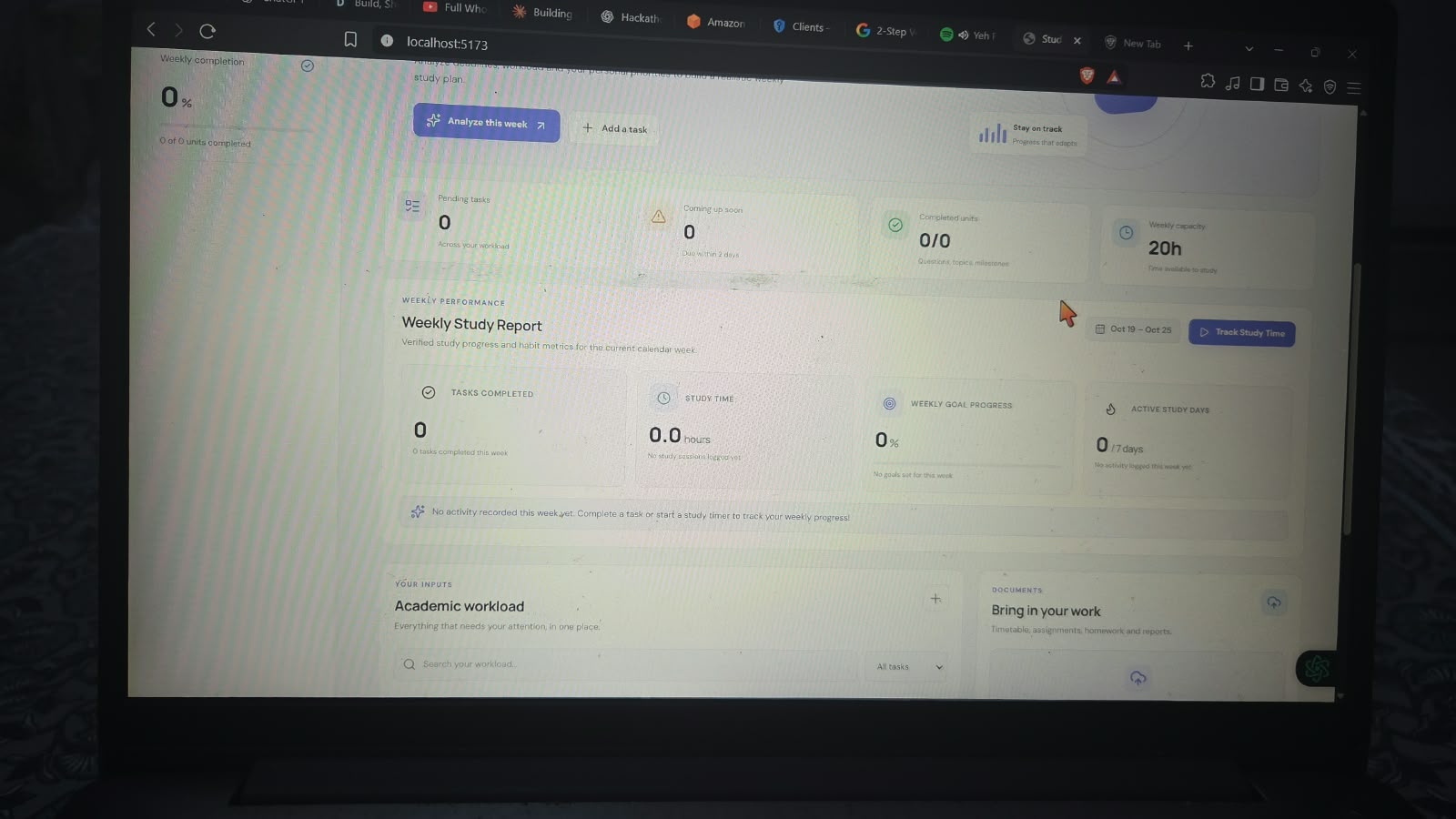
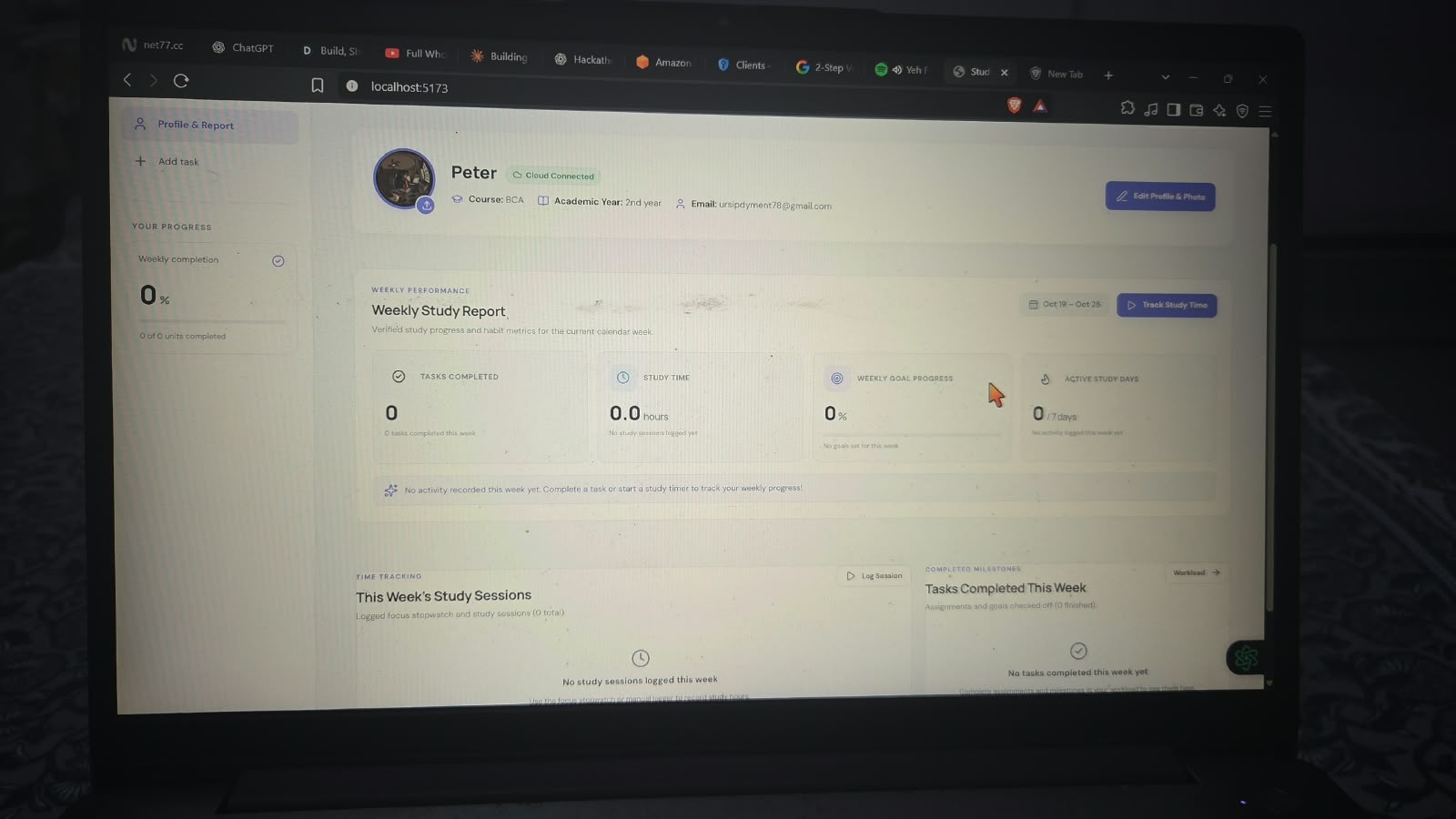
StudyPilot is an academic workload planner and study copilot designed for students. It centralizes assignments, reports, DSA practice goals, projects, deadlines, and study documents, and uses a deterministic weekly analyzer to recommend realistic study allocations based on available weekly capacity. (I have written this for my personalized use stuff, but it's for everyone)
Architecture & Technology Stack
- Frontend: React 19 + Vite 8
- Icons & Styling: Lucide React, DM Sans & Manrope typography, custom StudyPilot visual tokens
- Backend & Database: Supabase PostgreSQL with Row Level Security (RLS)
- Authentication: Supabase Auth with Google OAuth (primary); optional Phone OTP (kept disabled by default)
- Document Storage: Supabase Storage private bucket (
study-documents) with signed URLs for secure downloads - Client Integration:
@supabase/supabase-js
Getting Started
1. Prerequisites
- Node.js 18+ (or LTS)
- npm or yarn
2. Install Dependencies
npm install
3. Configure Environment Variables
Copy .env.example to .env:
cp .env.example .env
Populate .env with your Supabase credentials:
VITE_SUPABASE_URL=https://YOUR_PROJECT_ID.supabase.co
VITE_SUPABASE_ANON_KEY=YOUR_SUPABASE_ANON_KEY
VITE_ENABLE_PHONE_AUTH=false
Security Note: Never commit
.envor expose the Supabase service-role key or Google OAuth client secret in browser code. Only public anonymous keys (VITE_SUPABASE_ANON_KEY) belong in Vite environment variables.
Supabase Backend & Database Setup
Step 1: Create a Supabase Project
- Log in to Supabase Dashboard.
- Click New Project, choose your organization, name the project (e.g.
studypilot), set a database password, and select your preferred region.
Step 2: Apply Database Schema & Migrations
- In your Supabase dashboard, navigate to the SQL Editor.
- Open the migration file:
supabase/migrations/20261015000000_initial_schema.sql - Paste the contents into the SQL Editor and click Run.
- This script sets up:
public.profiles: Stores display names, avatar URLs, timezones, with auto-creation trigger on new users.public.tasks: Stores student assignments, reports, DSA practice goals, projects, and deadlines.public.user_preferences: Stores weekly study hour capacity and planner settings.public.weekly_plans&public.plan_items: Stores weekly plan snapshots, warnings, and allocations.public.uploaded_files: Stores study document metadata.storage.buckets: Configures the privatestudy-documentsstorage bucket with a 10MB file limit.- Strict Row Level Security (RLS) policies on all tables and storage objects scoped to
auth.uid().
Step 3: Configure Google OAuth Provider
- Go to the Google Cloud Console.
- Create or select your Google Cloud project.
- Configure the OAuth consent screen (User Type: External) and add the necessary scopes:
.../auth/userinfo.emailand.../auth/userinfo.profile. - Navigate to Credentials -> Create Credentials -> OAuth client ID (Application type: Web application).
- In Authorized redirect URIs, add your Supabase Auth callback URL:
https://<YOUR_PROJECT_ID>.supabase.co/auth/v1/callback - In Supabase Dashboard, go to Authentication -> Providers -> Google:
- Enable the Google provider.
- Enter the Client ID and Client Secret obtained from Google Cloud.
- Under URL Configuration, set the Site URL (e.g.,
http://localhost:5173for local development, or your production URL). - Add approved redirect URLs under Redirect URLs.
Phone Authentication Notice
Google sign-in is the primary authentication method. Phone OTP is optional and remains disabled by default (VITE_ENABLE_PHONE_AUTH=false).
- Supabase Phone Auth requires a third-party SMS provider (Twilio, MessageBird, or Vonage), which incurs per-message delivery costs.
- The app works completely without phone verification. Do not enable phone OTP or enter SMS credentials without reviewing your SMS provider's rates and terms.
Verifying Row Level Security (RLS)
To prove that User A's data is isolated and completely inaccessible to User B:
- In the Supabase Dashboard, open the SQL Editor.
- Run the test script provided in:
supabase/seed_test_policies.sql - This script simulates two distinct users (User A and User B) and confirms that User B cannot read, update, or delete User A's tasks or files.
Running the Application
Development Server
npm run dev
Open http://localhost:5173 in your browser.
Production Build
npm run build
npm run preview
User Data & Browser Storage Migration
- Clean Start: New accounts start with an empty dashboard and zero seeded fake tasks.
- Safe Local Data Migration: If tasks were previously saved in the browser's
localStorage(from prior local previews), StudyPilot detects them and presents a banner asking for explicit user permission to import them to the cloud account. Local tasks are never automatically imported or overwritten without consent.
Features
- Dashboard & Workload Command Center:
- Add and track assignments, reports, projects, DSA goals, exams, and personal study items.
- Set deadlines, importance (High, Medium, Low), effort estimates, and progress units.
- Search by title, notes, or tags, and filter by priority, due date, or completion.
- Weekly Workload Analyzer:
- Set available weekly study hours (1–60 hours).
- Deterministic algorithm prioritizes tasks by urgency, deadline proximity, importance, and recurring status.
- Shows summary metrics (estimated work, allocated hours, available capacity, and overload hours) along with overload and overdue warnings.
- Export plan as a formatted text summary.
- Private Document Management:
- Upload syllabus, timetables, and assignment PDFs, DOCX, TXT, CSV, or images (up to 10MB).
- Files are stored in a private Supabase Storage bucket scoped to the user ID.
- Secure time-limited signed URLs are generated on demand for downloads.
- Full delete support to clean up both storage objects and database metadata.
How we built it
Challenges we ran into
Accomplishments that we're proud of
What we learned
What's next for studypilot
Built With
- antigravity
- chatgpt
- javascript
- plpgsql
- react
- superbase
- vite

Log in or sign up for Devpost to join the conversation.