-
-
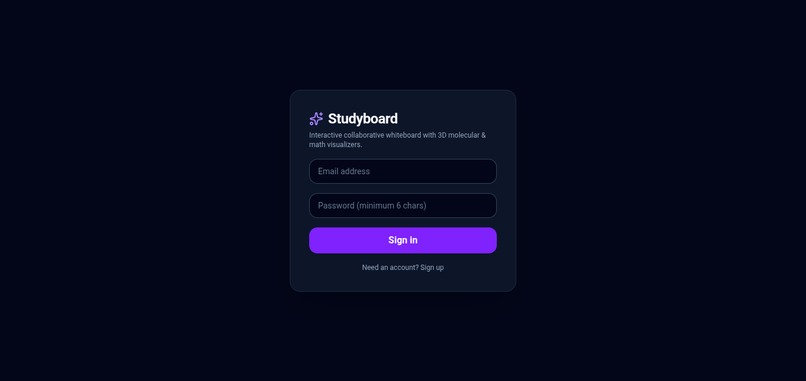
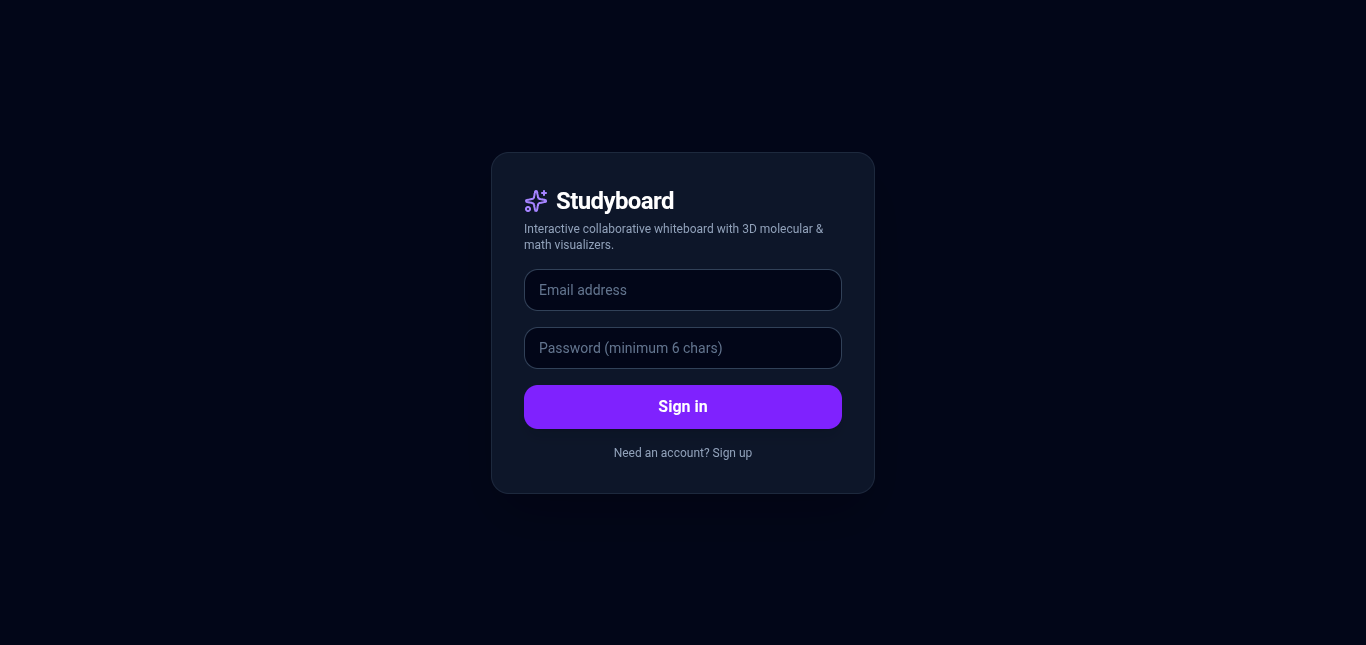
Auth page
-
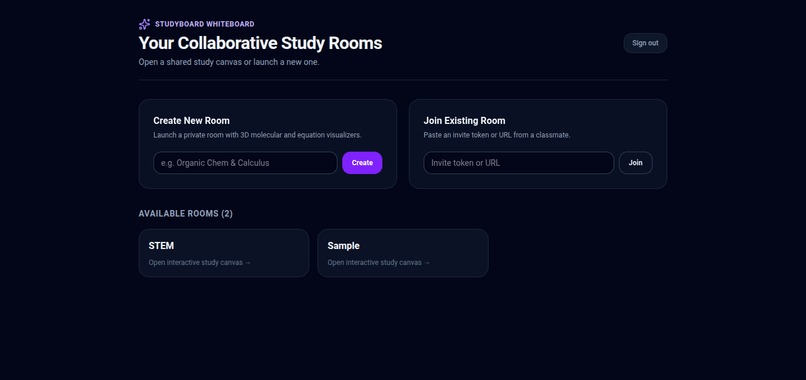
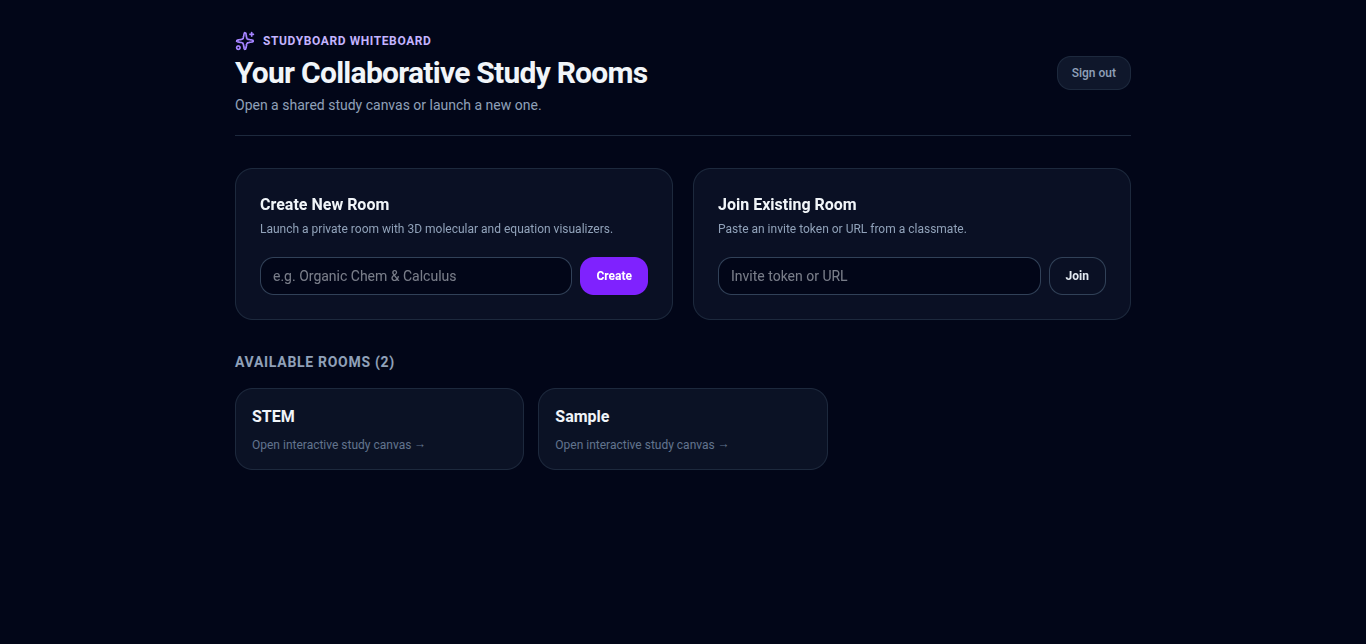
Dashboard
-
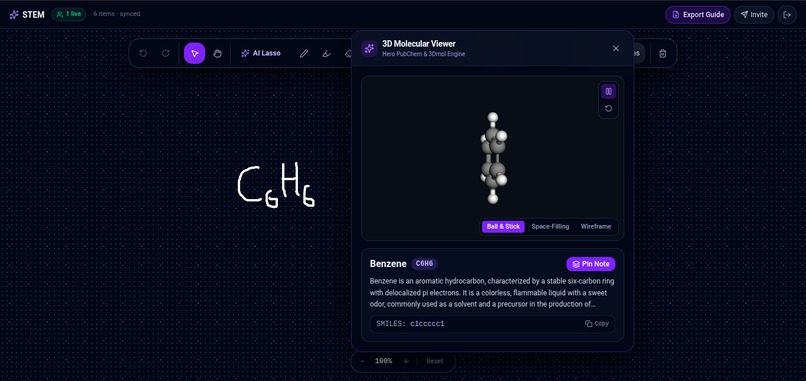
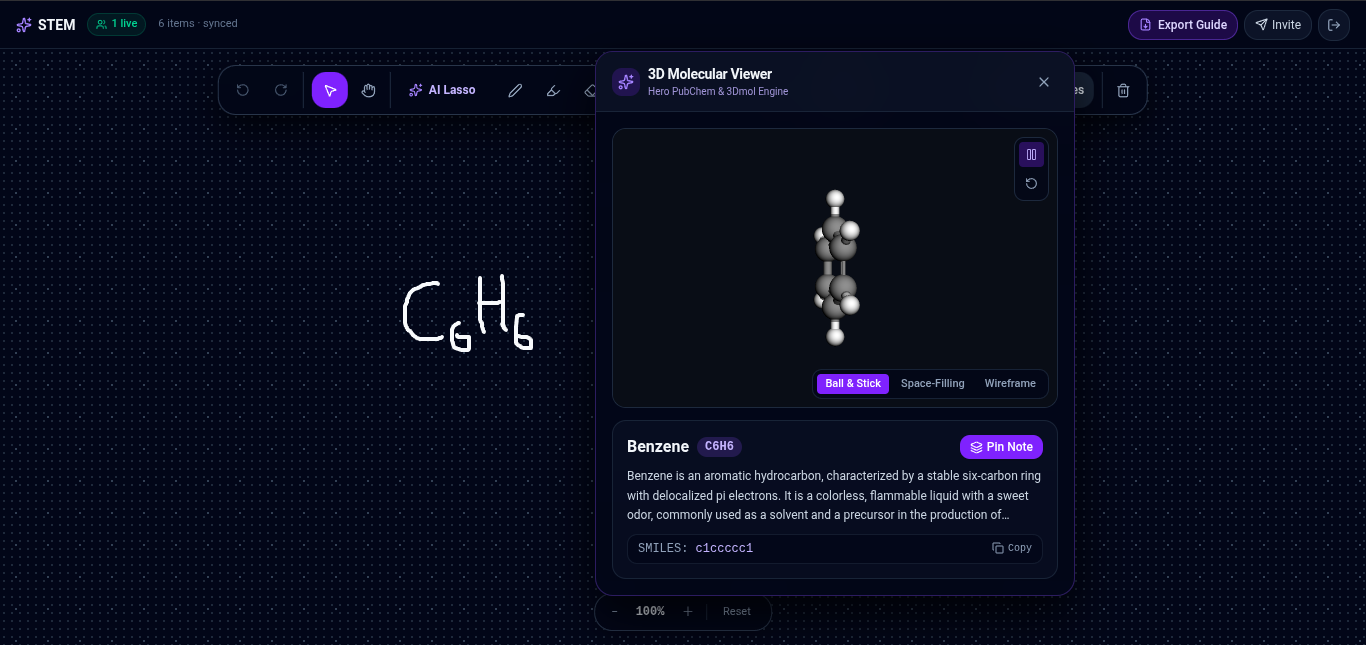
Render 3D molecule
-
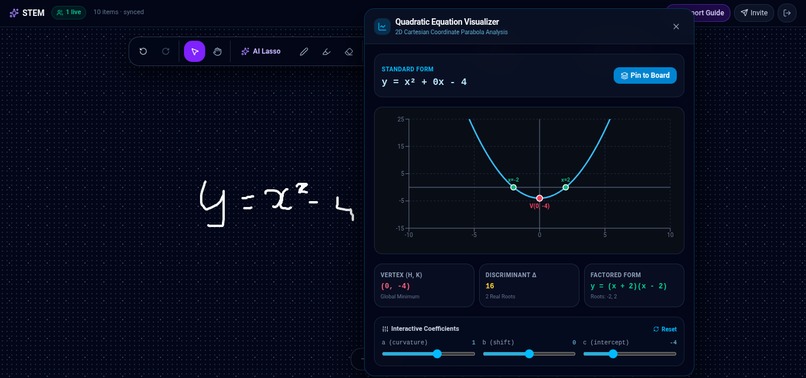
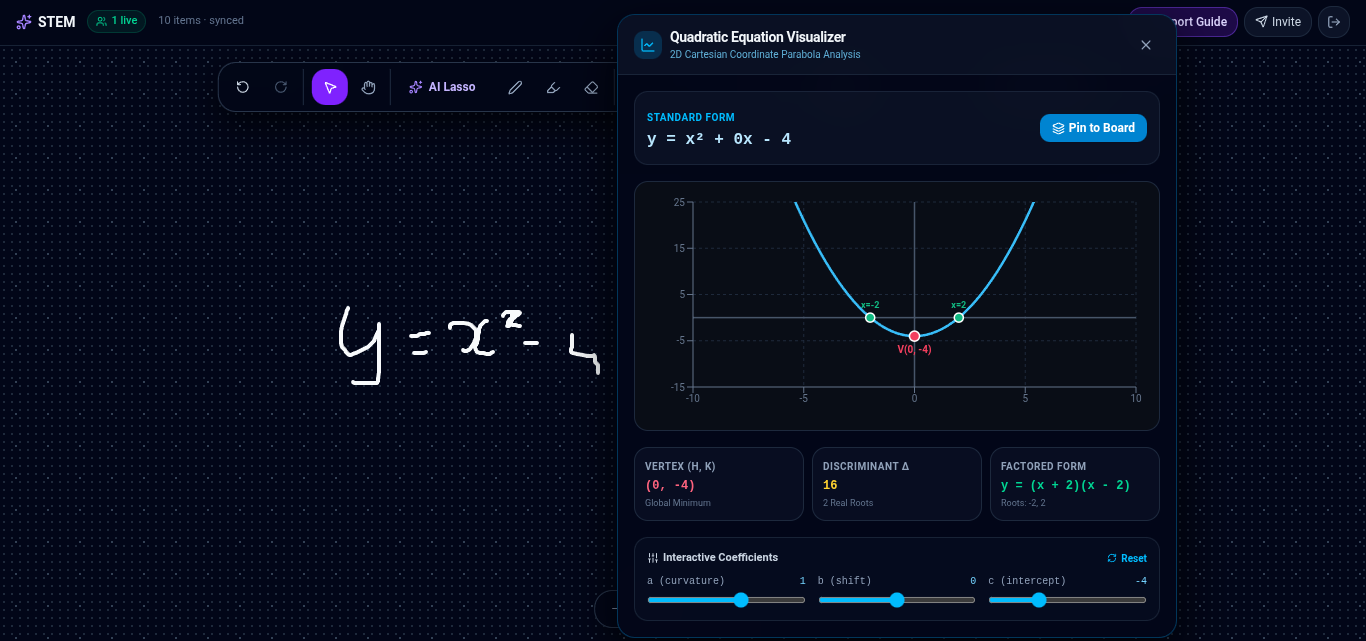
Plot 2D graph
-
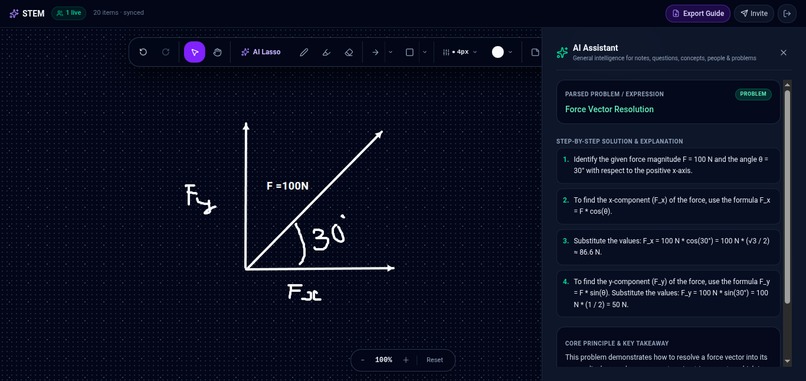
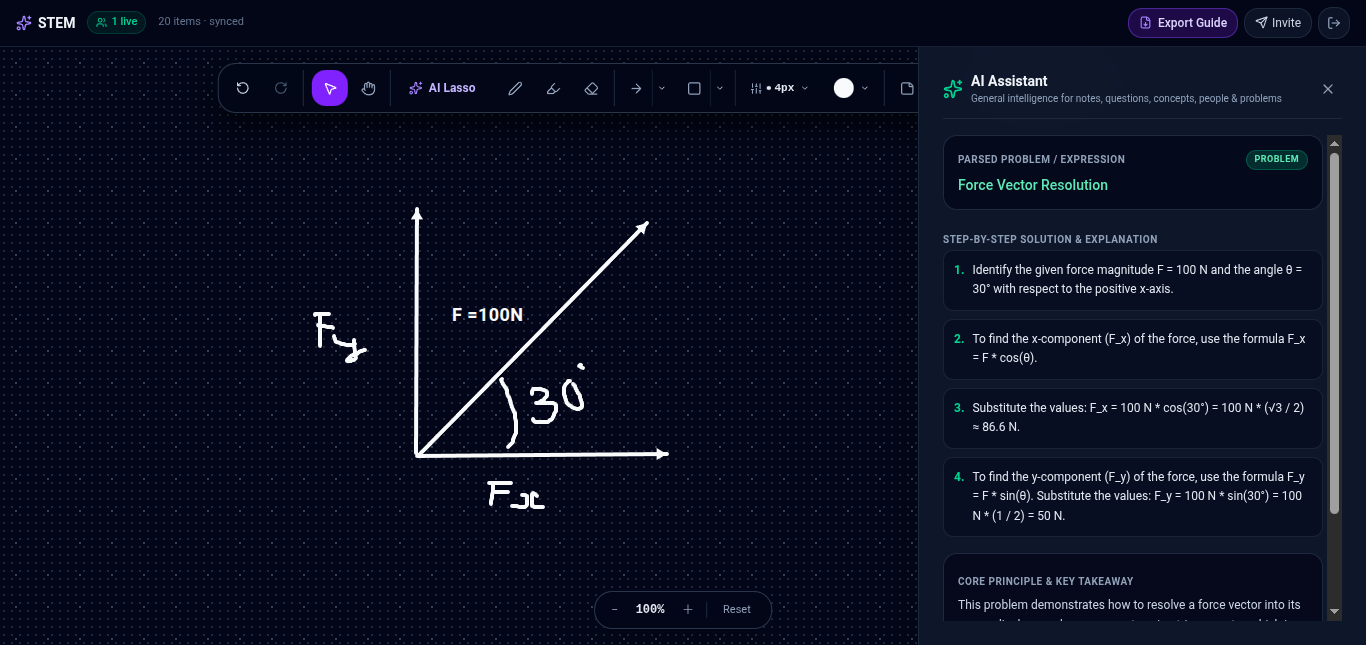
Step-by-Step AI tutor
-
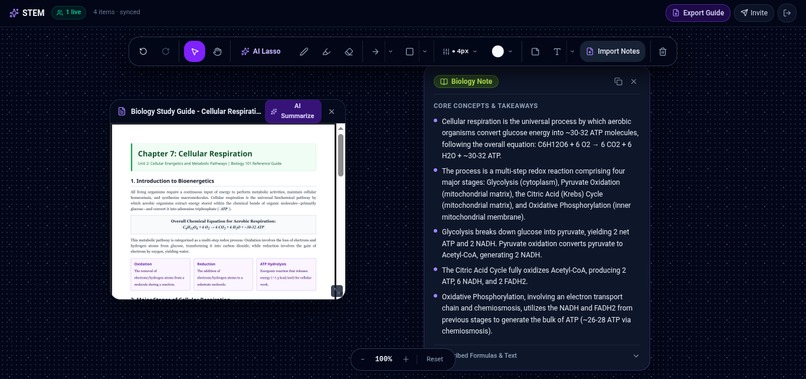
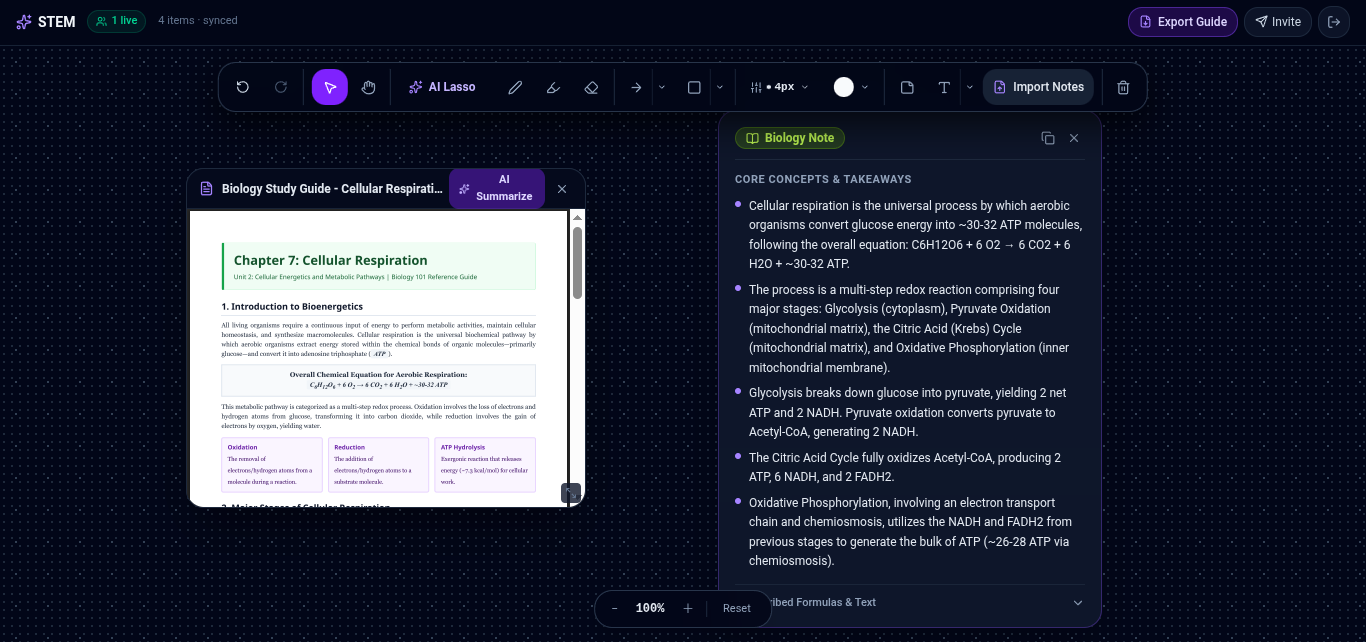
Import notes and summarize
-
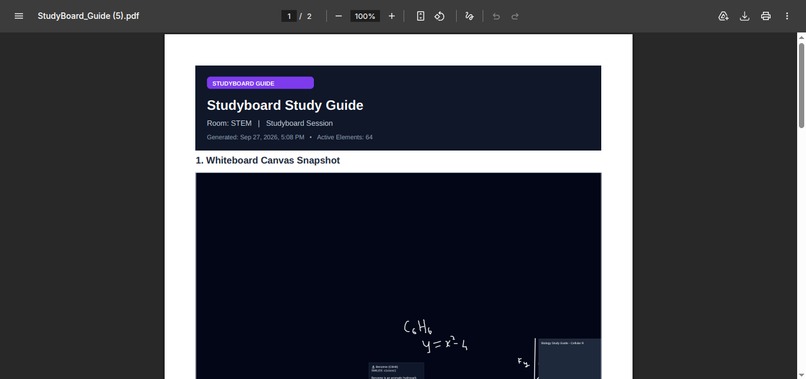
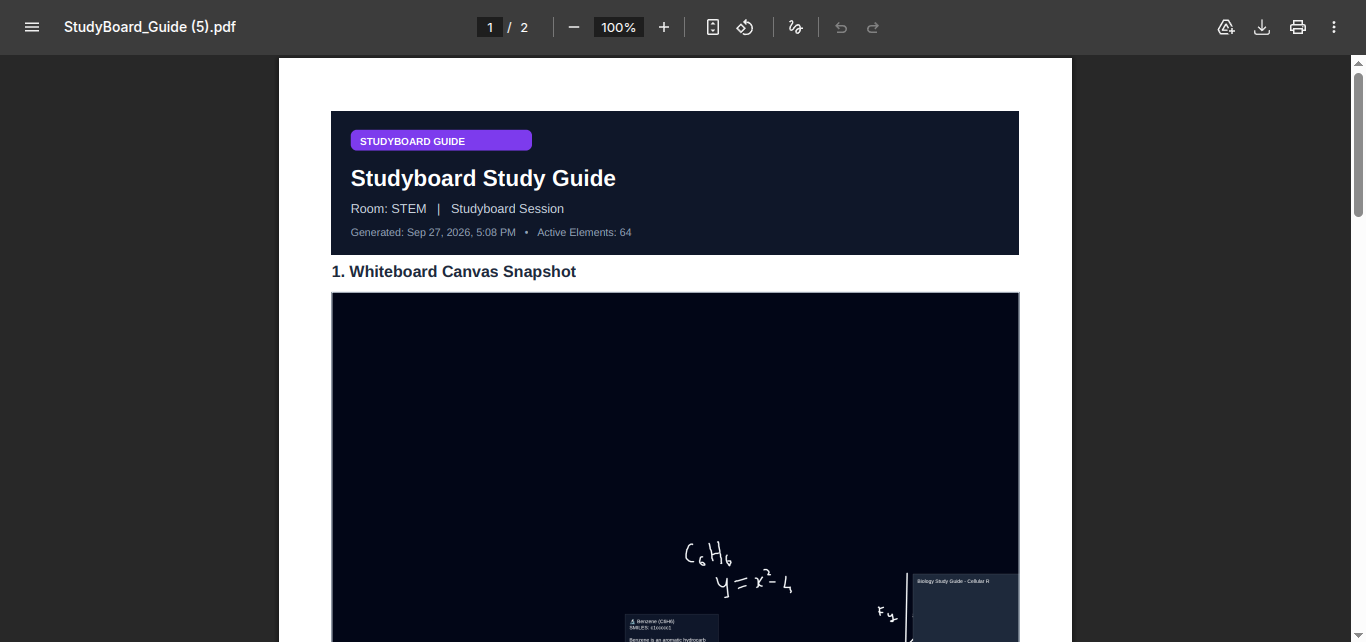
Export guide btn generated pdf
-
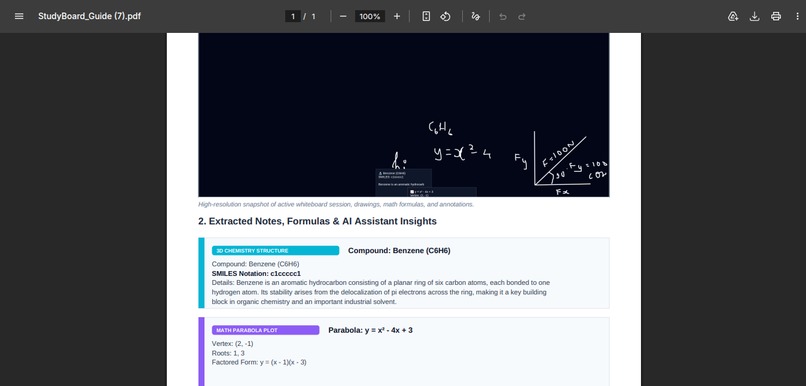
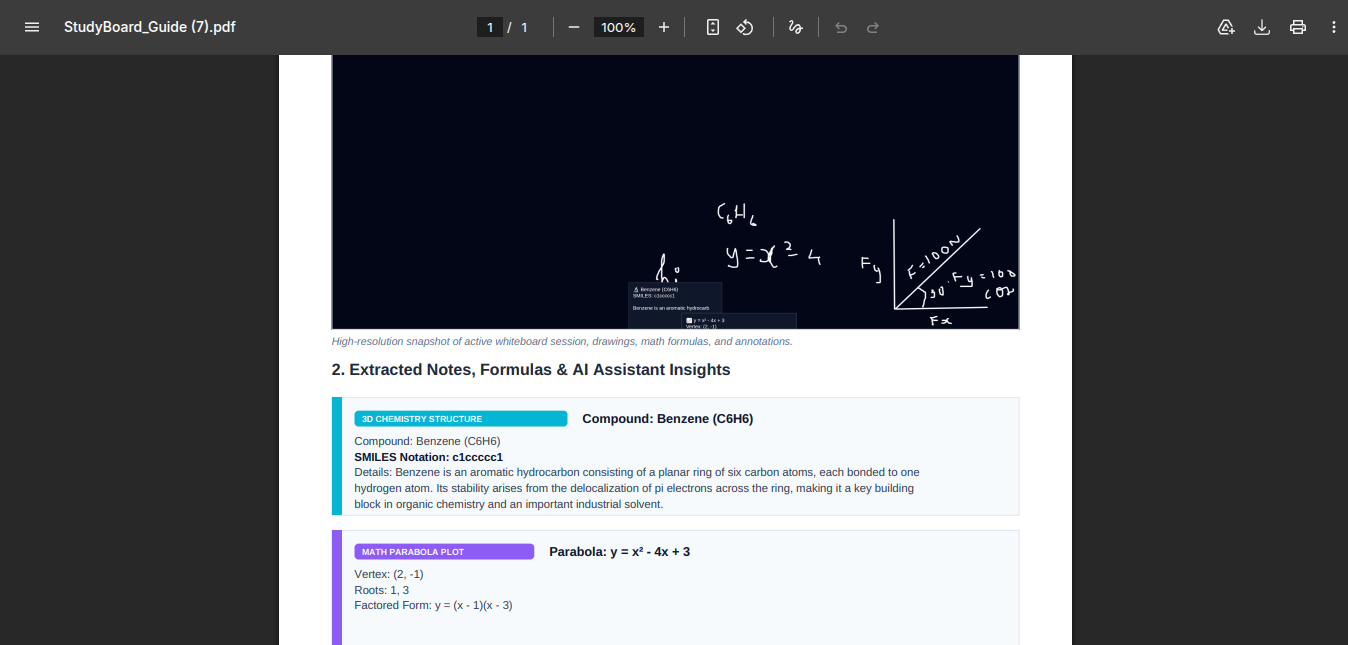
Export guide btn generated pdf
🎓 StudyBoard: The Collaborative STEM Whiteboard Built for Student Study Calls
Quick Pitch: StudyBoard turns frustrating, passive video calls into an active visual workspace. Study groups can import their lecture notes, draw together in real time, circle handwritten problems to get instant AI explanations, and turn flat chemical formulas into interactive 3D molecules.
Inspiration
Every single week, my friends and I hop on Discord or Zoom to study for our math, physics, and chemistry classes. And every single week, we hit the exact same wall: video calls are terrible for studying STEM.
Here is what normally happens:
- One person shares their screen, and everyone else just sits there quietly watching them work. It feels less like studying together and more like watching a boring livestream.
- When someone gets stuck on a calculus step or a reaction mechanism, they end up awkwardly holding their paper notebook up to their webcam, asking: "Can you see this? Am I doing this line right?"
- Flat formulas written on paper or slides make no sense when you're trying to visualize shapes. Writing "CH₄" on a screen doesn't help you understand why methane forms a 3D pyramid with bond angles, or how a molecule actually rotates in space.
- If someone needs to look up a formula or graph an equation, the group call goes silent while everyone scrambles across five different tabs—Desmos, Google, textbooks, and notes.
We built StudyBoard because we wanted a space where our whole study group could actually work together on the same canvas, import our actual assignments, understand confusing steps without getting stuck, and visualize science in 3D without leaving the room.
🆚 Why Normal Video Calls Don't Work vs. How StudyBoard Fixes It
| The Normal Video Call Problem ❌ | How StudyBoard Solves It 🚀 |
|---|---|
| Only one person can write. One screen share means one person talks while everyone else zones out. | Everyone has a pen. The whole study group can draw, write, and drop sticky notes on the same infinite board simultaneously. |
| Awkwardly holding paper to webcams. You can’t read faint pencil lines through a blurry camera. | Import notes & slides directly. Drag and drop homework PDFs, screenshots, or lecture slides right onto the canvas. |
| Getting stuck on a math step kills the call. You spend 20 minutes arguing over where a minus sign disappeared. | Lasso → AI Explain. Circle messy handwriting with the lasso tool. Google Gemini reads the steps, explains what went wrong in plain English, and pins a helpful note right to the board. |
| Molecules are trapped in 2D. Flat letters like CH₄ or C₆H₁₂O₆ don't show real 3D spatial depth. | Lasso → 3D Molecule. Circle any formula to instantly render an interactive 3D ball-and-stick model you can spin with your mouse. |
| Opening 10 tabs for graphing. Having to switch back and forth between a whiteboard and a graphing calculator. | Lasso → Math Grapher. Circle any equation to instantly see the plotted parabola, vertex, roots, and factored form. |
| At the end, no one has clean notes. You’re left with messy scrap paper and lost chat links. | 1-Click Study Guide Export. Click one button to download the entire board—work, graphs, and AI notes—as a clean, organized PDF. |
What it does

StudyBoard brings all the tools a STEM study group needs into one smooth, distraction-free dark canvas:
1. Import Notes, Slides, and Homework Sheets
Students don't start from scratch—they usually have lecture slides, past exams, or homework handouts. In StudyBoard, you simply drag and drop images or PDFs right onto the canvas. You can highlight text, draw arrows pointing to tricky questions, and write notes right alongside the problem.
2. AI Explain (Circle with Lasso to Understand)
When someone in the group doesn't understand a step in a derivation, you don't have to leave the board or copy-paste text into a chatbot:
- Grab the Lasso Tool and draw a ring around the handwritten or typed work.
- Click AI Explain.
- Google Gemini reads the handwriting and breaks down the work in friendly, student-to-student language:
- What it read: Transcribes the equation so you know it understood your writing.
- Step-by-step breakdown: Explains the logic of how each line connects to the next.
- Core concept: Summarizes the main lesson or formula rule behind the problem so you actually learn the concept.
- Click Pin to Canvas to drop the explanation right next to your handwriting as a clean sticky note.
3. 3D Molecular Chemistry Visualizer
Learning chemistry from flat paper makes it almost impossible to understand bond angles and molecular shapes.
- Circle any chemical formula (like CH₄, Ethanol, Glucose, or Caffeine) with the lasso tool.
- Click View 3D Molecule.
- In less than two seconds, StudyBoard pops up an interactive, rotatable 3D ball-and-stick model rendered with WebGL. You can rotate it with your mouse, zoom in on bonds, and see the geometry from every angle.
4. Built-in Interactive Math Grapher
- Circle any equation (like y = x² - 4x + 3).
- Click Plot Math Graph.
- StudyBoard plots the interactive curve, calculates the vertex and real roots, and factors the equation for you right inside a clean overlay.
5. Eye-Safe Dark Mode & 1-Click PDF Export
- The entire interface is built in a dark slate theme so your eyes don't get tired during late-night study cram sessions.
- When your study session wraps up, hit Export Study Guide to compile your notes, graphs, and AI summaries into a downloadable PDF packet.
🛠️ How we built it

We wanted StudyBoard to feel instant, snappy, and reliable, so we carefully picked modern web tools that work together without bloat:
| Part of the App | Technology We Used | Why We Picked It |
|---|---|---|
| Frontend Framework | Next.js 15 (App Router) & React 19 | Fast page loads, rock-solid TypeScript support, and modern server routes for our AI calls. |
| Drawing Canvas | HTML5 Canvas API + Custom Matrix Math | Smooth drawing, panning with the spacebar, zooming from 40% to 150%, and zero lag when sketching. |
| Multimodal AI | Google Gemini API (@google/genai) |
We run Gemini on server-side API routes (/api/gemini/explain). It looks at crops of our canvas, reads handwriting, and returns structured steps. Running it server-side keeps our API keys completely safe. |
| 3D Molecules | Three.js (WebGL) | Lets us render lightweight, responsive 3D sphere-and-cylinder molecular bonds that you can spin smoothly with your mouse or finger. |
| Styling & Theme | Tailwind CSS v4 & Lucide React | Gives us a consistent dark-mode look (slate and zinc dark backgrounds with emerald and cyan highlights) and clean icons. |
| Study Guide PDF | jsPDF | Converts canvas sections and notes into a downloadable PDF with one click. |
🧗 Challenges we ran into
1. Making the Canvas Math Work with Zoom and Pan
Building an infinite canvas is deceptively tricky. When a user zooms in to 125% and pans 300 pixels to the left, a mouse click at screen coordinate (400, 300) is no longer at (400, 300) on the drawing board.
Writing the inverse coordinate math so that pen strokes, note imports, and lasso bounding boxes line up perfectly at any zoom level took a lot of trial, error, and trigonometry. We had to make sure that when you lasso a problem, the image crop sent to Gemini captures the exact handwriting without cutting off edges or adding distortion.
2. Getting AI to Explain Handwriting Naturally
At first, general AI prompts would either give away the final answer immediately or write long, robotic paragraphs with dense jargon that no student wants to read during a study session.
We tuned our Gemini prompts to sound like a friendly, patient peer who is great at math. We instructed Gemini to return clean, structured JSON: first transcribing the line to confirm it read the handwriting correctly, then giving short numbered steps, and ending with the big-picture takeaway.
3. Letting 2D and 3D Live Together Peacefully
Running a 3D WebGL viewer on top of a 2D drawing canvas created weird event conflicts at the start. When you tried to spin the 3D molecule with your mouse wheel, the background whiteboard would zoom in and out at the same time! We solved this by isolating pointer events and modal barriers so you can freely rotate molecules without moving your canvas underneath.
🏆 Accomplishments that we're proud of
- AI that lives on the canvas, not in a chat box: Most AI study apps force you to copy-paste questions into a generic sidebar chatbot. In StudyBoard, the AI lives right where you write. You circle your problem with a pen, and the explanation attaches directly to your work.
- Making 3D science accessible in 2 seconds: Being able to scribble a formula like CH₄ and immediately spin a 3D model with your mouse makes abstract chemistry feel real and intuitive.
- A tool students actually want to use: We designed StudyBoard to solve our own real frustrations. It’s clean, eye-friendly, fast, and doesn't get in your way.
💡 What we learned
- How to use multimodal AI effectively: Vision models like Gemini are incredible at reading messy handwriting when you feed them clean crops and ask for structured JSON instead of open-ended text.
- Graphics programming on the web: We gained a deep appreciation for coordinate transformation matrices, canvas layer caching, and WebGL lighting.
- What real collaboration needs: Great study tools shouldn't replace thinking—they should help students unstick each other faster so they can keep learning together.
🚀 What's next for StudyBoard
| Timeline | Next Feature | What It Will Do |
|---|---|---|
| Next Month | Built-in Voice Huddles | Add native WebRTC audio right into the room so friends can talk without even opening Discord or Zoom. |
| Upcoming | Physics & Circuit Simulator | Let students circle hand-drawn circuit diagrams or physics ramp problems and watch real-time simulations run live on the board. |
| Future | Multi-Page Lecture Slide Decks | Automatically lay out a 20-page lecture slide PDF horizontally across the board so each slide has its own dedicated study station. |
🌟 Try StudyBoard!
Stop struggling with blurry webcams, awkward screen shares, and flat formulas. Open StudyBoard, invite your friends, and make your study sessions visual, interactive, and fun!
Built With
- next.js
- react
- typescript


Log in or sign up for Devpost to join the conversation.