-
-
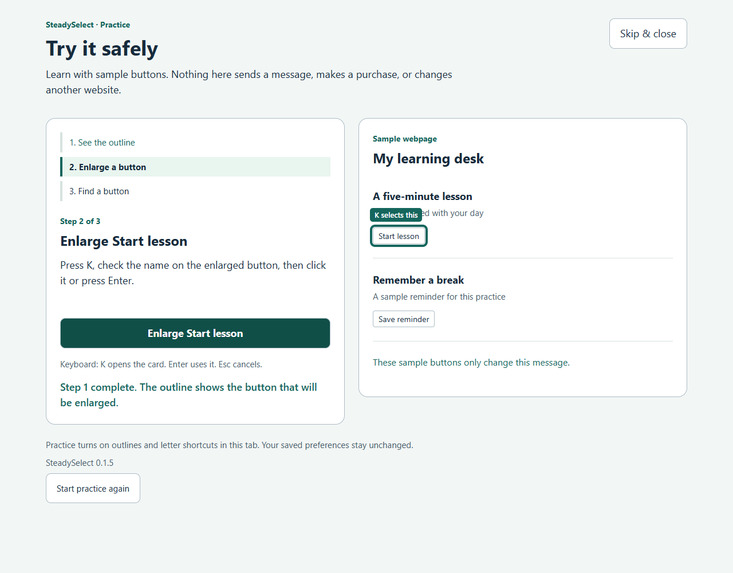
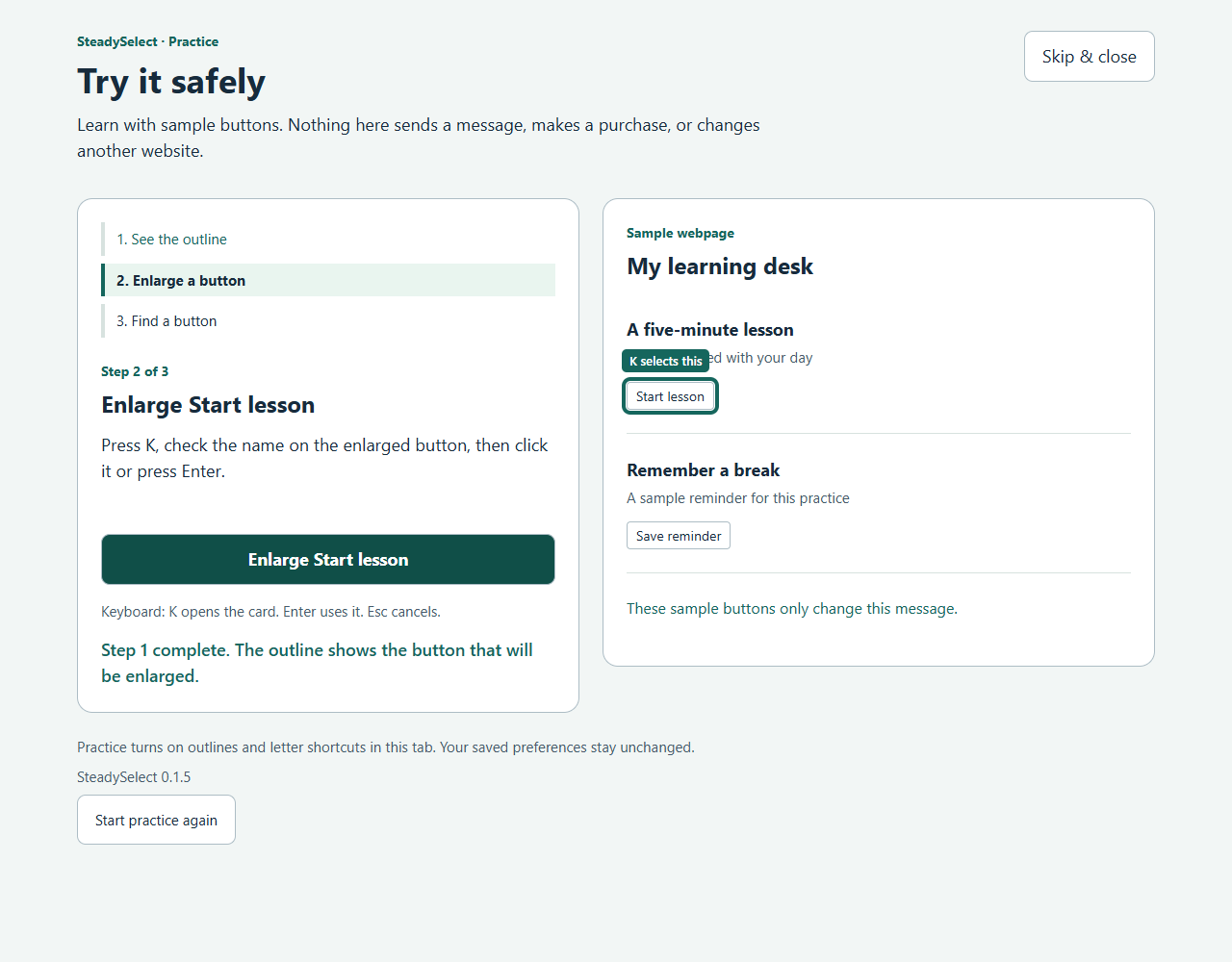
Try it safely: the guided walkthrough teaches the live outline, enlargement, and finding a button.
-
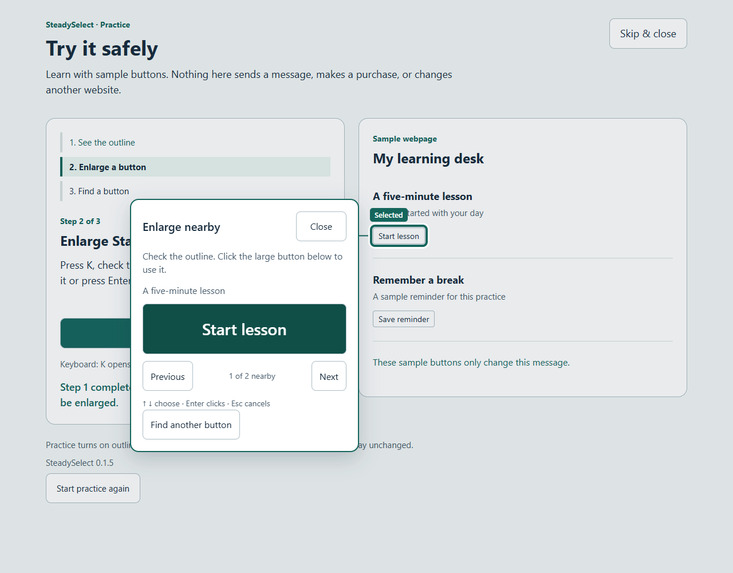
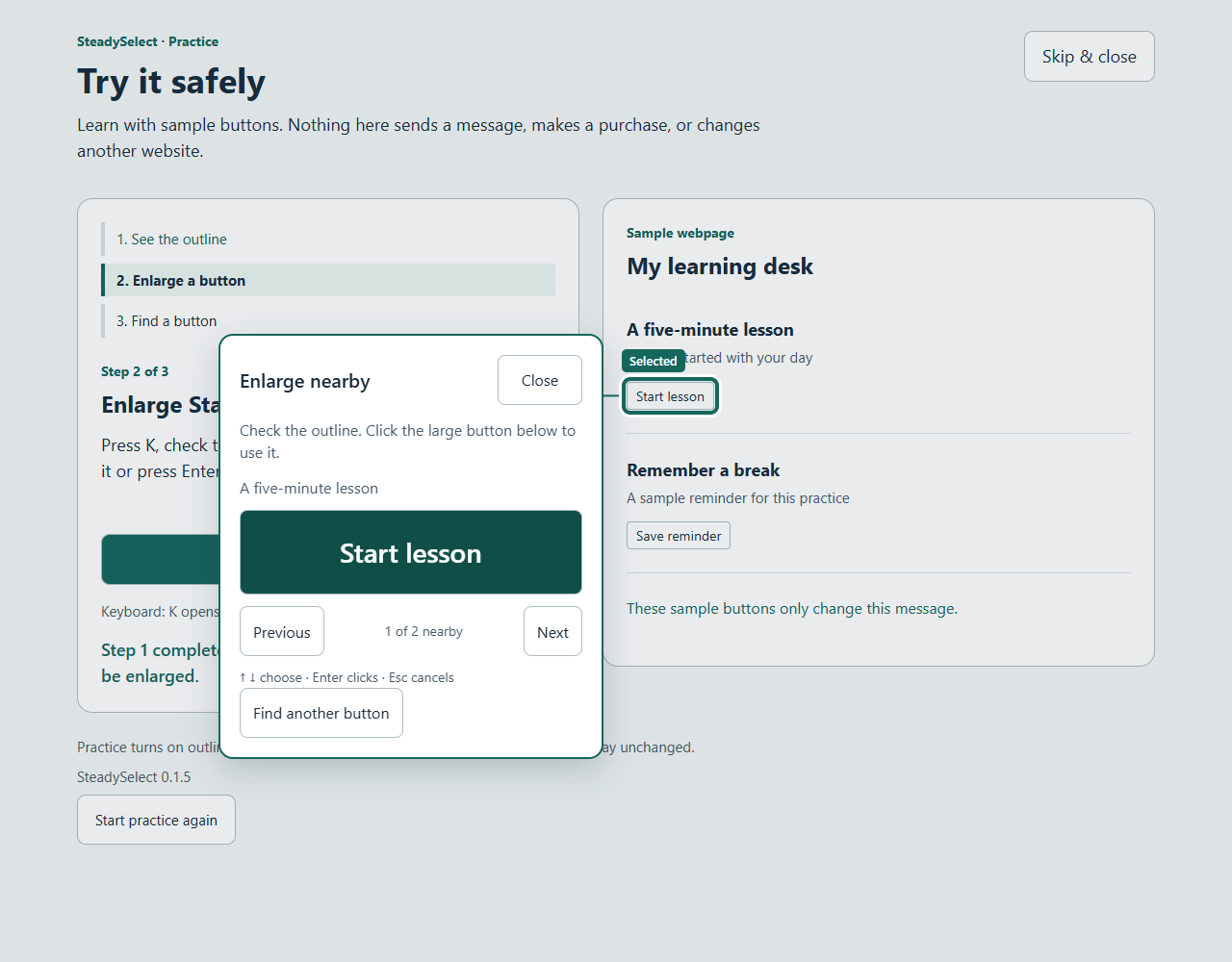
Enlarge nearby: review a large Start lesson action while the original button stays outlined.
-
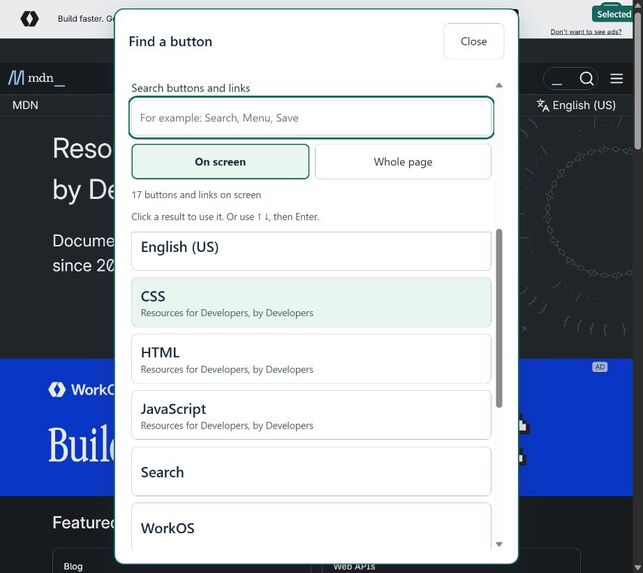
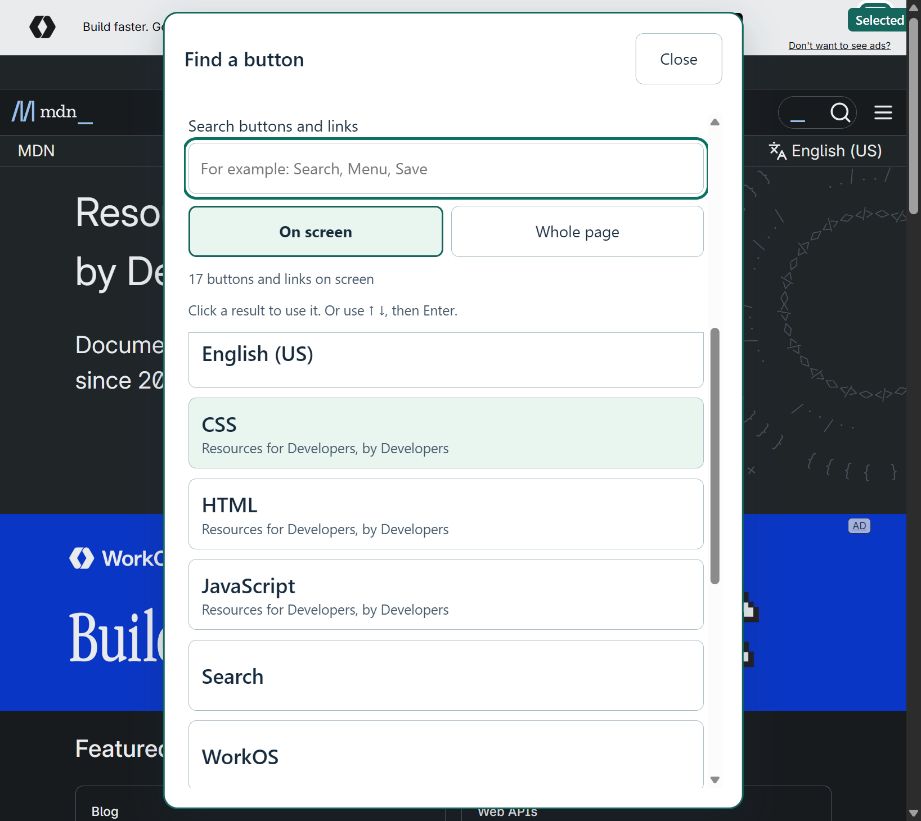
Find a button on MDN: searchable actions, keyboard selection, and visible search and Close controls.
-
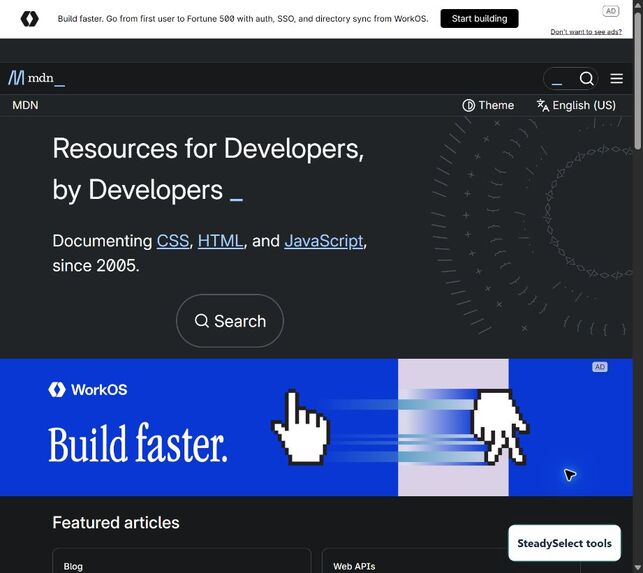
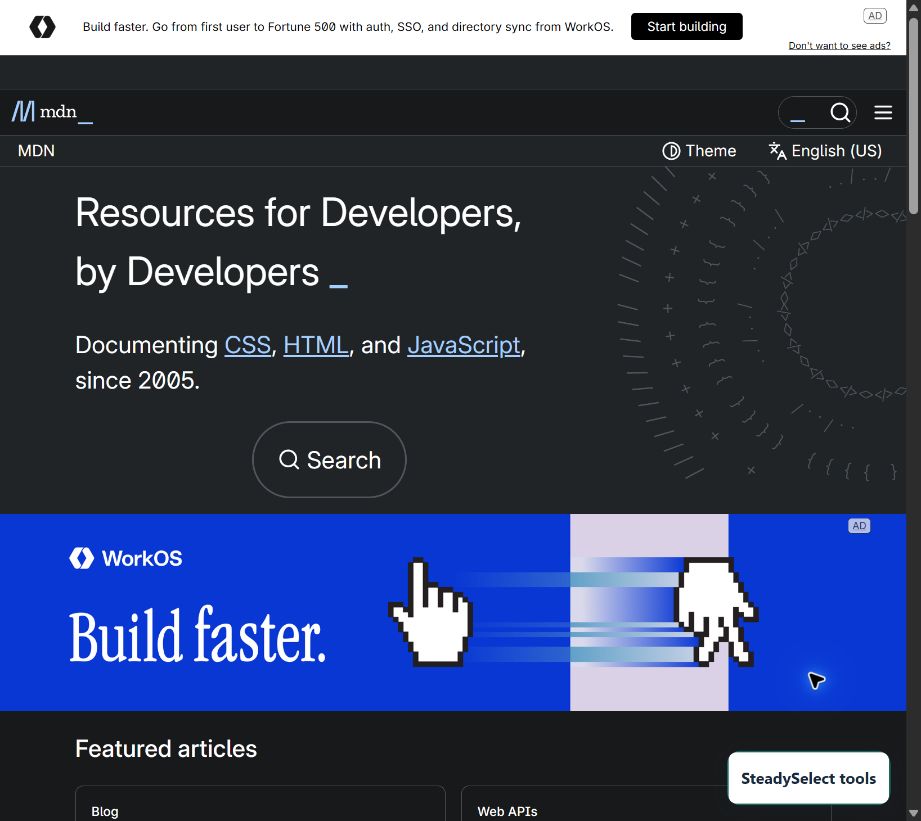
Installed Chrome: collapse the toolbar to one button while shortcuts and highlighting keep working.
Inspiration
Sometimes the barrier to getting a task done is the size of the next button. I wanted to build for someone whose pointer does not land exactly where they intend, or who has difficulty seeing small controls. A course dashboard's tiny Start button should not require repeated precision clicks before a person can begin learning.
SteadySelect focuses on that single moment: point approximately, see the intended target, then choose deliberately.
What it does
SteadySelect is a working Chrome extension that offers two ways to use supported webpage controls:
- Enlarge nearby: a live outline previews the nearest supported button or link. Open a stationary card with a much larger action, check its label, then click it or press Enter. Nothing activates from hovering alone.
- Find a button: search the supported actions currently on screen, move through results with the arrow keys, and confirm a choice. Whole page can include loaded offscreen controls; these are revealed before a second confirmation.
Escape cancels. Optional K/L shortcuts complement large mouse controls. People can turn the moving outline on or off, increase text and button sizes, and collapse or move the toolbar without dragging. A built-in Try it safely walkthrough teaches the real interaction using two harmless sample buttons.
For example, in the practice lesson, a small Start lesson button becomes an outlined target and a large, stationary Start lesson action. The original control is activated once after confirmation. This demonstrates the interaction change; it is not a measured claim about task speed or error reduction.
How I built it
I built the project solo with assistance from OpenAI Codex, using plain JavaScript, HTML, CSS and Chrome Manifest V3. A service worker enables assistance on the current page. Local scripts discover labeled native controls and supported custom buttons, calculate nearby candidates, and render the outline, action card and list. The extension can inspect accessible open shadow roots and use visible labels for styled checkboxes and radio buttons.
Before acting, it checks that the selected target has not changed, including its label, state, destination and position. If the target changes, the user must select again. The selection does not chase the pointer while its panel is open.
It runs locally with only activeTab, scripting and storage permissions. There is no account, backend, analytics, API key or runtime AI. Page content and pointer coordinates are not sent anywhere; only preferences are saved.
Challenges I ran into
Real websites do not all use ordinary buttons. Initial testing missed custom controls and component-based buttons. Supporting role=button controls, open shadow roots and styled input labels made the extension work on more real pages.
Focus and scrolling also mattered. Some sites dismiss a menu when focus moves; SteadySelect must cancel that changed selection instead of activating the wrong thing. A scrolled list also caused Settings to open halfway down its content. I fixed the scroll reset and added a regression check. These issues shaped the simpler toolbar and safe practice flow.
Accomplishments I am proud of
The final 0.1.5 source passed 74 automated checks: 53 local integration checks, 14 checks across Wikipedia, GitHub and MDN, and 7 W3C custom-button checks. They cover cancellation, ordinary typing, changed targets, single activation, custom controls, settings, toolbar layout and the practice flow. The toolbar was also checked in an installed Chrome profile, and I completed the installed practice walkthrough.
The most useful result is a complete interaction: see the target, enlarge or find it, confirm, and use the original webpage control. Both keyboard and mouse paths work, including the guided practice.
What I learned
Making a button larger is only part of the problem. Predictable selection, understandable labels, preserved typing, a reliable cancel action and a discoverable first-use experience all affect whether the tool is usable. Testing on actual websites exposed behavior that the first mock did not.
Try it and review the code
Download or clone the linked GitHub repository. In Chrome, open chrome://extensions, enable Developer mode, choose Load unpacked, and select the repository's extension folder. No build step, account or API key is needed. Open SteadySelect's popup and choose Try it safely for a guided walkthrough, then enable it on an ordinary webpage. The README includes installation, shortcuts, architecture, test commands and known limits.
The public test page provides harmless lesson buttons after installation. It includes a download link and setup steps. The webpage alone does not enable the extension's assistance.
Limitations and what is next
This is an early unpacked prototype, not a Chrome Web Store release. Chrome internal pages, embedded frames, closed shadow roots, canvas controls and arbitrary unlabeled widgets are unsupported. Some sites reject programmatic clicks. It does not move the native mouse pointer, magnify arbitrary text or replace a screen reader.
No study with the intended users has been performed, and I do not claim clinical benefit, universal compatibility or WCAG conformance. The next step is testing with people who experience the target barrier, measuring task completion and errors, and improving the design from their feedback before expanding compatibility or preparing a store release.
Original work and AI assistance
The implementation was created on October 24, 2026, informed by an October 23 nearby-selection experiment and a subsequent interactive mock. OpenAI Codex assisted with planning, coding, debugging, testing and documentation. The submitted extension and its working practice flow were developed through this iteration; the product itself does not call an AI service.

Log in or sign up for Devpost to join the conversation.