Inspiration
I design and review interfaces for a living, and the same problem keeps coming back: a screen that looks right in a design tool on a 27-inch monitor is wrong on the thing it is built for. Text on a platform display is too small to read from the far end of the platform. A kiosk button sits too low. A wearable screen is far smaller in the hand than it looked on the canvas.
The usual fix is to print it, tape it to a wall, or wait for a hardware build. A headset already knows where my desk and walls are and can draw a device at its real size, so I wanted to see how far I could get with only what I always have with me: my voice and my hands.
What it does
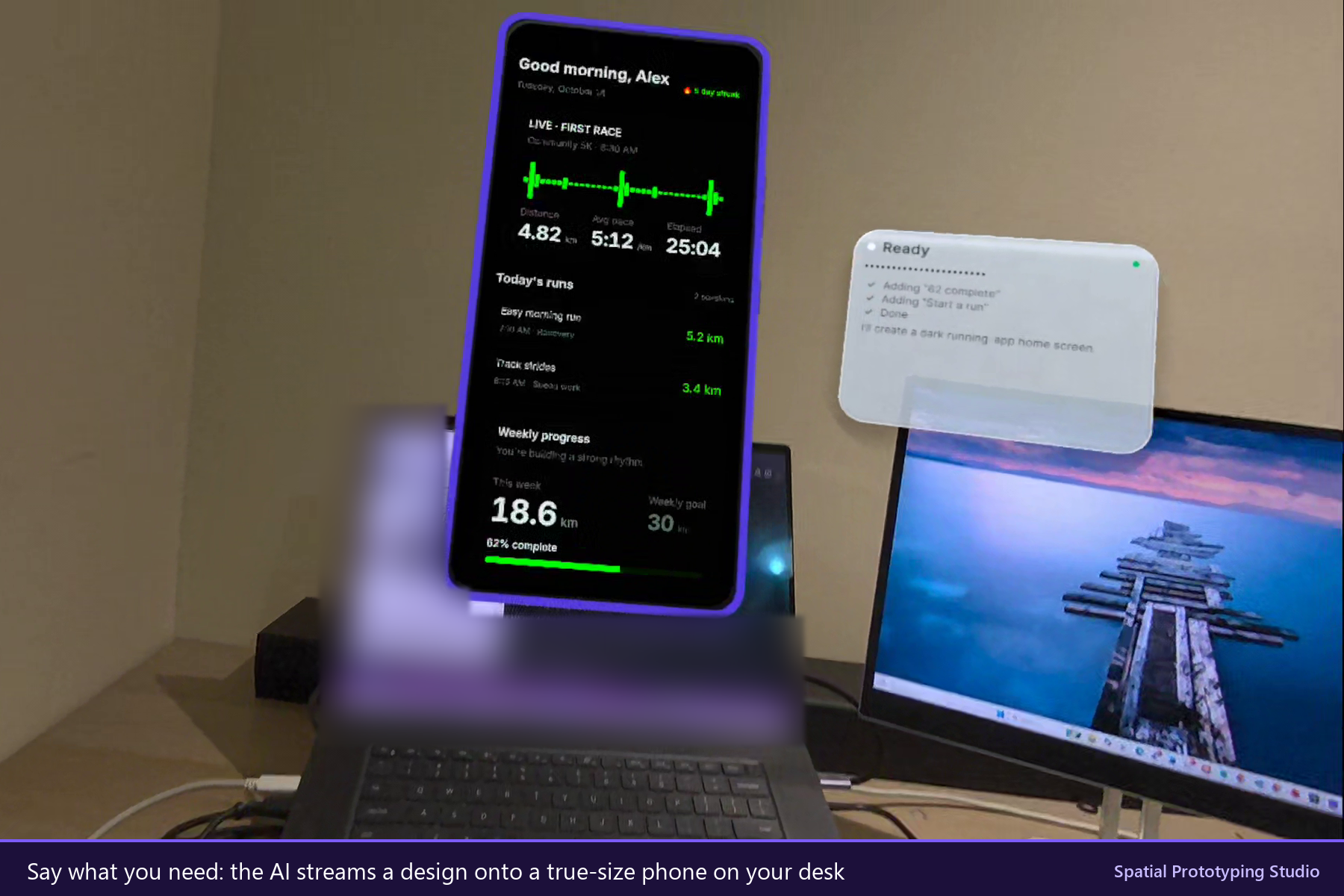
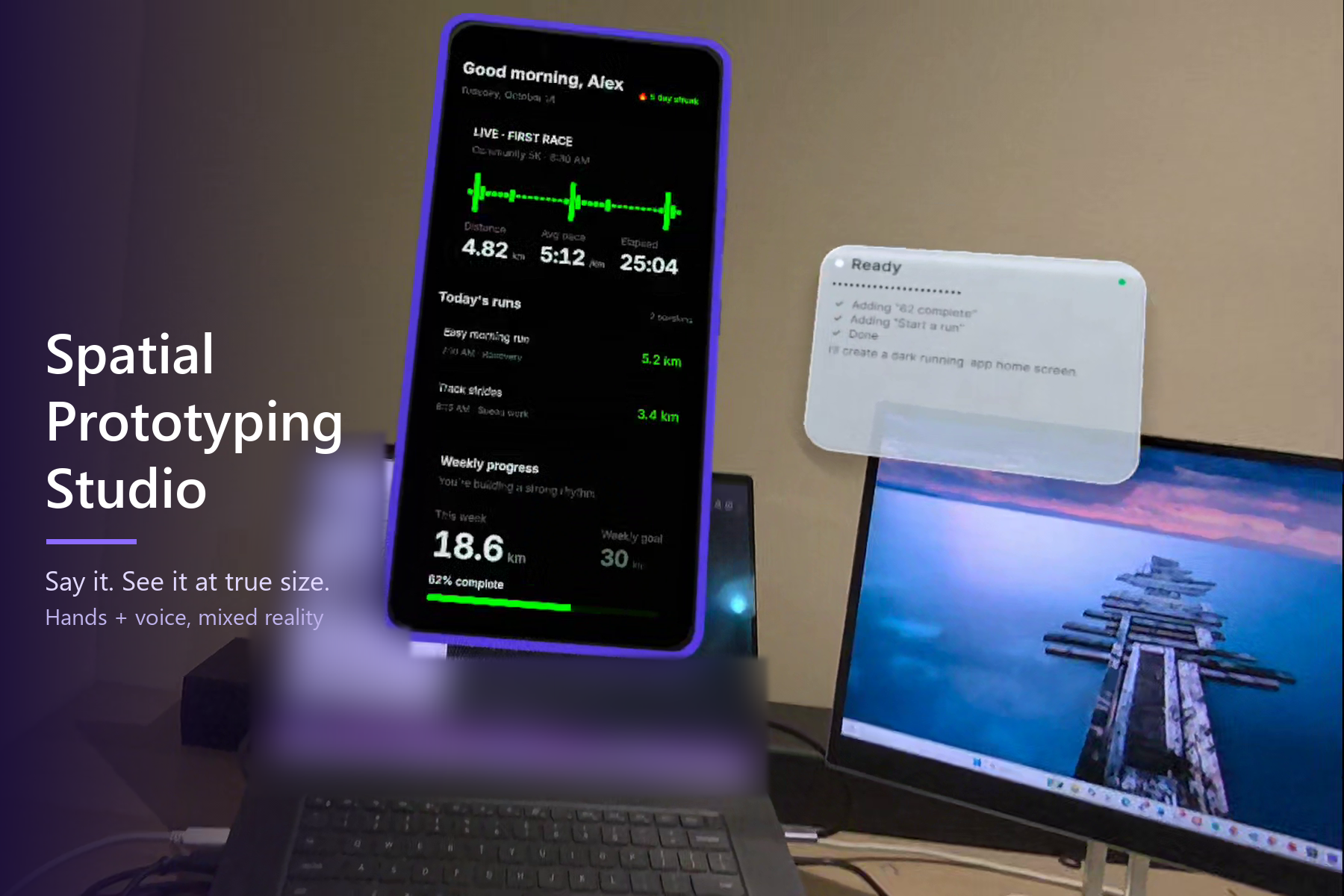
Spatial Studio is a mixed-reality app for Meta Quest 3 and 3S. You sit at your real desk and a generic, unbranded phone appears on it at true size.
- Say it. Tap Talk and describe a screen, for example "a home screen for a running app with today's run, a live heart-rate waveform and weekly progress". The design streams onto the device piece by piece while the assistant answers out loud.
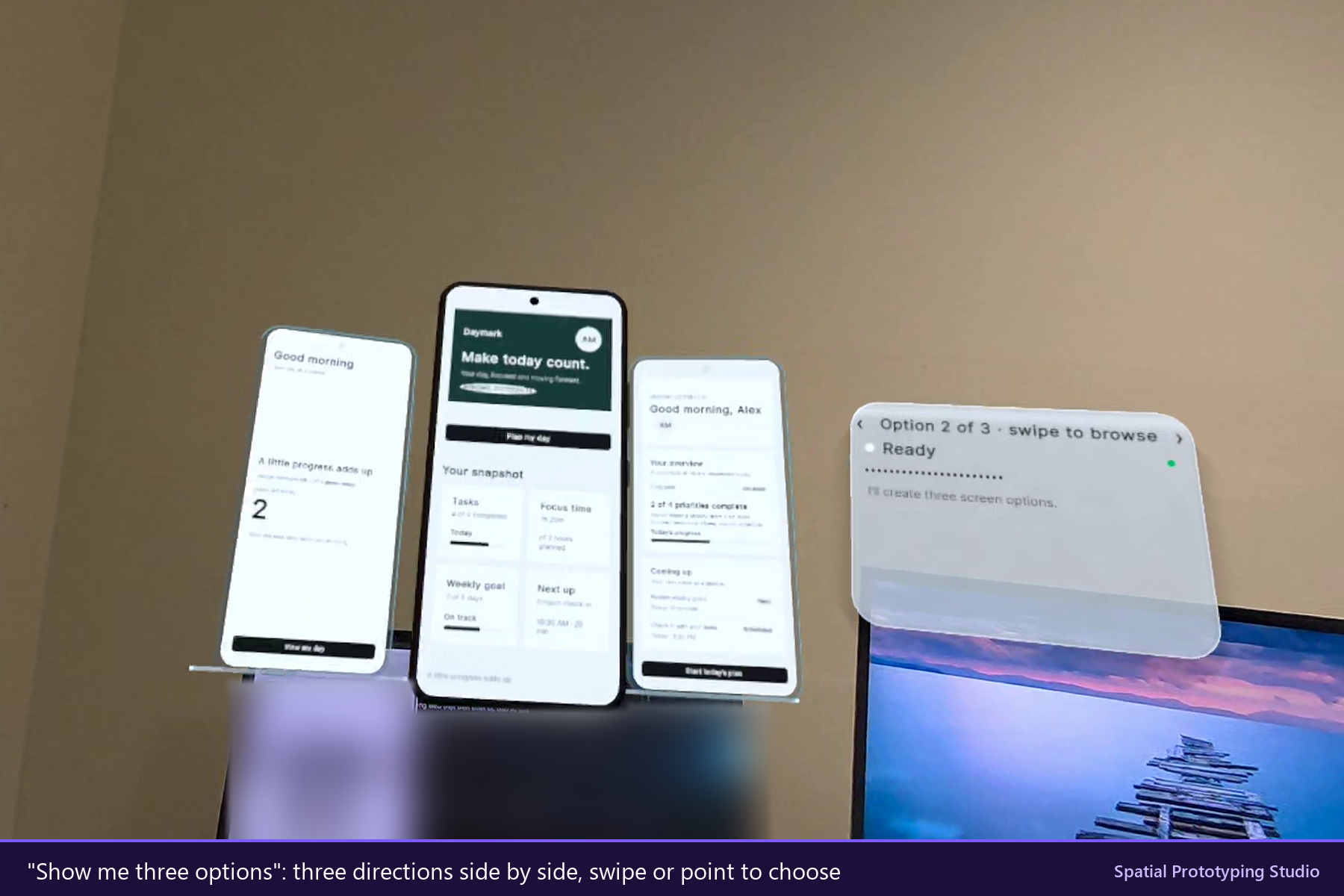
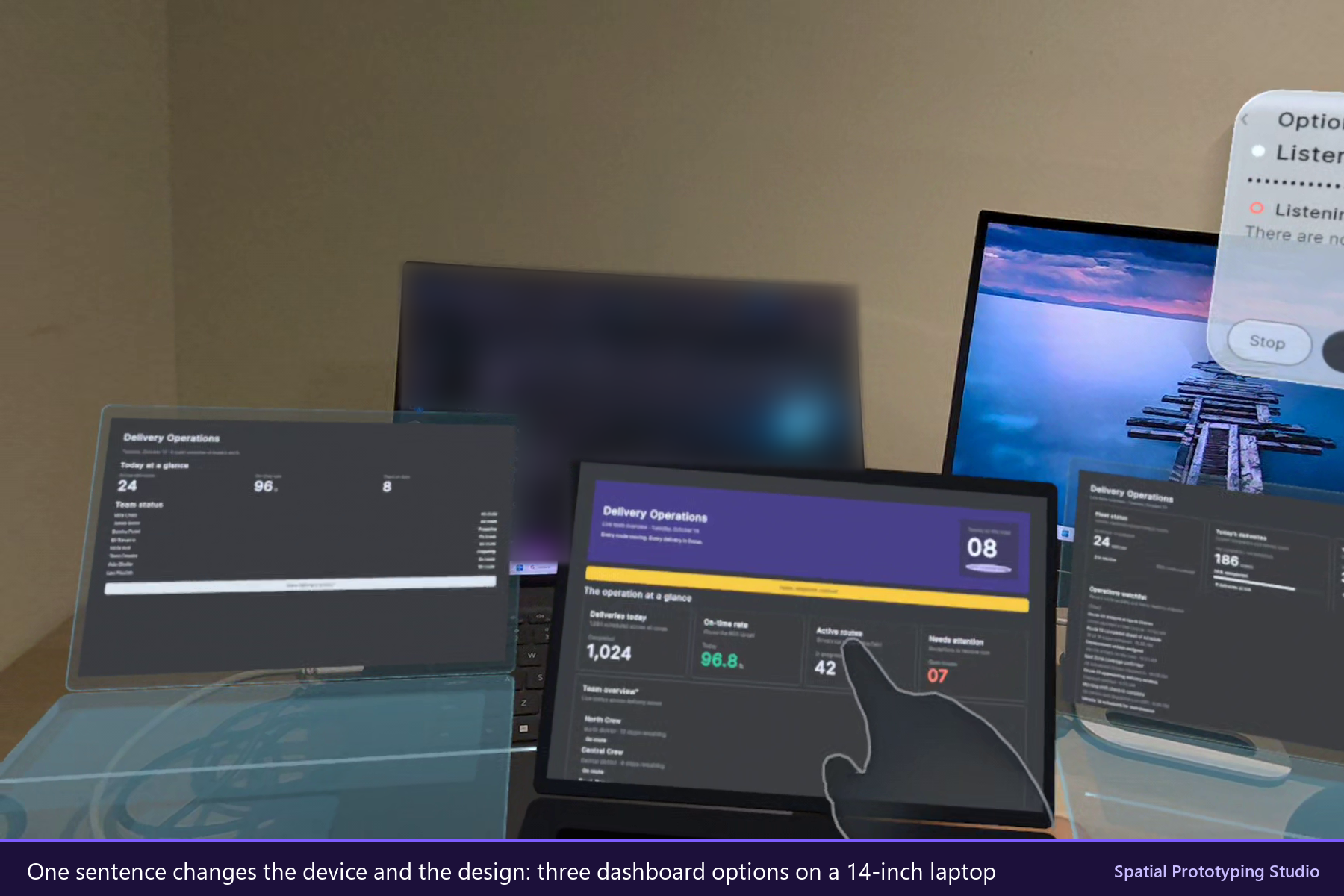
- Ask for options. "Show me three options" puts three directions side by side. Swipe through them and pick one with a pinch or by voice.
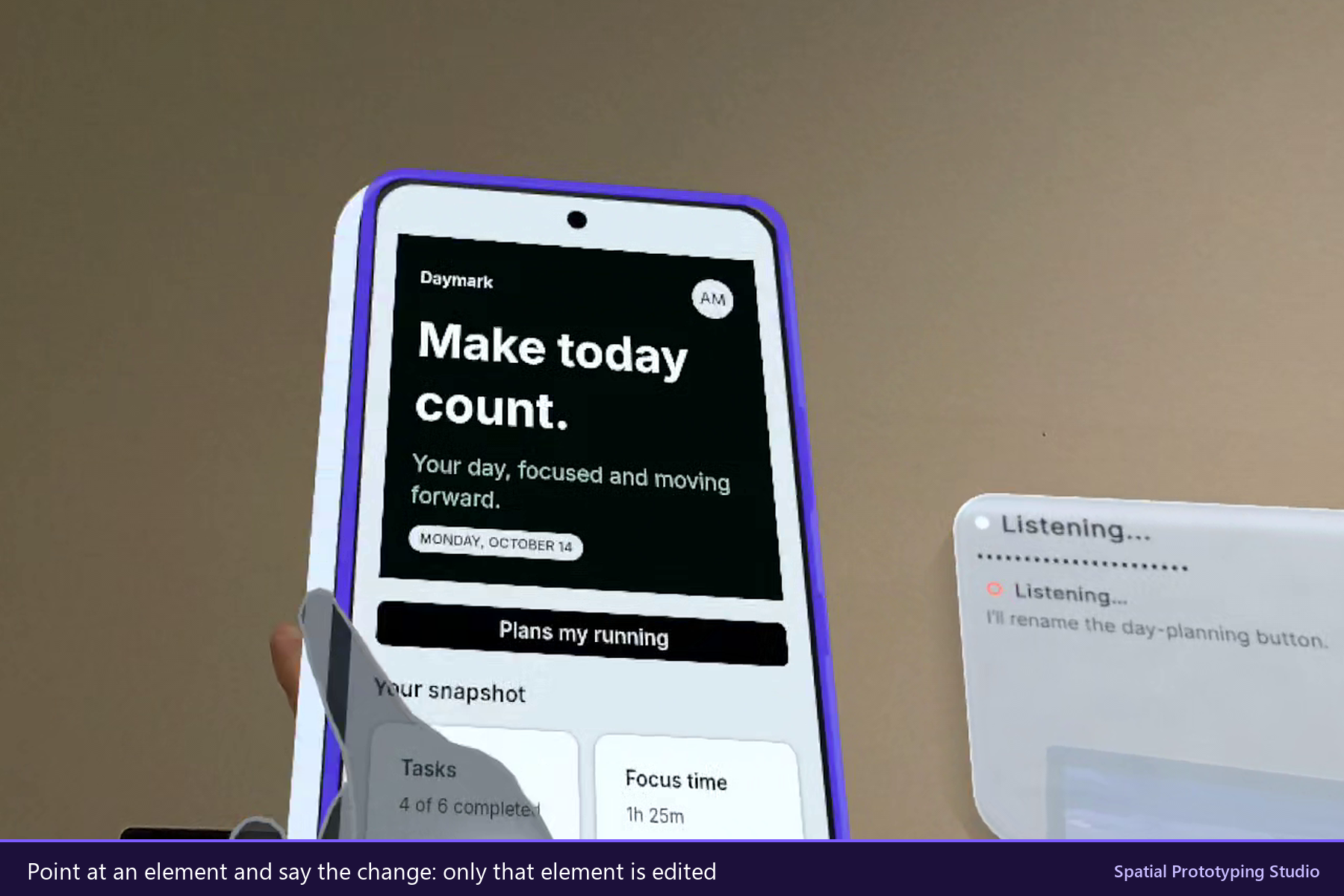
- Point and say. Touch or point at an element, then say what should change. Only that element is edited. Undo steps back.
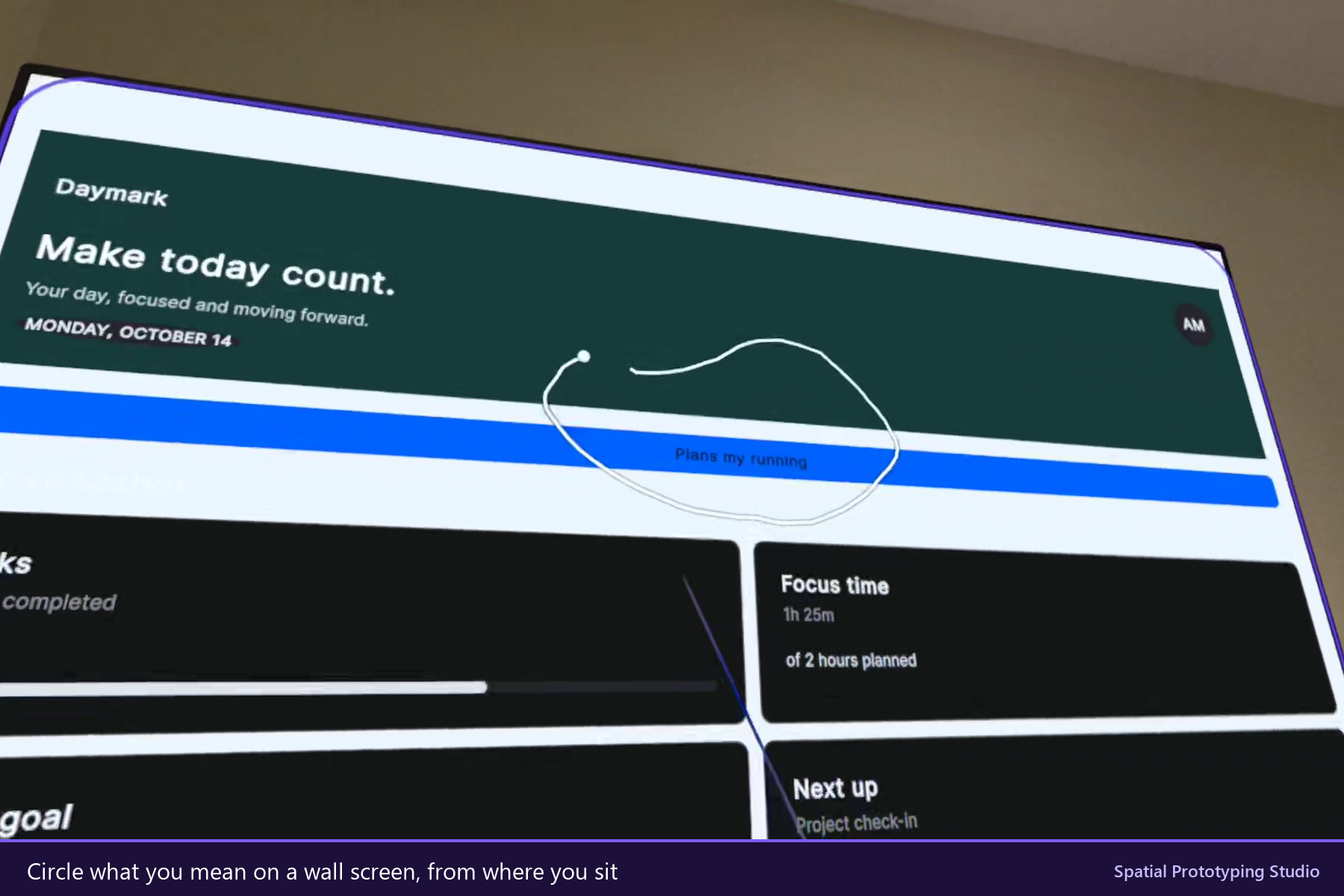
- Circle what you mean. Draw a loop around several elements, on a phone or on a wall screen across the room, and speak to all of them at once.
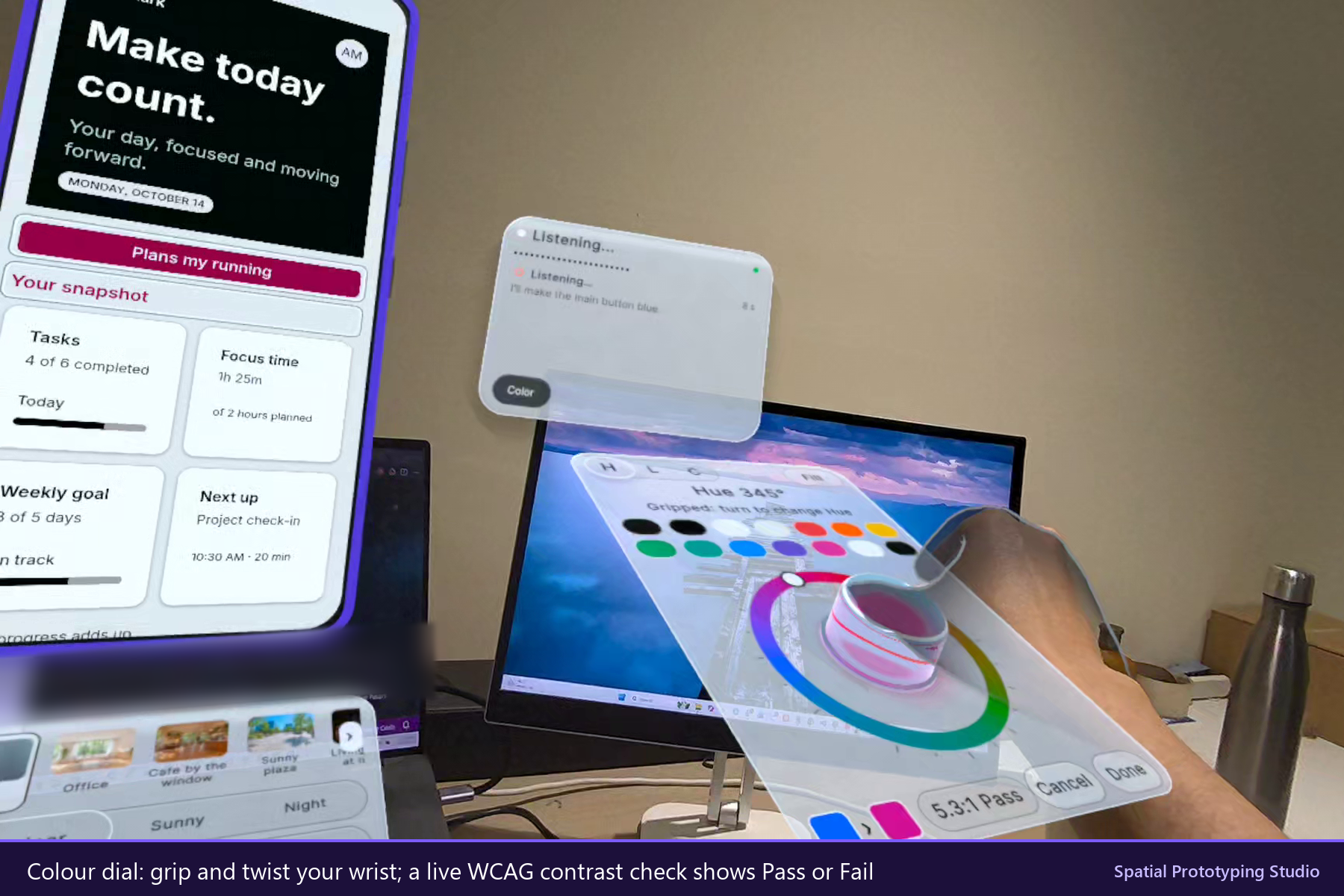
- Tune colour by hand. A colour dial sits on the desk: grip the knob and twist your wrist to sweep hue, lightness or chroma. A live contrast badge shows the WCAG ratio and Pass or Fail.
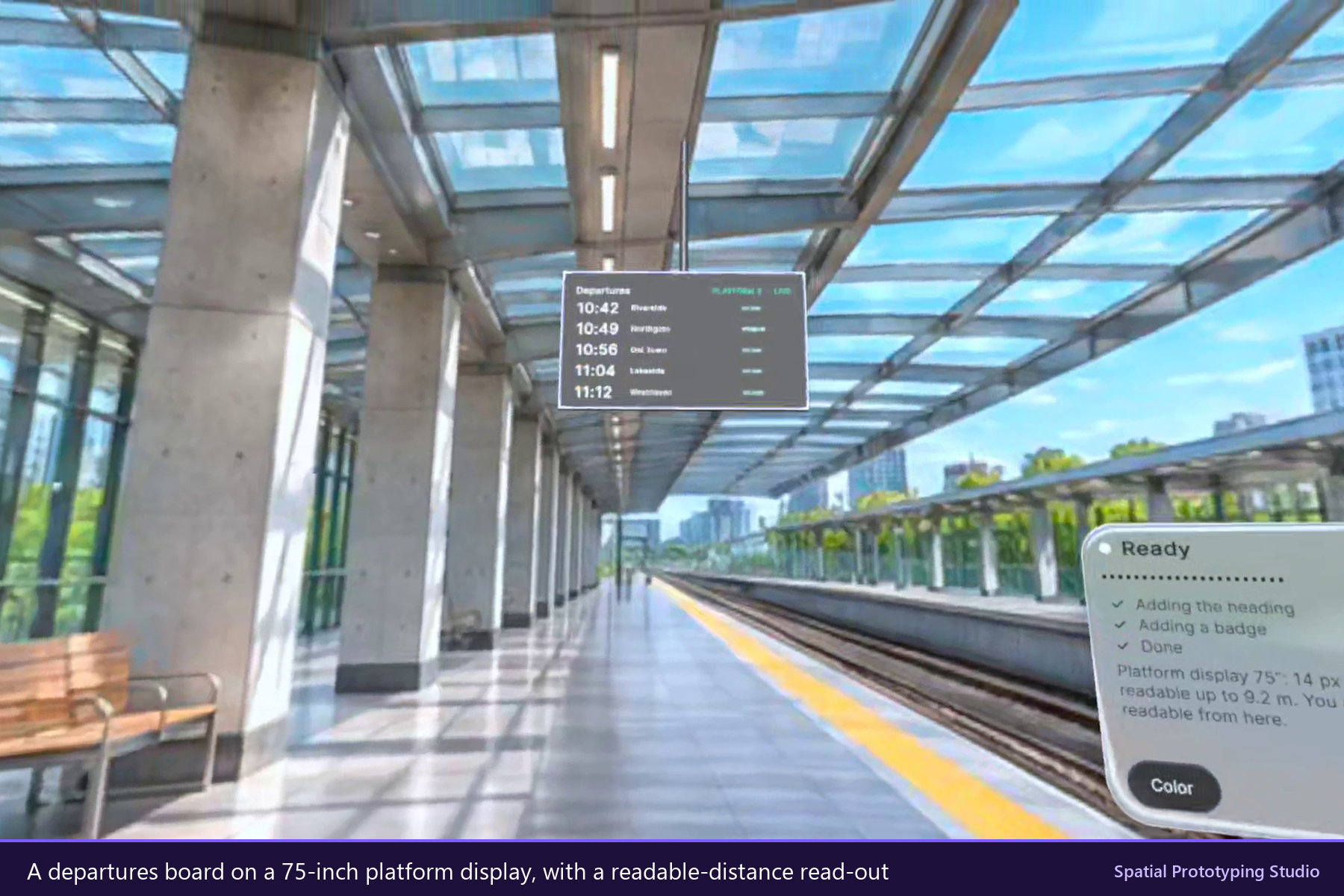
- Change the device. Phone 6.1", laptop 14", 21.5" kiosk, a small heart-rate monitor, a 55" TV on your real wall that can be resized by voice (the demo goes to 70"), and a 75" platform display.
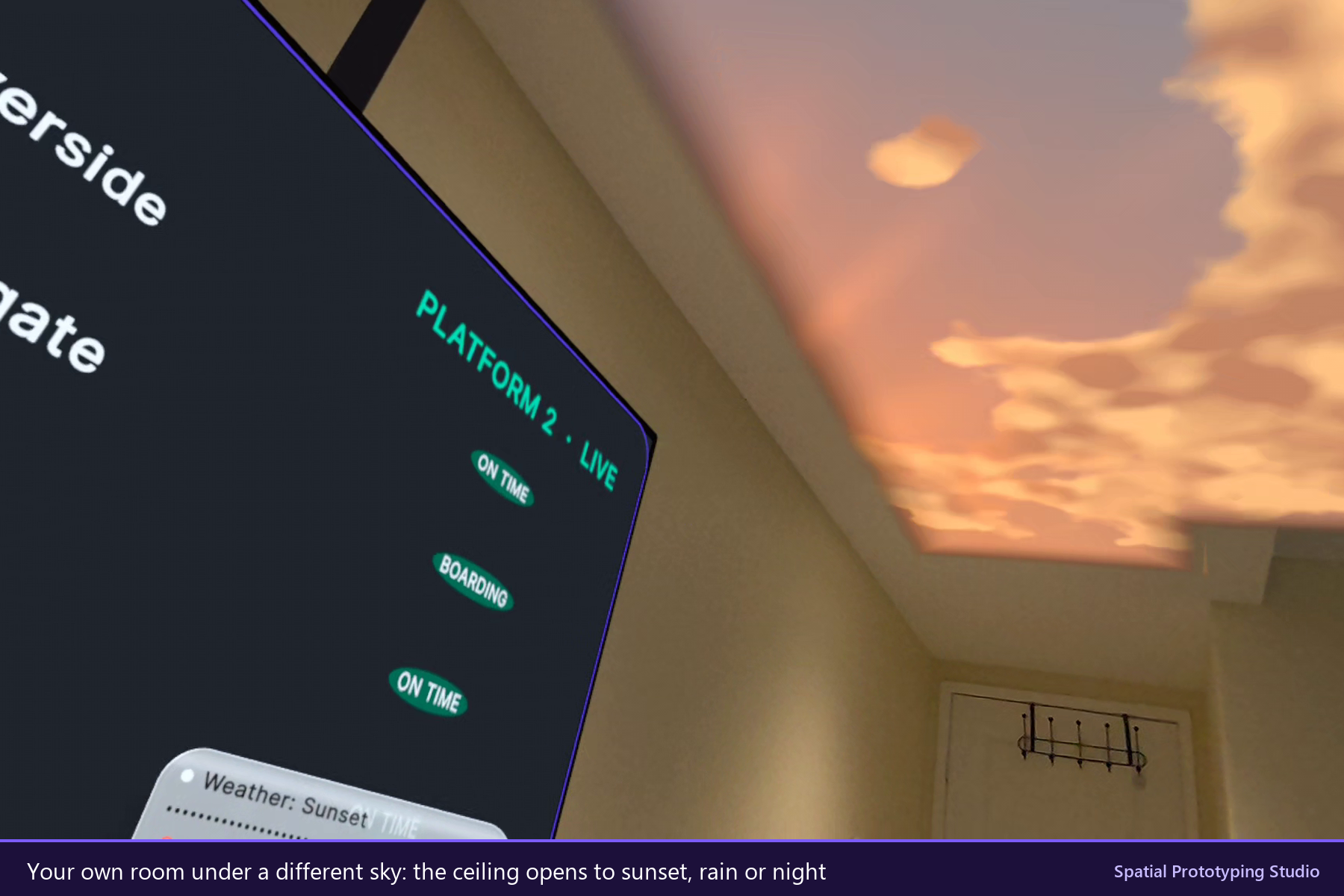
- Change the place. Stay in your room in passthrough, or go to an office, a station platform, a sunny plaza, a café, a living room at night, a factory floor, or a 3D scan of a real office. Weather and light (clear, cloudy, rain, snow, storm, sunset, night) are one tap away. In your own room the ceiling can open to that sky.
- Check legibility. The app works out the physical cap height of the text and tells you how far away it can be read, for example "14 px text is 22.9 mm tall, readable up to 9.2 m".
- Try it. Try mode opens a live web page on the virtual device so you can scroll and tap it with your fingers.
- Bring your own work. A design-tool plugin sends an existing frame into the headset, and an optional laptop Companion pairs with a code or QR and shows your laptop screen next to the prototype.
The assistant is an agent, not a command list. Every request carries a snapshot of the studio (device, place, what is selected, what you pointed at), and the model answers with speech plus calls to the same commands the hand UI uses. One sentence such as "put this on a laptop and make it a dashboard for a delivery team" changes the device and designs a new screen.
Without a connection the app still opens, with bundled sample designs, all devices and the built-in places.
How we built it
The headset app is Unity 6.3 LTS with URP, OpenXR and the Meta XR SDK (Interaction SDK, MR Utility Kit, Passthrough). Almost the whole scene is built from code rather than hand-edited scene files.
- Spec as contract. The language model writes a compact YAML description of the UI using a fixed catalog of components. A Node + TypeScript server parses it as untrusted input, validates it against the catalog with limits on size and element count, converts it to JSON and streams it to the headset over WebSocket. The app never runs model output as code.
- Renderer. Each device screen is a UI Toolkit document rendered into a RenderTexture at the device's logical pixel size and mapped onto the screen mesh. Element ids are stable, so pointing, highlighting and small patch edits all address the same element.
- One command bus. Voice, hands and the agent all go through one registry of commands. The model is only offered the commands that apply in the current state, and each call returns a result so it can chain steps or say that something cannot be done.
- Voice. Audio goes to the server for speech-to-text. Replies come back as speech. Conversation mode keeps listening for the next sentence and lets you interrupt.
- Room. MR Utility Kit provides the desk, walls and ceiling. The phone lands on the real table, the TV mounts on a real wall, and the sky opens where the real ceiling is. If no room scan is available the app places things in front of you instead.
- Places. Seven virtual places: six 360-degree panoramas and one Gaussian-splat scan of a real office from an openly licensed research dataset. The scan loads in parts by position and gaze to fit the headset. The panoramas, the button icons and the submission cover art are AI-generated images; all third-party and generated assets are listed with their licences.
- Sample content. Everything shown on the virtual screens uses fictional company and product names.
Challenges we ran into
- Building a AI harness engine. A design takes several steps with reasoning to generate a good version. The app acknowledges first, shows a skeleton, then streams the real design, refine it and the microphone stays usable while work is in progress.
- A pinch moves the hand. Closing thumb and finger pulls a hand ray off its target, so presses landed on the wrong element. A press now uses where the ray was just before the pinch began.
- Hand tremor on a dial. A raw wrist angle makes colours flicker. The dial uses a One Euro filter, detents with hysteresis, a dead zone in the centre and a fine zone further out where the same movement changes the value less.
- Selecting from a distance. Lasso strokes drawn in the air are messy. I tested the stroke recogniser against a public set of several hundred hand-drawn circles before trusting it on a wall screen.
- A scanned office on a standalone headset. The Gaussian-splat scene was far too heavy to draw whole, so it loads and draws only the parts near the user and in view.
- Trusting model output. Model output can be malformed or oversized. Strict validation on the server and a tolerant renderer in the app keep a bad response from breaking the session.
- Time. One person, a short build window, and a lot of testing that can only be done with the headset on.
Accomplishments that we're proud of
- Agentic AI harness engine
- The whole loop works with hands and voice only: speak, see options, point, circle, twist, change device, change place.
- True size is real: device dimensions come from physical measurements, and the legibility read-out gives a distance you can check by walking back from the wall.
- The colour dial feels like a physical knob, and it reports contrast while you turn it.
- The agent uses the same commands as the buttons, so anything I add to the hand UI can be reached by voice without writing phrase rules.
- It still opens and is usable with no network.
What we learned
- In mixed reality, scale is the feature. Seeing a 75-inch display above a platform answered questions that no flat mock-up could.
- Hands need forgiveness more than precision: stabilising, filtering and generous targets mattered more than adding gestures.
- An agent is easier to trust when it speaks first, shows what it is doing, and every step can be undone.
- Keeping the model's output to a small validated catalog made the system predictable enough to demo live.
What's next for Spatial Studio
- Export a prototype as a video or shareable walkthrough.
- Connectors (MCP) so the agent can use a team's own design system and business data like open email, retrieve analytics.
- A packaged, cross-platform installer for the laptop Companion
- More devices loaded from 3D models, including industrial and medical hardware.
- User testing with designers, then tuning the hand interactions and frame rate from what they report.
