-
-
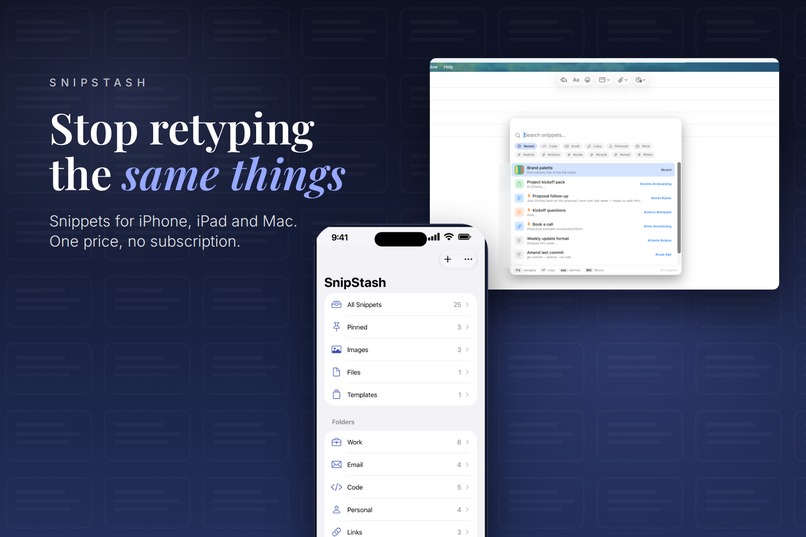
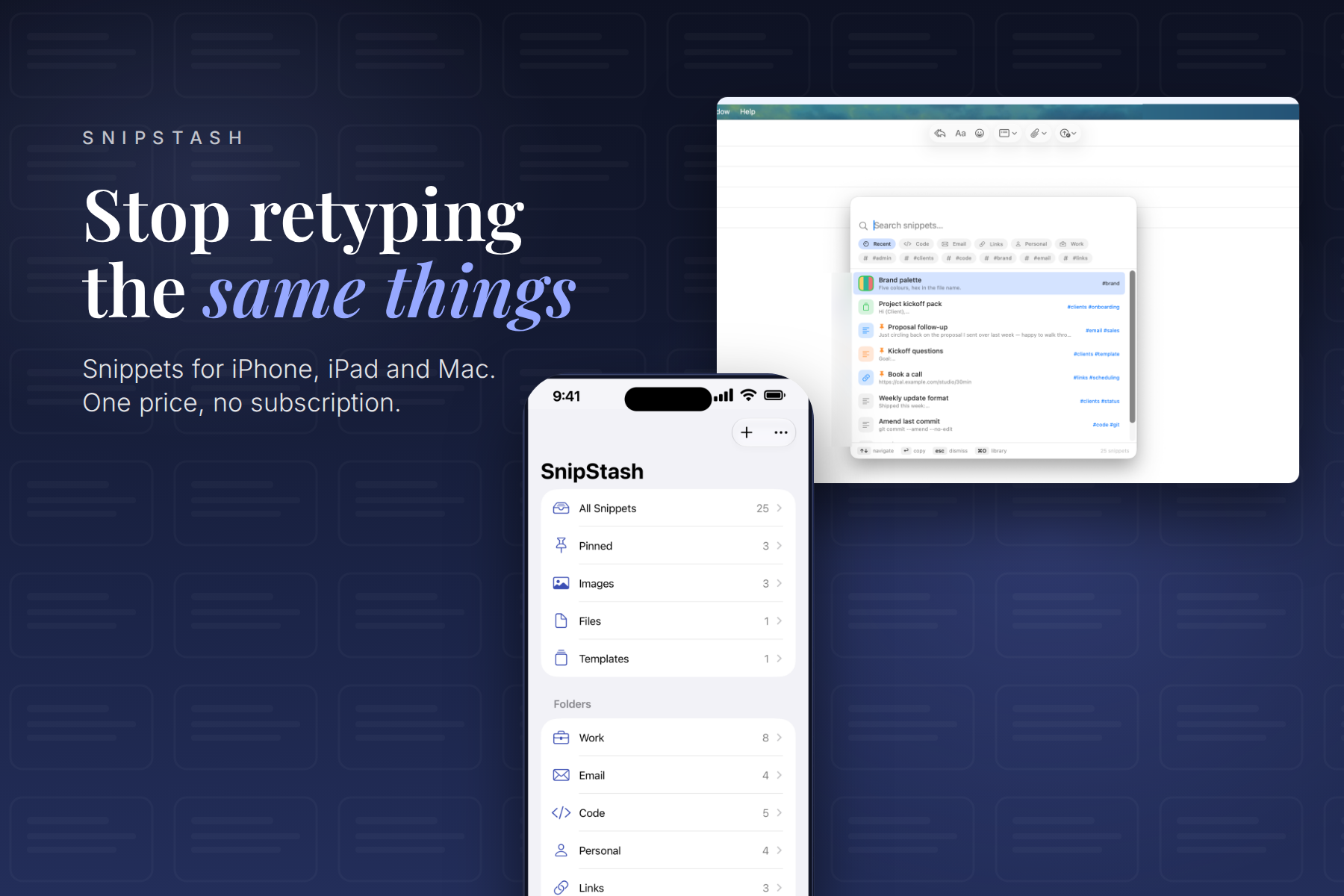
SnipStash on iPhone, iPad and Mac
-
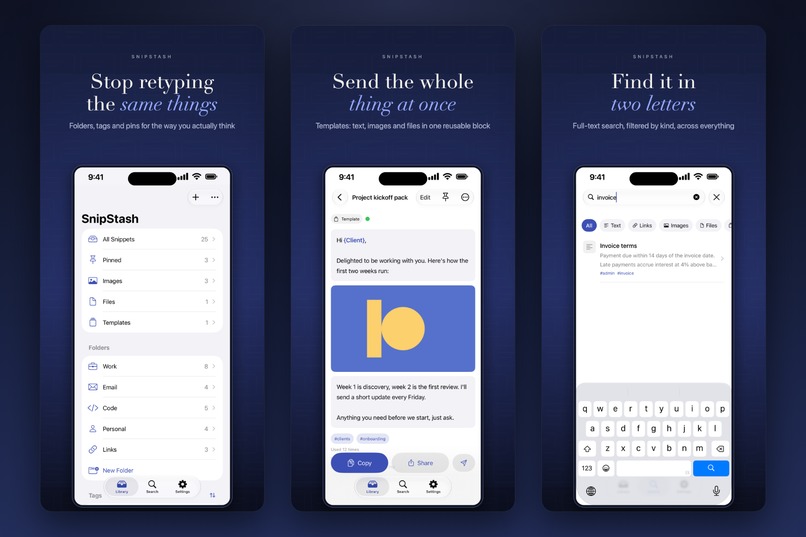
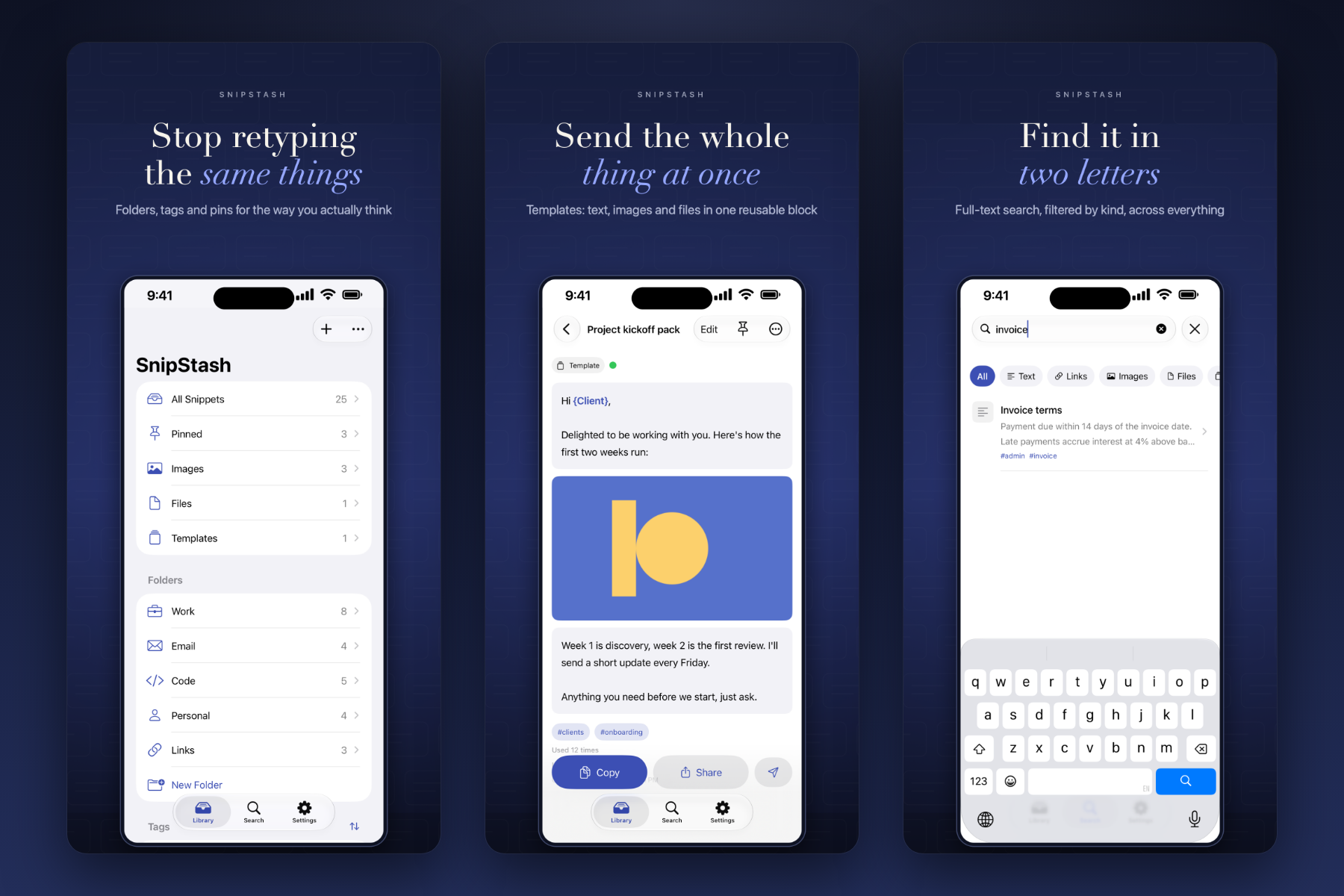
iPhone: library, templates and two-letter search
-
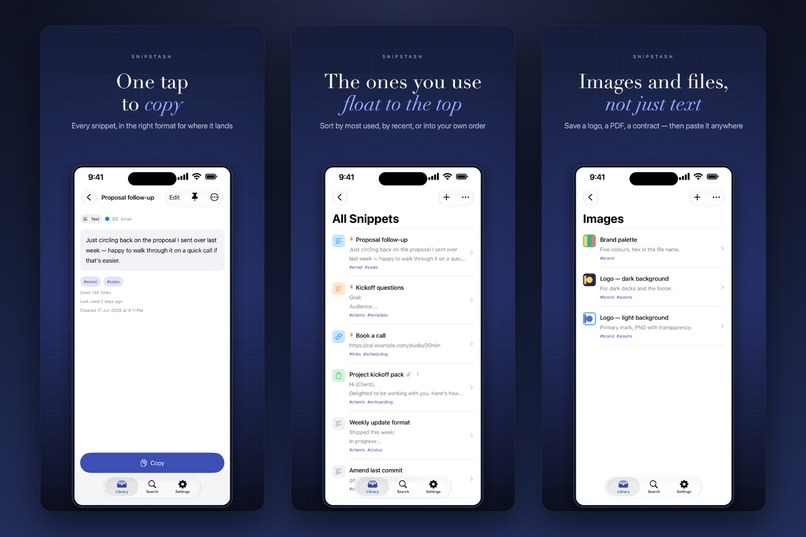
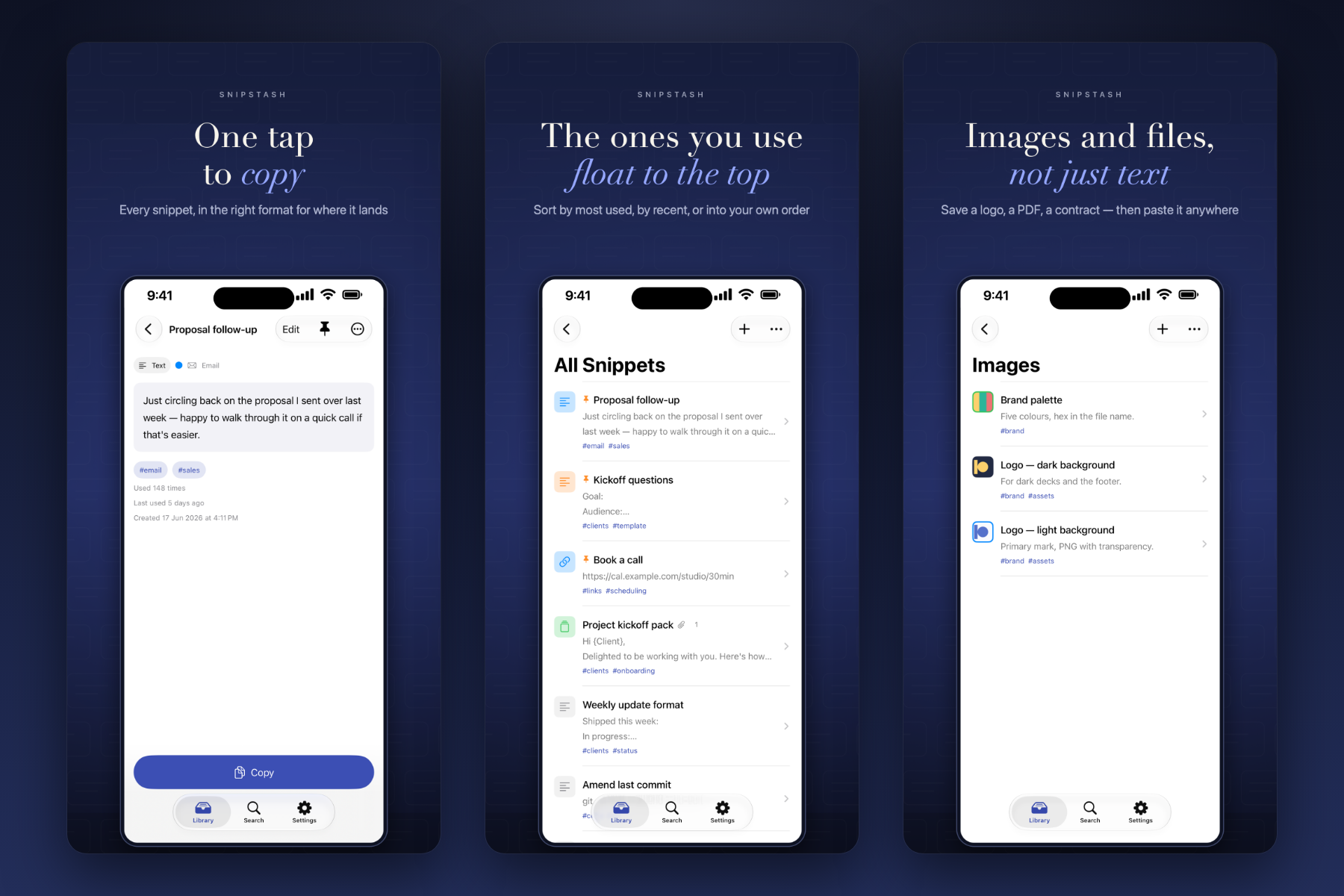
iPhone: one tap to copy, most used first, images and files as snippets
-
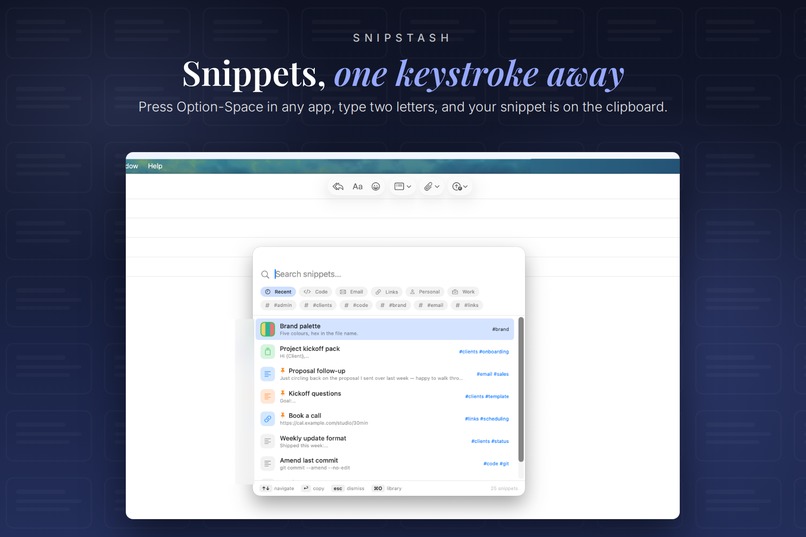
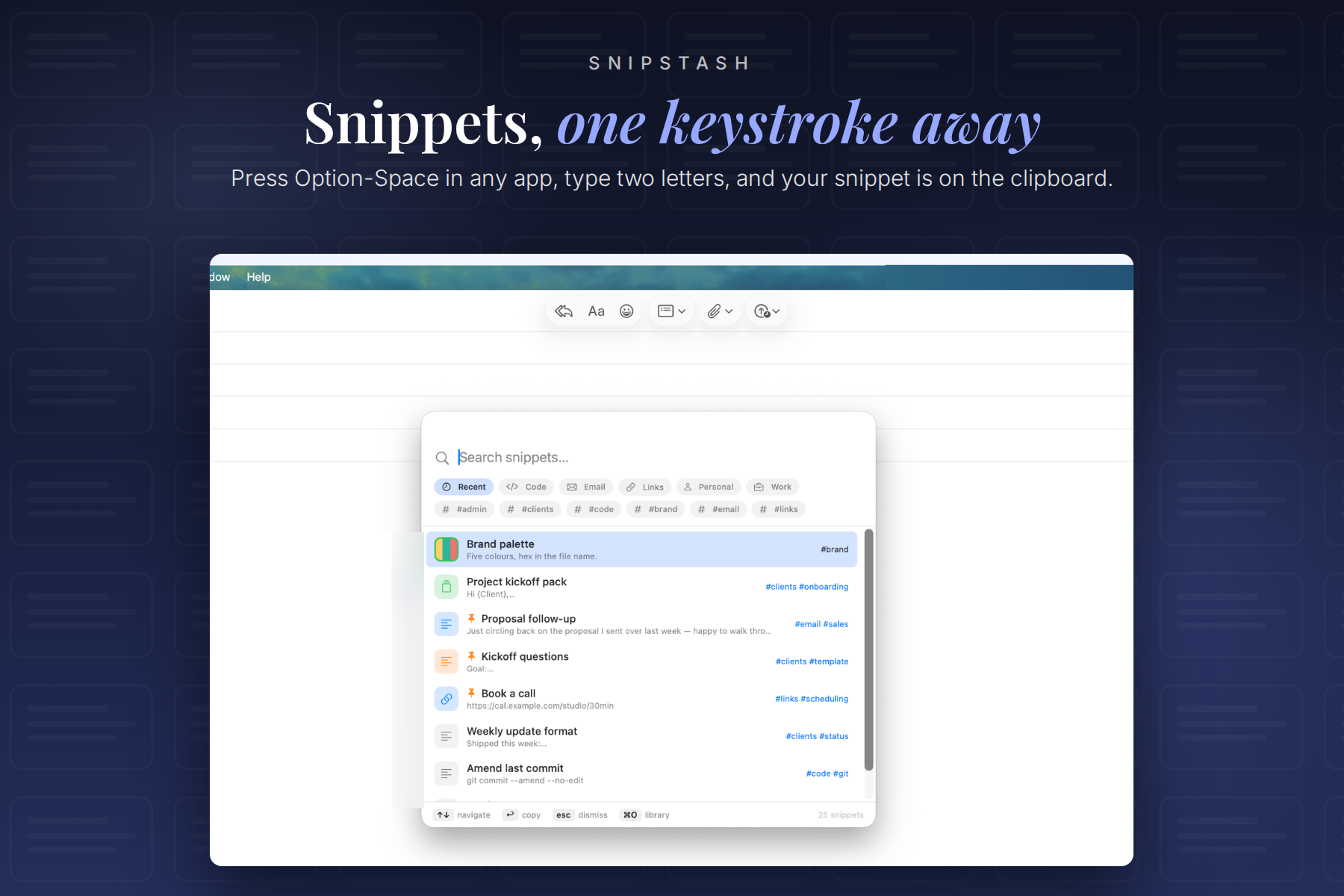
Mac: Option-Space over any app
-
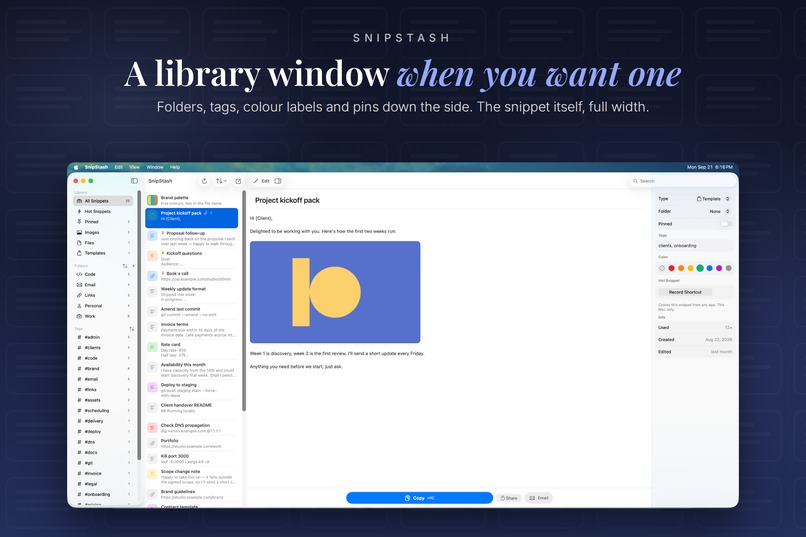
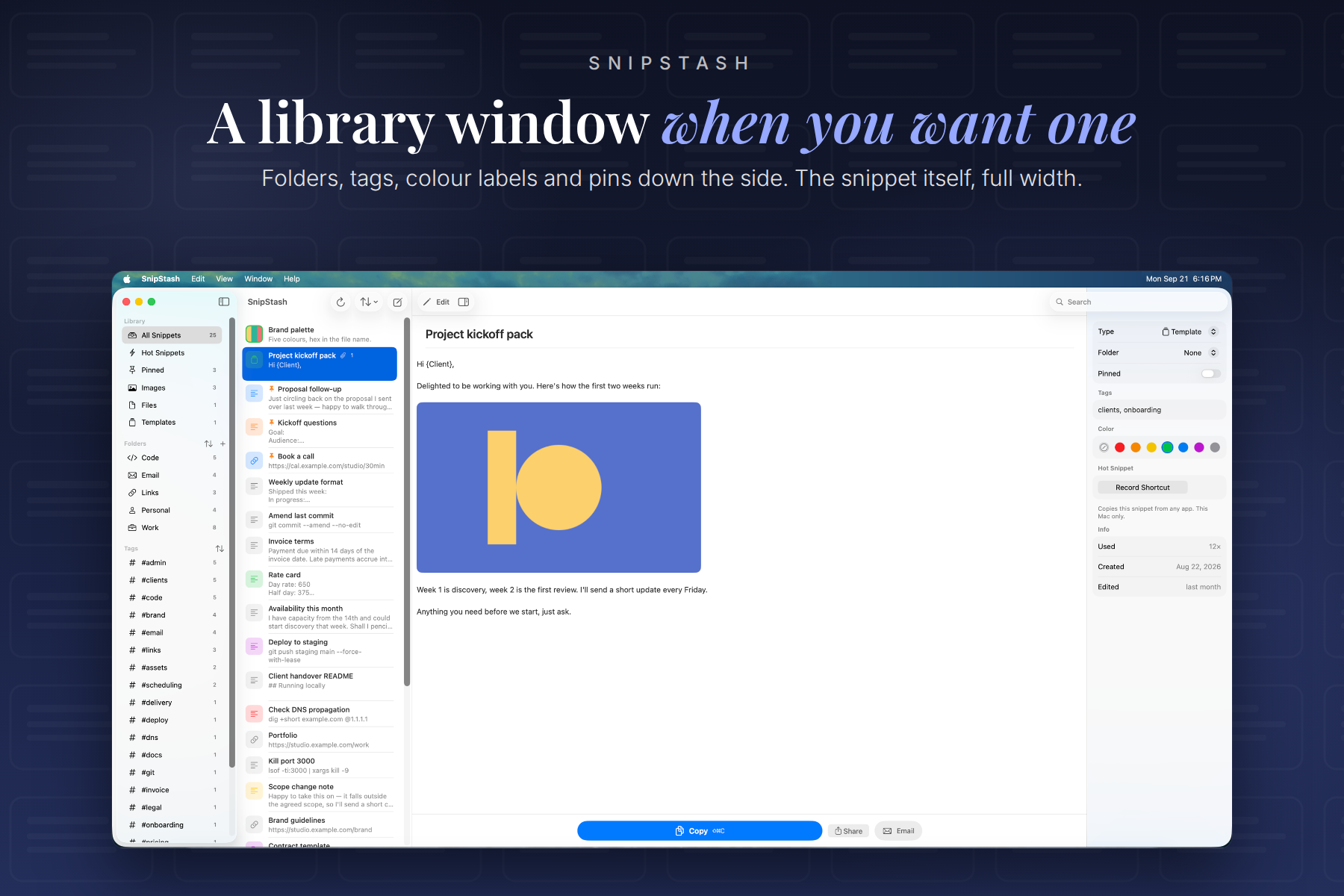
Mac: the library window
-
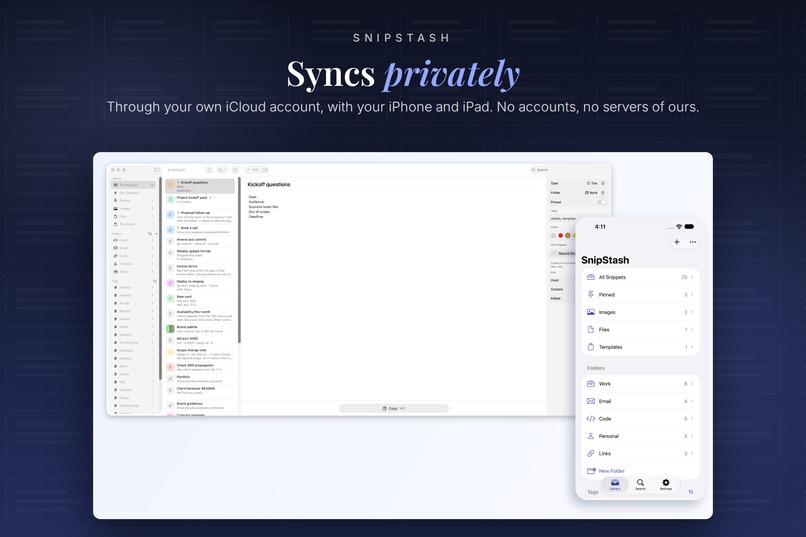
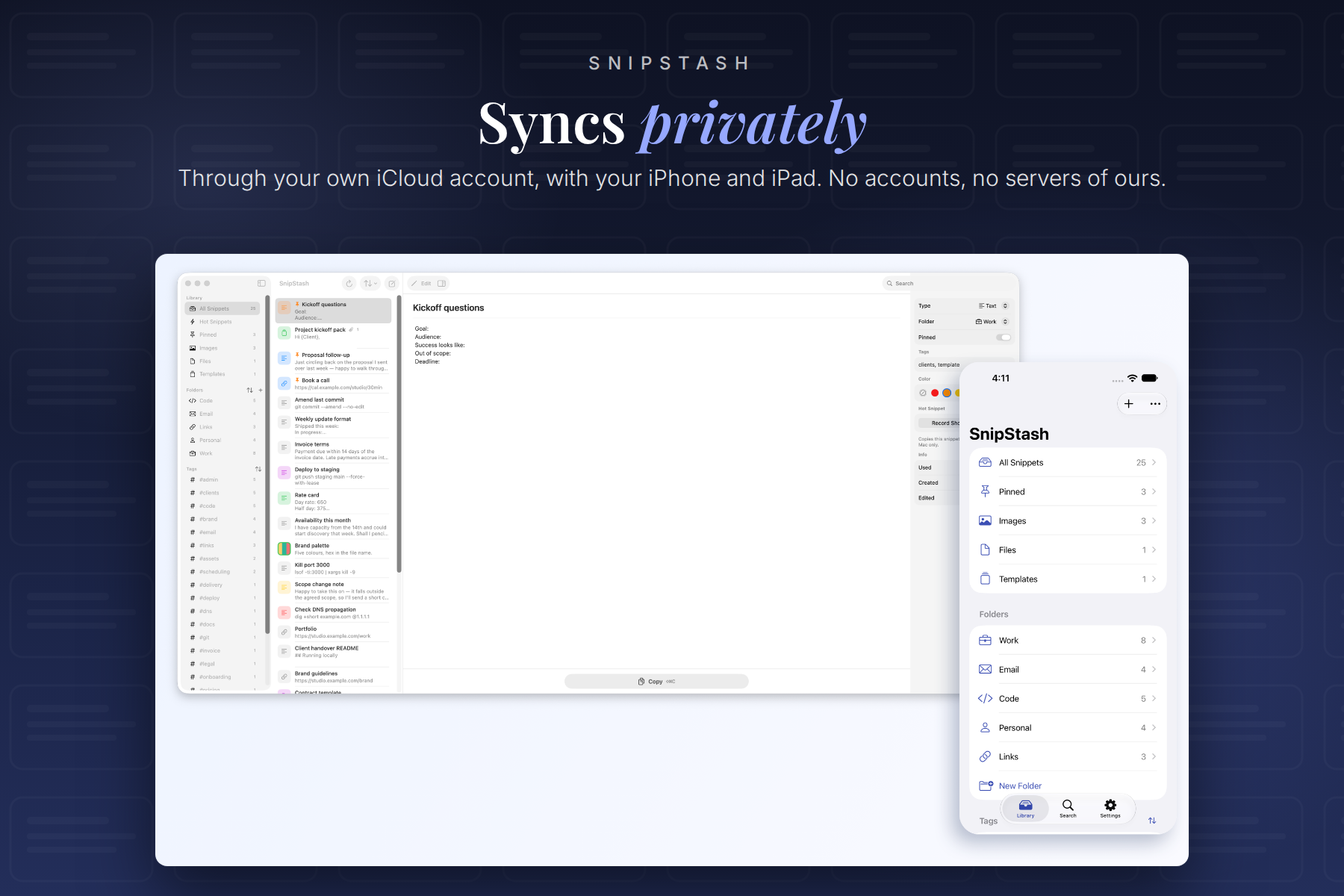
Mac: syncs through your own iCloud with iPhone and iPad
-
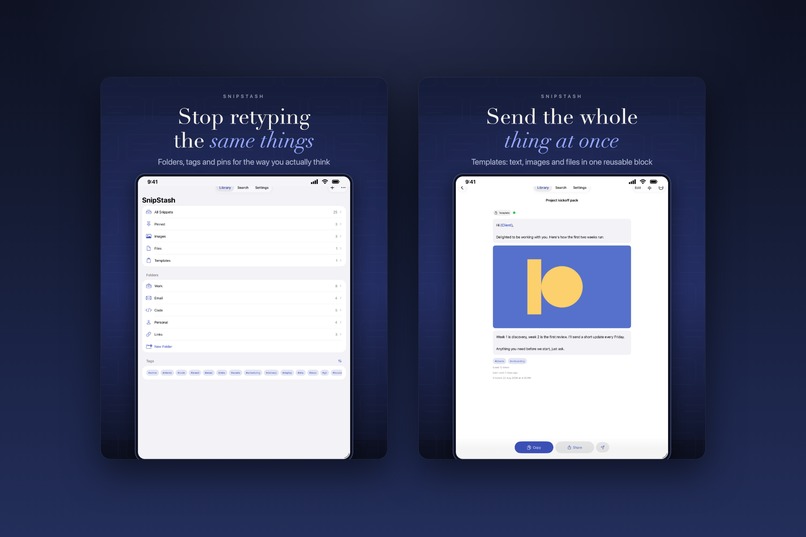
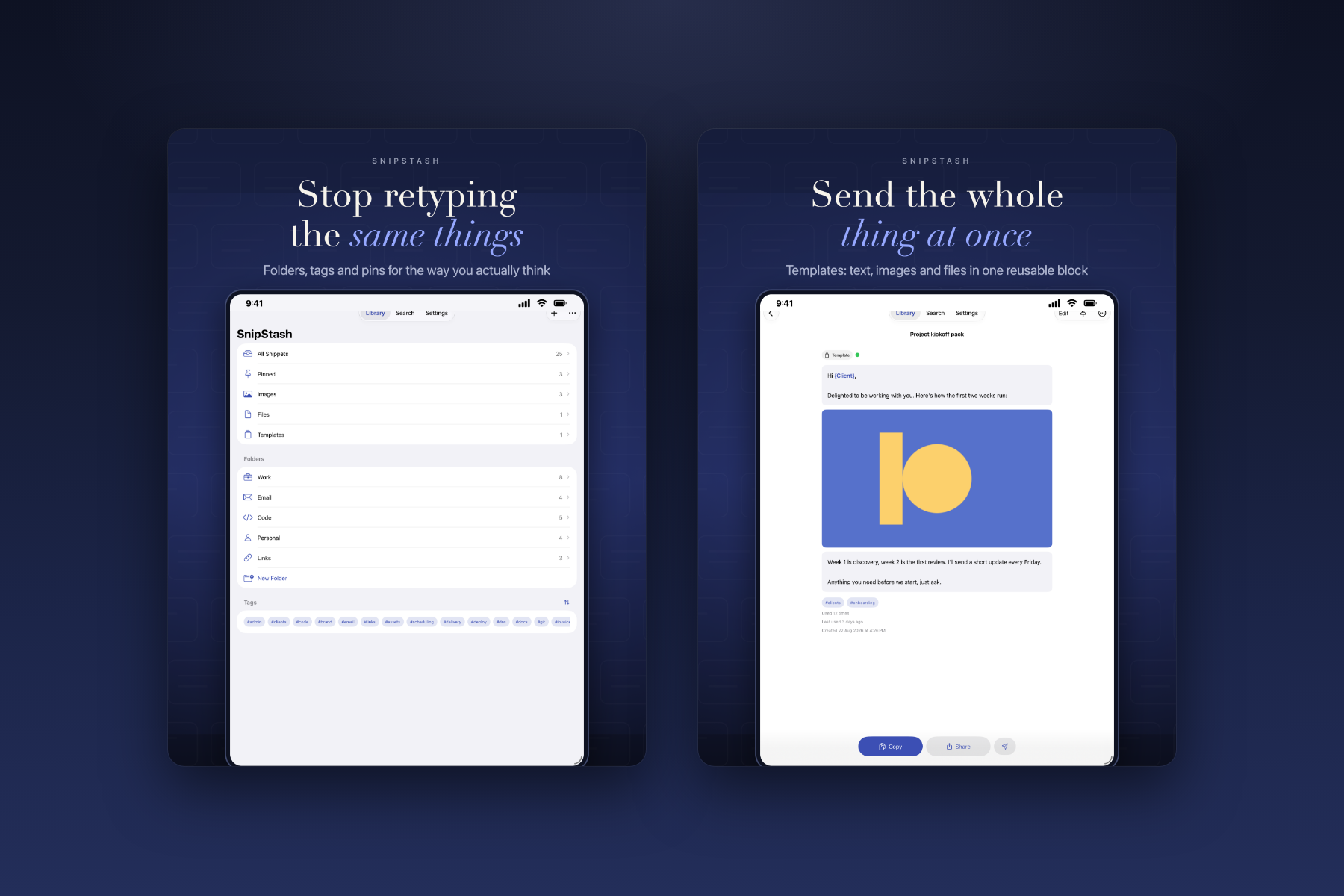
iPad: the full library and templates
-
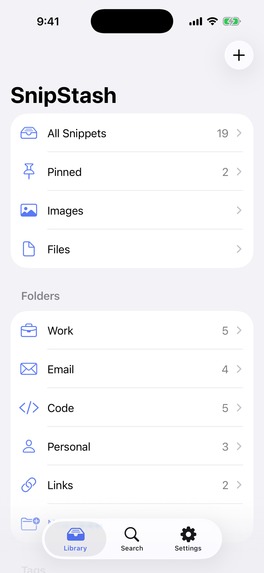
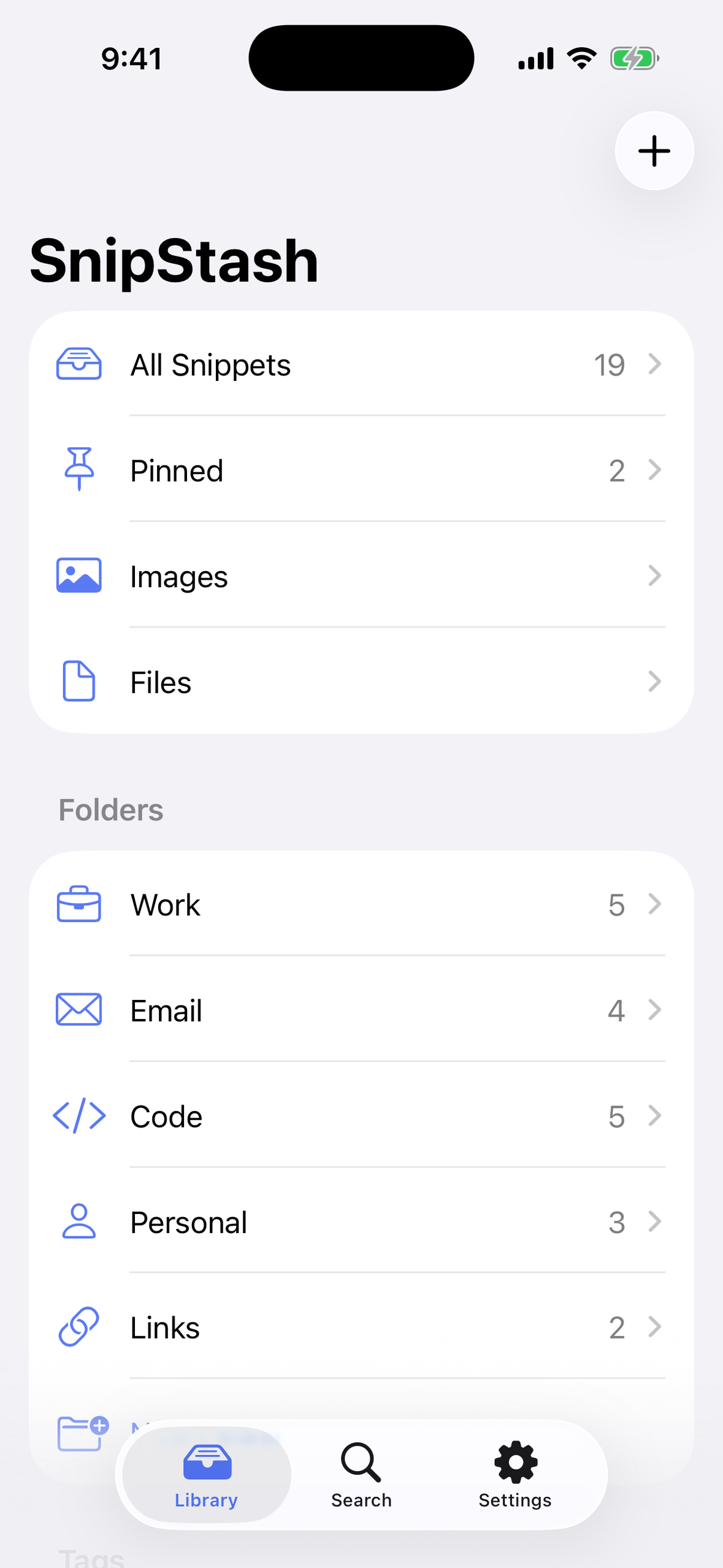
iPhone screenshot, no device frame (1179 x 2556)
-
App icon, 1024 x 1024
Inspiration
Everyone who works from a keyboard retypes the same things every week. Support replies. Addresses. Wifi passwords. The "here's the file you asked for" message, with the file. The usual fix is a Notes file called stuff.txt, scrolled through with a thumb, and a camera roll used as a filing cabinet for that one image you always need.
The apps that fix this are either a subscription for a text box, or they treat images and files as attachments bolted onto text. We wanted one place for Apple power users to save text, links, images and PDFs once, and get any of it back in one or two taps, on whatever device and in whatever app they are using. And we wanted to pay for it once.
What it does
Save from anywhere. Copy something, open SnipStash, tap Save clipboard. Or use the share sheet on iPhone, iPad and Mac to send text, links, images and files straight in, without leaving the app you're in. SnipStash spots links, emails, phone numbers and code and tags them for you.
Get it back from anywhere.
- The SnipStash keyboard on iPhone and iPad. Search and tap to type any snippet into any app. Filter to Images and tap one to copy it, or tap a PDF and paste it straight into Mail.
- Option-Space on the Mac. A palette opens over whatever app is in front. Two letters, Return, Command-V. It never steals focus, so your cursor stays where it was.
- A hot key per snippet on the Mac, for the things you paste every day.
- Siri and Shortcuts can copy any snippet by name.
- Search, folders, tags and Spotlight in the app.
Templates. Text, images and a PDF bundled into one snippet, in order. Add a {Name} variable, fill it in once and SnipStash remembers it. Paste the whole template into Mail and everything lands in order, or let the keyboard send it step by step in chat apps that only take one item per message: the text, then the PDF, then the rest.
Private by design. Sync runs through your own iCloud. No account, no server of ours that ever sees a snippet, no analytics SDK. The privacy manifests declare one thing collected: purchase history, by RevenueCat, not linked to you.
Fair pricing. A free plan that is actually usable: 25 snippets, a template, image and file snippets, the keyboard, the Mac app and sync. Pro removes the limits for $19.99, once. No subscription. Buy on iPhone and the Mac app is yours too.
How we built it
Native Swift and SwiftUI in one XcodeGen project: the iPhone and iPad app, the macOS app, two share extensions and a custom keyboard, sharing one model layer and one store through an App Group. About 22,000 lines of Swift, no cross-platform framework, no third-party UI code.
The interesting engineering is in the seams:
- One store, five processes. The share extensions and the keyboard can't link the RevenueCat SDK, so the app mirrors entitlement state and snippet counts into the shared App Group, and the extensions read the mirror. The paywall is enforced the same way in a process that has no idea RevenueCat exists.
- The keyboard is the hard constraint. A custom keyboard has a tight memory ceiling and no network, so everything it shows is already on disk in the App Group, ready to read.
- The Mac palette is a non-activating panel with a global hot key, so it floats over the frontmost app without taking focus.
- Sync is CloudKit through Core Data, with an explicit refresh (pull down on iOS, Command-R on the Mac), because "why haven't my snippets arrived yet" is the worst feeling in an app like this.
- RevenueCat powers one non-consumable, snipstash_pro_lifetime, mapped to a pro entitlement and fetched by product ID so the paywall keeps working when offerings change. Universal purchase across iPhone, iPad and Mac.
- App Intents give Siri, Shortcuts and Spotlight access to snippets by name.
Challenges we ran into
A keyboard can only type text. On iPhone and iPad, a third-party keyboard talks to the app you're typing in through one API, and that API inserts plain text only. There is no way for a keyboard to insert an image, a file or an attachment, and no way to press the other app's Paste for you. So "tap the image and it lands in the chat" was never possible. We made it two steps: tap the image or file in the SnipStash keyboard to copy it, then long-press the text field and tap Paste. The keyboard says this in a bar above the list, so nobody is left guessing. Gboard, Bitmoji and GIPHY work the same way on iOS, which told us we weren't missing a trick.
Templates hit the same wall. A template can be text, then an image, then a PDF, and most chat apps take one thing per message. So the keyboard sends a template step by step: text blocks are typed, image and file blocks are copied for you to paste, and Next moves on. If the keyboard closes halfway, it picks up where you left off.
Copying files without crashing the keyboard. Keyboards run under a tight memory limit (about 77 MB on our test iPhone, less on older ones), and going over it kills the keyboard. Our first approach loaded each file's bytes onto the clipboard. Memory grew with every copy (7.3 MB more after five 7.4 MB copies), large files were refused, and a PDF sent as bytes still didn't paste into Gmail. A hybrid (files as bytes, images by reference) and offering files as generic data didn't help either. What worked was copying by reference: the clipboard gets a pointer to the file in our shared container, not the file itself. A 21 MB EPUB copied with the keyboard's memory unchanged, and it still pasted after switching keyboards or locking the phone. The app also makes thumbnails and JPEG copies of HEIC photos ahead of time, so the keyboard never decodes a full-size image.
Some apps refuse pasted files no matter what. Apple Mail and Notes take a pasted PDF. Gmail and WhatsApp don't, even from Apple's own Files app. For those, the Share button in SnipStash attaches the file directly.
On the Mac, the App Store rules out auto-paste. We wanted Option-Space to paste straight into the app you're in. That needs Accessibility permission to send Command-V, and inside the App Store sandbox it can't be had: SnipStash never appears in the Accessibility settings, the keystroke is silently dropped, and routing it through System Events fails with "not allowed to send keystrokes". The only way around it is shipping the Mac app outside the App Store, which would lose universal purchase with iPhone and iPad. We chose the App Store, so the palette copies on Return and you press Command-V. One extra keystroke, and your cursor never moves.
Accomplishments that we're proud of
- SnipStash is live on the App Store, released during Shipaton and already updated to 1.2. The Mac app is live too, on the same App Store record, so one purchase covers iPhone, iPad and Mac.
- Our first sale came in before we had done any real marketing. Almost all our time went into building and shipping, so a stranger paying $19.99 for it told us the problem is real.
- Early users are already writing back with feedback and ideas, and some of it is on the roadmap.
- A keyboard that sends more than text. Images, files and whole templates from inside any app, within a keyboard's memory limit, by copying files by reference instead of loading them.
- One native codebase, five targets: iPhone and iPad app, Mac app, two share extensions and a custom keyboard. No cross-platform framework and no third-party UI code.
- Zero analytics. No account, no server of ours, and privacy manifests that are true.
What we learned
- Find the platform's walls early and design around them. A keyboard can only type text, and a sandboxed Mac app can't send keystrokes. Once we accepted that, the two-step paste, step-by-step templates and copy-on-Return became the design, not a compromise.
- Measure before you optimise. We were sure loading file bytes was the safe way. Device tests showed the opposite: bytes grew memory with every copy, and references cost almost nothing.
- Distribution is engineering too. App Review rejections, privacy labels and offer codes took as much care as the sync layer. Writing each trap down the first time it bit us is why every release after 1.0 went faster.
- Meter features, don't lock them. Free users get a real taste of templates, the keyboard and the Mac app, and the paywall appears only at the exact limit they hit.
- Ship, then listen. A first sale and real feedback arrived with almost no marketing. The next stretch is about getting SnipStash in front of more people.
What's next for SnipStash
Keyword expansion: type ;addr in any app and it becomes the snippet, no picker. Then a shared clipboard across your own devices, snippet history, shared folders for teams, and deeper Shortcuts actions.

