-
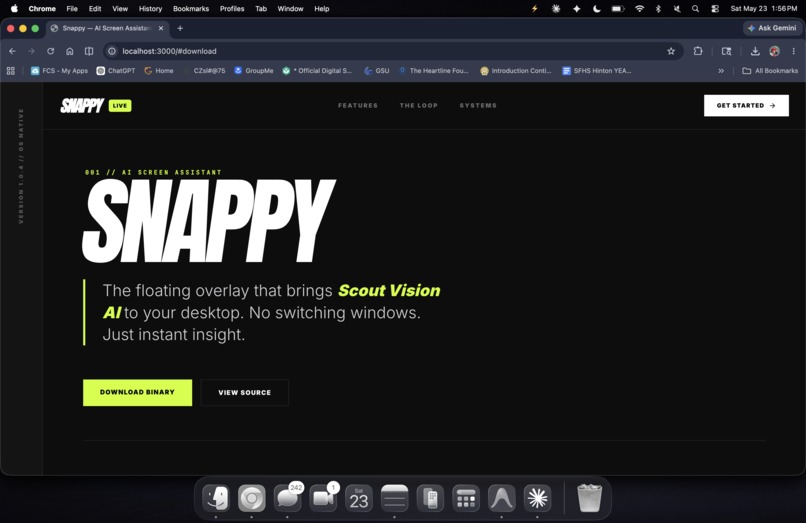
Website landing
-
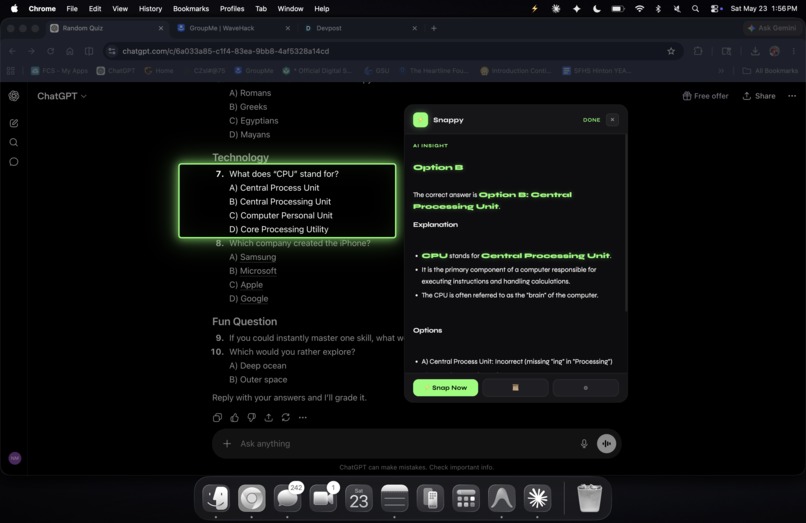
Tool in Action
-
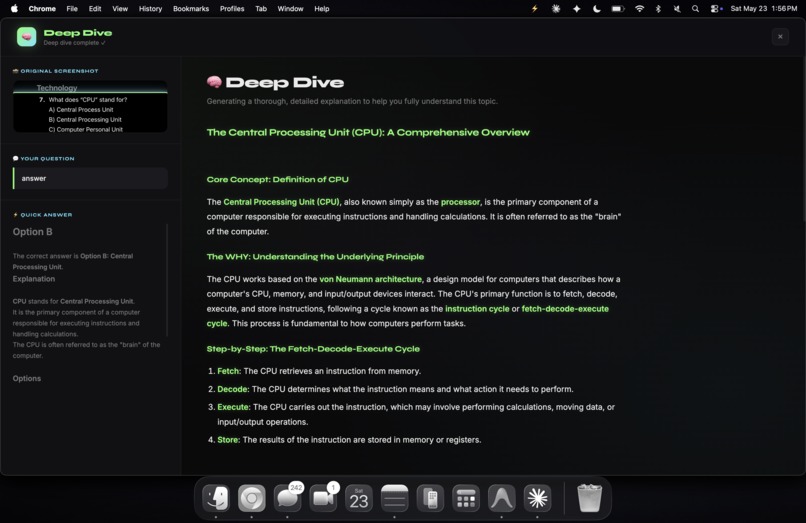
Deep Dive Mode
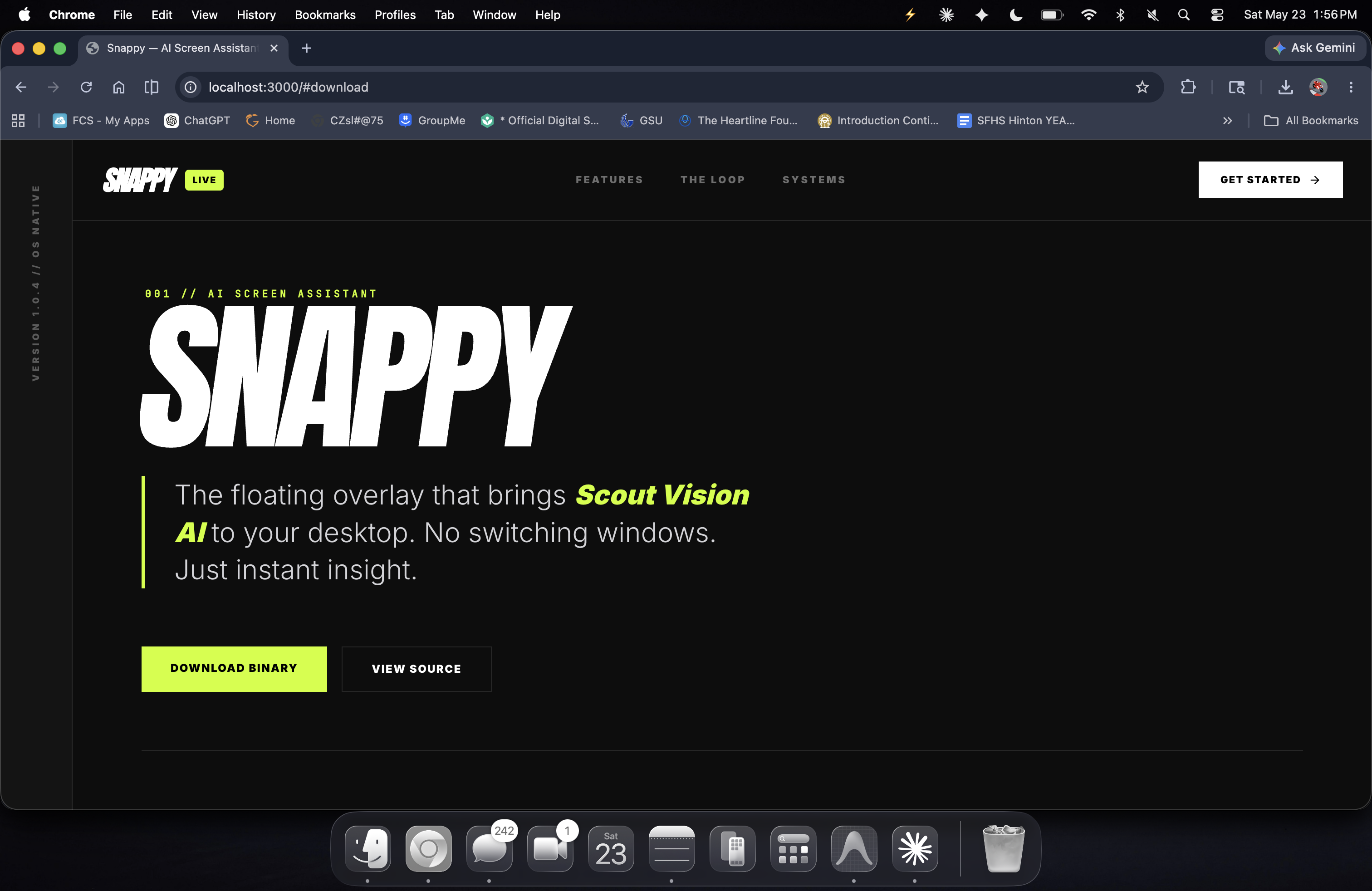
Inspiration
As developers, learners, and power users, our flow state is constantly under attack. When we encounter a bug, a complex equation, or a piece of documentation we don't understand, the standard loop is:
Press screenshot shortcut. Open a browser tab. Navigate to Gemini or ChatGPT. Drag and drop the screenshot. Type a prompt. Copy the code/explanation back to the editor. This high-friction context switching destroys focus. We asked ourselves: What if our AI assistant was an invisible HUD (Heads-Up Display) built directly into the operating system?
We wanted a tool that is always one keypress away, understands exactly what we are looking at, answers contextually in a floating overlay, and stays out of the way. That’s why we built Snappy AI.
What it does
Snappy AI is a lightning-fast, privacy-first desktop screen assistant that turns your entire screen into an interactive canvas for AI.
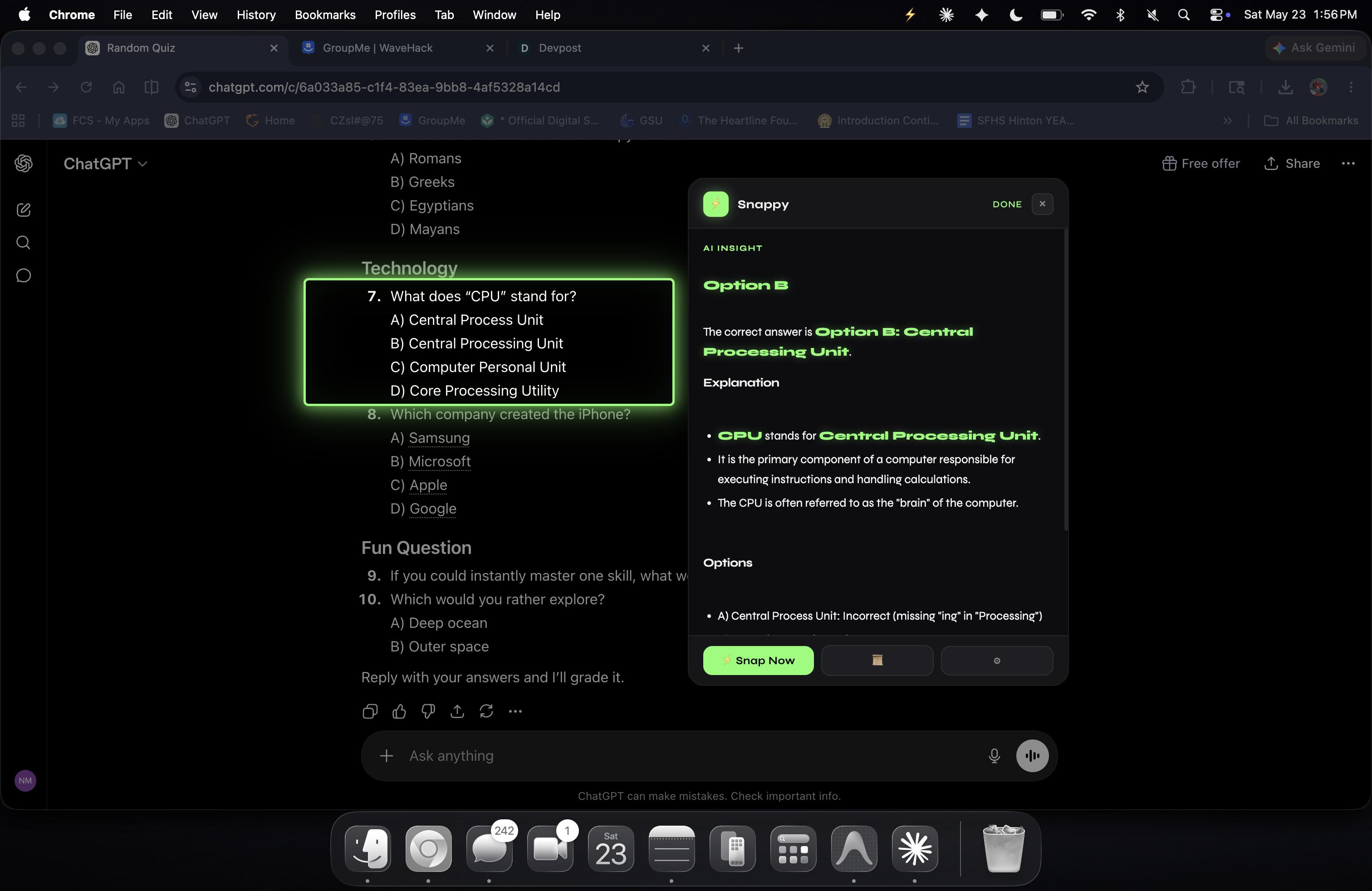
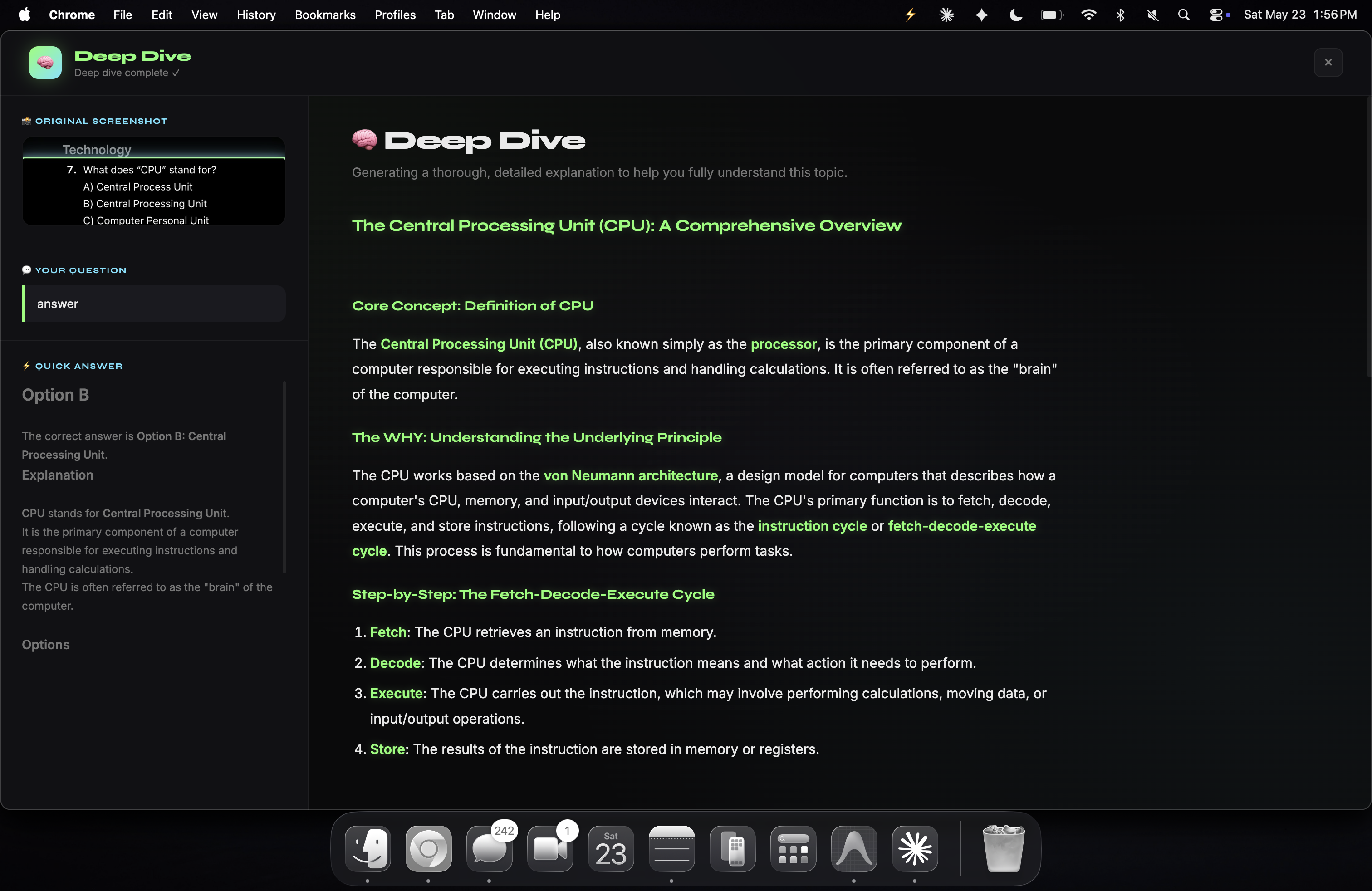
The Instant Canvas: Pressing Cmd+Shift+S (or your custom hotkey) dims the screen and lets you draw a bounding box around any text, code, graph, or image. Voice and Text Prompting: Once a region is selected, you can type a follow-up question or click the microphone to dictate a prompt. We integrated speech-to-text to allow for hands-free queries. The Floating Bubble HUD: The AI’s output is displayed in a sleek, glassmorphic, floating bubble that automatically positions itself near your selection. The bubble stays on top, allowing you to read instructions or copy code without toggling windows. The "Deep Dive" Tutor: If a quick answer isn't enough, clicking the Dive Deeper button transitions the app into a full-screen, immersive educational workspace. Snappy becomes a world-class tutor, breaking down the underlying concept with step-by-step reasoning, real-world analogies, and key takeaways. Secure Local History: All queries and screenshot crops are saved locally. You can browse, review visual thumbnails of past snapshots, or delete items from a secure session history panel.
How we built it
Snappy AI is built with a combination of high-performance desktop APIs and low-latency cloud vision models:
Frontend & Design System: Written in pure HTML5, CSS, and JavaScript. We chose to avoid bulky UI frameworks to keep the app lightweight and fast. We crafted a custom dark-themed design system using Google Fonts (Syne and Inter), backdrop filters for a glassmorphism feel, and custom-designed micro-animations (like glowing region pulse states). Desktop Shell (Electron): Used Electron's desktopCapturer and screen APIs to capture clean display buffers and map coordinate selection boxes. Designed a secure multi-window system using Inter-Process Communication (IPC) to pass frame buffers and coordinates between the full-screen selection overlay, the floating bubble window, the settings screen, and the deep-dive tutoring window. Multi-Provider AI Backbone: Integrated Google AI Studio (Gemini 1.5 Flash) and Groq (Llama-4-Scout-Vision) for low-latency visual analysis. Leveraged Groq Whisper (whisper-large-v3) for low-latency voice-to-text transcriptions. Pedagogical Prompt Engineering: We crafted structured system prompts that steer the models to respond with clear typography, bolded answers at the top of the bubble, and well-organized markdown headings.
Challenges we ran into
High-DPI / Retina Screen Coordinate Math: One of our biggest hurdles was matching logical screen coordinates (used by the drag overlay) to the physical pixel dimensions of screenshot buffers. On macOS Retina displays, this mismatch resulted in offset or blurred crops. We had to calculate device pixel ratios dynamically (window.devicePixelRatio) to ensure crops are sharp and accurate. Microphone Capturing inside Secure IPC: Capturing audio inside sandboxed Electron renderer windows is restricted by default. We had to configure custom permission request handlers on the Electron session process and write a chunk-based buffer collection mechanism utilizing the Web Audio API to stream audio to the Groq transcription endpoint. Non-Blocking Full Screen Overlay: Creating a window that covers all displays, handles mouse dragging, listens to the global escape key for cancellations, and gets completely out of the way before the system screen capture takes place required complex window lifecycle management and timeout delays.
Accomplishments that we're proud of
Microphone Dictation: Building a voice flow where you draw a box, click the microphone, say a quick question, and watch it turn into text instantly feels like science fiction. Local-First Privacy: We built the history log and crop storage using the local app data path. No data goes to our servers—your screen history stays 100% on your device. The Transition UX: The flow from selection overlay -> floating bubble -> full-screen deep-dive tutor feels fluid and intuitive, acting like an extension of the OS.
What we learned
Minimizing AI Friction Matters: When you reduce the steps to query AI from six down to one, you start using it for things you would normally skip. The lower the friction, the more naturally AI integrates into learning. Electron Window Quirks: We got a masterclass in OS-level window behaviors, learning how to handle focus transitions, global hotkeys, and transparency settings across macOS and Windows. Visual Feedback and perceived performance: When working with external API calls, perceived speed is everything. Adding glowing state transitions, status indicator pulses, and active tray menus made the app feel fast and responsive even during network lag.
What's next for Snappy AI
Offline Mode with Local Vision Models: We want to add support for running small, quantized vision models (like LLaVA or Llama-Vision) locally via Ollama, making Snappy functional offline. Keyboard-First Command Mode: Adding a quick command bar in the selection overlay to allow users to trigger pre-set prompts (e.g., "explain code", "translate text", "find bug") entirely with keyboard shortcuts. Active Monitor Mode: Letting users pin a small screen region (like a server log terminal) and letting Snappy actively monitor it, alerting them the moment an error or anomaly is detected. LaTeX and Code Execution: Supporting MathJax rendering on the Learn Page for equations, and a sandbox to let users execute suggested code snippets safely.

Log in or sign up for Devpost to join the conversation.