-
-
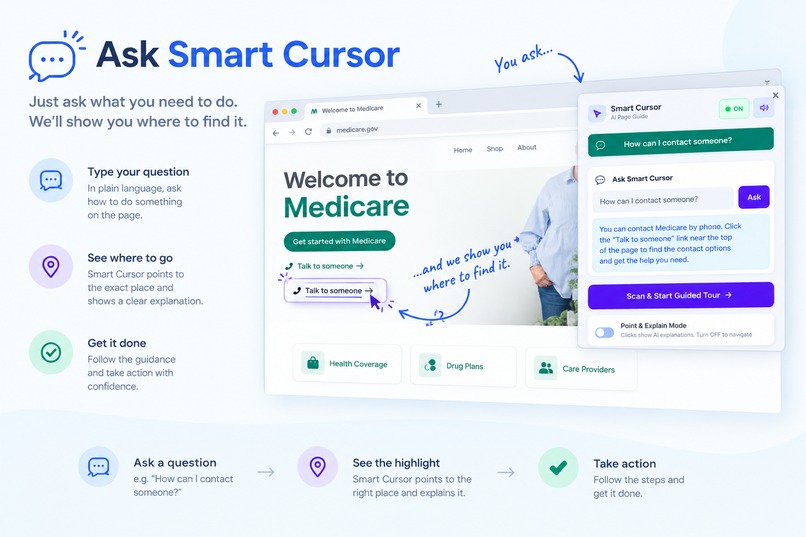
ask how to make certain things
-
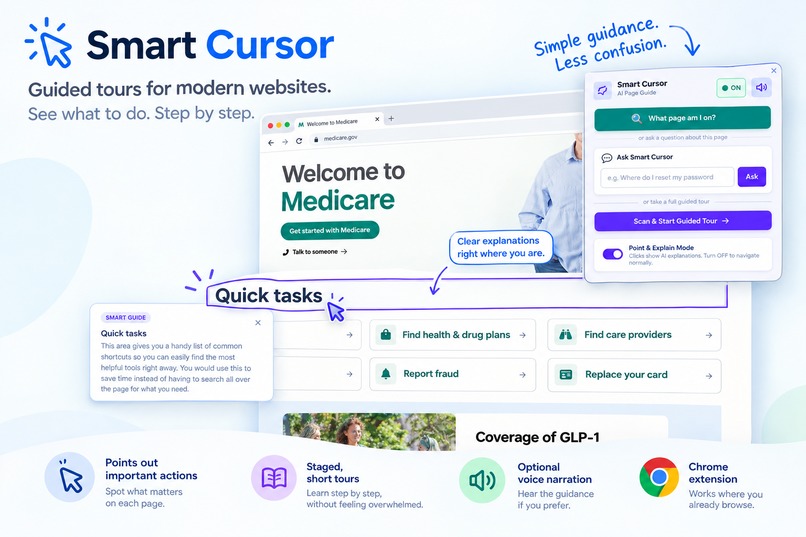
point on buttos/sections to get explanation what does it do
-
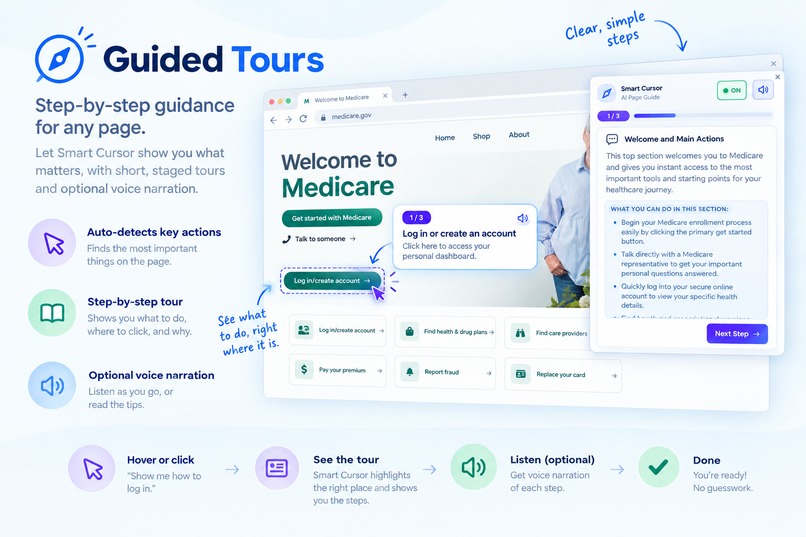
guided tour/intro to a webpage
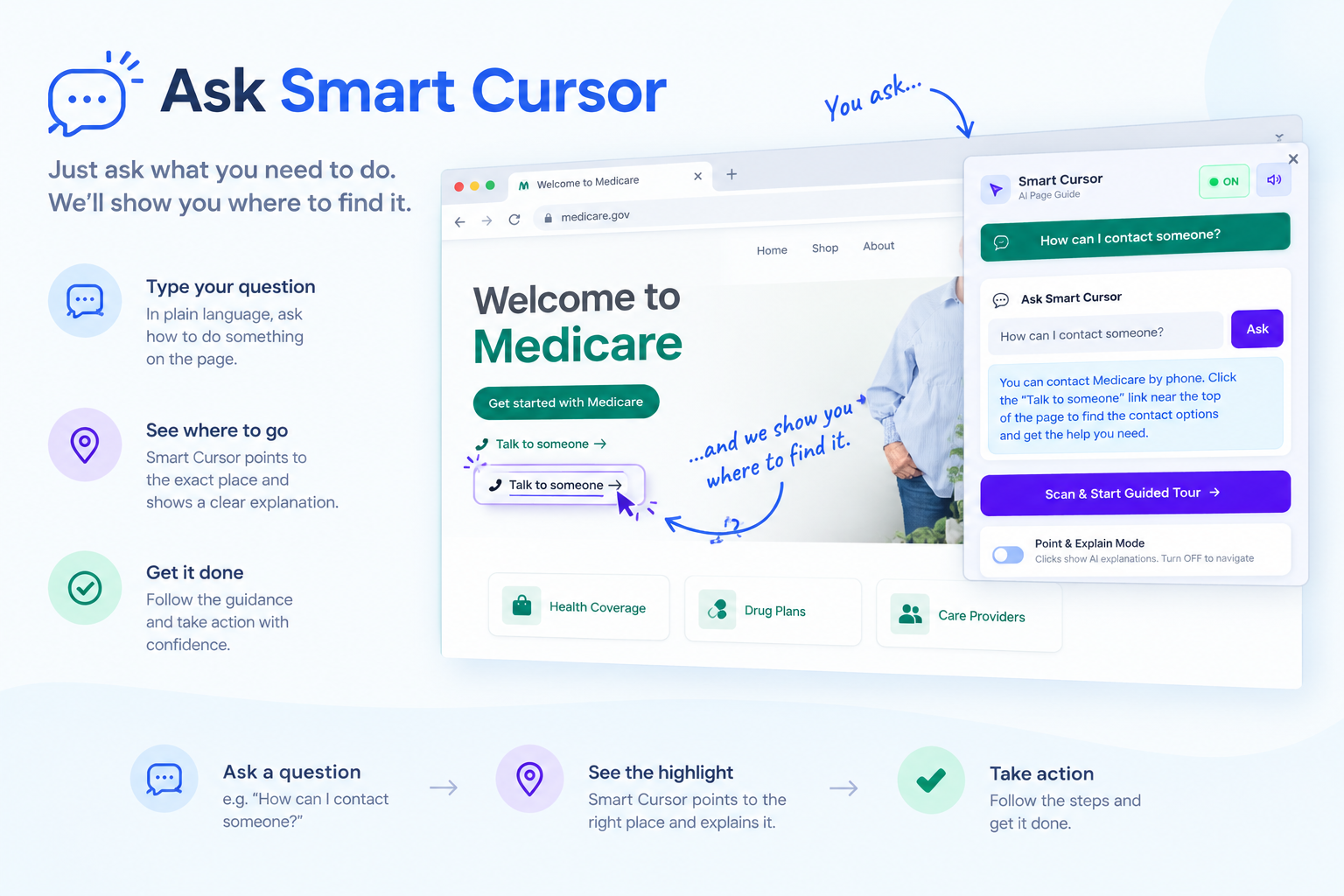
Inspiration
Confusing websites are a universal frustration, but for elderly users they can be genuinely disorienting — unfamiliar layouts, unexplained icons, dense forms, and the constant low-grade fear of clicking the wrong thing. Most "AI help" for this problem looks like a chatbot sidebar: you type a question, you get a paragraph back, and you still have to figure out which part of the page it's talking about. That's real cognitive work for someone who's already unsure of themselves online.
We wanted something that skipped that translation step entirely — an assistant that doesn't just describe where something is, but actually points at it, the way a person sitting next to you would.
What it does
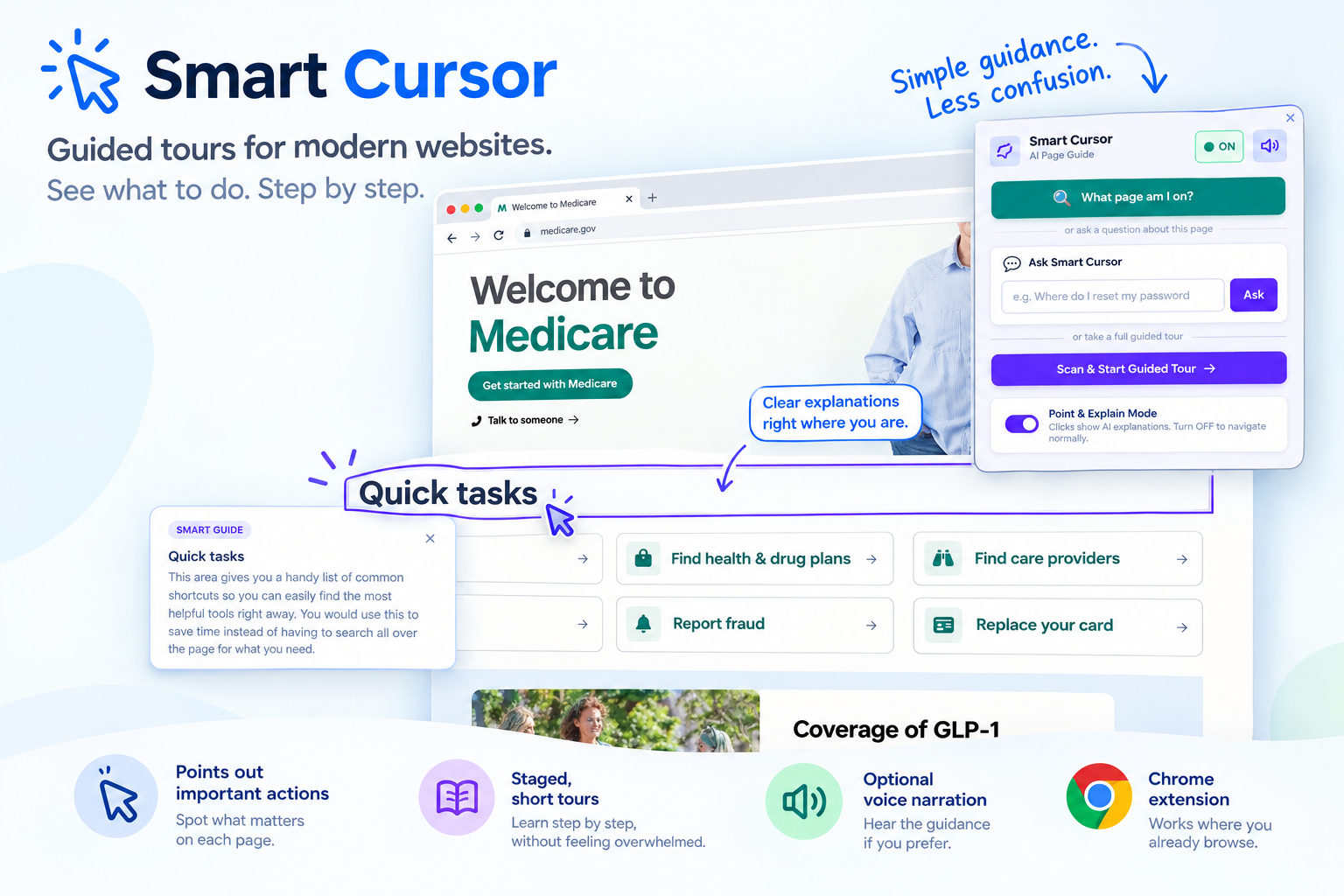
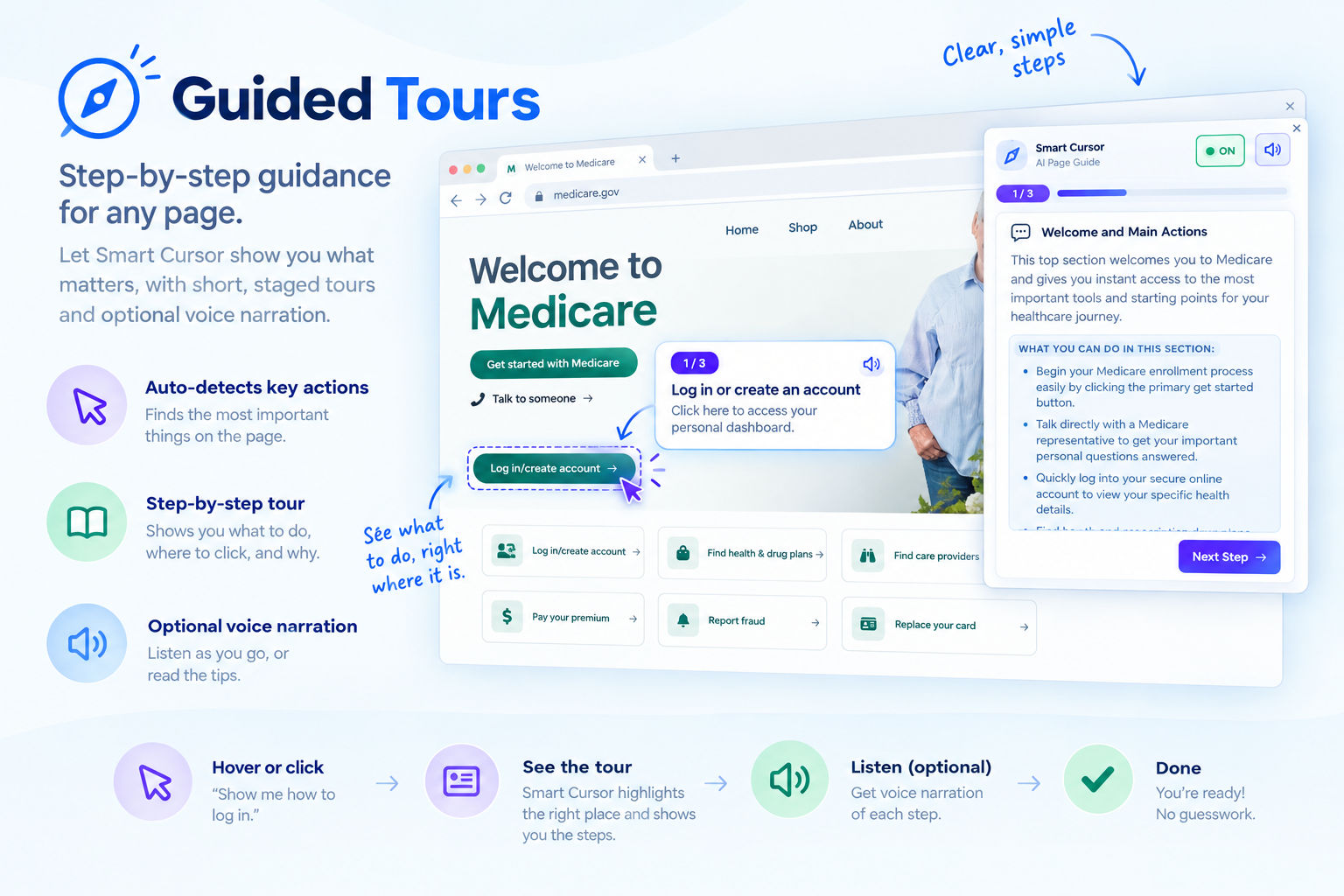
Smart Cursor is a Chrome extension that reads the real elements on whatever page you're on — not a screenshot, the actual buttons, fields, and links — and uses Google Gemini to generate a guided, plain-language walkthrough of the page's sections. A visible cursor animates to each part of the page, highlights it, and explains what it's for, narrated aloud.
It's built specifically with non-technical and elderly users in mind, which shaped several concrete design decisions:
- Section-first, not field-first. Instead of marching through every button and input in sequence, the tour explains what each section of a page is for and what you can accomplish there — individual elements stay available to tap for detail, but you're not forced through a long mechanical list.
- Risk warnings before irreversible actions. If a section or element involves something that can't be undone (submitting, deleting, paying), Smart Cursor flags it clearly and reassures the user there's no rush, rather than letting them stumble into it.
- No jargon left unexplained. Technical terms are flagged and given a plain-language definition on tap, instead of being dropped into an explanation as if the reader already knows them.
- Ask a question, get pointed at the answer. Instead of only following a fixed tour, a user can type something like "where do I update my payment info?" and Smart Cursor finds and points directly at the matching element.
- Adaptive depth. A quick "I'm new here" / "I know the basics" choice changes how much explanation each step gets, so a first-time visitor and a returning one get appropriately different detail.
The whole experience is designed around a simple idea: install it once for a parent or grandparent, and it's there every time they hit something confusing, patiently walking them through it.
How we built it
Smart Cursor is a Manifest V3 Chrome extension. A content script scans the page's real DOM elements (skipping ads, navigation chrome, and cookie banners) and groups them into logical sections. This structured summary is sent to Google Gemini, which returns a two-level guided tour: sections first, with a purpose summary and a plain-language list of what's possible there, and individual elements within each section available on demand.
The cursor itself is a styled, animated element positioned using each target element's real on-screen coordinates (getBoundingClientRect()), so it's always pointing at something real, never a guessed location. Explanations are narrated using Google's Neural2 text-to-speech voices for a warmer, more natural tone than a robotic default voice, with automatic fallback to the browser's built-in speech synthesis if that's unavailable.
For local development and testing, the Gemini API key is kept out of the codebase entirely: it lives in a git-ignored .env file, which a small build script turns into a local config the extension can read — so the key is never hardcoded or committed to the public repository. An optional Cloudflare Worker relay is also included for anyone who wants a production-style deployment where end users never need their own API key.
Challenges we ran into
Early on, the extraction step sometimes grabbed a whole section's text as one blob instead of individual fields — producing explanations that just recited raw form labels back at the user instead of actually explaining anything. Fixing this meant being much more deliberate about what counts as a genuine "element" versus a wrapping container, and adding an explicit instruction for the AI to never describe an element by reciting its own text.
We also had to resolve a real tension between comprehensiveness and simplicity — an elderly user benefits from thorough coverage of a page, but not from being marched through every single field in a forced sequence. Splitting the experience into a short, auto-advancing section-level tour plus fully-detailed on-demand element explanations solved this without cutting depth.
Balancing "nice to have" AI cleverness against genuine usability for a specific vulnerable audience was a recurring theme — we deliberately did not build autonomous clicking, voice input, or an open-ended chat interface, even though all three were tempting, because each one added real risk (an AI accidentally clicking something irreversible, a broken mic pickup, or a confusing free-text box) for an audience that needed reliability more than extra features.
What we learned
Cognitive load research on aging was more directly actionable than we expected — working memory and processing speed changes with age aren't just a vague reason to "keep things simple," they point to specific, concrete design choices: revealing information in stages rather than all at once, keeping one idea per sentence, and connecting new concepts to familiar, everyday comparisons. A lot of what makes Smart Cursor feel calmer to use came directly from applying those principles rather than general design intuition.
What's next
Expanding section-detection reliability across a wider range of real-world sites (government portals, healthcare systems, banking dashboards), and exploring a lightweight comprehension check after each tour to make the "did this actually help someone learn" claim measurable, not just felt.
Built With
- chrome
- css
- dom-manipulation
- gemini
- html
- javascript
- tts
- typescript


Log in or sign up for Devpost to join the conversation.