-
-
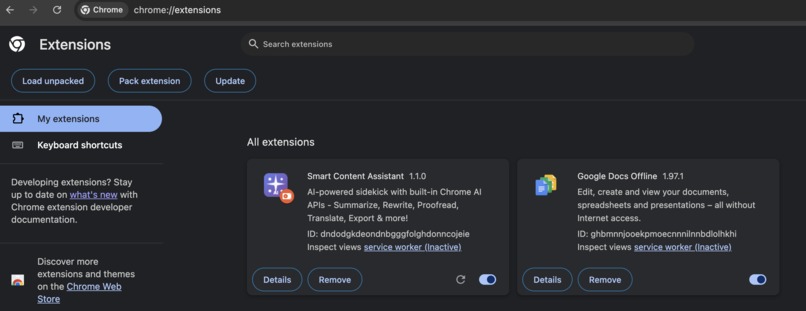
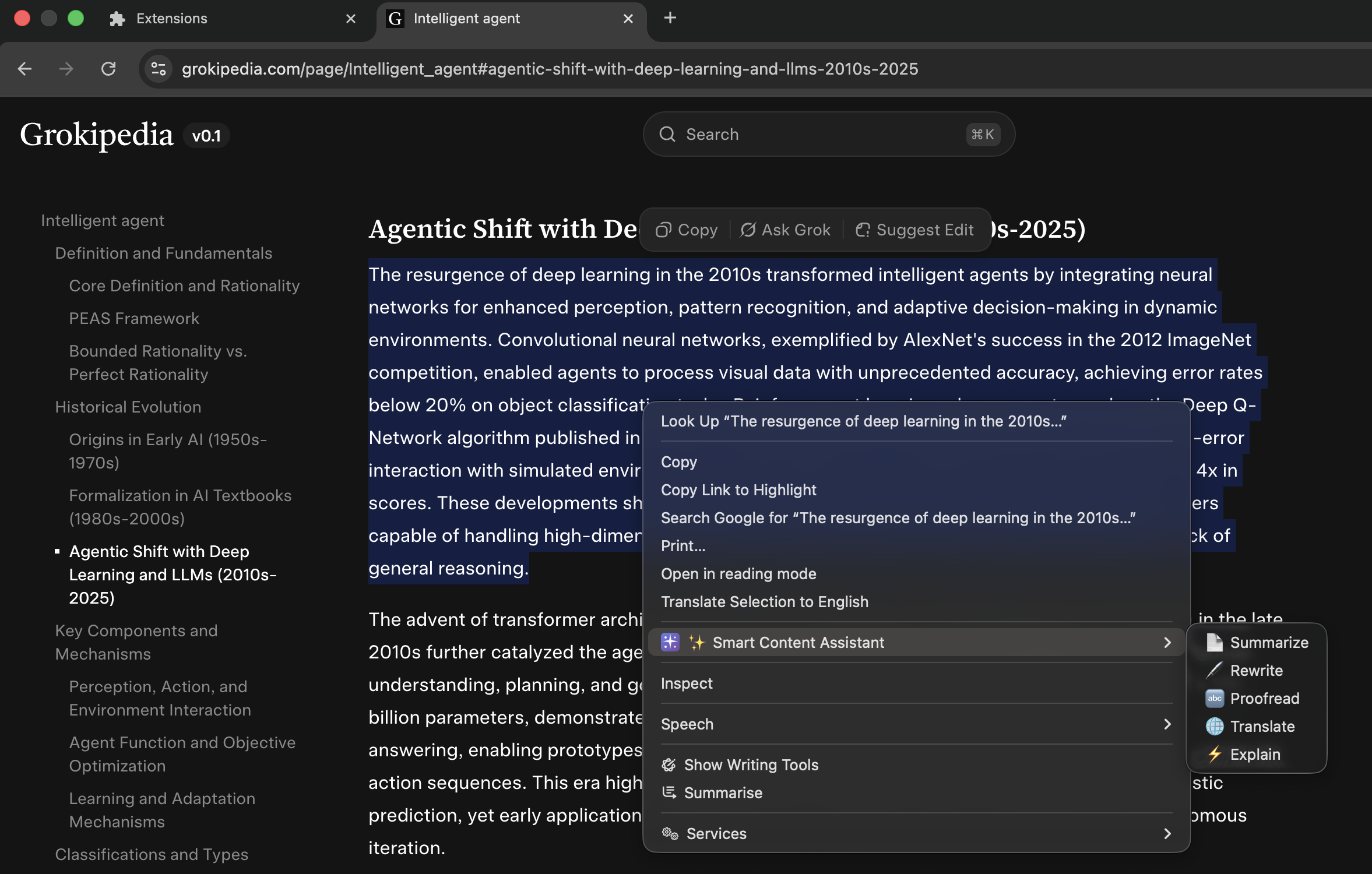
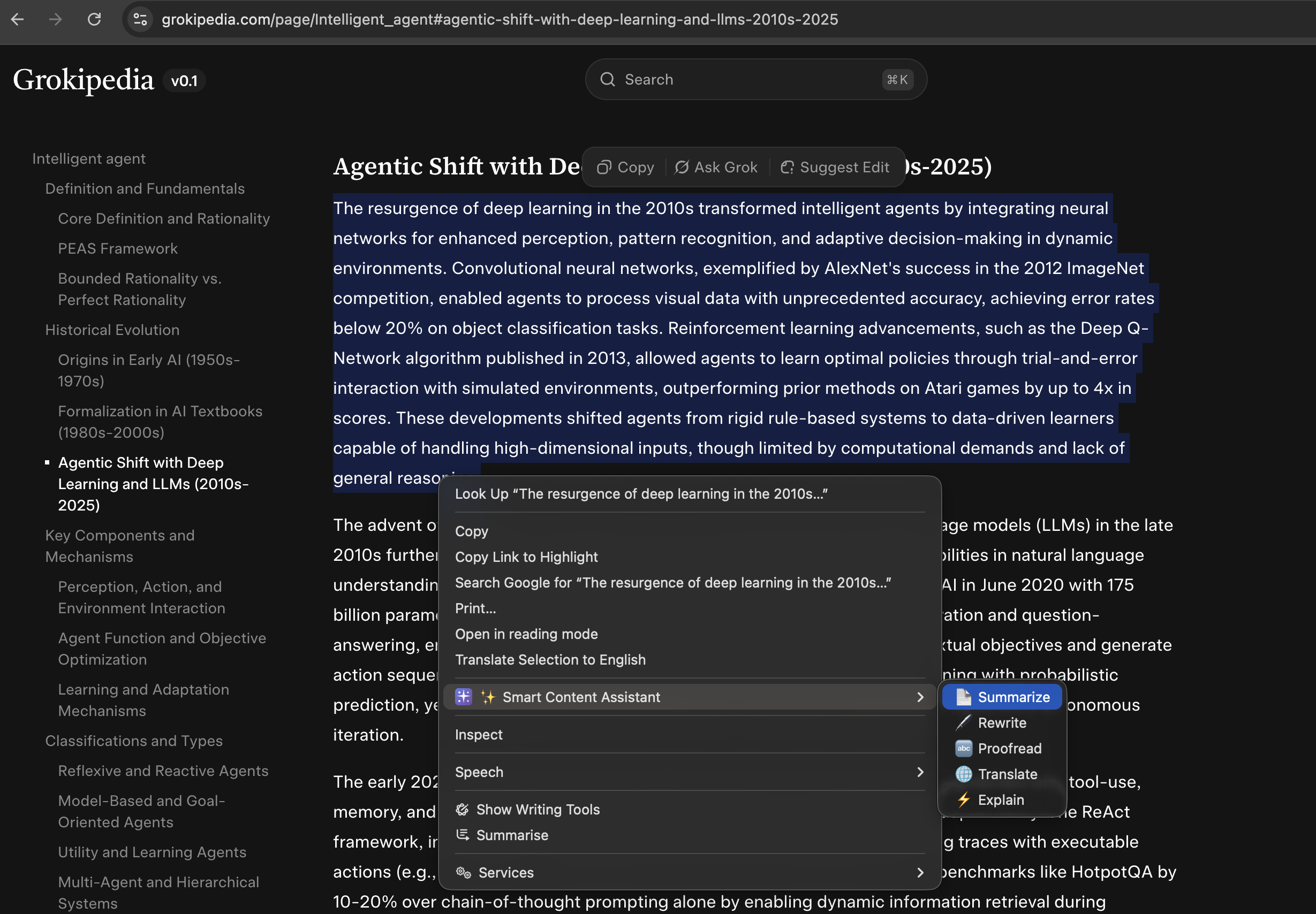
Extension Installation
-
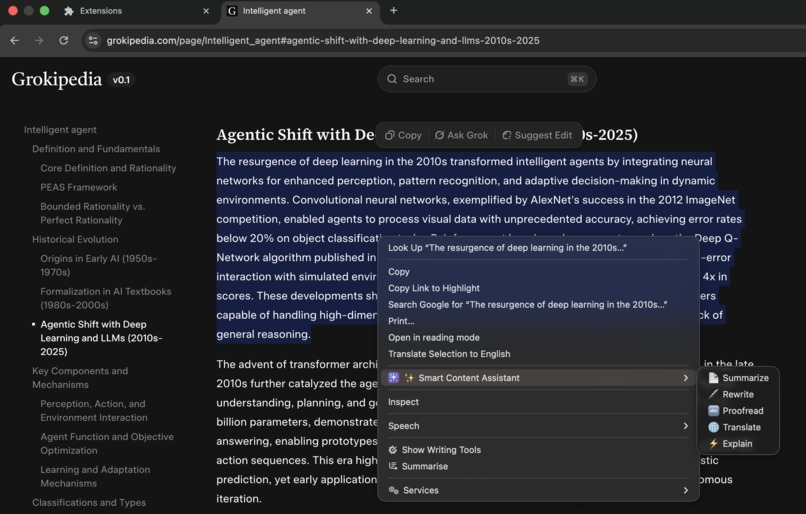
Calling AI Extension by Right click
-
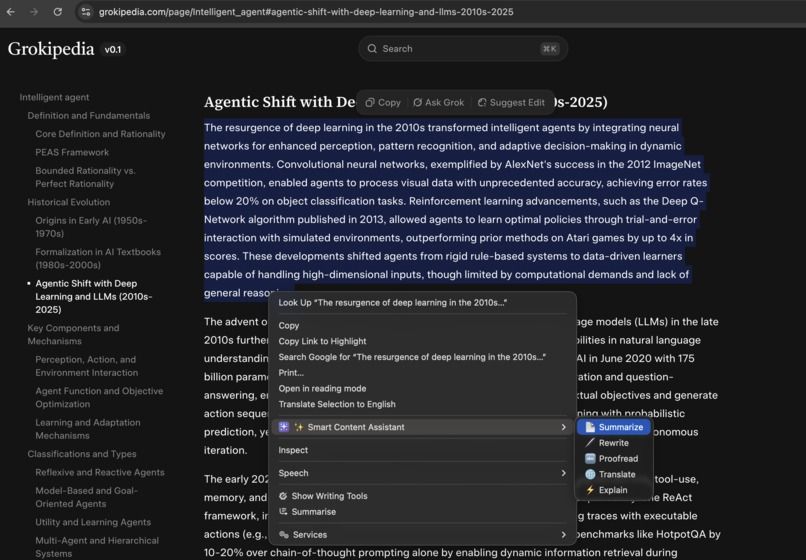
Calling AI Extension by selecting the text
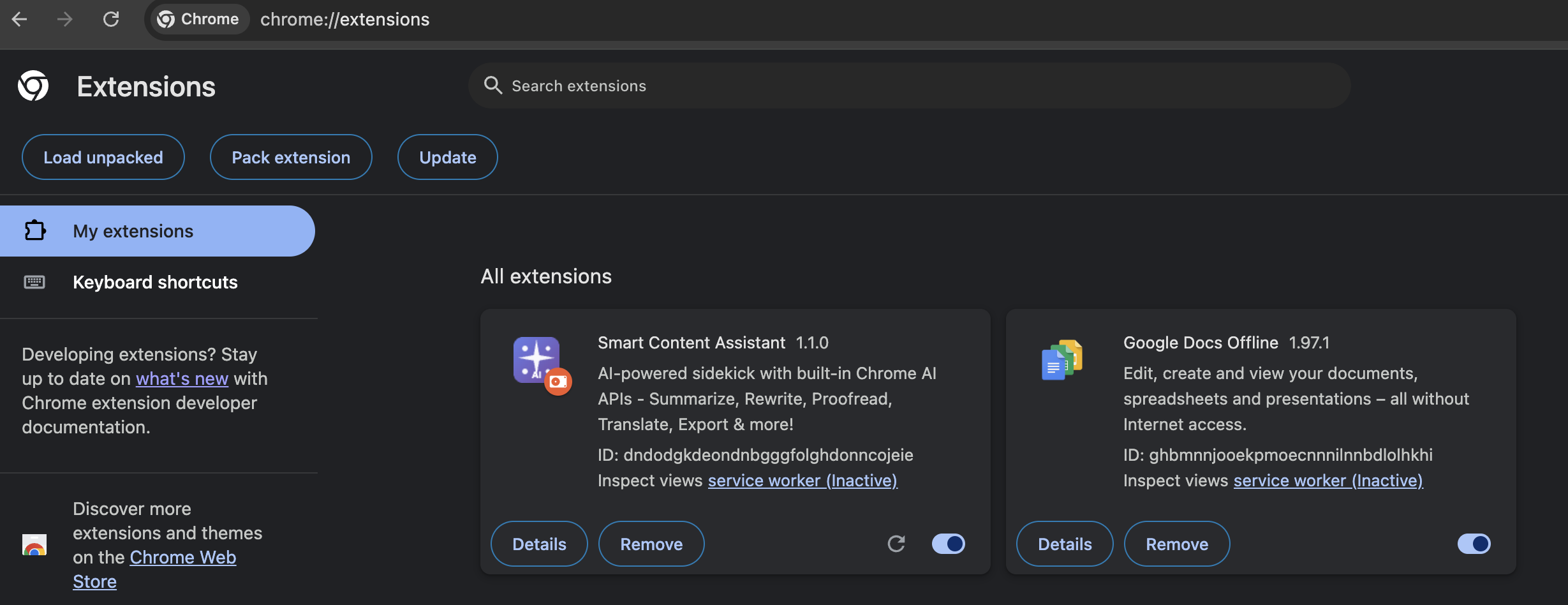
Inspiration
I've noticed that people constantly switch between multiple tabs and AI tools while writing online—copying text to ChatGPT for summarization, using separate tools for grammar checks, and jumping to translation services. This fragmented workflow breaks concentration and wastes time. We wanted to create a seamless solution that brings multiple AI capabilities directly into the user's workspace, allowing them to enhance their writing with a simple text selection, anywhere on the web.What it does Smart Content Assistant is a Chrome Extension that provides AI-powered text tools accessible through a simple right-click or keyboard shortcut. Users can:
Summarize lengthy articles or documents into concise key points Rewrite content to improve clarity and flow Generate new content with AI-powered writing assistance Proofread text for grammar, spelling, and style improvements Translate text between multiple languages Adjust tone from professional to casual or vice versa The extension integrates multiple AI APIs (OpenAI, Claude, Cohere, etc.) to provide diverse capabilities, all accessible through an intuitive popup interface that appears wherever you're working.
How we built it
We built Smart Content Assistant as a Chrome Extension leveraging Google's cutting-edge Built-in AI APIs (Gemini Nano). The architecture consists of:
Frontend (Popup Interface):
- Modern, responsive UI using vanilla HTML, CSS, and JavaScript
- Beautiful gradient design with smooth animations
- Tab-based interface for 6 different AI features
- Real-time loading states and comprehensive error handling
Core Technology Stack:
- Chrome Built-in AI APIs: Utilizing Gemini Nano for on-device AI processing
- Summarizer API for intelligent text summarization
- Rewriter API for tone and style adjustments
- Writer API for content generation
- Language Model API for proofreading, translation, and custom prompts
- Chrome Extension APIs:
chrome.scriptingfor executing AI operations in page contextchrome.contextMenusfor right-click integrationchrome.storagefor user preferences- Content scripts for text selection toolbar
Key Features Implementation:
- Text Selection Toolbar: Built a floating toolbar using content scripts that appears when users select text on any webpage
- Context Menu Integration: Added right-click menu options for quick AI actions
- Smart Error Handling: Comprehensive error messages with step-by-step troubleshooting guides
- Privacy-First Design: All processing happens locally on-device with zero external API calls
Development Process:
- Manifest V3 for modern Chrome Extension standards
- Modular JavaScript architecture for maintainability
- CSS Grid and Flexbox for responsive layouts
- SVG-to-PNG icon generation system
- Git version control with GitHub hosting
The entire extension is built with vanilla JavaScript (no frameworks) to keep it lightweight and fast, with a focus on user experience and visual polish.
Challenges we ran into
- Chrome AI API Availability (Major Challenge) The biggest challenge was discovering that Chrome's Built-in AI APIs are in experimental rollout and not universally available:
- Regional Restrictions: The AI APIs appear to have geographic limitations. Despite having the correct Chrome version (144 Canary), correct flags enabled, and proper configuration, the "Optimization Guide On Device Model" component doesn't appear in certain regions (like India).
- Documentation Gaps: The APIs are so new that documentation is limited, making it challenging to debug issues.
- Troubleshooting Complexity: Distinguishing between configuration errors and genuine unavailability required extensive testing. Our Solution:
- Built comprehensive error handling with detailed troubleshooting guides
- Created a diagnostic tool (
ai-diagnostic.html) to help users and developers identify issues - Documented the setup process thoroughly for future users
Implemented graceful degradation with helpful error messages
Service Worker Registration Errors Encountered issues with the background service worker:
chrome.commandsAPI was undefined when keyboard shortcuts weren't configuredchrome.scriptingpermission was missing from manifest
Solution: Added safety checks and proper permissions in manifest.json
- Content Script Context Limitations The AI APIs are only available in the webpage context, not in the extension's popup or background scripts:
- Had to use
chrome.scripting.executeScript()to run AI operations in the page context - Required careful error passing between contexts
- Needed to handle async operations across script boundaries
Solution: Created a robust messaging architecture to execute AI code in the correct context and relay results back to the popup.
- Cross-Origin Restrictions Some web pages (like chrome://, chrome-extension://, local files) have restricted access:
- Extension features don't work on certain system pages
- Required handling edge cases gracefully
Solution: Added proper error messages when extension is used on restricted pages.
- AI Model Download Requirements Users need to manually trigger the Gemini Nano download (~1.5GB):
- Not intuitive for average users
- Long download time can be confusing
- No clear progress indicator from Chrome
Solution: Created detailed setup instructions and added download guidance to error messages.
Accomplishments that we're proud of
- Beautiful, Intuitive UI/UX We created a visually stunning interface with:
- Smooth gradient backgrounds and animations
- Professional tab-based navigation
- Responsive design that works seamlessly
- Floating toolbar for text selection
Professional error messages with actionable guidance
Comprehensive AI Feature Set Successfully integrated 6 different AI capabilities:
✅ Summarization (key points extraction)
✅ Rewriting (tone adjustment)
✅ Proofreading (grammar correction)
✅ Translation (10+ languages)
✅ Content Writing (creative generation)
✅ Custom AI Prompts (open-ended queries)
Privacy-First Architecture Built an AI-powered tool that:
100% on-device processing - No data leaves the user's computer
Zero external API calls - No third-party services
No tracking or analytics - Complete user privacy
Works offline - No internet required after model download
Production-Ready Code Quality
Clean, modular architecture
Comprehensive error handling
No linter errors
Well-documented codebase
Git version control with meaningful commits
Professional README and documentation
Developer Experience Tools Created helpful utilities:
ai-diagnostic.htmlfor troubleshootinggenerate-icons.htmlfor icon creationDetailed setup documentation
Error messages that educate users
Persistence Through Challenges Despite the AI APIs not being available in our region, we:
Built the complete extension with proper error handling
Created thorough documentation for when it becomes available
Made the extension valuable even for understanding Chrome's AI ecosystem
Prepared comprehensive diagnostic tools for reporting issues
What we learned
Technical Learnings:
- Chrome Built-in AI Ecosystem
- Deep understanding of Gemini Nano and on-device AI
- How Chrome's experimental AI APIs work
- The importance of feature detection and graceful degradation
Regional and experimental nature of cutting-edge features
Chrome Extension Development
Manifest V3 architecture and best practices
Service workers vs. background scripts
Content script execution contexts
Cross-context messaging and data flow
Permission management and security
API Context Limitations
Web APIs are context-specific (window vs. extension contexts)
Using
chrome.scripting.executeScript()for context bridgingAsync/await patterns across different contexts
Error handling across script boundaries
Progressive Enhancement
Building features that degrade gracefully
Importance of comprehensive error messages
Feature detection before usage
User education through error messages
Design & UX Learnings:
- Error Messages as UX
- Error messages are opportunities to help and educate users
- Providing actionable steps improves user confidence
- Visual design matters even for errors
Persistent vs. temporary error display strategies
User Onboarding
Complex setup requires clear step-by-step guides
Visual aids and screenshots are crucial
Anticipating user confusion and addressing it proactively
Multiple documentation formats (README, Quick Start, etc.)
Accessibility & Feedback
Loading states reduce user anxiety
Copy-to-clipboard functionality enhances usability
Visual feedback for all user actions
Clear labels and intuitive icons
Project Management Learnings:
- Dealing with External Dependencies
- Building around experimental APIs requires flexibility
- Have contingency plans when features aren't available
- Document issues thoroughly for future reference
Create diagnostic tools to help others
Documentation is Critical
Good documentation helps users and future contributors
Multiple documentation types serve different purposes
Screenshots and examples are more valuable than text alone
Keep documentation updated with code changes
Version Control Best Practices
Meaningful commit messages tell a story
Commit often, push regularly
Clean commit history aids debugging
GitHub as collaboration and showcase platform
Broader Insights:
- The Future of On-Device AI
- Privacy-preserving AI is becoming mainstream
- Browser vendors are investing heavily in built-in AI
- On-device processing eliminates latency and costs
Accessibility of AI to all users, not just those with API keys
Regional Technology Rollouts
Cutting-edge features often have geographic limitations
Early adoption comes with uncertainty
Need for alternative approaches and patience
Importance of community feedback to tech companies
Building for Tomorrow
Even if features aren't available today, building for them prepares us
Code quality matters regardless of current availability
Learning from building is valuable independent of deployment
What's next for Smart Content Assistant
Short Term (When AI APIs Become Available):
- Regional Availability Testing
- Contact Chrome team about India availability
- Test in regions where AI is confirmed available
- Document regional differences and requirements
Create fallback mechanisms for unsupported regions
Enhanced Features
Batch Processing: Process multiple texts at once
History Management: Save and access previous AI operations
Export Functionality: Export results to PDF, Word, or Markdown
Custom Templates: Save frequently used AI prompts
Settings & Customization
User preferences page
Customizable keyboard shortcuts
Theme selection (light/dark mode)
Language preferences for UI
AI behavior customization (temperature, max length, etc.)
Medium Term:
- Multimodal AI Integration
- Image Analysis: Describe images using AI vision
- Screenshot Processing: Extract and process text from images
- Audio Transcription: Convert speech to text
Video Summarization: Create summaries from video content
Advanced AI Features
Smart Reply Suggestions: Quick response generation for emails
Writing Style Analysis: Analyze and suggest improvements
Plagiarism Detection: Check originality using AI
Citation Generation: Automatically create citations from text
Code Explanation: Explain code snippets on GitHub, Stack Overflow
Collaboration Features
Team Sharing: Share AI-generated content with teammates
Workspace Integration: Connect with Google Docs, Notion, etc.
Browser Sync: Sync settings across devices
Cloud Backup: Optional cloud storage for AI history
Performance Optimizations
Streaming Responses: Show AI output as it generates
Response Caching: Cache common queries for speed
Background Processing: Process large texts in background
Model Updates: Auto-update to latest AI models
Long Term Vision:
- Platform Expansion
- Firefox Extension: Port to Firefox when they support AI APIs
- Edge Support: Adapt for Microsoft Edge
- Mobile Browser: Adapt for mobile browsers
Desktop App: Standalone Electron app
AI Model Options
Model Selection: Let users choose between different AI models
Custom Models: Support for user-trained models
Hybrid Mode: Combine on-device and cloud AI when needed
Model Comparison: A/B test different AI models
Enterprise Features
Admin Dashboard: Team management and usage analytics
Compliance Mode: GDPR, HIPAA-compliant processing
API Access: Allow businesses to integrate our extension
White-Label: Customizable branding for enterprises
On-Premise Deployment: Self-hosted for maximum security
Community & Ecosystem
Plugin System: Allow developers to extend functionality
Marketplace: Community-contributed AI prompts and templates
Open API: Public API for integration with other tools
Developer Documentation: Comprehensive guides for contributors
User Forum: Community support and feature requests
Research & Innovation
AI Ethics Features: Bias detection and mitigation
Accessibility Improvements: Screen reader support, voice control
Sustainability: Monitor and optimize energy usage
Academic Partnerships: Collaborate with universities on AI research
Built With
- chromeapi
- css
- gemininano
- html
- javascript


Log in or sign up for Devpost to join the conversation.