-
-
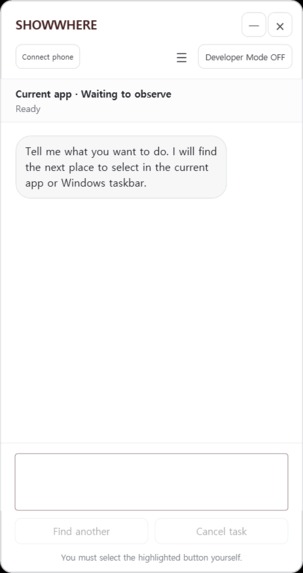
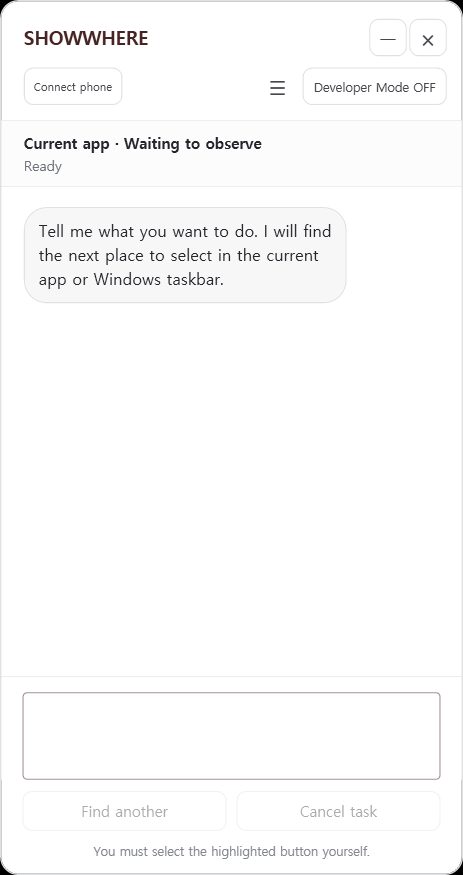
This is the main screen of the program. Here, users can ask anything.
-
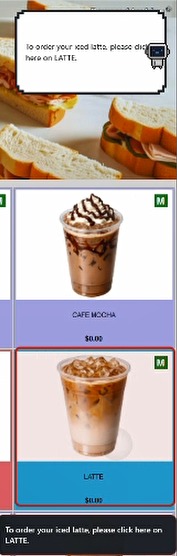
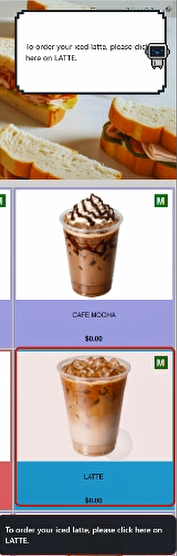
ShowWhere shows users where to click. ShowWhere doesn't take control. It just shows where to click.
-
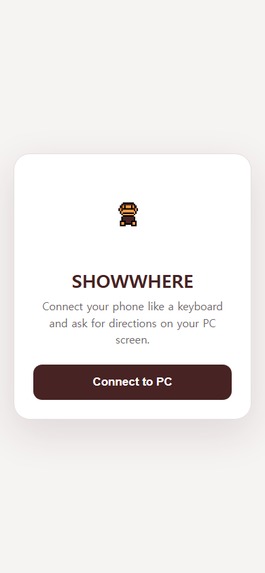
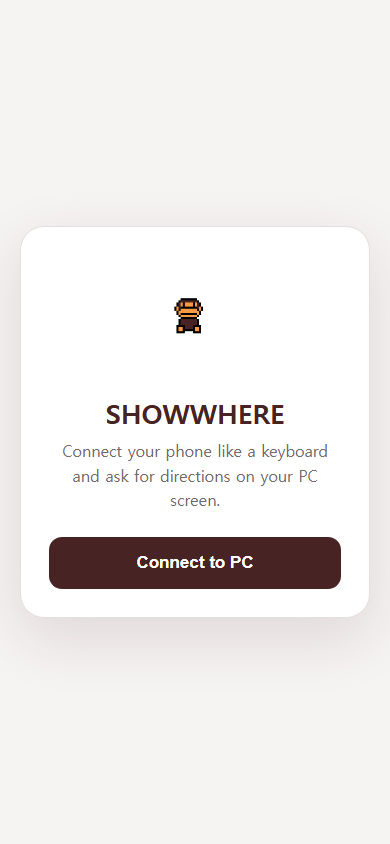
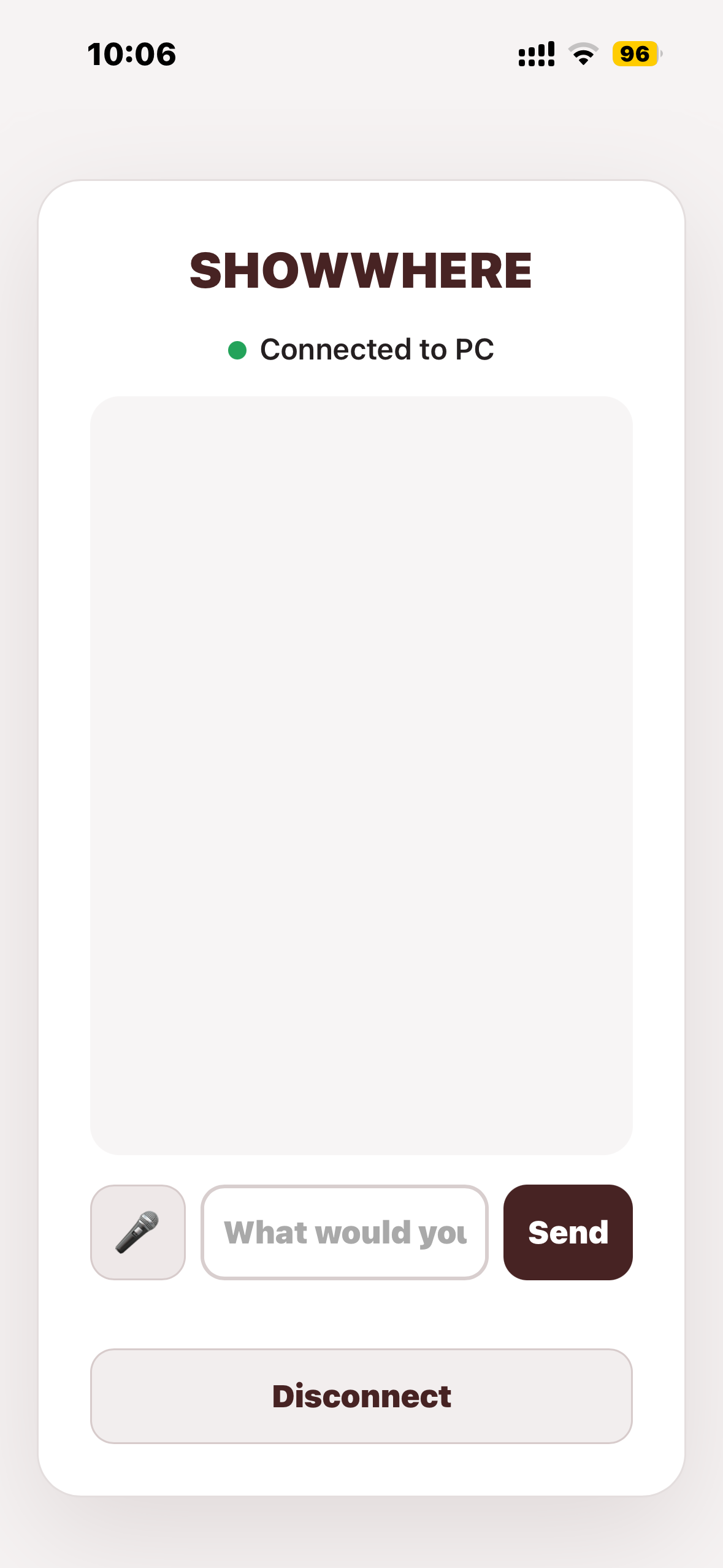
This is the phone web-app screen. Users can connect their phone when a device has no keyboard, like a kiosk. Users can type or speak to ask.
-
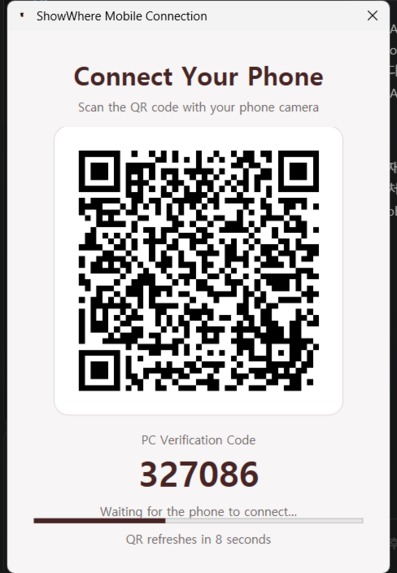
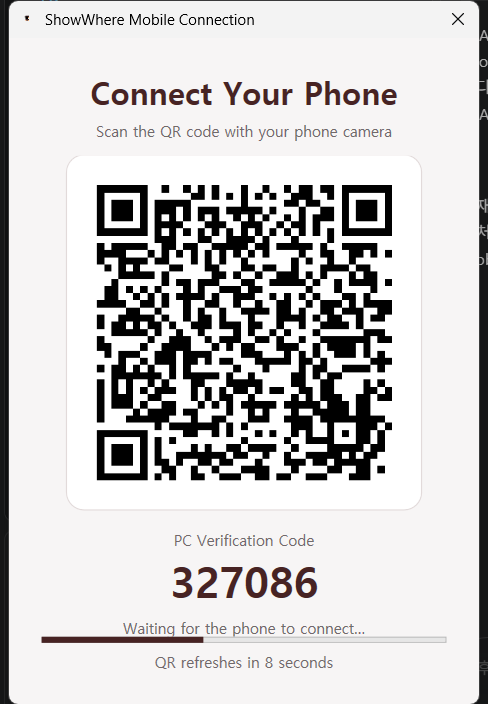
This QR code is used to connect the phone with the PC.
-
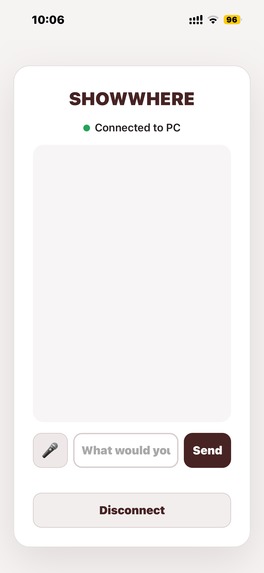
Here, users can type or speak and press Send. Then ShowWhere receives the message and solves the problem.
-
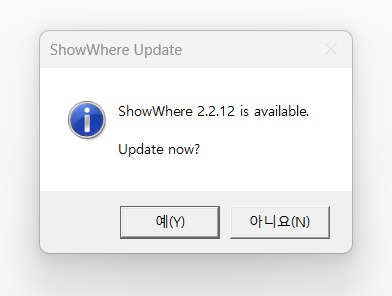
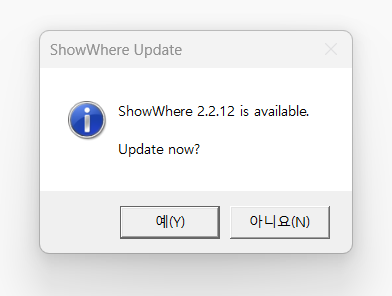
When ShowWhere has an update, it shows a popup so users can update and experience a better ShowWhere.
Inspiration
People often know exactly what they want to do, but they do not know where to click.
A customer may struggle to customize an order on a restaurant kiosk. An employee may get lost in unfamiliar workplace software. Someone may know that a feature exists on a website or in Windows, but have no idea where it is hidden.
The information exists.
The feature exists.
The button exists.
The problem is knowing where to click.
Traditional help systems and AI assistants usually provide more instructions:
“Open Settings, go to Bluetooth & devices, and select Printers & scanners.”
But the user still has to understand those instructions, find each menu, and translate the explanation into actions on the actual screen.
That is why we built ShowWhere.
Instead of only telling users what to do, ShowWhere observes the interface they are currently using and shows them exactly where to click.
Our goal is simple:
Technology should never become unusable just because someone does not know where to click.
What it does
ShowWhere is an AI-powered visual guidance assistant for computers, websites, workplace software, POS/back-office systems, restaurants, and kiosks.
A user can simply ask:
- “Where do I change my printer settings?”
- “Where is my shopping cart?”
- “How do I change this kiosk menu?”
- “Where can I find this setting?”
ShowWhere understands the user's goal, observes the current interface, identifies the appropriate UI element, and visually highlights where the user should click next.
ShowWhere does not simply give the user another set of instructions, and it does not take control of the computer.
Instead, it guides the user directly on the real interface so the user can complete the task themselves.
Ask → See → Click → Complete
Where ShowWhere can be used
We did not build ShowWhere for one website or one application.
Our goal is to create a guidance layer that can work across many kinds of digital interfaces.
Everyday computers
ShowWhere can help users navigate Windows settings, configure printers, find unfamiliar menus, and discover features they do not know how to access.
Websites
It can guide users toward account settings, shopping carts, order history, login controls, and other functions inside complex websites.
Workplaces
Employees often understand their job but may not know every menu inside the software they are required to use.
ShowWhere can guide users through unfamiliar workplace software, POS systems, back-office systems, administrative tools, and configuration screens.
Restaurants and kiosks
Restaurant employees may need to modify menus, update images, manage orders, or configure kiosk settings without being familiar with the entire system.
ShowWhere can provide step-by-step visual guidance directly on those interfaces.
Mobile Sync for keyboardless kiosks
While developing ShowWhere, we encountered another problem:
Many kiosks do not have keyboards.
To solve this, we built Mobile Sync.
ShowWhere can generate a QR pairing session on the PC. The user scans the QR code with a phone and completes a temporary verification step to securely connect the two devices.
The phone then becomes an input interface for ShowWhere.
Users can:
- Type a request on their phone
- Send it directly to ShowWhere on the connected computer
- Receive ShowWhere's response on the phone
- Use speech-to-text instead of typing
This means that even on a keyboardless kiosk, a user can simply take out their phone and say what they want to do.
The phone and PC communicate through our cloud service, so they do not need to be connected to the same Wi-Fi network.
Learning from experience
One of the most important ideas behind ShowWhere is that it should not solve the same problem from scratch forever.
When a solution is verified as correct, ShowWhere can preserve that experience as reusable knowledge.
When the same or a semantically similar request appears again, ShowWhere can retrieve what it has already learned before relying on a full AI analysis.
However, interfaces constantly change.
Buttons move.
Windows move.
Websites update.
Screen resolutions differ.
Display scaling differs.
Because of this, ShowWhere does not simply memorize old screen coordinates.
Instead, we focus on remembering the meaning of the solution and then finding the corresponding UI element again in the user's current environment.
Our learning loop is:
Unknown problem → Reason → Solve → Verify → Remember
For something ShowWhere already knows:
Known problem → Remember → Verify on the current interface → Guide
Our long-term goal is for accumulated verified experiences to help ShowWhere reason about interfaces it has never encountered before.
How we built it
ShowWhere combines multiple approaches instead of relying on a single AI call.
The Windows application observes the user's current environment and combines:
- AI reasoning
- Semantic intent understanding
- Windows UI information
- Visual interface context
- Previously verified knowledge
- Local-first knowledge retrieval
- Visual overlay guidance
When ShowWhere already has reliable knowledge for a request, it can reuse that experience instead of unnecessarily solving the same problem again.
When existing knowledge is insufficient, AI reasoning can be used as a fallback to understand the unfamiliar situation.
Once a target is identified, ShowWhere places visual guidance directly over the user's real interface.
We also built a cloud backend that supports shared knowledge, AI requests, secure mobile pairing, synchronized messaging, and communication between the Windows application and mobile web app.
AI and Models Used
AI is a core part of ShowWhere’s decision-making system, not just a text-generation layer.
ShowWhere uses multiple AI models for different levels of difficulty instead of sending every request through the same model.
OpenAI
ShowWhere uses the OpenAI API as its main reasoning system.
- GPT-5.6 Luna is used for fast cases where the user’s intent clearly matches a visible UI element.
- GPT-5.6 Terra is the main general reasoning model for understanding the user’s goal and deciding the next step.
- GPT-5.6 Sol is used for more difficult situations, especially when UI Automation does not provide usable candidates and ShowWhere must rely more heavily on visual understanding of the screenshot.
- GPT Transcribe is used for speech-to-text in the mobile web app, allowing users to speak their request instead of typing.
ShowWhere sends the model the user’s goal, current application context, UI Automation candidates, and a screenshot of the current interface.
The AI then determines the next appropriate action and the UI target that best advances the user toward their goal.
ShowWhere does not blindly trust AI-generated coordinates. When a real UI element is available through Windows UI Automation, the AI’s decision is grounded back to the live UI element and its current physical bounds.
This allows ShowWhere to combine AI reasoning with the actual interface currently visible to the user.
Hugging Face
ShowWhere also supports Hugging Face semantic models for lightweight semantic matching.
The current embedding model is:
intfloat/multilingual-e5-large
It is used to compare user intent with candidate UI elements and semantic knowledge, especially across Korean and English.
This helps ShowWhere identify semantically related controls even when the wording is not identical.
Hugging Face is used as a supporting semantic layer, while OpenAI models remain the main reasoning system for unfamiliar or difficult tasks.
Hybrid AI Routing
ShowWhere does not call the most expensive model for every request.
Its routing works roughly like this:
Clear visible target → GPT-5.6 Luna
Normal reasoning case → GPT-5.6 Terra
Difficult visual case / no reliable UI Automation candidates → GPT-5.6 Sol
Speech input → GPT Transcribe
Semantic similarity / lightweight candidate matching → multilingual-e5-large
Previously verified solution → Local / Central Knowledge first, AI only if necessary
This allows ShowWhere to balance speed, cost, and accuracy.
Challenges we faced
One of our biggest challenges was making sure that ShowWhere's guidance corresponds to the actual interface in front of the user.
A button that appears in one location on one computer may appear somewhere completely different on another.
We had to account for:
- Different screen resolutions
- Windows display scaling
- Multiple monitors
- Negative monitor coordinates
- Changing window positions
- Dynamic website content
- UI elements that move or change
- Different computers and environments
This taught us an important lesson:
Knowledge and coordinates are not the same thing.
ShowWhere can remember that a certain menu or UI concept is the correct solution, but it should not blindly reuse the coordinates from another computer.
It must locate the correct target again in the current environment.
Another challenge was speed.
Calling a large AI model every time for something ShowWhere has already solved is unnecessary and slow.
That led us to develop a local-first knowledge approach where verified experiences can be retrieved and reused before falling back to AI reasoning.
Mobile Sync presented another challenge.
We wanted a phone and computer to communicate even when they were not connected to the same Wi-Fi network. This led us to build QR-based pairing, temporary verification codes, cloud communication, synchronized messaging, and mobile speech input.
What we learned
Building ShowWhere changed the way we think about AI assistants.
AI does not always need to perform a task instead of the user.
Sometimes the most useful thing AI can do is bridge the gap between:
“I know what I want to do.”
and
“I know how to do it.”
We learned that a useful interface assistant needs more than a powerful AI model.
It needs context.
It needs memory.
It needs reliable visual grounding.
It needs feedback.
And it needs the ability to learn from verified experience.
Most importantly, we learned that helping someone complete a task themselves can be more valuable than simply giving them an answer.
What's next
Our vision for ShowWhere goes far beyond the interfaces we have tested so far.
We want ShowWhere to continuously accumulate verified knowledge about how digital interfaces work.
As that knowledge grows, ShowWhere can increasingly use previous experiences to reason about unfamiliar interfaces instead of treating every new screen as a completely new problem.
Imagine opening unfamiliar software for the first time and simply asking:
“How do I do this?”
Instead of searching documentation, watching tutorials, calling technical support, or randomly clicking through menus, ShowWhere points directly at the interface:
“Right here.”
This could help an employee learning new workplace software.
A restaurant worker managing a kiosk.
Someone configuring a computer.
A customer navigating an unfamiliar website.
Or anyone who knows what they want technology to do but does not know where to find the button.
Technology will continue to become more powerful and more complicated.
ShowWhere exists so that complexity does not leave people behind.
Built with
- Windows / .NET
- WPF
- TypeScript
- OpenAI API
- GPT-5.6 Luna
- GPT-5.6 Terra
- GPT-5.6 Sol
- GPT Transcribe
- Hugging Face
- intfloat/multilingual-e5-large
- Windows UI Automation
- Semantic Knowledge
- Human Gold verified learning
- Railway
- HTTPS / WebSocket
- QR-based device pairing
- Mobile Web App
- Speech-to-Text
- GitHub Actions
Demo and Links
Demo Video:
https://www.youtube.com/watch?v=I70YKzUQ1O8
GitHub:
https://github.com/rudwndgus/ShowWhere
Download ShowWhere:
https://github.com/rudwndgus/ShowWhere/releases/latest/download/ShowWhere.exe
Mobile Web App:
https://api-production-6901.up.railway.app/mobile/
Pre-existing Code Disclosure
ShowWhere was started after we joined this hackathon.
There was no pre-existing ShowWhere application or codebase before the hackathon.
The Windows application, AI guidance system, visual overlay, UI understanding, learning system, mobile synchronization, QR pairing, speech-to-text integration, cloud backend, knowledge system, and deployment pipeline were all developed during the hackathon period.
The complete development history is available in our public GitHub repository and commit history:


Log in or sign up for Devpost to join the conversation.