-
-
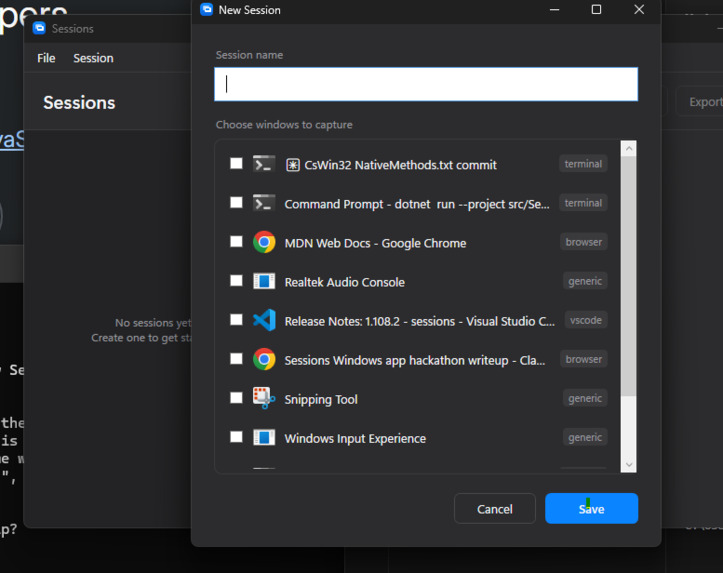
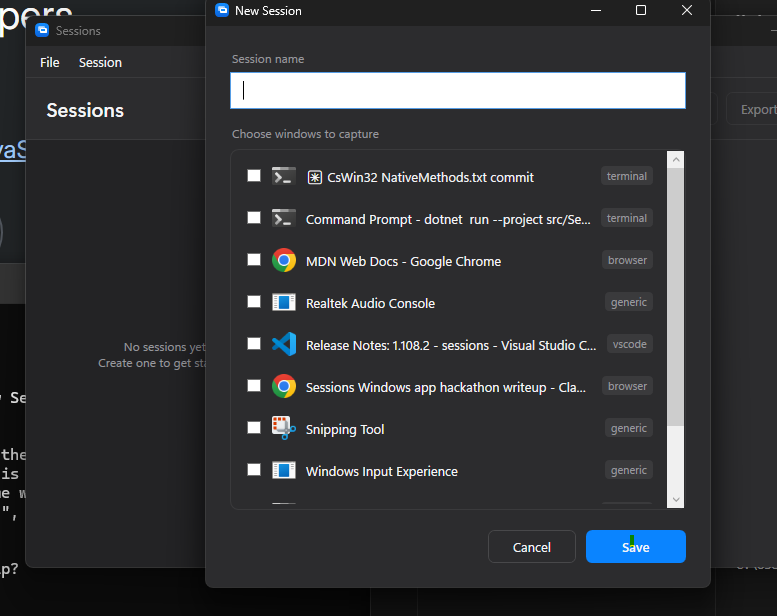
currently-running app selection screen
-
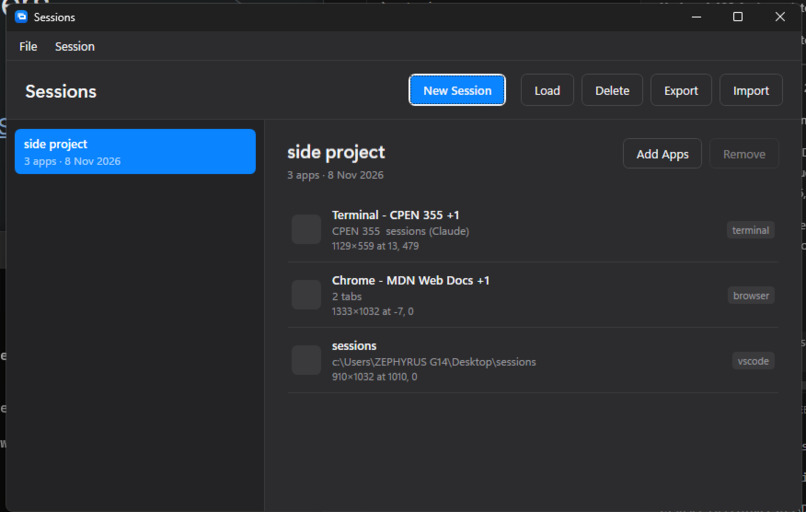
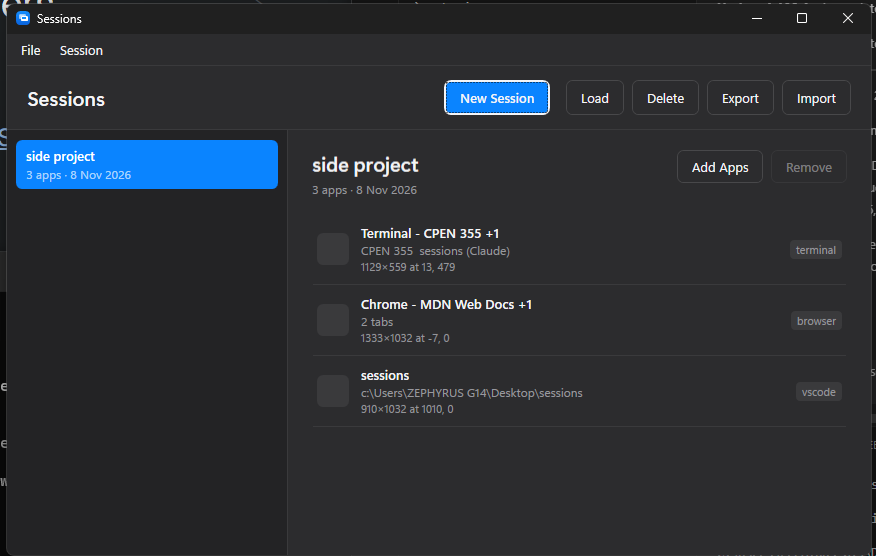
saved session group
Inspiration
I like Google Chrome's tab group feature ever since it came out, so wanted to do something similar for my different work app sessions I need saved.
What it does
Sessions is a Windows application session saver. It captures the apps you currently have open, along with each window's position, size, and monitor, and stores them as a named session. Restoring a session relaunches those apps and puts every window back where it was.
- Save your current desktop as a named session in one step.
- Restore a whole session in one click instead of reopening everything manually.
- Keep separate sessions for different contexts, such as "school", "work", or "gaming", and switch between them instantly.
- Recover quickly after a crash or restart.
How we built it
We built Sessions as a native Windows application around the operating system's own window and process APIs. A capture step enumerates the open top-level windows, filters out system and invisible windows, and records each app's executable and window geometry. Sessions are saved as simple, human-readable files so they are easy to inspect, back up, and share. A restore step reads a session, launches each app, waits for its window to appear, and moves and resizes it into place. We built it in small, focused pieces (capture, storage, restore, UI) so each one could be tested on its own, and we committed in small steps so every change was easy to review.
Challenges we ran into
- Window placement is timing-sensitive. A freshly launched app doesn't have its window ready right away, so restoring means waiting for the window and then positioning it, without moving the wrong one.
- Multiple monitors and scaling. Positions saved on one monitor layout or DPI setting can land off-screen on another, so coordinates have to be validated before restoring.
- Not every window is a normal app. System windows, background processes, and apps that run as multiple processes all had to be filtered or handled so sessions only contain what the user actually sees.
- Apps that are already running. Restoring must avoid launching duplicates when an app is already open, and instead reposition the existing window.
- Staying organized with long AI chat sessions. Our conversations grew long, and keeping track of decisions across them took deliberate tooling (see below).
Tools that we used that helped
Freebuff - Our chats were long but remained organized thanks to Freebuff's feature that lists each message. It made it easy to jump back to an earlier point in a conversation instead of scrolling through everything.
Entire - Entire let us write an explanation for every commit (checkpoint), so each change records the reasoning and the session behind it, not just the diff. We created separate trails for different parts of the app, such as capture, restore, and the interface, which kept the history of each area clean and easy to follow. Entire's graph feature gave us a visual overview of how our checkpoints and trails branched and came together over the course of the project, which made it simple to see what changed, where, and why, and to find the right point to return to when something broke.
Accomplishments that we're proud of
- A complete save-and-restore loop that brings back a real working desktop, not just a list of apps.
- Reliable window placement across multiple monitors.
- A simple, readable session format that users can understand and back up.
- A clear, traceable development history where every checkpoint is explained and each part of the app has its own trail.
- Shipping a polished, working tool within the hackathon.
What we learned
- Saving state is the easy half; restoring it faithfully is much harder, because it depends on timing, app behavior, and the user's display setup.
- Windows exposes a lot about windows and processes, but each app has its own quirks, so testing across many real apps matters more than any single clever approach.
- Small, well-explained commits make debugging and teamwork much faster, especially when AI assistance is involved and context can easily get lost.
- Keeping the design simple, with one clear way to save and one clear way to restore, made the app more dependable.
What's next for sessions - a windows application session saver
- Restore app-level state such as open files, browser tabs, and terminal folders.
- Support for Windows virtual desktops.
- Automatic and scheduled snapshots so a crash never costs you your workspace.
- A system tray menu and global hotkeys for instant switching between sessions.
- Sharing sessions between machines and with teammates.
