
Inspiration
Every time I read a technical article, a research paper, or documentation in English, I hit the same friction: copy the text, switch tabs, paste it into an online translator, wait, switch back. And every single time, that text — sometimes from academic or professional documents I'd rather keep private — gets sent off to a server I have no control over.
As an engineering student working with a lot of foreign-language technical content, I wanted something that stayed on the screen instead of pulling me away from it, and that didn't require trusting a third-party cloud service with my data. That idea became Sentinelle OCR: a floating capture zone that reads, translates, and explains any text on your screen — entirely offline, entirely local.
What it does
Sentinelle OCR is a desktop application that lets you:
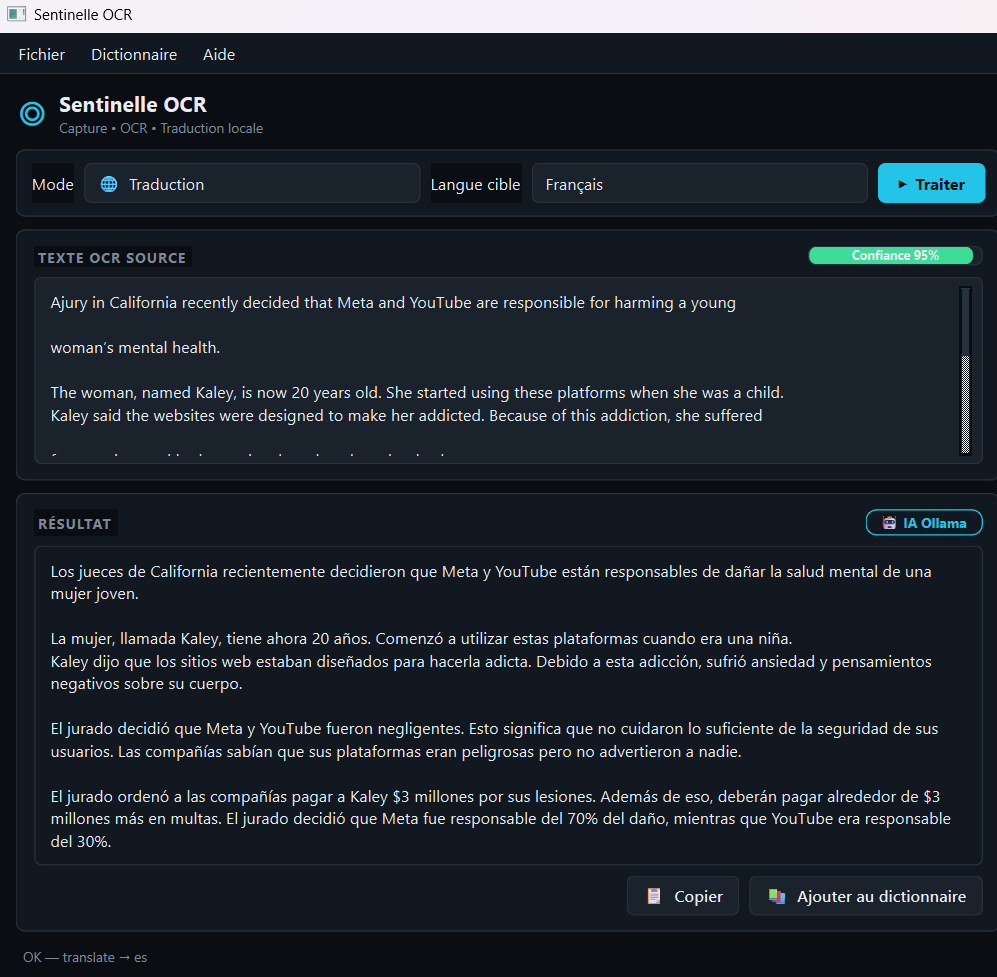
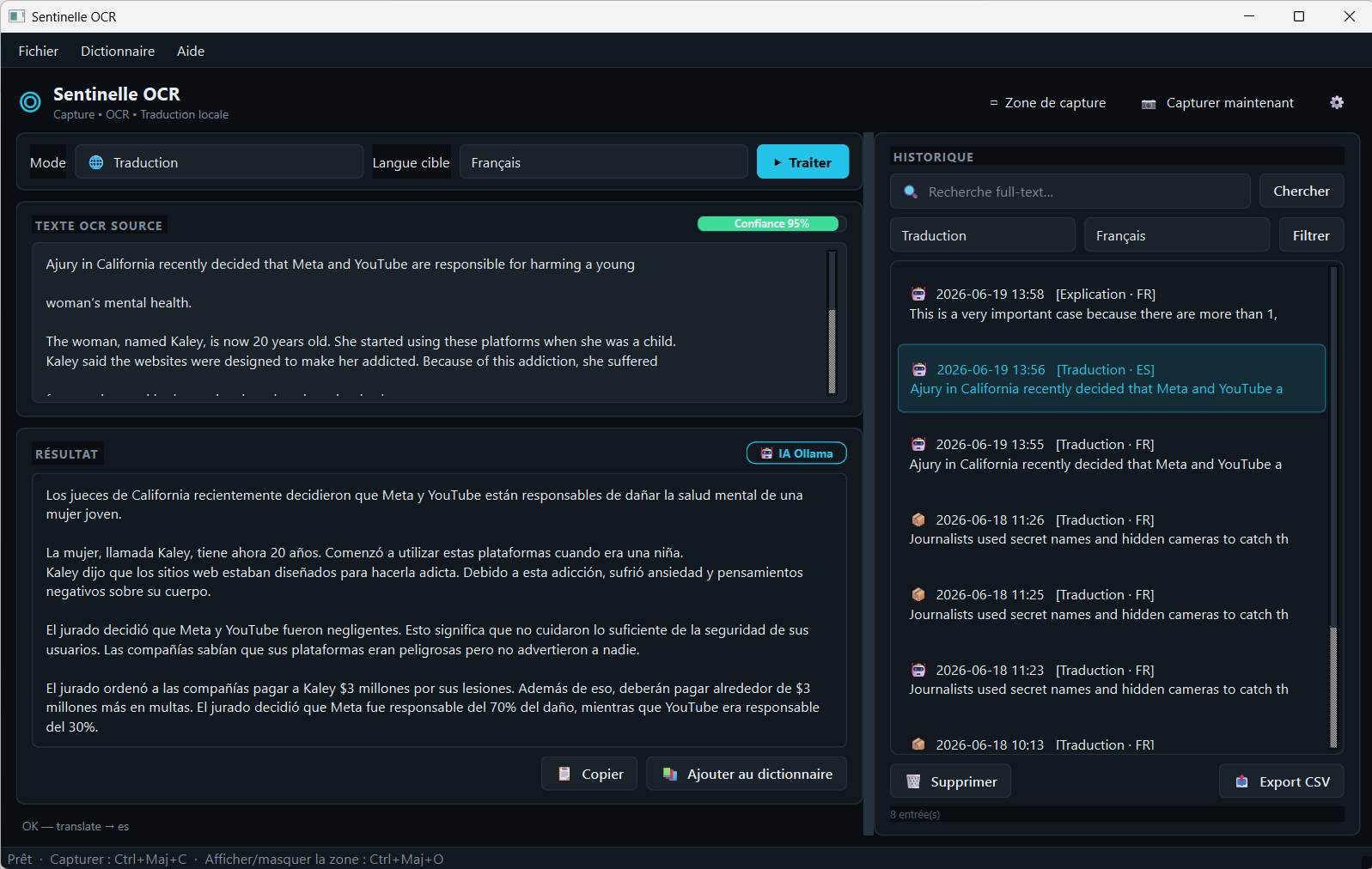
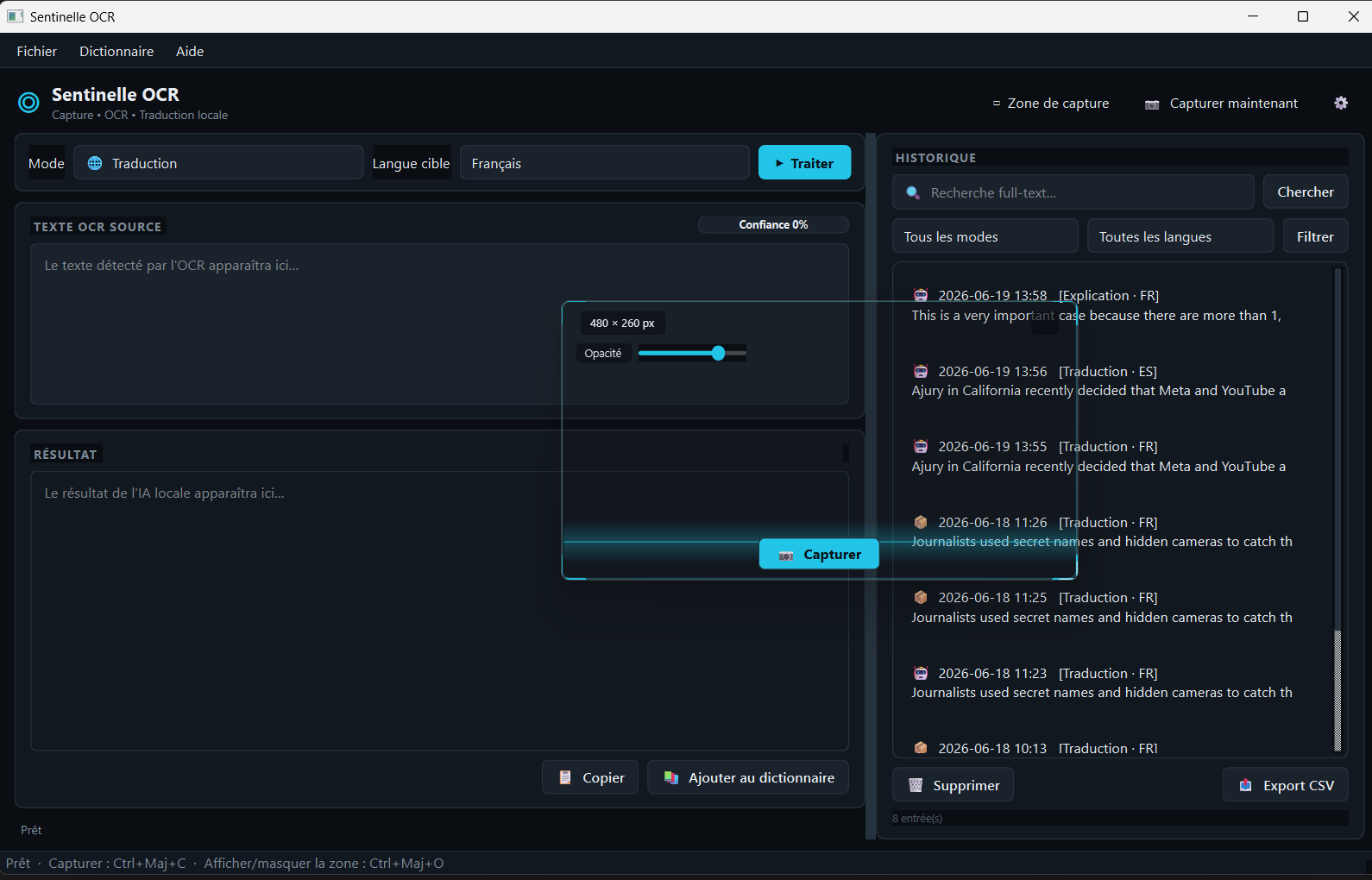
Drop a capture zone anywhere on screen — resizable, movable, with adjustable opacity and a "ghost mode" that lets clicks pass through it when you don't need it active. Extract text instantly with OCR, choosing between Tesseract (fast, lightweight) or EasyOCR (slower, more accurate) depending on the content. Process that text with a local AI model through Ollama — translate it, explain it, summarize it, or correct it — without any data ever leaving the machine. Build a personal dictionary: once a translation is validated, it's cached locally, so the next time similar text appears, the app recognizes it instantly instead of calling the AI again. Search and export history: every capture is stored in a local SQLite database with full-text search (FTS5), filterable by mode and language, and exportable to CSV. All of it runs through global keyboard shortcuts, so it stays out of the way until you need it.
How we built it
Interface: PySide6 (Qt for Python), with a custom dark "control-room" theme — a single cyan accent color, card-based layout, and a viewfinder-style scanning animation on the capture overlay to tie the visual identity to the "sentinel/scanning" concept. Screen capture: mss for fast, multi-monitor-aware screenshots of the capture zone. OCR: dual-engine setup with pytesseract (Tesseract) and EasyOCR, with optional image preprocessing (grayscale conversion, contrast adjustment) to improve accuracy on low-quality captures. Local AI: Ollama running models like Mistral, Llama 3, or Phi-3, called through a lightweight local client — no external API keys, no network calls. Storage: SQLite with an FTS5 virtual table for full-text search across the capture history, plus WAL mode for smoother concurrent read/write access between the UI and background OCR/AI threads. Global hotkeys: pynput, so capture and toggle actions work even when the app isn't focused. Architecture: cleanly separated into core/ (OCR engine, AI client), database/ (models, DB manager), and ui/ (overlay window, result panel, history, settings) — which made it much easier to redesign the entire interface later without touching any of the underlying logic.
Challenges I ran into
Multi-monitor and DPI scaling: getting the capture zone to grab exactly the pixels under the overlay window, across monitors with different scaling factors, took several iterations with mss and device-pixel-ratio math. Balancing OCR engines: Tesseract is fast but struggles with certain fonts and busy backgrounds; EasyOCR is more accurate but noticeably slower. Rather than picking one, I exposed both as a user-facing setting, which meant designing the OCR layer around a common interface both engines could implement. Keeping the overlay unobtrusive: a floating, always-on-top, semi-transparent window is easy to make annoying. I iterated a lot on opacity control, click-through "ghost mode," and resize/drag behavior so it never blocks the content underneath. Database design for full-text search: getting FTS5 to stay in sync with the main captures table (inserts, deletes, and search ranking) took some trial and error, especially once I added filtering by mode and target language on top of the full-text query. Designing a coherent visual identity for a desktop app: most OCR/translation tools look like generic system utilities. I wanted Sentinelle OCR to actually feel like a "sentinel" — which led to the scanning-line animation and viewfinder-style capture corners as a distinct visual signature, on top of a full dark-theme rebuild of every widget in the app.
Accomplishments that we're proud of
A fully working, end-to-end local pipeline: capture → OCR → local AI → cache → searchable history, with zero cloud dependency. A dictionary/cache system that meaningfully cuts down on repeated AI calls for recurring text. A complete UI redesign that turned a functional-but-generic interface into something with a clear, consistent visual identity. Everything runs offline after setup — genuinely private by design, not just "privacy-friendly" in the marketing sense.
What we learned
How to structure a PySide6 desktop application so that UI, business logic, and data access stay decoupled enough to redesign one without breaking the others. The practical tradeoffs between different OCR engines, and how much preprocessing (grayscale, contrast) actually matters for accuracy. How to work with local LLMs through Ollama as a genuine, production-viable alternative to cloud AI APIs for a real application. SQLite FTS5 for fast full-text search without needing an external search engine or database server. How much a consistent visual design system (a single theme file, reused everywhere) speeds up iteration compared to styling each widget ad hoc.
What's next for Sentinelle OCR
Broader OCR language support beyond the current set. A browser extension to trigger capture directly from a web page instead of a full-screen overlay. An optional, encrypted, opt-in sync for history across devices — while keeping the local-first, privacy-by-default model as the core promise. A "continuous reading" mode with live OCR subtitling for scrolling content.

Log in or sign up for Devpost to join the conversation.