-
-
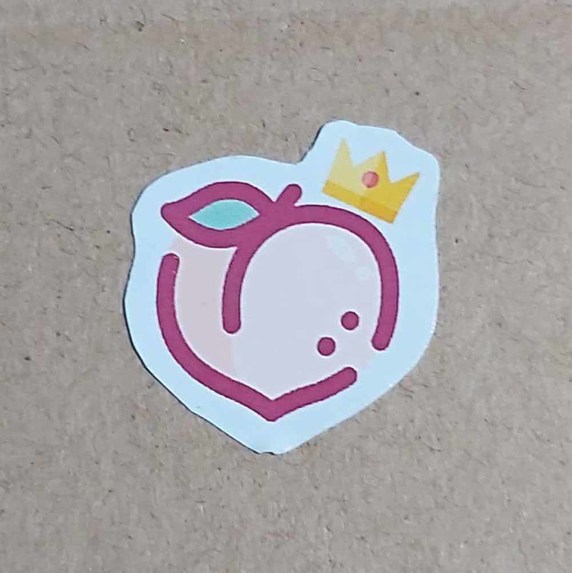
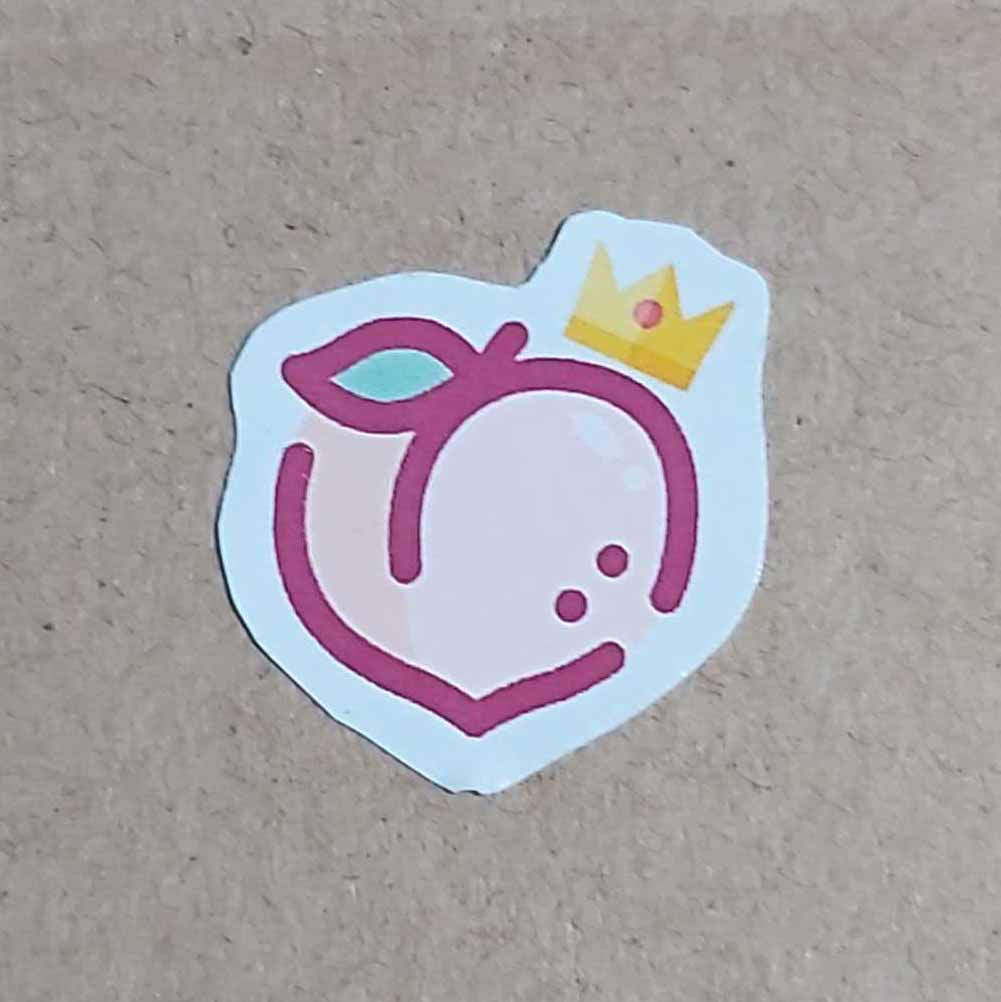
Target image for the target tracker
-

Icon for the beverage category
-

Icon for the main dish category
-

Icon for the dessert category
-
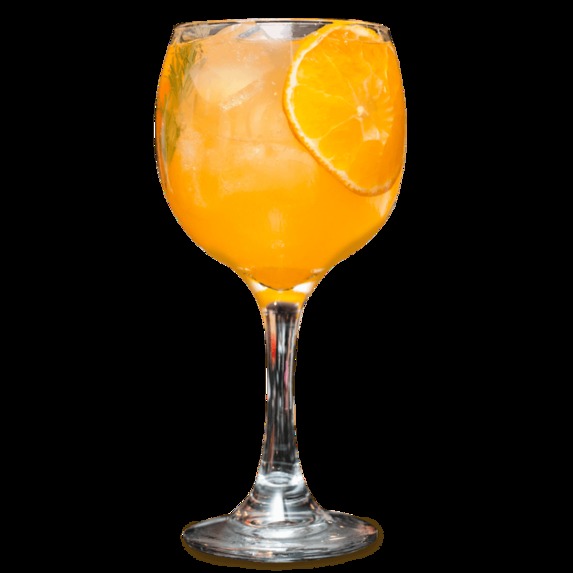
Sample beverage option that will appear when browsing the menu
-
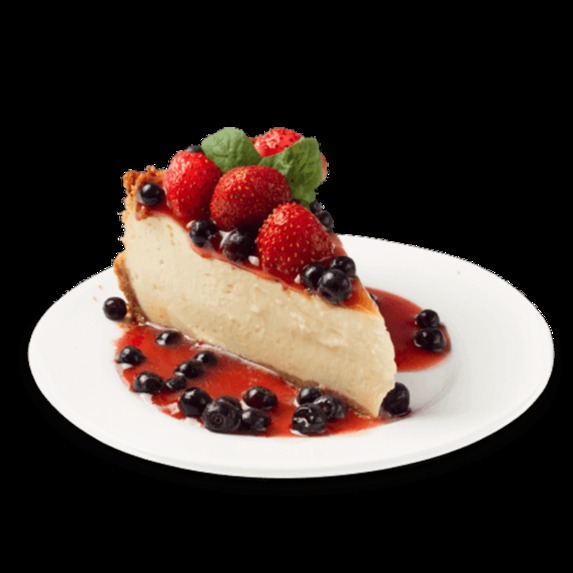
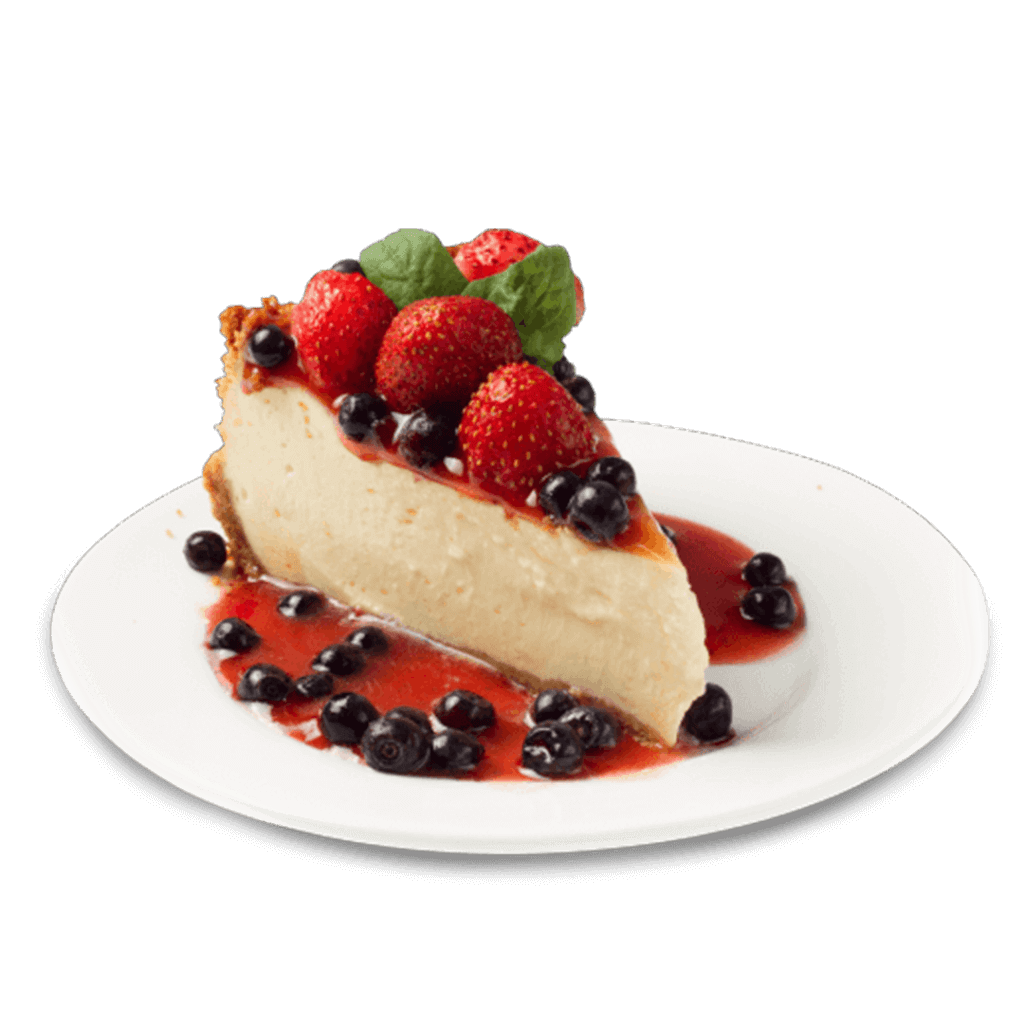
Another dessert option that will appear when browsing the menu
-
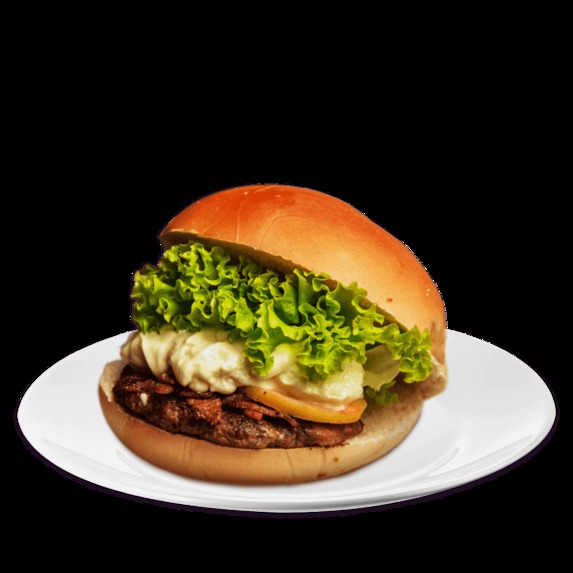
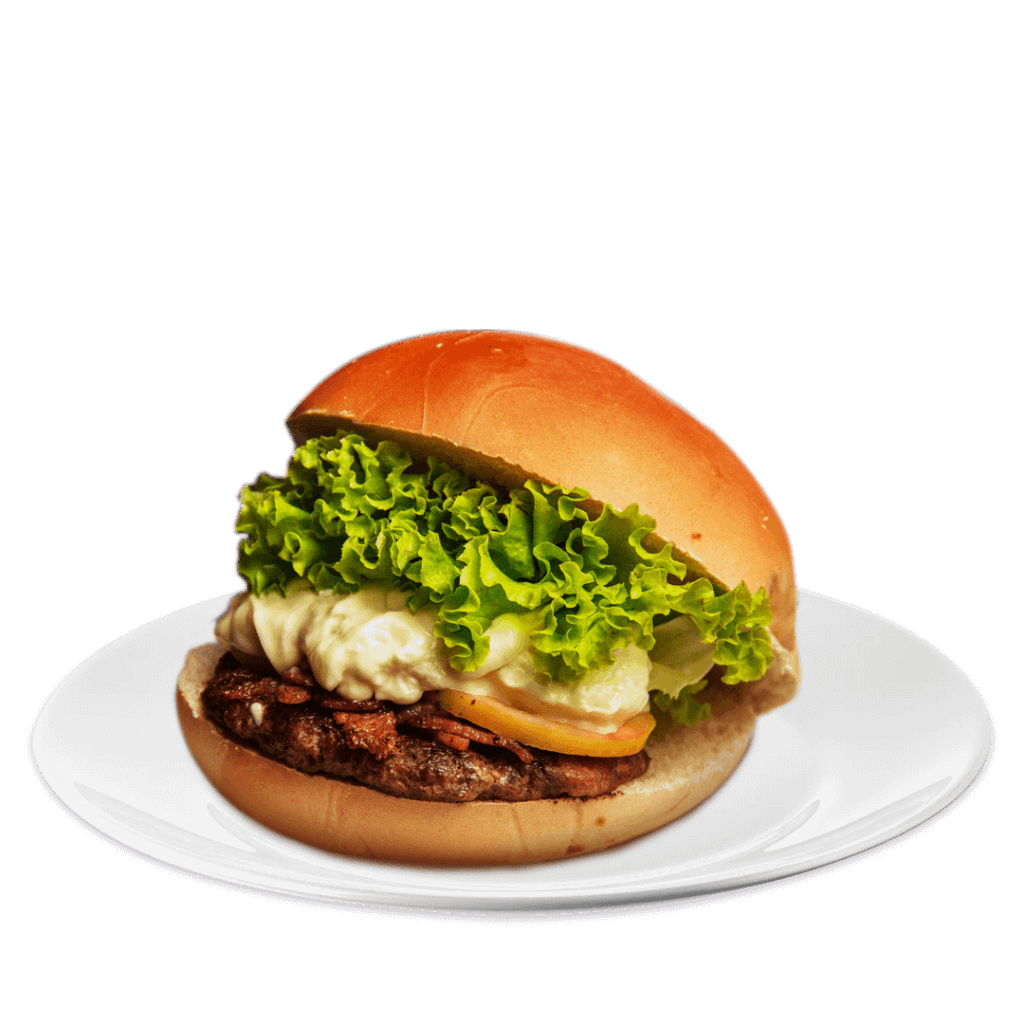
Sample main dish option that will appear when browsing the menu
-
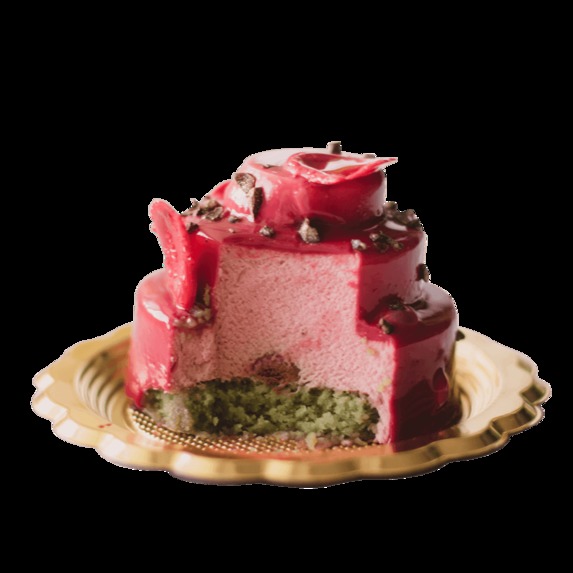
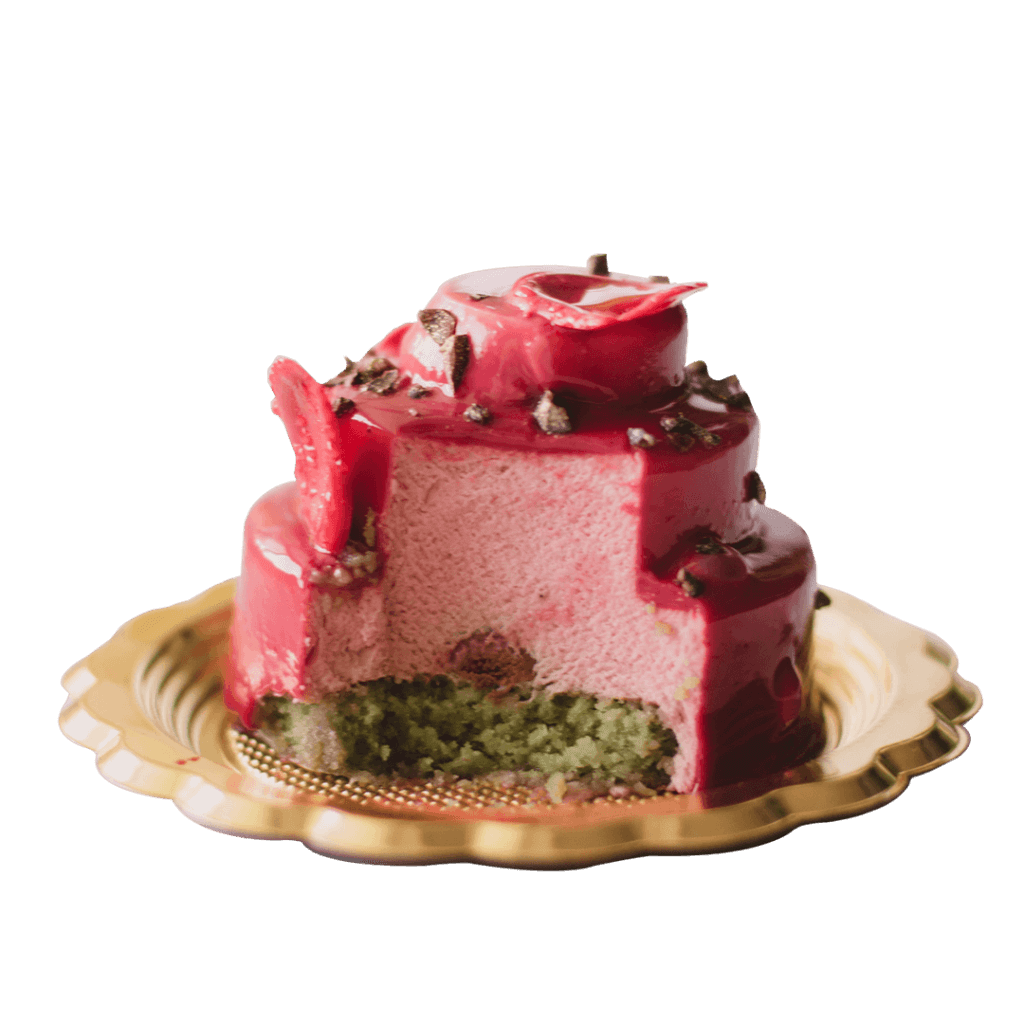
Sample dessert option that will appear when browsing the menu




Inspiration
Some restaurants use the method of having printed menus with servers going to your table to pick-up your order. While other restaurants have counters where the menu is displayed and you tell the staff of your order. Both methods involve having the customer :
- Wonder what the best seller is to help them decide what to have;
- Tell the server what they want with the chance of them saying the wrong thing or changing their minds at the last minute;
Other restaurants have their own mobile apps to handle these but people will have to download the said app before it can be effective.
To solve this problem, why not use a platform already widely-used by the customers. Our solution is an Instagram filter that would feature a restaurant’s best-sellers and allow the customers to immediately present their detailed selection to the restaurant staff when ordering their meals.
What it does
The filter will serve as a showcase menu for a restaurant’s best-sellers.
The customer will open the filter which uses a target tracker and be shown three icons representing the menu categories of the restaurant - main course, dessert, and beverage.
Clicking each icon will show the Native UI Picker featuring the dishes available for the selected category.
The customer will be able to mix and match their different choices and assemble their own meals. The customer will be able to visualize each menu item and see how well it looks when combined with other menu choices.
When the customer is satisfied with their selection, the customer will be able to see the names and prices of their assembled meal by clicking the order summary button on the right side of the screen.
The customer will take a picture of the order summary displayed and show it to the restaurant staff for them to easily note the customer’s orders.
How we built it
A target tracker is used as the main entry point for the filter. When the target image is detected, the category icons will appear. A “to script” patch is also triggered when the target image is found which will enable the display of elements being handled by the script and the configuration of the Native UI Picker.
Clicking each icon will display a Native UI Picker with the food choices for that category. When a selection is made, the image displayed on the wooden tray and the details of the order summary will be updated. The script will handle which images will be displayed in the picker and which item should be displayed on the tray.
The order summary will appear when the button is clicked. It will show the image, name, and price of the selected items. The animation for this element is done through the Patch Editor.
Challenges we ran into
One of the challenges encountered by the team was the sizing of elements inside the order summary. We needed this section to adapt to the screen size of the device.
This was solved by creating a rectangle parent container which will have all the elements of the order summary as its children. In this way, we can adjust the size of the parent through the device patch and the size of the child elements are automatically adjusted.
Another challenge is that the Target Tracker only allows the tracking of one image thus limiting the number of tracked logos to our provided image.
Networking being currently disabled in Spark AR also posed as a challenge since it completely disables any interaction to a server or other clients.
Accomplishments that we are proud of
The team is proud of being able to create an interactive filter which combines the multiple capabilities provided by Spark AR. We are able to make use of the Target Tracker and the Native UI Picker to create a filter which helps restaurants and customers through showcasing their menu.
The filter is able to handle the display for the different screen sizes of devices.
The filter is able to switch the contents shown by the Native UI Picker depending on the category selected. The menu is also easily expandable due to the structure of our script.
What we learned
The team learned how to properly handle multiple elements which need to appear the same regardless of the screen size of the device.
The team also learned how to refactor the script to allow the smooth switching of items displayed in the Native UI Picker and Order Summary depending on the selected content.
What's next for Meal Assembly
For the next steps of the project, we are going to add more categories to the filter to give both the restaurant and customers more options to try.
We also plan to present our work to different restaurants for us to customize the filter according to their needs.
Built With
- ar


Log in or sign up for Devpost to join the conversation.