-
-
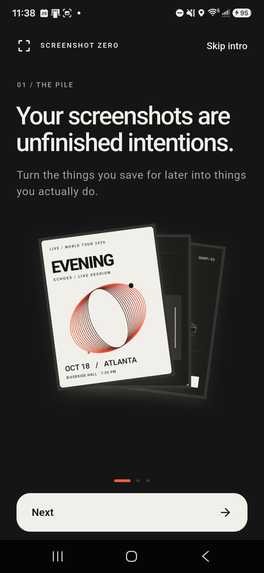
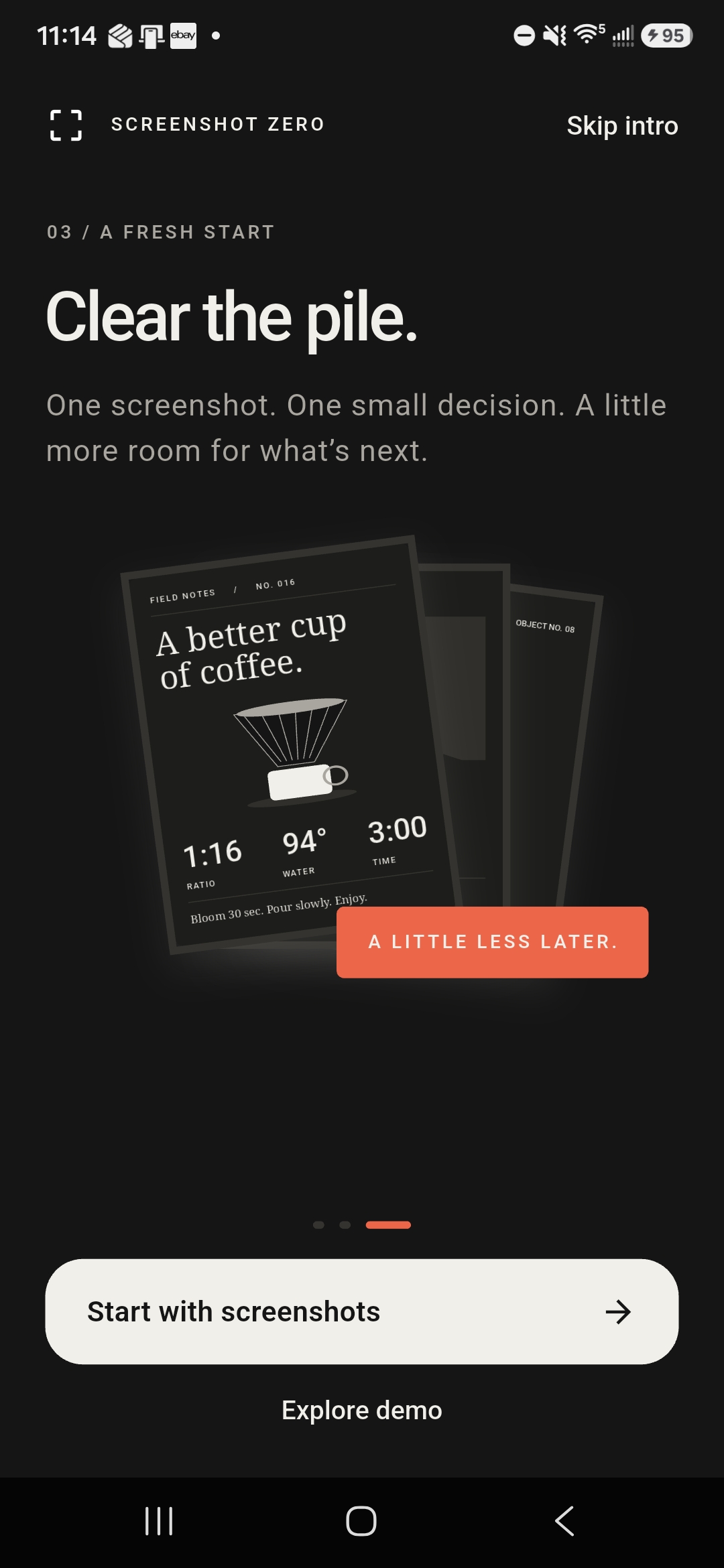
Onboarding screen
-
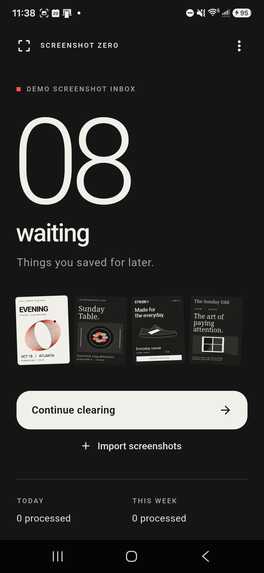
Home screen
-
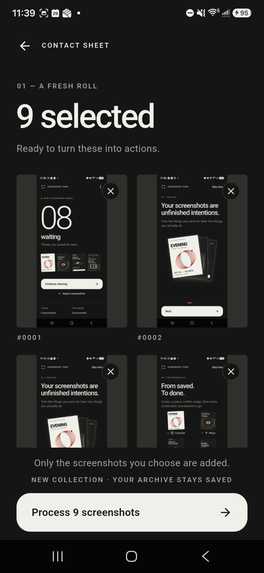
Contact screen
-
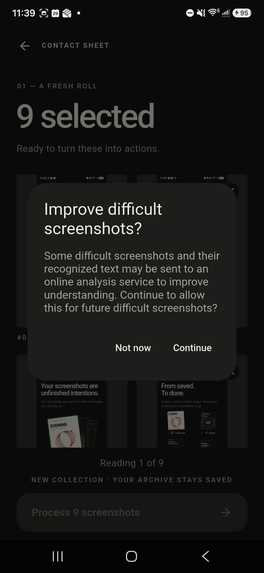
Mutlimodal dialogue
-
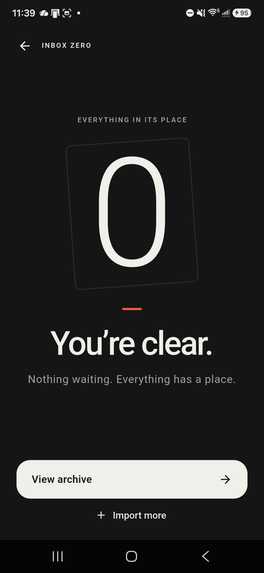
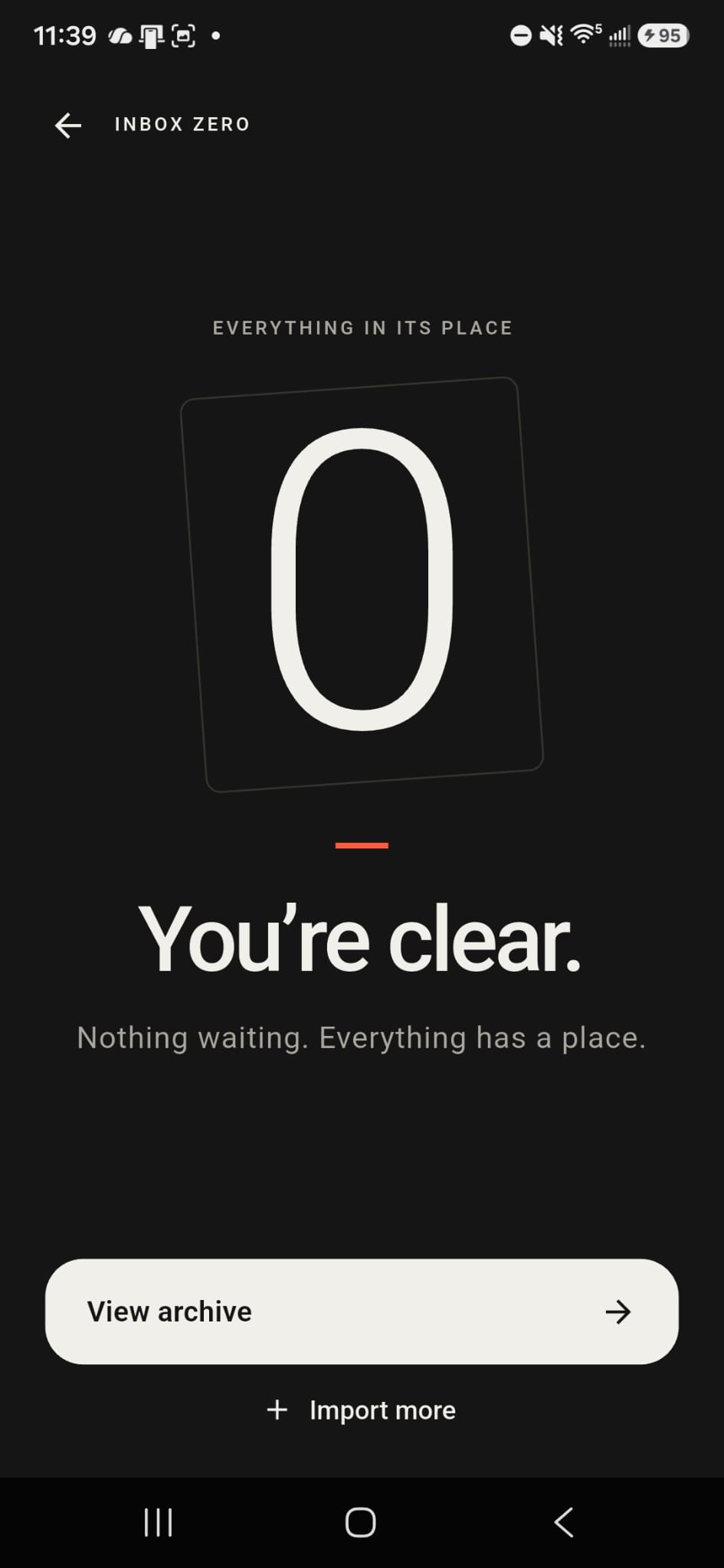
Inbox Zero
-
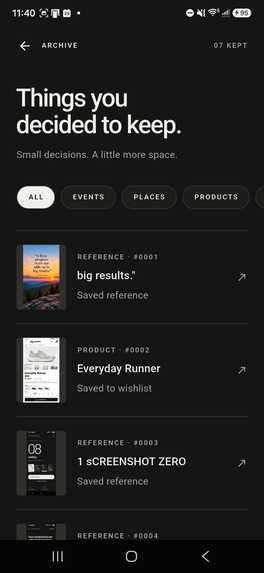
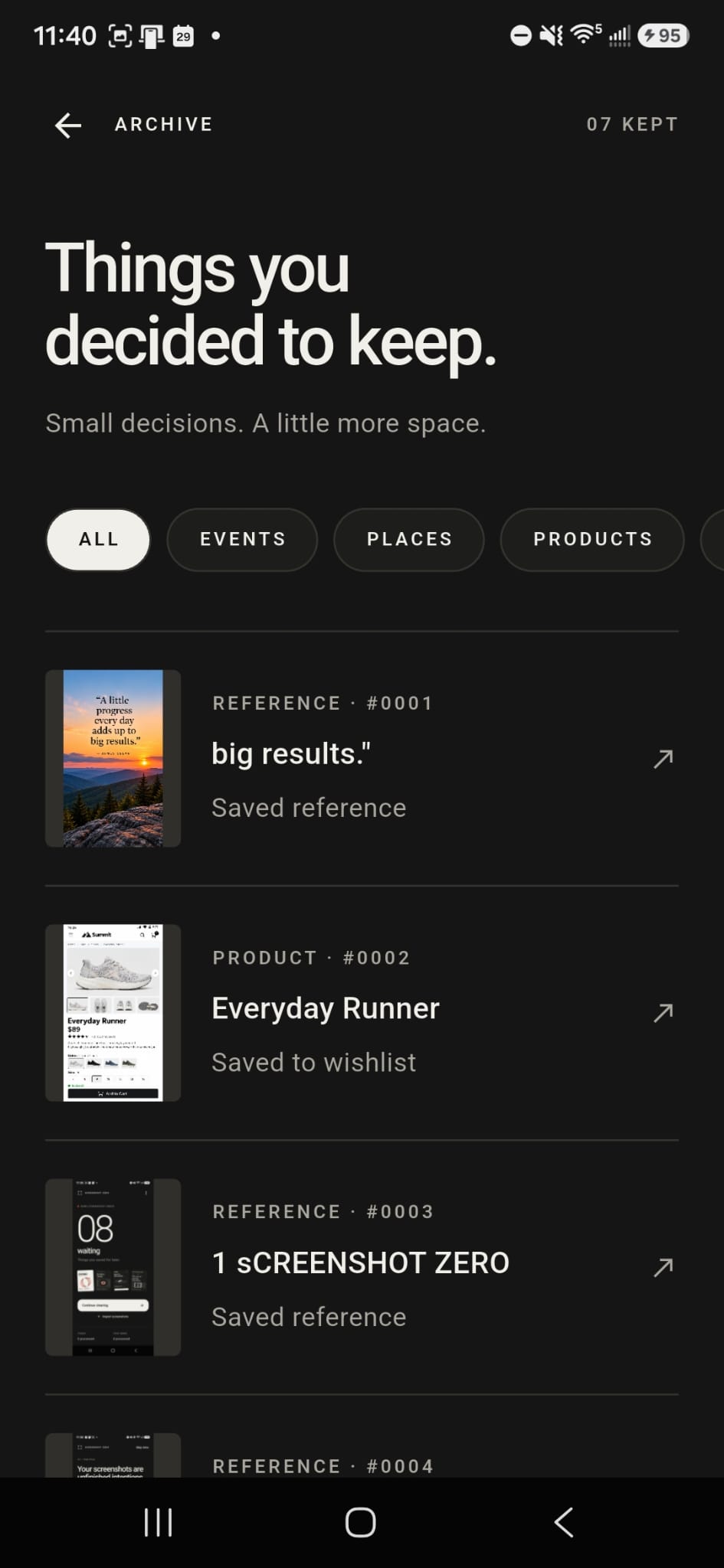
Archive
-
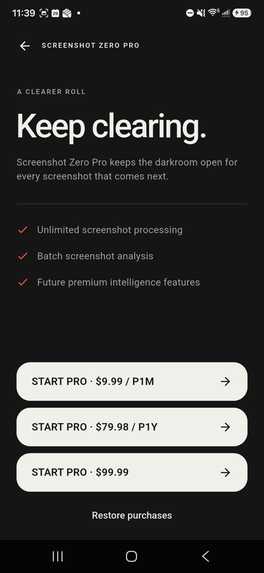
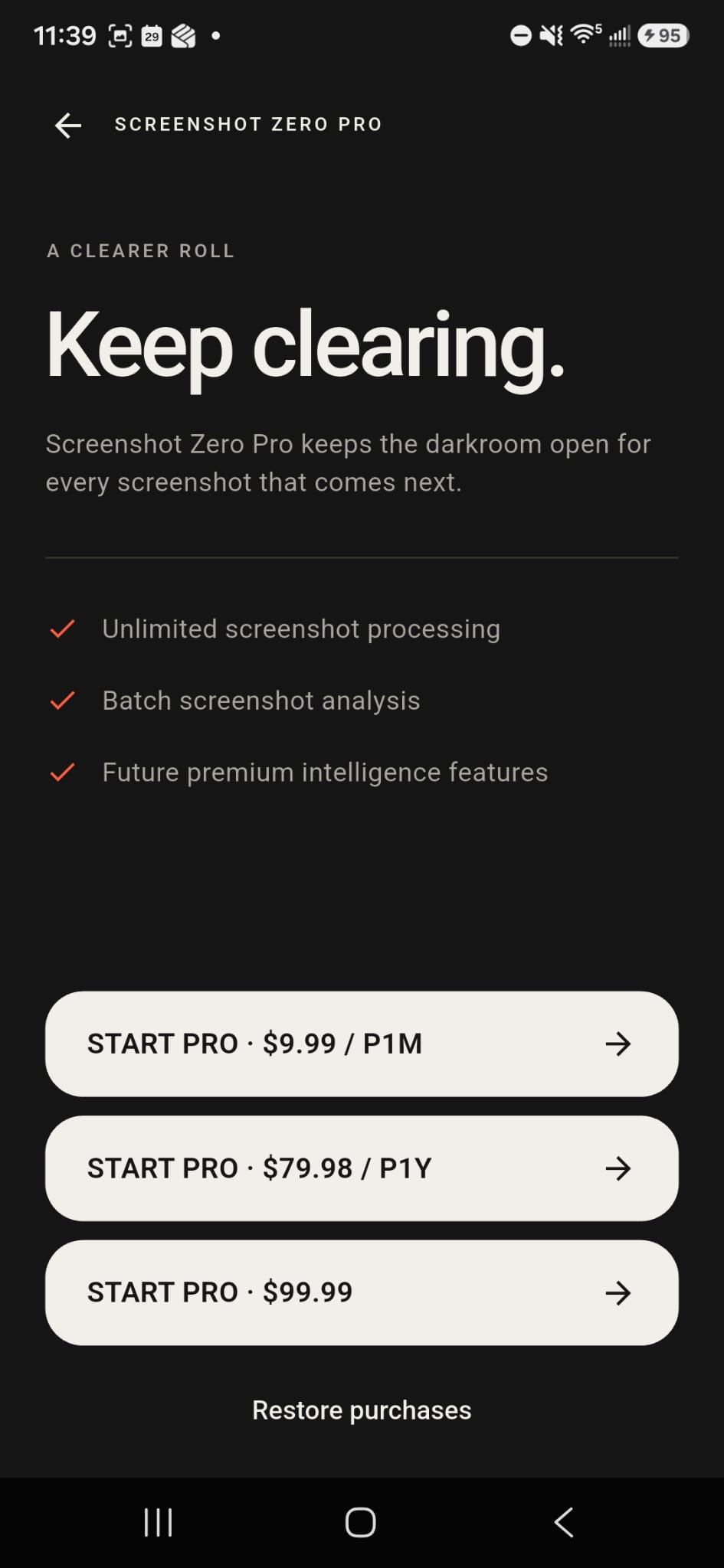
Paywall
-
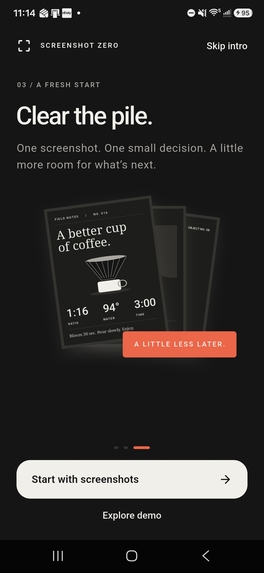
Onboarding screen
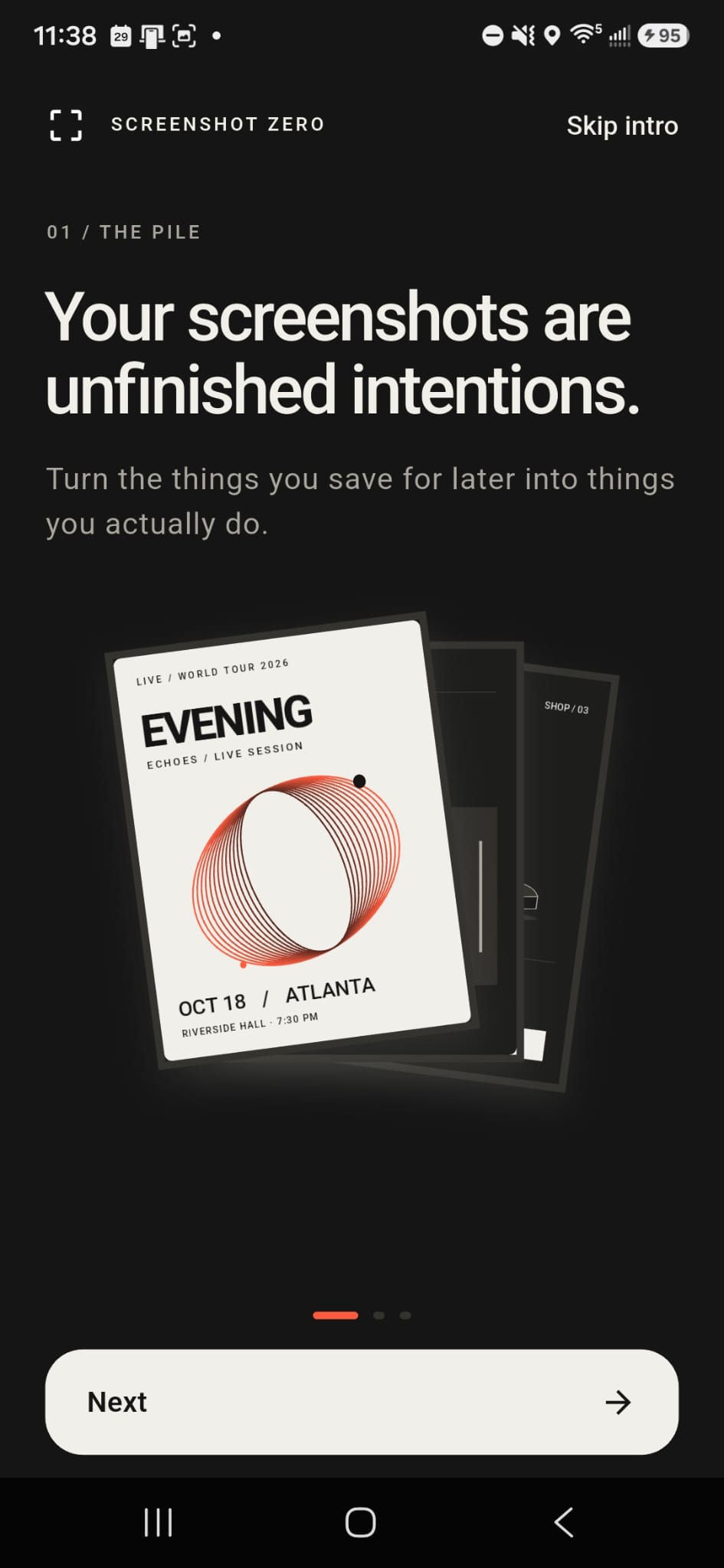
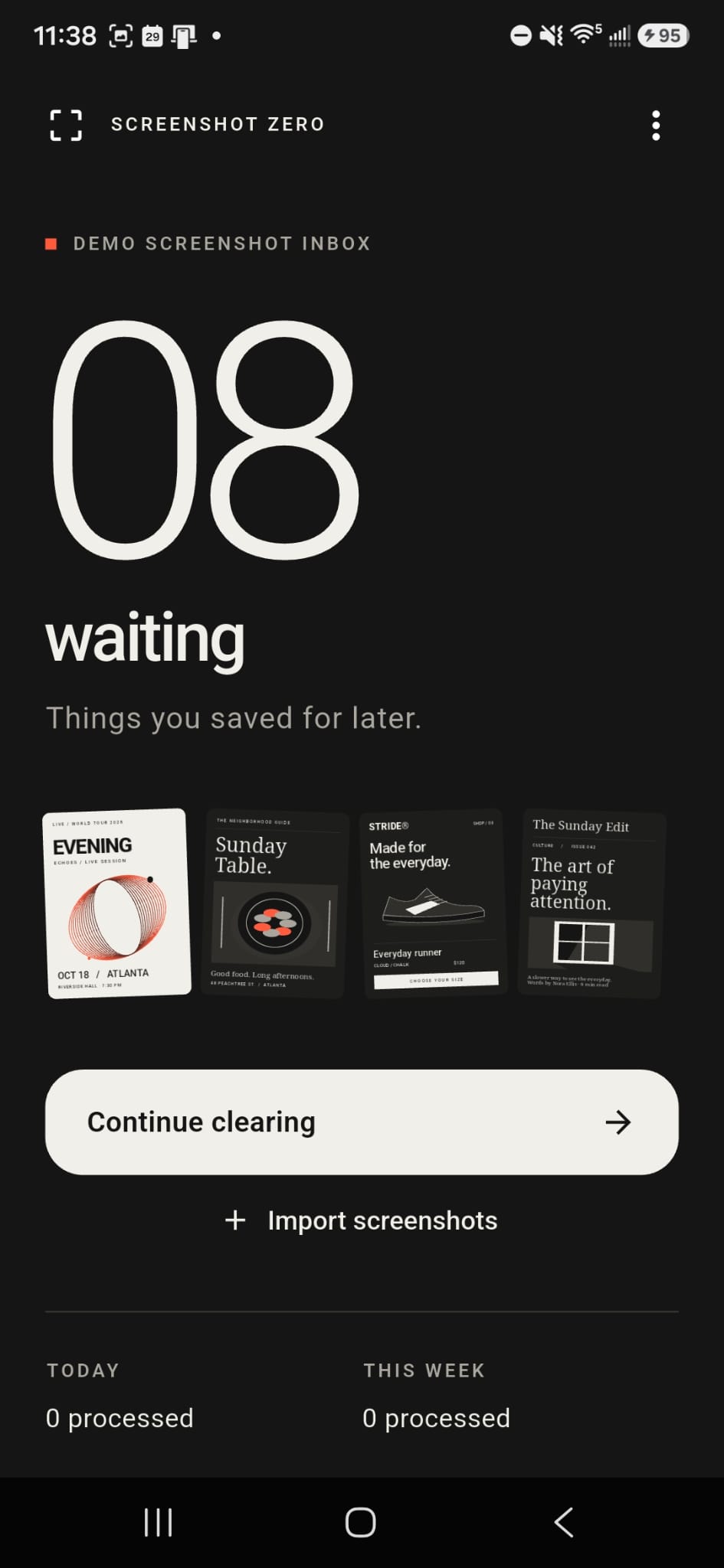
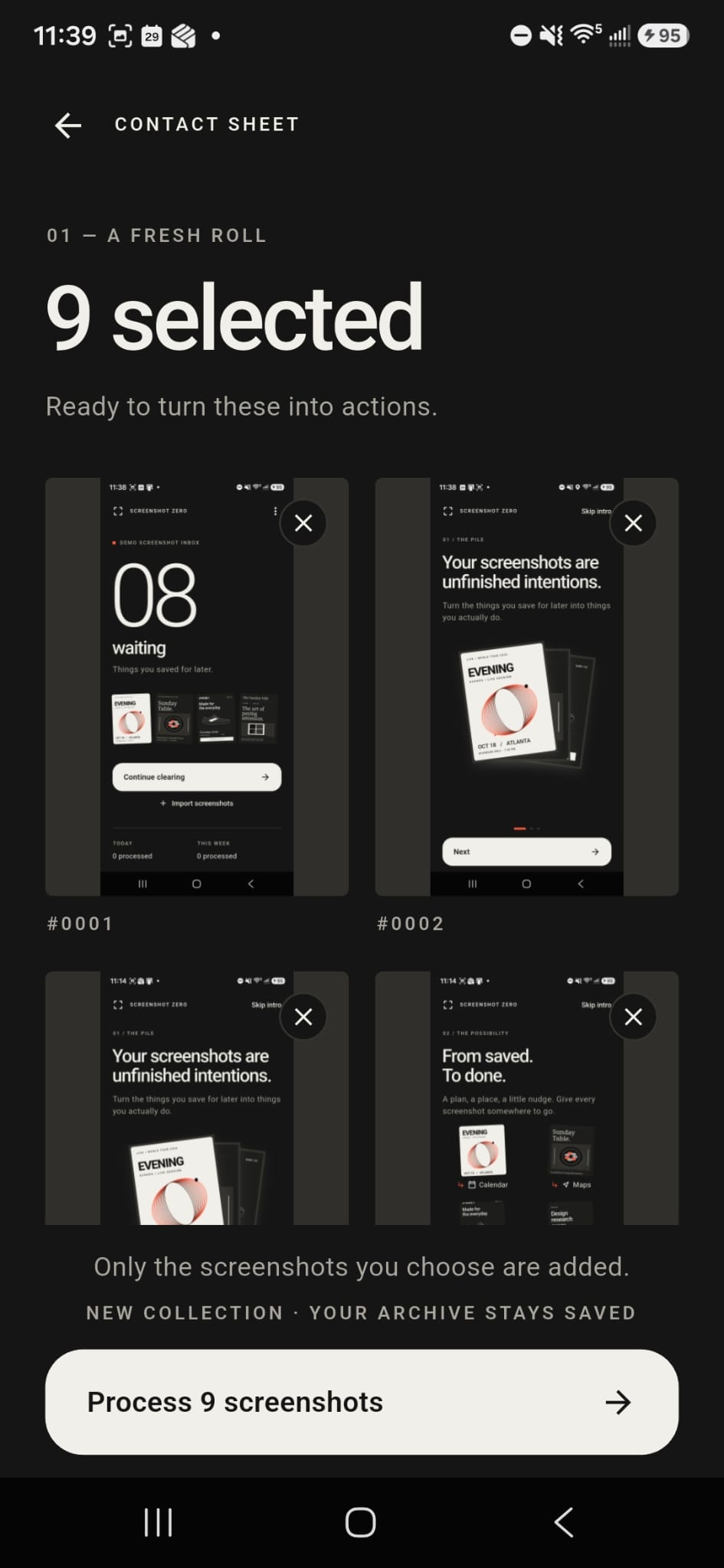
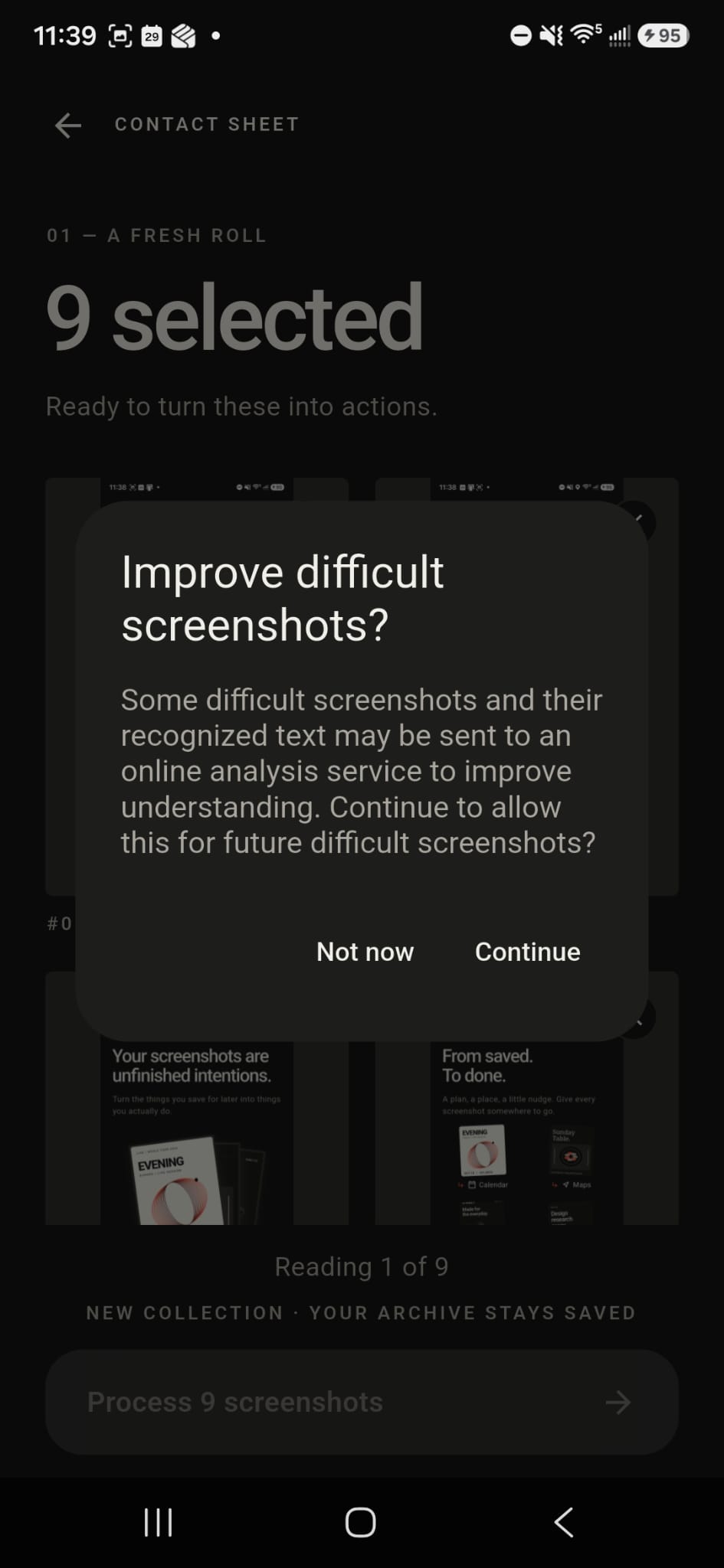
Inspiration
I built Screenshot Zero around a simple problem: screenshots are rarely just images.
We save them because we intend to do something later — attend an event, remember a product, visit a place, read an article, finish a task, or keep something useful. But most screenshots eventually disappear into the camera roll and become forgotten intentions.
Screenshot Zero treats those screenshots like an inbox.
The goal is simple:
Import → Understand → Act / Save / Skip → Zero
Instead of collecting more screenshots, the app helps you finish what you saved them for.
What it does
Users import screenshots from their Android device, and Screenshot Zero analyzes each one to identify its intent and extract useful details.
It supports six categories:
- Event → Add to Calendar
- Place → Open in Maps
- Product → Add to Wishlist
- Read → Save for Reading
- Task → Create Reminder
- Reference → Save Reference
Each screenshot can then be acted on, saved, or skipped.
Skip only removes it from the current clearing session — it never deletes the original screenshot. If the app is not confident about the intent, it keeps the image as a Reference instead of inventing an action.
The objective is to process the stack until the user reaches Inbox Zero.
Processed screenshots can also be stored in a persistent local Archive with their original image, extracted metadata, and action status.
How I built it
Screenshot Zero is a Flutter Android application using a local-first analysis pipeline.
For the main path, I use:
- Google ML Kit OCR for on-device text recognition
- deterministic classification rules to identify screenshot intent
- structured extraction for details such as dates, times, venues, prices, sizes, addresses, and deadlines
- Riverpod for application state
- local persistent storage for the Archive
- Android intents and local notifications for real actions such as Calendar, Maps, and reminders
For harder screenshots where local OCR is weak, I added an optional multimodal fallback.
The fallback is intentionally conservative:
- Local OCR and classification run first.
- Strong local results remain completely local.
- Weak results are eligible for cloud analysis only if the user has Pro and explicitly consents.
- The screenshot and OCR context are sent to a small FastAPI backend.
- The backend uses the OpenAI API for multimodal analysis.
- A strict resolver validates the result before it can replace the local interpretation.
- If anything fails, Screenshot Zero keeps the local result.
This prevents visual recognition alone from incorrectly turning an arbitrary image into a Product, Place, Event, or Task.
RevenueCat integration
I integrated RevenueCat for Screenshot Zero Pro.
The free tier includes 10 real screenshot analyses.
Pro:
- removes the app-side processing limit
- unlocks the optional multimodal fallback
- supports purchase and restore flows
- uses dynamic prices from RevenueCat offerings
The entitlement used by the app is:
screenshot_zero_pro
For development and testing, I used RevenueCat Test Store in debug builds.
Challenges I faced
One of the biggest challenges was making the app understand intent rather than simply recognize text.
OCR might read words correctly but still misunderstand what the screenshot is for. For example, a restaurant screenshot should become a Place, while a random food photo should not automatically become a Product or Place.
I solved this by making the classifier evidence-based and conservative. When multiple categories compete or the evidence is weak, the app falls back to Reference instead of guessing.
Another challenge was testing OCR reliably on a physical Android device. I built controlled fixtures for Event, Product, Task, Place, and Read screenshots and used them to verify that Android ML Kit extracted the expected information.
The multimodal fallback also introduced infrastructure challenges. I did not want to place an OpenAI API key inside the APK, so I built a FastAPI backend and connected the Android phone to it during development using USB debugging and adb reverse.
Persistence was another important problem. Archive entries originally existed only in memory, so I added app-owned image copies and versioned metadata storage so saved screenshots survive app restarts.
Finally, RevenueCat Test Store keys are intentionally restricted to debug builds, so I had to separate development and release-preview configuration safely instead of bypassing that protection.
What I learned
This project taught me that adding AI is often easier than deciding when not to use it.
The most important design decision was keeping the main path deterministic and local, while using multimodal analysis only as a fallback.
I also learned a lot about:
- Android ML Kit OCR
- Flutter state management with Riverpod
- Android intents and notifications
- RevenueCat entitlements, purchases, restore flows, and Test Store
- secure API-key handling through a backend
- FastAPI and strict structured model output
- local persistence and image deduplication
- designing for failure instead of assuming every AI result is correct
The final app has been physically tested on Android with real OCR, device actions, persistent Archive behavior, RevenueCat Test Store, and live phone-to-backend multimodal inference.
What's next
The next steps would be:
- broader device and model-quality testing
- production Android signing
- a hardened HTTPS backend
- Archive search and filtering
- optional account sync
- support for more languages
The core idea remains the same:
Your screenshots are unfinished intentions. Screenshot Zero helps you finish them.


Log in or sign up for Devpost to join the conversation.