-
-
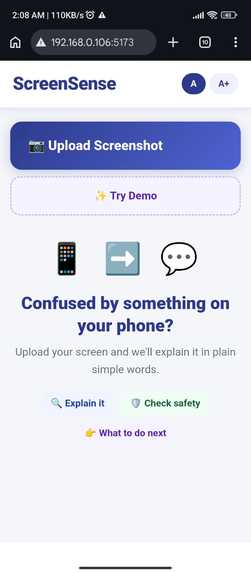
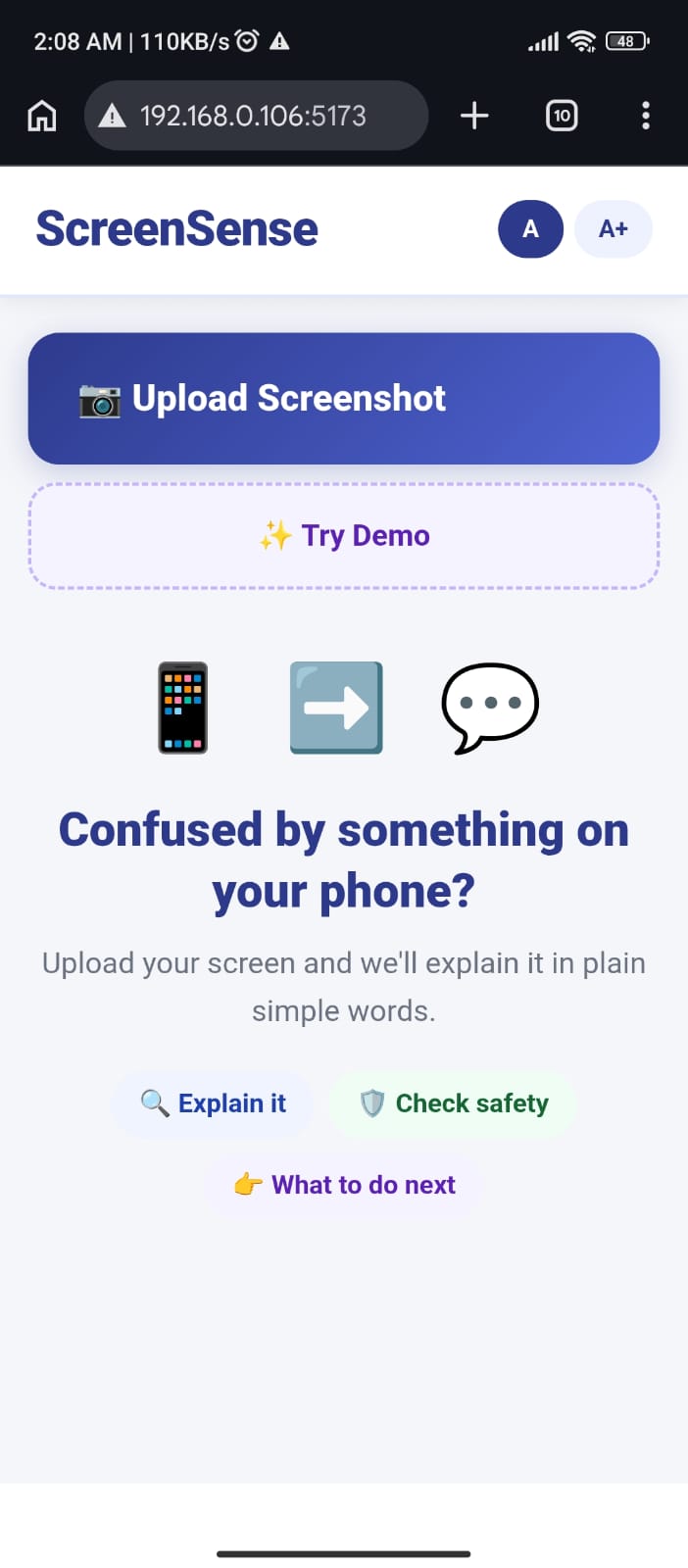
Simple home screen to upload screenshots, try demo, and access features like explain, safety check, and guidance.
-
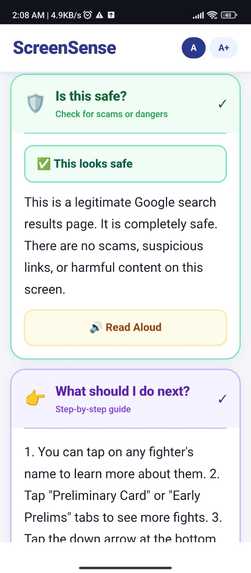
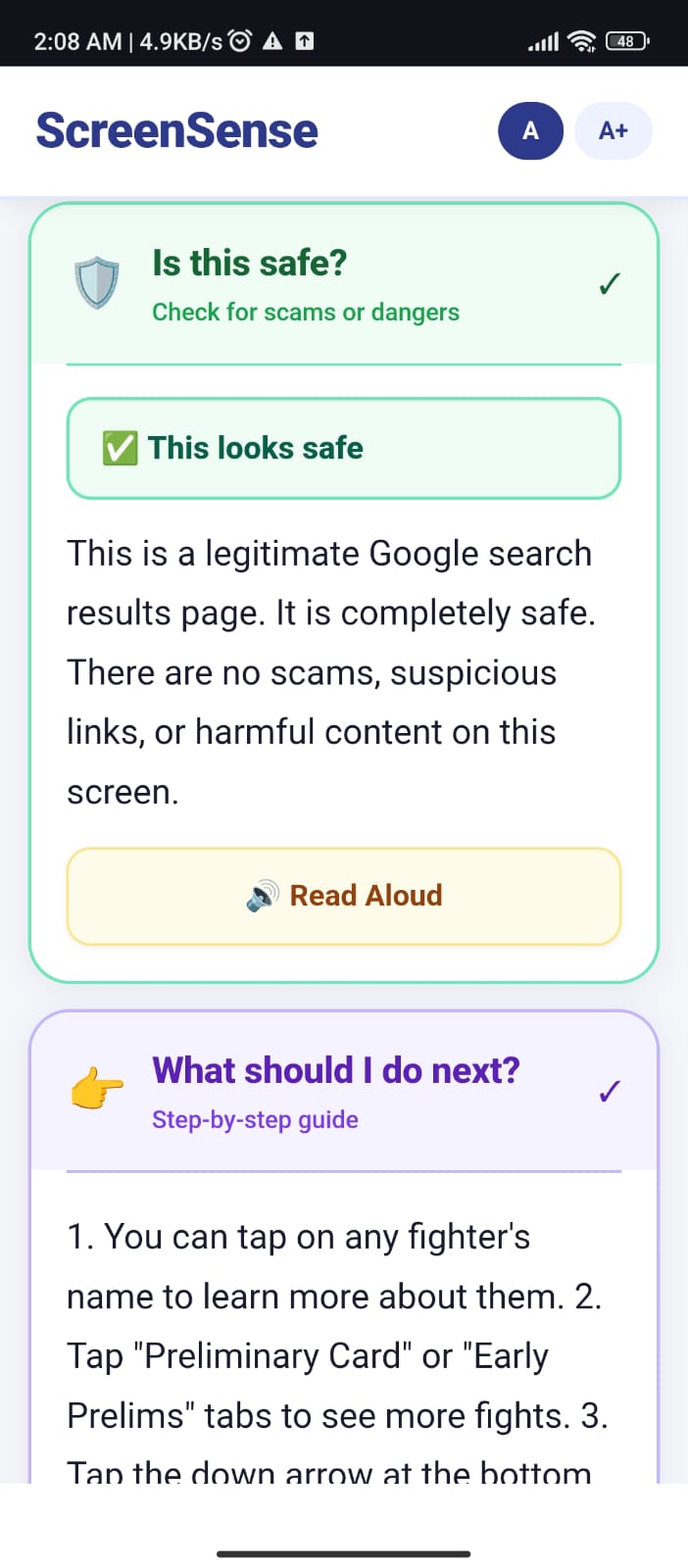
Analyzes screenshots for scams or risks and clearly tells users whether the content is safe or suspicious.
-
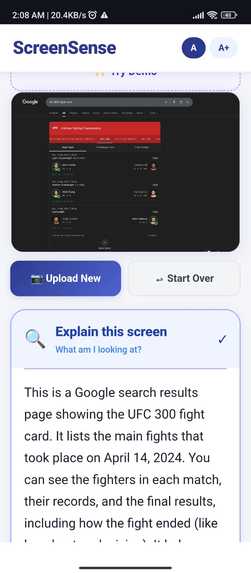
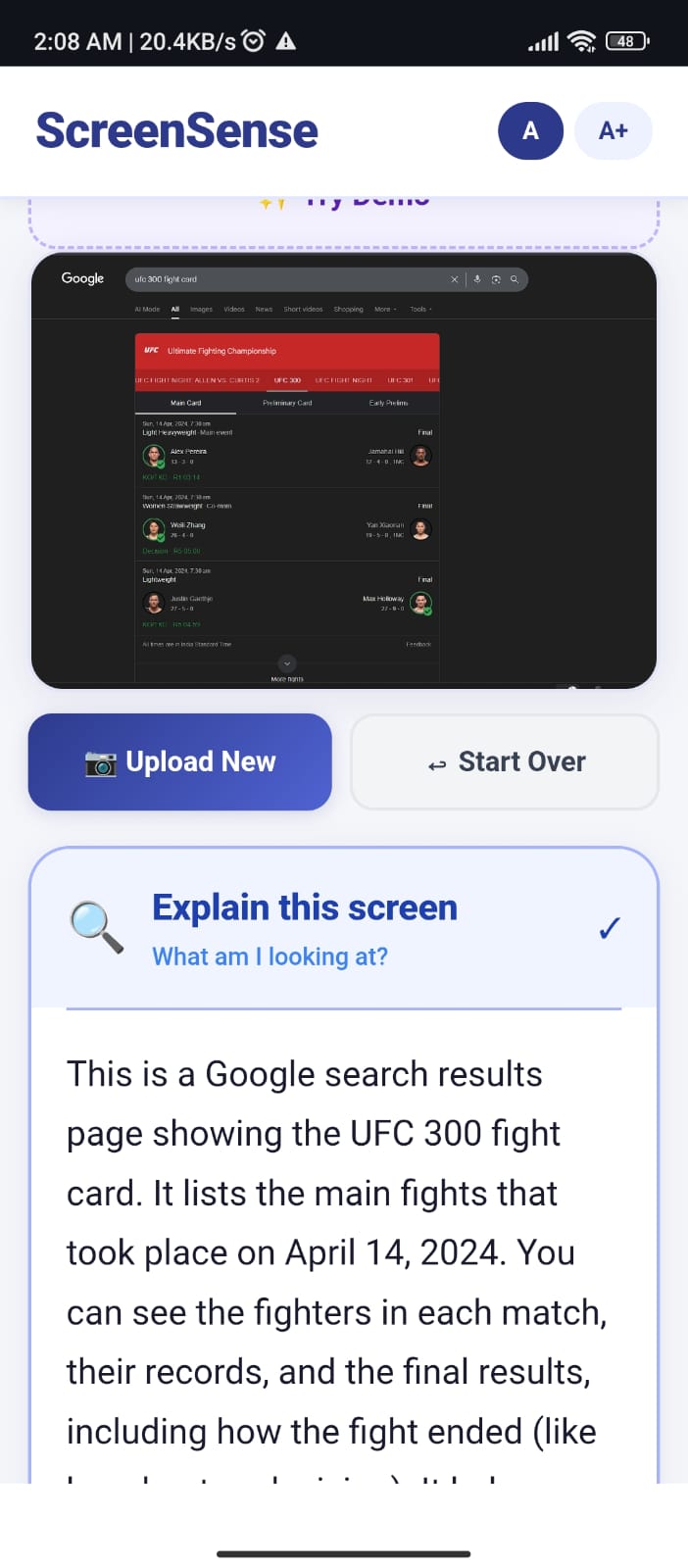
Explains uploaded screenshots in simple language, helping users quickly understand complex on-screen content.
Inspiration
Many senior citizens struggle to understand modern smartphone screens. Even simple interfaces can feel confusing, and this confusion often leads to fear or mistakes. In many cases, they cannot tell whether something is safe or a scam.
I was inspired by how often older users ask questions like “What is this?” or “Can I click this safely?”. Existing tools only warn users, but they don’t explain things in a way that builds confidence.
ScreenSense was created to solve this — by making technology easier to understand and safer to use.
What it does
ScreenSense is an AI-powered assistant that helps users understand any screen.
Users simply upload a screenshot, and the app:
- Explains what the screen is showing in simple language
- Checks if the screen looks safe or suspicious
- Provides clear, step-by-step guidance on what to do next
It also includes a voice feature that reads the explanation aloud, making it more accessible for seniors.
How we built it
ScreenSense is built as a mobile-friendly web application using React and Vite.
- Users upload an image, which is converted to base64
- The image is sent to the Gemini API for analysis
- The AI returns structured output (what it is, safety, next steps)
- The app parses and displays the results in a clean UI
- The Web Speech API is used for the read-aloud feature
The design focuses on simplicity, readability, and minimal interaction.
Challenges we ran into
One major challenge was dealing with API limitations such as rate limits (429) and server overload errors (503). These required implementing retry logic and careful request handling.
Another challenge was ensuring the AI returned consistent and usable responses. Getting structured JSON output required refining prompts and handling parsing errors.
Designing for senior users was also challenging. It required simplifying both the interface and the language without losing useful information.
Accomplishments that we're proud of
- Building a complete AI-powered product within a short time
- Creating a simple and accessible UI designed for senior users
- Successfully combining explanation, safety detection, and guidance in one flow
- Making the app usable on mobile devices without installation
- Adding voice support for better accessibility
What we learned
- How to integrate and optimize AI APIs like Gemini
- Handling real-world issues like API limits and failures
- Designing user interfaces for non-technical audiences
- Structuring prompts to get consistent AI responses
- Focusing on solving real user problems instead of just building features
What's next for ScreenSense
- Improve scam detection accuracy and reliability
- Add support for real-time screen analysis (not just screenshots)
- Enhance voice interaction with more natural AI voices
- Support multiple languages for wider accessibility
- Explore deployment in senior centers and real-world environments
The long-term vision is to make ScreenSense a trusted digital companion that helps people feel safe and confident using technology.


Log in or sign up for Devpost to join the conversation.