-
-
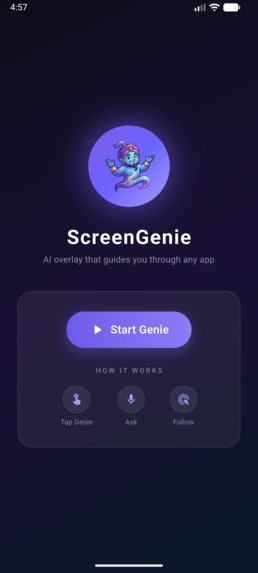
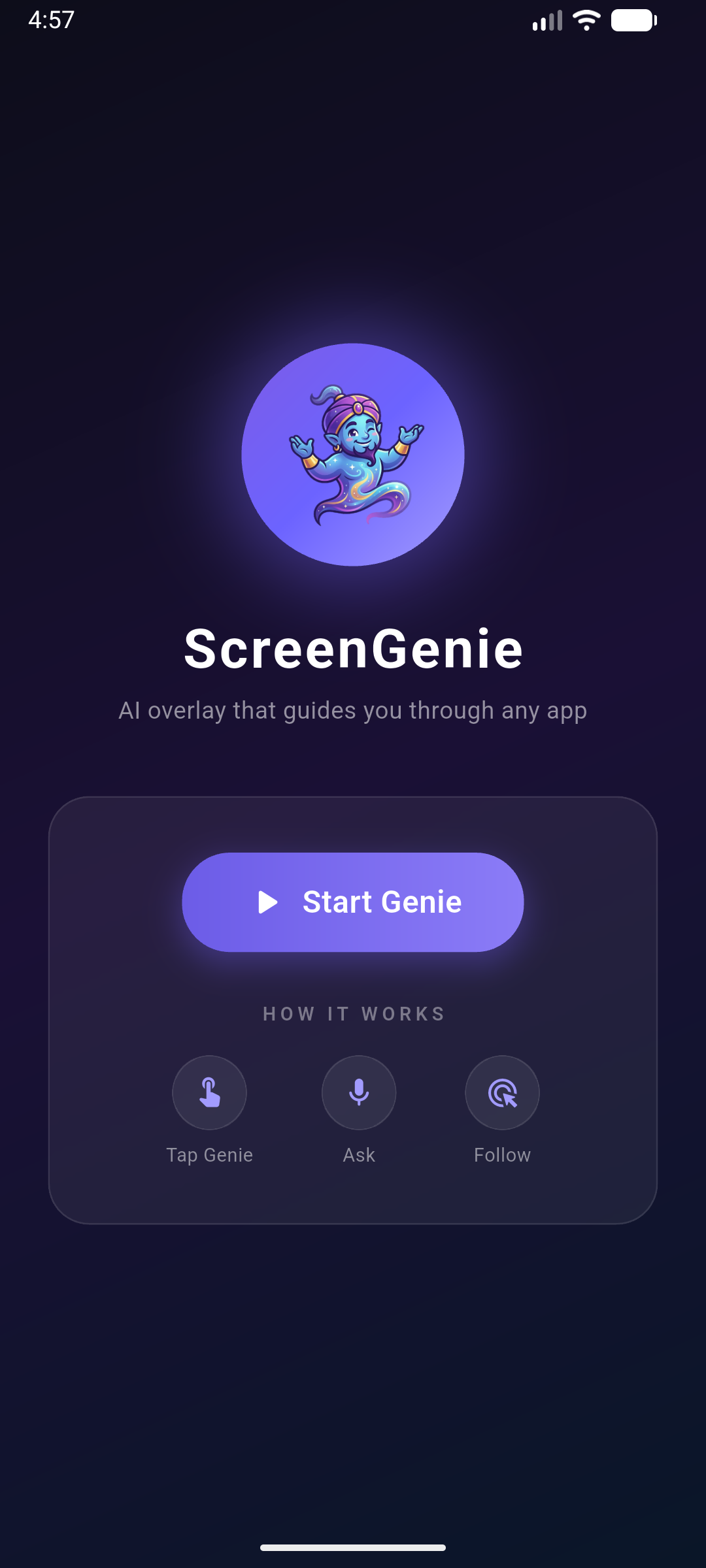
Home screen with glassmorphism UI. Tap "Start Genie" to launch the floating AI overlay that works on top of any Android app.
-
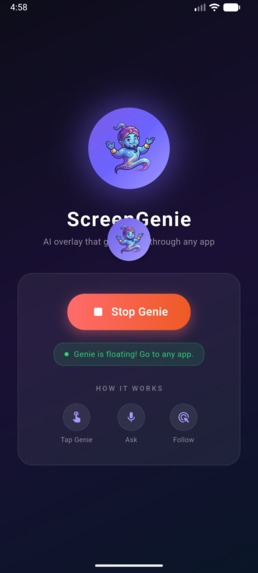
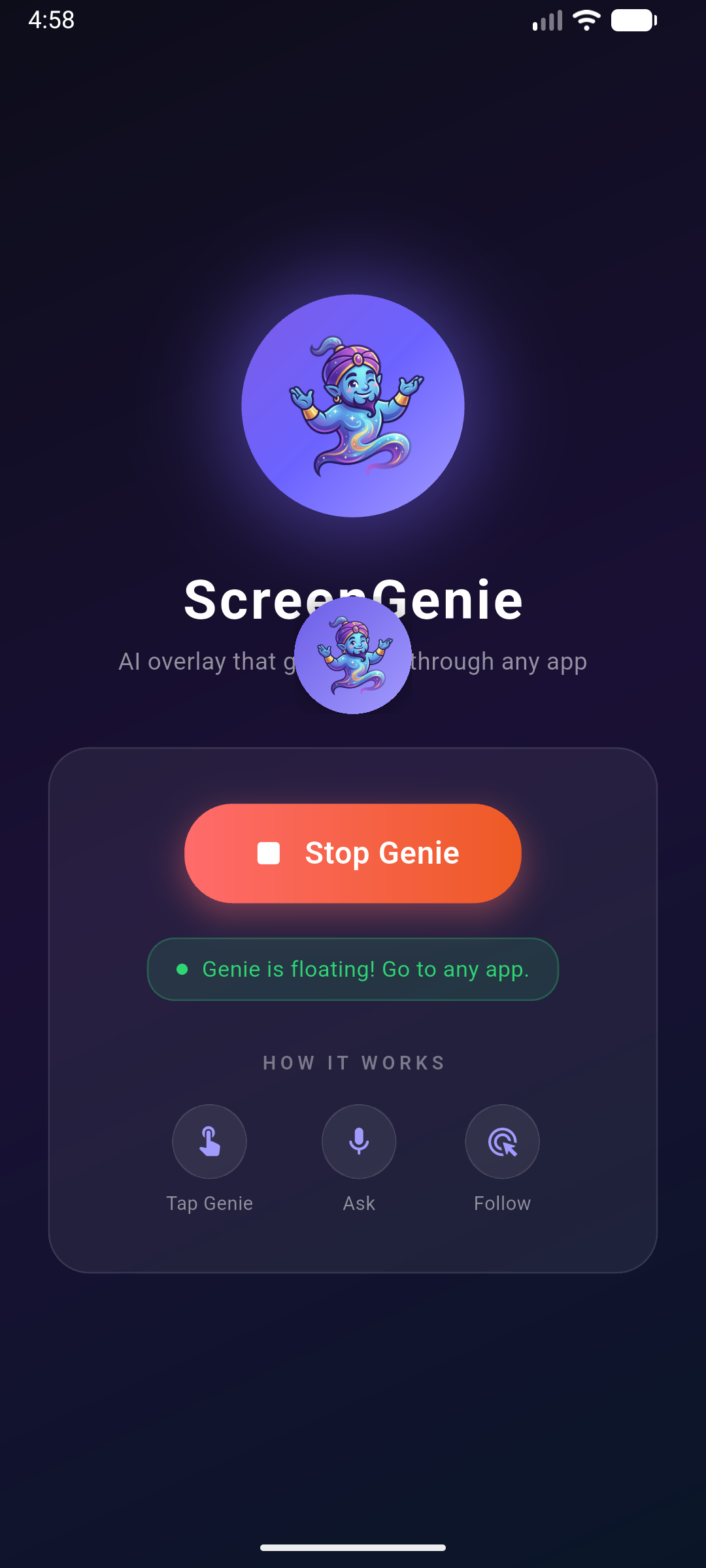
Genie is active and ready. The overlay persists across apps — switch to any app and the genie stays on top.
-
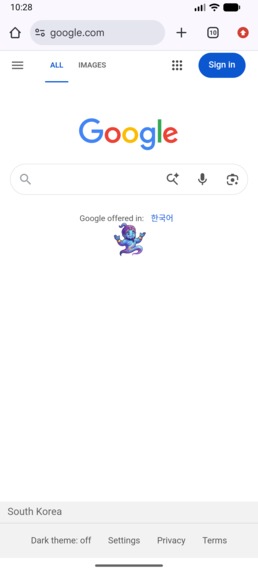
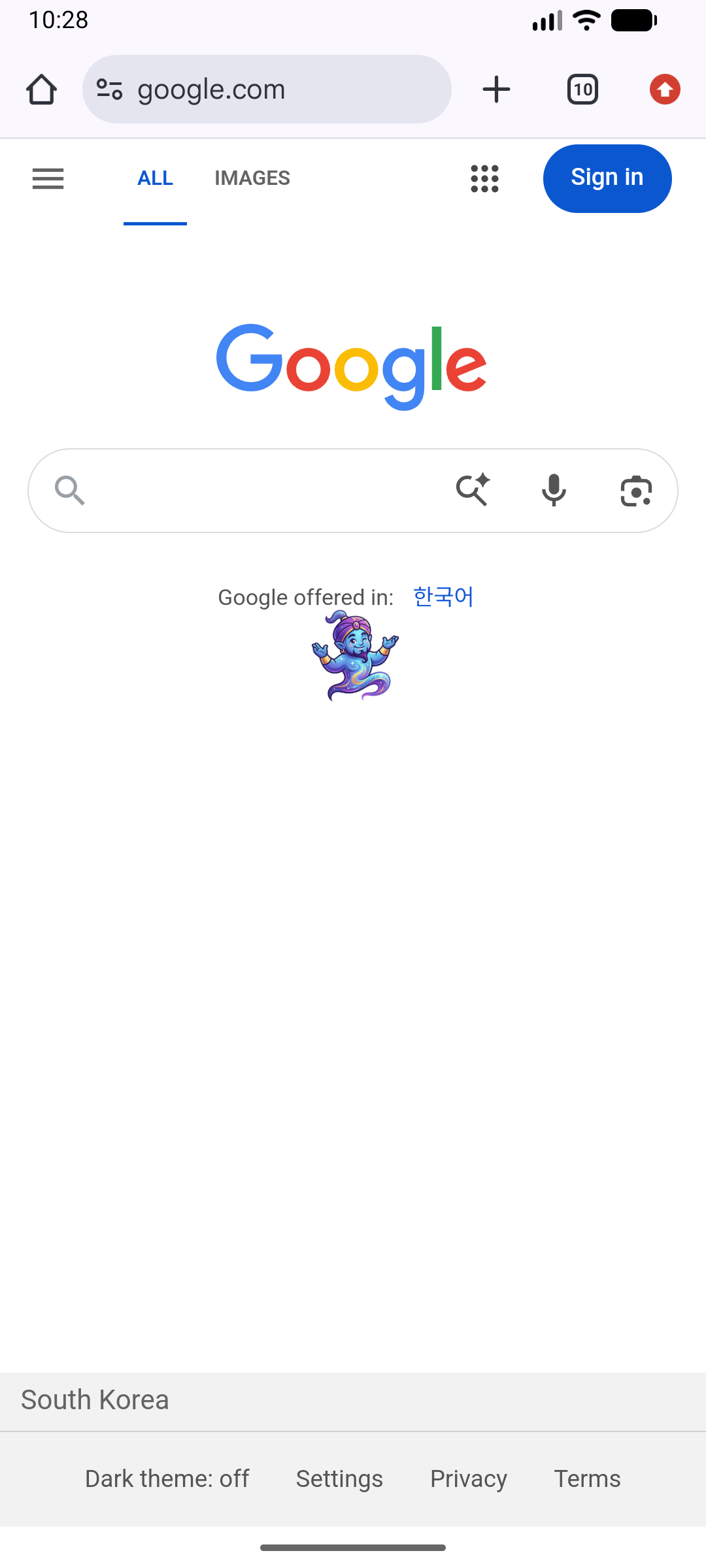
Genie bubble floating over Chrome. Tap the genie to expand full-screen input mode and ask your question.
-
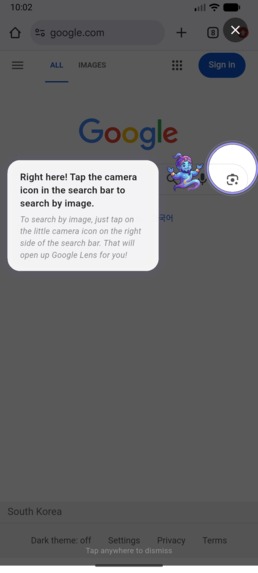
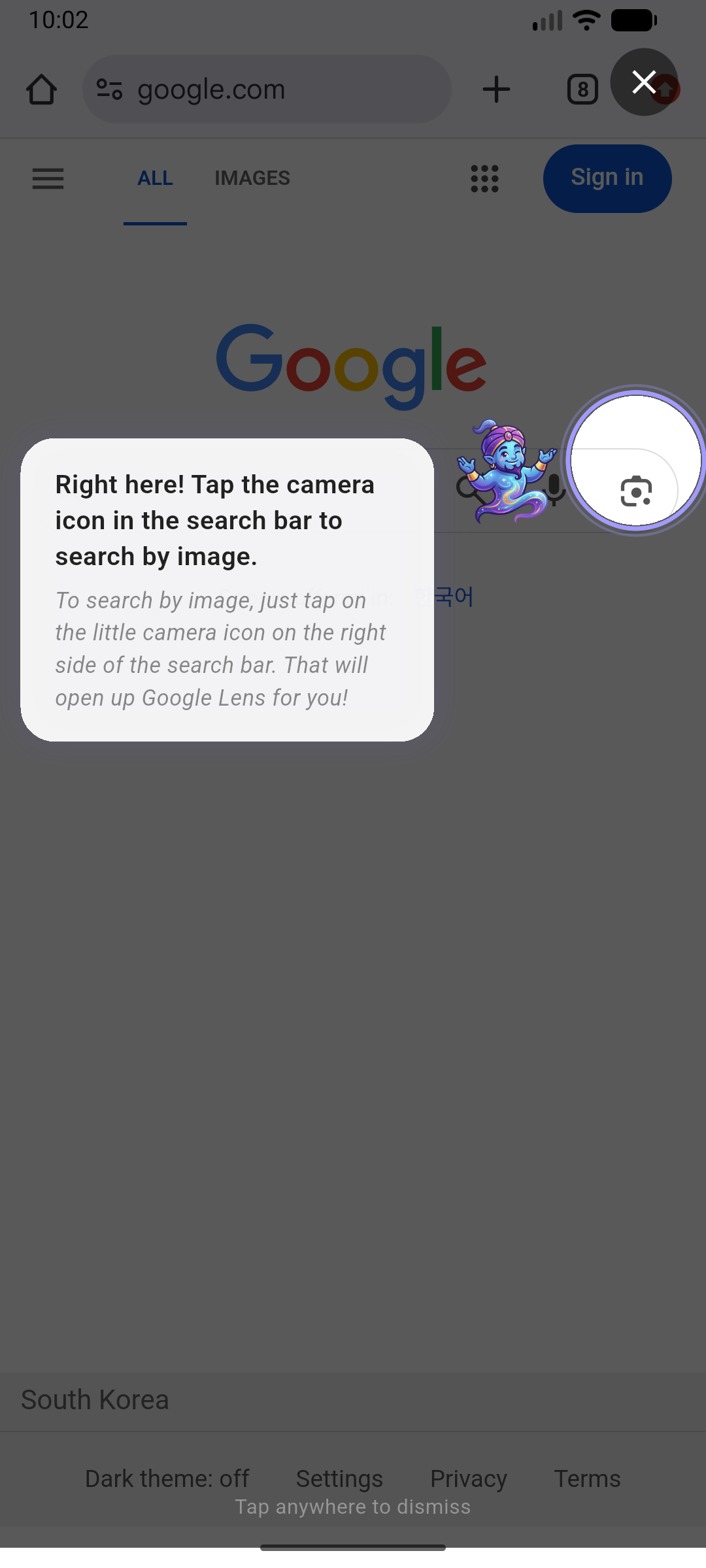
Guidance mode: Gemini 2.5 Flash analyzes the screenshot, highlights the target with a spotlight, and genie speaks the instruction.
-
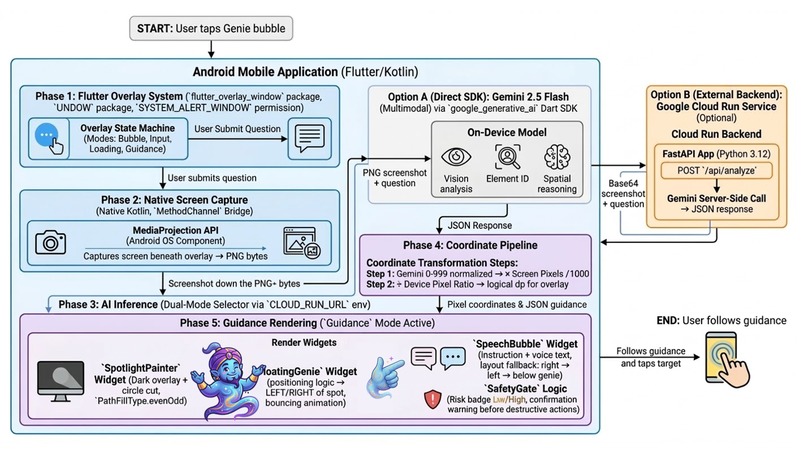
Architecture
What inspired you
Every week, my mom calls me asking the same question: "Where do I tap to log in?" She's not alone — millions of older adults struggle with unfamiliar app interfaces, repeatedly asking family members for help with tasks that seem simple to digital natives. Existing solutions mean switching apps to watch tutorials or scrolling through help docs — but what if an AI agent could see your screen and point to the exact button for you?
We built ScreenGenie — a visual UI agent that observes any Android screen, understands the interface purely from pixels (no APIs, no DOM access), and guides users to the right action in real time.
How you built your project
What it does
ScreenGenie is an AI agent that floats on top of any Android app as an overlay. It observes the screen visually and acts as the user's guide:
- Tap the floating genie — it expands to a full-screen input mode with suggestion chips
- Describe your intent — "How do I sign in?" or "Search by image"
- The agent sees your screen — ScreenGenie captures a screenshot and sends it to Gemini 2.5 Flash multimodal, which visually interprets the UI layout, identifies the exact target element, and returns precise coordinates — all without any API or DOM access to the underlying app
- Follow the spotlight — A dark overlay highlights the exact button or menu with the genie agent floating beside it, delivering step-by-step action instructions
A built-in Safety Gate classifies each action's risk level — warning users before irreversible actions like deleting accounts or making payments.
Architecture & Implementation
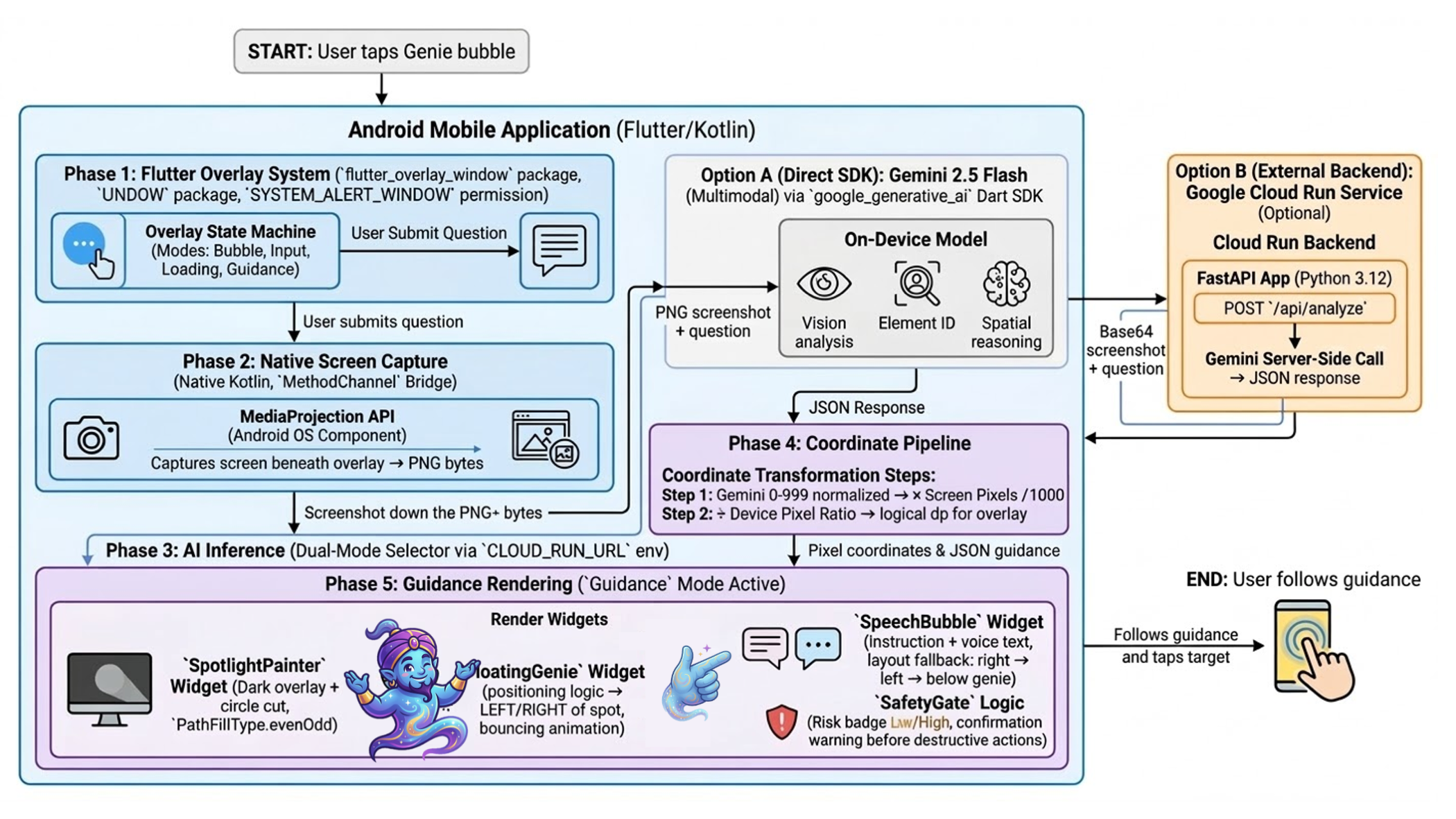
Architecture: Flutter overlay → MediaProjection screenshot → Gemini 2.5 Flash multimodal analysis → Action instruction + Spotlight overlay render
- Gemini 2.5 Flash (multimodal) via the official google_generative_ai Dart SDK — visually interprets screenshots, identifies UI elements, and outputs actionable instructions with precise coordinates in ~5 seconds. Zero DOM/API dependency — works purely from visual understanding
- Flutter + flutter_overlay_window — system-wide floating overlay agent that works on top of any app
- Custom coordinate pipeline — Gemini returns 0-999 normalized coordinates → denormalized to physical pixels → converted to logical dp for precise overlay positioning
- PathFillType.evenOdd spotlight rendering — the standard BlendMode.clear approach doesn't work in Android overlay TextureView, requiring a novel rendering approach
- MediaProjection API (native Kotlin via MethodChannel) for real-time screen capture beneath the overlay
- Google Cloud Run — FastAPI backend containerized and deployed on Google Cloud for scalable agent hosting
- Safety Gate — AI-powered risk classification (low/medium/high) prevents the agent from guiding users toward destructive actions without warning
Accomplishments that we're proud of
- A visual UI agent that works on top of any Android app — no app-specific APIs, no DOM parsing, purely visual understanding
- ~5 second response time from screenshot to actionable guidance overlay
- Zero app-specific training — fully generalizes to unseen UIs through Gemini's multimodal vision capabilities
- Genie agent character floating near the spotlight with contextual speech bubble delivering action instructions
- Adaptive layout: speech bubble positions horizontally next to genie with 3-step fallback (right → left → below)
- Robust fallback chain: MediaProjection → demo screenshot → mock response
- Tested across Chrome, Settings, Gmail, and third-party apps — works universally
What's next for ScreenGenie
- Voice interaction — Ask questions by speaking using Gemini Live API
- Multi-step guidance — The agent guides users through complex multi-screen flows with sequential steps
- Auto-execution — Use AccessibilityService to tap the highlighted element on user confirmation, completing the agent loop from observation to action
- Cross-app workflows — Automate tasks that span multiple apps (e.g., "Copy this address and navigate there")
The challenges you faced
- flutter_overlay_window v0.4.5 height bug: has a height bug where matchParent calculates incorrectly — we traced it to an inverted condition in OverlayService.java:244 and worked around it with explicit dp values
- Rendering issue: saveLayer + BlendMode.clear doesn't render on overlay's transparent FlutterTextureView — solved with PathFillType.evenOdd
- Coordinate conversion math: Coordinate conversion between Gemini's normalized 0-999 space, physical pixels, and logical dp required careful math with the device pixel ratio. (Mathematical representation of the coordinate conversion logic): $$Logical\ DP = \left( \frac{C_{norm}}{999} \times S_{physical} \right) \times \frac{1}{Device\ Pixel\ Ratio}$$
- Initialization timing: Overlay engine starts before the Android OverlayService registers the MethodChannel — solved with retry logic and error handling
- Prompt engineering for spatial accuracy: Getting Gemini to consistently return accurate coordinates required iterating on the system prompt, including explicit 0-999 coordinate format instructions and structured JSON output schema. Adding screen context significantly improved targeting precision
What you learned
- Android overlay rendering has fundamentally different constraints than regular app rendering — many standard Flutter painting techniques simply don't work
- Gemini 2.5 Flash is remarkably capable at spatial reasoning — it accurately identifies UI elements, understands hierarchical layouts, and returns precise coordinates even on complex, cluttered screens, all from a single screenshot
- The google_generative_ai Dart SDK enabled direct on-device integration without a backend roundtrip, reducing latency and simplifying architecture
- Building a visual UI agent that overlays other apps requires careful UX thinking — the agent must be helpful without being obstructive
- Pure visual understanding is powerful — by not depending on DOM or accessibility APIs, the agent works universally across any app without per-app integration



Log in or sign up for Devpost to join the conversation.