-
-
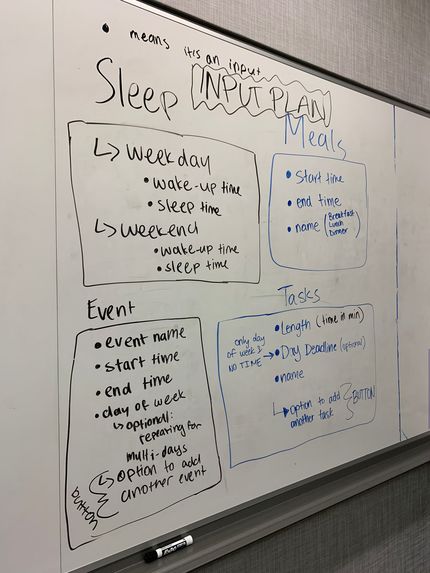
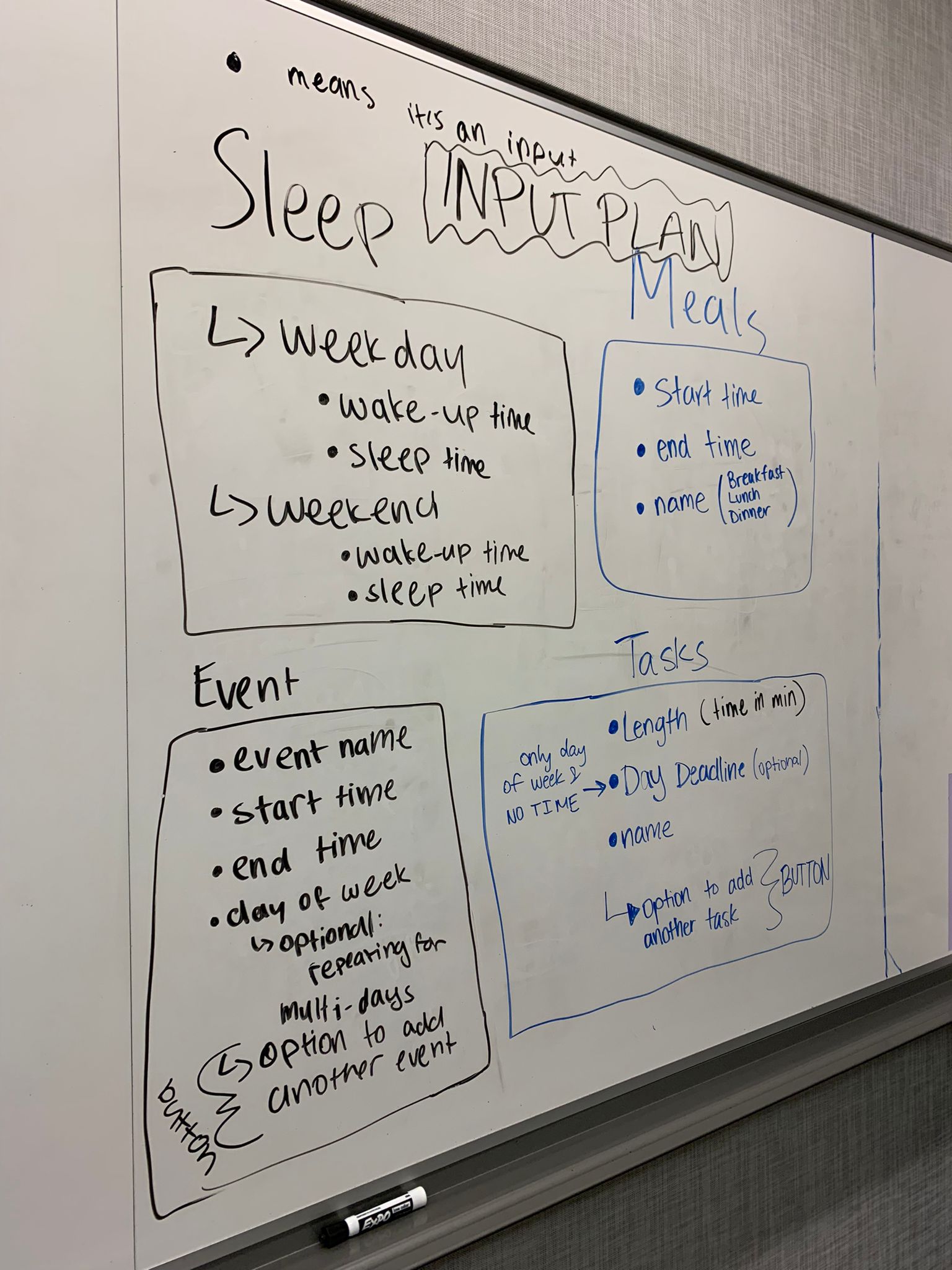
This picture displays our plan for what input our application collects.
-
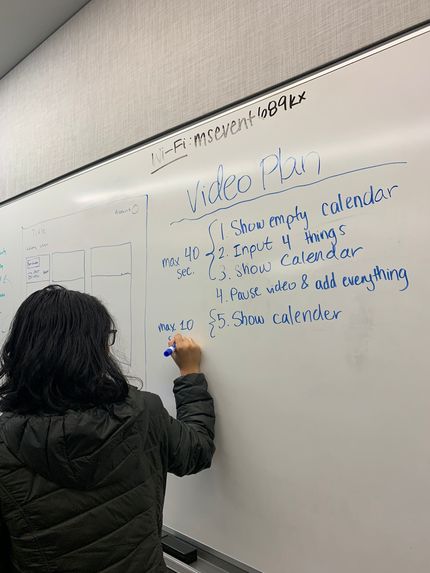
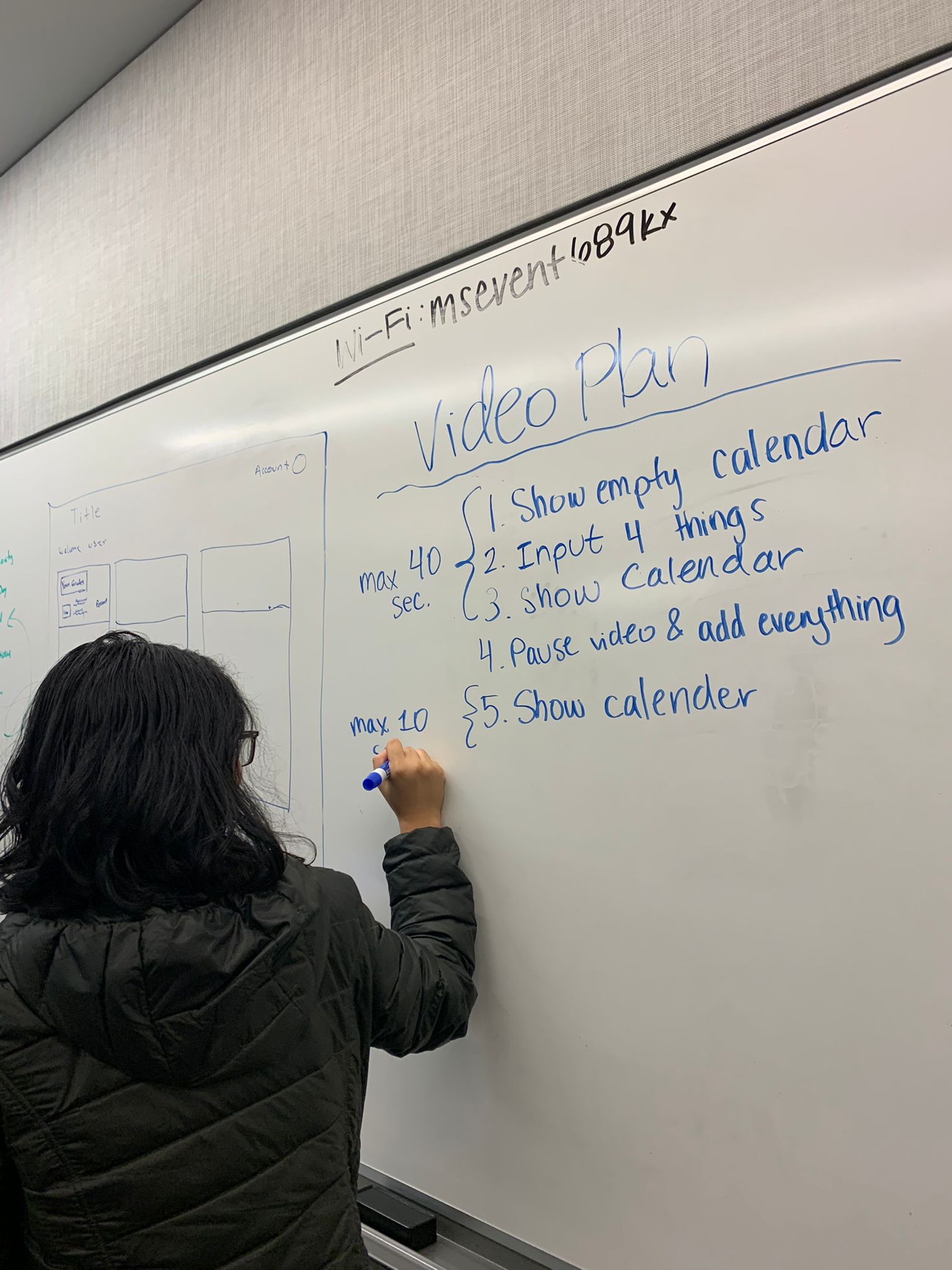
This picture displays a team member creating the plan for the video submission.
With how busy people are, organizing their days can be difficult and time-consuming. Oftentimes, people have a list of tasks they need to complete but have trouble thinking about when they will have time to do it. Our Schedulizer has the user input a list of these tasks alongside their other commitments, and in return, automatically gives them a visual schedule for the week.
Upon opening our application, the user is taken to a home screen made in Pygame that gives them various options for what data they can enter through four distinct sections: sleep, meals, events, and tasks. The sections are consistently color-coded among all elements for ease of user experience. The first section sleep, with input created through Tkinter, has the user enter what time they wake up and go to sleep for both weekdays and weekends. In meals, they enter mealtimes for the week. In events, the user has the option to enter immutable events, specifically an event’s name, times, and what day of the week it will occur. Finally, in tasks, they can enter tasks that must be completed, giving the task’s name, the time needed to complete the task, and its deadline if it occurs during the week. After any activity is added, the home screen depicts how many activities have been submitted for each section and has the option for the user to submit more meals, events, or tasks.
All data collected that has a set time is added to the data set that represents the week’s schedule in the back end. Python is used for back end functions. This process blocks out the time in the week’s schedule that is taken up by sleep, meals, and events. For all events, a break is set before and afterward to ensure that, unless necessary, nothing in the user’s schedule is forced to be back-to-back. Then, the tasks are separated by whether they have a deadline or not, with all tasks with deadlines sorted by priority (a sooner deadline). Our code then goes through each task, in order of priority, and finds the first available slot in which the task can be fully completed, adding it to the schedule. After all entered activities have been added to the internal schedule, the schedule is parsed through, and everything is added to a visual representation of the schedule created through Pygame. The user can view the whole seven-day schedule with thirty-minute intervals, and clear color-coded blocks that depict each item and its name.

Log in or sign up for Devpost to join the conversation.