-
-
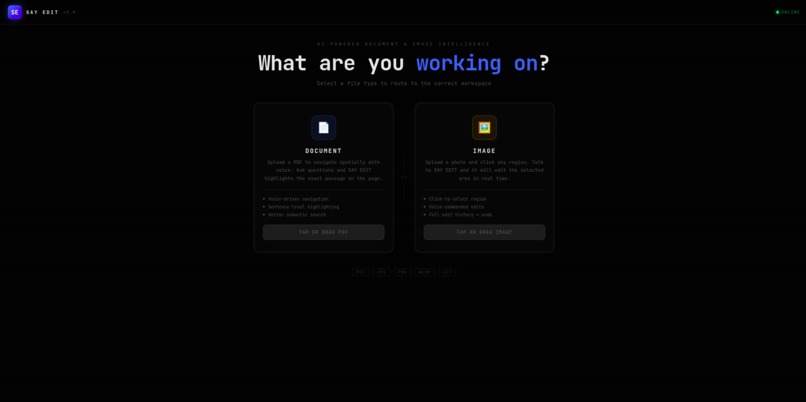
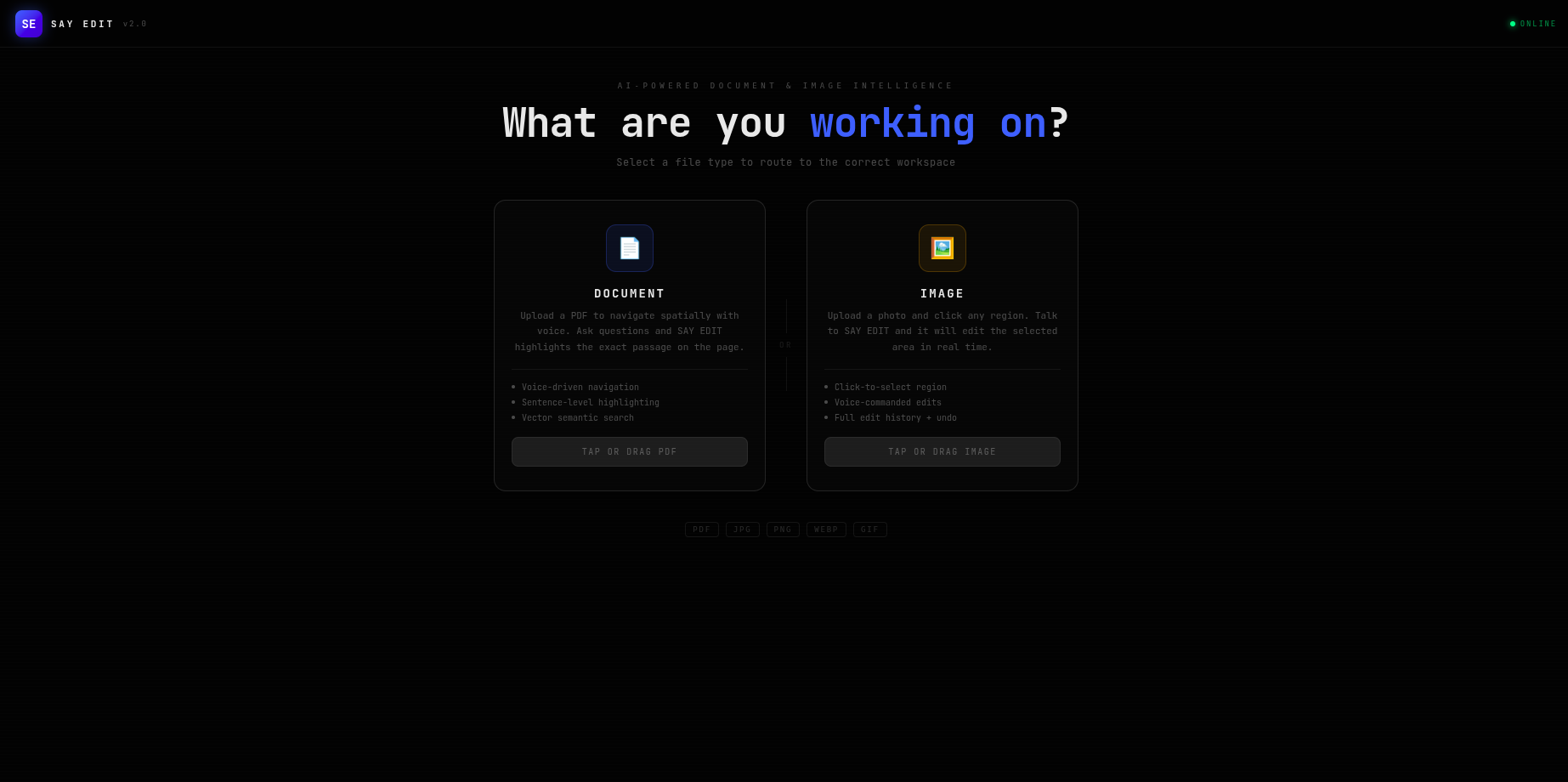
landing page
-
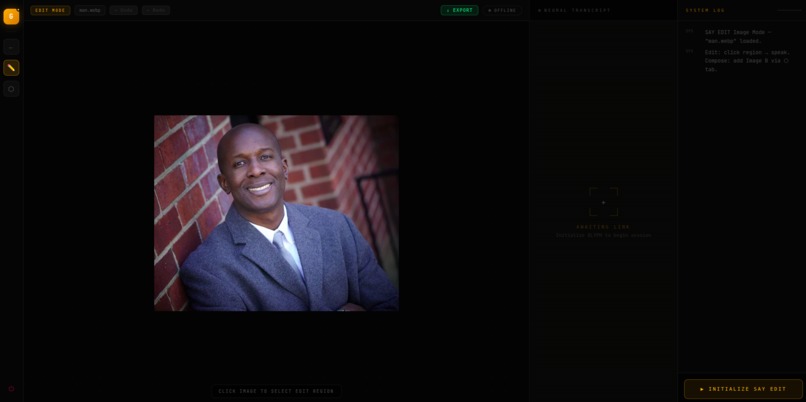
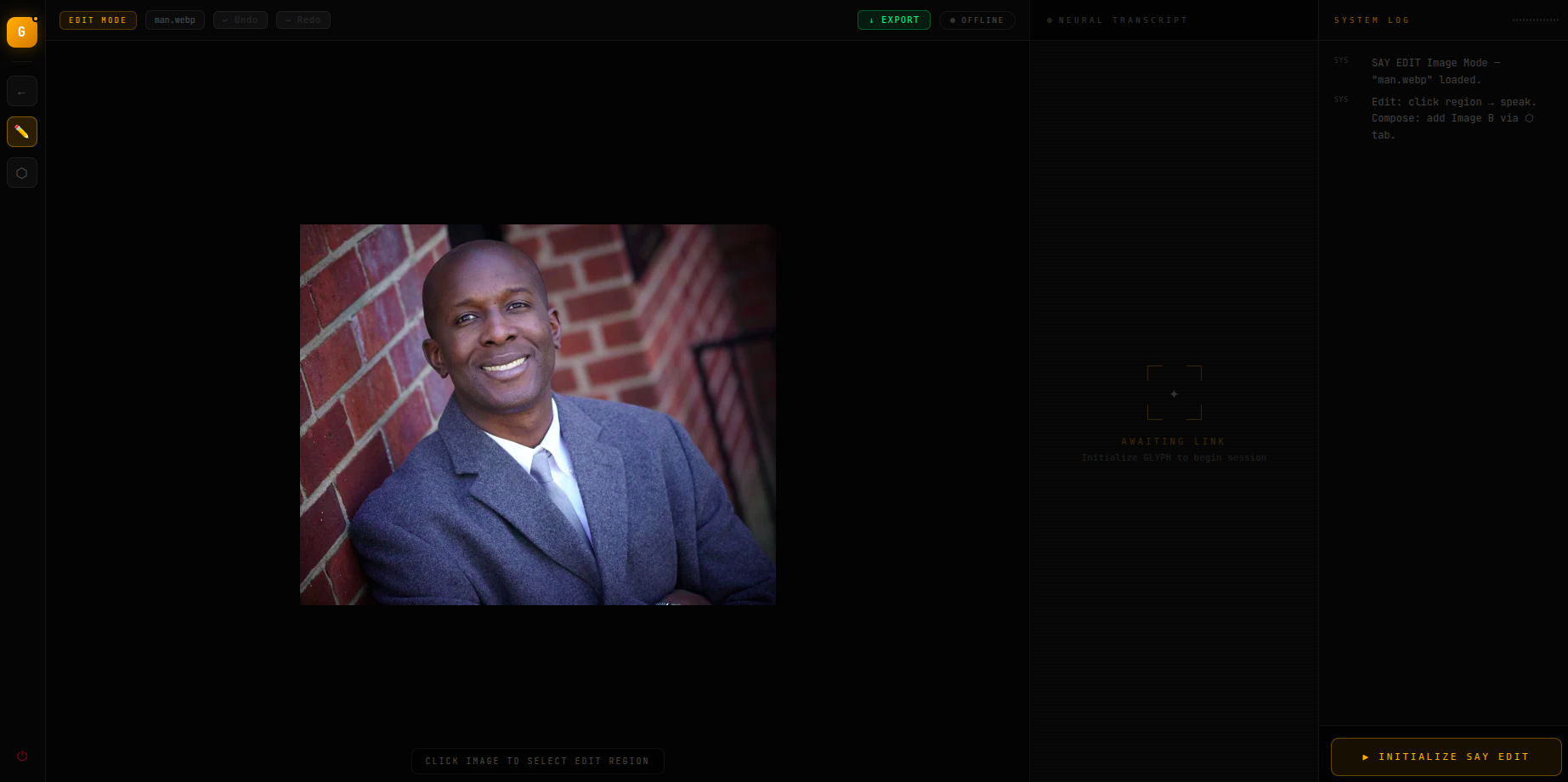
image upload
-
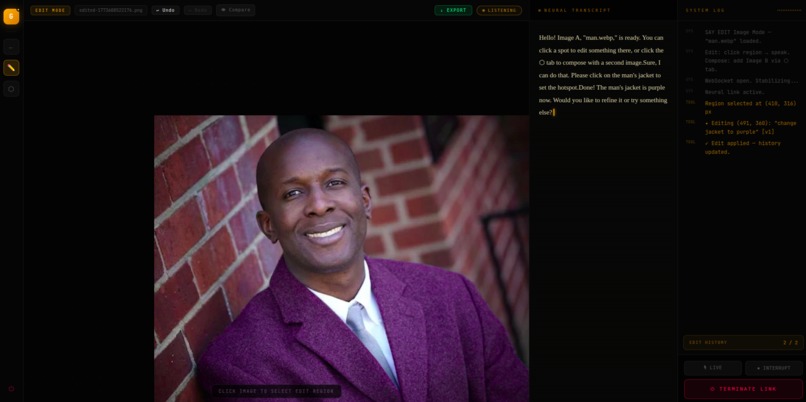
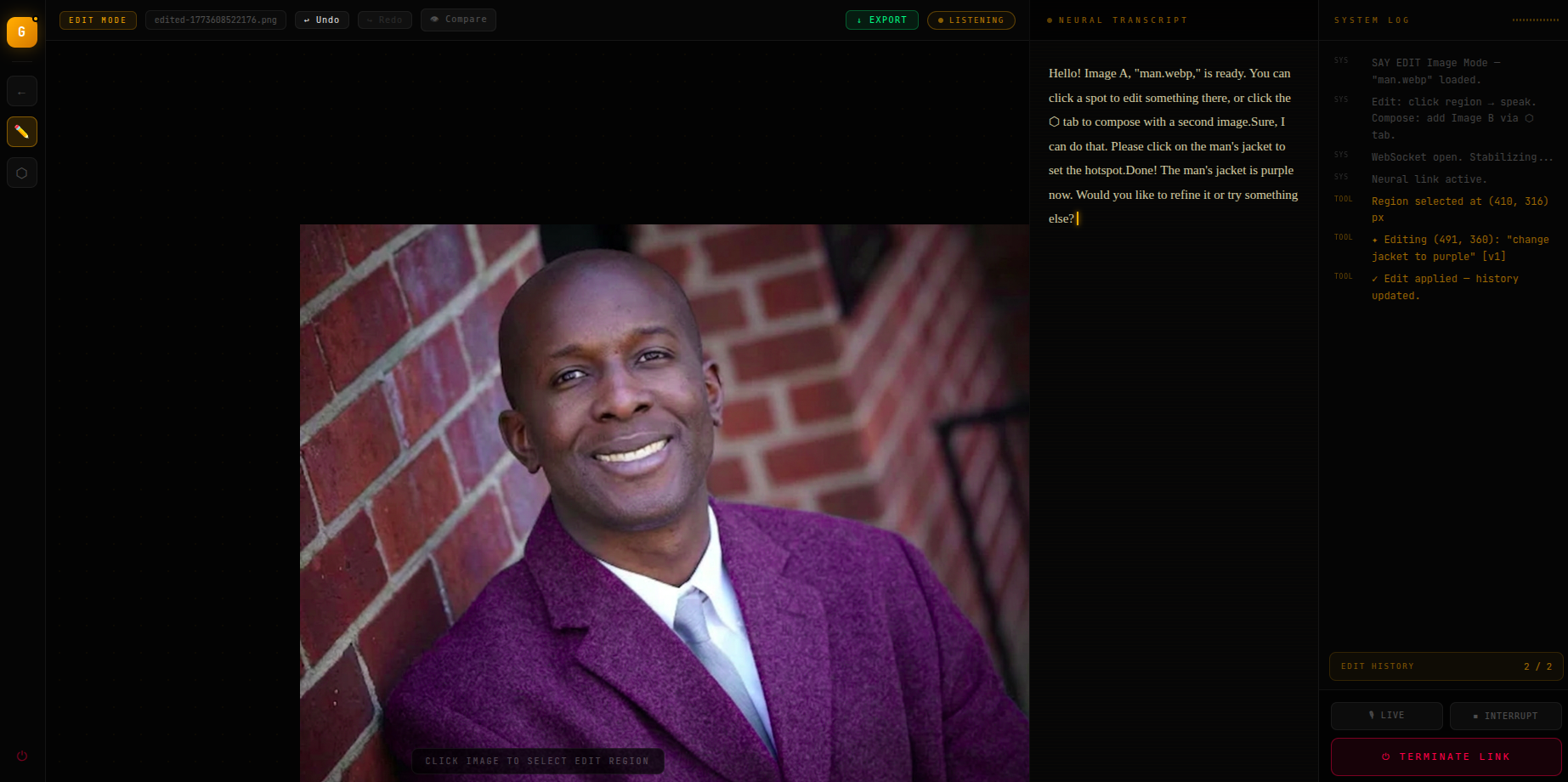
change the mans jacket to purple
-
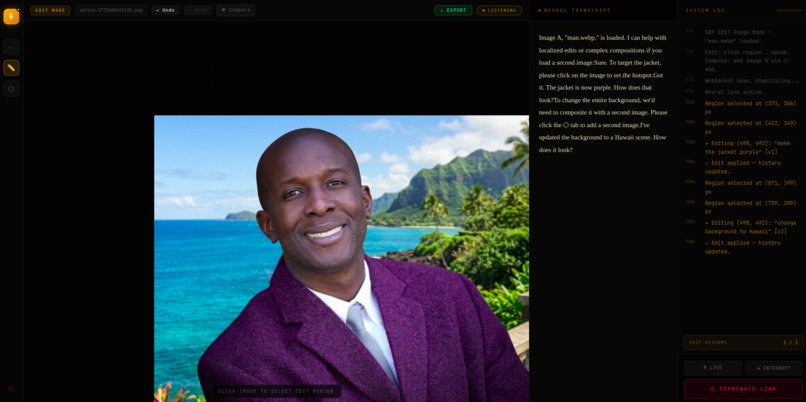
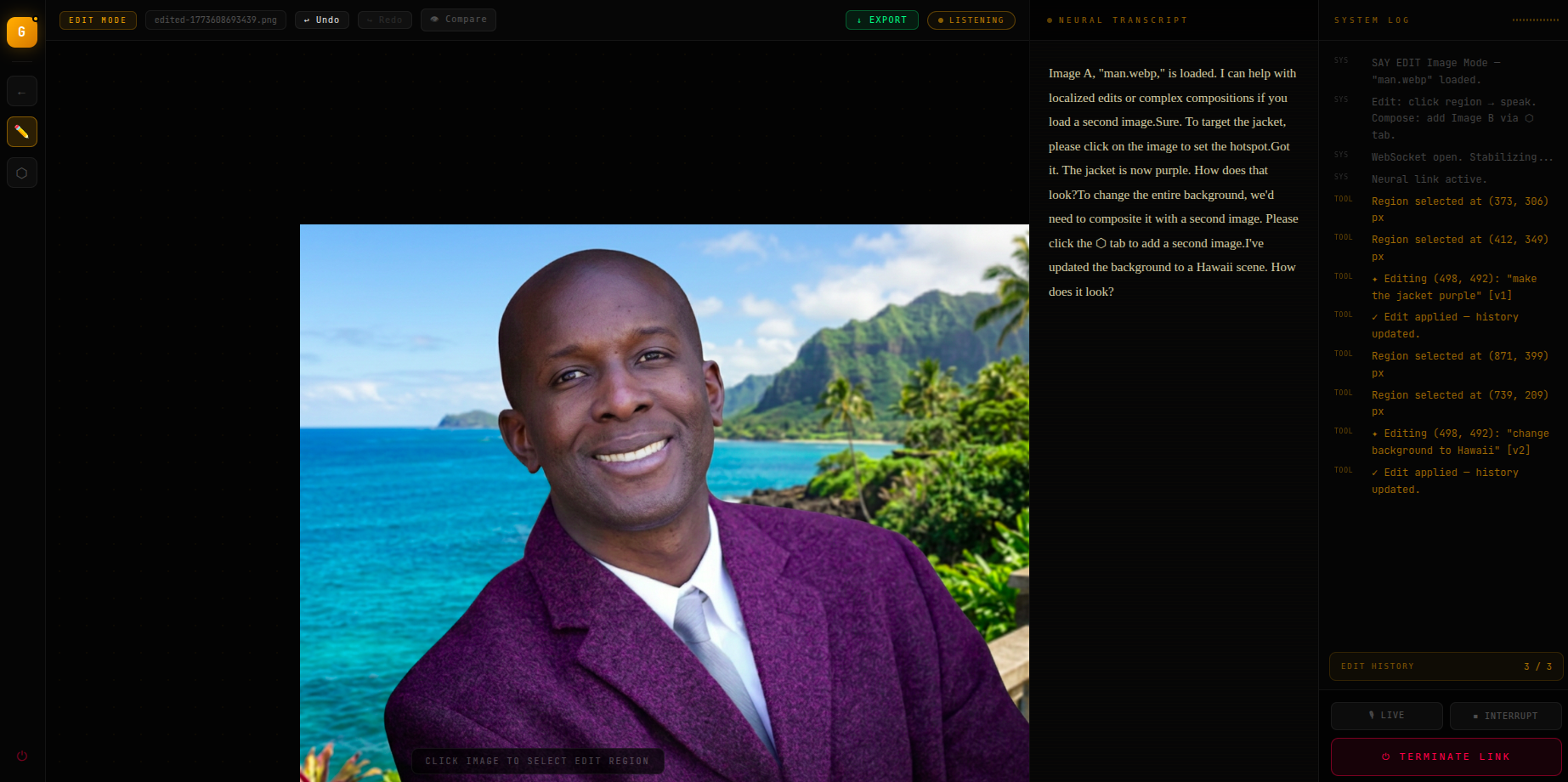
change the background to hawaii
-
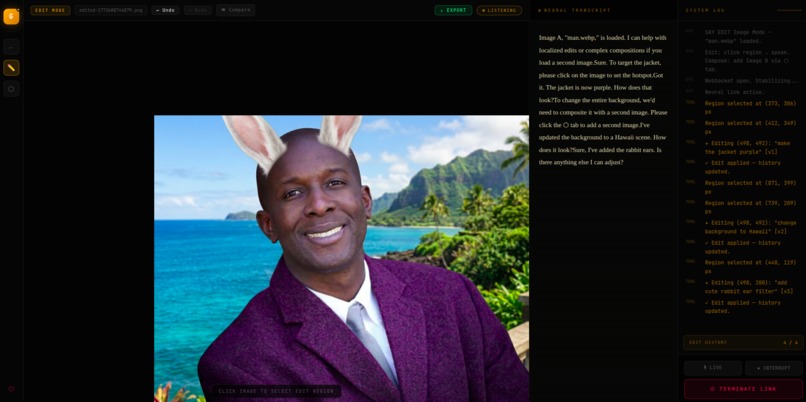
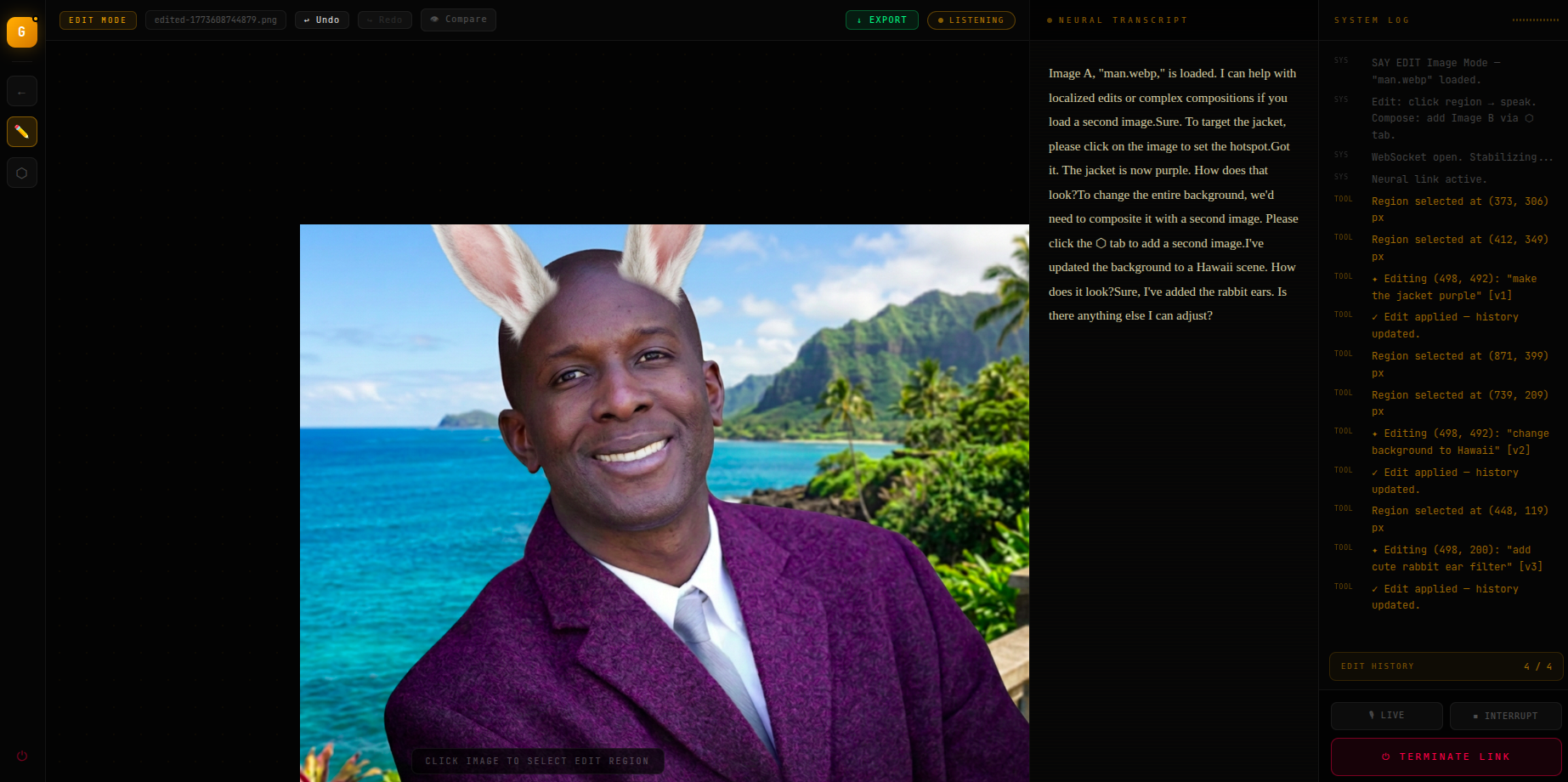
Give this man a rabbit ear filter common on social media
-

Generated image of a fashion jacket
-
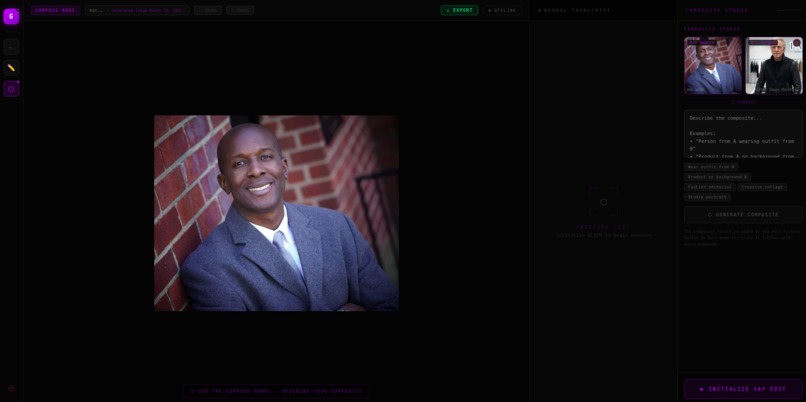
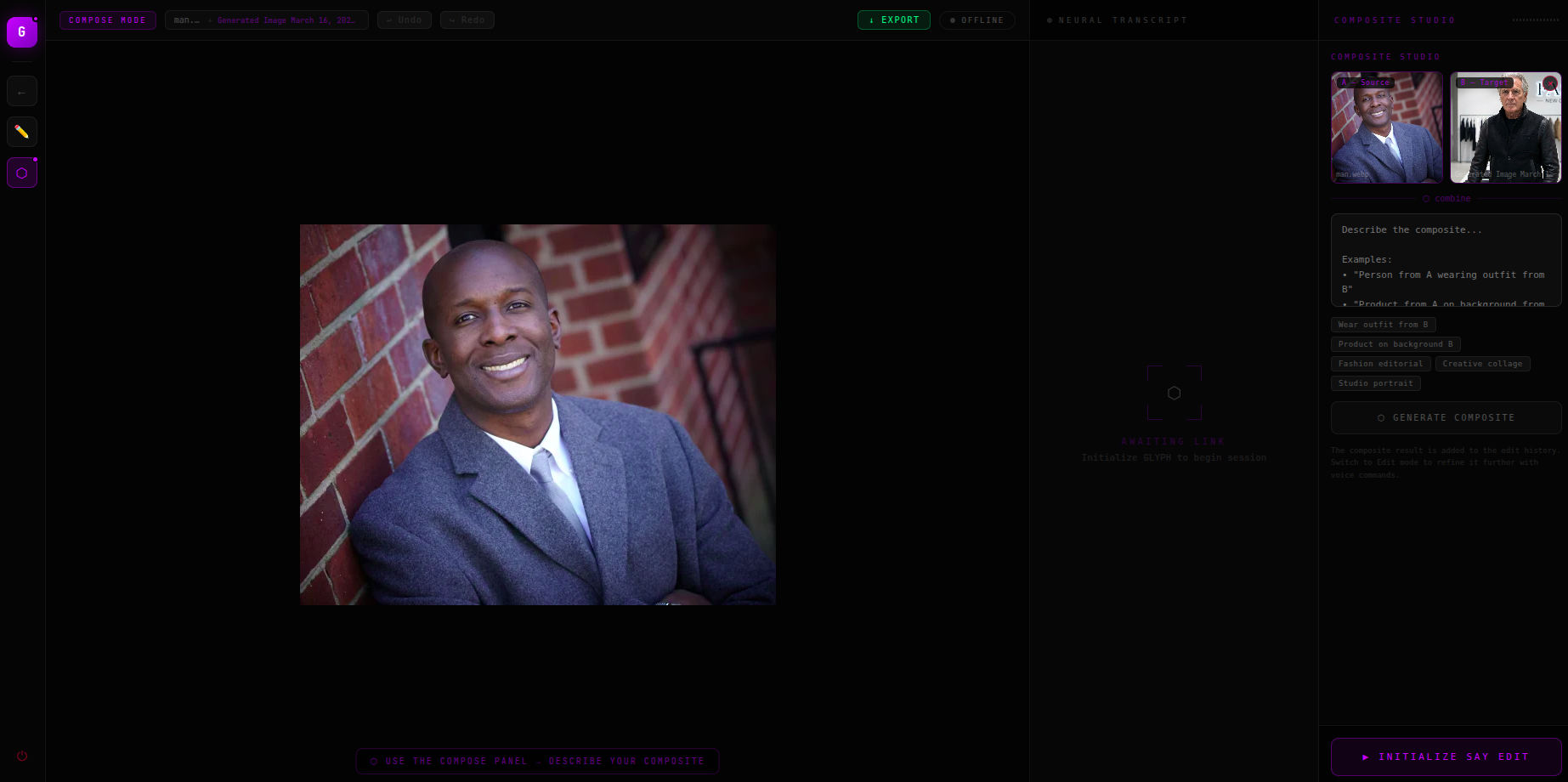
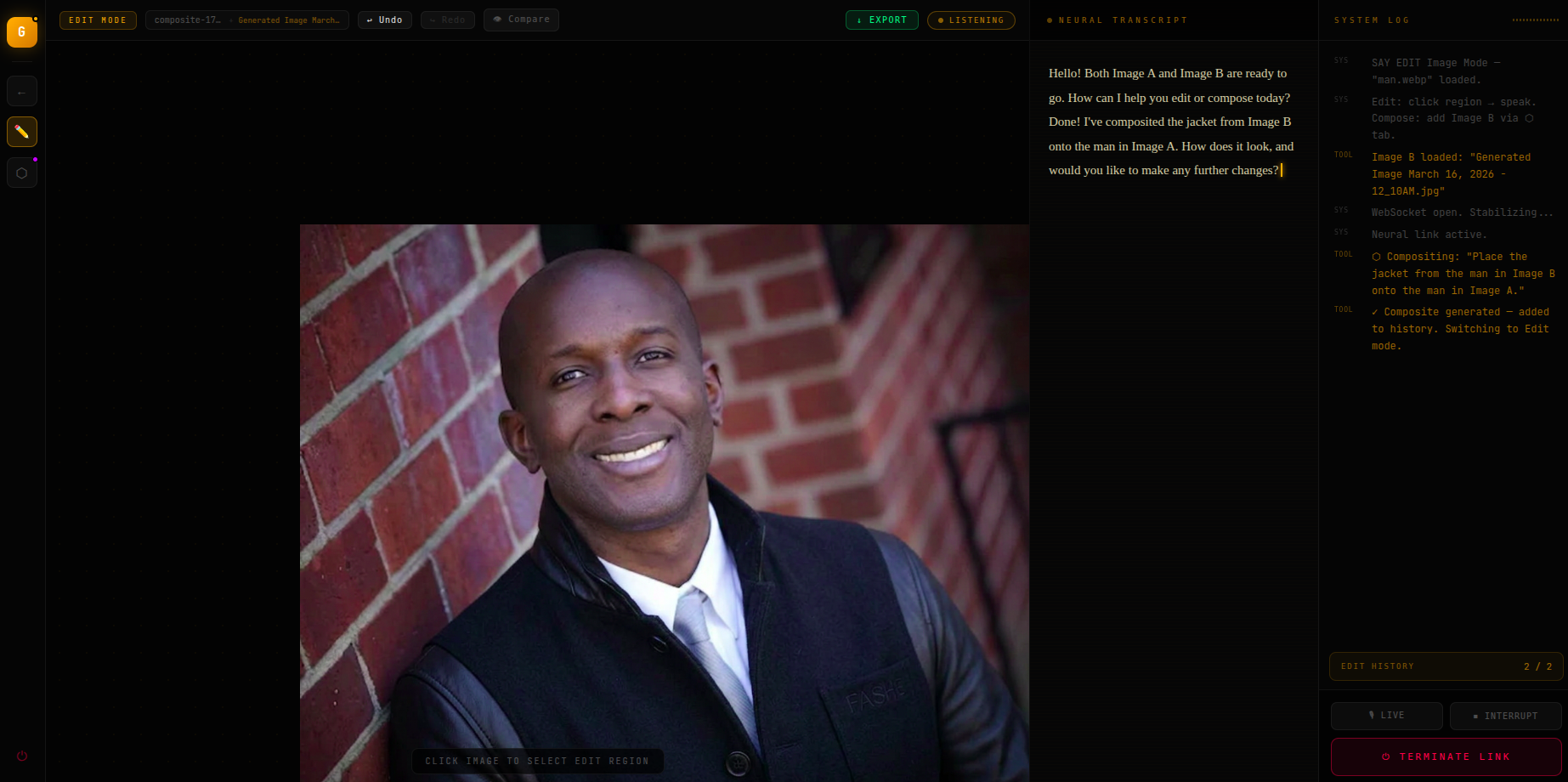
Compositing the two images: have the man in the first image wear the jacket from the second image
-
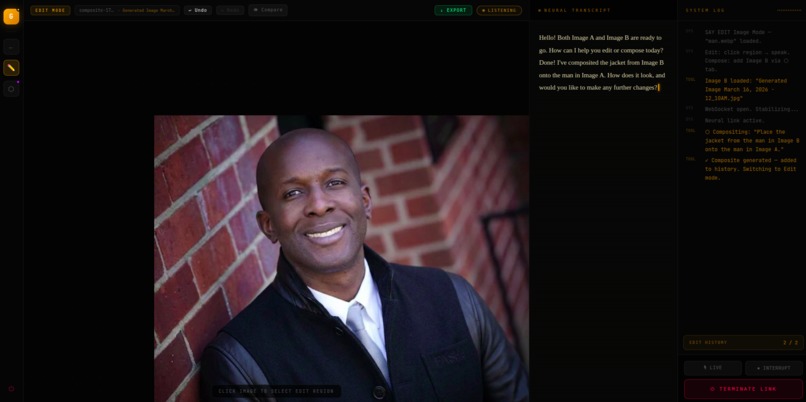
after compositing the two images
-
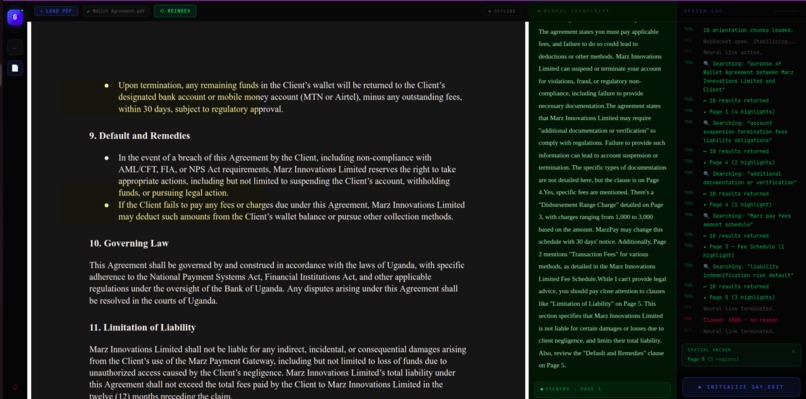
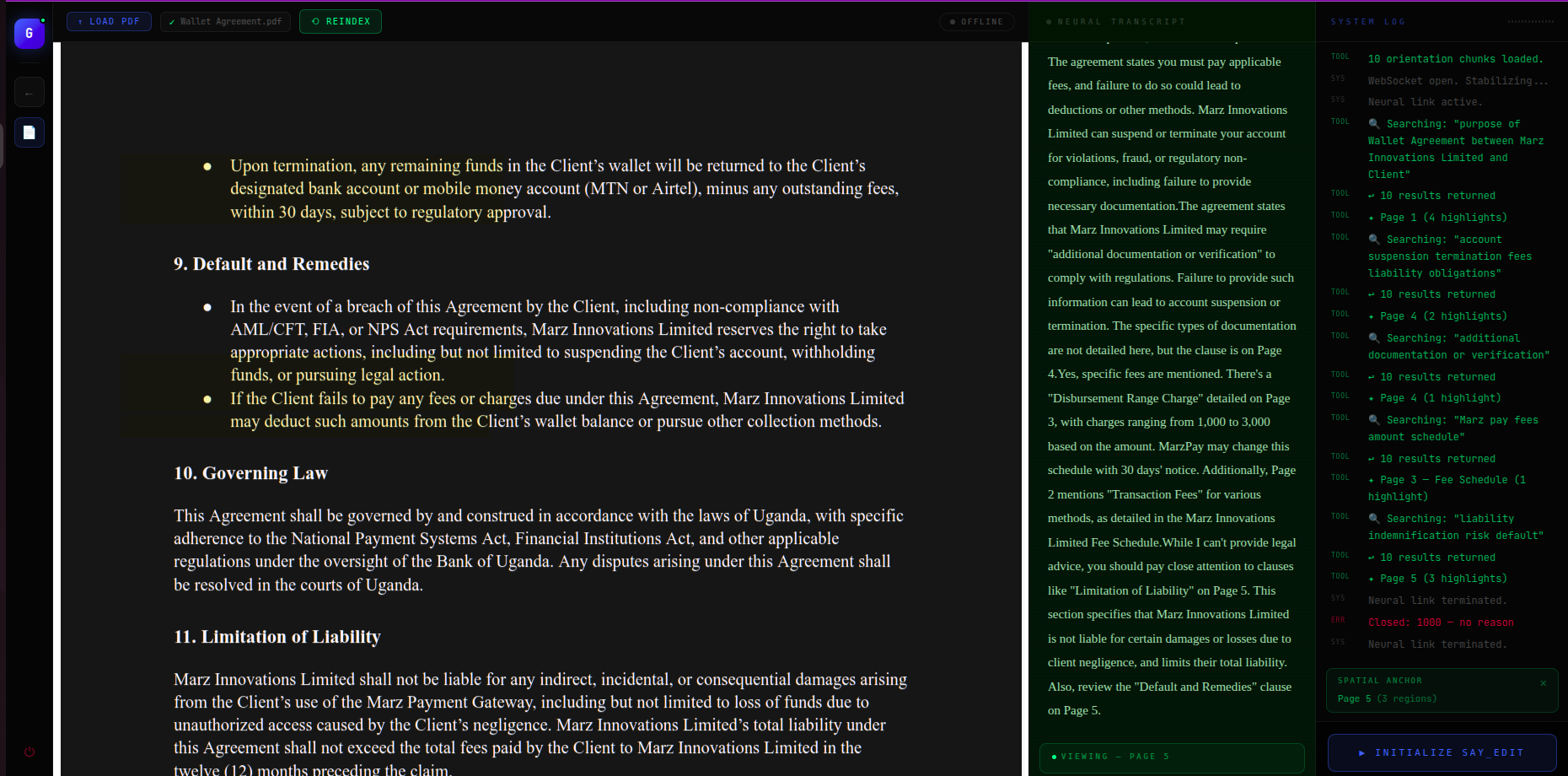
PDF section, here users can talk and ask questions about their uploded pdf
-
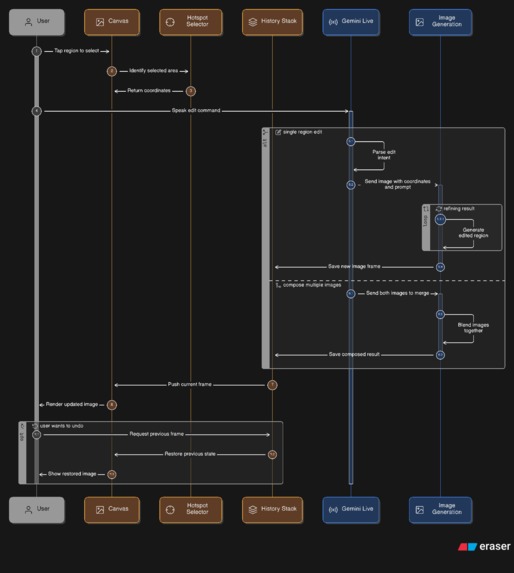
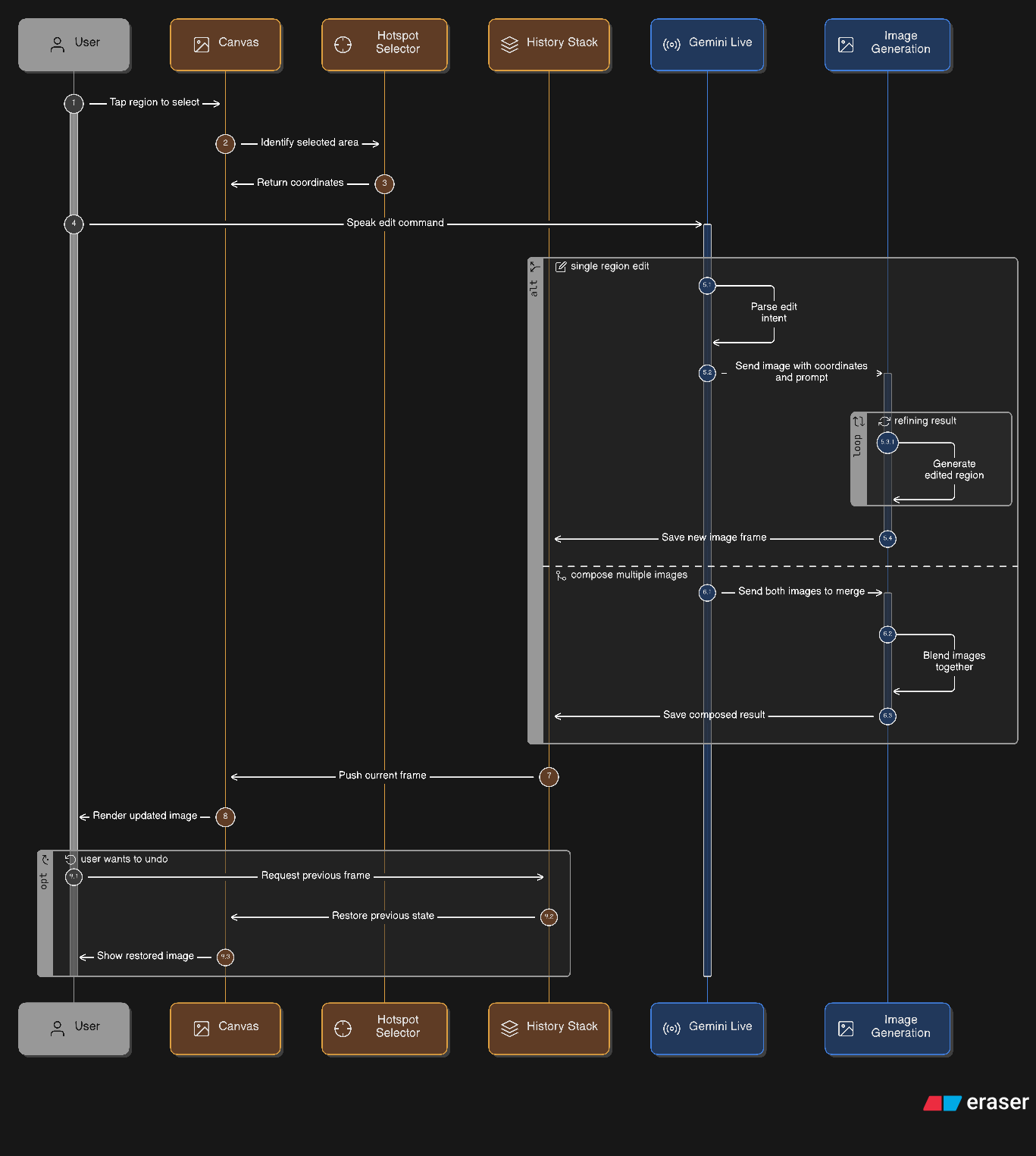
Image Edit Workspace Diagram
-
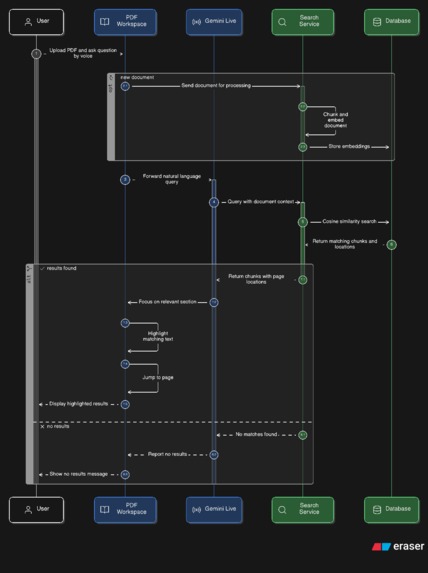
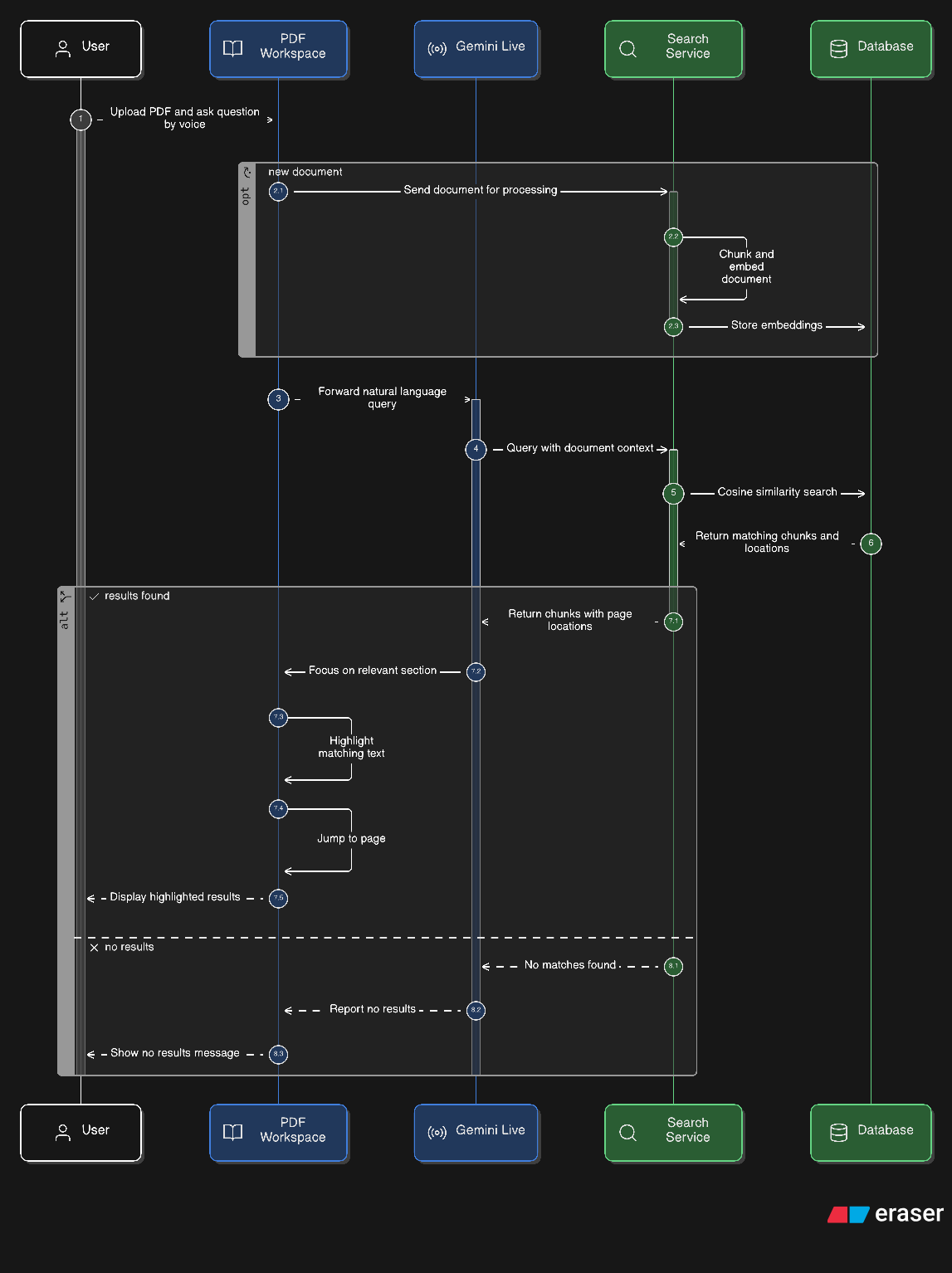
Document workspace Diagram

Inspiration
The inspiration for Say Edit came from a simple frustration: editing tools are invisible walls between intent and result.
Whether you're a researcher buried in a 200-page legal brief trying to find one clause, or a designer who wants to change the color of a jacket in a photo — you already know exactly what you want. You just have to fight the UI to get it.
We were guided by a single question: what if the interface was just your voice?
Not push-to-talk. Not a chatbot you type at. A persistent, low-latency voice session that listens continuously, understands context, and acts the moment it understands your intent — just like a skilled human assistant would.
Say Edit is built on the belief that the best interface is no interface at all. Click where you want the change. Say what you want. Watch it happen.
What it does
Say Edit is a voice-first AI workspace that routes to one of two purpose-built environments:
📄 Document Navigator: Document Navigator Video
Upload any PDF — a legal contract, research paper, textbook. Say Edit indexes it at sentence level with vector embeddings. Then you just ask questions:
"What are the termination clauses?" "Where does it mention liability?" "Summarize section 4.2."
The AI doesn't just answer — it navigates to the page and applies yellow highlights over the exact sentences it's referencing, in real time. You hear the answer and see it on the page simultaneously.
🖼️ Image Editor: Image Editor Video
Upload any photo. Click anywhere on it to drop a crosshair hotspot. Then describe your change:
"Make the jacket leather." "Blur the background." "Add sunglasses."
The edit is applied, localized to the region you pointed at, and pushed onto a non-destructive history stack with full undo/redo and before/after compare.
⬡ Compose Studio
Load a second image and merge two photos by voice:
"Dress the person from A in the outfit from B." "Put the product on the background from B."
The composite is generated and added to your edit history, ready for further voice refinement.
How we built it
The Voice Loop (Gemini Live API)
The core of Say Edit is a persistent bi-directional WebSocket with the Gemini Live API. This is not push-to-talk — the model listens continuously and calls tools the moment it understands your intent. Audio is streamed at 16kHz PCM from the microphone in real time. If you speak while the AI is responding, it interrupts instantly and listens again.
Microphone → 16kHz PCM → Gemini Live WebSocket
       ↓
Tool call (search_document / edit_image_region / compose_images)
       ↓
Result returned → AI responds by voice + workspace updates
Document Intelligence
PDFs are uploaded to Supabase Storage and processed by a NestJS backend. The ingestion pipeline uses pdfjs-dist to extract text at word level, groups words into lines by Y-coordinate proximity, and merges lines into sentence-level chunks with tight bounding boxes [x, y, width, height]. Each chunk is embedded with gemini-embedding-001 and stored in a pgvector index.
When the Live session calls search_document, the query is embedded and a cosine similarity search (match_chunks_by_document RPC) returns the top-N sentence chunks with their page numbers and bounding boxes. The frontend then calls focus_document_section using those exact bboxes to render highlights on the PDF canvas.
Image Pipeline
Image editing happens entirely client-side. The current image is encoded as base64 and sent alongside the edit prompt and hotspot coordinates to gemini-2.0-flash-exp-image-generation. The model returns a localized edit. The new image is added to a stale-closure-safe history stack (using refs to prevent stale state in async tool callbacks).
Tech Stack
- Frontend: React + Vite + TypeScript,
@react-pdf-viewerwith custom highlight plugin - Backend: NestJS,
pdfjs-dist(Node, with canvas mock), Supabase pgvector - AI: Gemini Live API (voice), Gemini image generation (edits/composites),
gemini-embedding-001(semantic search) - Infra: Google Cloud Run (frontend + backend), Supabase (storage + vector DB)
Gemini Live API Usage Map
| Feature | Live API Tool | Tool Name | What It Does | Code Reference |
|---|---|---|---|---|
| Document Search | Function Calling | search_document |
AI calls this when user asks a question. Hits the pgvector backend and returns top-N sentence chunks with bboxes | GlyphWorkspace.tsx — onmessage tool handler |
| Spatial Navigation | Function Calling | focus_document_section |
Receives page + rects[][] from search results. Frontend jumps the PDF viewer to the page and renders yellow highlights at exact coordinates |
GlyphWorkspace.tsx — focus_document_section handler |
| Image Region Edit | Function Calling | edit_image_region |
AI calls this after user clicks a hotspot and speaks an edit. Receives edit_prompt, hotspot_x, hotspot_y. Frontend sends image + coords to Gemini image model |
Glyphimageworkspace.tsx — handleEditImageRegion |
| Hotspot Query | Function Calling | get_current_hotspot |
AI can query the currently selected pixel coordinates before triggering an edit, enabling natural speech like "edit this area" without re-stating coordinates | Glyphimageworkspace.tsx — get_current_hotspot handler |
| Image Compositing | Function Calling | compose_images |
AI calls this when user requests a merge of two photos by voice. Passes composition prompt; frontend combines Image A + B via Gemini image generation | Glyphimageworkspace.tsx — handleComposeVoice |
| Interruption | serverContent.interrupted |
— | When user speaks mid-response, the Live API sends an interrupt signal. All queued audio is cleared instantly and the model re-listens | Both workspaces — clearAudioQueue |
| Live Transcription | outputAudioTranscription |
— | Real-time transcript of everything the AI says streams into the Neural Transcript panel with a blinking cursor | Both workspaces — outputTranscription handler |
| Audio Streaming | sendRealtimeInput |
— | 16kHz PCM audio is captured via ScriptProcessorNode, converted Float32 → Int16 → base64, and streamed continuously to the Live session |
Both workspaces — proc.onaudioprocess |
Model used: gemini-2.5-flash-native-audio-preview-12-2025 — chosen for native audio modality (no separate STT pipeline) and sub-300ms response latency.
Challenges we ran into
1. Stale Closures in Async Tool Callbacks
The Live API's onmessage callback is set up once at session start. React state inside that closure becomes stale immediately — meaning history[historyIndex] would always point to the original image, regardless of how many edits had been applied.
The fix: We maintain historyRef and historyIndexRef that are updated synchronously alongside state. All async tool handlers read from refs, not state, guaranteeing they always operate on the current image.
// Stale-closure-safe: always reads the live value
const imageFile = historyRef.current[historyIndexRef.current];
2. PDF Bounding Box Coordinate Mismatch
PDF coordinate systems use bottom-left origin. The @react-pdf-viewer canvas uses top-left origin. Our initial highlights were appearing at mirrored positions — a sentence on line 3 would highlight at the bottom of the page.
The fix: During ingestion, we convert every word's Y coordinate: y = pageHeight - transform[5] - height. The stored bboxes are in top-left origin from day one, so the frontend highlight math is clean.
3. The Canvas Module Crash in Node
pdfjs-dist optionally requires the canvas npm package for rendering. In our NestJS Cloud Run environment, canvas isn't installed and the require throws, crashing the server before it even starts.
The fix: We intercept require('canvas') at module load time using Node's Module._load hook and return an empty stub. The hook is applied before pdfjs loads and immediately removed after, leaving the rest of the module system untouched.
4. Live API Connection Timing
Sending tool messages or audio immediately on onopen causes a race condition — the WebSocket is open but the model isn't ready to receive. This resulted in dropped greetings and occasional 400 errors.
The fix: A 600ms stabilization delay after onopen before enabling audio streaming and sending the initial greeting. Crude but reliable across network conditions.
Accomplishments that we're proud of
Spatial grounding at sentence level. Most RAG systems return text. Ours returns text and tells you exactly where on the page it lives, with pixel-accurate highlights. The combination of hearing the answer and seeing it highlighted in real time creates a genuinely new kind of document interaction.
Zero-latency interruption. When you speak while the AI is answering, it stops instantly. No wait, no overlap. This was only possible because of the Gemini Live API's native interruption signal — we'd never be able to replicate it with a request/response architecture.
Non-destructive image editing by voice. Every edit is pushed onto a history stack. Undo, redo, and before/after compare all work seamlessly. The session always operates on whatever the current history frame is, even after many sequential edits.
A single voice session that spans two modes. The image workspace handles both localized edits and full compositing through the same Live session, switching modes fluidly as the user changes intent.
What we learned
Tool design is UX design. The get_current_hotspot tool exists entirely to let users say "edit here" without re-stating coordinates. Getting the tool schema right — what the model calls, when, and with what arguments — is as important as the UI itself.
Refs are the solution to stale closures in Live API callbacks. Any async callback registered at session start will capture stale React state. The pattern of maintaining a ref that mirrors every piece of state you need in a callback is now a fixture of our architecture.
PDF text extraction is harder than it looks. pdfjs-dist gives you individual text items with transform matrices, not sentences or lines. Grouping words into lines by Y tolerance, then lines into sentences by punctuation, then computing tight bounding boxes from word-level coordinates — each step has edge cases (rotated text, multi-column layouts, headers).
The Live API's interruption model changes everything. Building on a WebSocket that sends interrupted signals rather than a request/response model shifts how you think about the entire interaction design. The user is always in control. That's the right default.
What's next for Say Edit
Collaborative sessions — Share a document workspace with a second user; both hear the same AI and see the same highlights in real time.
Built With
- geminiliveapi
- nest
- vite

Log in or sign up for Devpost to join the conversation.