


Gear Description
1. Start Scene
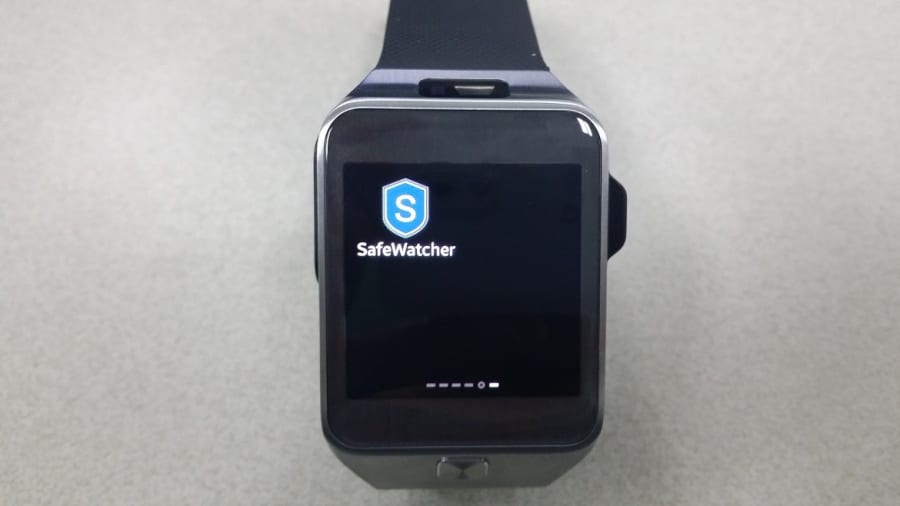
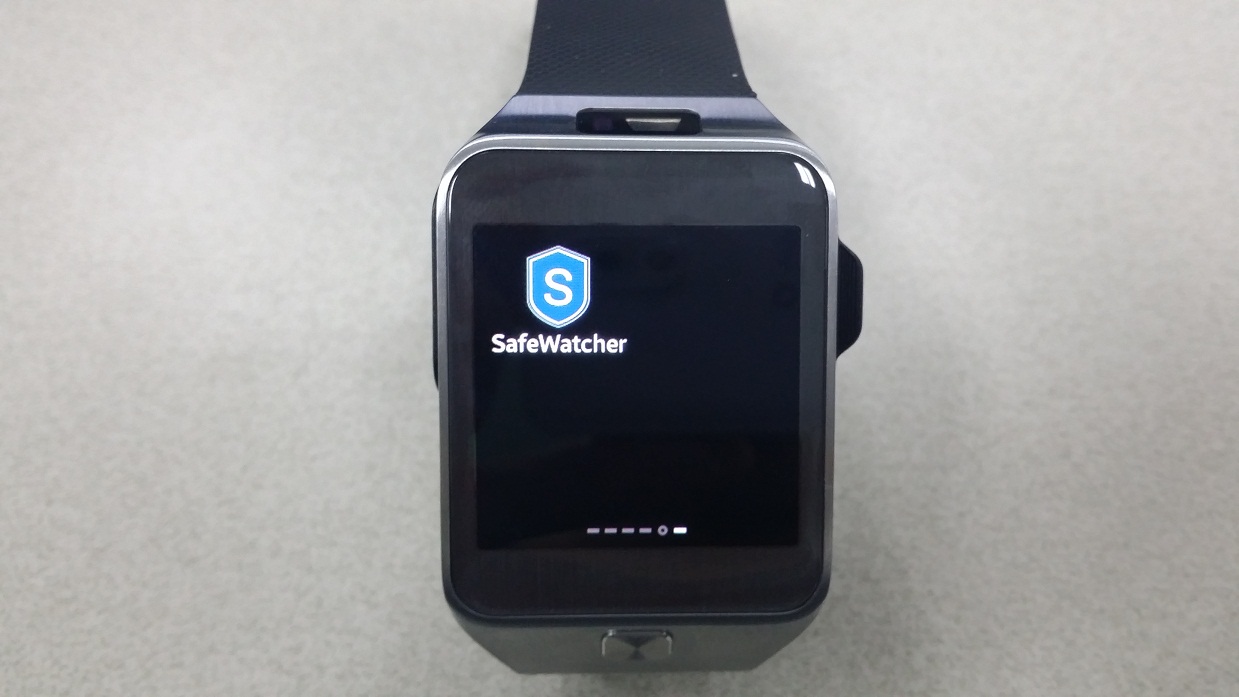
- 'SafeWatcher' Click the icon to run the App.
2. Splash Scene

- SafeWatcher is executed, Set the system.
3. Wait Scene

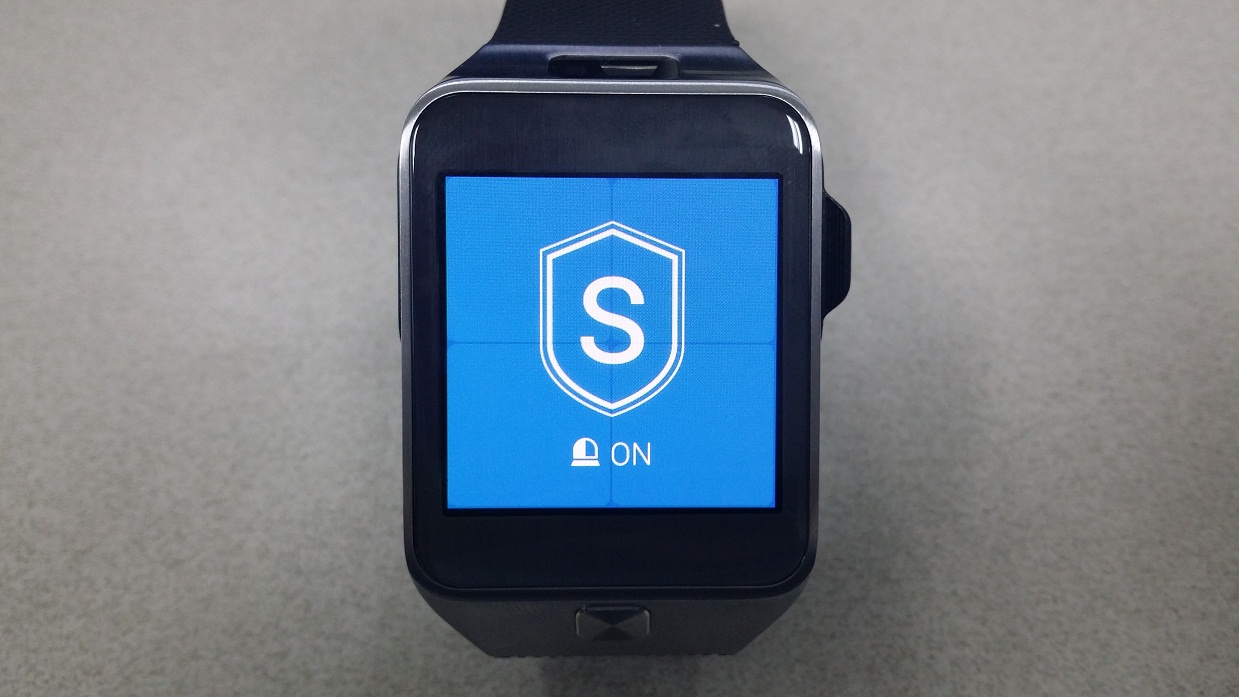
- Guard system will work when there is a strong movement Gear touch or number of times a user-defined
4. Guard Scene

- Emergency alarm will sound after 15 seconds, 1 minute recording is started, Gear will take a picture every 10 seconds thereafter.
- Guard end, to unlock it using the pattern defined by the user.
- Call the emergency alarm is canceled when you exit within 15 seconds.
Android Description
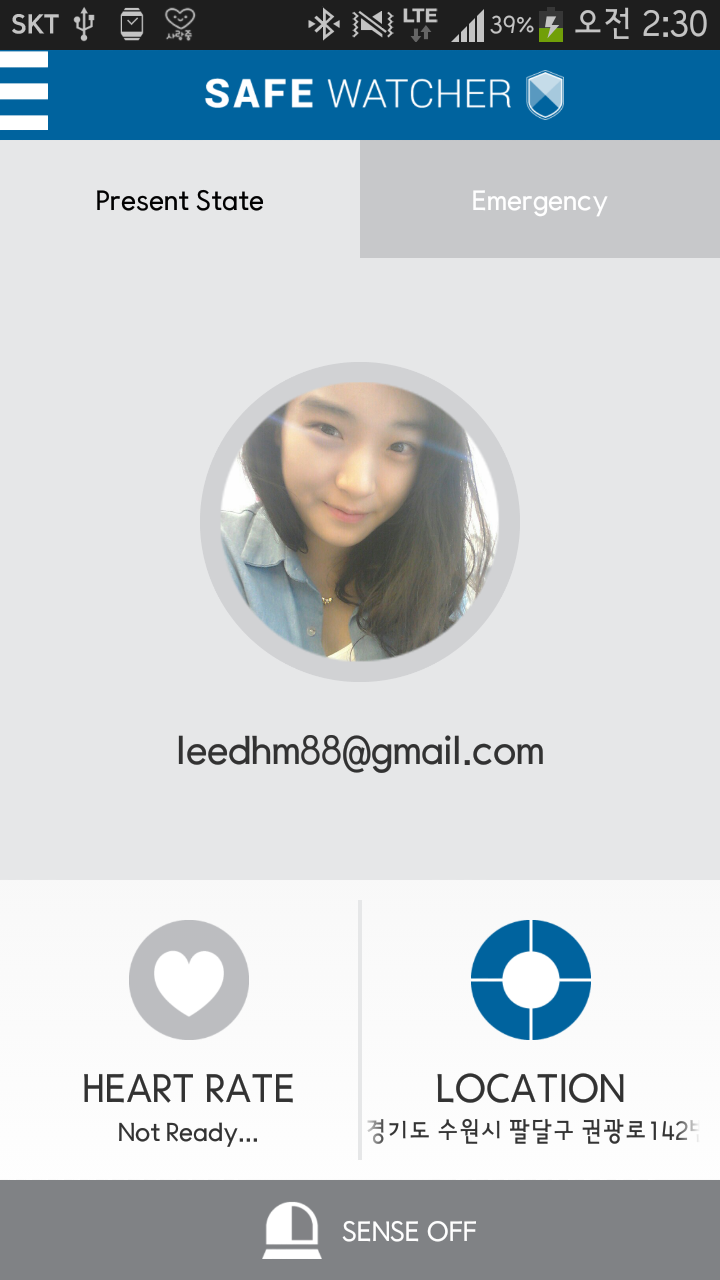
1. Main Scene

- The screen which is connected, currently, you can check the operating status of the Guard position and my.
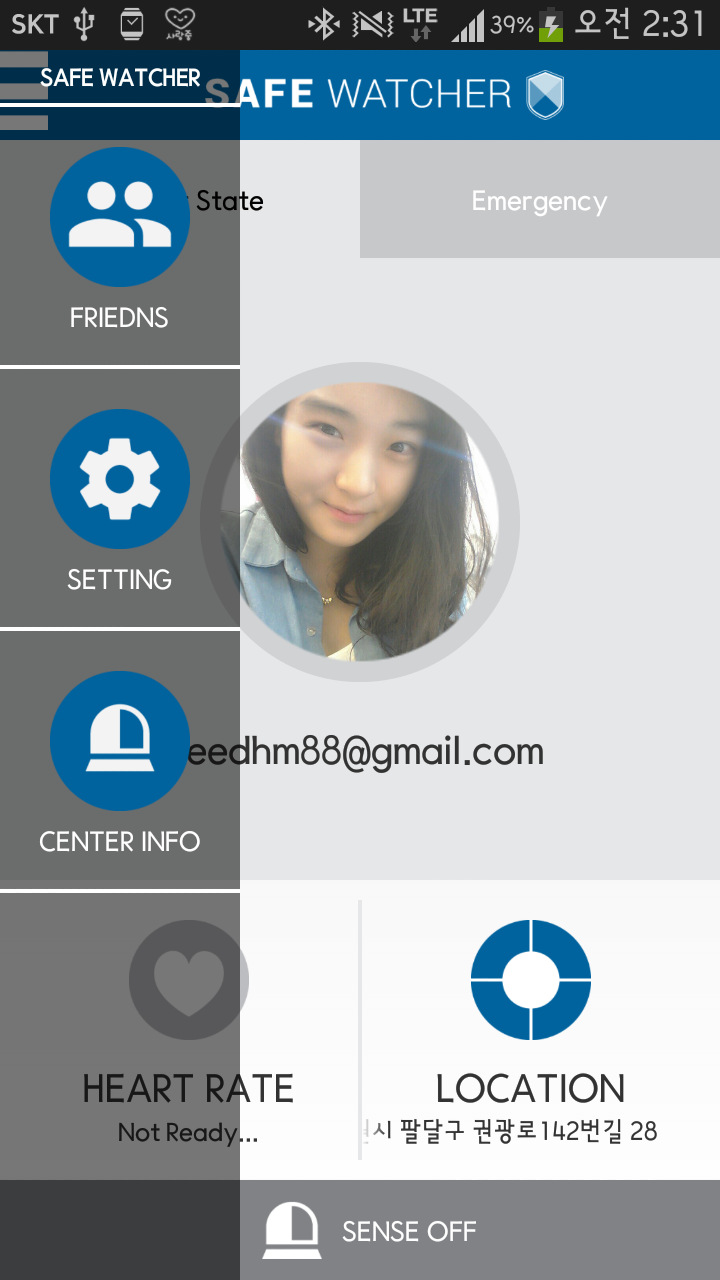
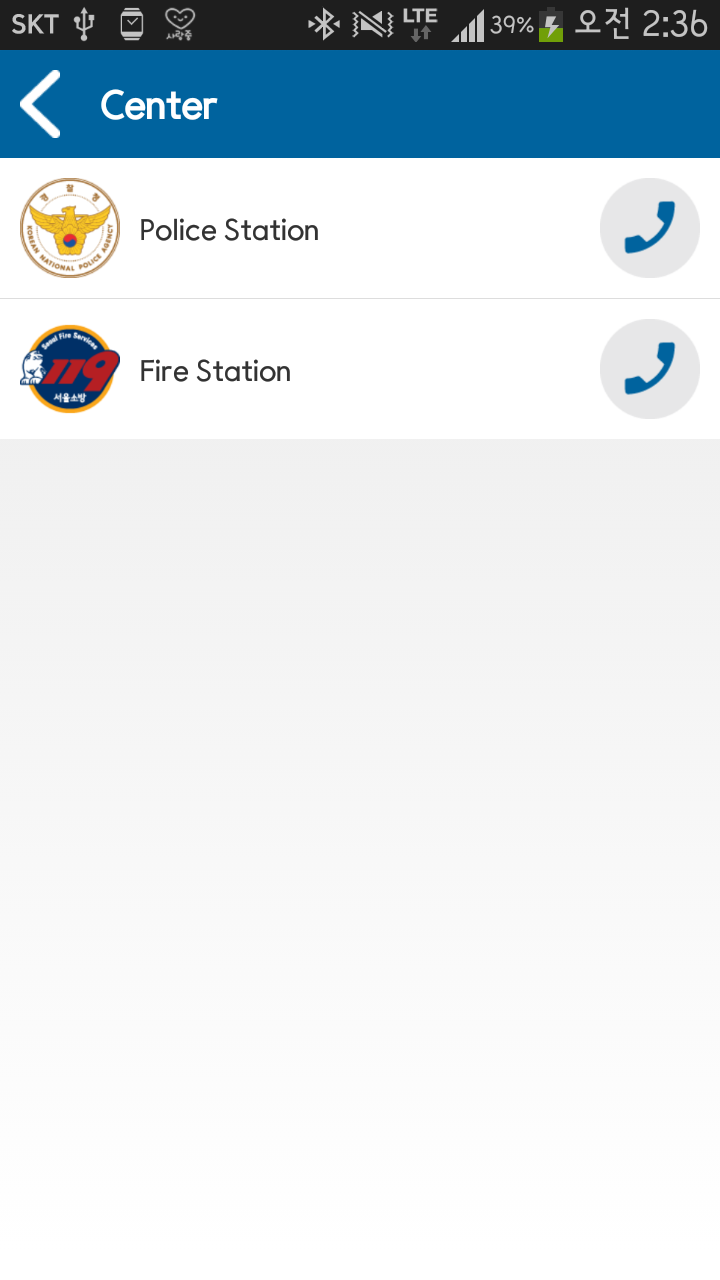
- The sub-menu, there is a tab friends list, set, three of the delivery center information.
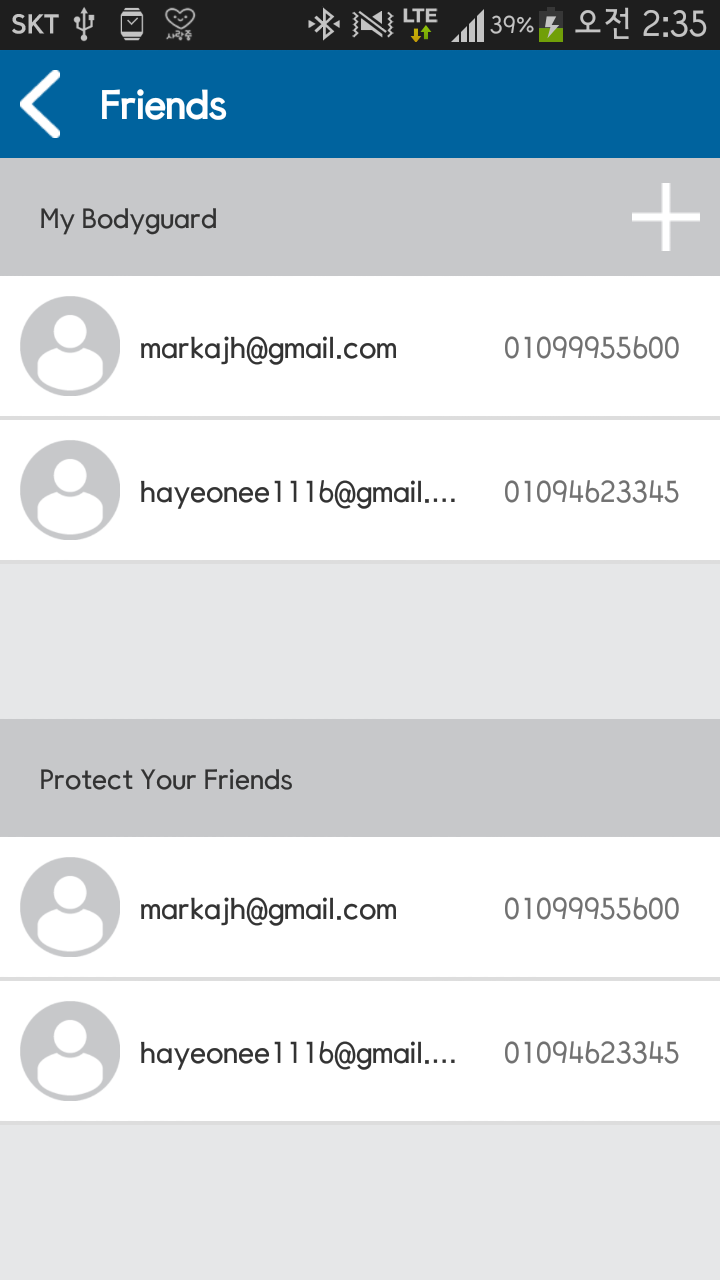
2. Friends Scene
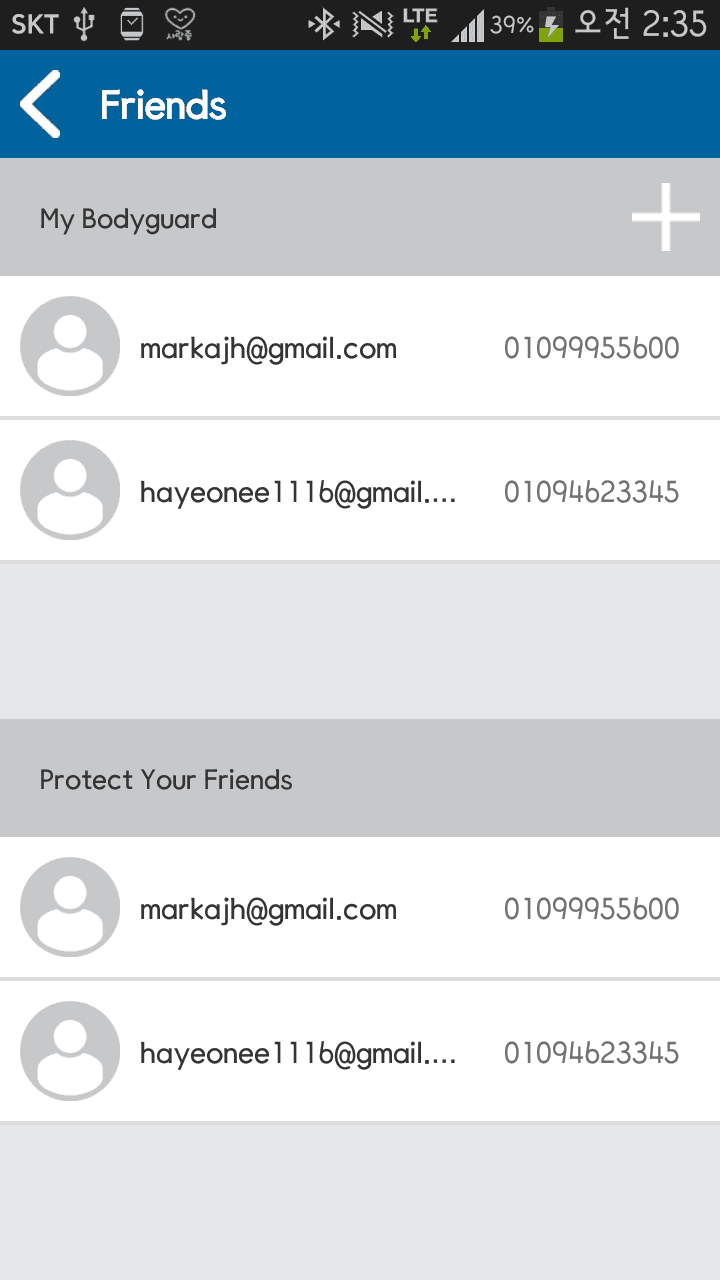
- The friends tab, you can see a list of friends who will protect me and the people I will protect.
- By showing us a friend who has a subscription of registered friends in my contacts, you want to add, people will protect me, you can receive a notification when it becomes a dangerous situation.
3. Setting Scene

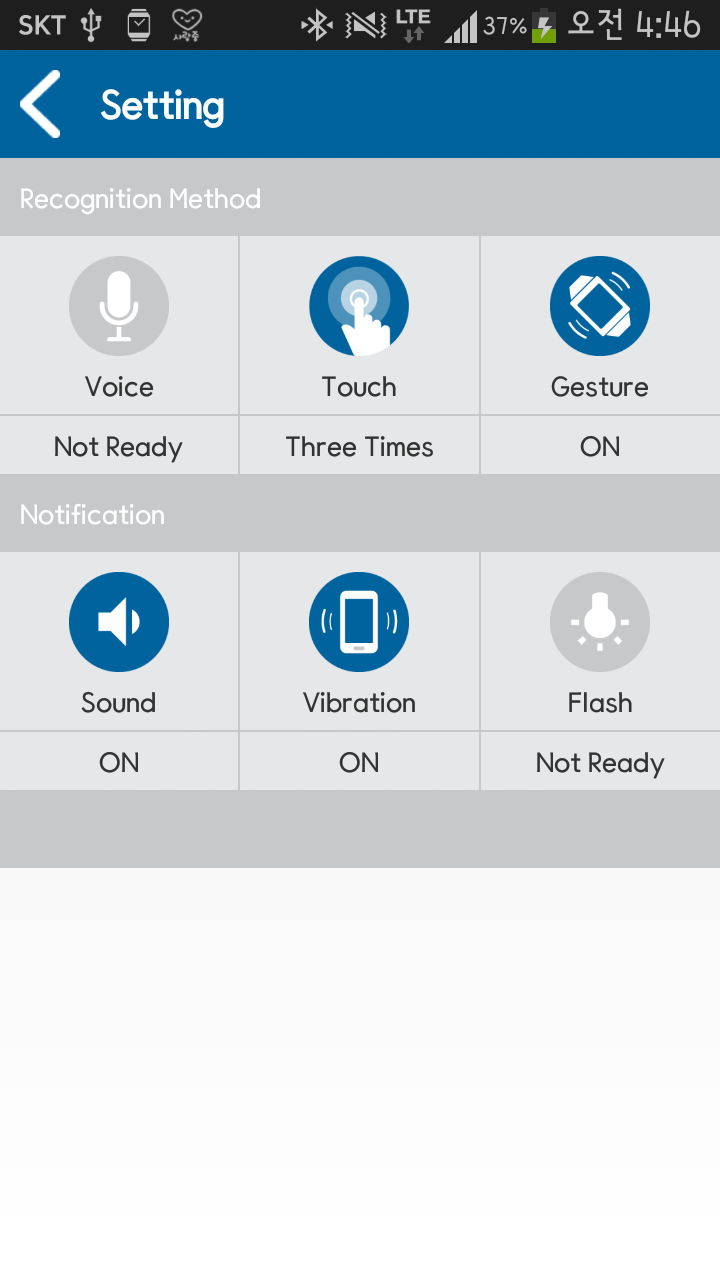
- Setting screen, provides configuration of the functions of the Android alert notification settings and GEAR recognition method.
- Setting the recognition method, which provides the capability of one 3 Voice that allows you to set the means for detecting a dangerous situation through a gear, Touch, Gesture of.
- Notification, you can set what is alert notification. It provides features Sound, Vibration, of Flash.
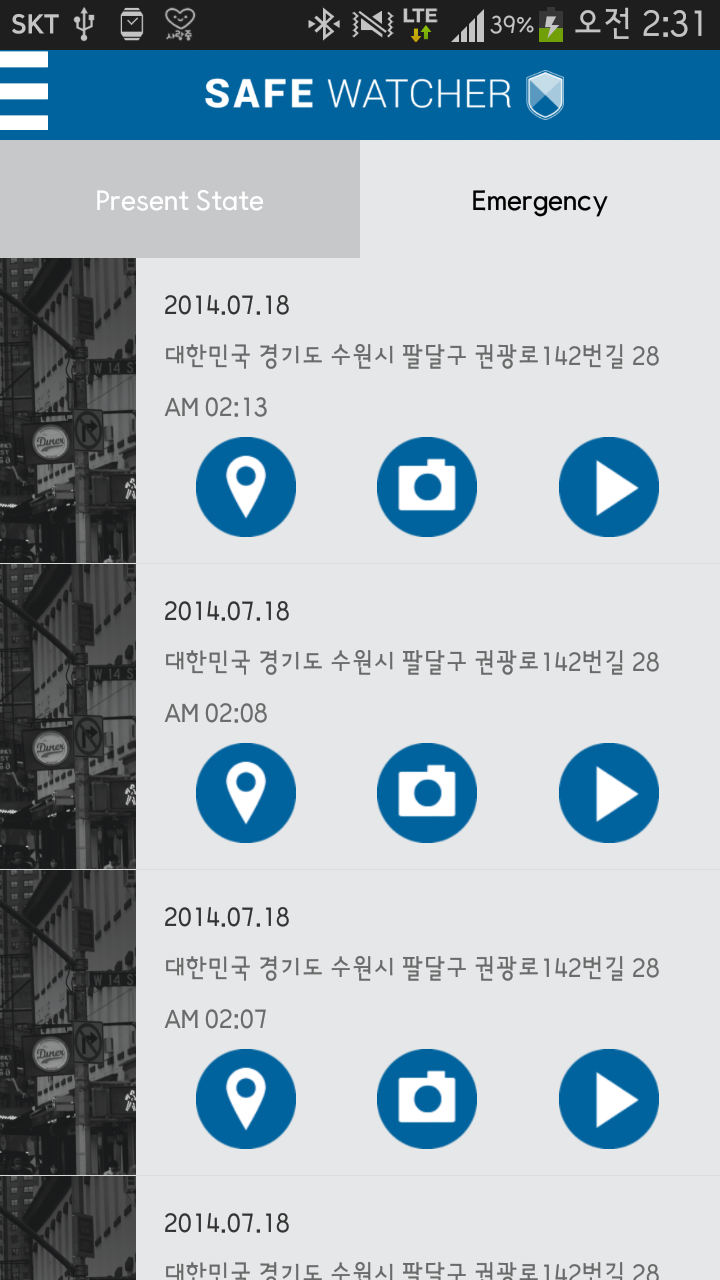
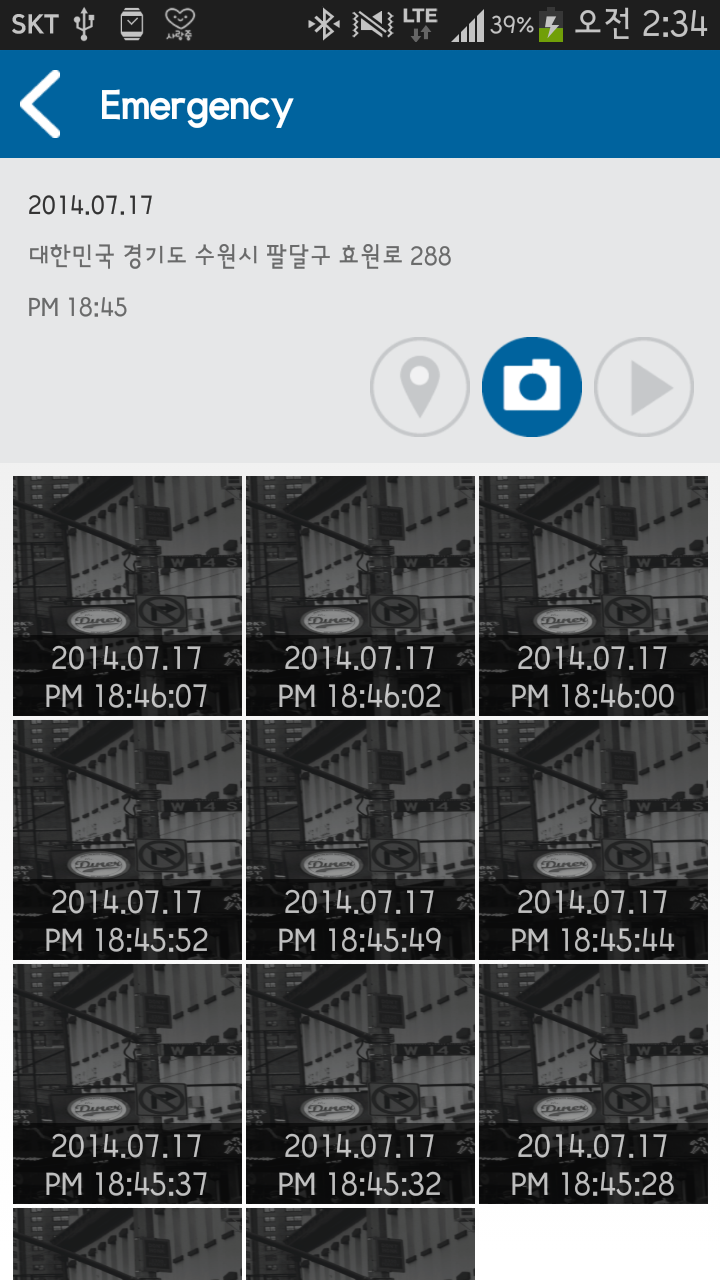
4-1. Dangerous situation Scene

4-2. Dangerous situation(GPS) Scene

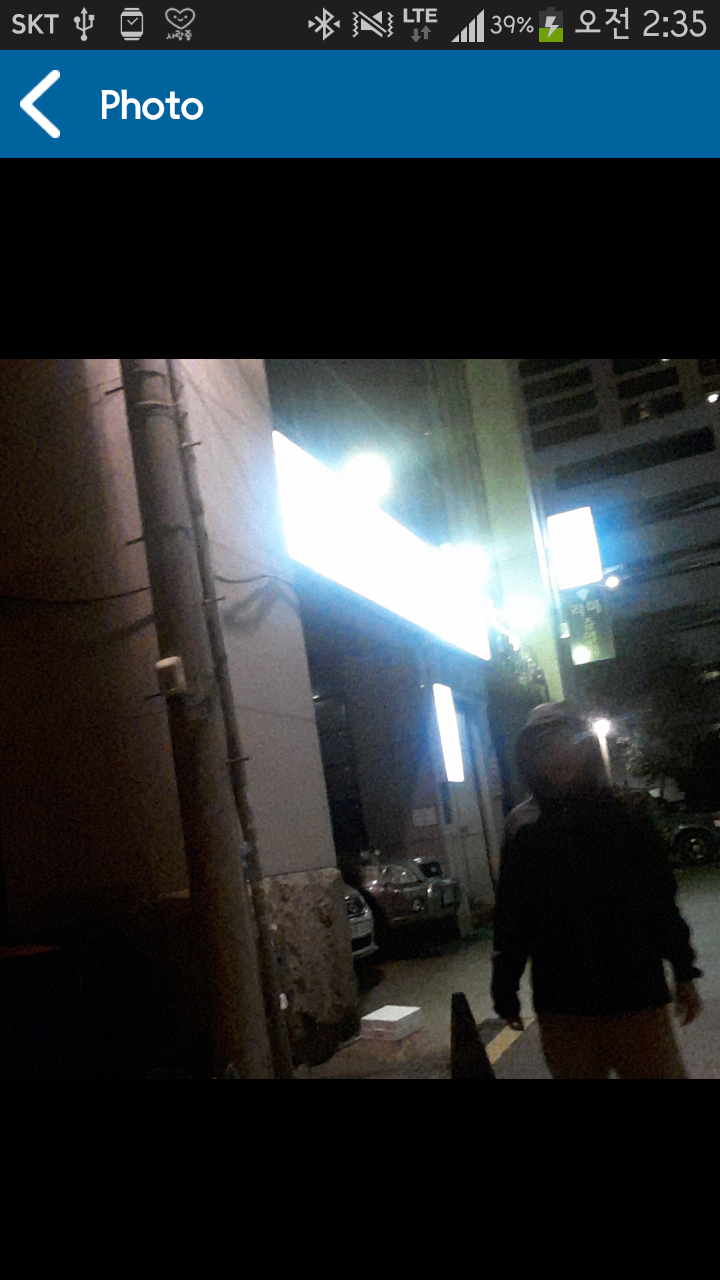
4-3. Dangerous situation(Picture) Scene

4-4. Dangerous situation(Video) Scene
SafeWatcher Scenario
Step 1. Turn on the SafeWatcher on the Gear2
- Activate 'Safe Watcher' on Gear2.
- If you start the app, 'splash' page comes up and next you can see a small 'shield icon' on a blue background.
- It means 'Safe Watcher' is ready to use.
Step 2-1. Touch several times on Gear2
- Double touch the screen to start taking photos and video.
- At the same time your friends gets SOS alarm on their Android phone.
- If user touches the screen twice, 'Safe Watch' automatically starts taking photos and videos.
- Then this contents are sent to your guardians (user have to set up guardians before) and guardians get a notice that user is in danger.
Step 2-2. Alert and tracing on the Android
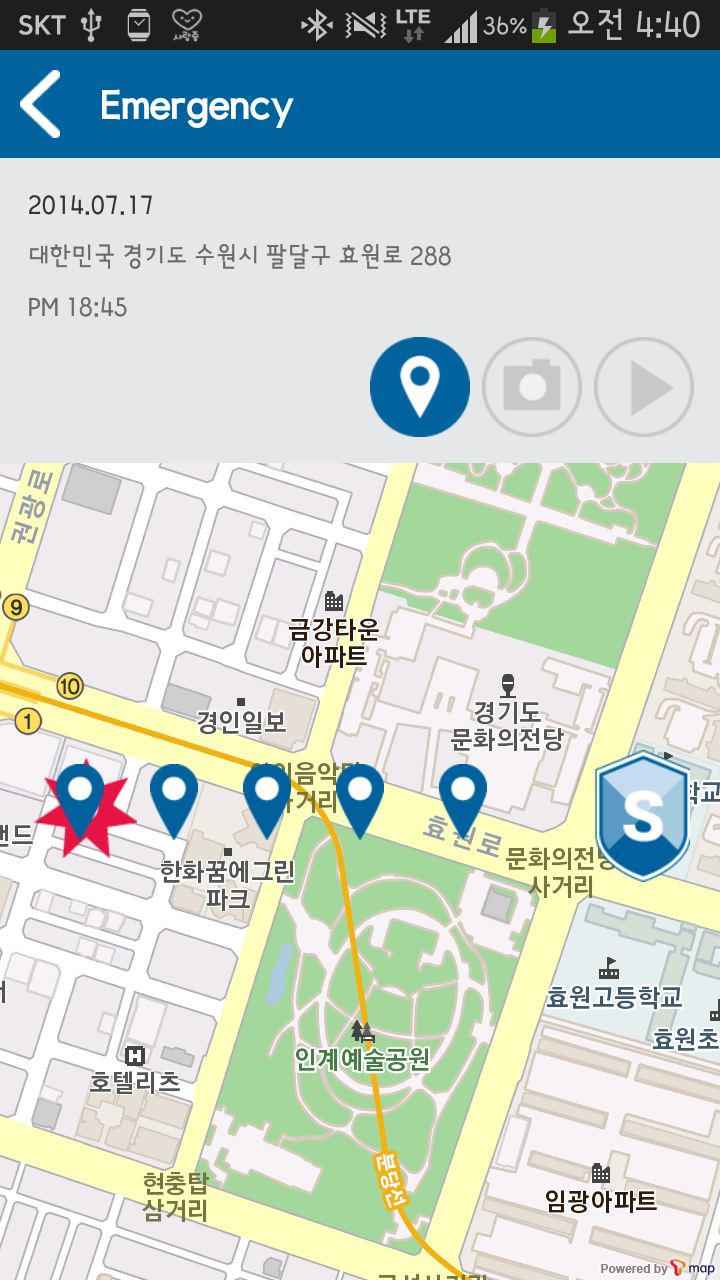
- Alarm page pops up and the location of user is shown.
- If Guardians touch the alarm screen on their Android, 'Safe Watcher' activates and tracks down the location of the user by GPS.
Step 3. Take action for the security of the user
- Report to police with data you keep.
- Photos, videos, and location data gets stored in guardians 'Safe Watcher' application.
- Now Guardians can call the police and use the data.
Step 4. Affairs of the user is protected
- The safety of the user is secure.
More Details
- Guardians set up: User can set up the 3 Guardians(friends or family) on their Android.
- Pictures and video available on Android: You can watch pictures and videos on Android.
- 'Trigger' set up: User can set up how many times to touch to trigger the alarm.
- 112 and 119 shortcut call: There is a menu where you can just press buttons to make calls to 112 or 119.
- Quitting False alarm: If you made a false alarm. there is 15sec to quit by pattern Recognition.

Log in or sign up for Devpost to join the conversation.