-
-
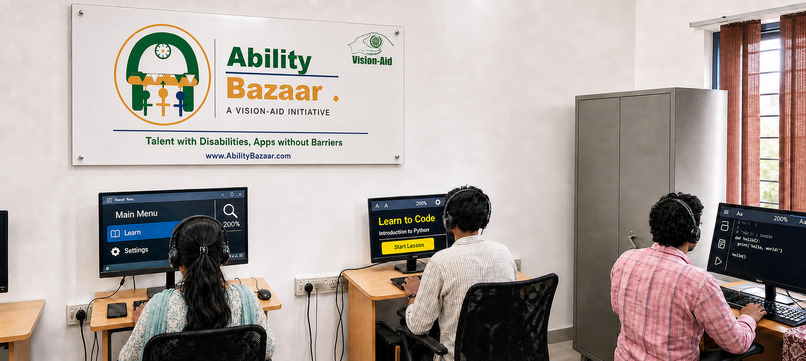
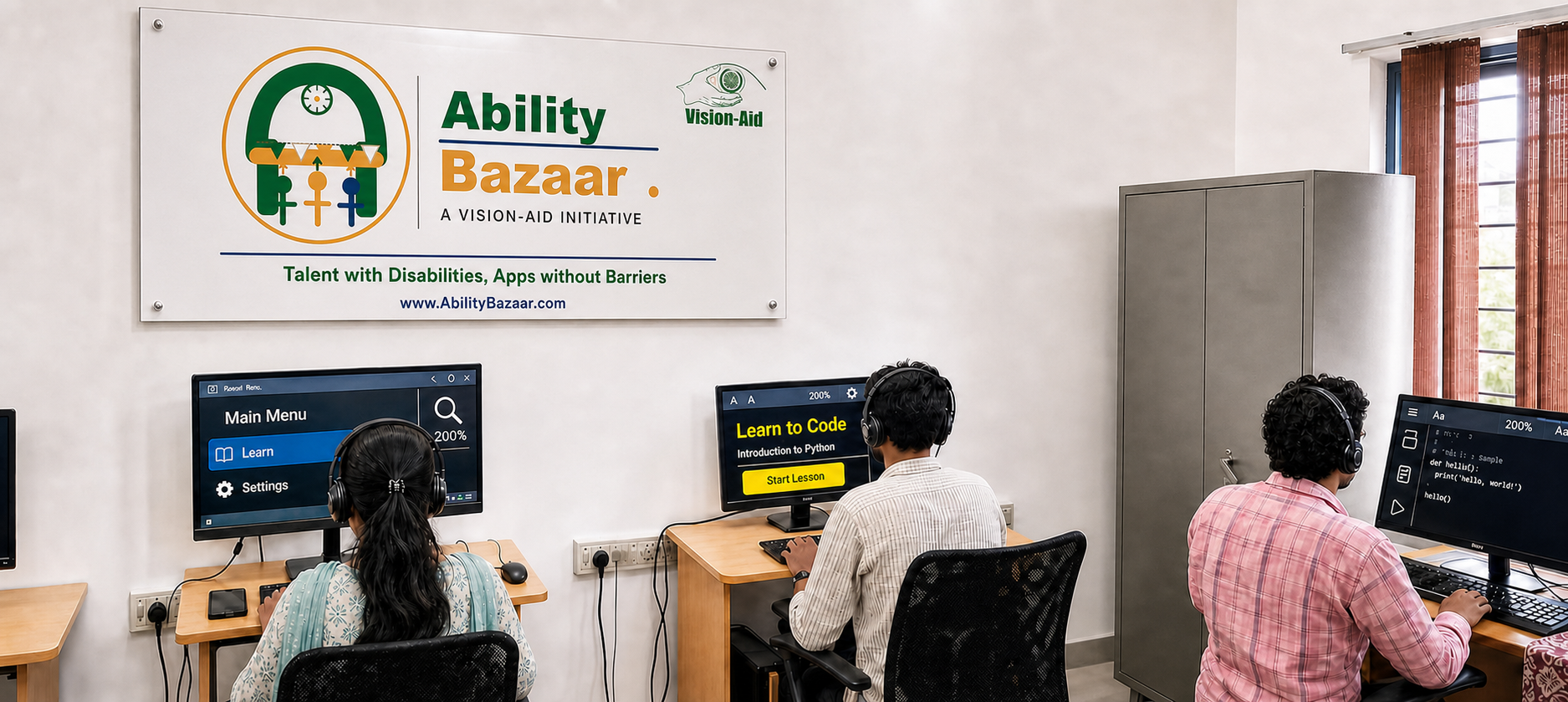
Ability Bazaar, a Vision-Aid initiative: illustration of accessible computer training, skills and workplace participation.
Why Saarthi exists
Getting a job opens a door. Being able to participate fully helps someone succeed once they walk through it.
For more than 22 years, Vision-Aid has helped visually impaired people in India build independence, skills and dignity. It serves over 100,000 beneficiaries annually through programs across more than 85 locations. In the United States, Vision-Aid is run by an all-volunteer team. Helping learners find meaningful employment is a priority; helping them succeed at work through accessible tools and support systems is the next step.
Lived experience is central to Saarthi. Visually impaired users and developers who have faced inaccessible workplaces firsthand helped originate the idea and concept, shape the design and user experience, and test and validate the tool. Their goal is practical: solve a problem they experience themselves and help others facing the same barriers. Saarthi is now shared as a free app through Vision-Aid’s Ability Bazaar.
Meetings expose a practical gap. A presenter points at a shared screen and says, “Move this from here to here.” A visually impaired colleague hears the words but misses the locations, the change and the context everyone else can see. A transcript alone cannot recover information that was never spoken.
Saarthi takes its name from Sanskrit, an ancient Indian language, and means a guide. It connects what was said with what was shown, then gives a short spoken answer so the user can stay in the conversation.
What it does
Saarthi is a Windows desktop meeting companion designed for visually impaired users. It captures the shared screen and system audio alongside the meeting application, with keyboard shortcuts and a screen-reader-accessible interface.
- During the meeting: ask about the last 30 seconds of screen content and discussion. Saarthi combines recent screenshots, the transcript and the question to explain the relevant context.
- After the recording stops: ask about earlier content from that session. Saarthi uses RAG to find the relevant minutes, then answers from their screenshots, the transcript and meeting summaries.
- Stay in control: start or stop capture, repeat the last answer, interrupt speech and check status with global keyboard shortcuts.
- Follow up naturally: recent questions and answers provide context for follow-up questions within the session.
In our simulated company presentation, the presenter says the Sign up button is moving “from here to here.” Saarthi explains that it moved from the bottom left to the top right, and that the reason was to make registration easier to find. The employee can then ask what to check before release and contribute by testing keyboard focus order.
This is the purpose of Saarthi: make visual references understandable so a colleague can act on their own expertise.
How we built it
The desktop app is written in Python with a native Windows interface. It captures screenshots and meeting audio after the user starts recording. A rolling memory buffer retains recent context for live questions. Duplicate screens are collapsed to reduce unnecessary image processing.
NVIDIA Nemotron 3.5 Super VL runs through the Nebius Token Factory inference API. It reads screenshots alongside the meeting transcript and generates concise answers. We stream the response so speech can begin with the first complete sentence. Our prompts ask the model to use the supplied evidence, keep answers brief and acknowledge content that is missing or unreadable.
Recorded-session review uses RAG. Saarthi saves timestamped screenshots, the timestamped transcript and a Nemotron summary every 2.5 minutes by default, with a five-minute option. Each one-minute part is embedded with Qwen3-Embedding-8B on Nebius Token Factory. Semantic search and BM25 keyword search are combined to retrieve relevant context. For a question, Saarthi finds the relevant minutes by meaning and keywords, then Nemotron answers from their screenshots, transcript and the summaries.
Sarvam AI provides the configured meeting transcription. Local speech options include Piper voices and screen-reader or Windows speech output. The code supports language-aware responses, with English, Hindi and Tamil voice options described in the setup guidance. Speaker names are inferred from visible meeting cues; they are not guaranteed speaker identification.
Saarthi works alongside meeting software because it captures the desktop and system audio rather than requiring a platform-specific meeting plug-in. Nebius provides the hosted NVIDIA inference; the Windows computer runs capture, interface, buffering and speech output. We do not claim a separate GPU deployment or Nebius AI Cloud service.
What we learned
Lived experience must shape the tool throughout its development. Input from visually impaired users and developers helped turn the concept into practical design choices, a clearer user experience and realistic validation.
“Here” and “there” are real accessibility barriers. Combining images and speech can make a useful answer possible when either source alone is incomplete.
A short, timely answer is often more useful than a long description. Live answers are limited to two short sentences; recorded-session answers allow up to five.
Accessibility includes timing and control. Global shortcuts, repeat and stop controls, and preventing the screen reader from entering the meeting transcript matter throughout the experience.
The assistant must explain uncertainty. Unreadable content, missing names and transcription errors should remain visible rather than becoming confident guesses.
Reviewing a recording is a different problem from answering a live question. Relevant-screen selection and bounded transcript context help control the amount of material passed to the model.
Challenges and progress
We worked through screen capture, audio segmentation, transcription errors, voice output and the delay between a question and its spoken answer. The updated code adds process-aware audio capture, screen history, notes, follow-up context and questions after recording. Automated checks cover question assembly, history, settings, text processing and voices.
The accompanying film combines a clearly labelled simulated company presentation with a brief excerpt from the team’s actual desktop demonstration. The simulation explains the user experience; the real-app excerpt shows the question controls and answers. It is not an end-to-end microphone or accessibility benchmark.
Recording review with RAG is implemented. In the team’s test on a 20-minute recording, all 18 questions were answered correctly, including a question in Tamil. This is a small team evaluation, not an independent benchmark. Recordings longer than 20 minutes still need validation. Screenshots, the transcript and the retrieval index are saved in a meeting folder and remain available after the app is closed. Users can select a past meeting and ask further questions.
Impact and next steps
Saarthi builds on Vision-Aid’s experience with training and employment, extending support into the working day. Its intended value is concrete: understand a shared change, ask a useful follow-up and contribute to the team with greater independence.
We will evaluate this with visually impaired users and trainers through realistic workplace tasks: whether users understand the shared content, whether answers are accurate and useful, how quickly they arrive, and how easily users recover when evidence is incomplete. We do not yet claim measured employment-retention outcomes.
Next steps include validating longer meetings, improving relevant-context retrieval, broadening language and voice testing, and simplifying installation further.
Vision-Aid, Inc. is the organization submitting Saarthi. Ram Raju, Vision-Aid’s founder, is its sole listed hackathon representative. He guided product framing, review and submission preparation in close consultation with visually impaired users and developers. Development and testing contributions from Arun Kumar, Tamil Selvan and Manikandan are acknowledged separately from the submission’s member listing.
Try Saarthi
For the best experience, download the free Windows app and run it locally. Saarthi 2.0 is a single-file Windows 10/11 application. No separate installer or Python installation is required. The app is free and MIT-licensed; external AI providers may charge for usage.
Download and overview: https://www.abilitybazaar.com/apps#saarthi
Step-by-step Windows setup: https://www.abilitybazaar.com/apps/saarthi-demo#windows-setup
- Download Saarthi.exe from the linked GitHub release and open it.
- Create your own API key at https://tokenfactory.nebius.com/ for answers and meeting search, and at https://dashboard.sarvam.ai/ for transcription. Ensure provider access and credits are available.
- In Saarthi Settings (Alt+G), paste the Nebius key under Screen answers, API key, and the Sarvam key under Speech to text, Speech API key.
- Choose Test connection, confirm the answer, transcription and meeting-search checks succeed, then Save. Keep keys private.
- With meeting participants’ consent, press Ctrl+Alt+M to start or stop capture. Use Ctrl+Alt+Space to ask, Alt+Q to type a specific question, Ctrl+Alt+R to repeat and Ctrl+Alt+X to stop speech. After capture stops, ask about the saved meeting.
The public repository contains the full Windows source, installation and troubleshooting guidance, keyboard shortcuts and tests: https://github.com/visionaidcode/NVIDIA_hackathon
Live working browser demo for judges and visitors: https://www.abilitybazaar.com/apps/saarthi-demo
This is a real AI-powered demo using NVIDIA Nemotron on Nebius and Sarvam transcription; users do not enter keys. It has limits: capture stops after three minutes, context remains only in the current tab, and it does not provide persistent saved meetings or the desktop app’s longer-meeting retrieval workflow. It supports the sample presentation, shared browser screens where supported, uploaded screen images and short WAV clips. The Windows app remains the recommended full experience.
Capture requires the other participants’ consent. Screenshots and questions are sent to Nebius, and meeting audio to Sarvam. Use non-confidential content when testing.
Saarthi: your helpful guide from Vision-Aid.

Log in or sign up for Devpost to join the conversation.