-
-

Activity
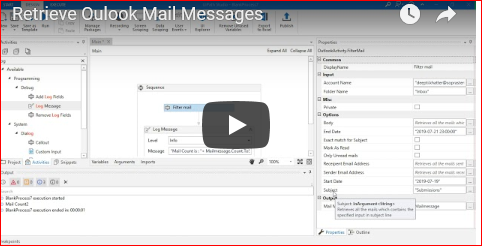
Inspiration: SME's who doesn't have technical skills was not able to filter mails from outlook using the existing Outlook activity available in UIPath. As most of the time there source of input is Mail so they need it frequently and they were facing challenges as they don't know how to put the syntax of filters in current activity . In addition, I noticed on forums that people are facing challenges in filtering mail as lots of syntax doesn't work. So we tried to make this as Simple as we can. We have handled common input mistakes which we human are tend to make. Global Hackathon gave us opportunity to build the solution that we were planning to do for a long time.
What it does :Description :
Outlook is widely used in many processes automated via UI PATH tool. One of the key challenge which the developers are facing with outlook activity is related to filtering the emails as per the business requirement. Email details can be retrieved easily using ‘Get Outlook mail message’ activity within UI Path, however, using the filter property requires multiple syntaxes to be used to filter contents from an email. We have created an email activity for UI Path where all the required options such as Body, Email Received Date, Subject etc. would be available within Filter section which can be easily used to filter emails along with the customized filter option. This will also eradicate the requirement of using syntaxes to filter emails.
Benefits Creating UI Path email activity will provide the following benefits to the business: • Effort reduction in BOT designing where identified processes requires emails to be filtered as per the business requirement. • Simplify BOT development for outlook activities, especially its beneficial for developers with no programming background.
Customized Outlook Activity Details Custom Activity to fetch outlook mail messages from the specified folder of Outlook Mailbox based upon the optional input of filters. The Inputs includes : Input Category:
- Account Name – Name of the Outlook Account
- Folder Name – Name/path of Outlook folder from which mails are to be retrieved
Options Category :
- Body - Text to search for in body of mail message
- Mark As Read -Mark retrieved messages as Read. Specifies whether the retrieved messages should be marked as read. By default, it is set to false.
- Only Unread mail -Retrieve only unread mails from mail folder.Specifies whether to read only unread messages. By Default, it is set to false.
- Recipient Email Address- Filter on recipient’s email address. Retrieves all the mails sent to specified email address
- Sender Email Address -Filter on sender’s email address. Retrieves all the mails received from the specified email address.
- Start Date -Retrieve mails between specified start and end dates. If no end date is specified , mails between specified start date to current date are retrieved. Retrieves all the mails with the date between specified Start Date and End Date parameters. If End Date input is not specified, all the mails till current date are retrieved. Specify input date string in the format yyyy-MM-dd hh:mm:ss. If time is not specified, default time is added as 00:00:00
- End Date - Retrieve mails between specified start and end dates. If no start date is specified , all the mails till specified end date are retrieved. Retrieves all the mails with the date between specified Start Date and End Date parameters. If Start Date input is not specified, all the mails till specified end date are retrieved. Specify input date string in the format yyyy-MM-dd hh:mm:ss. If time is not specified, default time is added as 23:59:59
- Exact Match for subject - Specify if subject should be matched exactly to input text. Specifies whether input specified in Subject field should be matched exactly with the subject of emails in mailbox. By Default, it is set to false.
- Subject -Text to search for in subject of mail message Retrieves all the mails which contains the specified input in subject line The Output of this activity is List of MailMessage. This activity can be easily integrated with existing activities for outlook.


Log in or sign up for Devpost to join the conversation.