Avanade-International-Women-s-Day-Hackathon
Avanade International Women's Day Hackathon - #EmbracingEquity this International Women's Day
Create an Azure Machine Learning workspace
Sign in to Azure Portal and select Create a resource.
Search for Machine Learning and then click Create to start
Configure the new Machine Learning resource.Select subscription, resource group, workspace name, region and click Review-Create.
Wait for the workspace to be created (it may take several minutes) and then select Go to resource
Click on Studio Web URL to go to your Azure Machine Learning workspace.
workspace
Create dataset->select Asset and then select Data + Create Dataset >
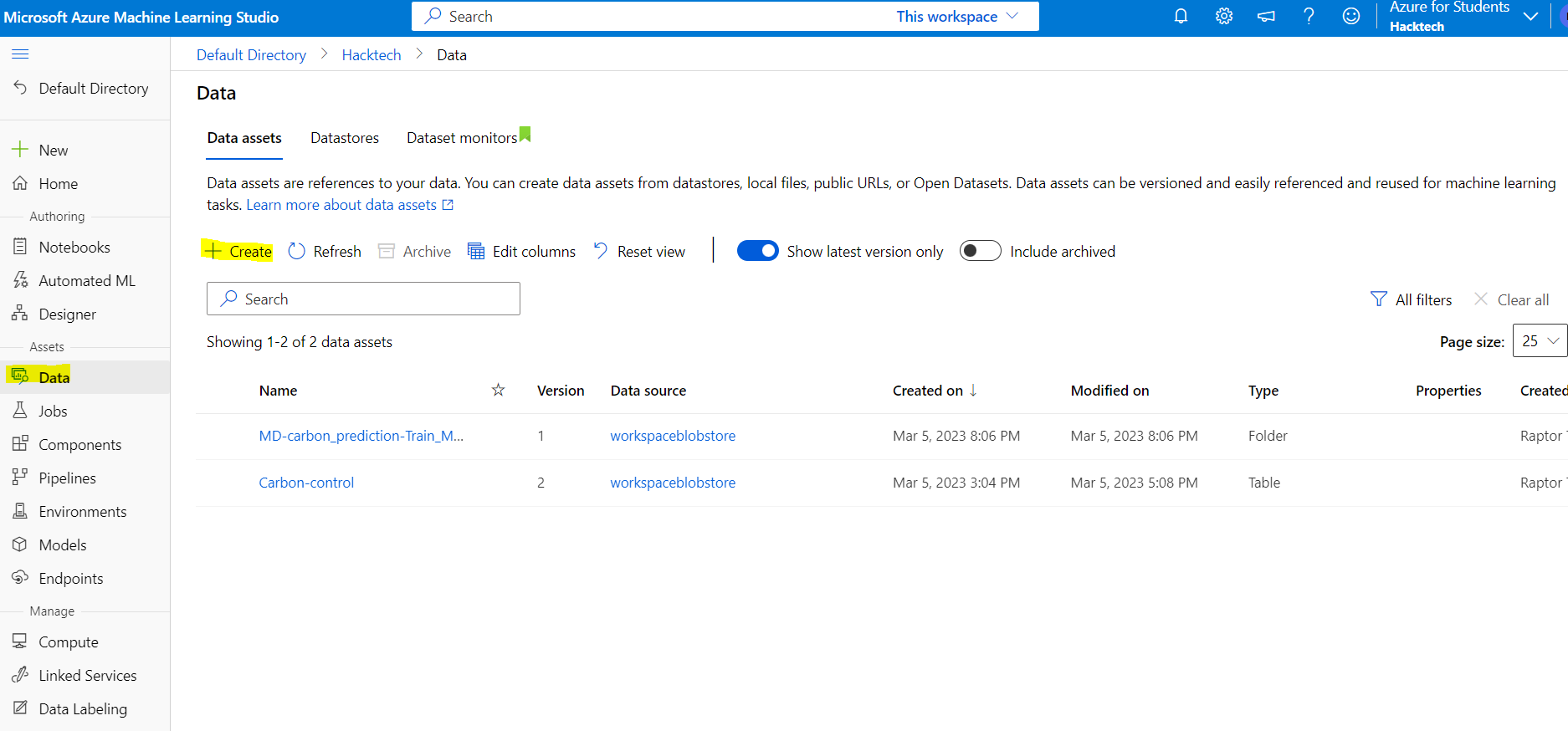
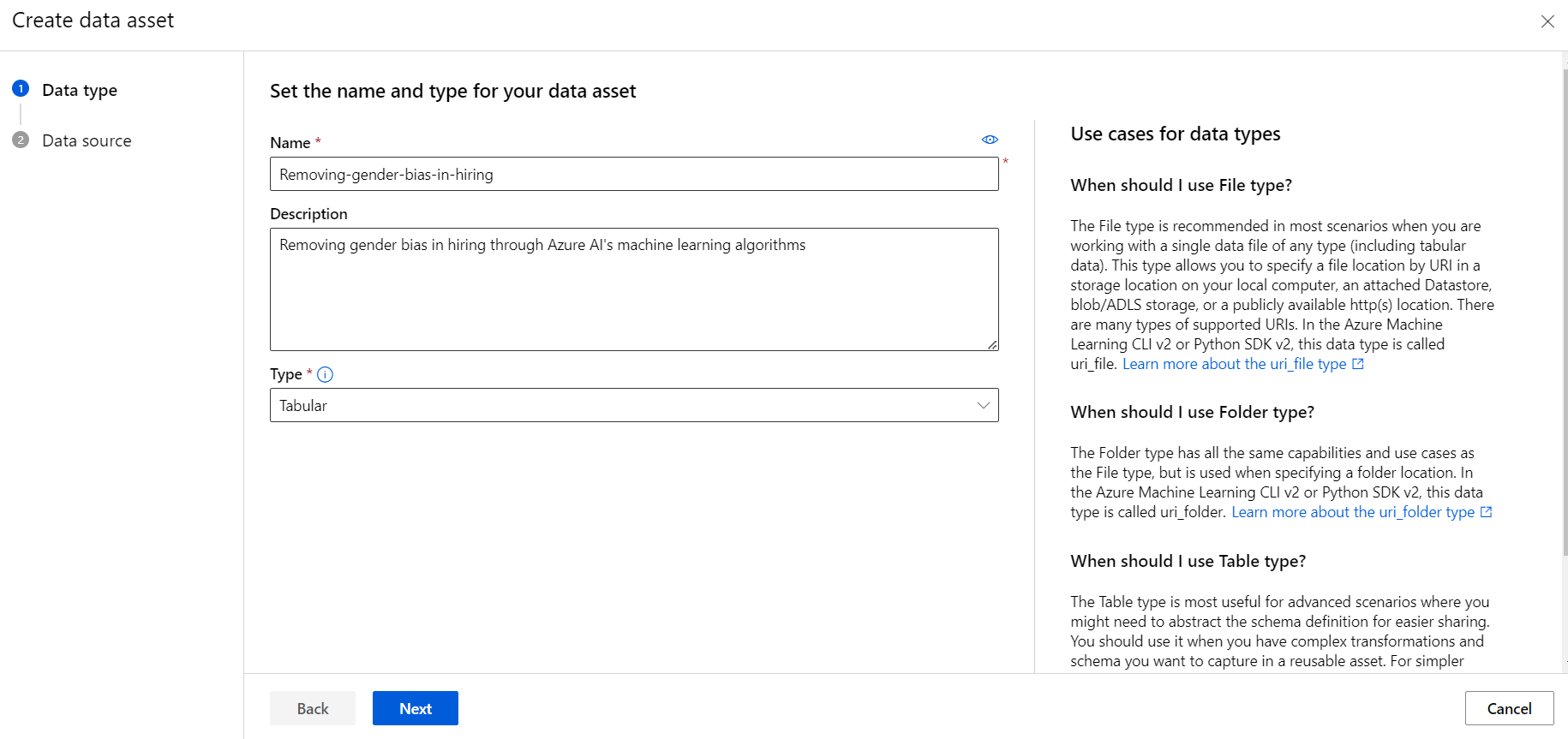
Provide relevant name and details
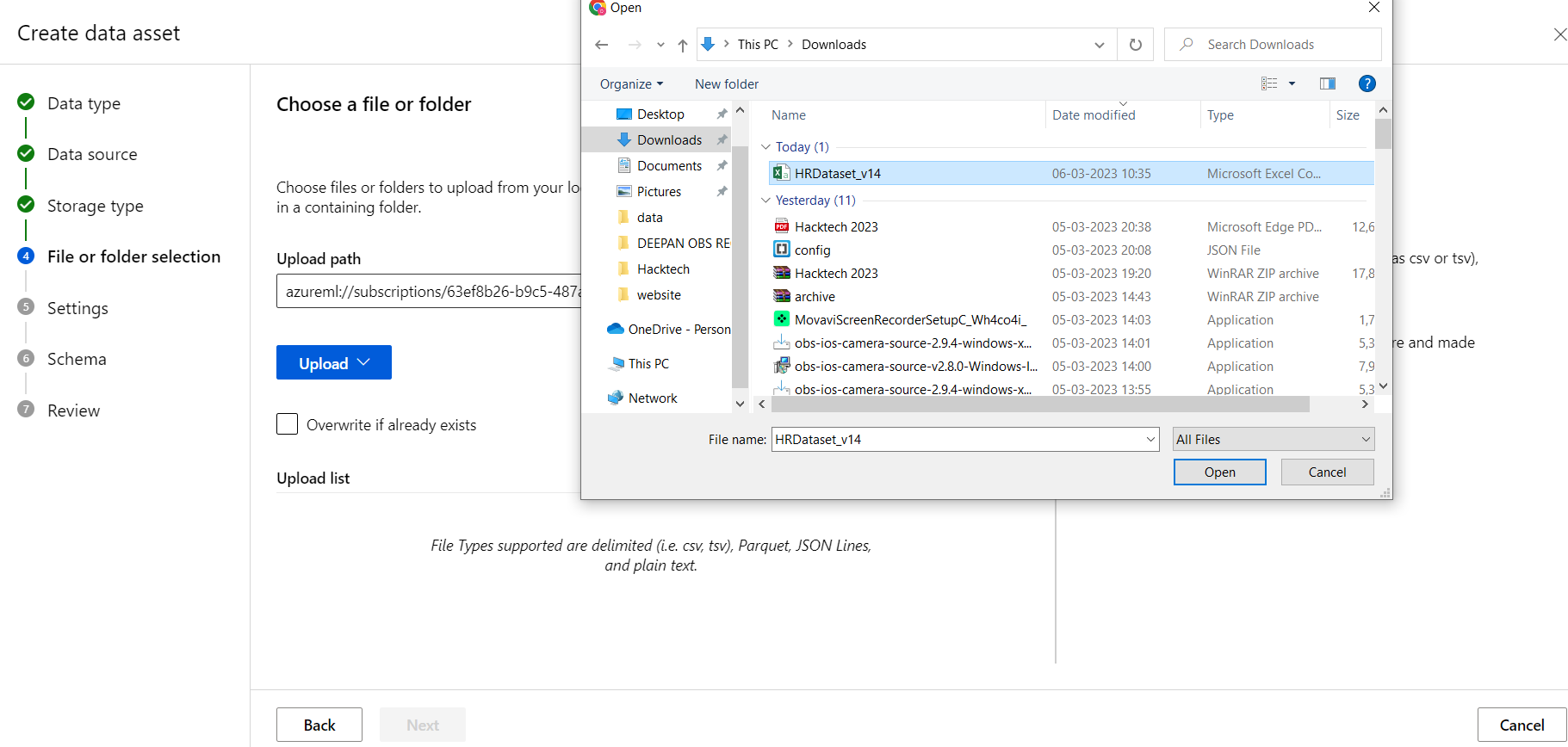
In Datastore and file selection select Browse and choose the file on your local computer
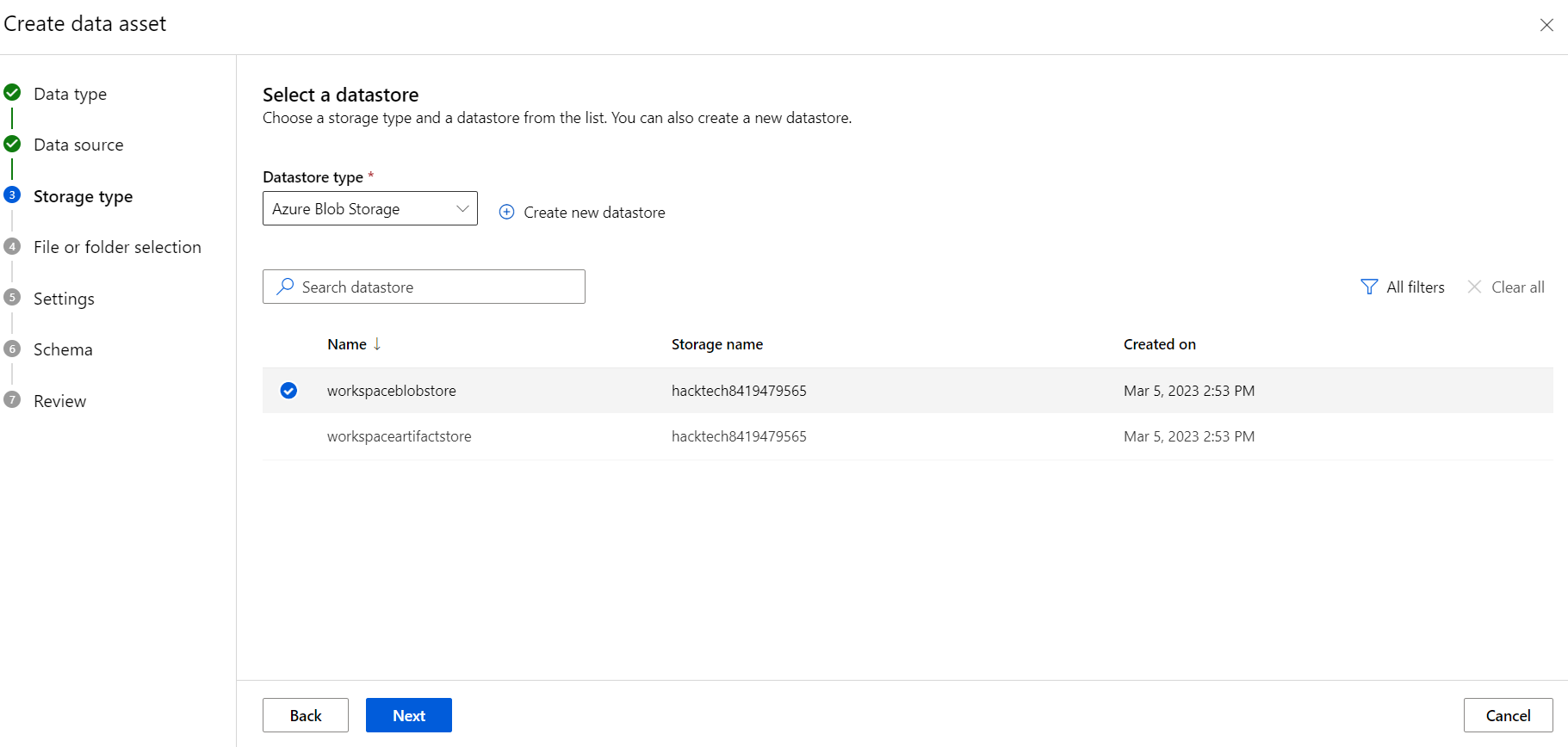
Select database type where your data result needs to be stored
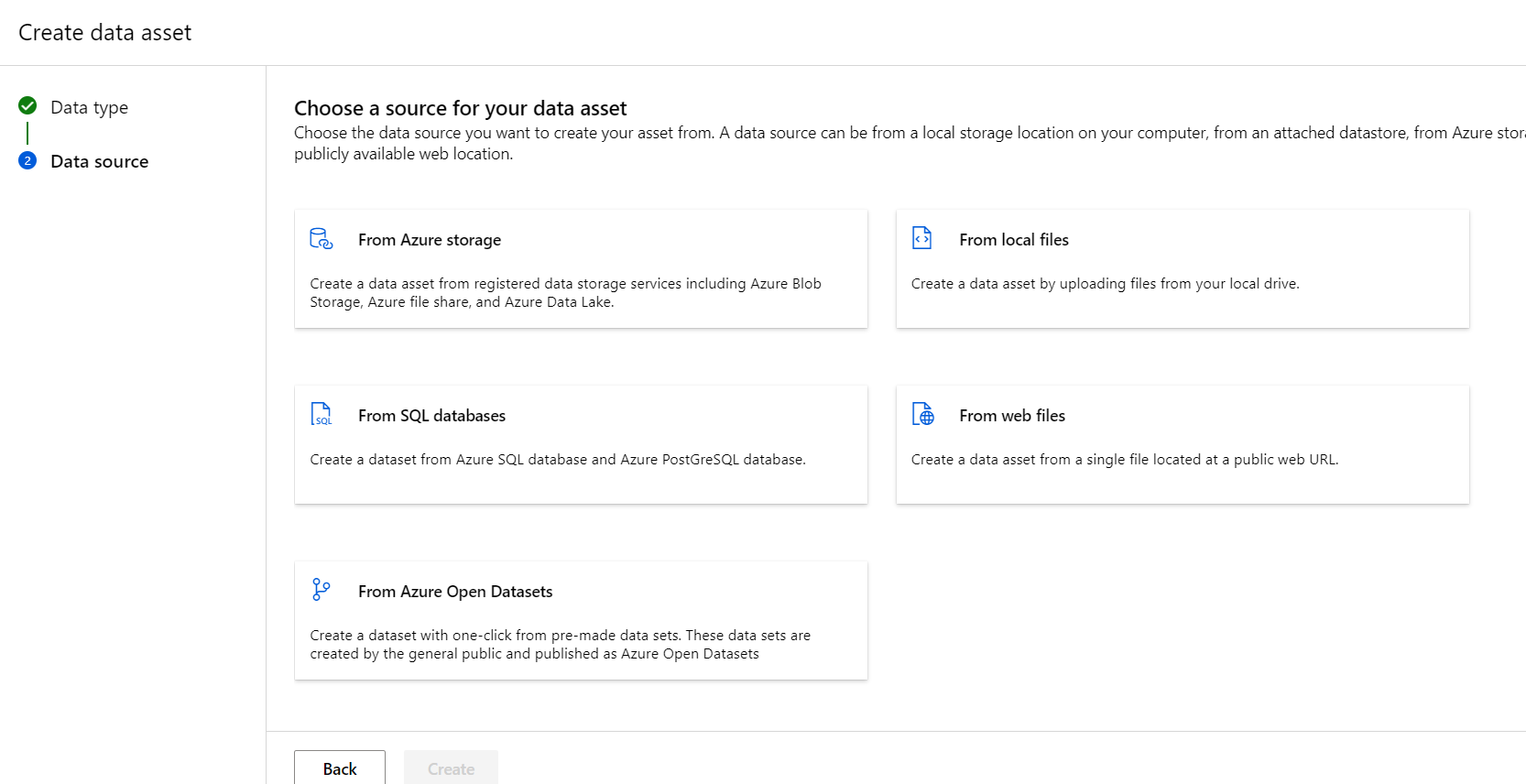
Upload data from local machine U CAN CHOOSE OTHER RESOURCES LIKE COSMODB,BLOB, ONLINE SERVICES ENDPOINT)
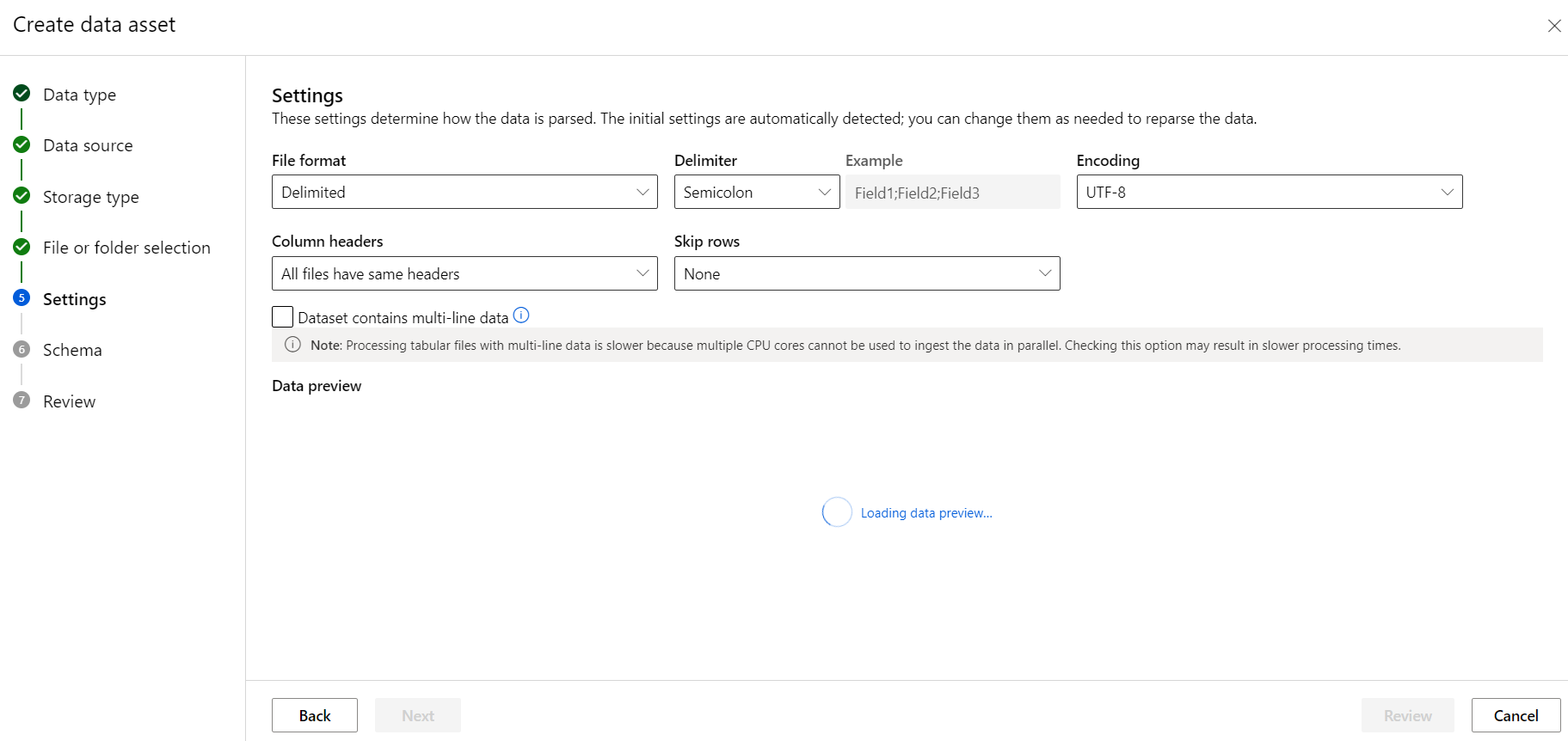
Customize data parameter
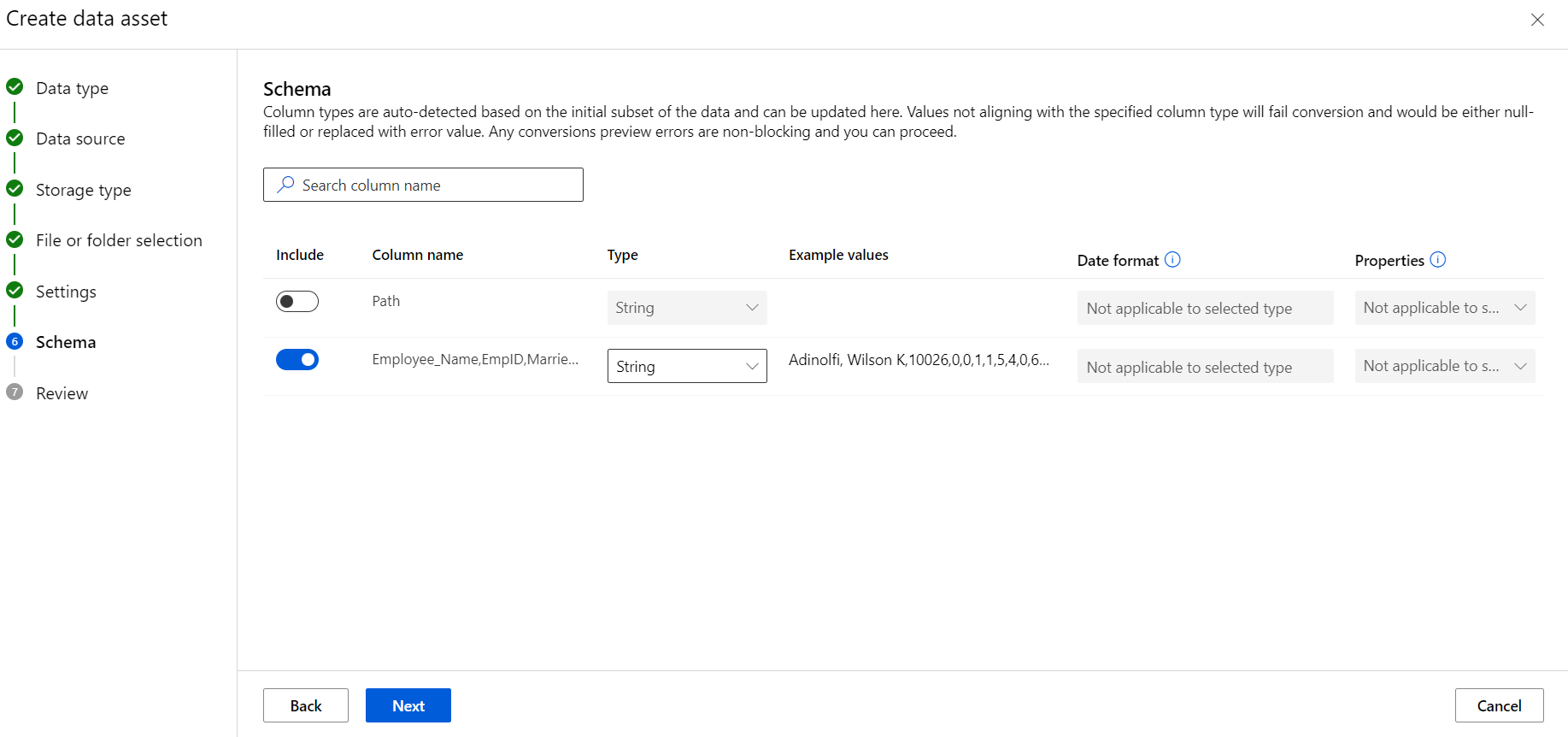
Change the schema type as per data type
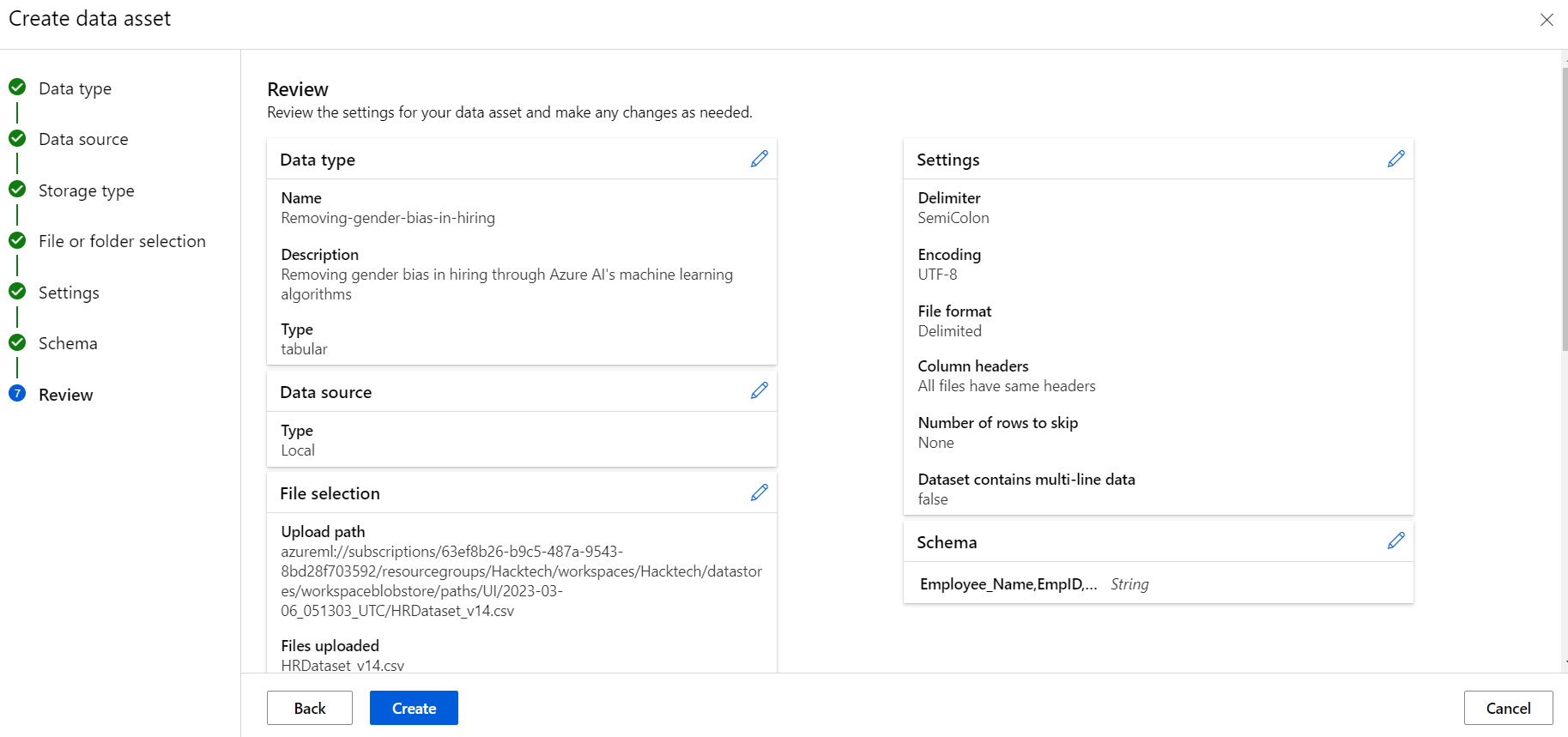
Review and Create
Create a new pipeline
Select Designer and then select the plus sign (+) to create a new pipeline
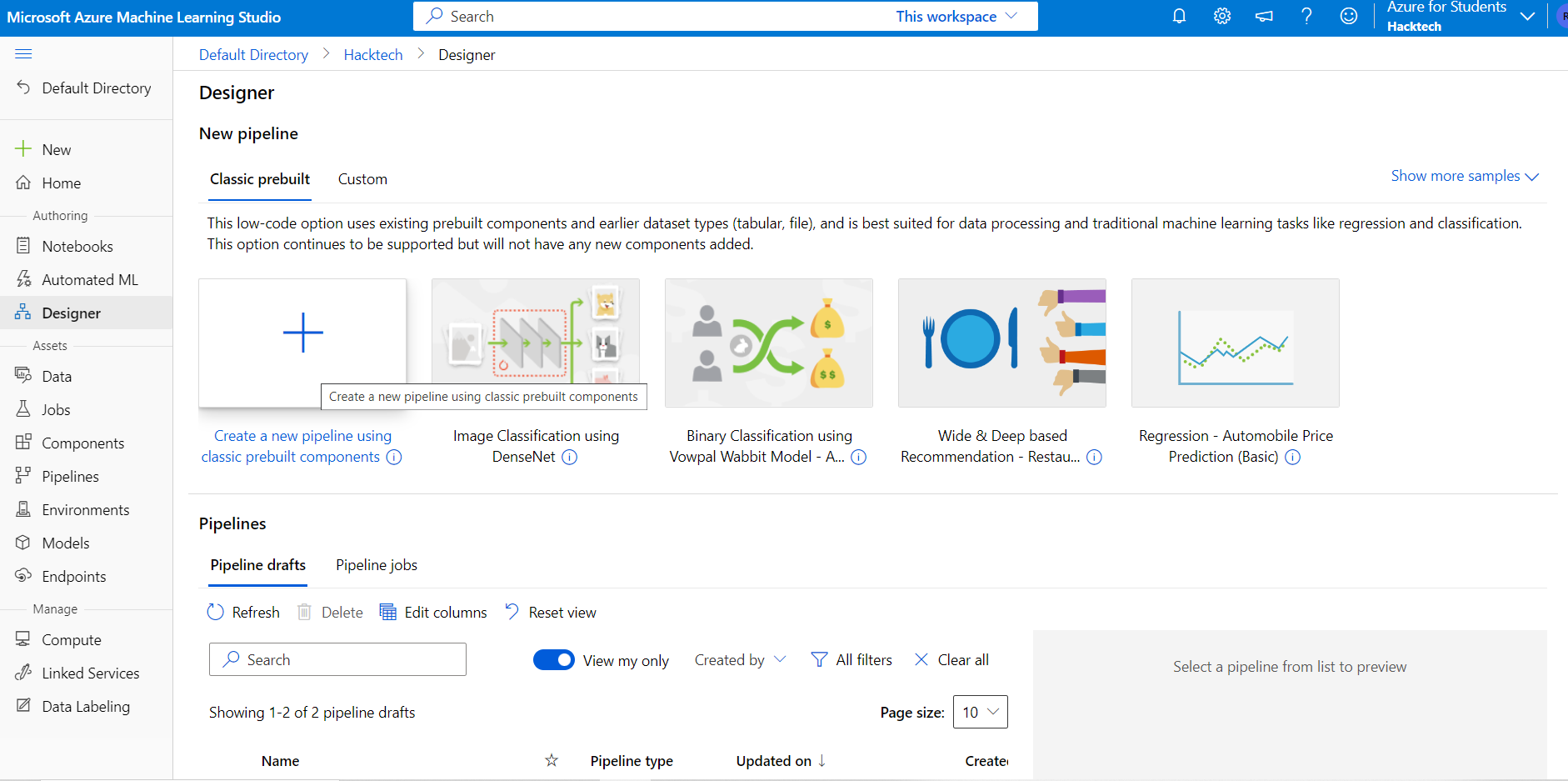
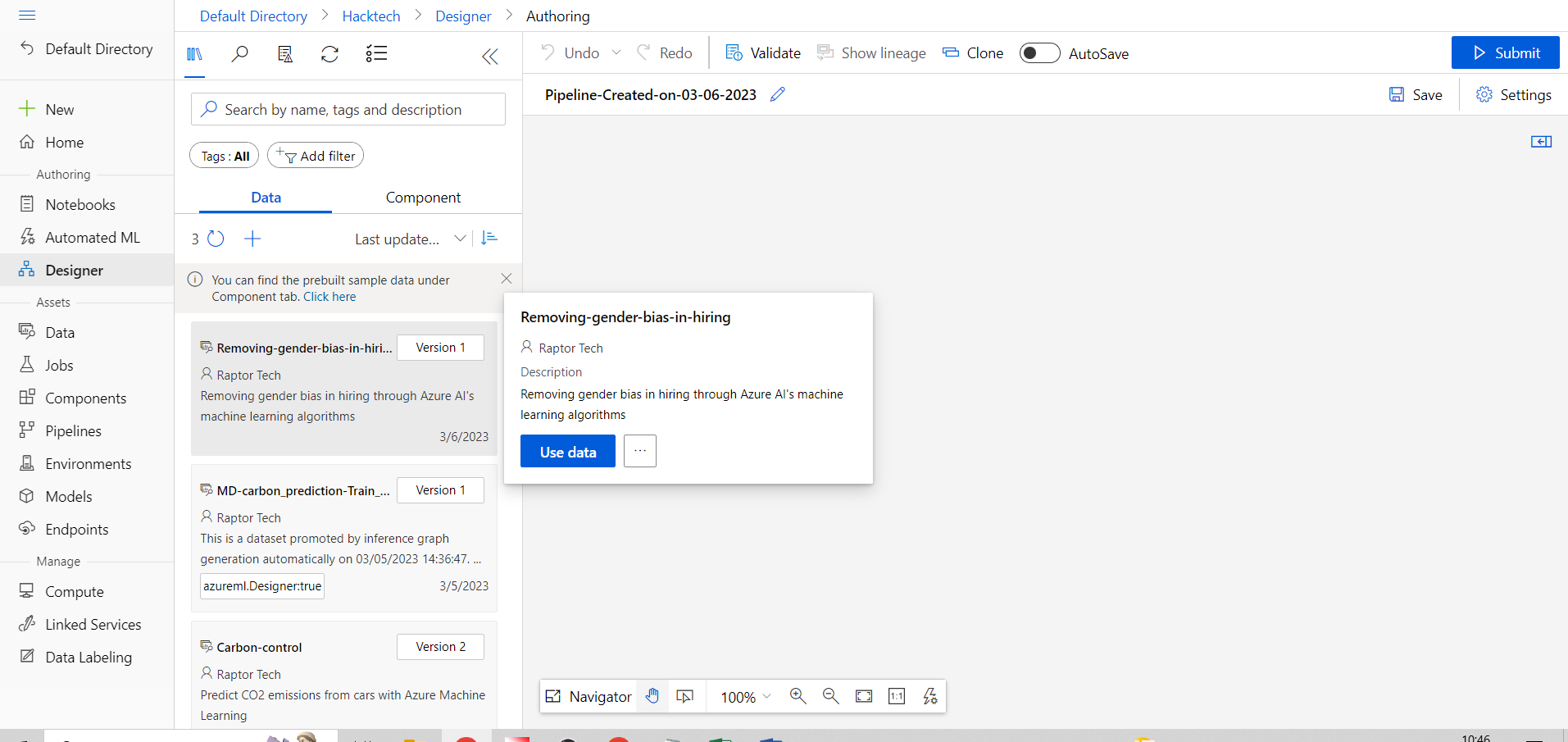
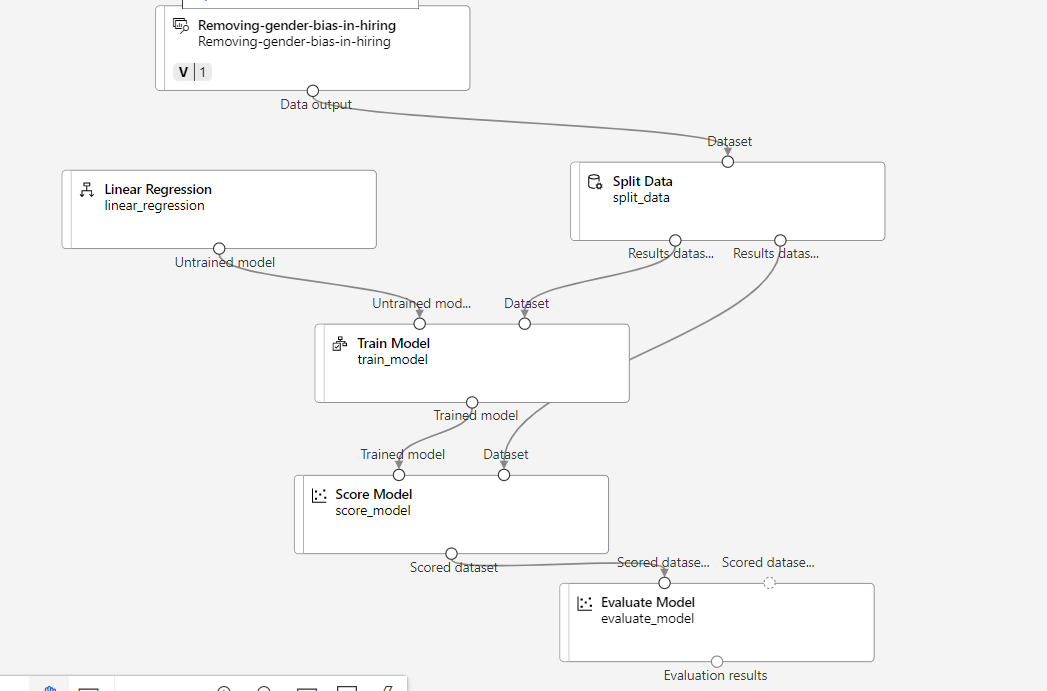
Expand the Datasets section, select the dataset Removing gender bias in hiring through Azure AI's machine learning algorithms and drag it onto the canvas
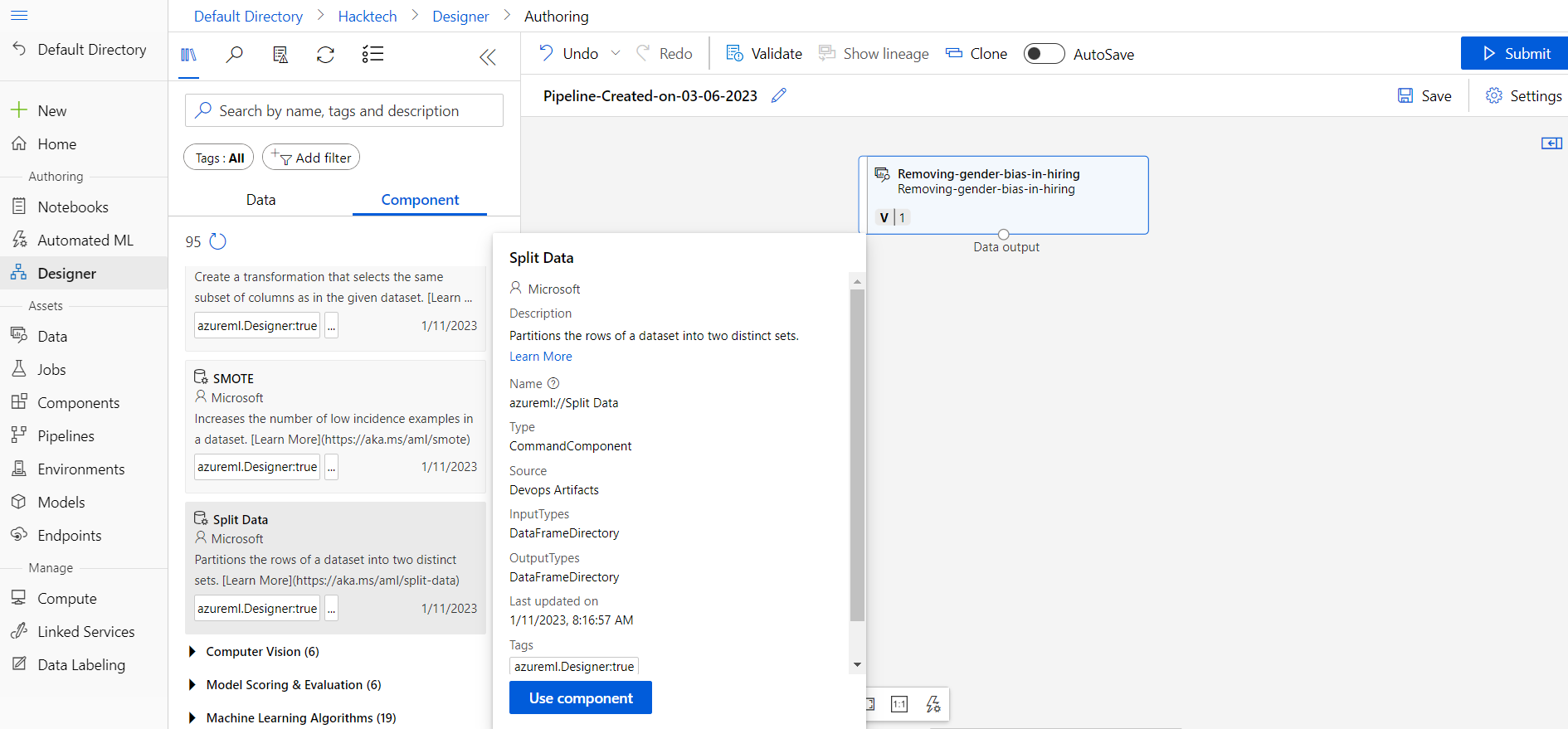
Data transformation section drag Split data module onto the canvas and connect the dataset’s output port to the Split data module. Simply drag from the dataset’s output port to the Split data module’s input port.
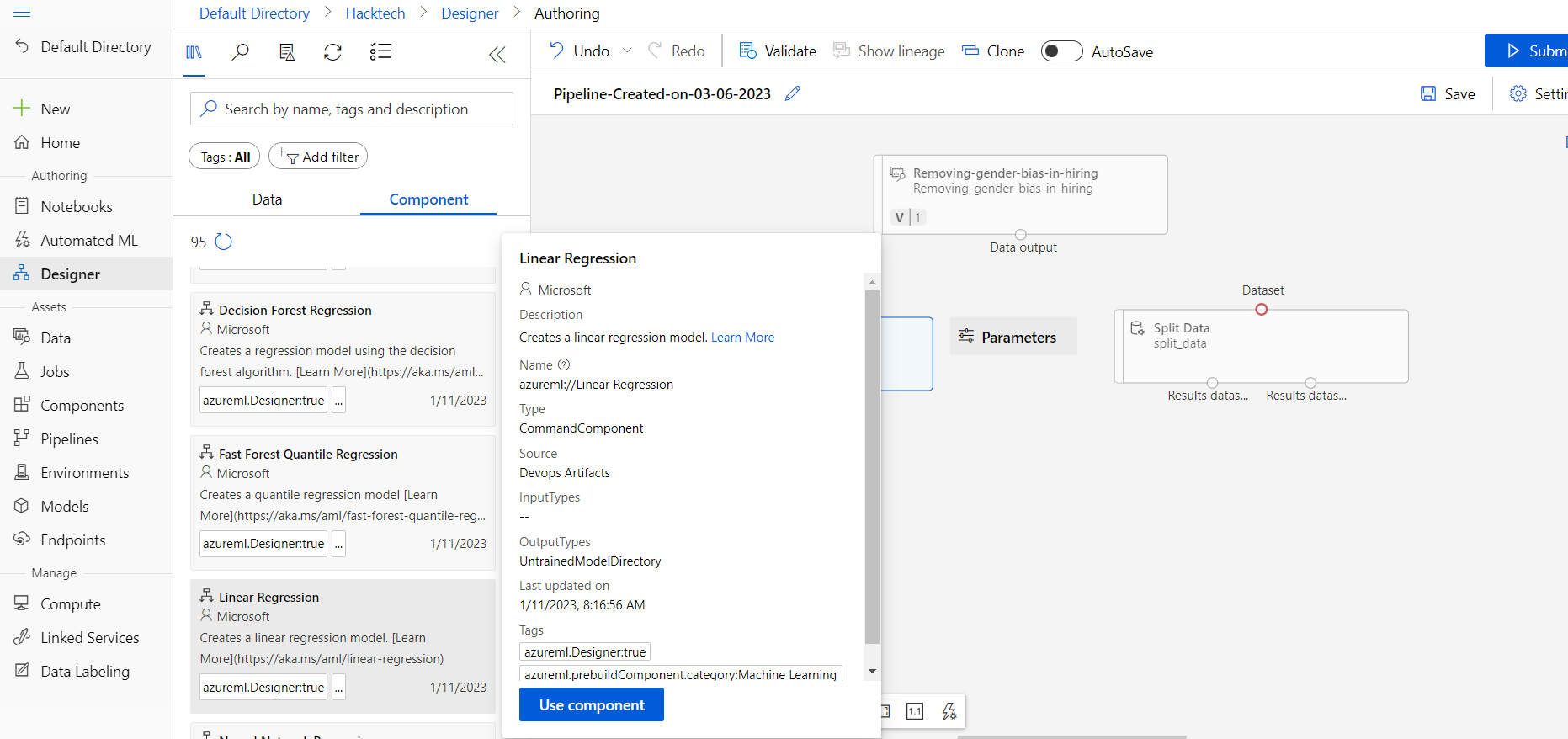
Machine Learning Algorithms and under Regression select the Linear Regression module and drag it onto the canvas
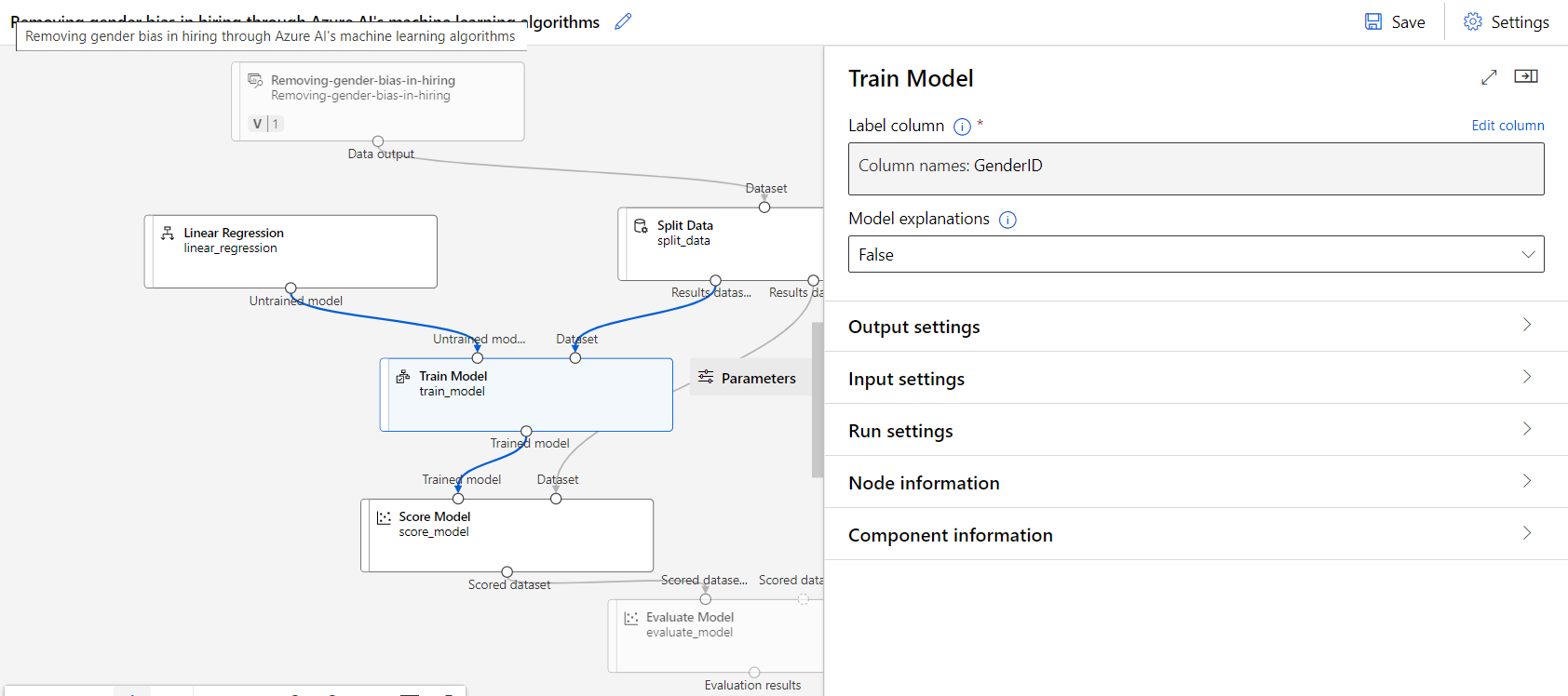
Model Training section, select Train Model. Connect the output port of the Linear Regression module to the left input port of the Train Model module. Connect the left port (training set) of the Split Data module to the right input port.
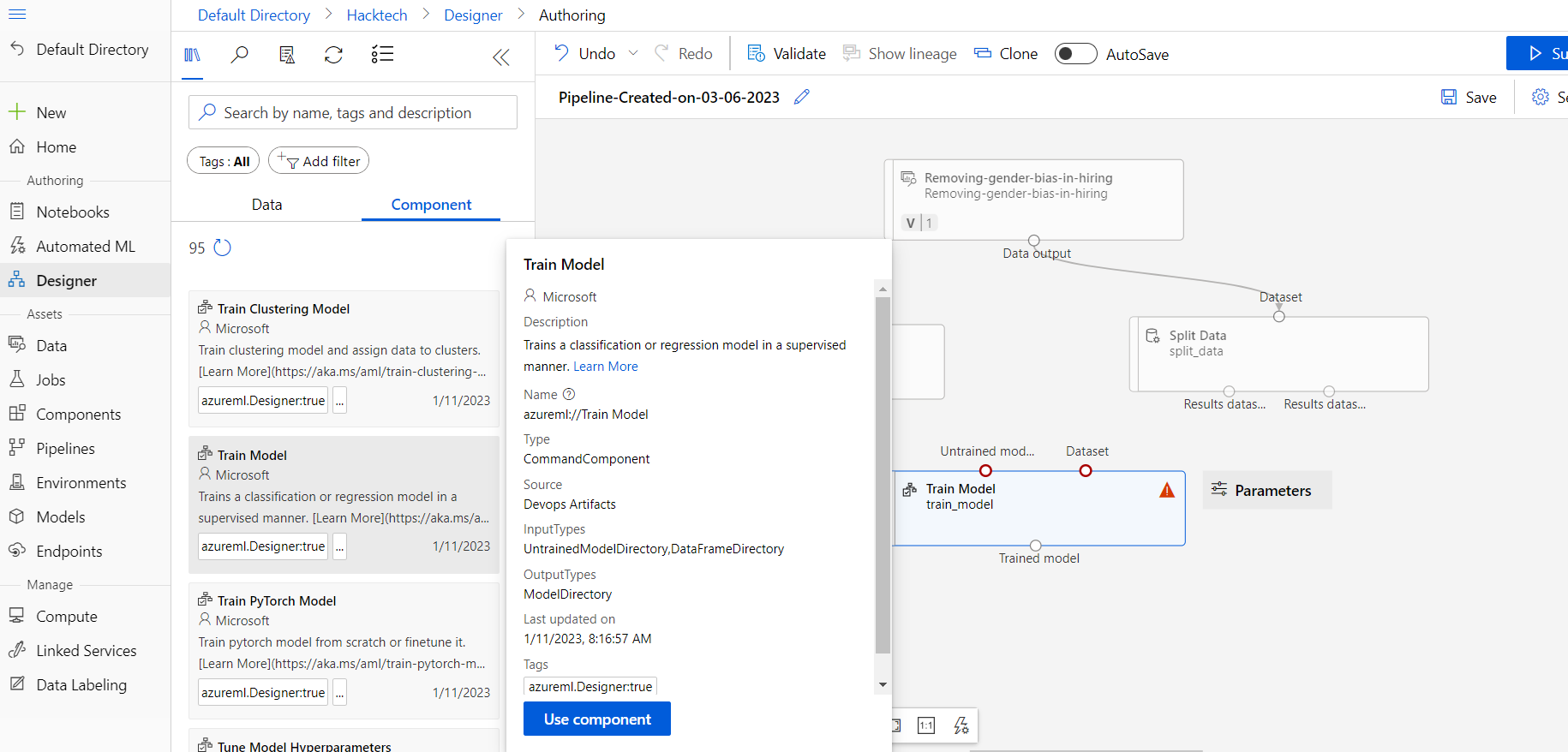
Select the Train Model module and in the right pane click on Edit column to select the label column (the variable that you want to predict).
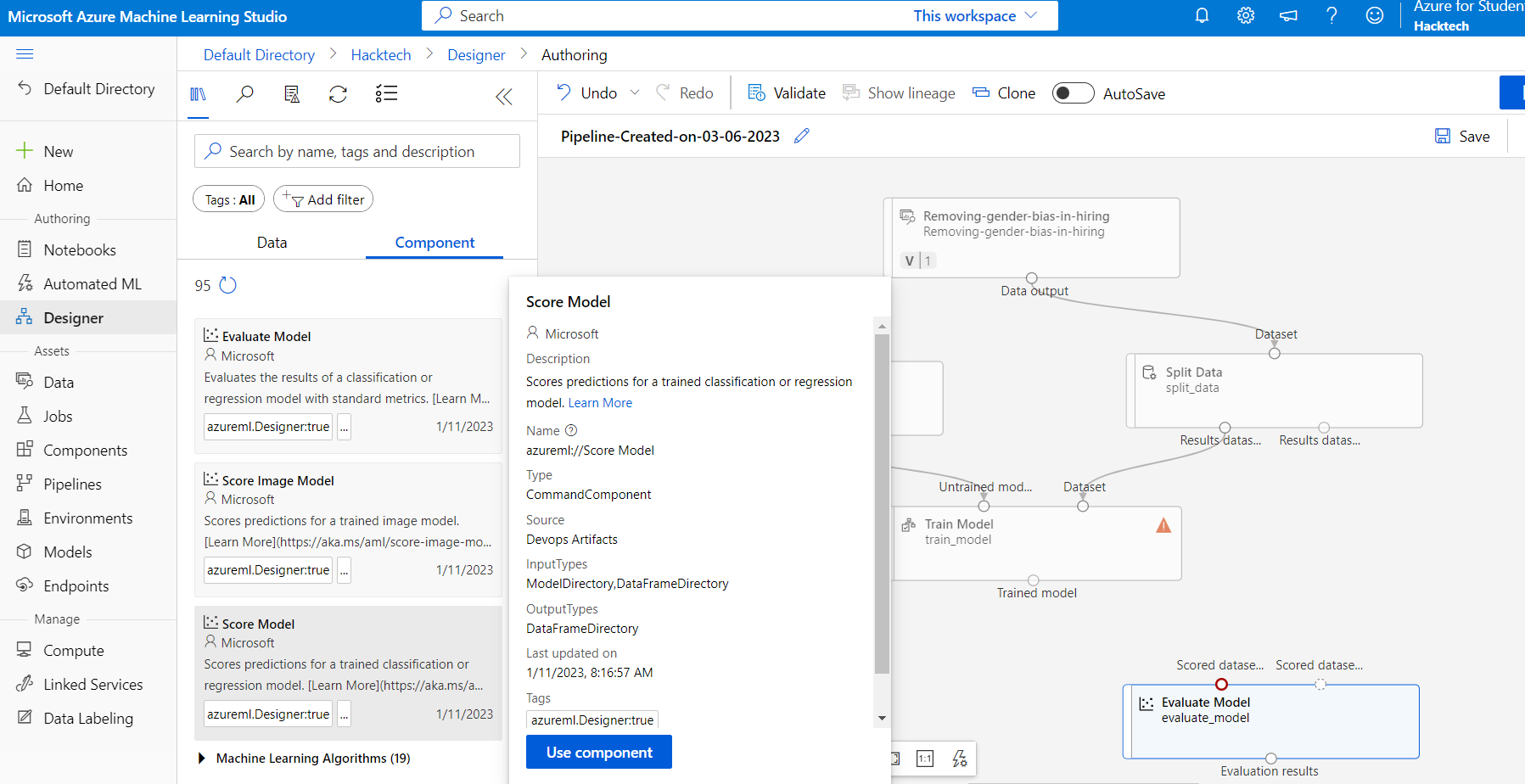
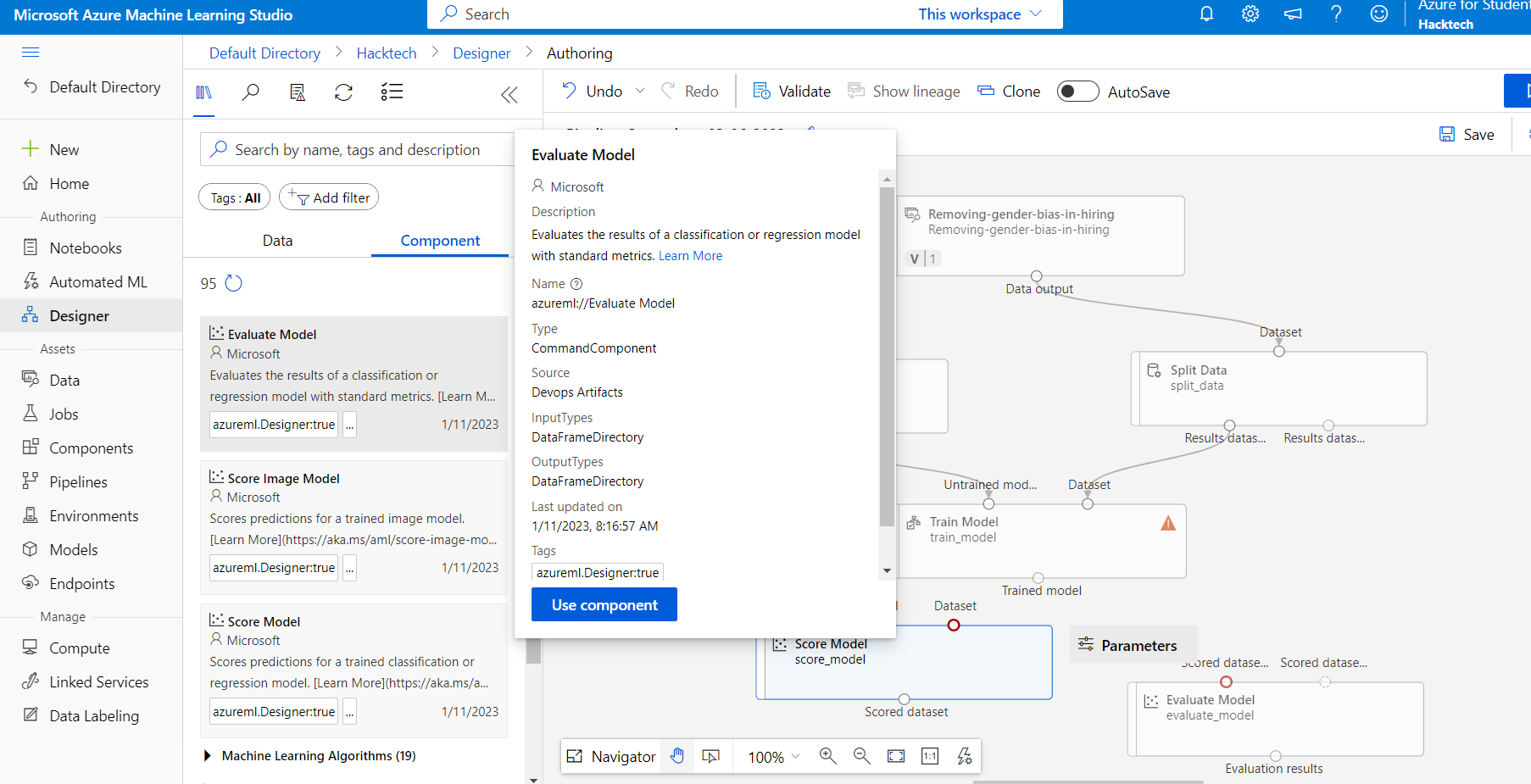
Model Scoring and Evaluation section, select the Evaluate Model module. Connect the output of the Score Model module to the left input of the Evaluate Model module
## Training model
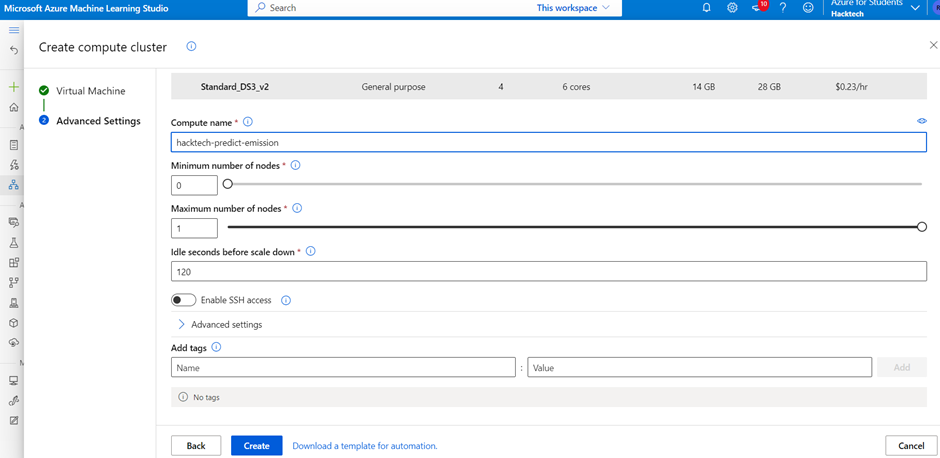
## Set up Compute target
Select the settings icon. In the setting pane, under Default compute target click on Select compute target.
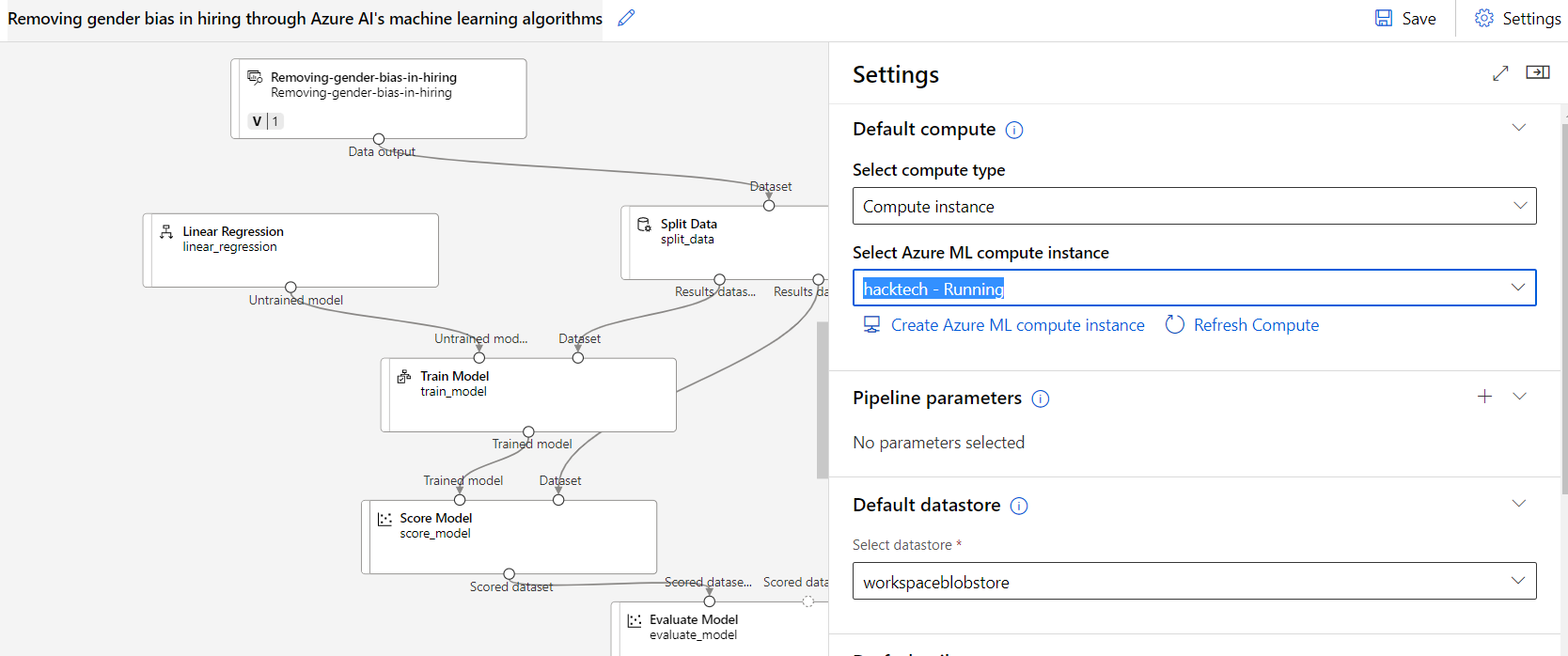
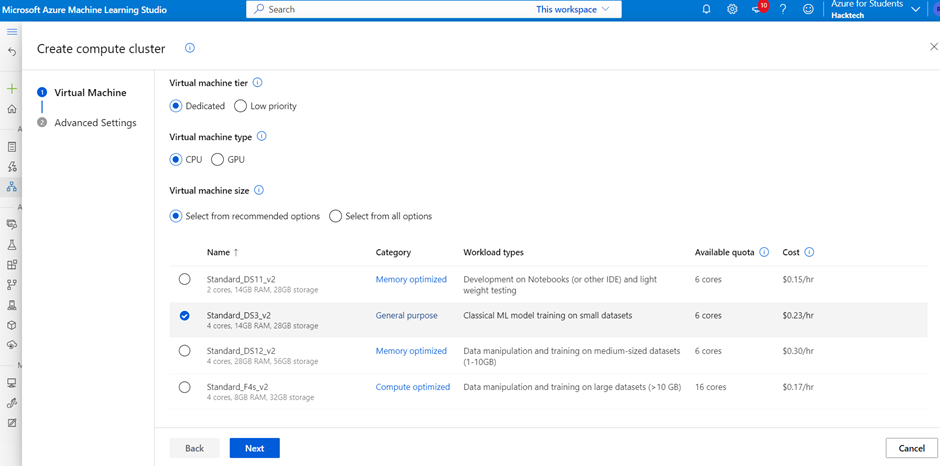
Depends on your need create compute target ( cpu/gpu core is high time consumption will be reduced)
image
## Run the training pipeline
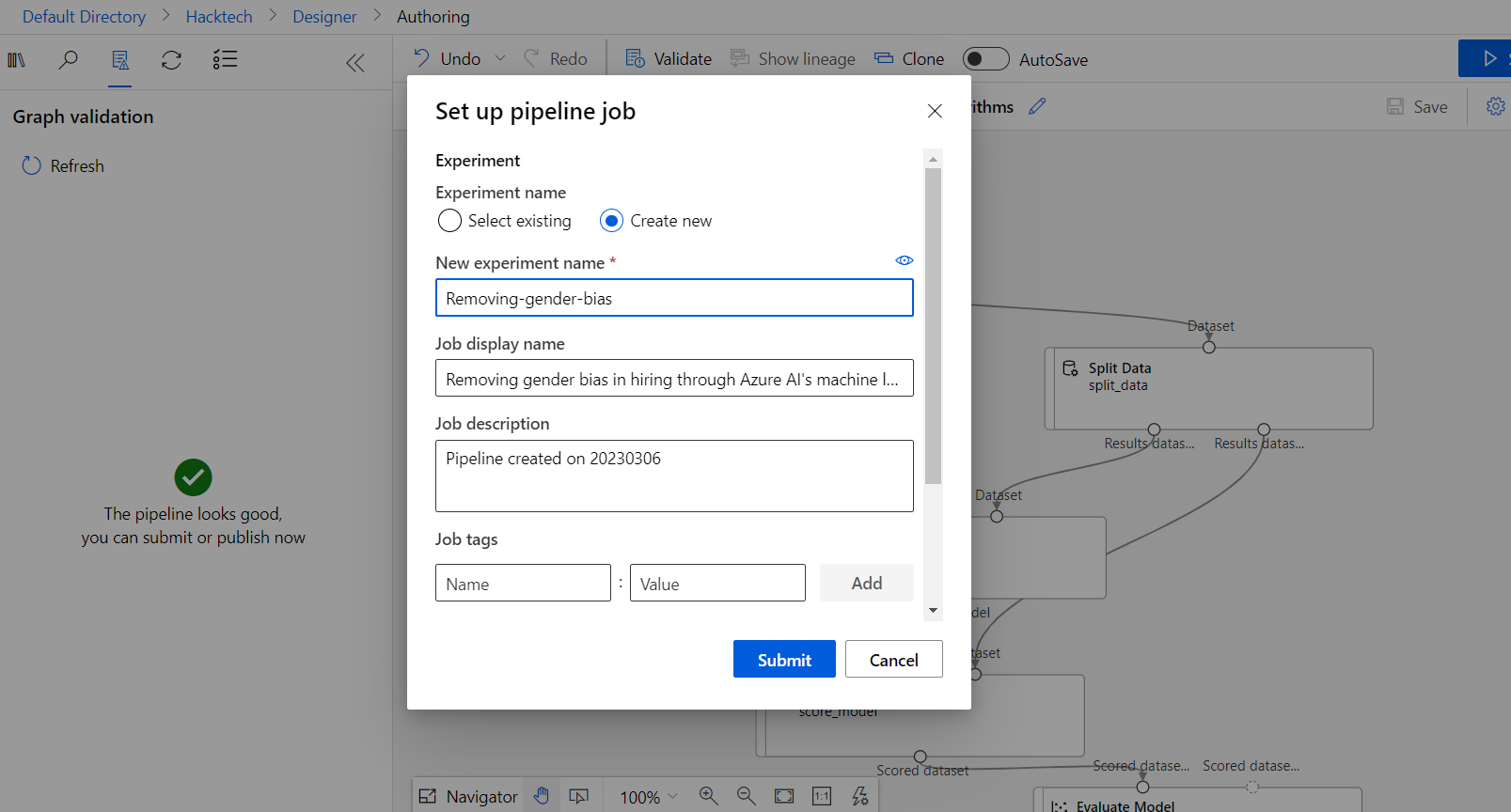
Set up pipeline run form, select Create new, enter a name for the experiment and click Submit.
## Result
Right-click the Score Model and select Visualize > Scored dataset.


Log in or sign up for Devpost to join the conversation.