-
-
Architecture
-
banner
Inspiration
I was learning Blender a few weeks ago. I had a 3D model open, I wanted to export it, and I had absolutely no idea where to start. I Googled it. Got a YouTube video from 2019. Opened it. Skipped through 8 minutes of intro. Found the right section. Went back to Blender. Forgot what they said. Went back to YouTube.
That loop — software open, tutorial open, switching back and forth, pausing, rewinding — felt completely broken. The answer was right there on my screen. Why couldn't something just look at what I was doing and tell me?
That frustration became Reality Copilot.
What it does
Reality Copilot is an AI assistant that watches your screen and guides you in real time.
You share your screen. You ask a question — by voice or by typing. The AI sees your UI, understands what you're looking at, and responds with clear step-by-step instructions spoken aloud.
It works with anything: Blender, Excel, VS Code, Photoshop, government forms, unfamiliar websites. No tutorials. No Googling. You just ask.
Core features:
- 🖥 Screen capture via WebRTC
getDisplayMedia— the AI sees exactly what you see - 🎤 Voice input via Web Speech API — ask naturally, hands-free
- 👁 Multimodal vision — Gemini 2.0 Flash reads your UI and identifies buttons, menus, and errors
- 📋 Step-by-step guidance — structured, numbered instructions every time
- 🔊 Voice output — responses are spoken aloud so you never have to look away from your work
- ⚡ Real-time — screenshot to spoken response in ~2 seconds
How we built it
The stack came together fast because every piece had one job:
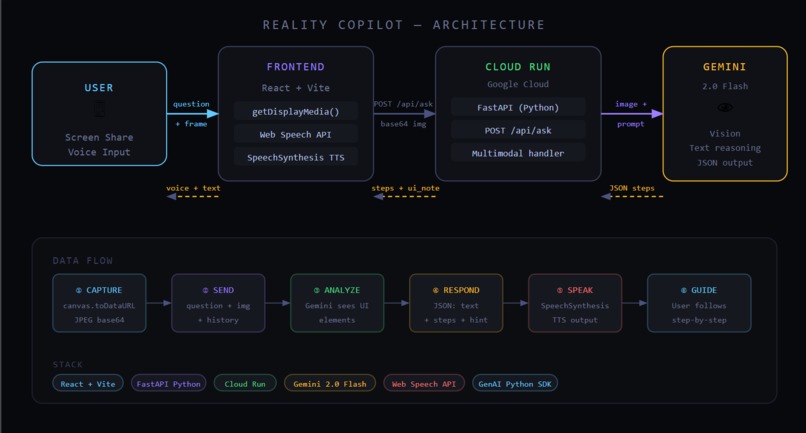
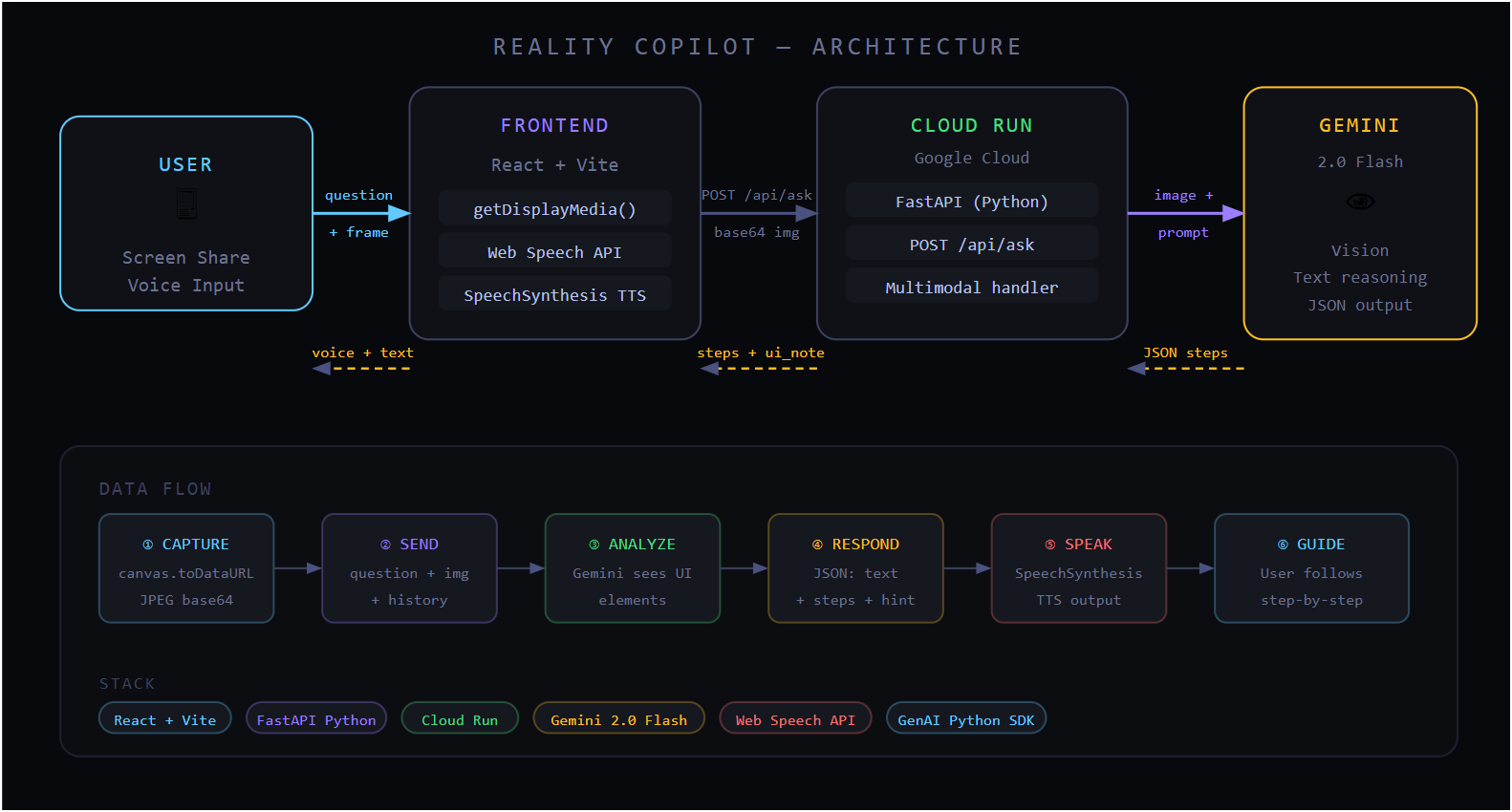
Frontend — React + Vite. The browser captures a video frame from the
shared screen using canvas.toDataURL(), records voice input using the Web
Speech API, and speaks responses back using SpeechSynthesisUtterance.
Everything visual lives here.
Backend — Python + FastAPI, deployed on Google Cloud Run. It receives the question, the base64-encoded screenshot, and conversation history. It builds a multimodal prompt and sends it to Gemini.
AI — Gemini 2.0 Flash via the Google GenAI Python SDK. The model receives the screenshot as an inline image alongside the user's question and is prompted to return structured JSON: a plain-language explanation, numbered steps, and a UI hint pointing to the exact element to interact with next.
Deployment — single Docker container on Cloud Run. The frontend proxies API calls to the same origin in production. Zero infrastructure to manage.
User asks question
       ↓
Screenshot captured (canvas → base64 JPEG)
       ↓
POST /api/ask → Cloud Run (FastAPI)
       ↓
Gemini 2.0 Flash (image + question + history)
       ↓
JSON { text, steps, ui_note }
       ↓
Render in chat + spoken aloud via TTS
Challenges I ran into
Getting Gemini to always return clean JSON was harder than expected. Early
on it would add markdown fences, preamble text, or just ignore the format
instructions entirely. The fix was combining response_mime_type:
"application/json" in the generation config with a very explicit system prompt
— and stripping any accidental fences as a fallback.
Screenshot timing was tricky. Capturing too early meant the frame wasn't ready. Capturing too late felt sluggish. Landing on "capture at the moment the user sends their message" gave the best balance of accuracy and speed.
Windows deployment — the deploy scripts used bash \ line continuation
which CMD doesn't support. Had to manually run each gcloud command as a
single line. Small thing, cost real time.
Model name changes — gemini-2.0-flash-exp was deprecated mid-build. Had
to run ListModels to find the current stable name. Worth checking this early
in any Gemini project.
Accomplishments that I am proud of
- The full loop — share screen, ask by voice, hear the answer — works in under 3 seconds end to end
- Gemini accurately identifies UI elements from screenshots, including specific button names, menu items, and error messages it has never been trained on specifically
- Successfully deployed on Google Cloud Run with zero DevOps experience going in
- The experience genuinely feels like having a patient expert sitting next to you — not like using a chatbot
What I learned
- Multimodal prompting is an art. Telling Gemini how to look at an image matters as much as giving it the image. Specifying "identify UI element names, menu labels, and button text" dramatically improved response quality.
- Structured output is non-negotiable for apps. Free-form AI responses are great for chat. For an app that needs to render steps and speak them aloud, JSON output with a strict schema is the only reliable approach.
- Cloud Run is genuinely fast to ship on. From zero to a public HTTPS URL was under 10 minutes once the Dockerfile was clean.
- Voice makes AI feel alive. Adding
SpeechSynthesisUtterancetook 4 lines of code and completely changed how the product feels to use.
What's next for Reality Copilot
- Bounding box overlay — draw a highlight directly on the screen around the exact button or menu item the AI is pointing to
- Gemini Live API — move from screenshot-per-question to a continuous live video stream for truly real-time guidance
- App detection — automatically detect which application is open and pre-load context about its UI patterns
- Multi-step task tracking — let the AI guide users through long workflows (e.g. "set up a React project from scratch") with progress tracking across multiple questions
- Mobile screen sharing — extend to Android/iOS for on-device app guidance


Log in or sign up for Devpost to join the conversation.