-
-
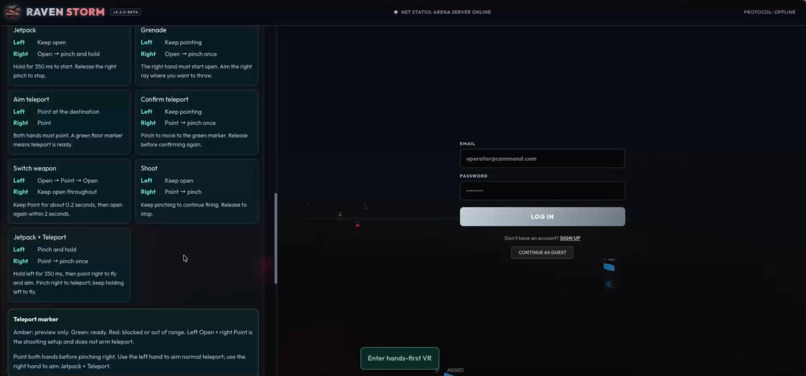
vrmode_instrct
-
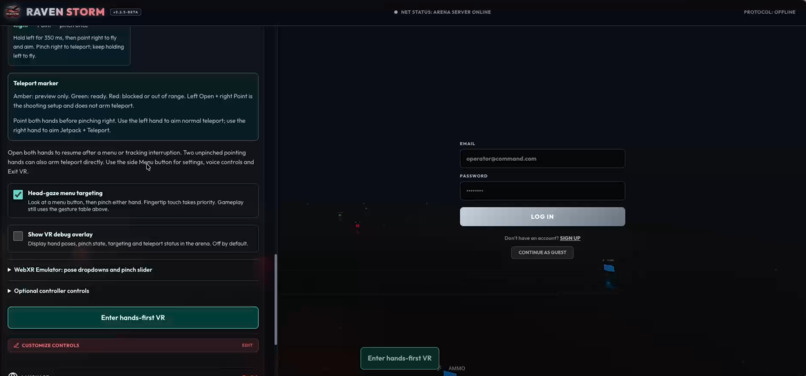
vrmode
-
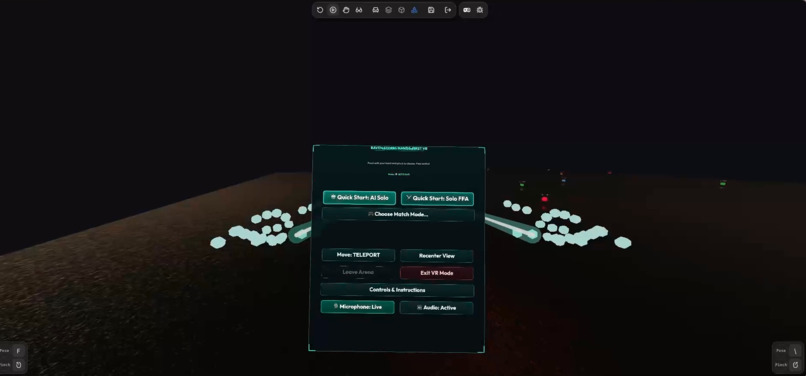
menu
-
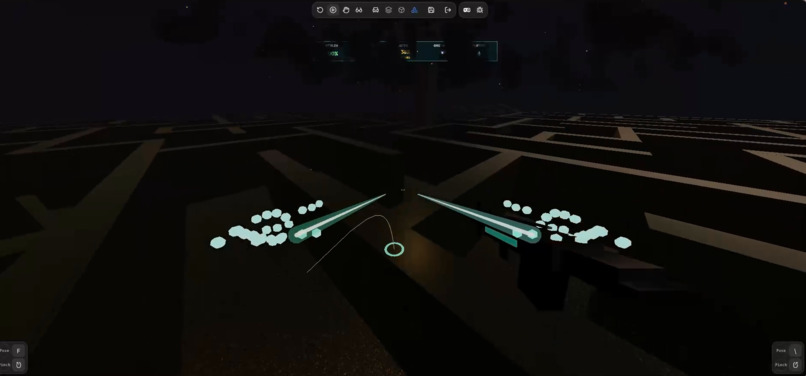
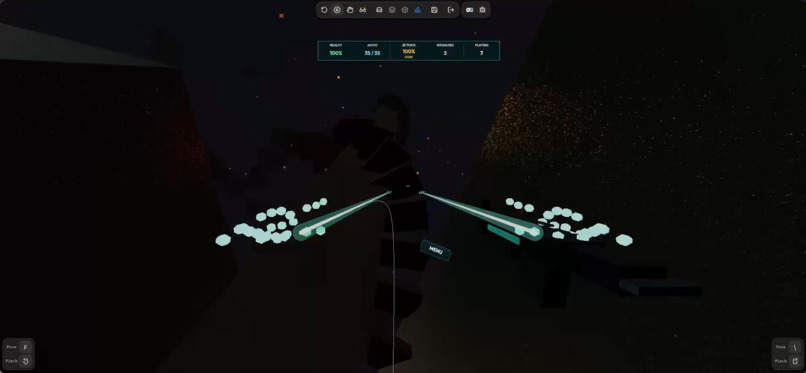
flying
-
-
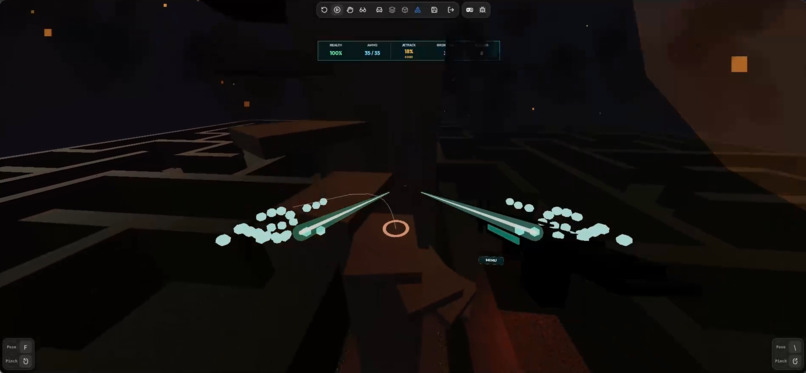
climbing
-
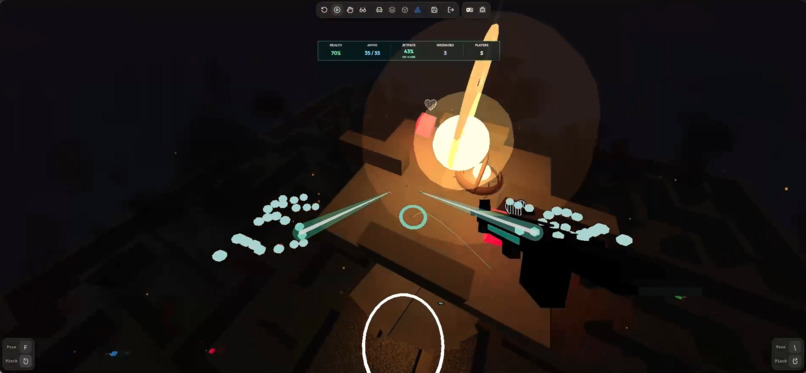
tower_top
-
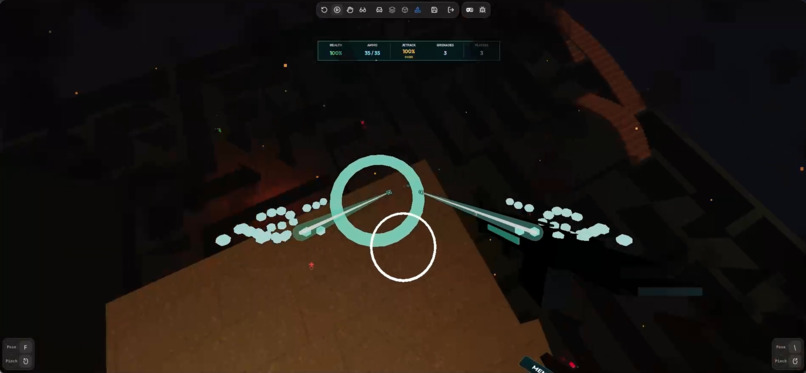
claimed_tracker
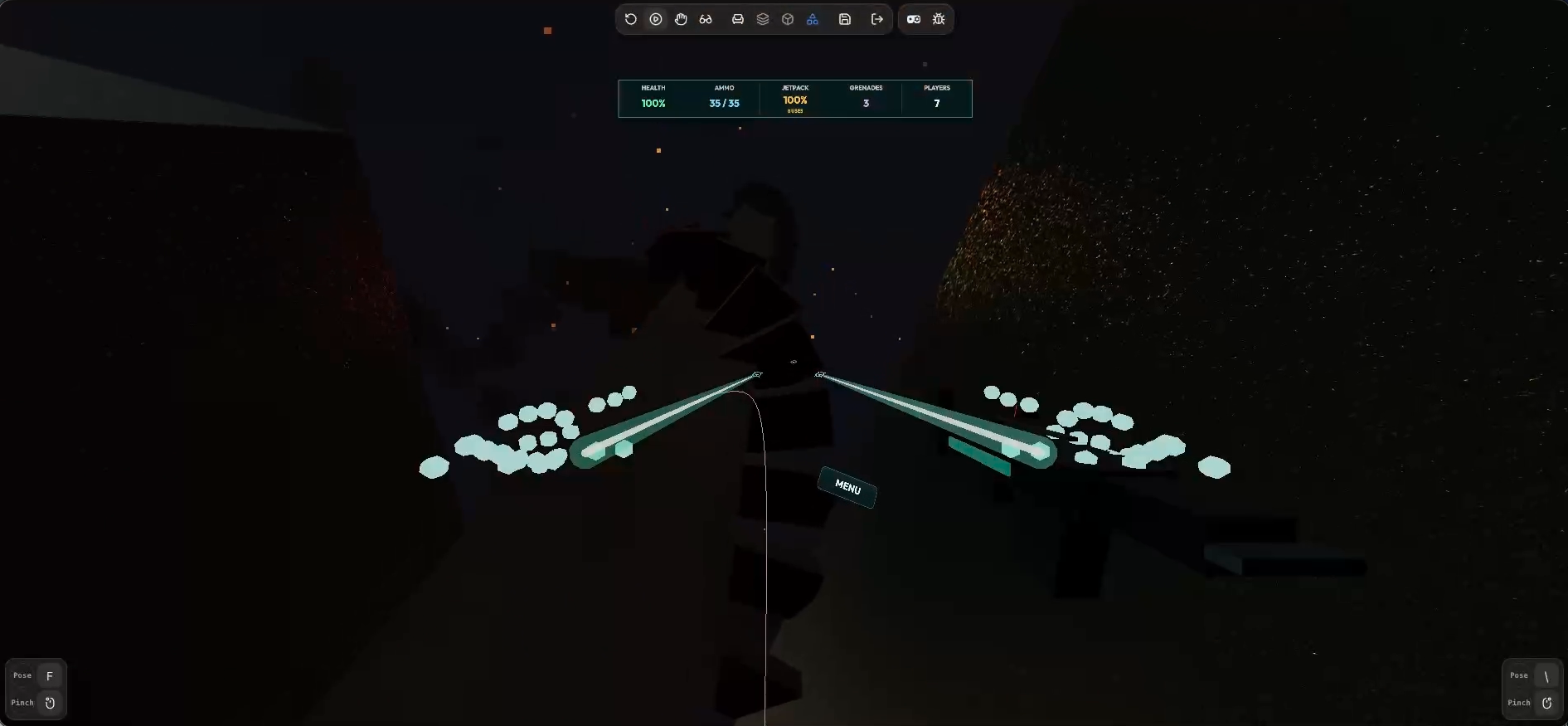
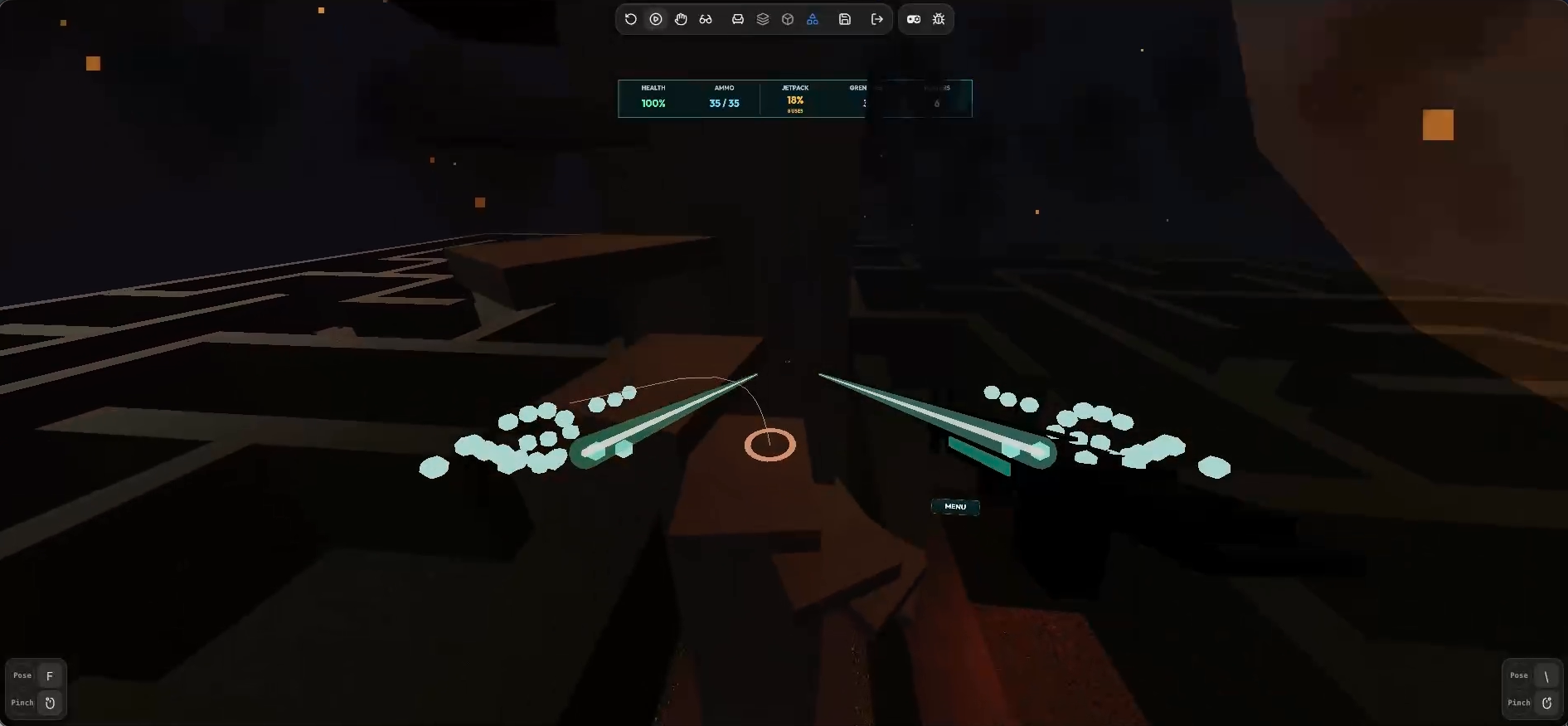
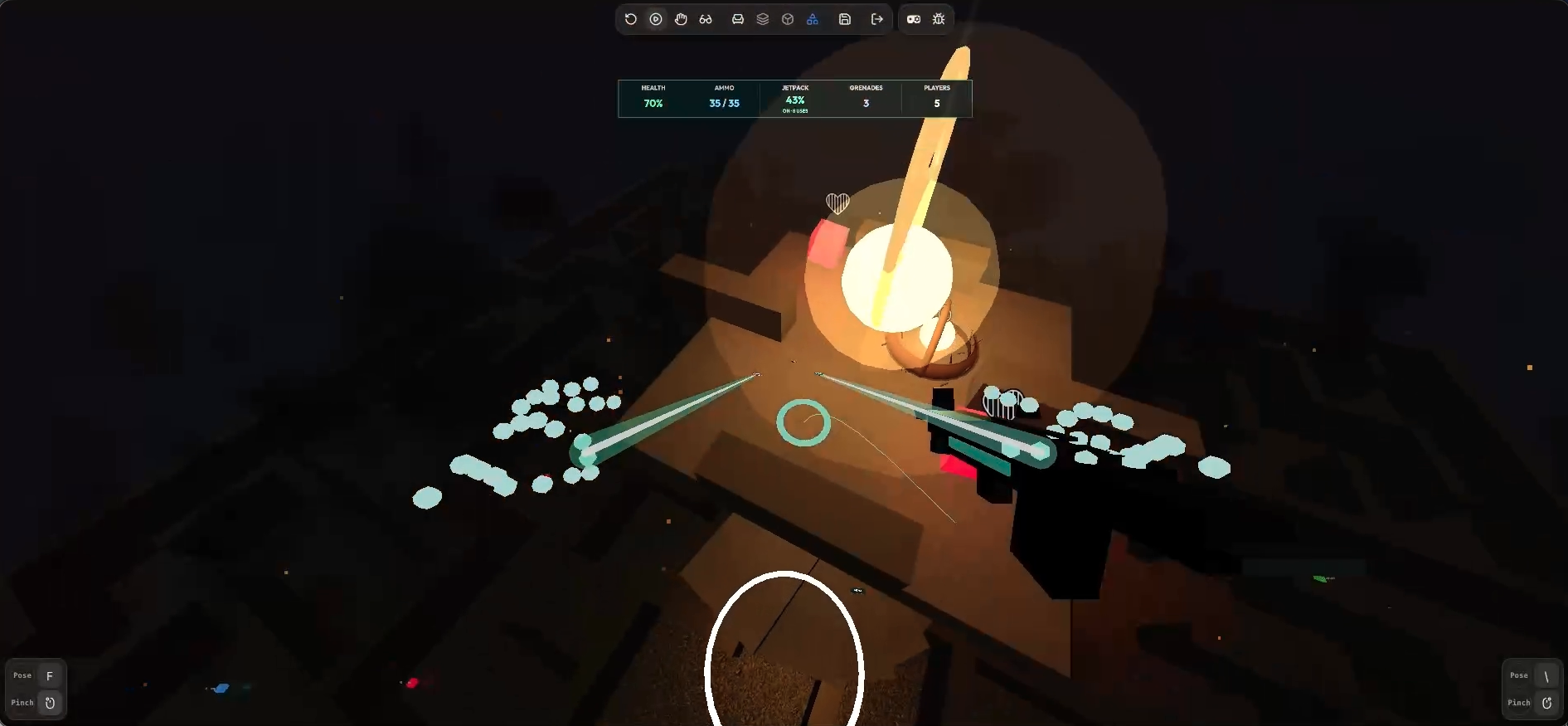
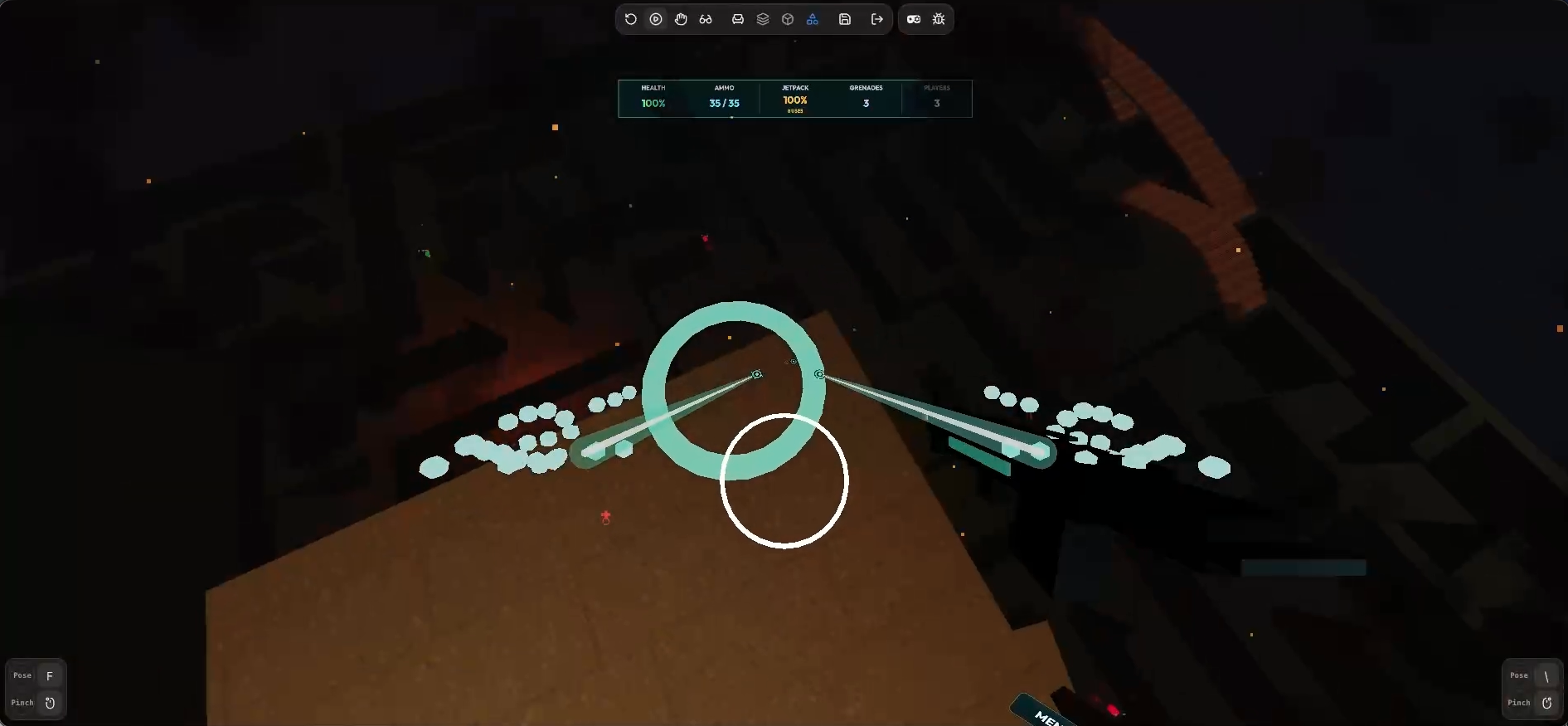
Raven Storm
Inspiration
We wanted to bring the energy of classic multiplayer arena shooters into a 3D maze: quick decisions, jetpack movement, close encounters, and unpredictable battles. Raven Storm began as a game for desktop and mobile. For its VR adaptation, we explored how the same arena could become a hands-first experience with spatial menus, hand-directed combat, and teleportation.
What it does
Raven Storm is an online 3D arena shooter with procedurally generated maze maps, multiplayer rooms, bot matches, weapons, grenades, jetpacks, and collectible supplies. Players navigate the maze, engage opponents, and use movement and cover to stay alive.
Normal mode supports keyboard and mouse on desktop and touch controls on mobile. The WebXR mode adds tracked headset viewing, hand gestures, spatial menus, teleportation, and optional controller input. Players can create and play bot matches through the VR interface. Voice chat and monetization are available in the normal production profile; the separate competition profile disables voice, advertising, and purchases.
How we built it
We built the frontend with React, Vite, Three.js, and React Three Fiber. Rapier provides physics, while Zustand manages client state. A Node.js backend uses Express and Socket.IO for rooms, live game updates, and server-side match logic. SQLite stores player records, and Firebase supports authentication and push notifications. Capacitor provides the existing Android and iOS app shells.
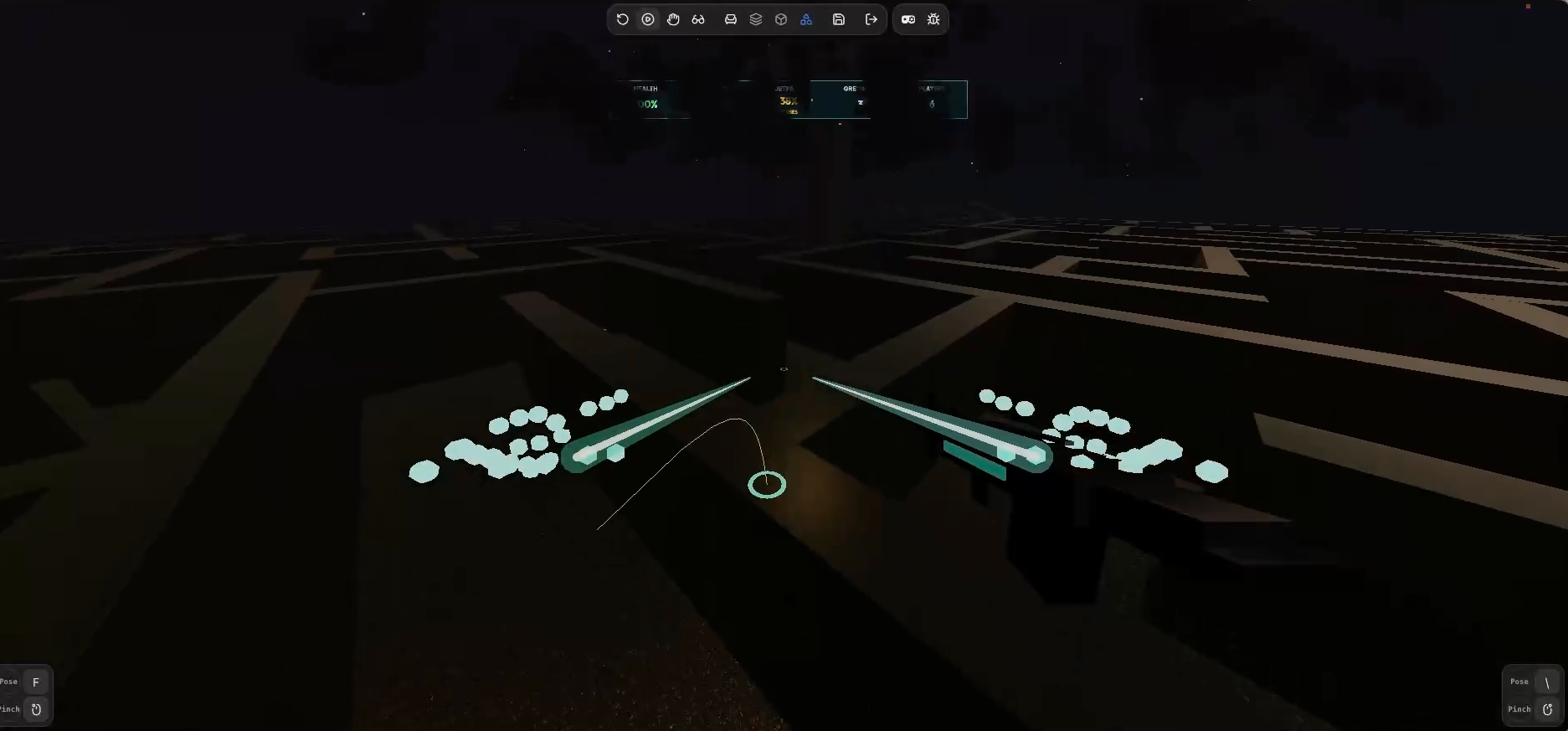
For VR, we extended the existing renderer with WebXR and Meta's IWSDK XR input manager. We added hand-pose recognition, gesture transitions, hand-directed aiming, spatial interface interaction, teleport destination checks, and optional controller mappings. We retained the desktop and touch interfaces alongside the VR implementation.
We deployed the web build to Firebase Hosting together with the legal pages and existing Android OTA files. Quest Store distribution is a separate next step: the hosted experience still needs immersive PWA launch work, signing, and Quest packaging.
Challenges we ran into
- Translating keyboard and touch actions into hand gestures without making a menu pinch accidentally fire a weapon or trigger movement.
- Distinguishing shooting, jetpack use, grenade throws, and teleport confirmation from similar pinch inputs. The hand pose before a pinch matters.
- Checking teleport destinations against walls, range, and player clearance.
- Handling lost tracking, interrupted sessions, and returning from menus without leaving movement or firing active.
- Loading large character models and animations while keeping the lobby and network connection responsive.
- Publishing the game without removing the existing privacy pages or OTA files.
- Validating VR without owning a physical headset. We used a WebXR emulator and automated checks; real Quest performance, comfort, and tracking remain unverified.
Accomplishments that we're proud of
- Adapting an existing desktop/mobile game into a hands-first WebXR experience.
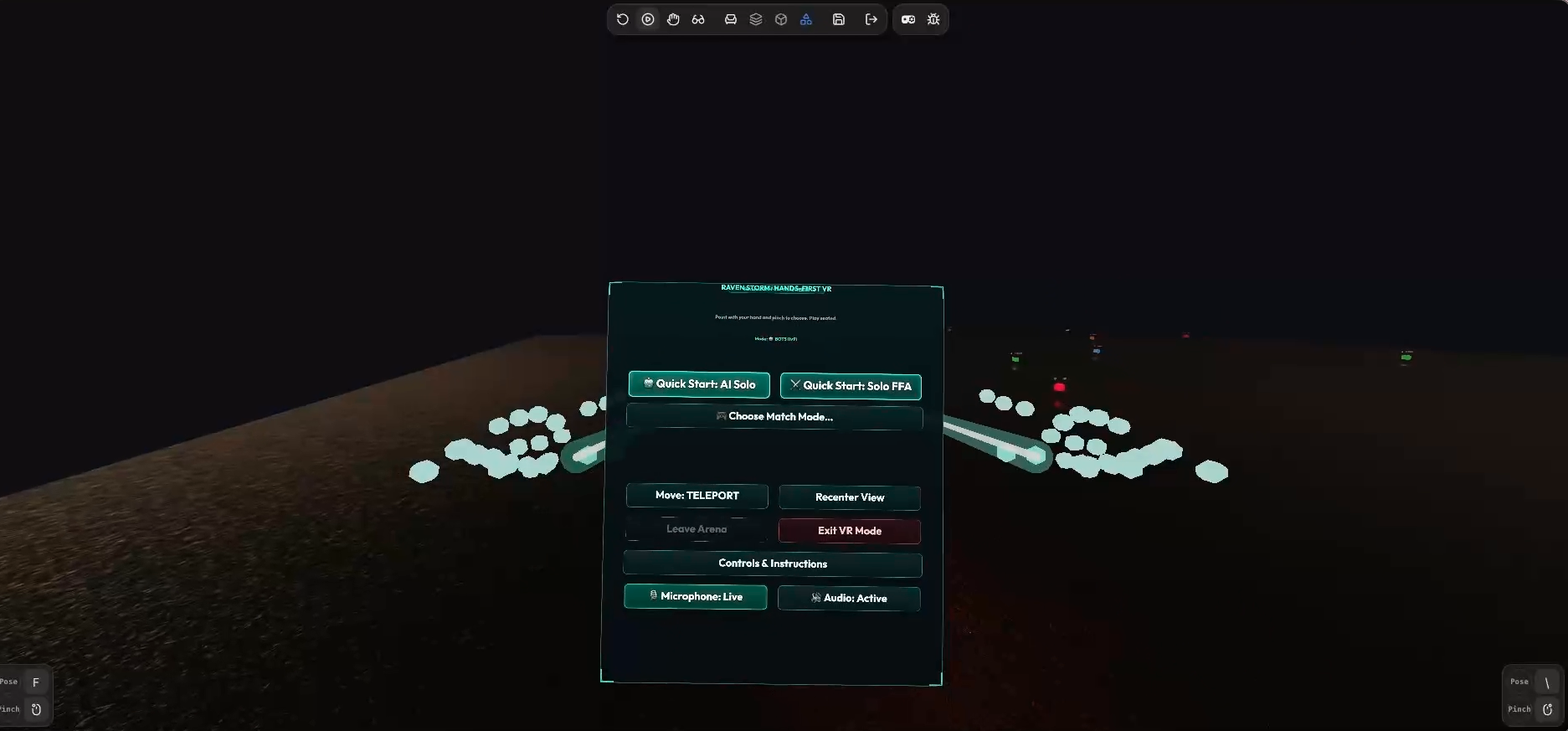
- Implementing spatial menus and a bot-match flow that can be operated in VR.
- Supporting multiple combat and movement actions through explicit hand poses and gesture transitions.
- Adding checks for teleport clearance, input cleanup, and session interruption.
- Keeping desktop, touch, and VR input paths in the same game.
- Publishing the web build with consistent Raven Storm branding while retaining the legal pages and existing OTA release.
- Passing 14 targeted automated checks covering VR session behavior, movement, input integration, and competition-profile restrictions during this work.
What we learned
VR adaptation involves more than rendering a scene through a headset. Input needs clear intent, visible feedback, and predictable recovery when tracking changes. Small differences between an open hand, a pointing hand, and a pinch can represent very different actions, so gesture timing and reset behavior are important.
We also learned to separate web deployment from native packaging. Publishing a WebXR site does not create a signed Quest APK, and emulator success does not establish headset comfort or performance. Deployment checks also need to cover backend CORS, client-version compatibility, and persistent legal and update URLs.
What's next for Raven Storm
- Test complete rounds on a real Quest, including first launch, hand tracking, controller input, session interruptions, and re-entry.
- Measure frame rate, memory use, loading time, and sustained performance in busy arenas, then optimize against those measurements.
- Improve gesture feedback, targeting, menu readability, and movement comfort.
- Complete immersive PWA auto-entry and a headset-accessible privacy-consent flow.
- Finish Quest signing, domain verification, packaging, and Store review preparation.
- Improve solo-match interruption and resume behavior.
- Expand maps, bot behavior, and combat balancing using player feedback.
Play controls: normal mode and VR mode
Start a match
- Open the game and review the privacy information.
- Follow the available sign-in or guest flow. Create or join a room in normal mode; the VR interface also provides a bot-room flow.
- Wait for assets, the arena, and the server connection to be ready. The host can then select Initiate Deployment.
- Collect ammo, grenades, and fuel during the match. There is no manual reload.
Normal mode: desktop
| Action | Control |
|---|---|
| Move | W, A, S, D or arrow keys |
| Aim / look | Click the arena, then move the mouse; alternatively hold right mouse and drag |
| Fire | Hold left mouse while aiming |
| Jump | Space |
| Jetpack | Hold E |
| Sprint | Hold Shift while moving |
| Throw grenade | Press G once per throw |
| Select handgun | 1 |
| Select vector gun | 2 |
| Hide | H |
| Crawl | C |
| Stand | X |
| Cycle stance | F |
| Release the mouse cursor | Esc; click the arena to resume aiming |
| Voice controls | On-screen microphone and speaker buttons, when enabled |
Normal mode: mobile / touch
| Action | Control |
|---|---|
| Move | Left joystick |
| Aim / look | Drag the right aim area |
| Fire | Hold FIRE |
| Jump | Tap JUMP |
| Jetpack | Hold JETPACK |
| Sprint | Hold RUN while moving |
| Throw grenade | Tap GRENADE once per throw |
| Switch weapon | Tap a weapon icon |
| Change stance | Tap ACTION to cycle; hold to choose hide, crawl, or stand |
| Customize touch layout | Gear button |
| Voice controls | On-screen microphone and speaker buttons, when enabled |
VR mode: setup and hand poses
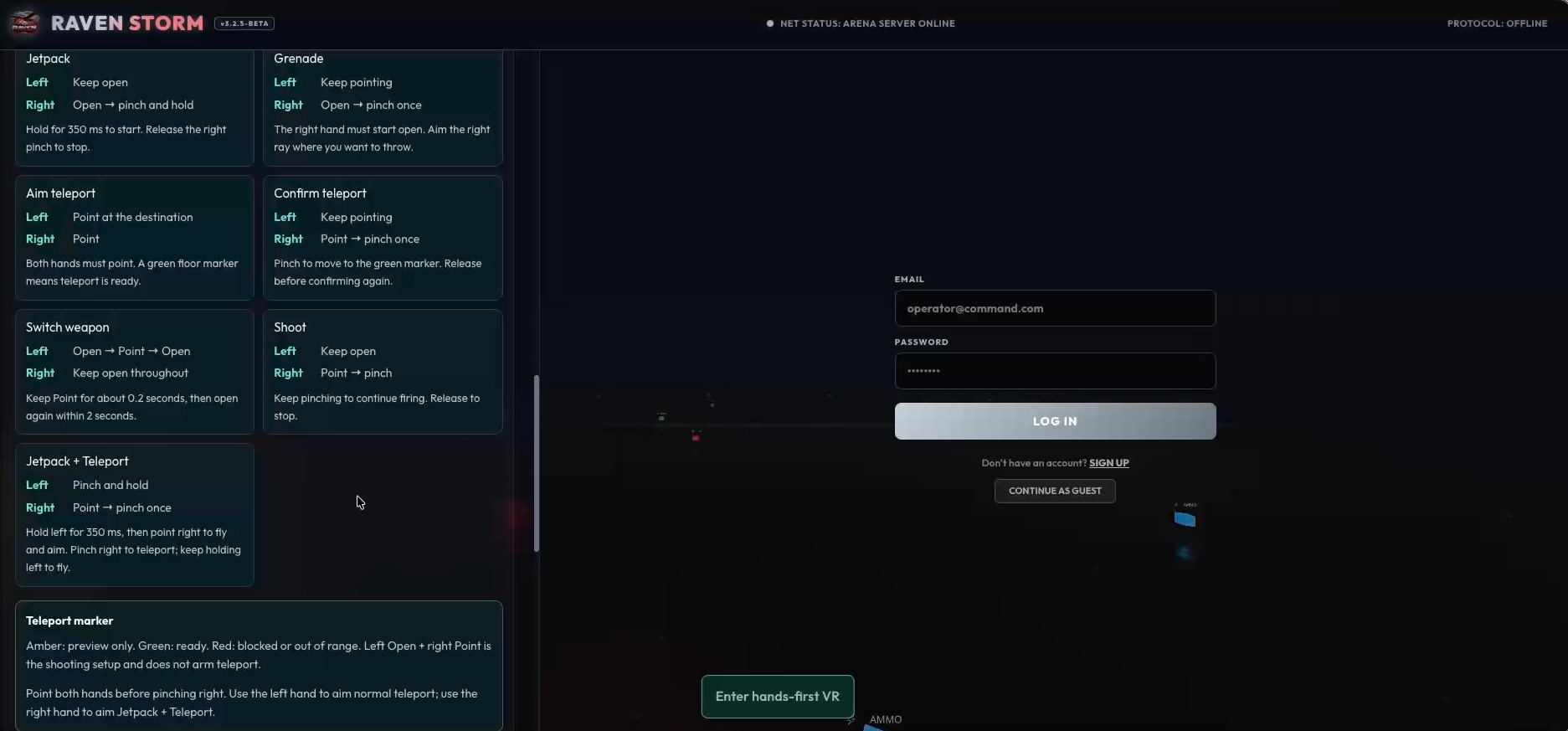
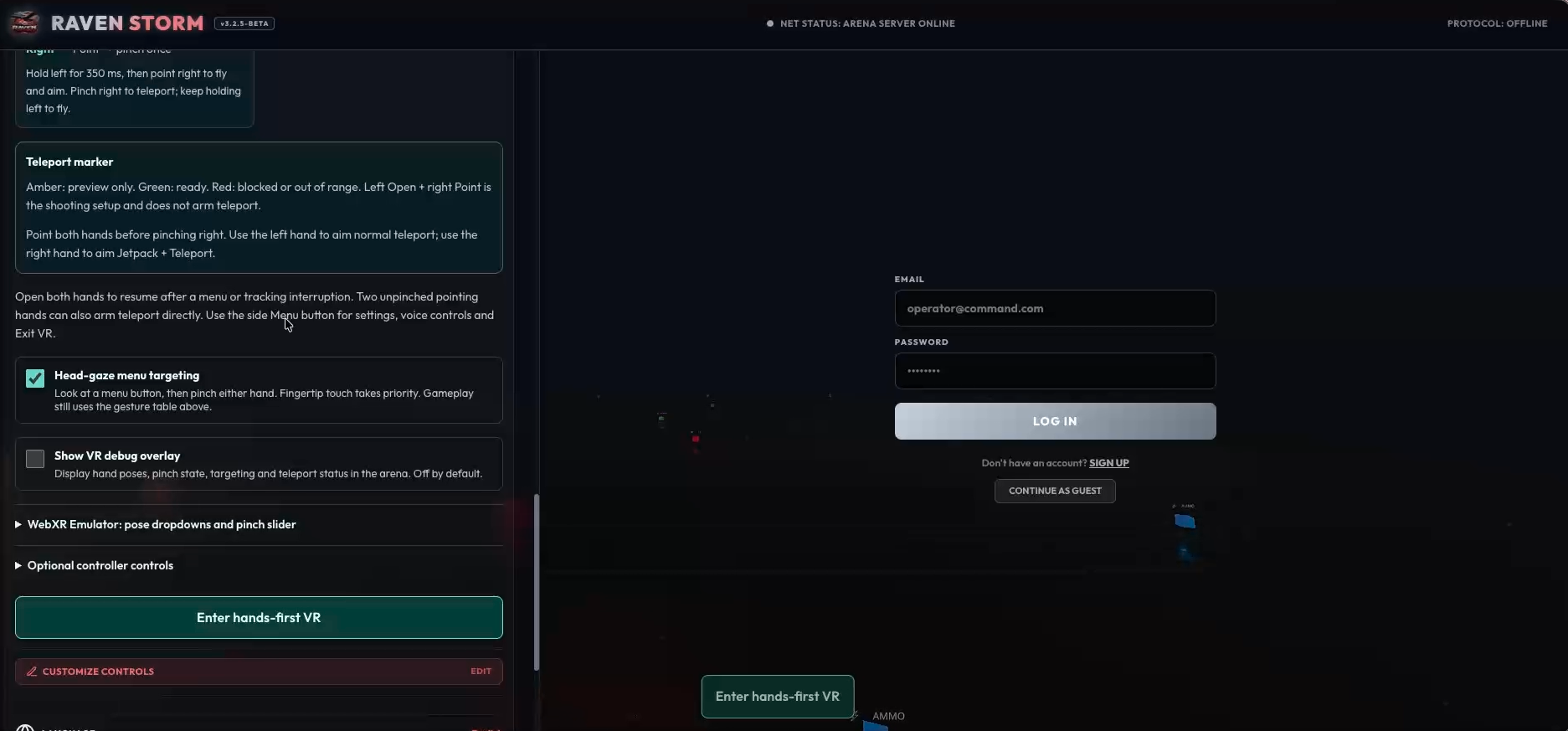
Use a compatible hand-tracking WebXR headset over HTTPS. Open Settings → VR, review the guide, and select Enter hands-first VR. The current experience targets seated play. Keep both hands visible to the headset.
- Open: extend your fingers naturally, keeping thumb and index apart.
- Point: extend your index finger and curl the other fingers.
- Pinch: bring thumb and index fingertips together; maintain contact for a hold.
Point and pinch to select menu buttons, or touch a button with your index finger. Optional head-gaze targeting lets you look at a menu button and pinch either hand. Open both hands after a menu or tracking interruption to return to the ready state.
VR mode: hand gestures
| Action | Left hand | Right hand |
|---|---|---|
| Ready / reset | Open | Open |
| Jump | Pinch briefly, then release in under 350 ms | Keep open |
| Jetpack | Keep open | Start open, then pinch and hold for at least 350 ms; release to stop |
| Shoot | Keep open | Start pointing, then pinch; hold to keep firing |
| Throw grenade | Keep pointing | Start open, then pinch once; aim the right-hand ray |
| Aim teleport | Point toward the destination | Point without pinching |
| Confirm teleport | Keep pointing at a green destination marker | Pinch once, then release before the next confirmation |
| Switch weapon | Open → Point for about 0.2 seconds → Open, completing the gesture within 2 seconds | Keep open throughout |
| Jetpack + teleport | Pinch and hold for at least 350 ms | Point to aim, then pinch to teleport; keep the left pinch held to fly |
For normal teleportation, aim with the left hand. For jetpack + teleport, aim with the right hand. A green marker means ready, amber is preview only, and red means blocked or out of range.
Select the movement mode in VR Settings. Joystick mode provides a pinch-and-drag MOVE pad. Use the spatial turn buttons for snap turns and the side Menu button for settings, voice controls, and Exit VR.
VR mode: optional controllers
| Action | Control |
|---|---|
| Move in joystick mode | Left stick |
| Snap-turn | Right stick; return to center between turns |
| Fire | Right trigger |
| Jump | A |
| Jetpack | Hold right grip |
| Sprint | Hold left grip |
| Throw grenade | X |
| Switch weapon | Y |
| Open Menu | B |
| Teleport in controller Teleport mode | Aim left, hold left trigger, then release at a valid destination |
Testing with the WebXR emulator
The emulator's default hand pose corresponds to Open; point corresponds to Point. A pose change alone does not confirm an action. For teleportation, set both hands to Point, aim the left hand at a green floor marker, then raise the right pinch slider to activate a pinch and lower it to release.
These instructions describe the current implementation. Emulator and automated testing do not replace real-headset validation.
