-
-
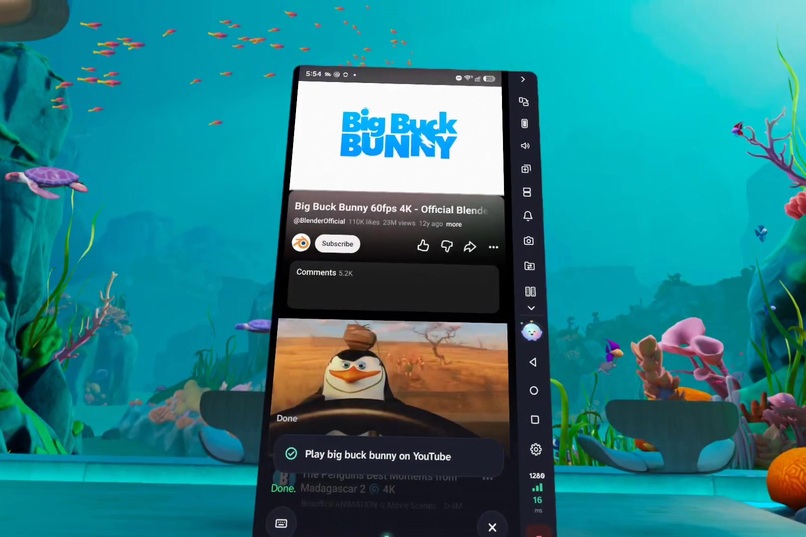
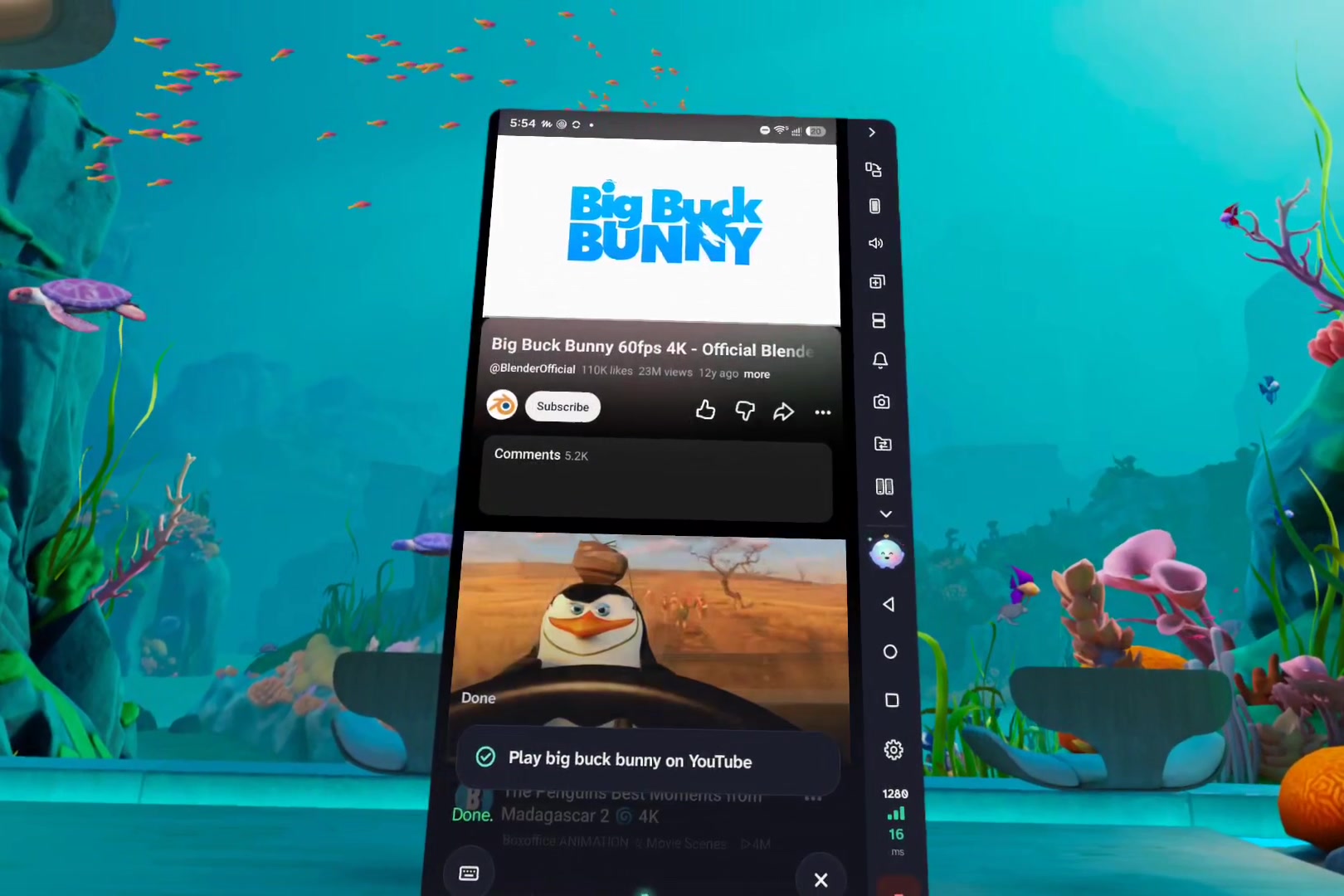
Your Android phone in a panel on Meta Quest. Say "Hey Quimi, play Big Buck Bunny on YouTube" and it plays, hands-free.
-
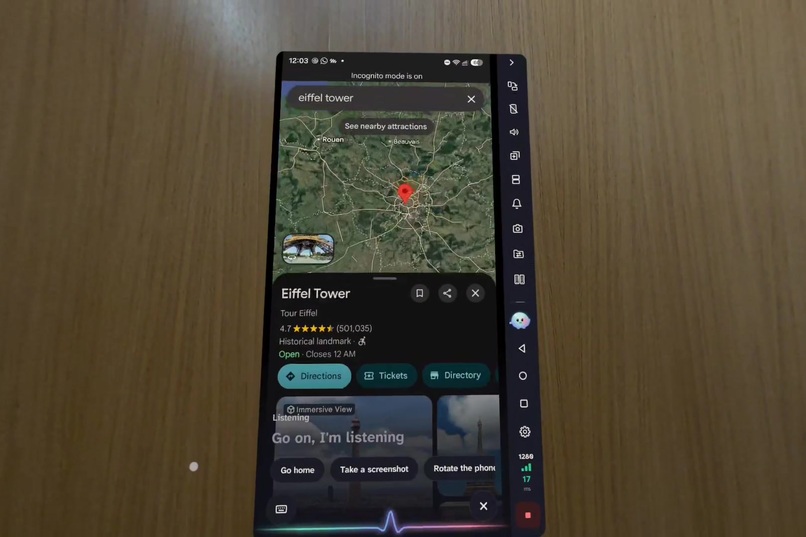
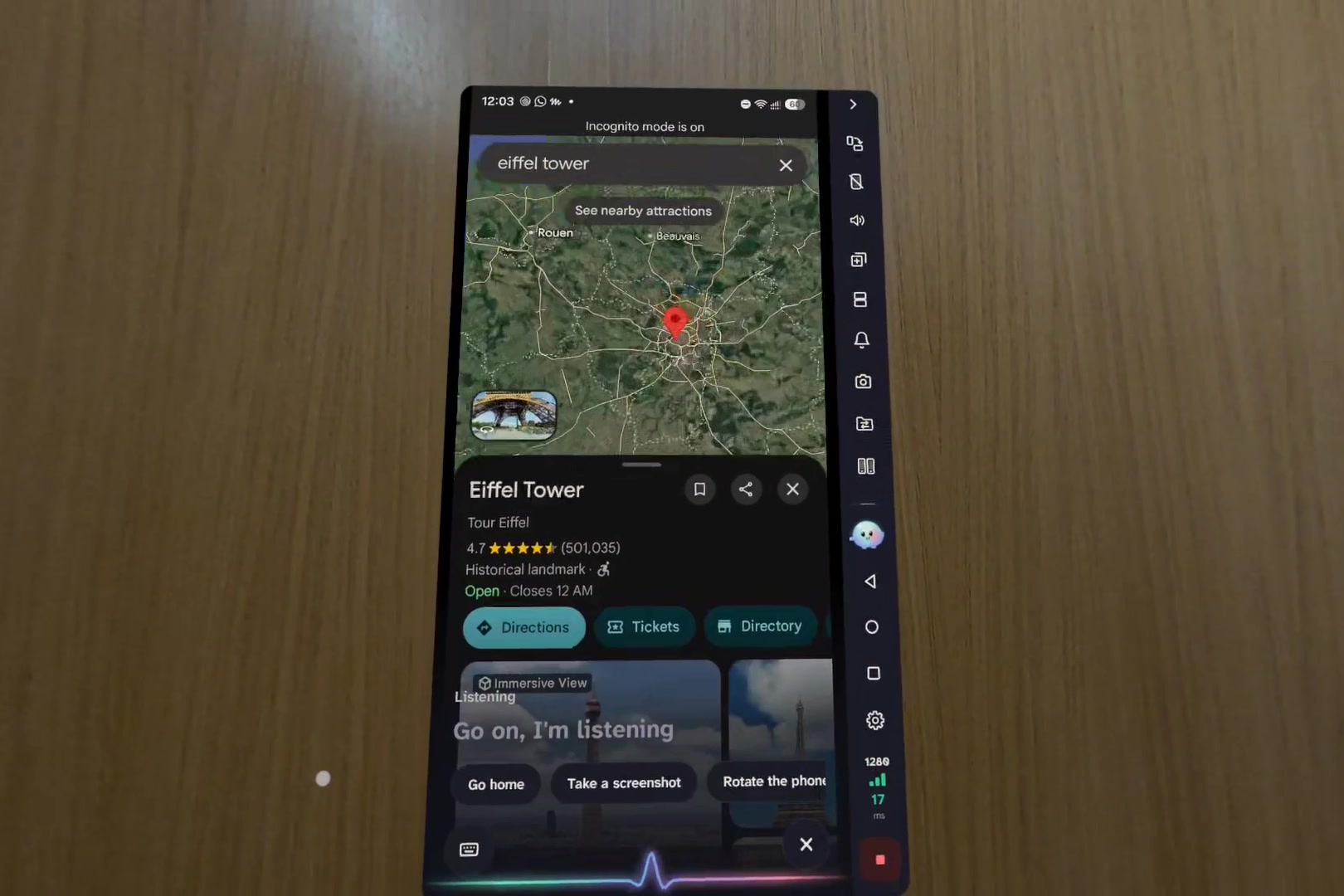
Ask in plain words: "Hey Quimi, show the Eiffel Tower on the map." Quimi opens Maps on the phone and finds it.
-
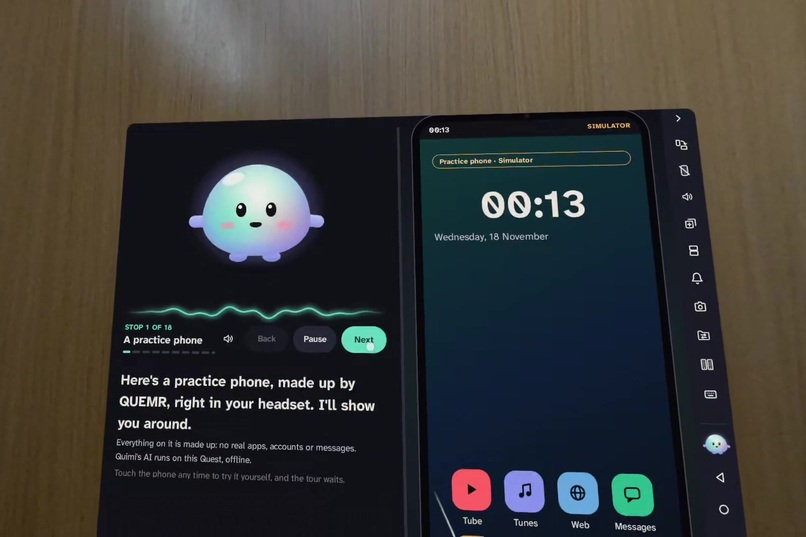
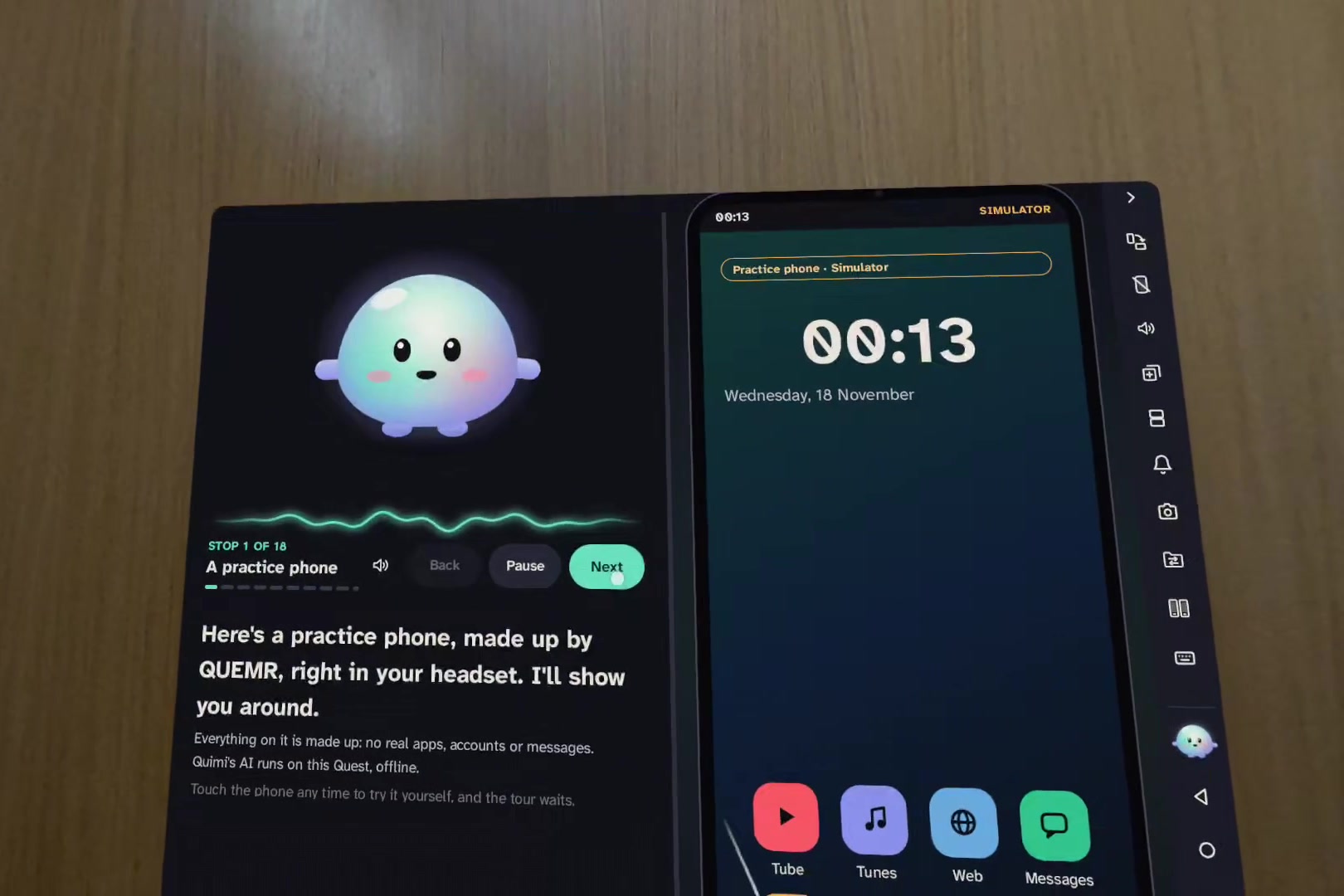
No phone? A practice phone and a guided tour with Quimi let anyone try every feature.
-
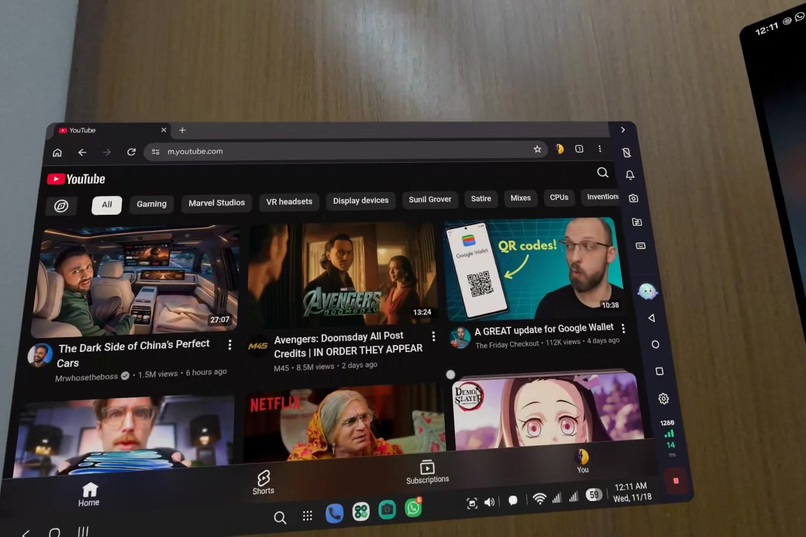
A big screen beside the phone: the phone's own desktop, for video or work, on phones that offer one.
-
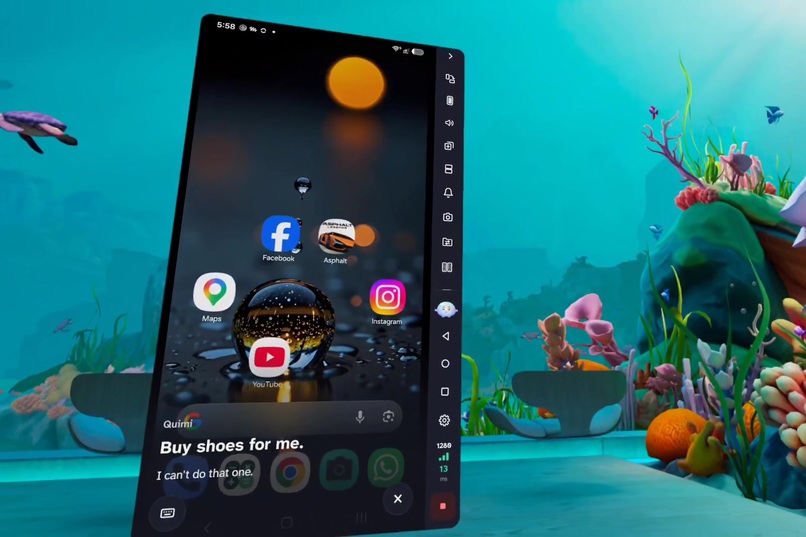
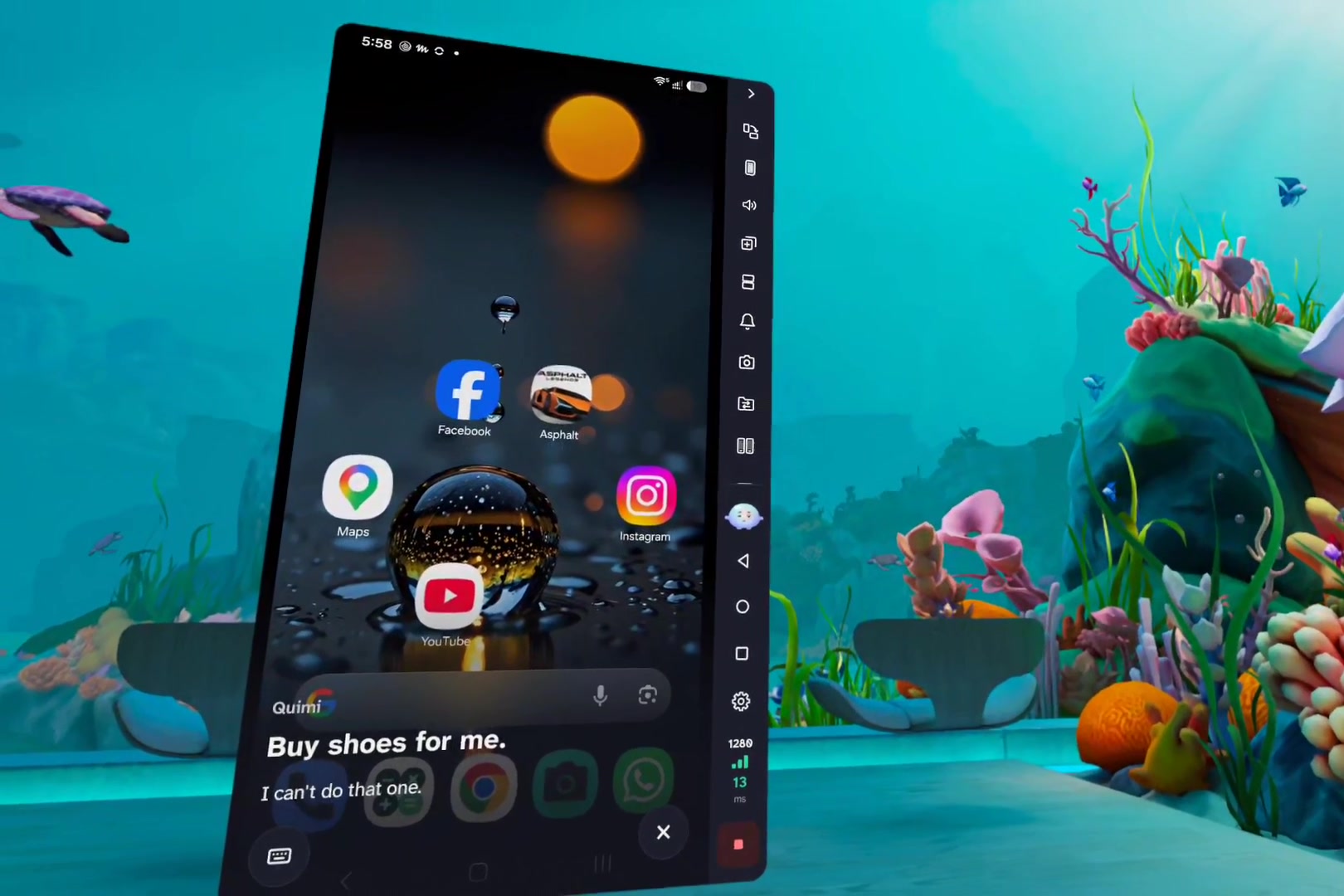
Quimi never buys, pays, sends or deletes for you. Those stay your taps.
-
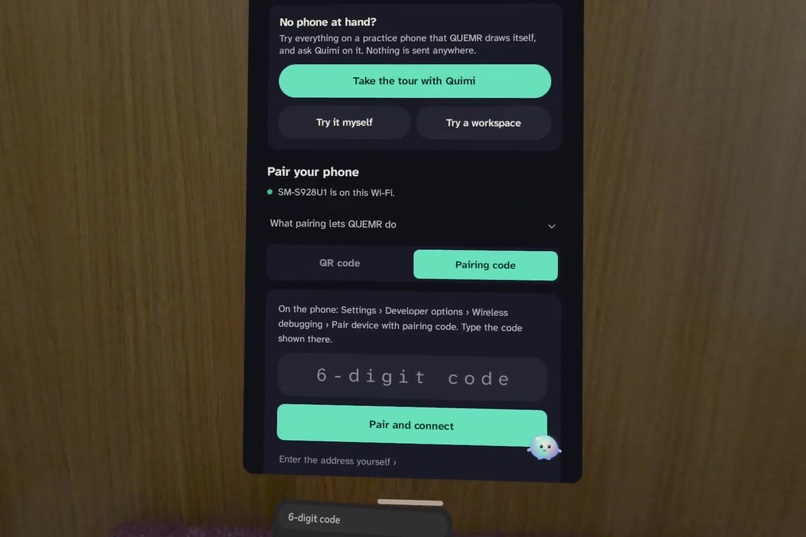
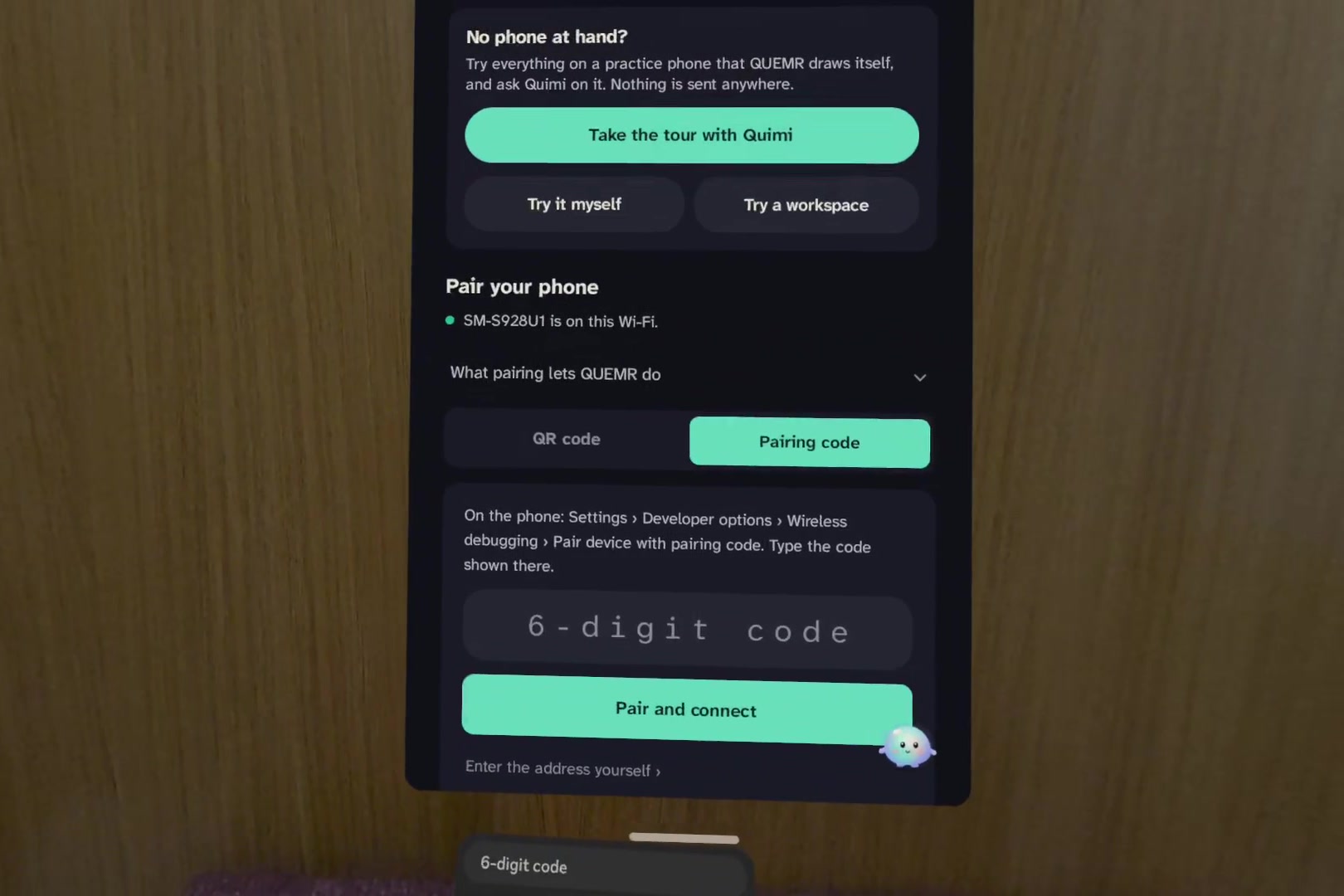
Pair once through the phone's Wireless debugging: scan the QR with the phone, or say the six-digit code. Nothing to install, no cable.
-
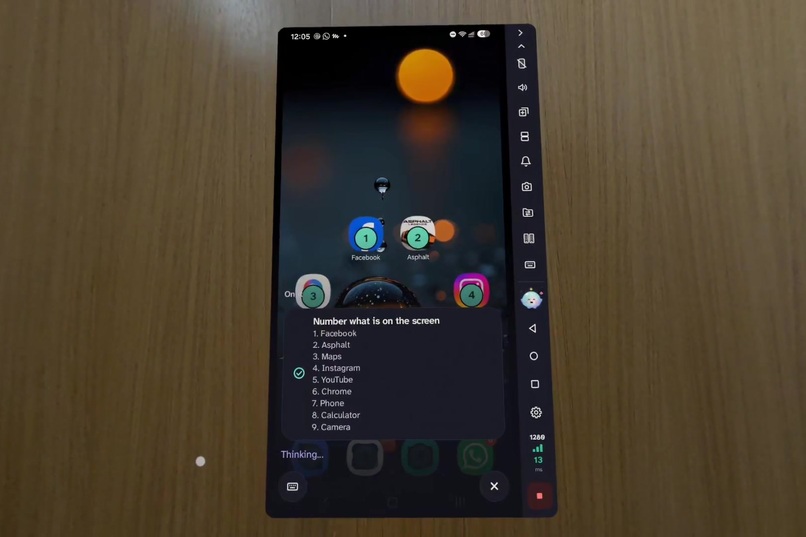
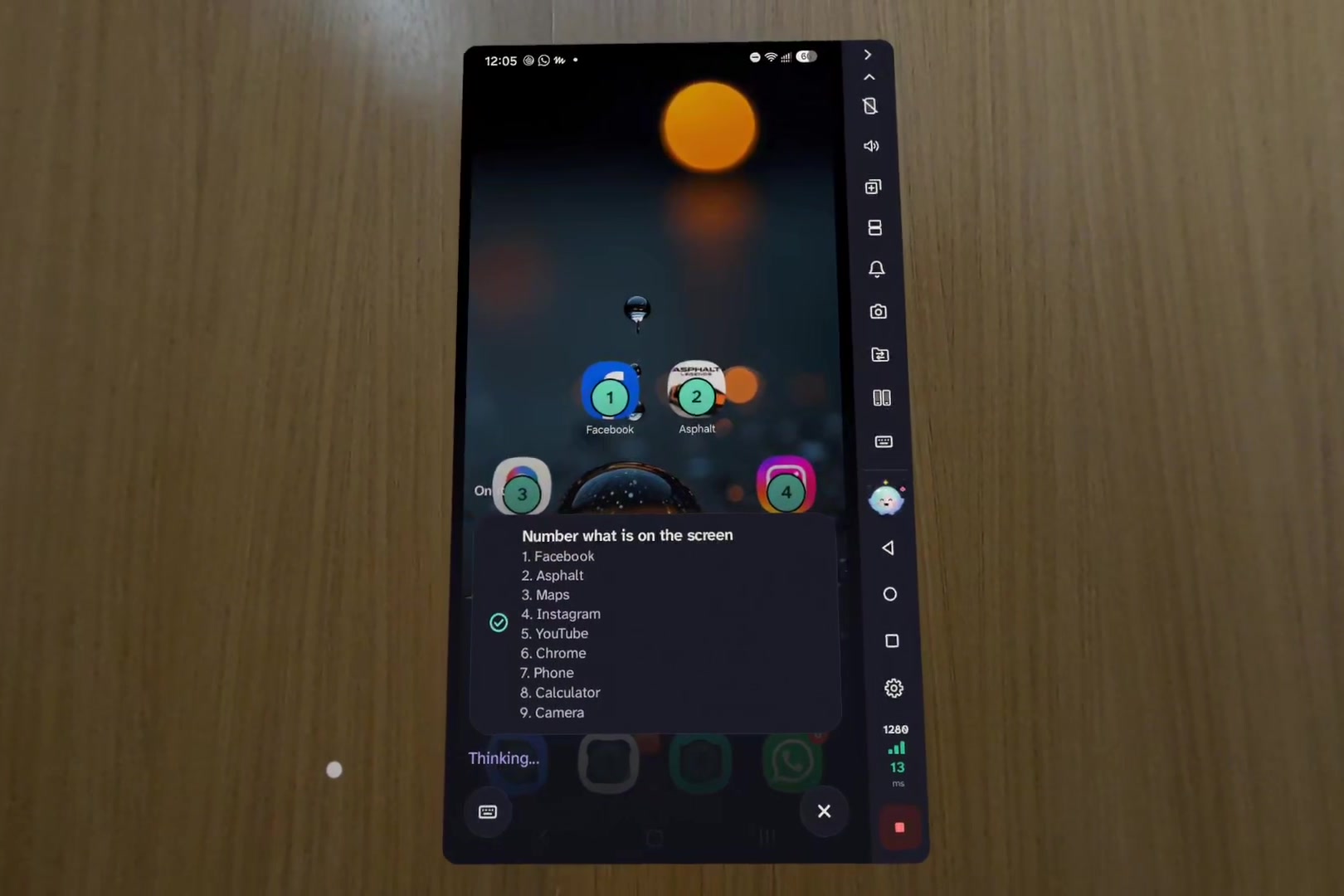
Every hand action has a voice alternative: ask "what's on the screen?", then say a number to tap it. High contrast is a switch in Settings.
-
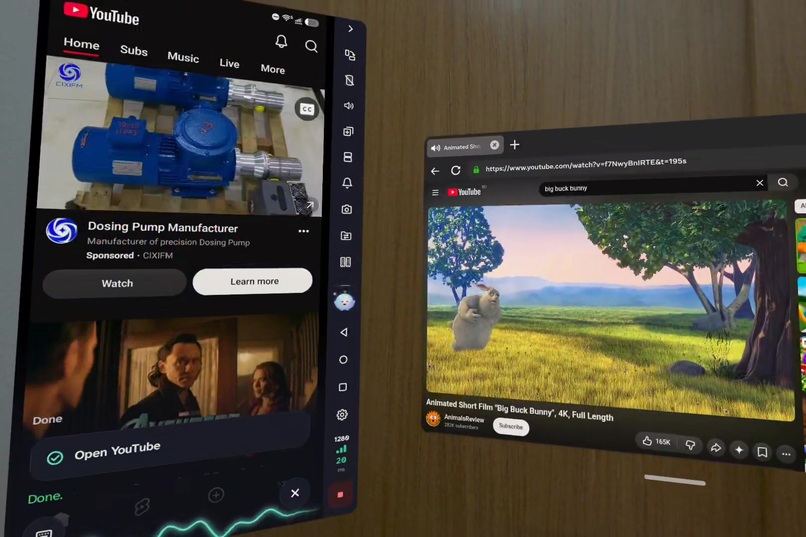
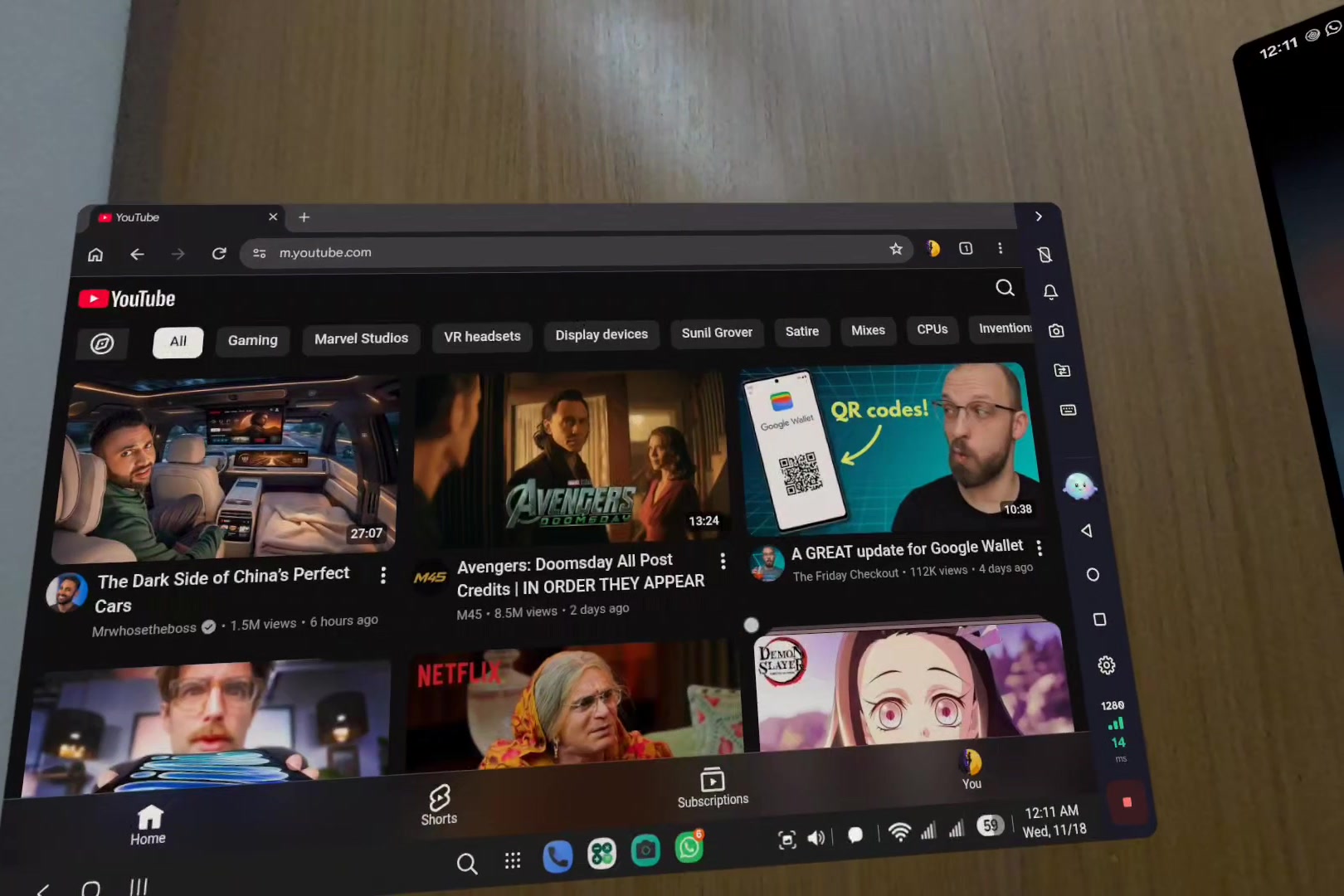
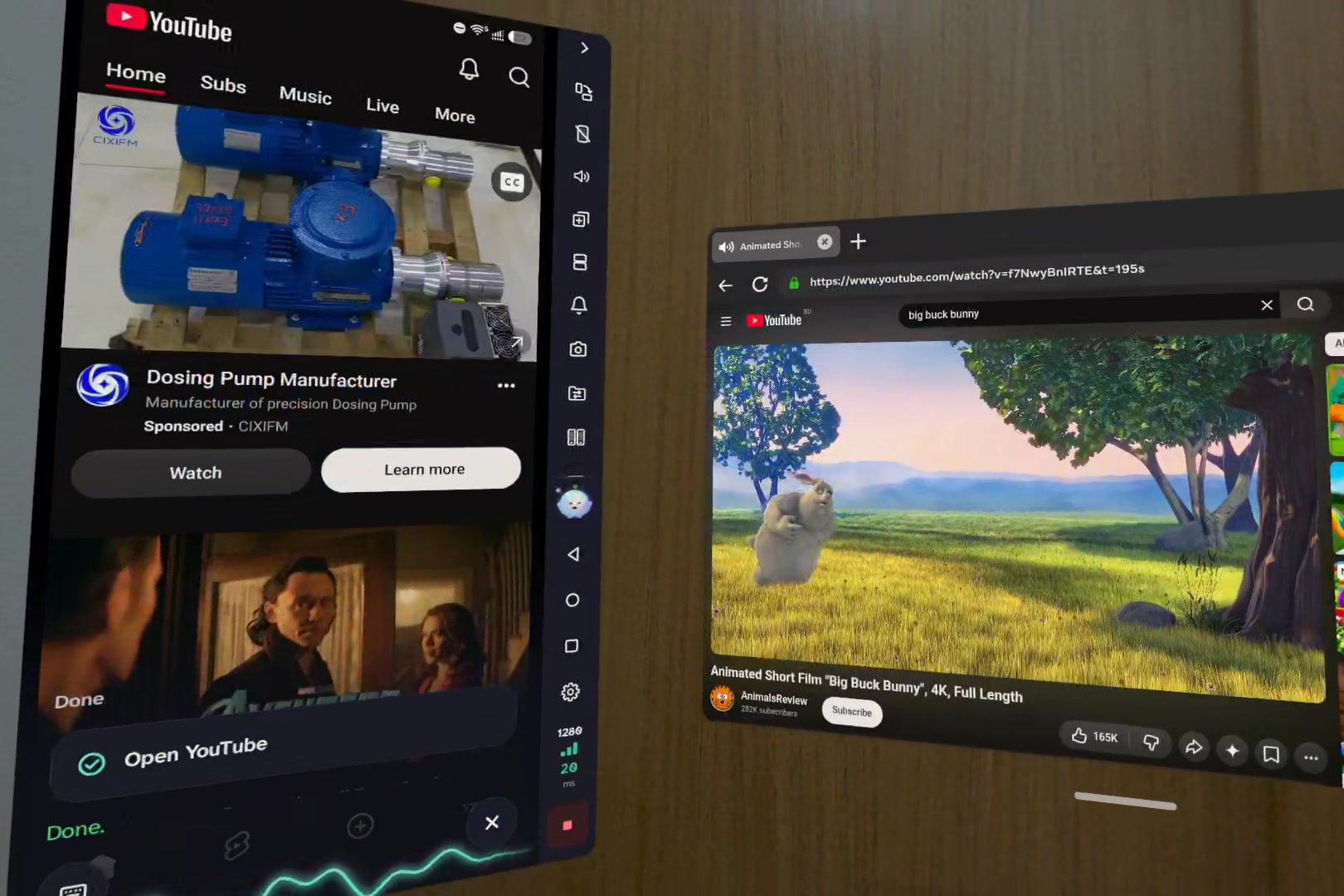
Call Quimi from any app beside QUEMR, like the Quest browser. Say "Hey Quimi" without looking or switching; it opens YouTube on the phone.
-
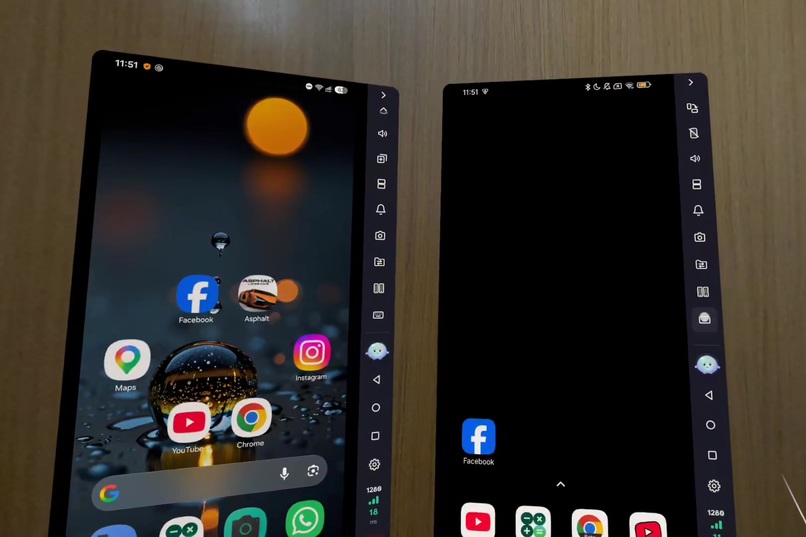
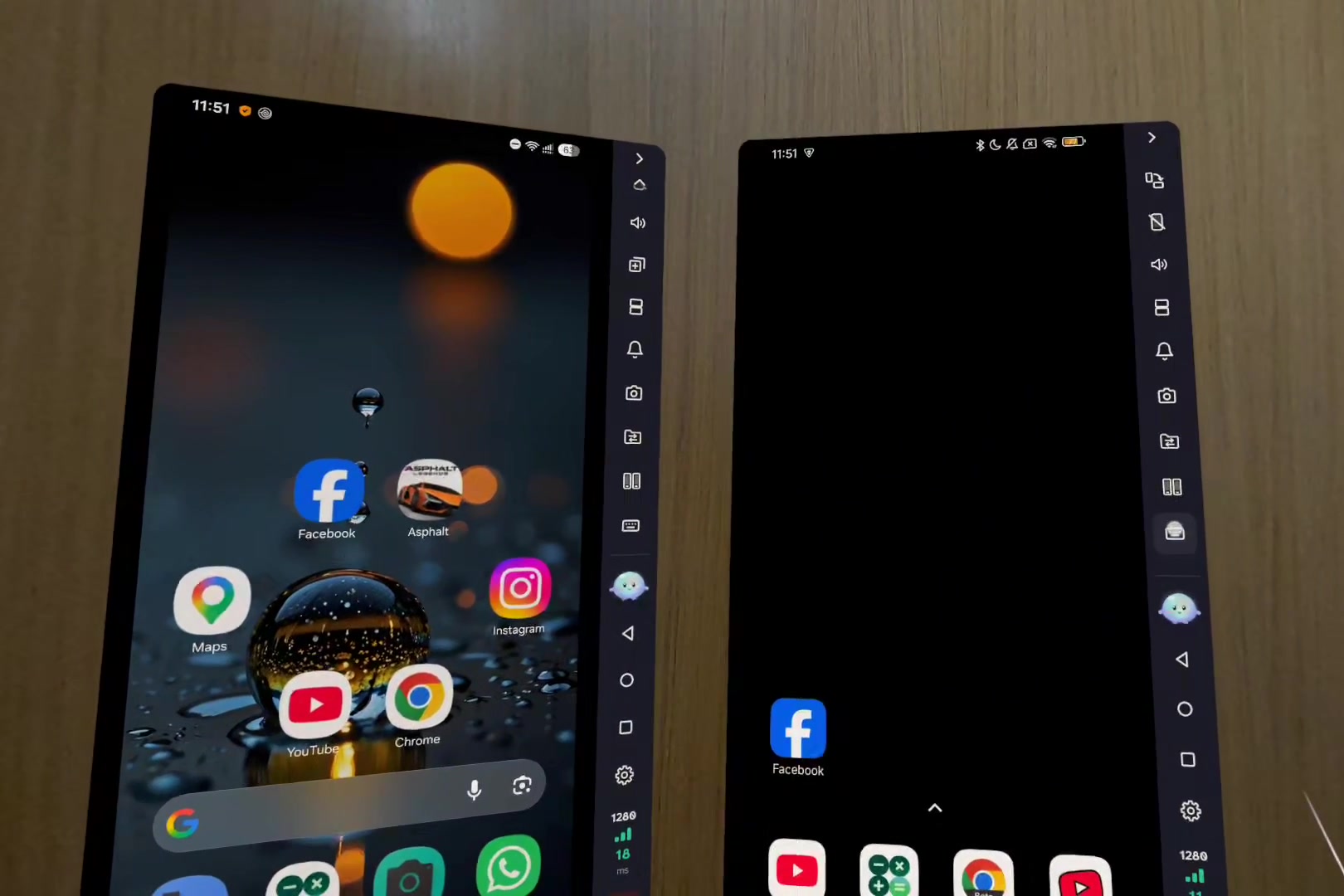
Two phones side by side, each in its own panel.
-
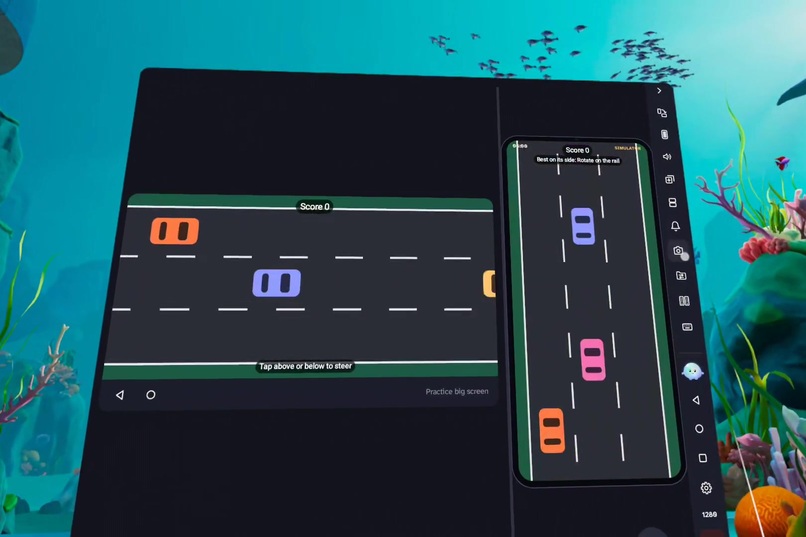
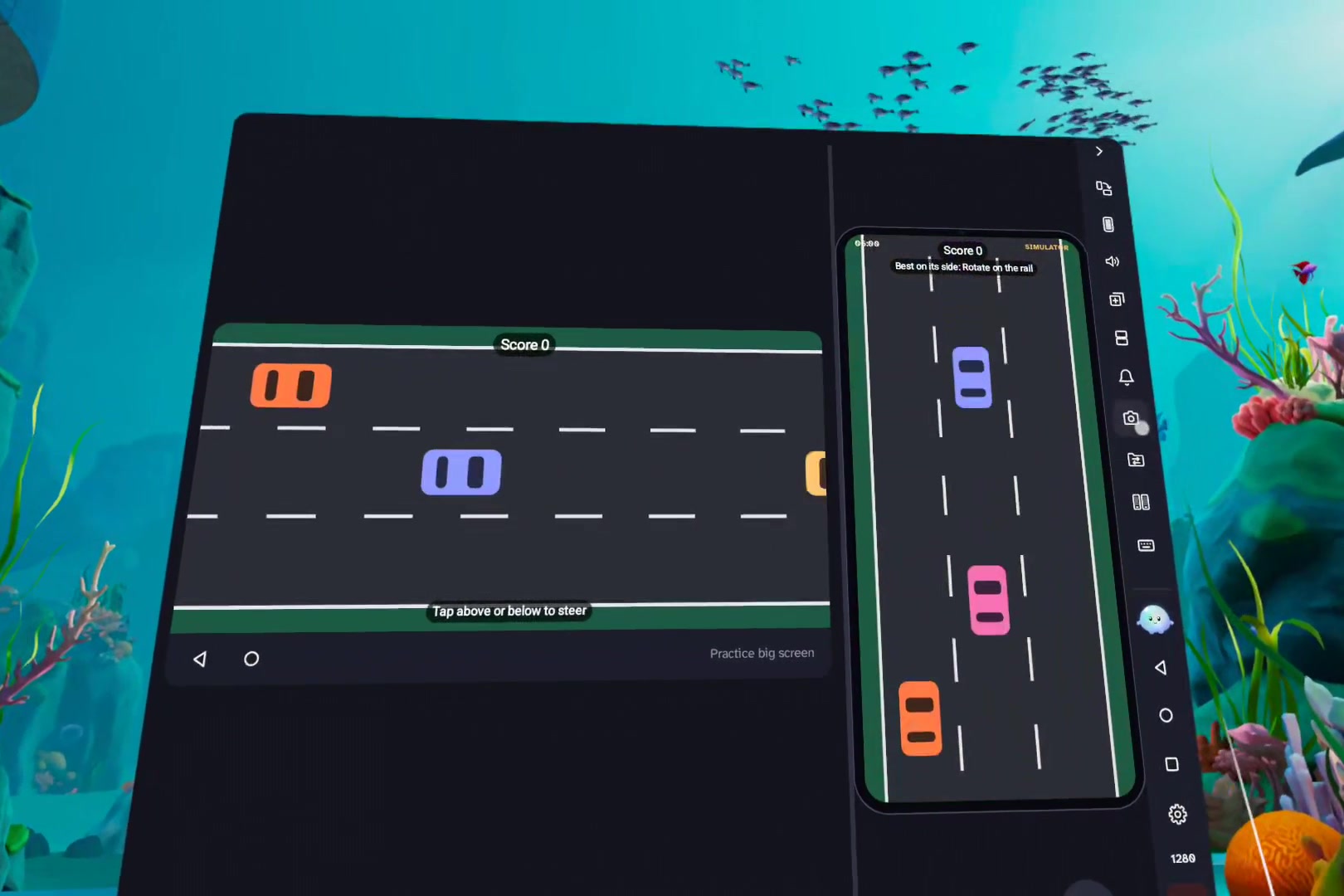
The practice phone's own racing game: upright on the phone, wide on the practice big screen beside it. Played by hand, no real phone needed.
-
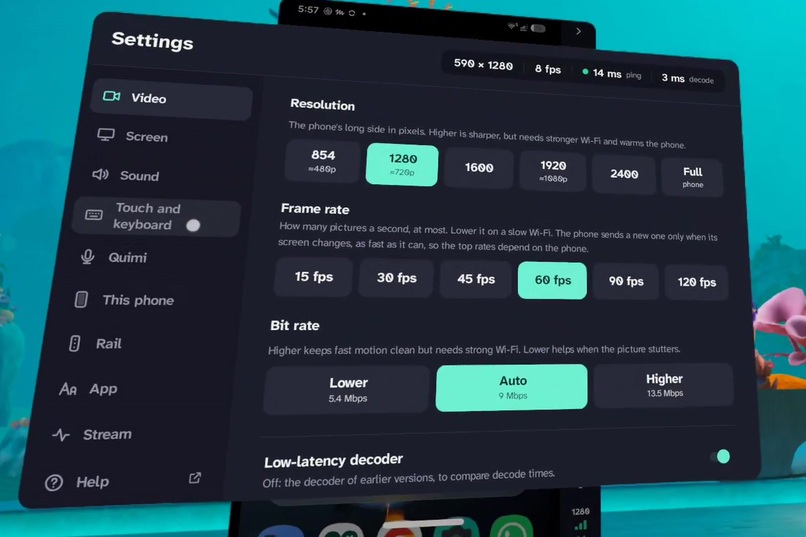
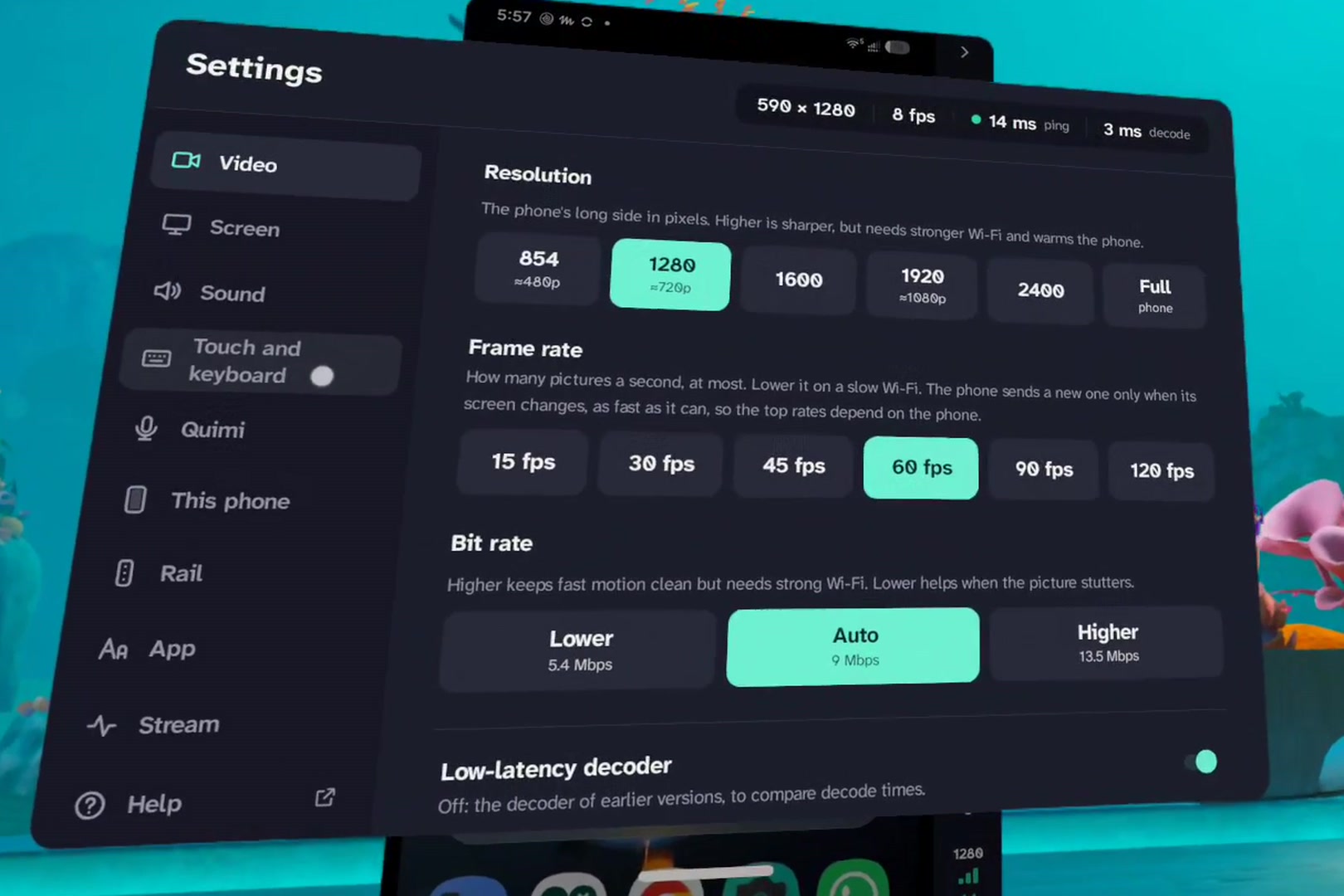
Tune the picture in Settings: resolution up to the phone's full size, 15 to 120 fps, and the bit rate.
-
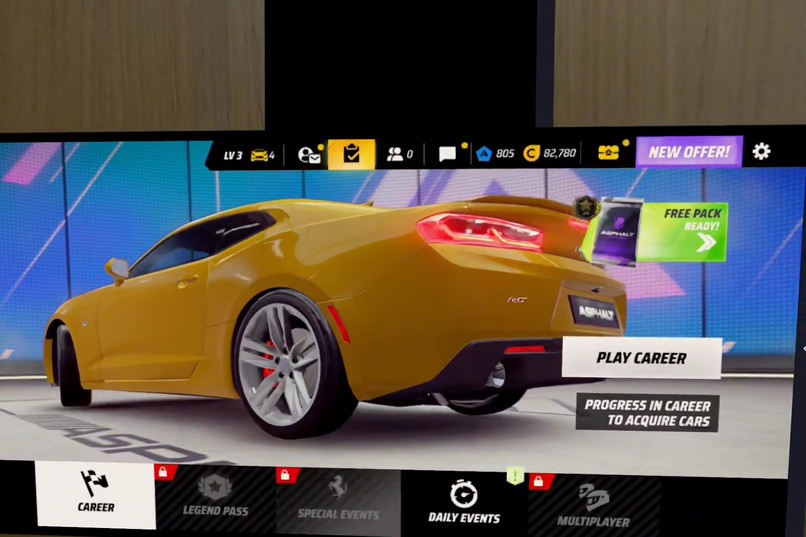
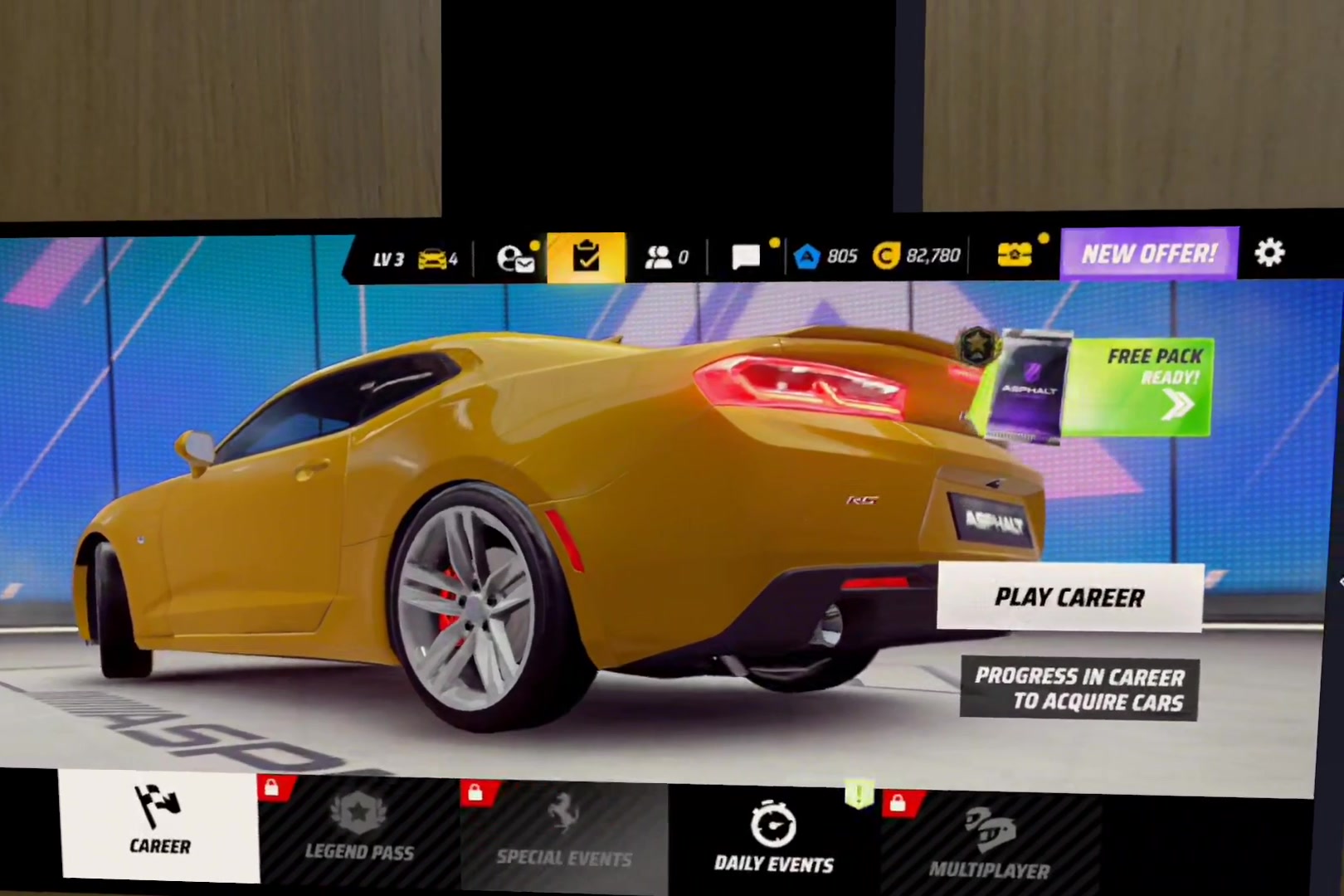
Big screen gaming: a phone game turns the panel wide, and you play it by hand, no controller needed.
-
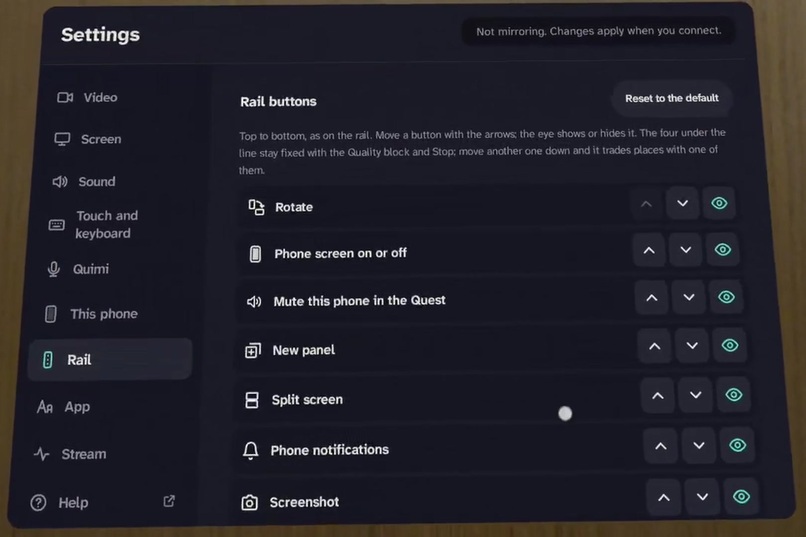
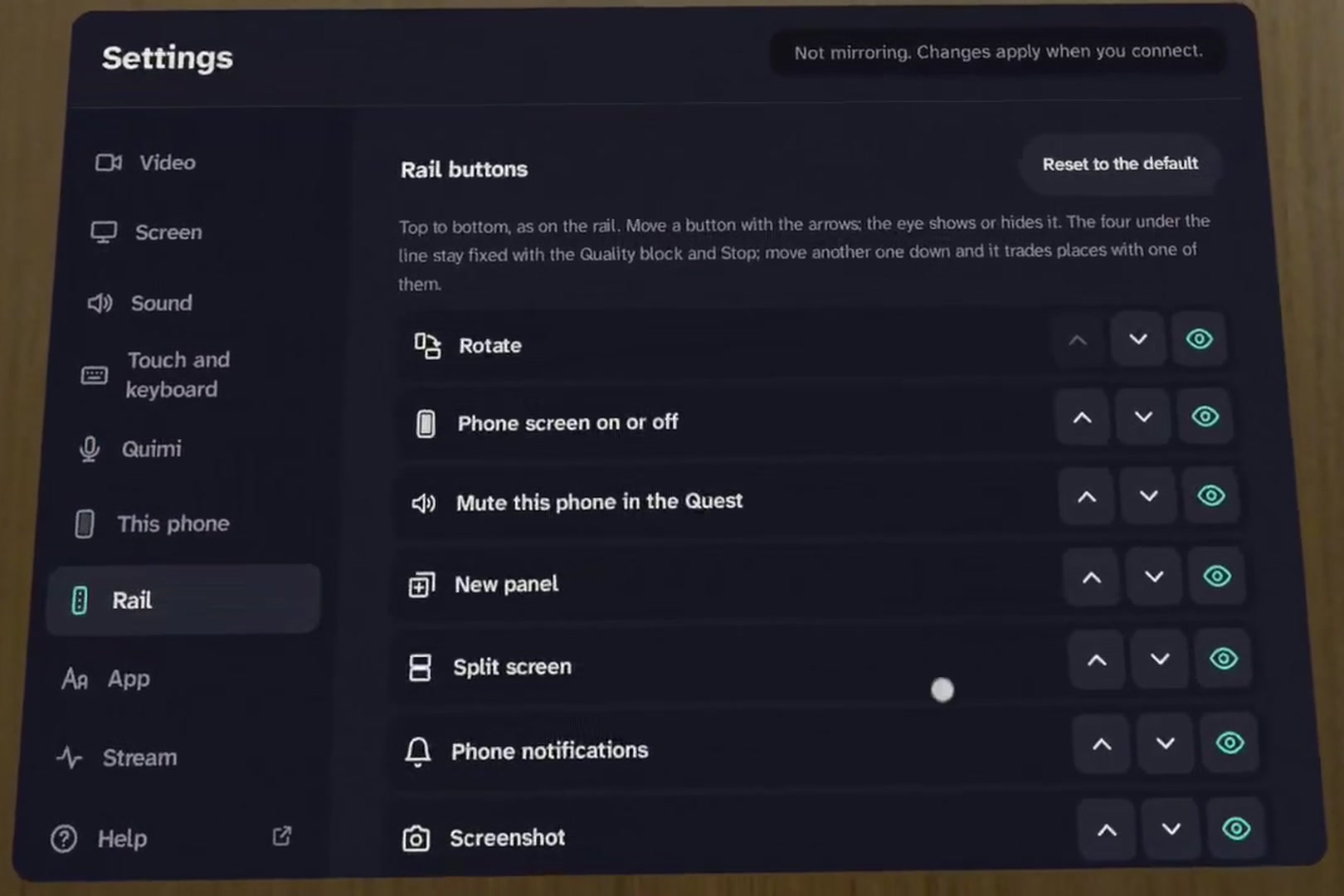
Arrange the rail: move or hide each button. Phone screen on or off darkens the phone itself while the panel keeps showing it.
-
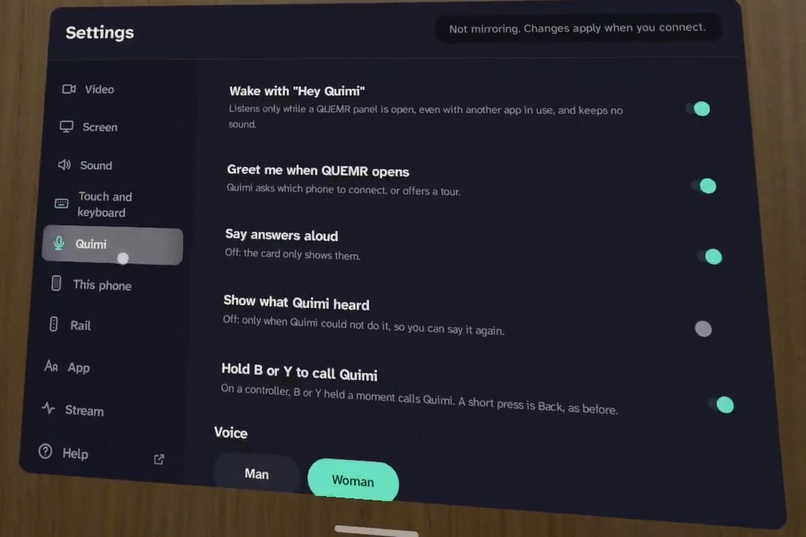
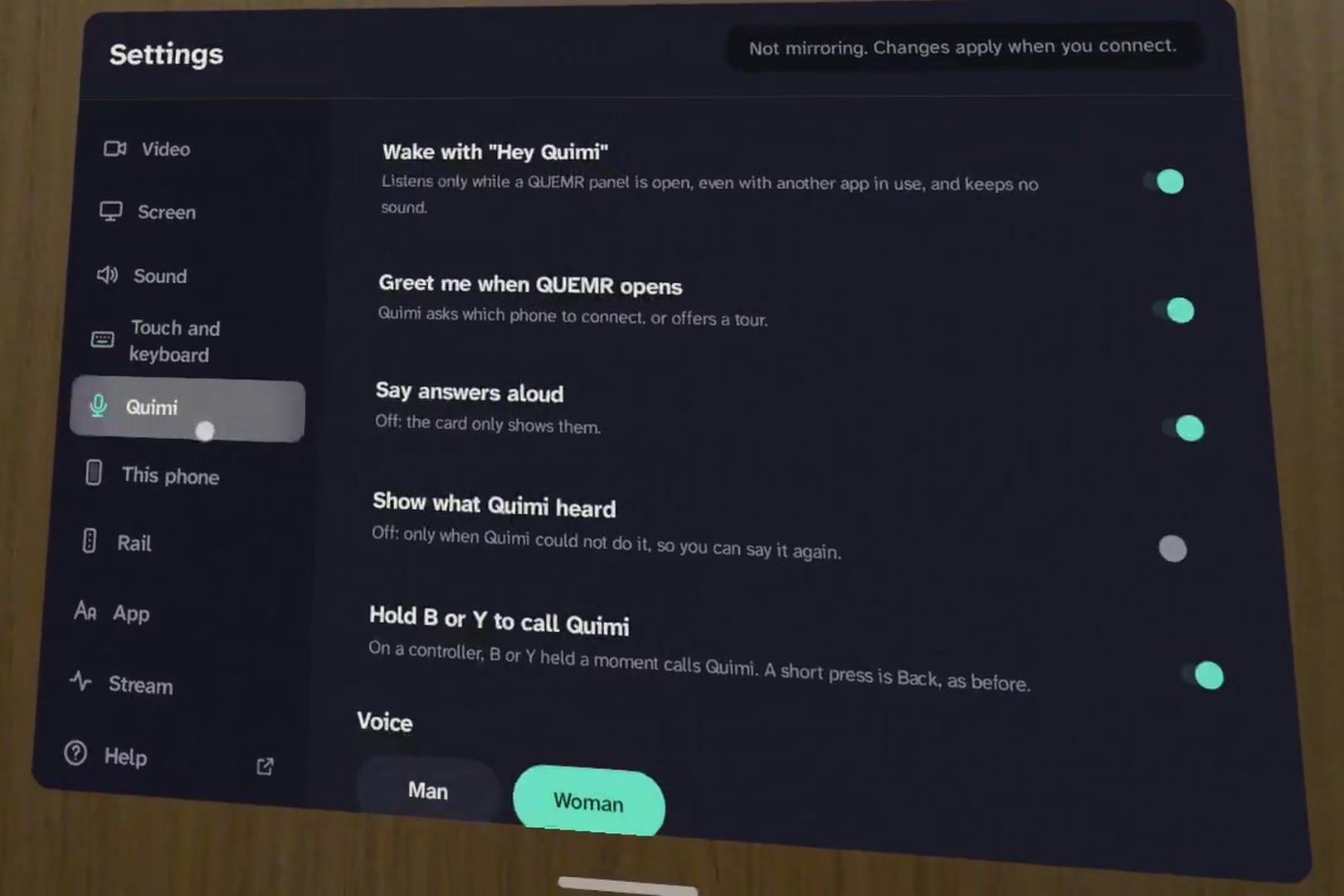
Make Quimi yours: a man's or a woman's voice, answers said aloud or only shown, and Hey Quimi or B and Y to call it.
-
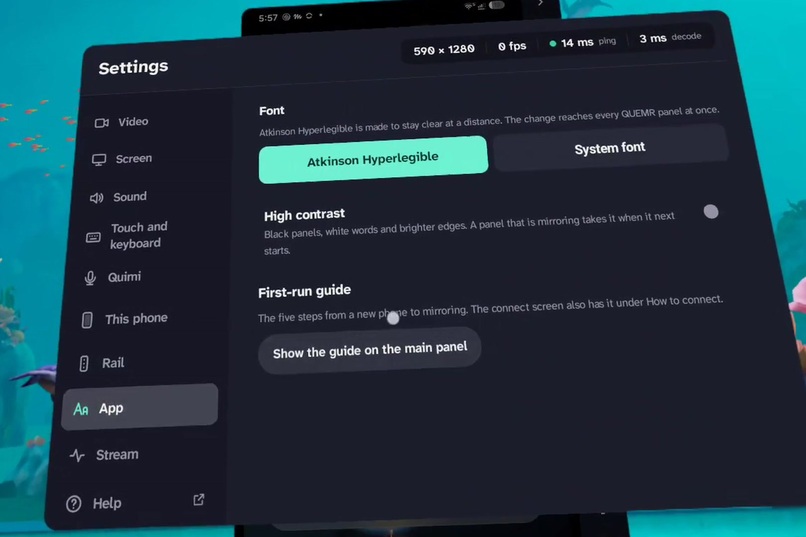
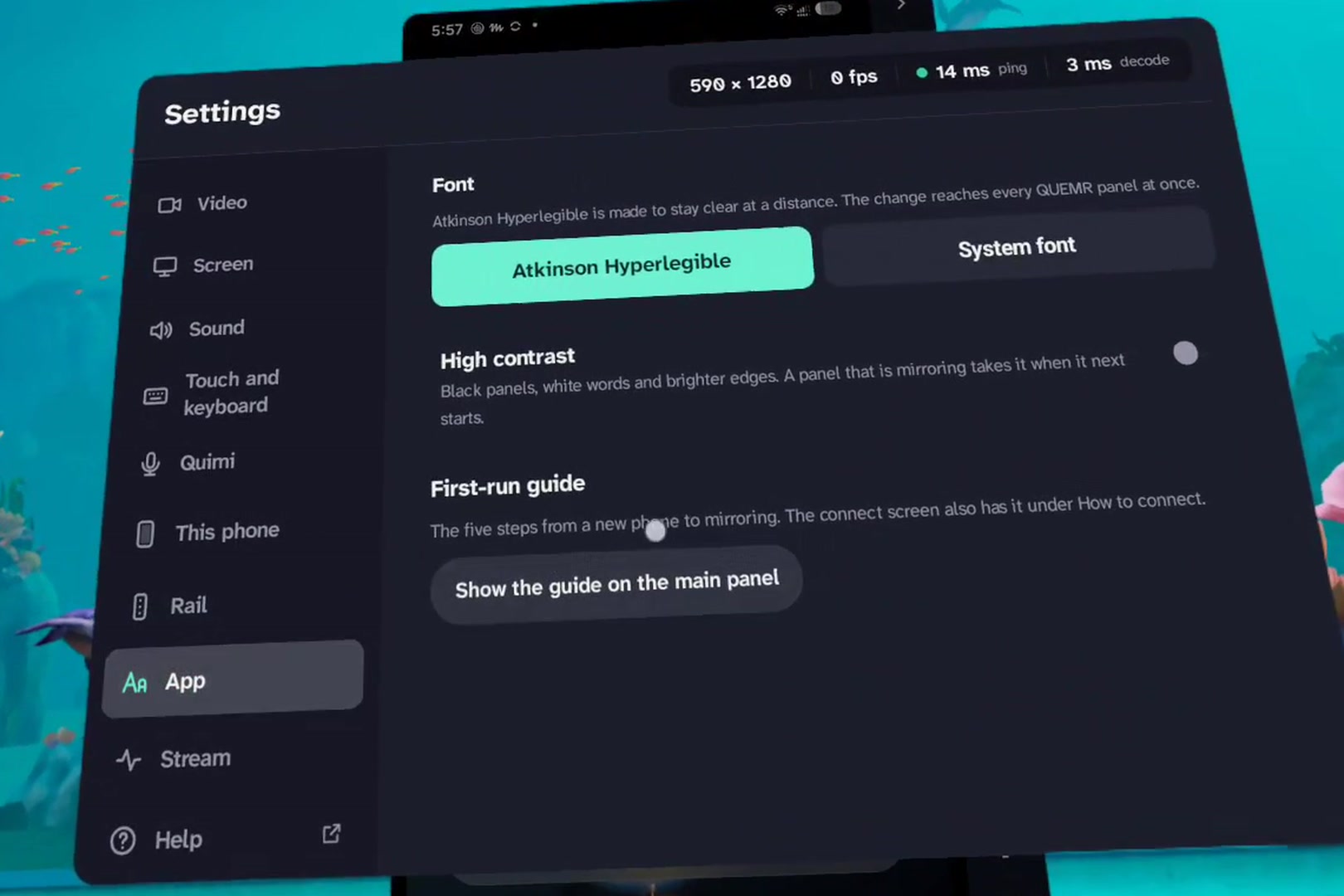
Easy to read: a font made to stay clear at a distance, and high contrast for black panels, white words and brighter edges.
Inspiration
I'm a solo developer from Bangladesh. In VR I kept lifting my headset to check my phone: a message, a video, a timer. Each time the moment in the headset broke. I wanted my phone to come with me into the Quest, without a cable, without installing anything on it, and without sending my screen anywhere outside my home.
Then I wanted more: not just to see the phone, but to ask for things and have them done, the way you would ask a person sitting next to you. That became Quimi.
What it does
QUEMR puts your Android phone in a panel on Meta Quest. You see its screen, hear its sound, and use it with your hands and the Quest keyboard.
- No phone needed to try it. A practice phone and desktop, drawn by QUEMR itself, with a guided tour: every rail button, panels, the wide screen and file transfer can be tried before any phone is connected.
- Pair from the headset. Phones on the same Wi-Fi are found automatically; pair with the code the phone shows (or read it out to Quimi), or a QR code. Nothing is installed on the phone.
- Real control, hands first. Pinch to tap and swipe; Back, Home, Recents, Rotate and split screen on the rail; typing through the Quest keyboard. A wide panel takes over when the phone turns.
- A big screen beside the phone. On supported phones, a second display shaped like the panel, for desktop-style work next to the phone's own screen. Up to three phones, each in its own panel, when turned on in Settings.
- Phone games on a big screen. Turn a game sideways and its panel goes wide, as large as you like in the headset. Play it by touch with hand tracking, tuck the rail away, and turn the phone's own screen off while the game plays on in the Quest.
- Sound in the headset, notifications on the rail, screenshots saved on the Quest, and copied text and files sent either way, each only when you press.
- Quimi, the assistant. Say "Hey Quimi" or press its button, then ask in plain words. "Hey Quimi" works even while you use another app beside QUEMR, such as the Quest browser:
- open apps, go home or back, show notifications, turn the panel, open the big screen;
- on the screen in front: "like", "subscribe", "like and subscribe" in one go, "comments", "next", "play" a title you can see, "tap the search bar", or a button's name, even spelled letter by letter;
- on the phone: maps and directions, places nearby, alarms and timers, do not disturb, dark mode, settings pages;
- answers without opening anything: battery and storage of each phone, the time and date, a quick sum, what is playing, and what your notifications say, one line an app, on Quimi's card;
- when a word could mean two things ("settings", "close"), Quimi asks which, with buttons.
- Quimi knows what not to do. It never buys, pays, deletes your things, reveals passwords, sends a message on its own, or taps a permission dialog for you, and it will not cut the phone's own link to the Quest. It says so and leaves the phone as it was.
Where QUEMR fits the special awards
- Best Agentic Interaction. Quimi is an agent, not a voice remote. It hears on the Quest, plans each request on the device, reads the phone's current screen to find the right button, and acts across real apps: opens, searches, plays, likes, taps a button by its name. It answers from the phone itself (battery, storage, notifications, what is playing), asks when a word could mean two things, and refuses by fixed rules what it must never do. All of it offline. It works from context: "search for cats" searches the app in front; "next" plays the next video on YouTube but swipes to the next one among Shorts; "like" on a video you already liked is left alone, and Quimi says so; "stop" pauses what is playing; with two phones on, it asks which one you mean.
- Best First Five Minutes. No phone, no controller, no setup: the first screen offers a tour on a practice phone that QUEMR draws itself. Quimi shows each button pressed and what it opens, and within minutes you play a video just by asking for it.
- Best Accessibility Forward Experience. Every hand action has a voice alternative. "Hey Quimi" works hands-free, even beside another app; "what's on the screen?" numbers what can be tapped, and saying the number taps it; Back, Home, Recents, Rotate and screenshots by voice; dictation into any text box. There is also a high-contrast mode, adjustable text size, the Atkinson Hyperlegible font, large targets, answers both spoken and shown on the card, and B or Y held on a controller to call Quimi.
- Best Reason to Come Back. QUEMR is made for every day, not one demo: it remembers your phones (their keys sealed by the Android Keystore), can connect by itself when it opens, and Quimi greets you and asks which phone you want, so your phone is waiting each time you put the headset on.
How we built it
QUEMR is a native Android app for Quest, written in Kotlin.
- Its own ADB client. It pairs with the phone's Wireless debugging the way Android itself does (SPAKE2 over TLS, through BoringSSL), connects, and starts the open-source scrcpy-server on the phone. Video (H.264) and sound (Opus) come from the phone's hardware encoders and are decoded on the Quest with MediaCodec; touch, keys and text go back over the same link.
- Panels built for a headset. Large targets, an adjustable rail, the Atkinson Hyperlegible font for text that stays sharp at a distance, a high-contrast mode, and a Quality popup for resolution, frame rate and bit rate.
- Quimi runs on the Quest. Speech is heard by an on-device speech model and each request is planned on the device, so Quimi works with no internet at all. It reads the phone's current screen to find the right button, and keeps fixed rules, outside the AI, for what it must refuse.
- Security from the start. A fresh pairing key per session by default; a remembered phone's key is sealed by the Android Keystore; QUEMR refuses any address outside the home network; no accounts and no analytics; release builds send no logs.
- Tested on real phones. A JVM test suite for the protocol and the assistant's rules, and rounds on a Quest with several Android phones, each one fixed from what the phone answered, not from its brand.
Challenges we ran into
- Every phone behaves a little differently: some refuse injected touch (QUEMR then drives a virtual touchscreen), some need a different way to type. QUEMR asks the phone what it supports and adapts.
- Making an assistant both helpful and safe: easy to ask, quick to act, and firm about what it never does, all offline on a headset.
- Keeping it hands-first: every feature works by hand; voice is a shortcut, never a requirement.
Accomplishments that we're proud of
- A phone in the headset with nothing installed on the phone and nothing leaving the home Wi-Fi.
- Quimi working fully offline on the Quest, on real apps on a real phone.
- A practice phone and tour, so anyone can try QUEMR without a phone at all.
What we learned
- Hands-first design changes everything: targets, rail position, how a panel follows you.
- An assistant earns trust by what it refuses as much as by what it does.
What's next for QUEMR (plans, not promises)
- More languages for Quimi, step by step.
- Quimi reading your notifications and messages aloud, word for word, in a voice made on the Quest itself (today it shows them on its card and says a short line).
- Knowing more apps' screens, so more buttons can be asked for by name.
- Your computer in a panel beside your phones.
- iPhones too, beside Android phones.
- Point and say: point at anything on the phone's panel with your hand and say "open this" or "like this".
- Ears for every accent: Quimi's hearing tuned for South Asian English and for Bangla speakers.
- Messages and calls on your word: Quimi fills in the message or dials the number; you press send or call.
- One-phrase routines: "Good night" disconnects every phone and closes the big screens.
- Calendar, camera and files by voice: "a meeting with Rina tomorrow at 10", "take a photo", "what's in Downloads".
- Panels that keep their place in your room.
- Reading screens that show no text, such as games, on the Quest itself.
- Publishing on the Meta Store, planned for January 2027.
Testing instructions
No phone needed to start.
- Install QUEMR from the Competition release channel and open it. Hand tracking is enough; no controller is needed.
- On the first screen, press Connect on the Practice phone card at the top, or "Take the tour with Quimi" for a walk through every button. Then try the practice phone: open Tube, play a video, say "Hey Quimi, stop", or "read my notifications".
- Try Quimi with no phone: "Who are you?", "What can you do?", "Is my data safe?".
- Optional, with your own Android phone (Android 11 or newer, on the same Wi-Fi as the Quest): on the phone, Settings > Developer options > Wireless debugging: on. (Developer options: tap Build number seven times under About phone.)
- In QUEMR, under "Pair your phone", choose the "Pairing code" tab. On the phone, tap "Pair device with pairing code" and type the code into QUEMR, or read it out: "Quimi, 4 8 2, 9 1 3".
- The phone's screen appears in a panel. Try: "Hey Quimi, open YouTube", "play" a title on the screen, "like and subscribe", "how much battery is left?", "read my notifications", "set a timer for one minute", "buy these shoes" (refused).
- To end: close QUEMR. By default the pairing key is wiped; the phone can also revoke it under Wireless debugging > Paired devices.
Apps that block screen capture (banking, some streaming) show black; QUEMR does not bypass it. The big screen needs a phone that supports a desktop mode; sound on both devices at once needs Android 13.
Built With
- android
- boringssl
- kotlin
- mediacodec
- metaquest
- scrcpy-server
- vosk
- whisper.cpp