-
-

Safety & Pause Logic : Pause Conditions
-
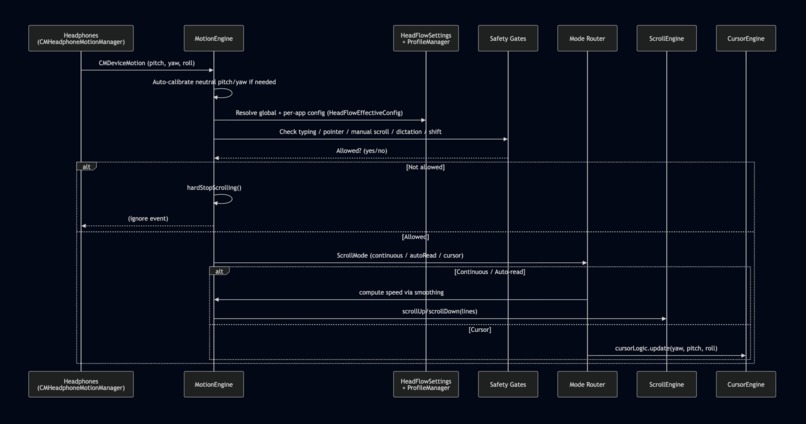
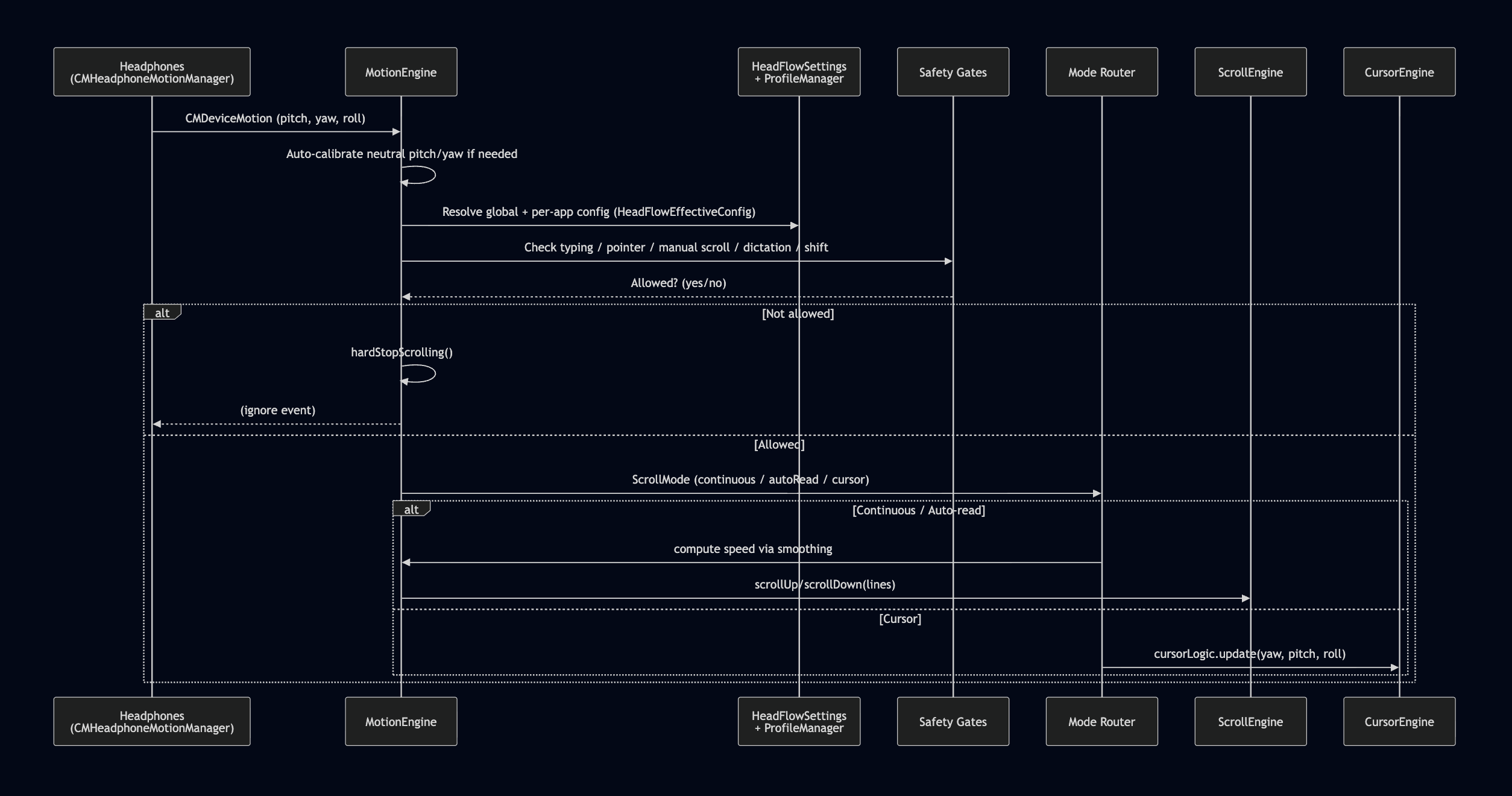
Motion Pipeline : From Head Tilt to Scroll/Cursor
-
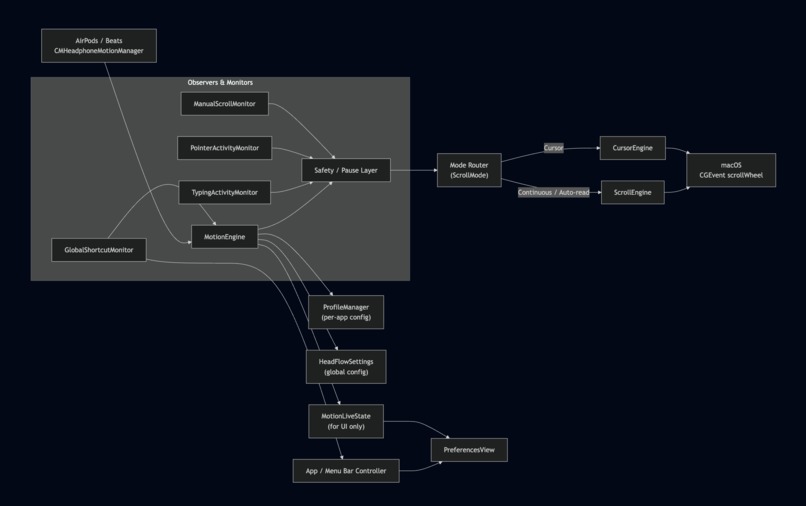
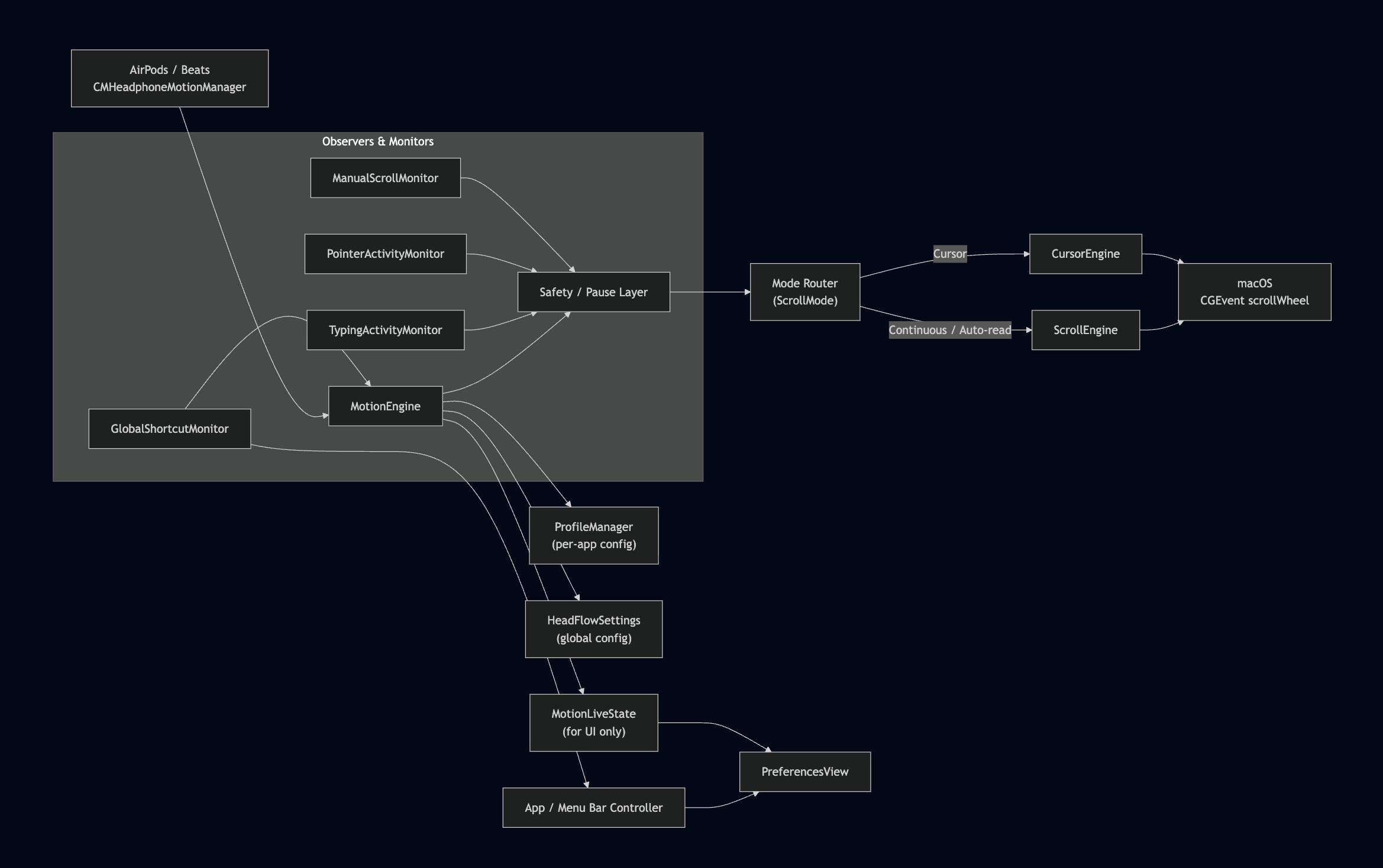
High-Level Architecture

PodsControlMac
Cursor control, hands-free scrolling, on-device dictation, and more for macOS using your AirPods / Beats
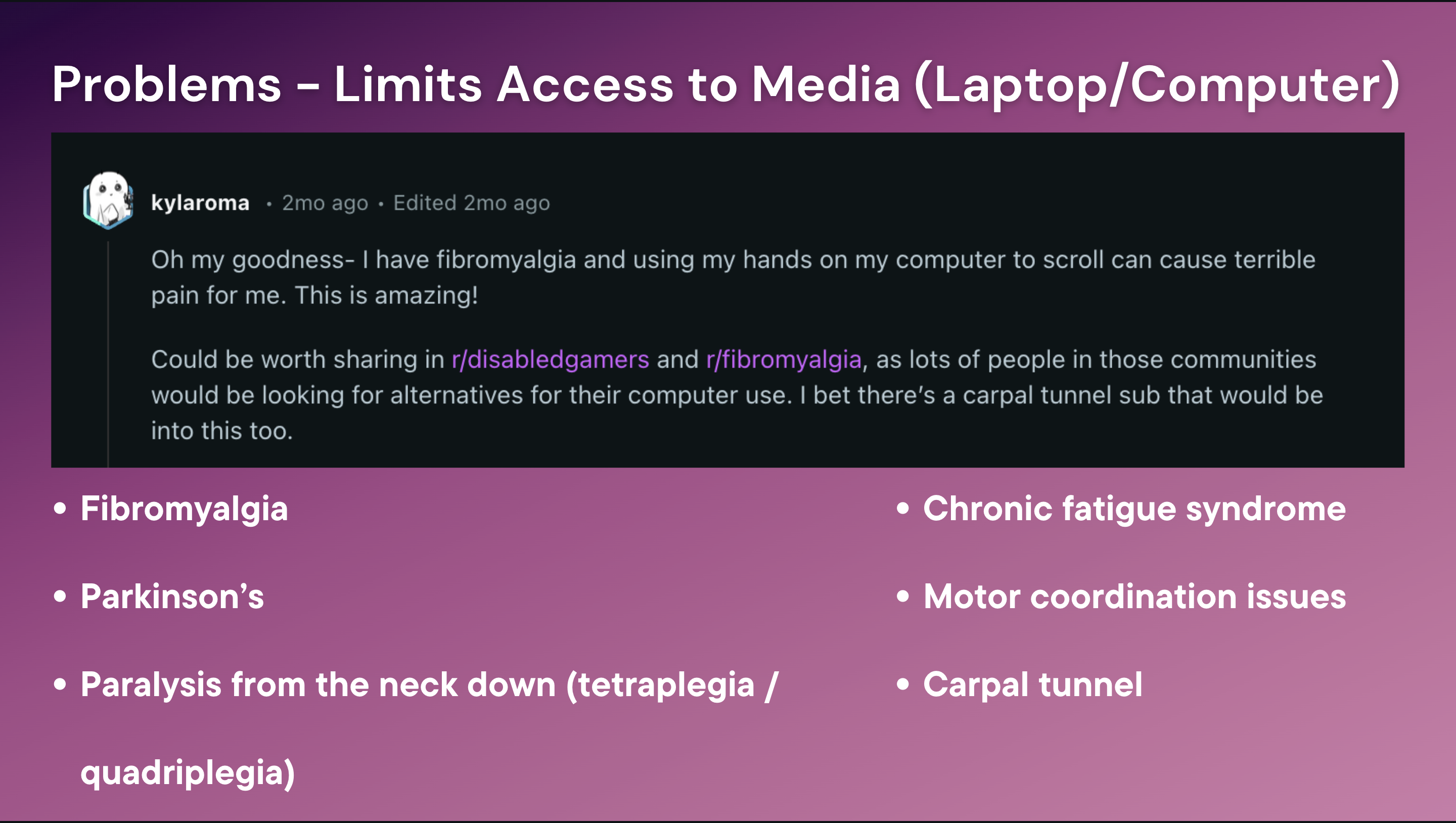
PodsControlMac (codename HeadFlow) started as a project to help a close friend living with fibromyalgia, with the goal of improving accessibility and reducing the sense of alienation while using a MacBook.
As development progressed, it became clear that the use case extended far beyond a single individual.
This project is designed to support people affected by conditions such as:
- Fibromyalgia
- Parkinson’s disease
- Paralysis from the neck down (tetraplegia / quadriplegia)
- Chronic fatigue syndrome
- Motor coordination disorders
- Carpal tunnel syndrome
PodsControlMac helps users interact with macOS in a more natural, hands-free, and accessible way.
What it does
PodsControlMac is a macOS accessibility and utility application that converts spatial head-movement data from AirPods or compatible Apple headphones into system-wide input.
Users can:
- Control the mouse cursor using head movements
- Scroll and read content hands-free
- Use on-device, offline dictation for text input
- Perform actions using head-based gesture movements
- Trigger keyboard shortcuts without touching the keyboard or trackpad
- Follow an integrated tutorial video with chapters for first-time users
Built using Core Motion, CGEvent, and SwiftUI, the app is designed to feel:
✨ Natural • 🔒 Safe • 🧠 Smart about when to get out of your way
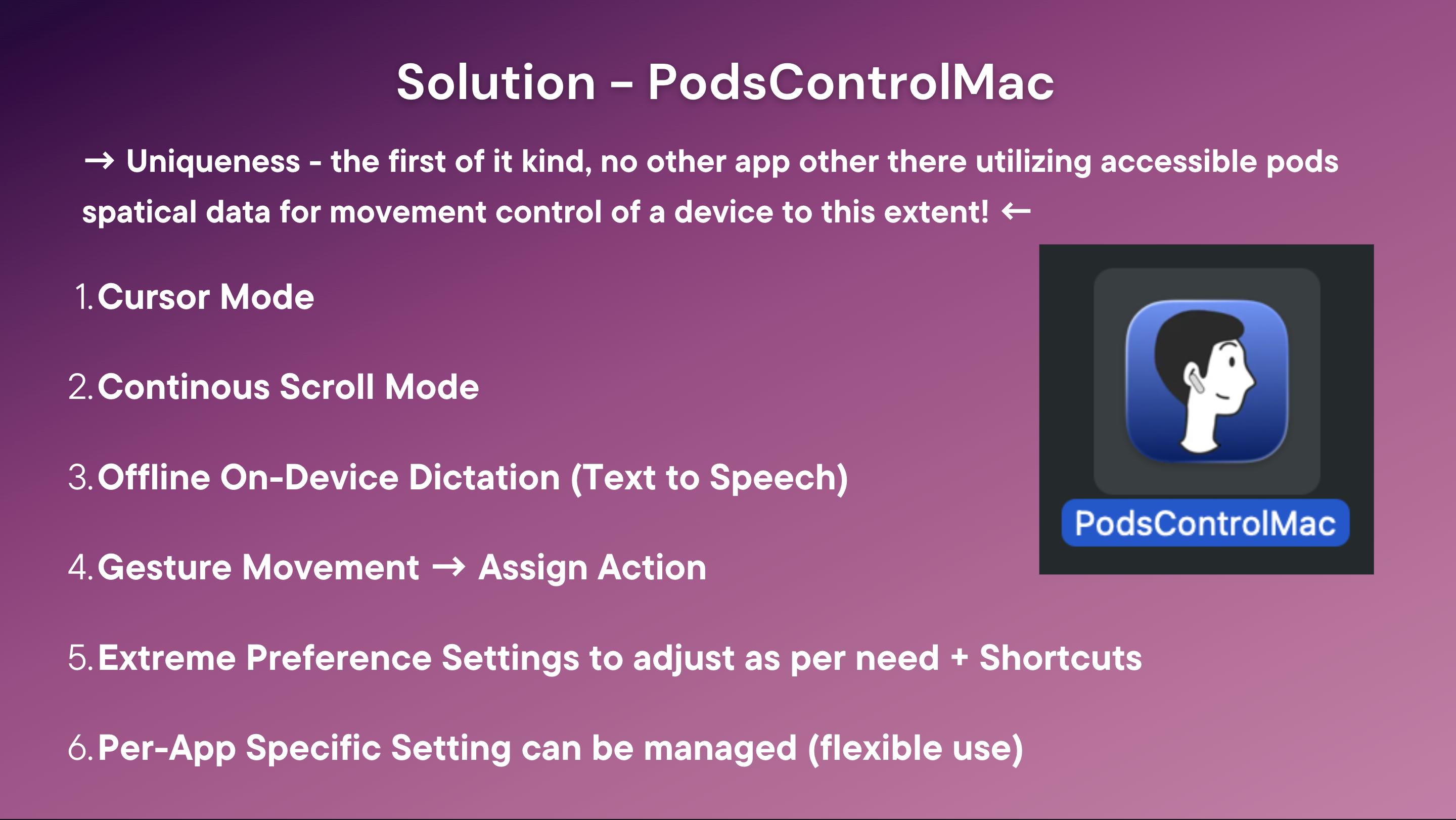
Table of Contents
- Demo Scenarios
- Feature Overview
- System Requirements
- Architecture Overview
- Motion Pipeline
- Safety & Pause Logic
- Per-App Profiles
- Cursor Mode
- Gestures & Shortcuts
- Dictation & Voice Commands
- Preferences App
- Key Code Components
- Building & Running
- Future Ideas
Building & Running
Download App from the Drive Link
_ Or _
- Clone / open project
   git clone <this-repo-url>
   cd PodsControlMac
   open PodsControlMac.xcodeproj   # or .xcworkspace if using SwiftPM/CocoaPods
Open in Xcode and select the PodsControlMac app target.
Signing & Capabilities
- Set your Team and bundle identifier.
Ensure capabilities for:
- Motion / Health (for CMHeadphoneMotionManager)
- Hardened runtime (if applicable)
- Build & Run
- Run the app on your local Mac.
- Grant Permissions on first run
When prompted:
- Enable Accessibility for PodsControlMac in System Settings → Privacy & Security → Accessibility
- Allow Motion & Fitness access for head tracking
- Accept any prompts for input monitoring (if shown)
- Connect headphones & start
- Put on compatible AirPods / Beats
- Ensure they show as your audio output device
- Open PodsControlMac from the menu bar
- Use the global shortcut to start/stop PodsControlMac, or toggle from the UI
- Use the calibrate shortcut to set your neutral head position
- How much manual scrolling vs head scrolling you’re doing
- Which apps you use PodsControlMac with the most
Demo Scenarios
1. Long article / PDF reading
- Put on your AirPods / compatible headphones
- Open Safari or your PDF reader
- Switch to Auto-read mode
- Slightly tilt your head down ➝ the page auto-scrolls at a readable pace
- Straighten your head ➝ scrolling eases to a stop
- Start typing ➝ head scrolling pauses automatically so it never fights you
2. One-handed browsing / coding
- Switch to Continuous mode
- Lean your head back/forward to scroll up/down
- Move your mouse or trackpad ➝ PodsControlMac detects pointer activity and backs off
- Use a global shortcut (e.g. ⇧⌘H) to temporarily toggle PodsControlMac without touching the menu bar
3. Full cursor control with head movements
- Switch to Cursor mode
- Turn your head left/right ➝ cursor moves horizontally
- Tilt your head up/down ➝ cursor moves vertically
- Turn your head past a configurable angle while holding modifiers ➝ single or double click
- Add extra modifier(s) ➝ same motion performs a drag
Example:
- Click = ⌘ (Command)
- Drag = ⌘ + ⌃ (Command + Control)
Turn head right while holding ⌘ to click, then hold ⌘+⌃ and turn again to drag.
Feature Overview
Motion Modes
Continuous Scroll
- Scroll speed scales proportionally with head tilt
- Smooth acceleration & damping using exponential smoothing
- Configurable:
- Scroll sensitivity (0–100)
- Max lines at full tilt (0–500)
- Dead zone (°)
- Max tilt (°) for full speed
- Acceleration & damping factors
Auto-read (Teleprompter)
- Slight downward tilt starts slow, steady downward scroll
- Always scrolls down; straightening your head smoothly decelerates to zero
- Lower max speed and more forgiving timing than continuous mode
Cursor Mode
- Yaw (turning left/right) → horizontal pointer movement
- Pitch (up/down) → vertical pointer movement
- Head turning beyond thresholds (with modifiers) triggers:
- Single click
- Double click
- Click-and-drag via extra modifiers
- Tunable:
- Pointer speed
- Pointer dead zone
- Pointer smoothing
- Single/double click yaw angle
- Click cooldown
- Modifier combinations for click & drag
Safety & “Don’t Fight Me” Features
PodsControlMac constantly asks: “Is now a good time to move the page?”
It automatically pauses for:
- Mouse / trackpad movement (
PointerActivityMonitor) - Typing (
TypingActivityMonitor) - Manual scrolling (scroll wheel events from real hardware, not PodsControlMac)
- Dictation (optional)
- Shift clutch – hold ⇧ to temporarily suspend head scrolling
- When its own Preferences window is frontmost (UI pause, no live updates)
Each safety feature is individually configurable in Preferences.
Per-App Profiles
Different apps need different behaviour. PodsControlMac lets you create per-app profiles:
- Enable/disable PodsControlMac in specific apps
- Per-app overrides for:
- Scroll sensitivity
- Max lines at full tilt
- Dead zone
- Max tilt
- Scroll Mode (Continuous / Auto-read / Cursor)
Profiles are managed via ProfileManager and stored in UserDefaults.
Gestures & Shortcuts
You can bind head tilt gestures to system actions:
- Gestures (detected via ROLL + YAW):
- Tilt left
- Tilt right
- Bindable actions:
- PodsControlMac actions (e.g. toggle, calibrate, change mode)
- Standard macOS shortcuts (Cmd+C, Cmd+V, etc.)
- Your own custom shortcut bank (any key + modifiers)
Global keyboard shortcuts (works system-wide):
- Toggle PodsControlMac on/off
- Create profile for current app
- Open Preferences
- Calibrate head position
- Cycle modes (Continuous / Auto-read / Cursor)
- Toggle dictation HUD
- Toggle dictation mic
All are customizable from the Shortcuts tab with a pill-style shortcut recorder.
Dictation & Voice Commands
PodsControlMac can be paired with dictation (SFSpeechRecognizer API) to reduce keyboard usage:
- Optional: Pause PodsControlMac while dictating
- Optional: Auto-commit dictated text after X seconds of silence
- Custom dictation commands:
- “When I say:
new paragraph→ type:\n\n” - “When I say:
wrap this→ type:{{ $SELECTION }}” (conceptually)
- “When I say:
Configured via a lightweight list of DictationCommand objects, exposed in Preferences as:
- Trigger phrase
- Replacement text
Licensing / Trial
While the full implementation details are in AccessGate, conceptually:
- Trial mode with limited usage / time
- One-time unlock for full access
- Preferences include a License tab and a TrialStatusBanner at the top
The runtime checks AccessGate.hasFullAccess inside MotionEngine. If the trial is over and not unlocked, motion events are simply ignored.
System Requirements
- macOS 14.0 (Sonoma) or later
(@available(macOS 14.0, *)onMotionEngine) - AirPods / Beats with head tracking (via
CMHeadphoneMotionManager) - Xcode 15+ to build
- Permissions:
- Accessibility (to send scroll & mouse events)
- Motion & Fitness (for CMHeadphoneMotionManager)
- Possibly Input Monitoring (for global key/mouse monitors, depending on OS dialog behavior)
Architecture Overview
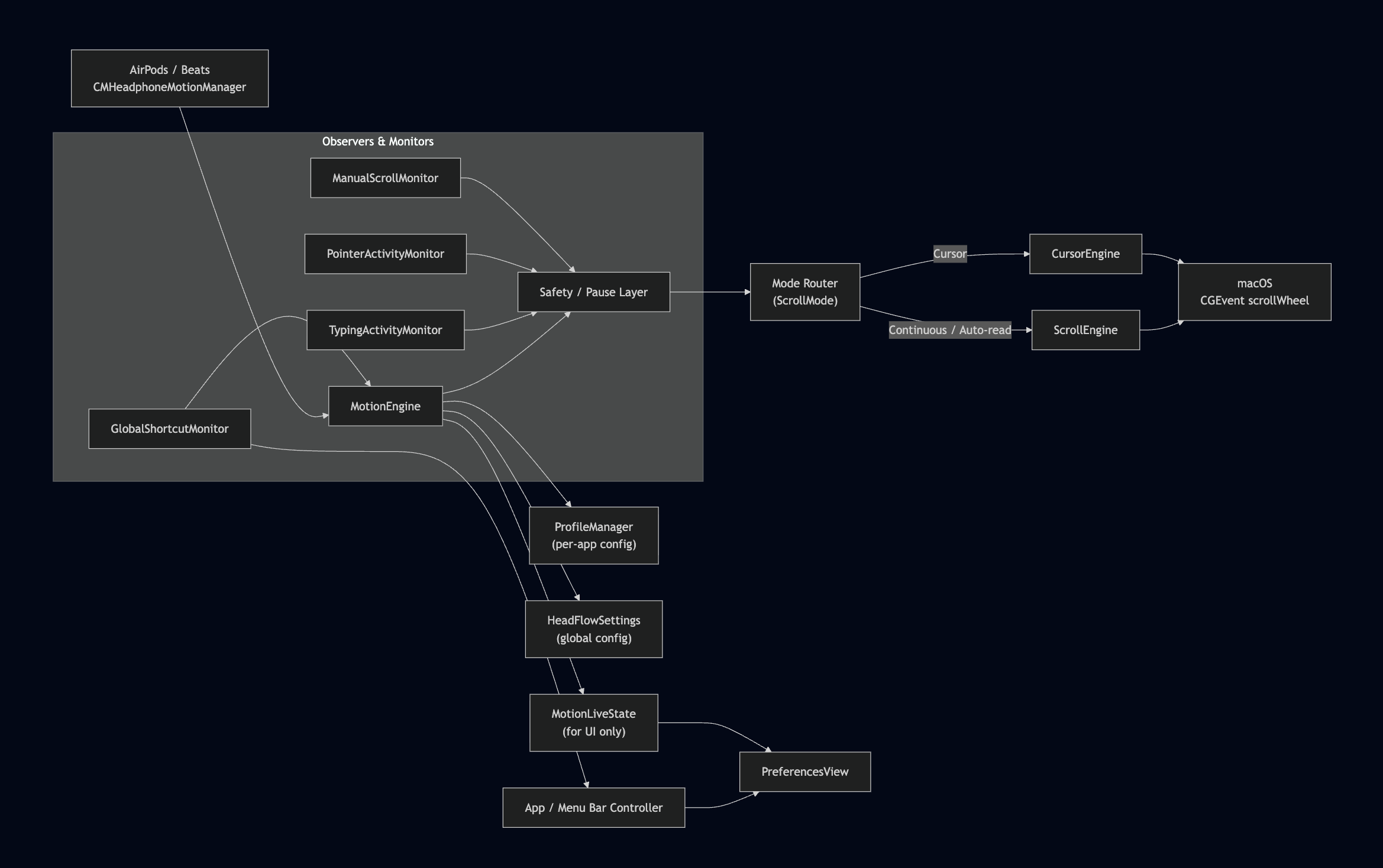
High-Level Architecture
Motion Pipeline
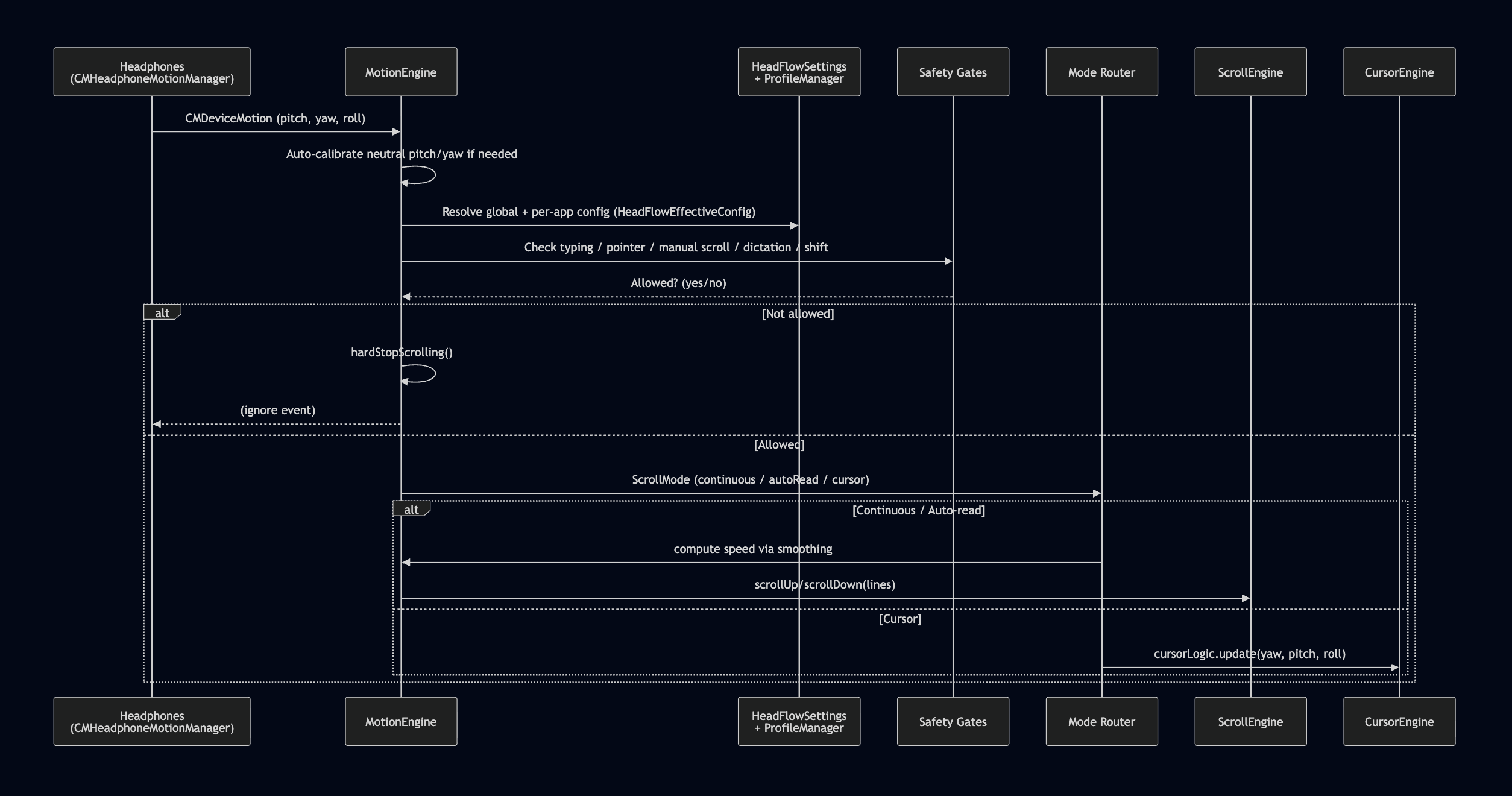
From Head Tilt to Scroll/Cursor
Smoothing & Telemetry
For scrolling modes, motion is mapped to velocity (lines/sec):
- Compute
delta= current pitch − neutral pitch - Apply dead zone and max tilt
- Map to [−1, 1] factor and [0, 1] magnitude
- Compute max speed =
baseLines * speedMultiplier - Use exponential smoothing with different tauUp / tauDown for acceleration vs braking:
   let accelerating = abs(targetSpeed) > abs(continuousCurrentSpeed)
   let tau = accelerating ? tauUp : tauDown
   let alpha = 1.0 - exp(-dt / tau)
   continuousCurrentSpeed += (targetSpeed - continuousCurrentSpeed) * alpha
- Integrate speed over
dtto accumulate lines and send integer scroll events.
Safety & Pause Logic
Pause Conditions

Each pause state is reflected in MotionLiveState.Status:
.idle.tracking.disconnected.needsSetup.pausedPointer.pausedTyping.pausedModifier.pausedManualScroll.pausedDictation
These are shown in the Preferences UI (and were partially trimmed to keep CPU usage low when the app is frontmost).
Per-App Profiles
Managed by ProfileManager and AppProfile:
struct AppProfile: Identifiable, Codable, Hashable {
    var id: UUID
    var bundleIdentifier: String
    var appName: String

    var isEnabled: Bool
    var scrollSensitivity: Double
    var baseLines: Double
    var deadZoneDegrees: Double
    var maxTiltDegrees: Double
    var scrollModeRaw: Int
}
Global vs Effective Config
struct HeadFlowEffectiveConfig {
    var isEnabled: Bool
    var scrollSensitivity: Double
    var baseLines: Int32
    var deadZoneDegrees: Double
    var maxTiltDegrees: Double
    var scrollMode: ScrollMode
}
Resolution logic:
If there is an
AppProfilematching the current frontmost bundle ID:- Use its values (clamped to safe ranges)
Otherwise:
- Use global
HeadFlowSettingsvalues
- Use global
This lets you tune:
- Safari → gentle auto-read
- VSCode → snappy continuous scroll
- Figma → cursor mode only
…without manually toggling modes each time.
Cursor Mode
Cursor mode is powered by:
CursorLogic– interprets yaw/pitch/roll into desired cursor deltas + click/drag eventsCursorEngine– synthesizes mouse movement & clicks via CoreGraphics
Key concepts:
Yaw delta (turning left/right around neutral yaw):
- Controls X movement
Pitch delta (tilting up/down around neutral pitch):
- Controls Y movement
Dead zone:
- Small head movements are ignored so the cursor doesn’t jitter
Smoothing:
- Head data is filtered before being turned into cursor deltas, for a less “nervous” pointer
Click gestures:
- Turn beyond
singleClickYawDegwith the configured click modifiers to click - Turn beyond
doubleClickYawDegfor double-click - Add extra drag modifiers to start a drag operation
- Turn beyond
Gestures & Shortcuts
Gesture Detection
Implemented in MotionEngine.detectGestures:
Uses ROLL and YAW:
- Roll → tilt toward shoulders
- Yaw → turning left/right
Normalizes roll to [−180°, 180°]
Combines yaw into roll to better reflect real-world head movements:
  let combinedTiltRight = rollDeg + (yawDeg > 0 ? yawDeg * 0.3 : 0)
  let combinedTiltLeft  = rollDeg - (yawDeg < 0 ? abs(yawDeg) * 0.3 : 0)
Applies:
- Threshold (°)
- 85% hysteresis (for clean edge detection)
- Per-gesture cooldown
Emits
.tiltLeft/.tiltRighttoGestureDispatcherwith aGestureContext:.headFlowOn.headFlowOff
Gesture Settings in Preferences
- Tilt threshold slider (degrees)
- Cooldown slider (seconds)
For “HeadFlow ON” and “HeadFlow OFF” separately:
- Pickers to map tilt left/right →
GestureAction: - None
- HeadFlow action
- Standard macOS shortcut
- Custom shortcut
- Pickers to map tilt left/right →
Custom Shortcut Bank
User-defined CustomShortcut entries:
- Name (“Copy & Close Tab”)
- KeyboardShortcut (e.g. ⌘+⌥+W)
These can be reused across gestures for readable configurations like:
“When HeadFlow is OFF and I tilt right, fire: Custom – Center Mouse”
Dictation & Voice Commands
Dictation integration (high-level):
DictationRuntimeState.shared.isDictatinginforms pause logicSettings:
dictationPausesHeadFlowdictationAutoCommitEnableddictationAutoCommitDelaySeconds
Custom
DictationCommandrows in Preferences:- Trigger phrase (“new line”)
- Replacement text (
\n)
These can be used to automate small text patterns via voice.
Preferences App
The Preferences UI (PreferencesView) is a modern SwiftUI interface with tabs:
Overview
- System status: Motion permission, Accessibility status
- Quick buttons: “Refresh Status”, “System Settings…”
- Trial / license banner
Scrolling
- Enable head scrolling
- Scroll sensitivity & base lines
- Cursor Control section:
- Pointer speed, dead zone, smoothing
- Single / double click yaw angle
- Click cooldown
- Modifier picker for click & drag
- Scroll Mode (Continuous / Auto-read / Cursor)
- Safety & Pausing toggles:
- Pause while mouse moving
- Pause while typing
- Hold ⇧ to disable
- Pause while dictating
- Pause when scrolling manually (+ pause duration slider)
- Dictation settings & voice commands
Gestures
- Tilt threshold & cooldown
- When HeadFlow is ON: tilt left/right → actions
- When HeadFlow is OFF: tilt left/right → actions
- Custom shortcuts bank
Apps
- Explanation of per-app profiles
- List of
AppProfilecards: - Enable in this app
- Per-app scroll sensitivity, base lines, scroll mode
- Delete profile button
Advanced
- Dead zone
- Max tilt for full speed
- Acceleration factor
- Damping factor
Shortcuts
- Global shortcuts for:
- Start/Stop HeadFlow
- Create profile for current app
- Open preferences
- Calibrate head position
- Cycle scroll mode
- Toggle dictation HUD
- Toggle dictation mic
- Each uses a ShortcutRecorderButton pill:
- Click to record
- Press Esc to clear
- Tips card about recording shortcuts
License
- Trial status, purchase options, restore purchases, etc.
(Implemented via
PurchaseManager,LicenseSectionView,AccessGate.)
- Trial status, purchase options, restore purchases, etc.
(Implemented via
Mode changes display a macOS HUD-style overlay (ModeNotificationUtil + ModeHUDWindow) with:
- SF Symbol icon (scroll, book, cursor)
- Mode name (“Continuous Scroll”, “Auto Read”, “Cursor Control”)
- Blur background, rounded corners, fade in/out
Key Code Components
Motion & Input
MotionEngine– core logic for motion → scroll/cursorCursorLogic– interprets yaw/pitch/roll into cursor deltas & click/dragCursorEngine– sends CGEvent mouse moves/clicksScrollEngine– sends CGEvent scrollWheel events
Config & State
HeadFlowSettings– global settings &@AppStoragekeysProfileManager/AppProfile/HeadFlowEffectiveConfig– per-app profilesHeadFlowStatus– global status (permissions, headphones, etc.)HeadphoneDeviceState– connection & name infoMotionLiveState– live telemetry for the UI
Monitors
TypingActivityMonitor– global keyDown activityPointerActivityMonitor– mouse moved / draggedManualScrollMonitor– CGEvent tap for real scroll wheel eventsManualScrollPauseController– small time window after manual scrollGlobalShortcutMonitor– global keyboard shortcuts
Gestures & Dictation
GestureType,GestureAction,GestureContext,GestureDispatcherGestureSettings,GestureMapping,CustomShortcutDictationRuntimeState,DictationCommand
UI
PreferencesView& section subviewsShortcutRecorderButton,ShortcutRecorderFieldCursorModifierPickerLicenseSectionView,TrialStatusBannerModeNotificationUtil,ModeHUDWindow,ModeHUDView
Future Ideas
- Expand gesture library with nod, shake, double-nod for undo/redo, tab switching, zoom, or triggers
- Add hybrid eye-tracking + head motion mode for precise cursor + gross scrolling (via future Continuity APIs)
- Implement intelligent auto-switching of scroll modes based on window title, UI element, or app context
- Enable voice + head combo commands (e.g., “scroll faster” while tilting to boost sensitivity temporarily)
- Integrate deeper with Switch Control and VoiceOver for rotor navigation and spoken text triggers
- Support multiple user calibration profiles for shared Macs or different seating postures
- Add gentle fatigue/posture reminders and optional head-movement logging for ergonomics review
- Sync profiles, gestures, shortcuts, and calibration data via iCloud across Macs
Build for Orygn AI Hackathon 2026 by - Aaditya Srivastava — macOS architecture, motion engine, cursor logic, UI/UX, safety systems, demo
Built With
- airpods
- appkit
- macos
- swift
- swiftui

Log in or sign up for Devpost to join the conversation.