-
-
Penguin Area: Tabletop MR Friend
-
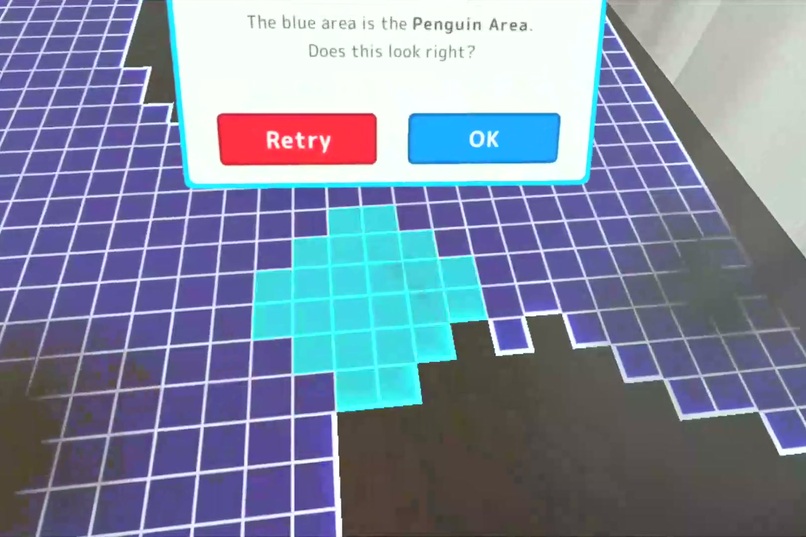
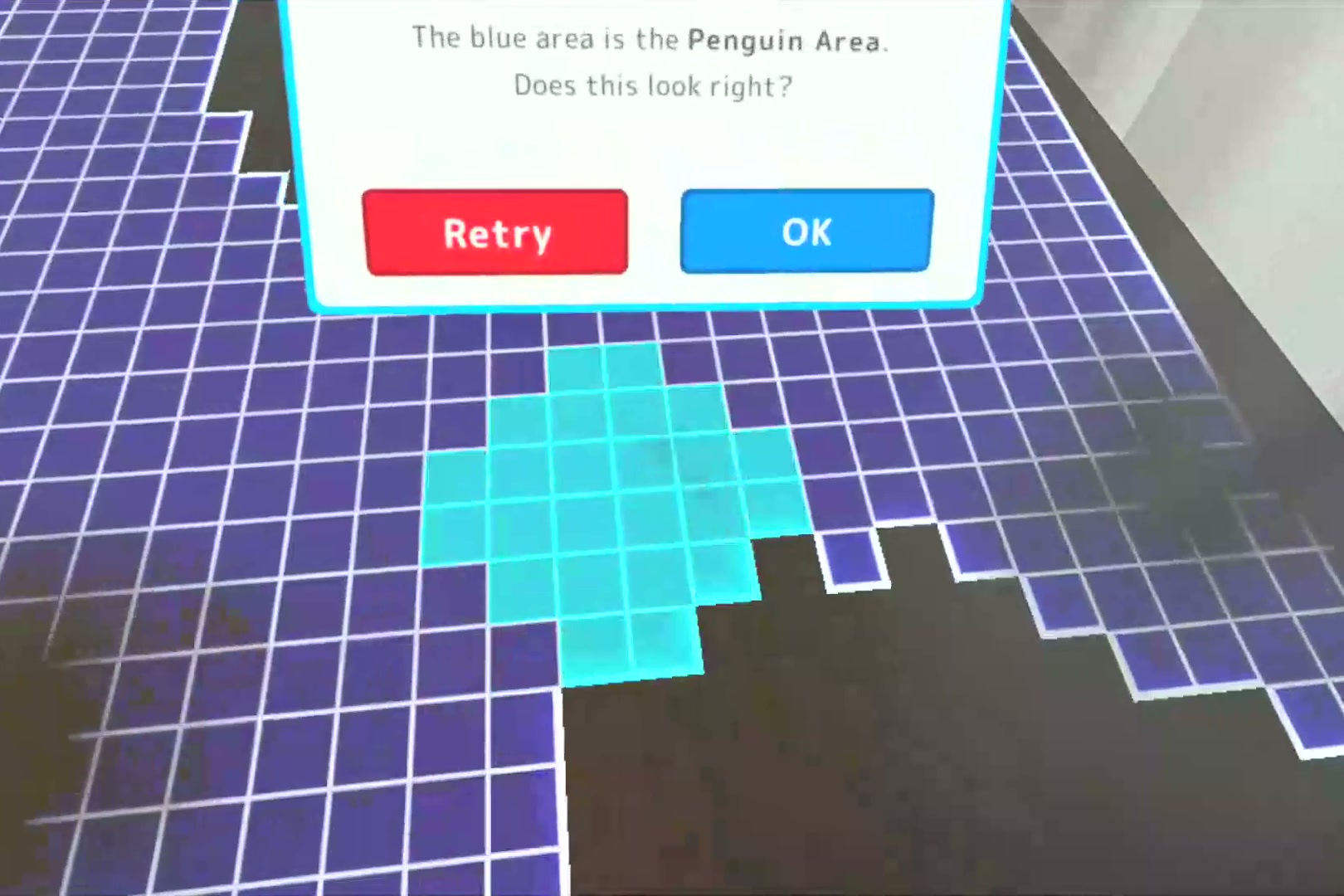
Rest a hand on the table, and the play area follows the table's real shape. No room scan needed.
-
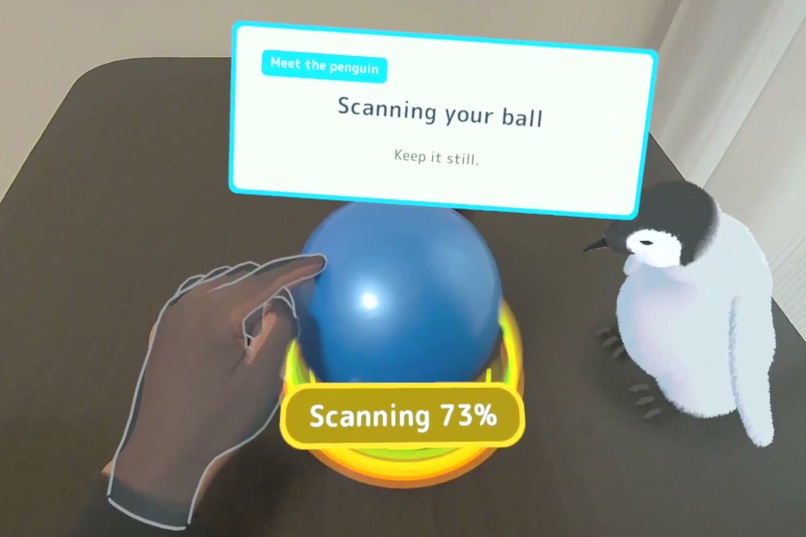
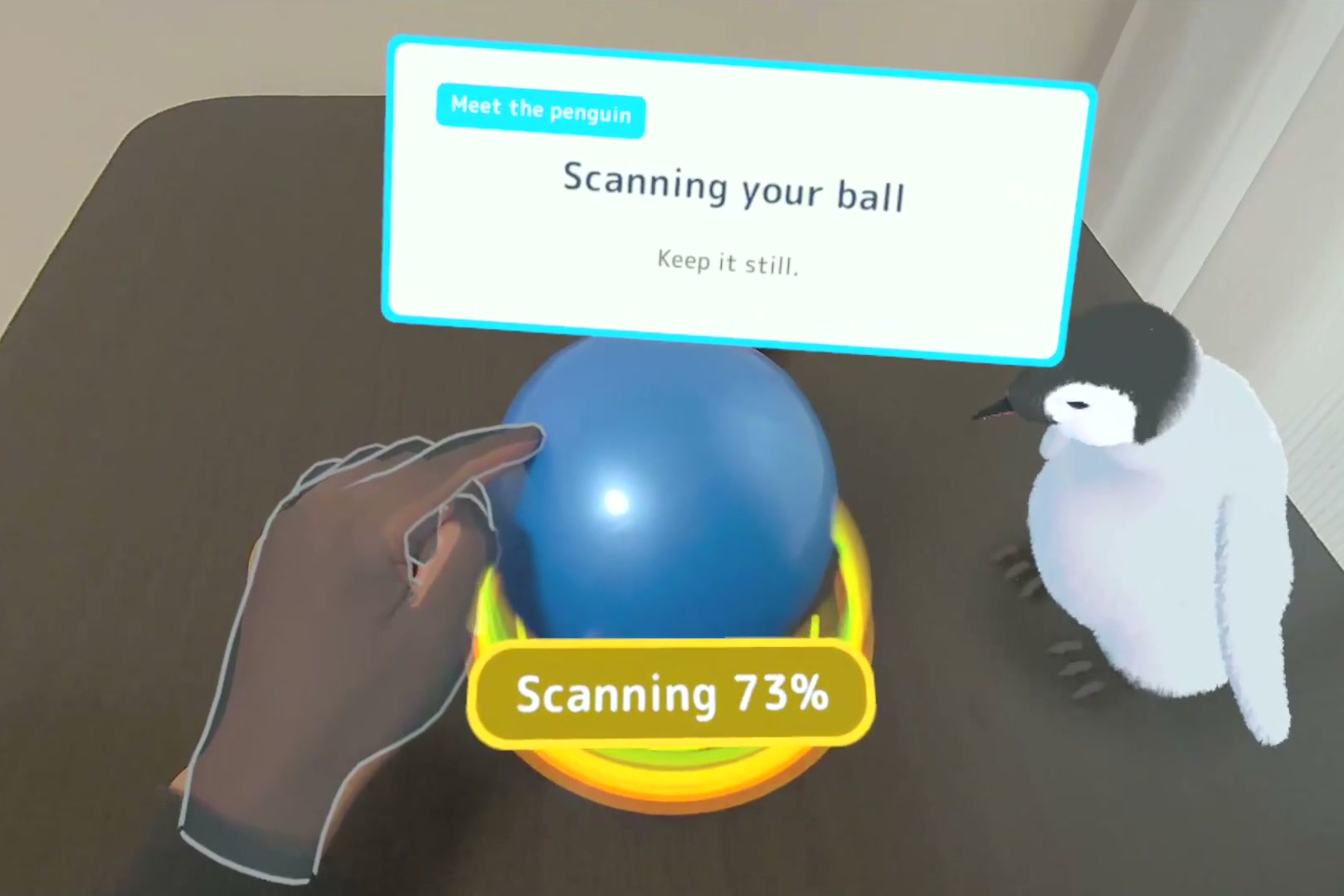
Let your own ball and plush toy meet the penguin. It remembers their colors.
-
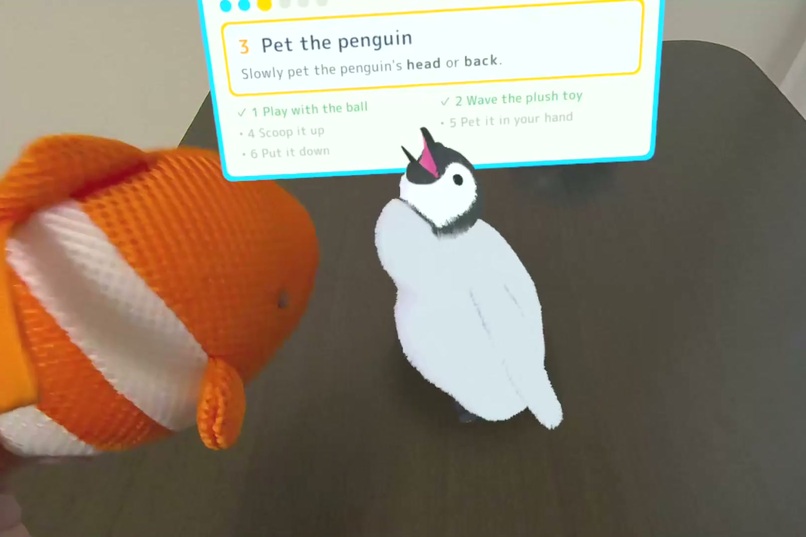
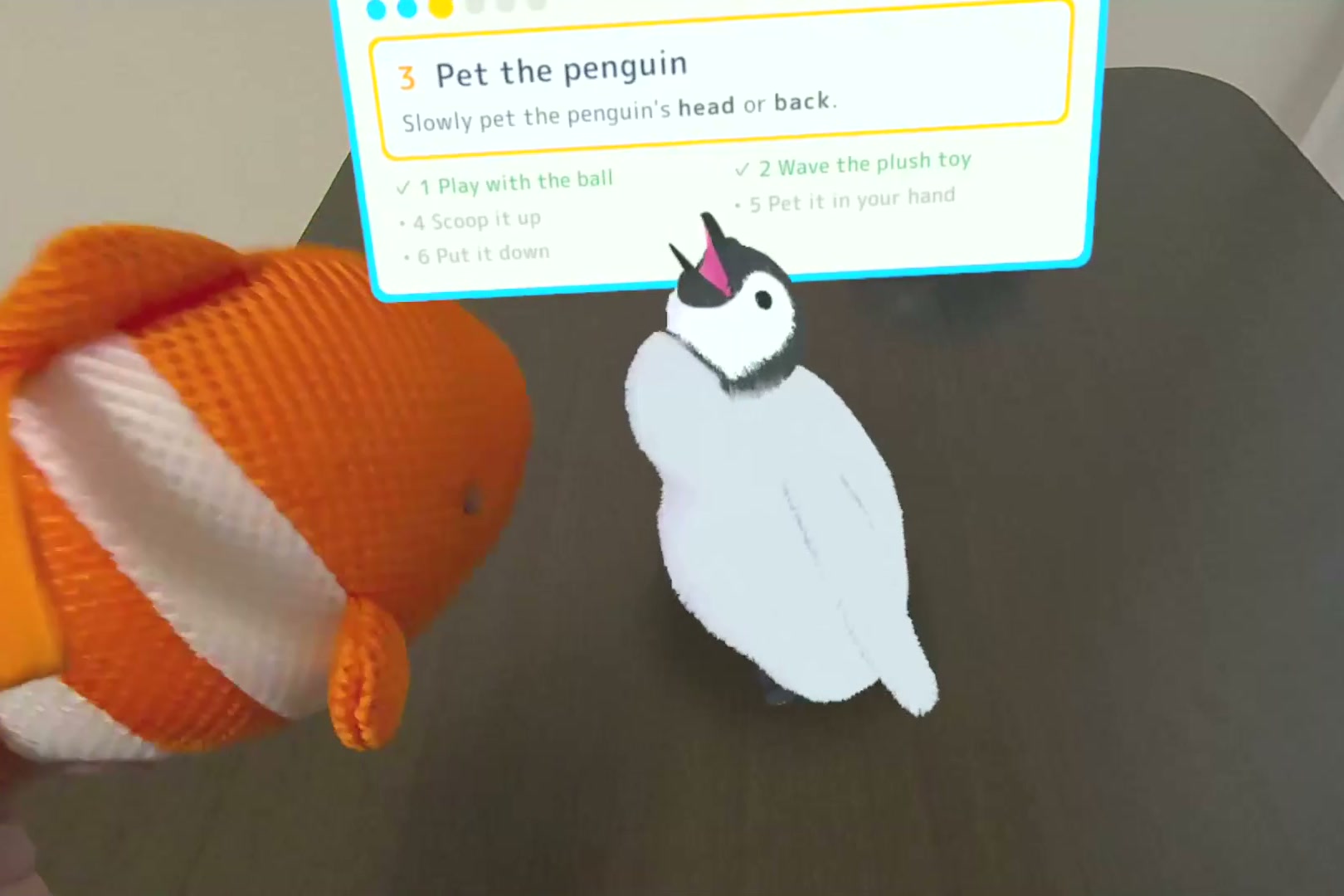
A voiced tutorial teaches you how to play, step by step.
-
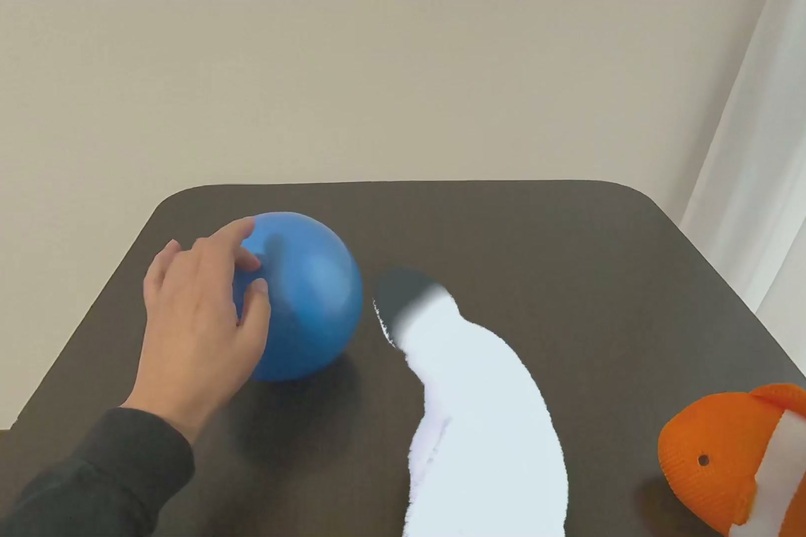
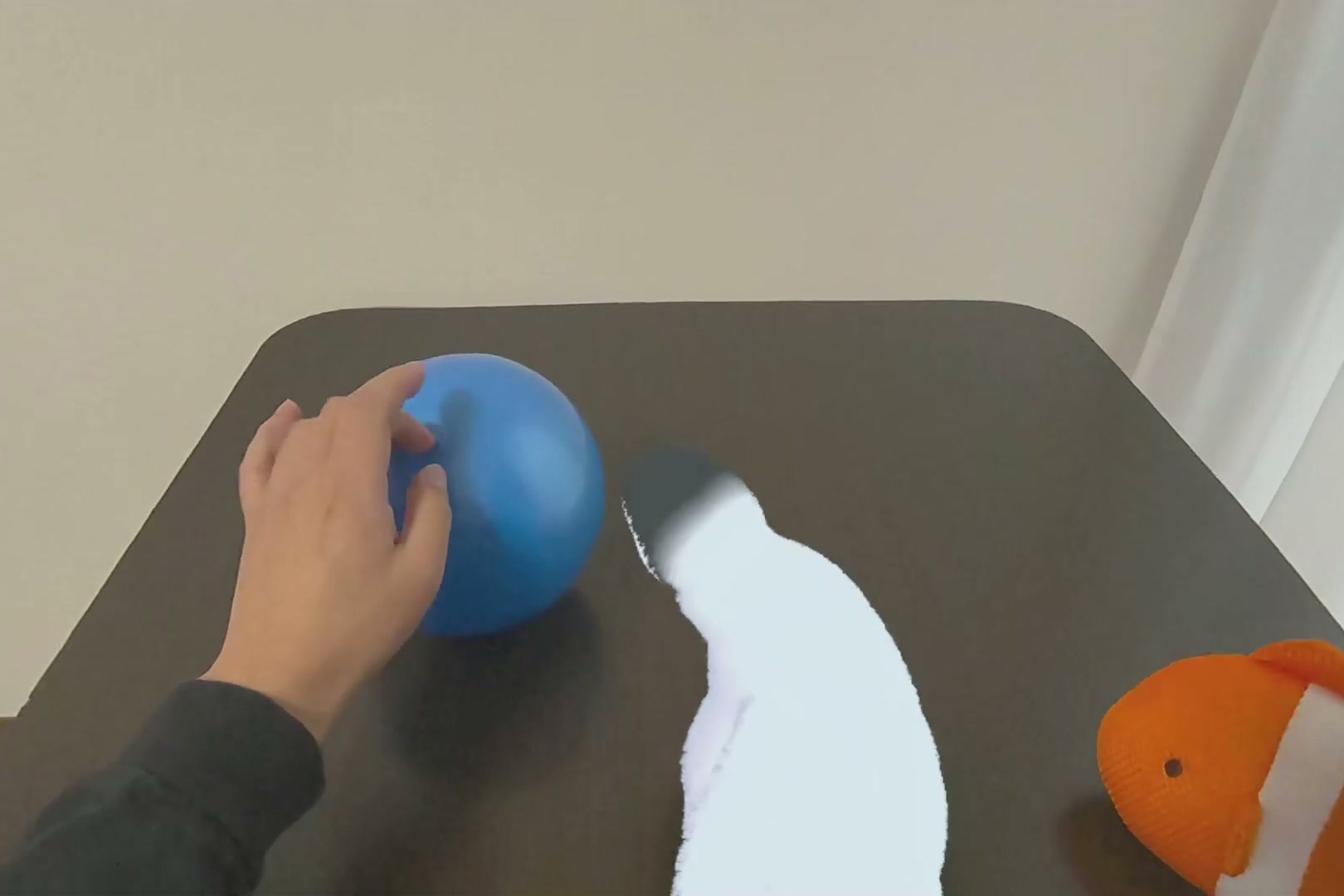
Roll a real ball, and it waddles after it.
-
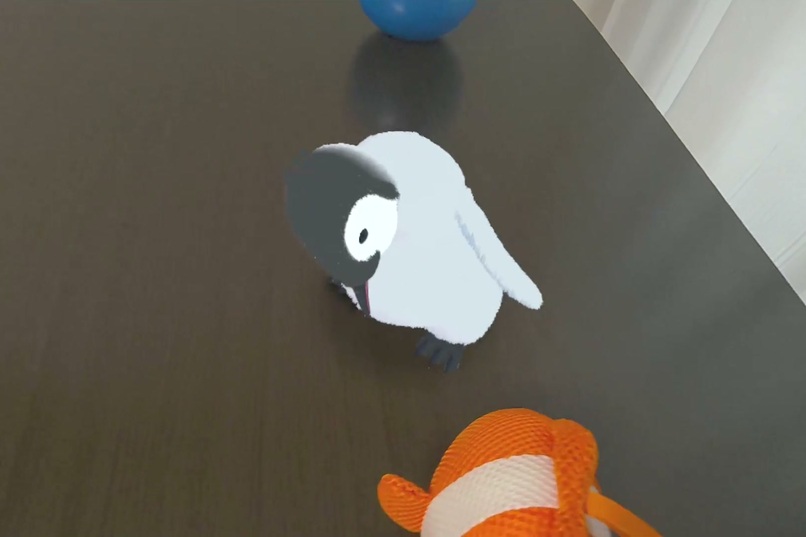
Wave a plush toy nearby, and the penguin gets excited.
-
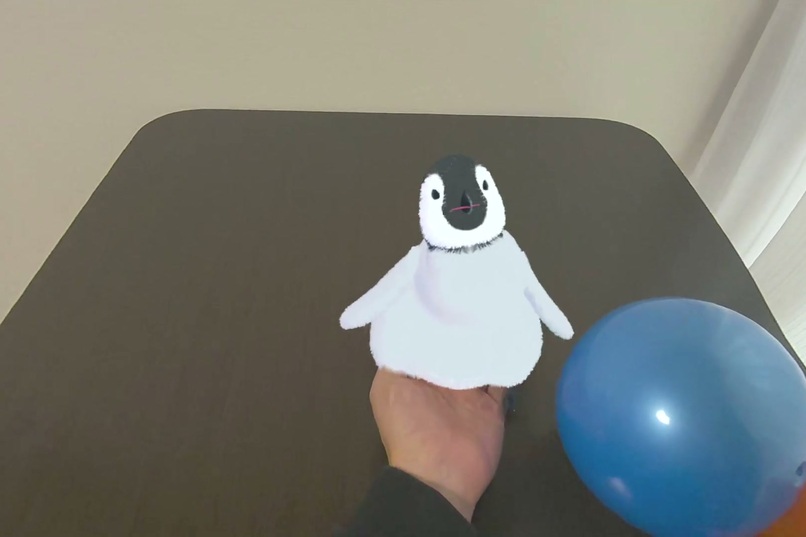
Scoop it up in your palm and carry it around.
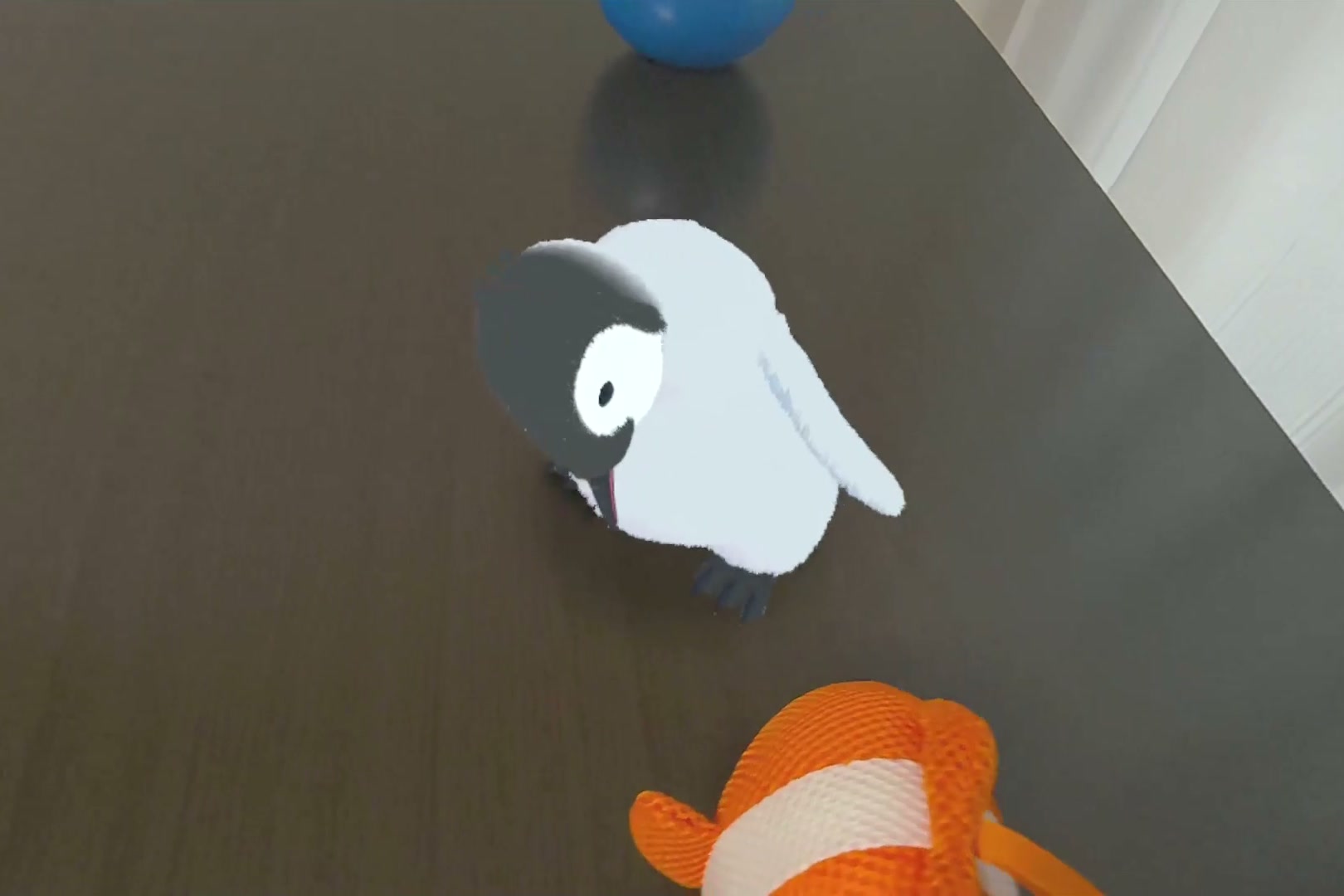
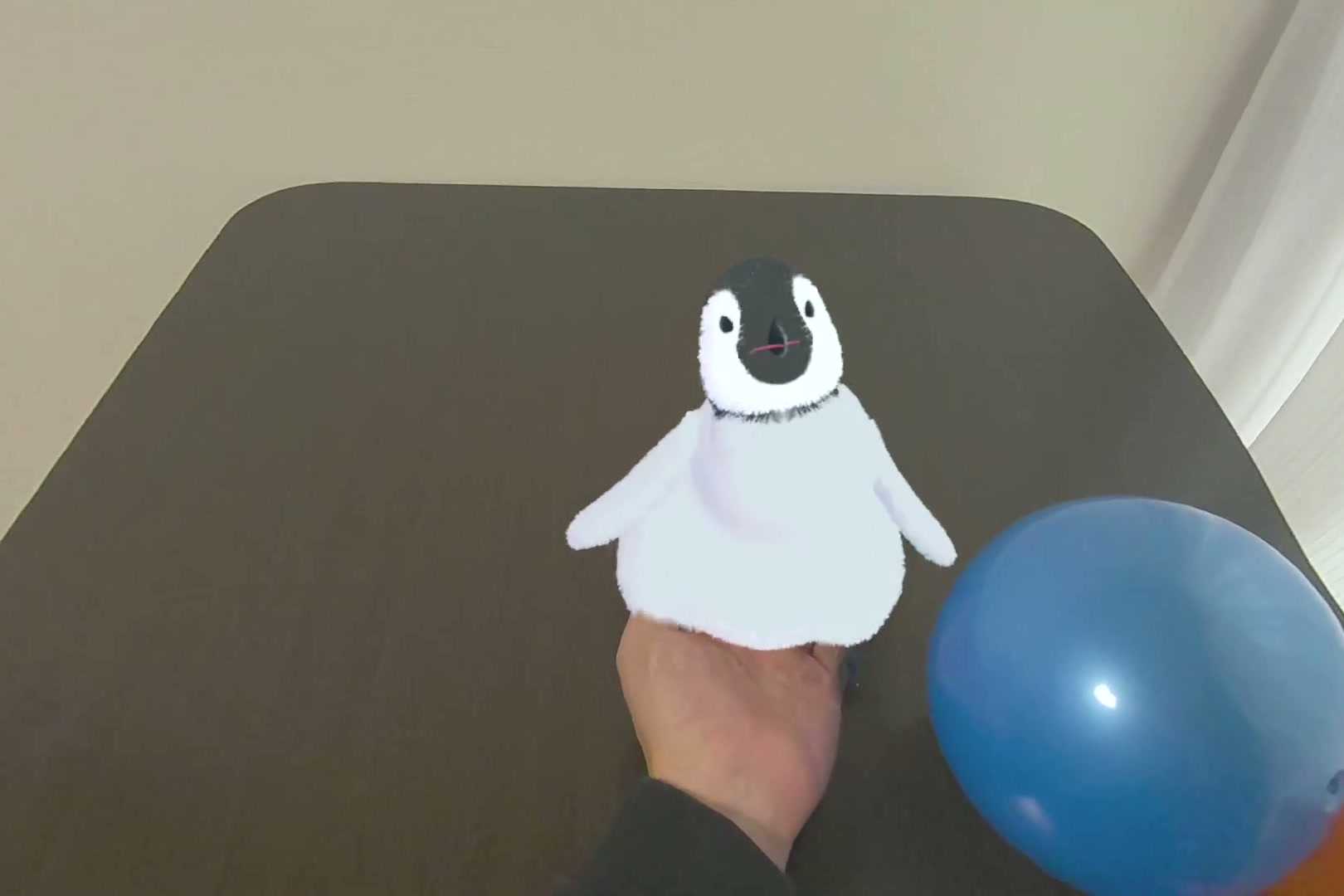
A tiny penguin that lives on your real table and chases your real toys.
Inspiration
Penguins stand on two feet and waddle, and they put their whole head and flippers into showing how they feel. I love how much character they have. So I wanted a penguin that feels like it is really there, and that you can play with using real things.
Roll a real ball across your desk, and it chases the ball. Shake a plush toy, and it gets excited. Let it hop onto your palm and lift it up, or pet it, and it responds. That is the kind of interaction I aimed for.
A small, lovable creature that is always by your side. I built Penguin Area to bring that world to life in mixed reality.
What it does
- Your real table becomes the play area. Rest a hand flat on the table and look around. With no room scan, a grid spreads across it, following the table's real shape.
- Play with real toys. Show the penguin a brightly colored ball or plush toy, and it waddles after it. No toys? You can still play.
- Touch it. Pet its head or back. Offer an open palm and it hops on, so you can lift it, carry it, and set it down.
- It feels alive. Shake a plush toy nearby and it flaps its flippers with joy. Bring the ball close and it startles. When idle, it peers up at your face and blinks. Your real hands and objects hide it when they pass in front. Fluffy feathers, natural steps, physics-driven flippers, and spatial audio for its calls and footsteps bring it to life.
- It stays where you left it. Spatial anchors save the area, so next time the penguin is back on the same table.
A setup step, toy registration, and a voiced tutorial guide first-time players one step at a time. English and Japanese are supported, matched to the device language.
How we built it
I built it in Unity 6 (URP) with the Meta XR Core SDK and MRUK v207.
- Toy tracking: The Passthrough Camera API feeds the color camera image to a color-blob tracker. Each candidate is verified with a depth raycast, giving the toy's real 3D position. Depth also gives each blob's real-world size, so large objects of the same color are ruled out. Motion is predicted ahead to hide camera latency.
- Table and occlusion: The Depth API finds the table without a room scan and drives soft occlusion.
- Everything else: Hand tracking for every interaction, spatial anchors to keep the area, and spatial audio for calls and footsteps.
Challenges we ran into
- Bringing the penguin to life. I wanted its movement to feel like a real penguin while still looking lovable. Getting there took a lot of work on the rig, the motions, and the spring settings for its flippers and body.
- Making it feel physically there. Presence came from many small adjustments layered together: a soft shadow on the real table, fluffy feathers, and occlusion so your real hands can pass in front of it.
- Setup without getting lost. The experience needs a play area and registered toys before the fun starts. I designed the setup UI so first-time players can finish both steps without confusion.
Accomplishments that we're proud of
- A penguin that feels real and lovable. Its natural movement and physical presence on the table make it feel like it is truly there with you.
- No getting stuck. The UI, voice guidance, and tutorial are designed so players never have to wonder how to set up or how to play.
- Toy tracking on Quest 3 alone. No external sensors or extra devices. The headset's own cameras and depth track your real toys, and that tracking drives the whole experience.
Everything described here was built during the competition window (from September 24, 2026): the penguin and its behavior, hand interactions, toy tracking, table detection and occlusion, spatial anchors, spatial audio, the hands-only flow with a voiced tutorial, and English support.
What we learned
- How to track real objects with color and depth together, and how to cut down false detections, such as other things that share the toy's color.
- How to guide players with voice instead of relying on UI alone. When players can hear what to do next, they keep their eyes on the penguin and the table, and move through each step naturally.
What's next for Penguin Area: Tabletop MR Friend
- Multiple penguins on the table
- Simple games to play with the penguin
- Virtual creatures the penguin reacts to, such as butterflies
I plan to release on the Meta Horizon Store. Target launch: mid-2027.
Testing instructions
What you need
- Meta Quest 3 (no controllers needed)
- A table or other clear, flat surface in a well-lit room.
- A brightly colored ball and a brightly colored plush toy, in two different colors. Avoid white, black, and gray. Without them, you can still pet the penguin and hold it in your hand.
1. Launch On first launch, two permission requests appear: one for the cameras and one for spatial data. Allow both. The app needs them to see your table and toys. The app uses English unless the device language is Japanese.
2. Get ready Read the panel, then press Start with your finger.
3. Set up the Penguin Area Rest one hand flat on the table, palm down. Then lift your hand and look around the table. When the blue area covers the table, press OK. If it doesn't, press Retry.
4. Meet the penguin The penguin appears on the table. Put your ball in the circle, move your hand away, and keep the ball still until the panel says Got it! Then take the ball out of the circle. Do the same with the plush toy. If you don't have one, press Skip.
5. Tutorial When asked whether to start the tutorial, press Yes. A voiced tutorial walks you through six steps: roll the ball, wave the plush toy, pet the penguin, scoop it up, pet it in your hand, and put it down.
6. Free play
- Roll the ball away from the penguin, and it chases the ball.
- Wave the plush toy nearby, and it gets excited.
- Keep petting it, and it gets sleepy.
7. Relaunch Close the app and launch it again. When asked whether to keep the saved Penguin Area, press Yes. The penguin comes back to the same table.