Inspiration
Most restaurants I go to still use paper menus. When a price goes up, the old one gets crossed out and the new one is written next to it. Some places have QR code menus, which are easy for customers to use. But setting one up means creating an account and retyping the whole menu, and that's why so many places stay on paper.
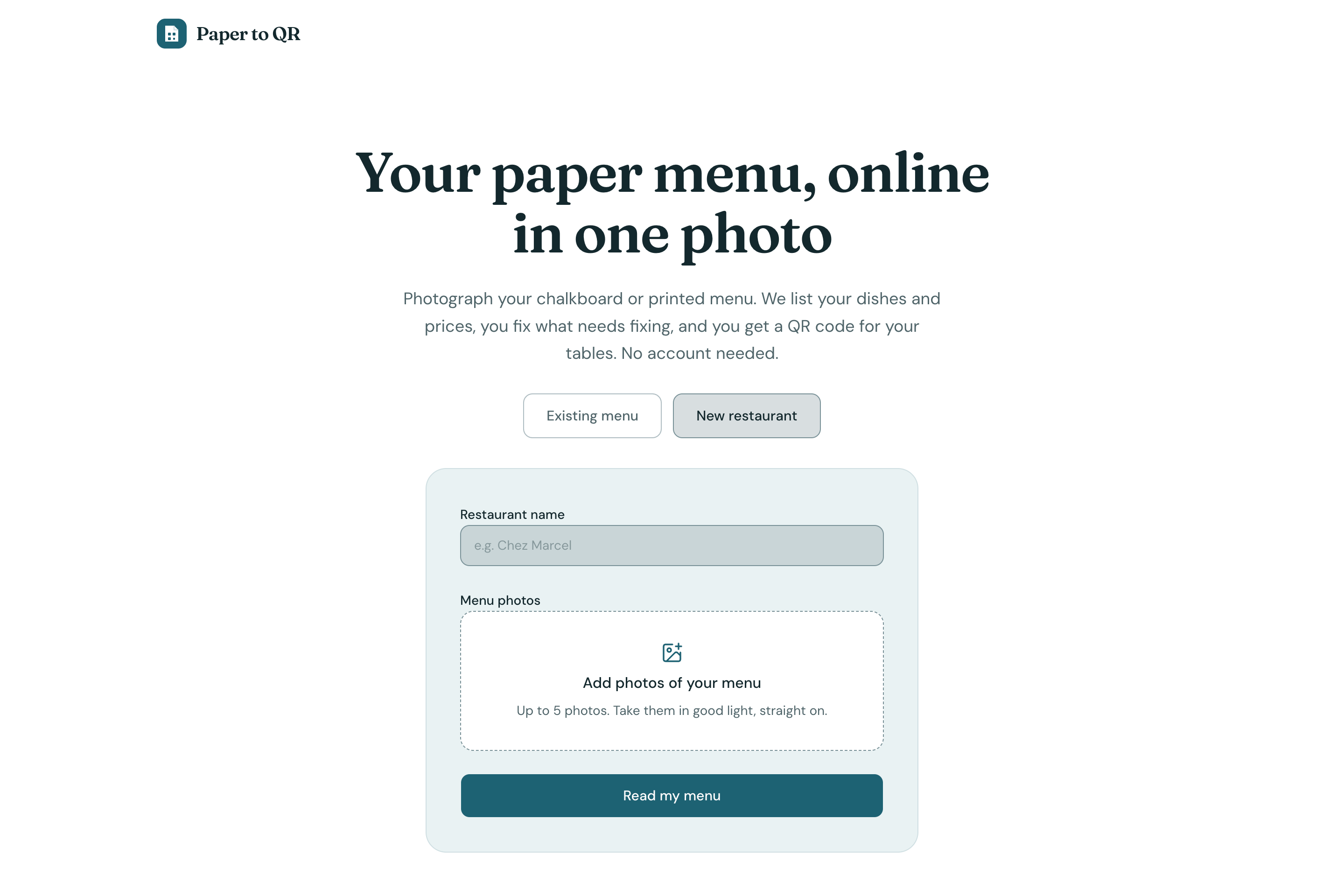
I wanted something a café or bistro manager could try in under a minute: take a photo of the menu, get a QR code for the tables. No typing, no account.
What it does
The manager enters the restaurant name and uploads one to five photos of a printed menu or a chalkboard. A few seconds later they get:
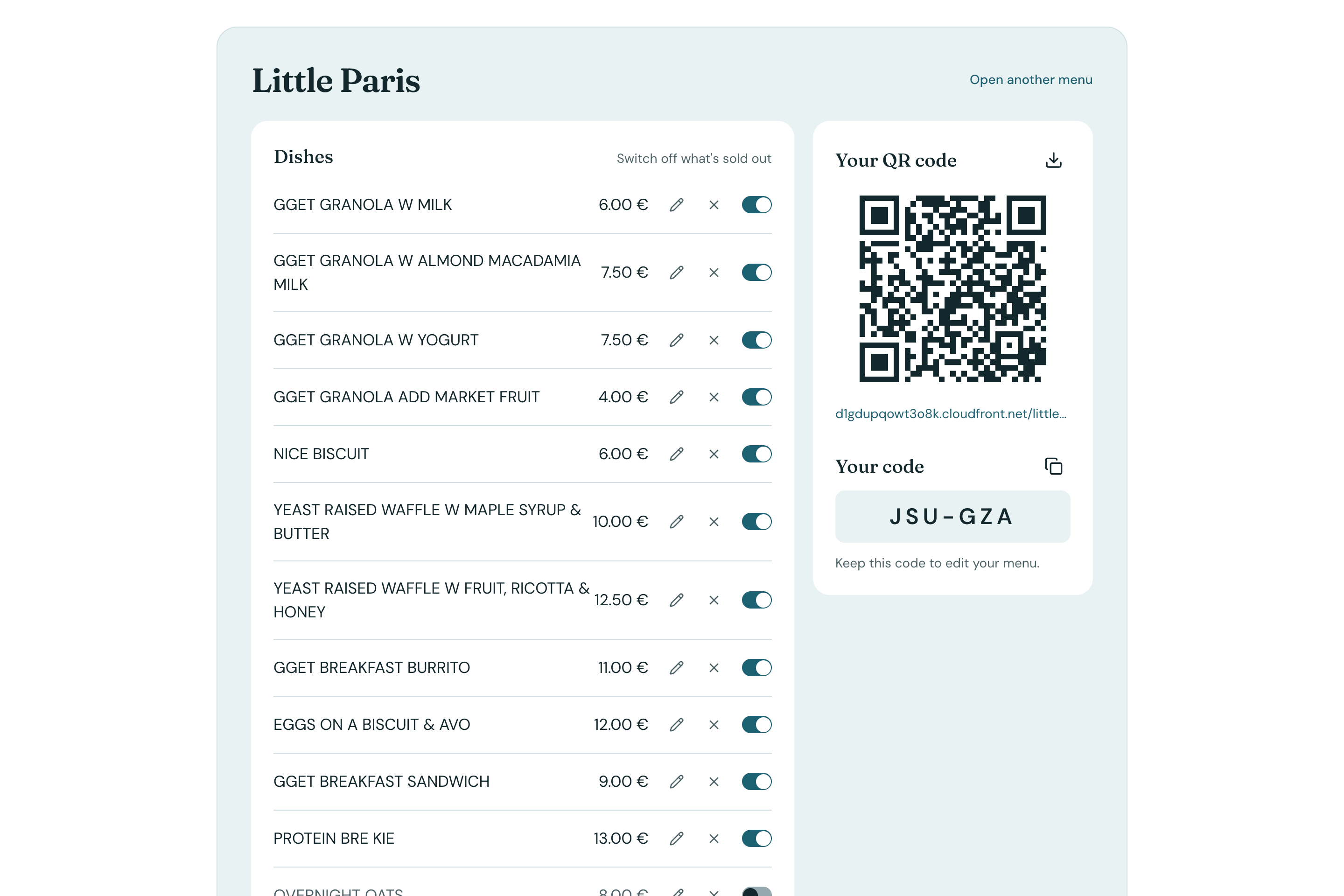
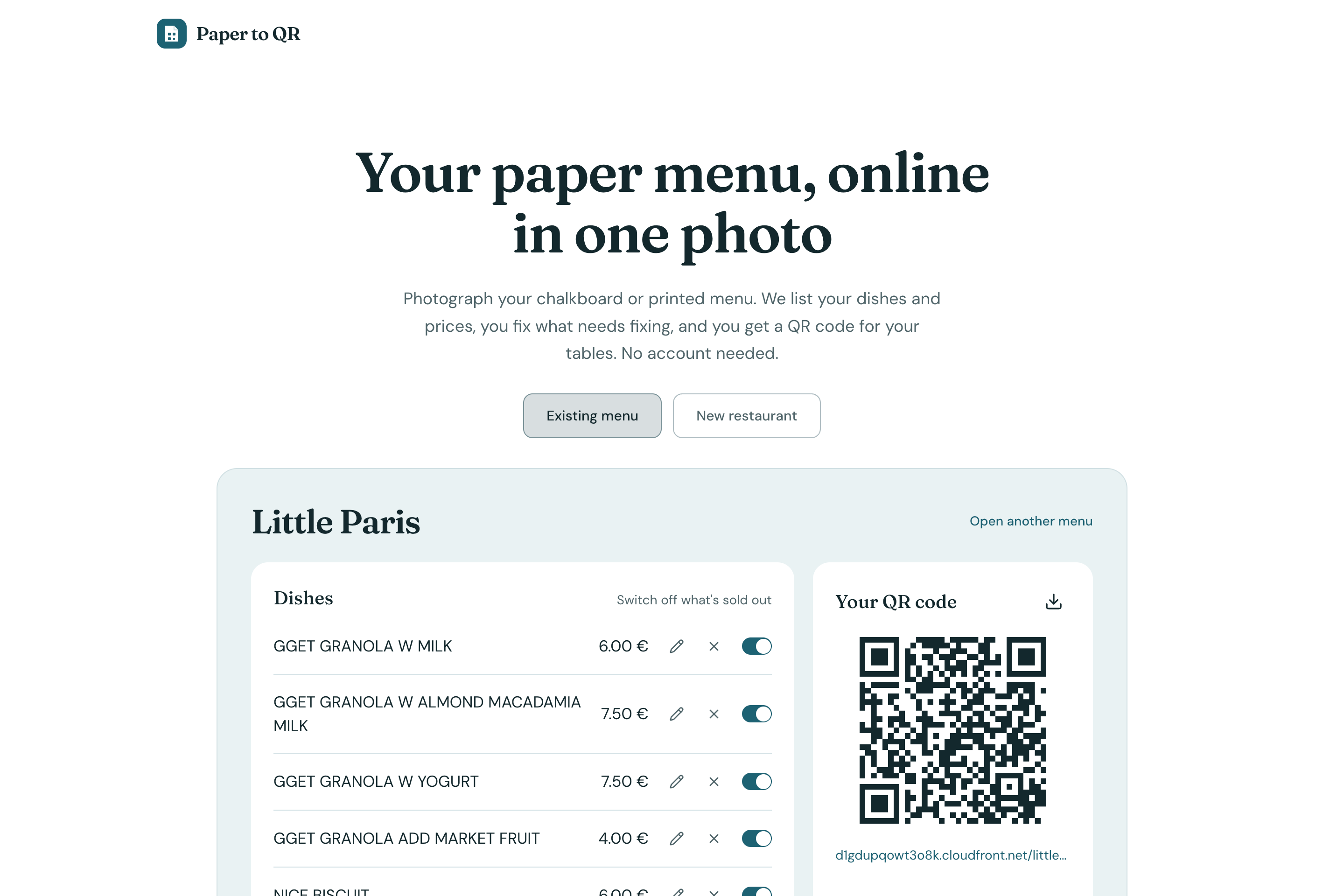
- the dishes and prices read from the photos, which they can fix, add to, or hide when a dish runs out;
- a QR code to print for the tables, pointing to a public page like
/chez-marcel; - a six-character code like
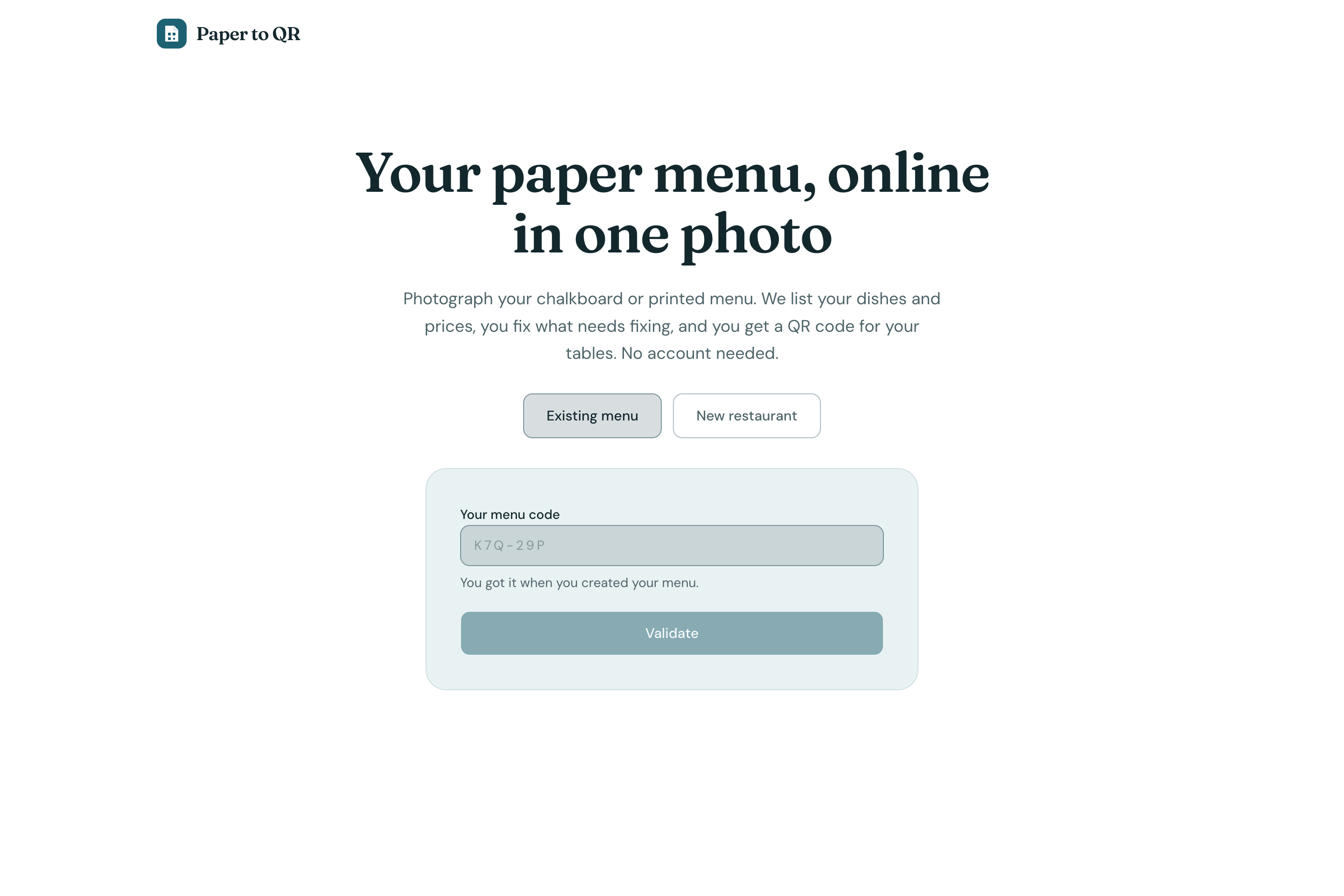
K7Q-29Pto come back and edit the menu the next day.
Customers scan the QR code and see the available dishes and prices on their phone.
How we built it
I planned the project with Claude Code before writing any code (scope, product requirements, technical spec, build checklist), then built it step by step and reviewed each change in VS Code.
- Frontend: React 19, Vite, TypeScript, Tailwind CSS 4 and shadcn/ui with a custom theme.
- Backend: FastAPI on AWS Lambda through Mangum, behind API Gateway. CloudFront serves the React app from a private S3 bucket and routes
/api/*to the Lambda. - Menu reading: a single Claude Haiku 5.5 call reads all the photos at once and returns dishes and prices as structured output validated with Pydantic. The prompt handles French price formats (
12,5,12€50) and merges dishes that appear on several photos. - Data: one MongoDB Atlas collection. Photos are never stored.
Before upload, the browser shrinks each photo to 1600 px and re-encodes it as JPEG. A Lambda request is limited to about 6 MB, and API Gateway base64-encodes the body, which adds a third to its size:
$$\text{request size} \approx \frac{4}{3} \sum_{i=1}^{n} s_i \le 6\ \text{MB}$$
where $s_i$ is the size of photo $i$. Compressing keeps five phone photos well under the limit, makes the extraction faster, and removes EXIF metadata such as GPS position.
The edit code replaces the account. Its alphabet leaves out 0/O and 1/I/L so it can't be misread from a handwritten note. That leaves 31 characters, so $31^6 \approx 8.9 \times 10^8$ possible codes.
Challenges we ran into
I'm a full-stack developer, more at ease on the back end. My main challenge was the interface: the screens I got from the agent often looked like every other AI-generated app, and I didn't know if the problem came from my instructions or from the agent.
During the build, I found a big part of the answer. shadcn init installs the Geist font, a neutral gray theme and a dark mode by default. Left as they are, these defaults are what make an app look generic. Nobody chose them, so nothing about them is specific to the product.
Accomplishments that we're proud of
- On the live site, a real chalkboard menu with 22 dishes was read in about 4.5 seconds.
- A manager goes from a photo to a printable QR code without typing a single dish or creating an account.
- If nothing can be read from the photos, the restaurant, its code and its QR code are still created, and the manager can type the menu by hand.
- The interface has its own look instead of the default AI-app style.
- The app is deployed on AWS and costs close to nothing to run for a demo.
What we learned
Giving the agent a design direction before the first screen changed the result:
- Write the theme first. I created
theme.cssbefore any screen: a blue-green "Pétrole" palette with a touch of apricot used only for the "Menu ready" moment, Fraunces for headings and DM Sans for body text. - Show a reference, not a description. I gave the agent the Uxcel landing page from Mobbin and said what to keep (a small logo, a headline, a short subtext, two buttons) and what to change (the buttons switch tabs instead of opening new pages).
- Say what you don't want. No emoji, no gradients, no chalkboard styling.
What's next for Paper to QR
- Updating the menu with a new photo when the menu of the day changes, instead of editing dishes one by one.
- Letting restaurants customize their customer page with their own colors and logo.
- Adding categories, descriptions and allergens to dishes.
Built With
- amazon-cloudfront-cdn
- amazon-web-services
- claude
- fastapi
- lambda
- python
- react
- s3

Log in or sign up for Devpost to join the conversation.